
When traveling abroad, staying connected is essential, and an eSIM makes this process significantly easier than traditional SIM cards.
The iRoamly eSIM allows you to activate mobile data directly on your iPhone 17 Pro Max without needing a physical SIM card.
However, many users encounter confusion during their first setup, especially when dealing with activation codes or manual configuration. The good news is that the entire process can be completed in just a few minutes if done correctly.
This guide helps you prepare your device before departure so you can avoid connectivity issues once you arrive at your destination.
Preparations Before Setting Up iRomly eSIM
Before starting, ensure you have the following:
A stable internet connection (Wi-Fi or cellular)
A valid eSIM QR code or manual activation details (SM-DP+ address and activation code) provided by your carrier
Your iPhone 17 Pro Max powered on and unlocked
The device updated to the latest iOS version (recommended for compatibility)
Method 1: Install eSIM Using QR Code
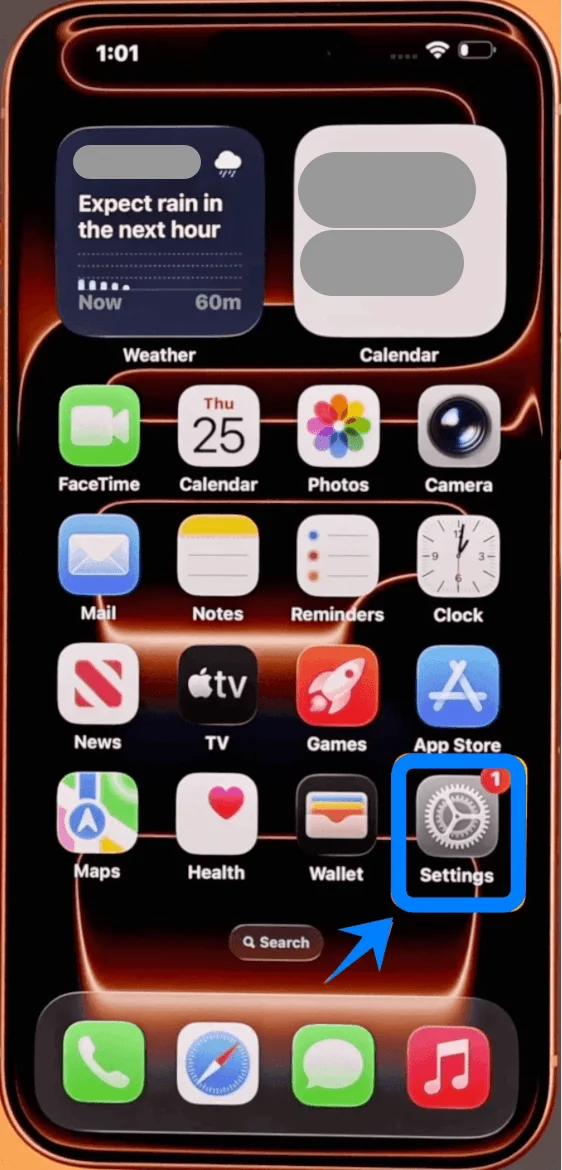
Step 1: Open Cellular Settings
Tap Settings
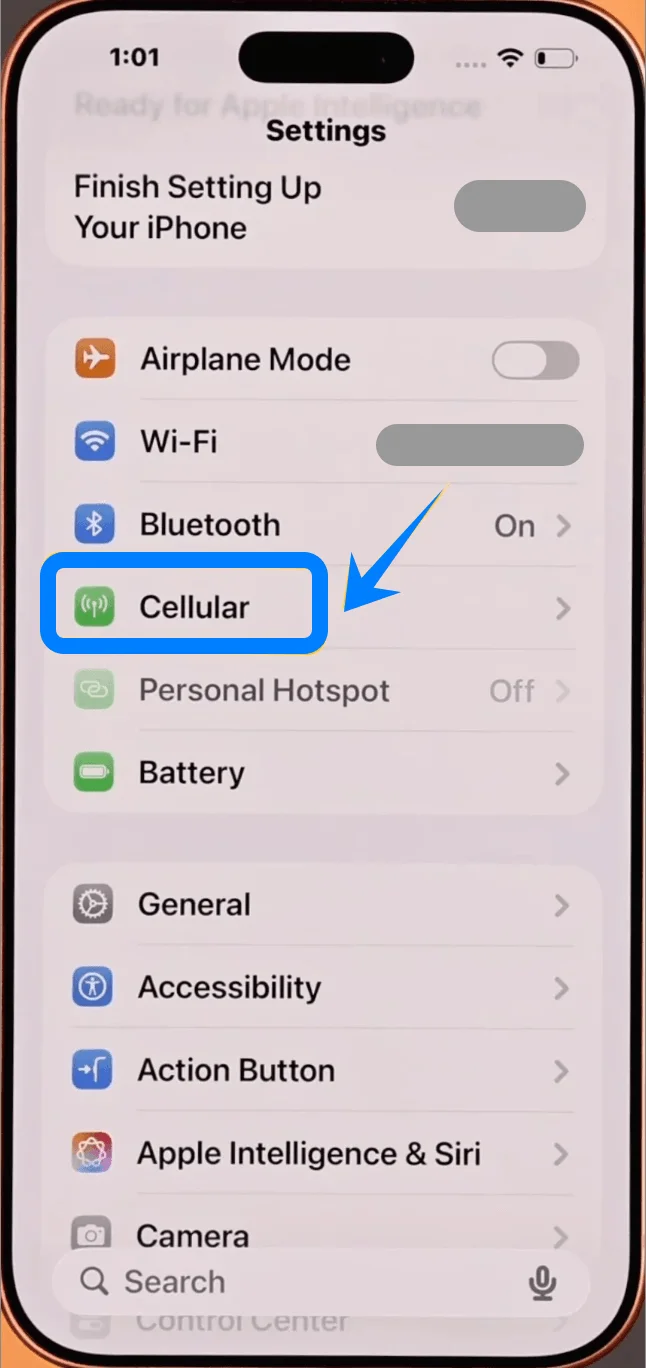
Tap Cellular (On some devices, this may appear as “Mobile Service” or “Mobile Data”)
Step 2: Add eSIM
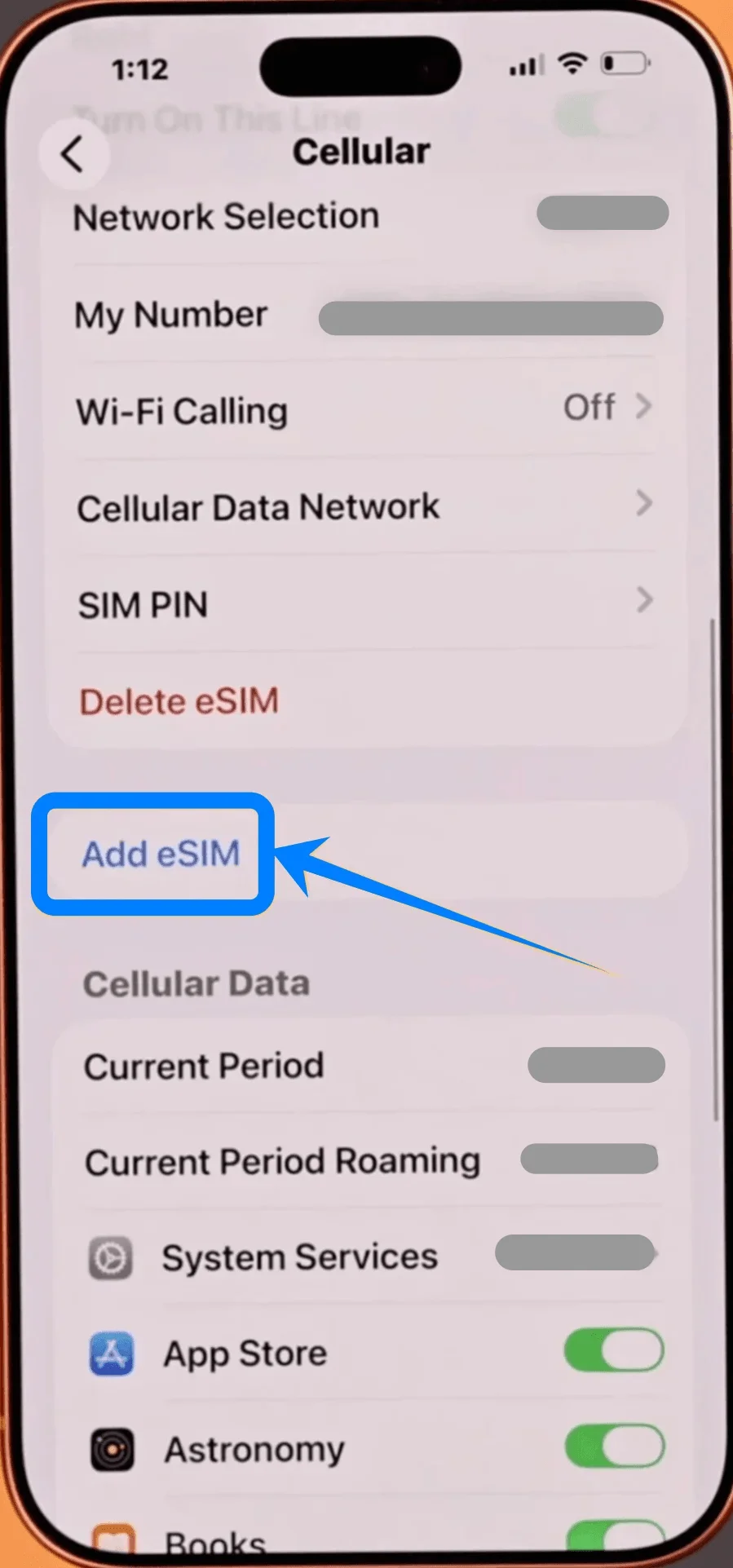
Tap Add eSIM if you already have an existing cellular plan, or tap Set Up Cellular if this is your first plan
Step 3: Select QR Code Option
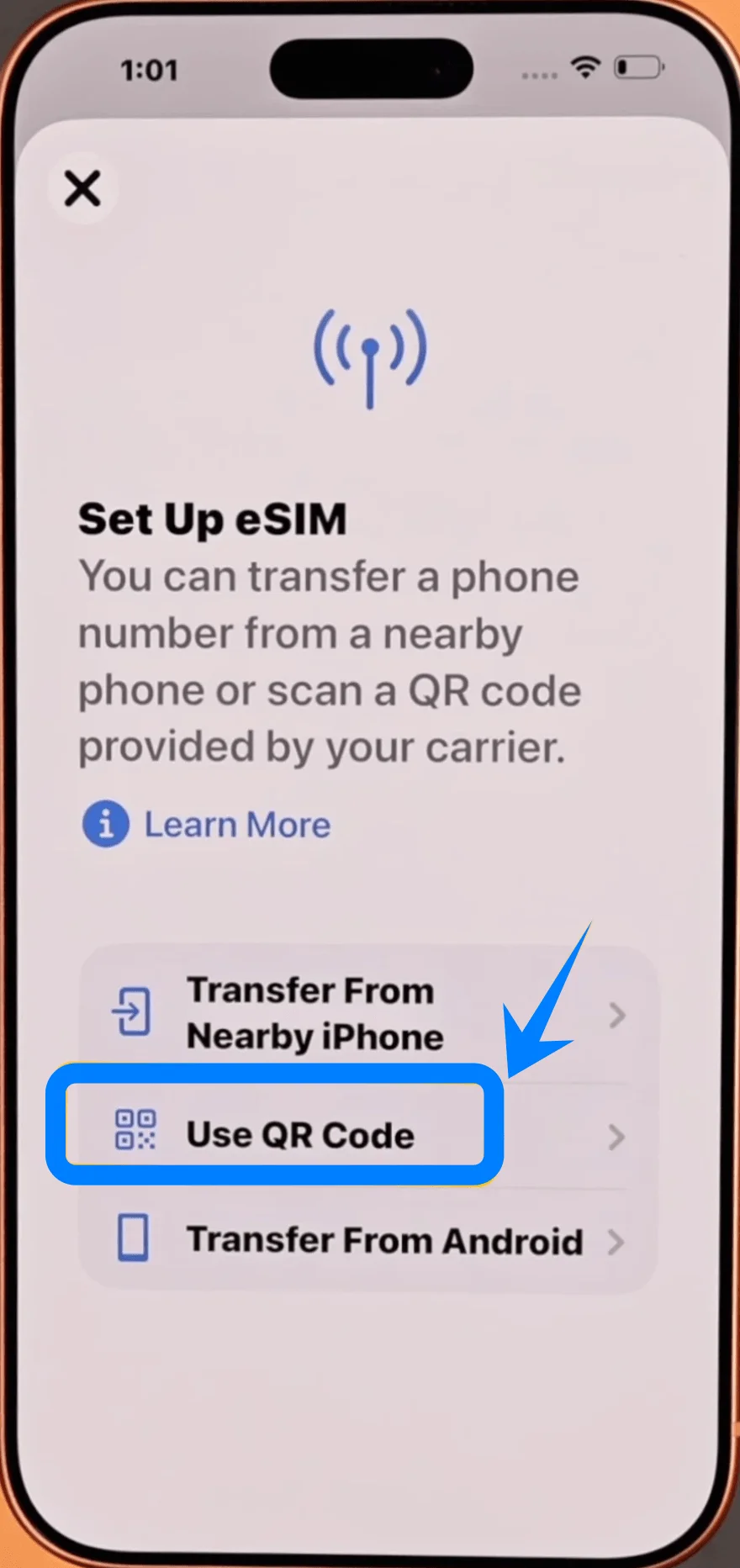
Tap Use QR Code
Step 4: Scan the QR Code
Tap Scan QR Code
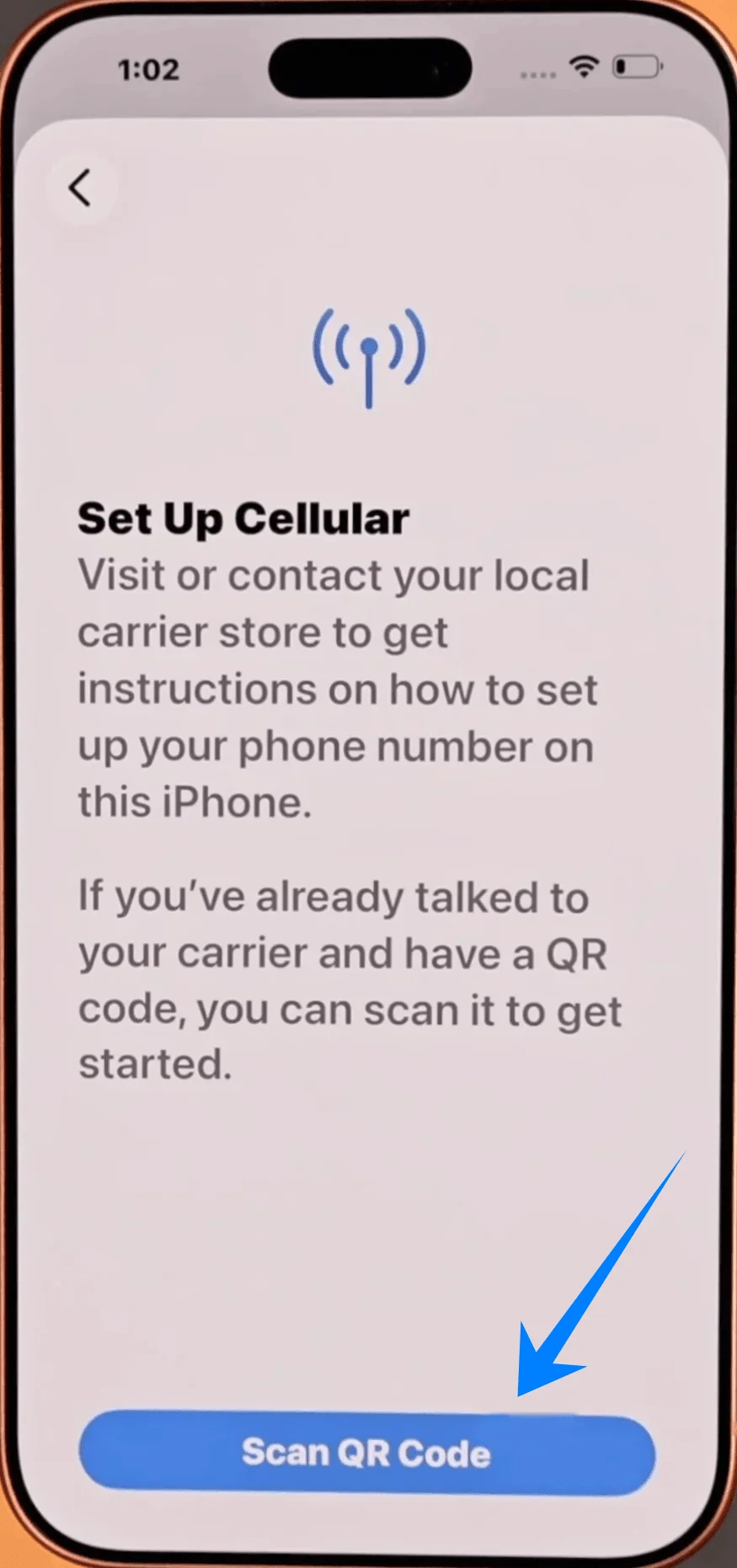
Position your iPhone camera over the QR code
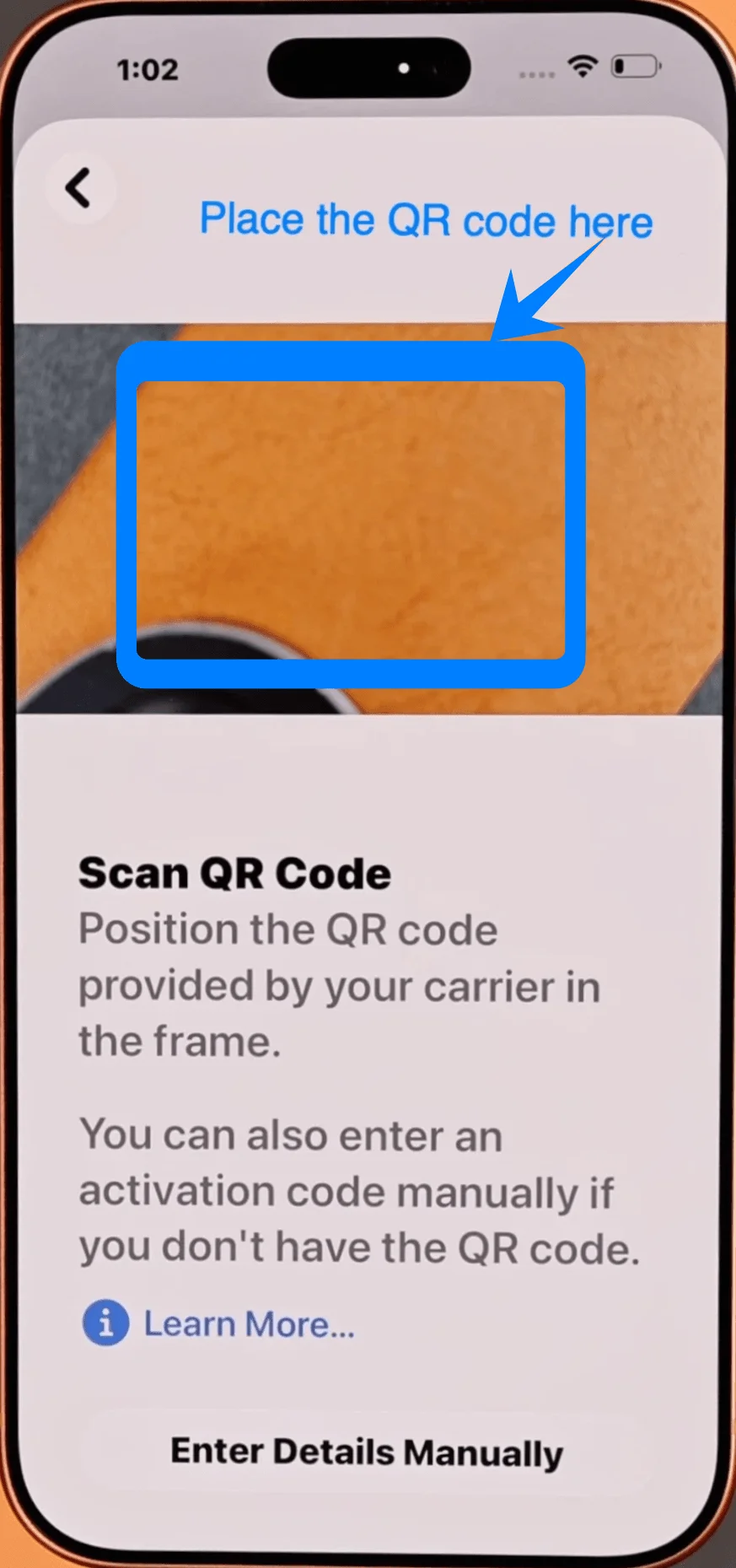
Wait until the code is recognized automatically
Step 5: Confirm Carrier Plan
When prompted, tap Add Cellular Plan
Step 6: Label the eSIM (Optional but Recommended)
Choose a label such as: “Primary”, “Secondary”, “Business”
Tap Continue
Step 7: Set Default Line Preferences
Select which line to use for: Default Line, iMessage & FaceTimeCellular Data
Tap Continue after each selection
Step 8: Complete Activation
Wait for activation to finish
If prompted, tap Done
Method 2: Install eSIM Using Manual Input
Step 1: Open Cellular Settings
Tap Settings
Tap Cellular (On some devices, this may appear as “Mobile Service” or “Mobile Data”)
Step 2: Add eSIM
Tap Add eSIM if you already have an existing cellular plan, or tap Set Up Cellular if this is your first plan
Step 3: Select Manual Entry Option
Tap Use QR Code
On the QR scanner screen, tap Enter Details Manually
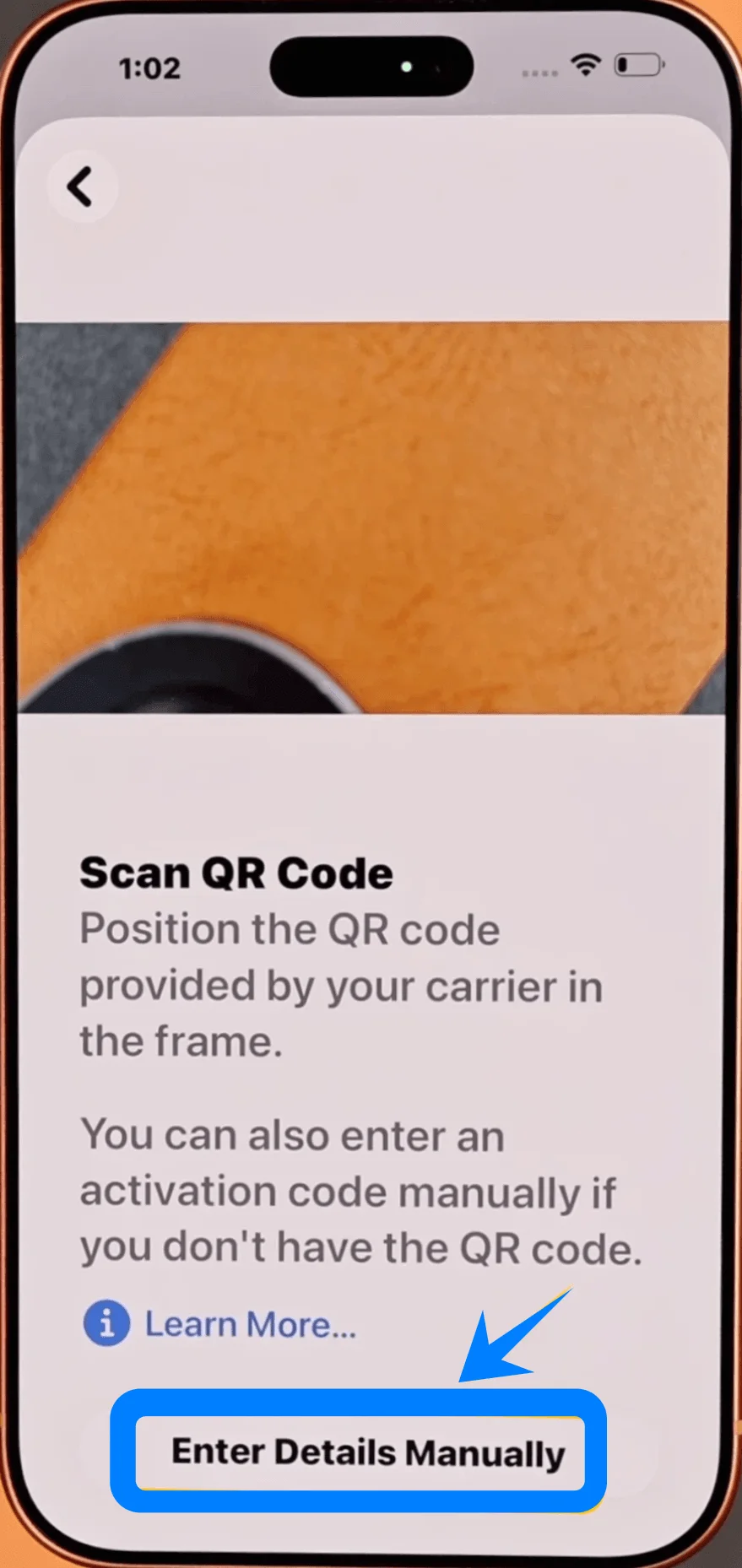
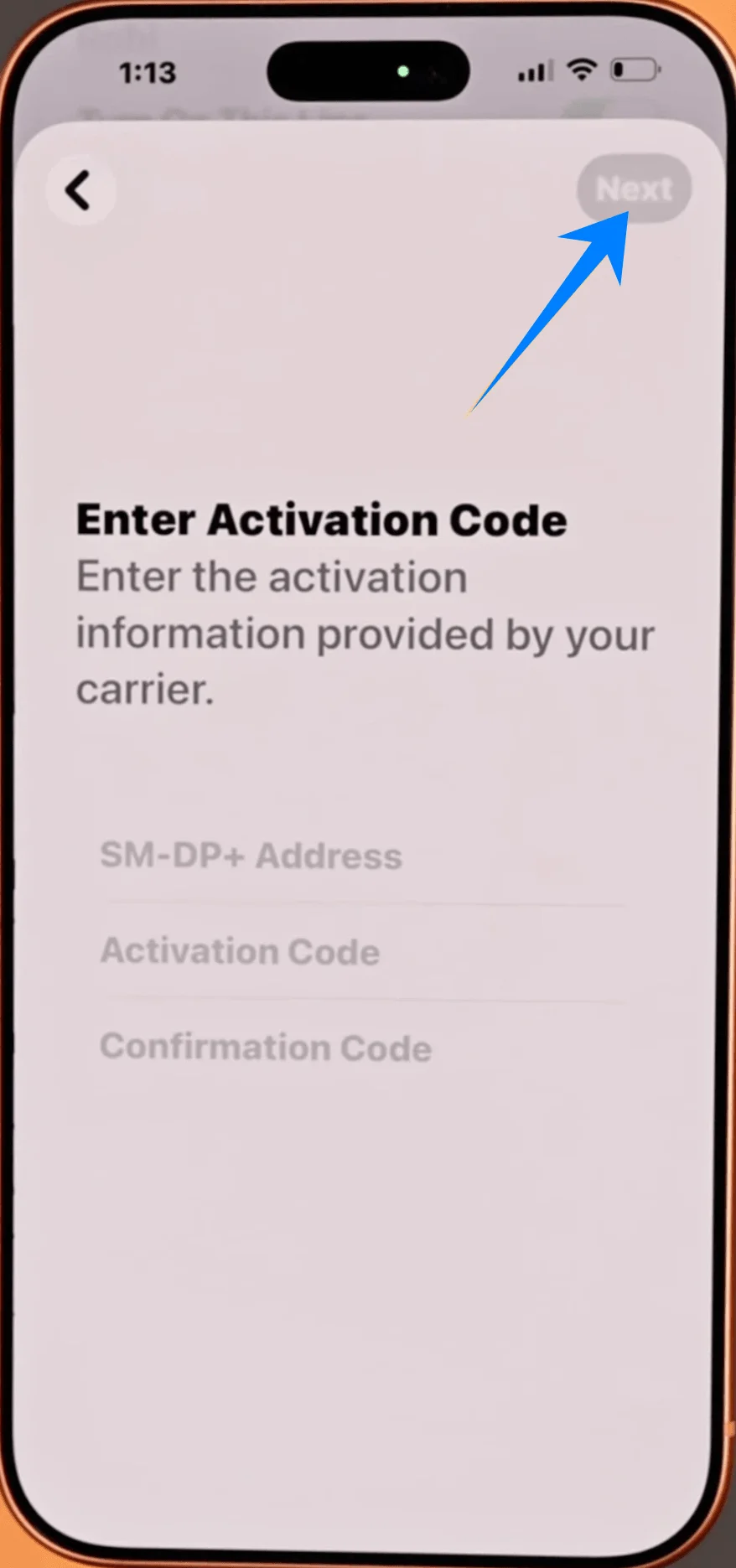
Step 4: Enter Activation Information
Tap the SM-DP+ Address field → Enter the address provided by your carrier
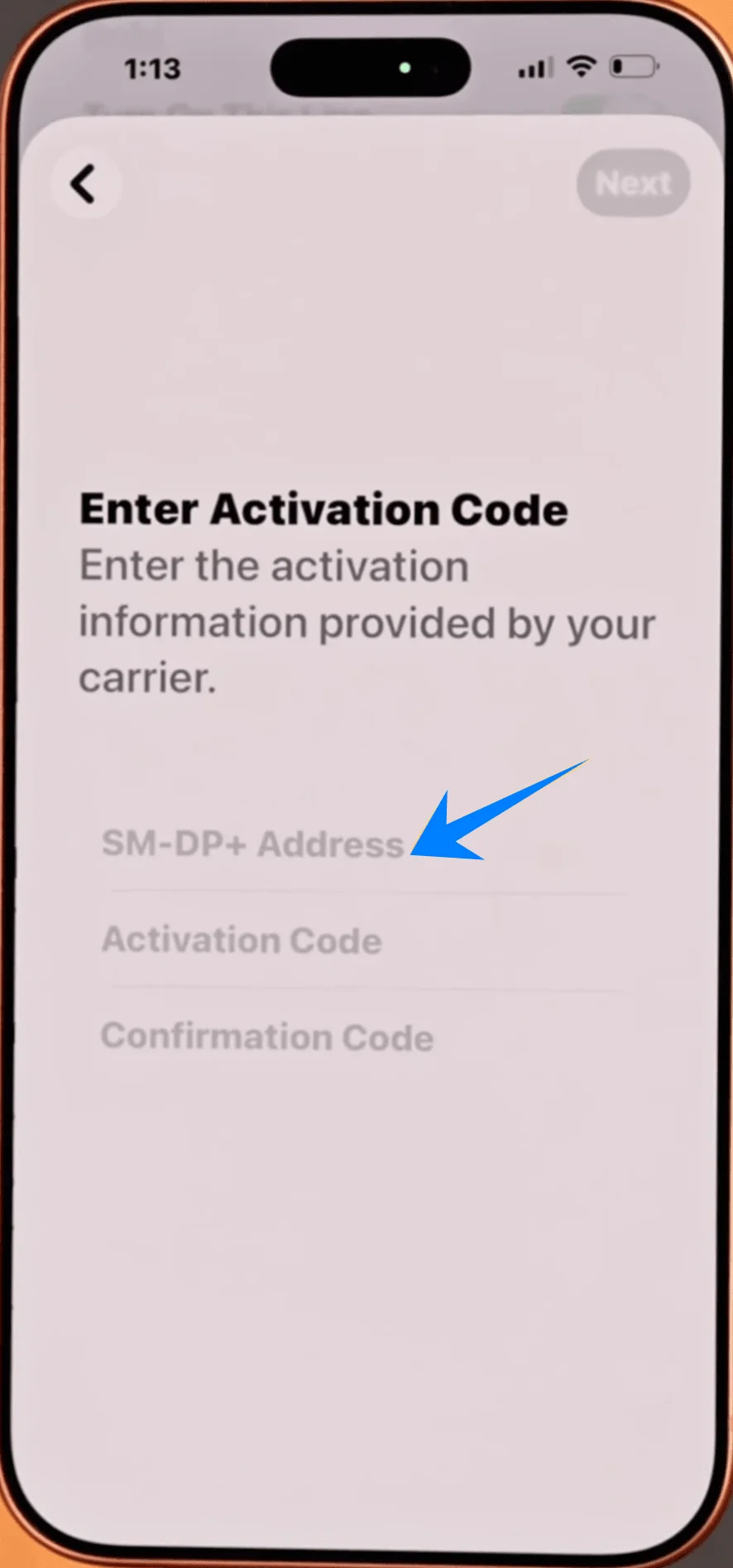
Tap the Activation Code field → Enter the code exactly as given
(If required) Enter a Confirmation Code
Step 5: Proceed with Activation
Tap Next
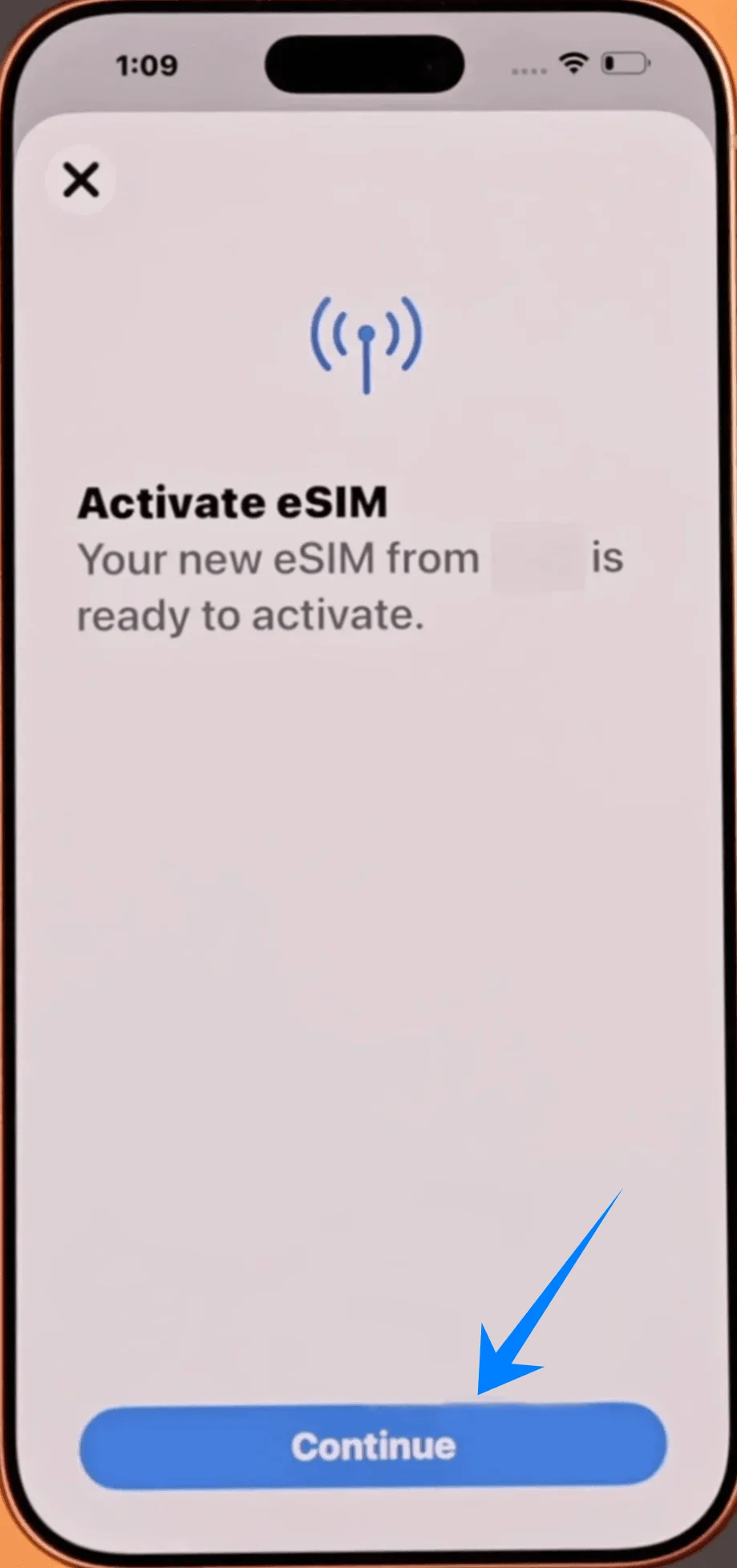
Step 6: Confirm Cellular Plan
Tap Add Cellular Plan
Tap Continue to start activating your eSIM
Step 7: Label the eSIM
Assign a label (e.g., “Work” or “Travel”)
Tap Continue
Step 8: Configure Line Settings
Choose preferences for: Default line, iMessage & FaceTimeCellular data
Tap Continue after each selection
Step 9: Finalize Setup
Wait for the activation process to complete
Tap Done when finished
How to Confirm eSIM Installation
After completing either method, verify that the eSIM is active:
1. Check Cellular Plans
Go to Settings → Cellular (On some devices, this may appear as “Mobile Service” or “Mobile Data”)
Confirm your new plan appears under SIMs or Cellular Plans
2. Verify Signal Status
Look at the top-right corner of the screen
Ensure signal bars appear for the new line
3. Confirm Line is Enabled
Path: Settings → Cellular (On some devices, this may appear as “Mobile Service” or “Mobile Data”) → [Your eSIM Label]
Ensure the toggle Turn On This Line is enabled
4. Test Connectivity
Turn off Wi-Fi: Settings → Wi-Fi → Toggle Off
Open Safari and load a webpage to confirm mobile data works
Final Notes
Activation time may vary depending on the carrier (typically a few seconds to a few minutes).
If activation fails, double-check the entered details or contact your carrier for verification.
Always ensure you are connected to Wi-Fi during setup to avoid interruptions.
Conclusion
The biggest advantage of an iRoamly eSIM is convenience during travel. Once your eSIM is installed and activated, your phone becomes instantly ready for global connectivity.
It is highly recommended to complete the setup before your trip and test your mobile data connection in advance. This ensures a smooth, worry-free experience once you are abroad.