
When you’re traveling or preparing to go abroad, having a reliable and easy way to connect is essential.
eSIM makes this process much simpler by allowing you to set up your mobile connection digitally, without searching for or swapping physical SIM cards.
For iPhone SE (2022) users, installing an iRoamly eSIM is a quick and straightforward task that can be done before departure or upon arrival.
This guide will walk you through each step so you can stay connected with minimal effort.
Preparations Before Setting Up iRomly eSIM
Before starting, ensure you have the following:
A stable internet connection (Wi-Fi or cellular)
A valid eSIM QR code or manual activation details (SM-DP+ address and activation code) provided by your carrier
Your iPhone SE 3 (2022) powered on and unlocked
The device updated to the latest iOS version (recommended for compatibility)
Method 1: Install eSIM Using a QR Code
Step 1: Open Cellular Settings
Tap the “Settings”.
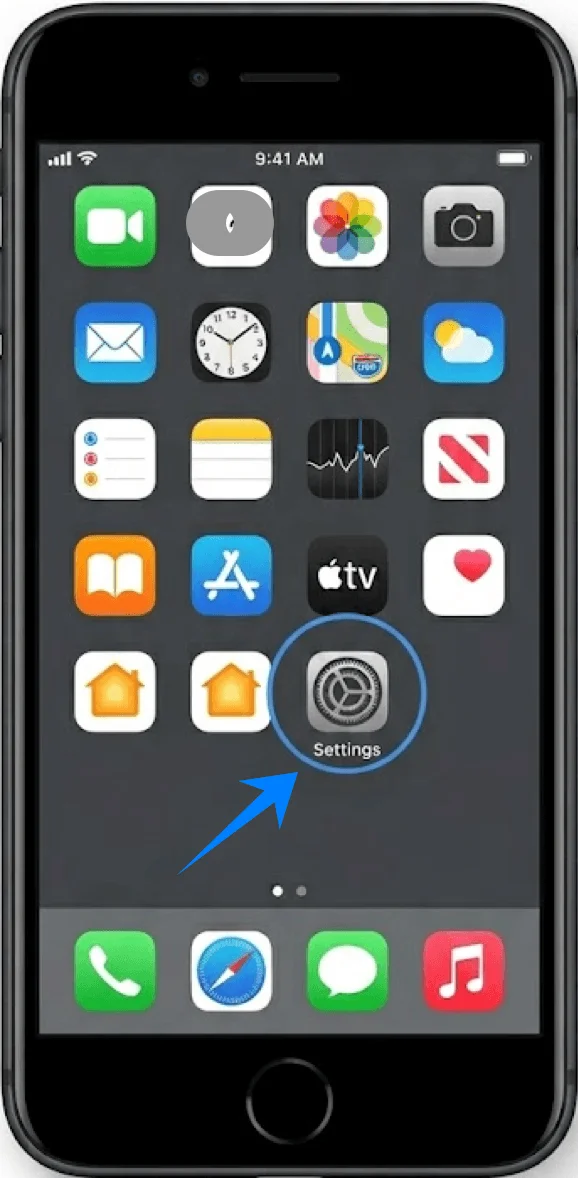
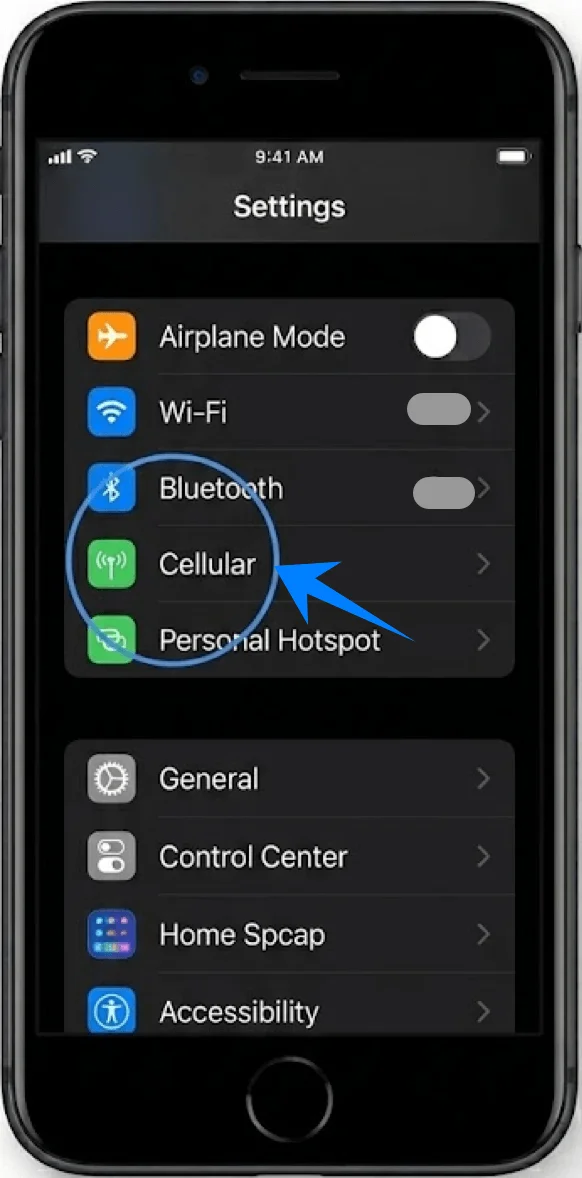
Scroll down and tap “Cellular” (On some devices, this may appear as “Mobile Service” or “Mobile Data”).
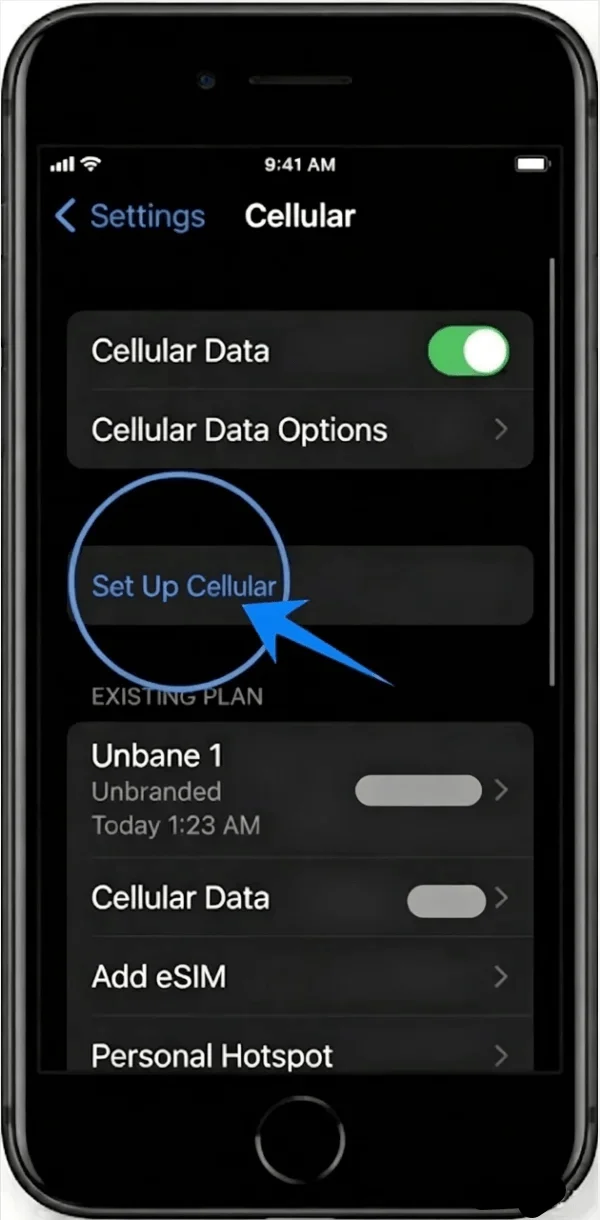
Step 2: Add a New eSIM Plan
Inside the Cellular menu, Tap "Set Up Cellular" if no cellular plan is installed, or tap "Add Cellular Plan" to add a new line.
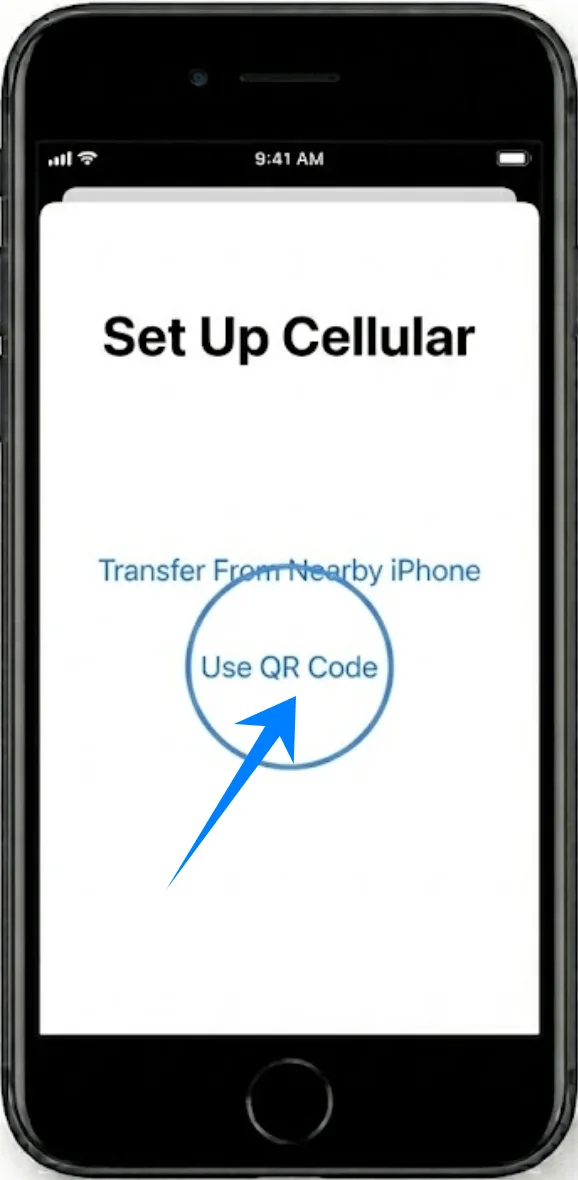
On the next screen, tap “Use QR Code”.
Step 3: Scan the QR Code
Position your iPhone so the QR code appears within the camera frame.
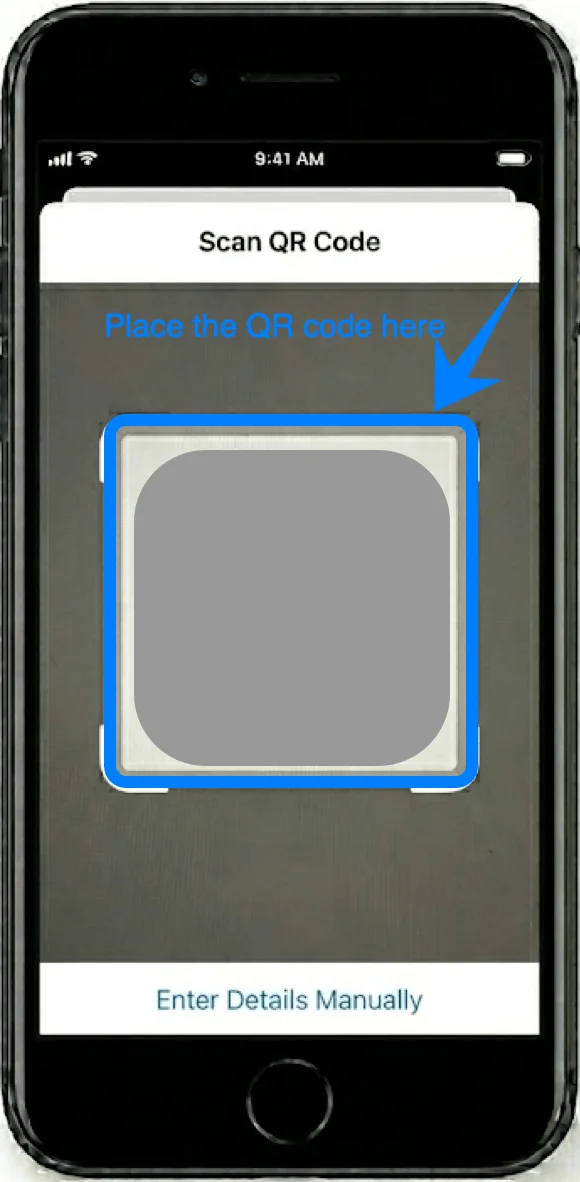
Wait for the device to recognize the code automatically.
When prompted, tap “Continue”.
Step 4: Confirm Cellular Plan Addition
A screen labeled “Add Cellular Plan” will appear.
Tap “Add Cellular Plan” at the bottom of the screen.
Step 5: Label the eSIM Line
Choose a label for the new line (e.g., Primary, Secondary, or Work).
Tap “Continue”.
Step 6: Set Default Line Preferences
Select which line you want to use as:
Default Line (tap your preferred option → tap Continue)
iMessage & FaceTime Line (select → tap Continue)
Cellular Data Line (select → tap Continue)
Step 7: Complete Activation
Wait while the iPhone activates the eSIM.
Once complete, you will return to the Cellular settings screen.
Method 2: Install eSIM Using Manual Input
Step 1: Open Cellular Settings
Tap “Settings”.
Tap “Cellular” (On some devices, this may appear as “Mobile Service” or “Mobile Data”).
Step 2: Start eSIM Setup
Tap "Set Up Cellular" if no cellular plan is installed, or tap "Add Cellular Plan" to add a new line.
Tap “Use QR Code” (this is required to access manual entry).
On the QR scanning screen, tap “Enter Details Manually” at the bottom.
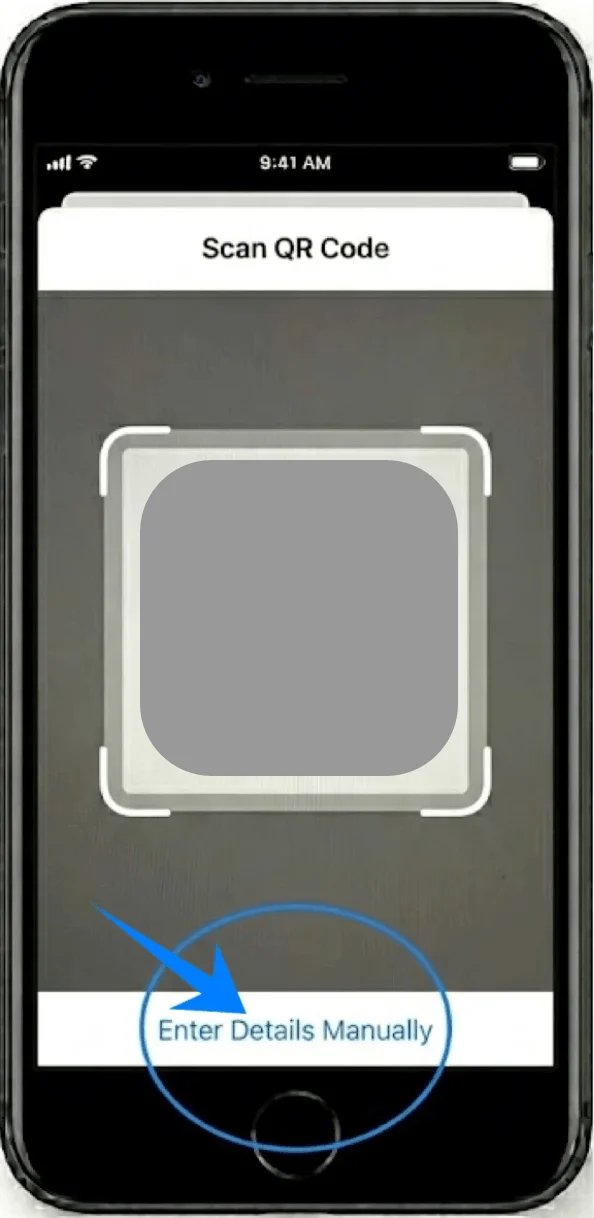
Step 3: Enter Activation Information
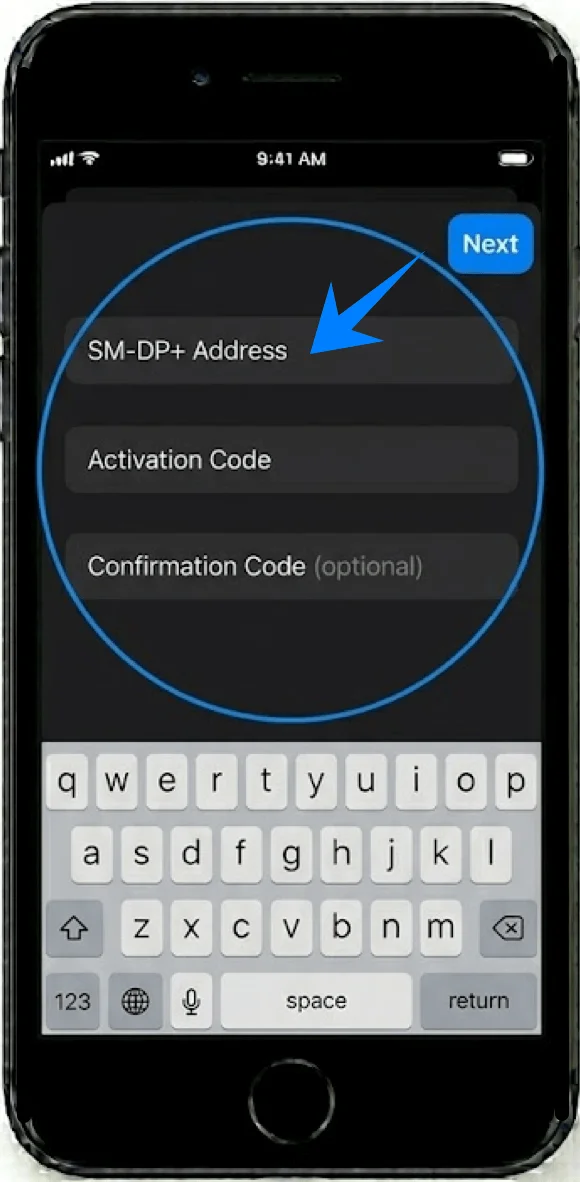
In the manual entry screen:
Tap the field labeled “SM-DP+ Address” and enter the value provided by your carrier.
Tap the field labeled “Activation Code” and enter the code exactly as given.
Tap “Next” in the top-right corner.
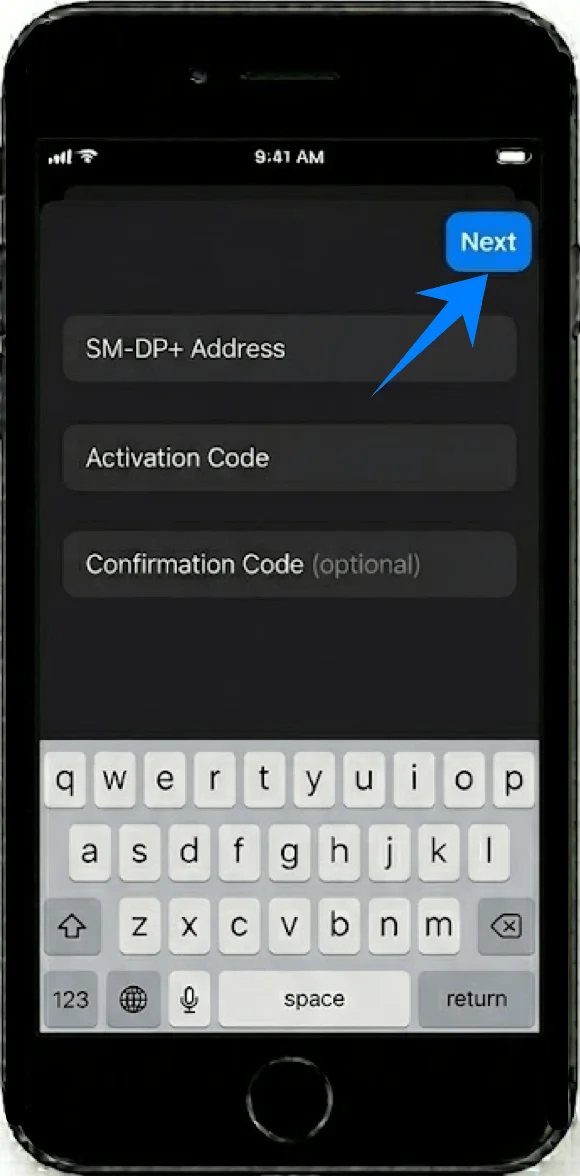
Step 4: Confirm Plan Addition
When the “Add Cellular Plan” screen appears, tap “Add Cellular Plan”.
Step 5: Label the eSIM Line
Select a label (e.g., Primary, Travel, Business).
Tap “Continue”.
Step 6: Configure Line Usage
Choose your:
Default Line → tap selection → tap Continue
iMessage & FaceTime Line → tap selection → tap Continue
Cellular Data Line → tap selection → tap Continue
Step 7: Complete Activation
Wait for the activation process to finish.
The device will return to the Cellular menu once complete.
How to Confirm Successful eSIM Installation
Check Cellular Settings
Open Settings.
Tap Cellular (On some devices, this may appear as “Mobile Service” or “Mobile Data”).
Under SIMs or Cellular Plans, confirm your new plan is listed.
Verify Signal Connection
Look at the top-right corner of the screen.
Confirm that signal bars appear for the eSIM line.
Test Connectivity
Open Safari and load a webpage using cellular data.
Alternatively, make a phone call to verify service.
Note: Some eSIM plans may not include voice calling support, so this feature might not be available depending on your plan.
Check Line Status
Go to Settings → Cellular (On some devices, this may appear as “Mobile Service” or “Mobile Data”).
Tap the newly added plan.
Ensure the toggle “Turn On This Line” is enabled.
Conclusion
Once you’ve completed the steps above, your iRoamly eSIM should be fully active and ready to use. This digital setup not only saves time but also offers greater flexibility compared to traditional SIM cards.
Whether you’re preparing for travel or simply want a quicker way to get connected, the process is straightforward and easy to repeat in the future. With a bit of familiarity, managing eSIMs becomes a smooth and efficient experience.