
eSIM technology simplifies the way you connect to mobile networks by allowing you to configure everything directly on your device.
There’s no need for extra hardware—just a few guided steps within your phone settings.
If you’re using an iPhone 12 mini and planning to install an iRoamly eSIM, this guide will provide a clear and structured walkthrough.
From initial preparation to final activation, each step is explained to help you complete the setup with confidence.
Preparations Before Setting Up iRomly eSIM
Before starting, ensure you have the following:
A stable internet connection (Wi-Fi or cellular)
A valid eSIM QR code or manual activation details (SM-DP+ address and activation code) provided by your carrier
Your iPhone 12 mini powered on and unlocked
The device updated to the latest iOS version (recommended for compatibility)
Method 1: Install eSIM via QR Code Scanning
Step 1: Open Cellular Settings
Tap Settings
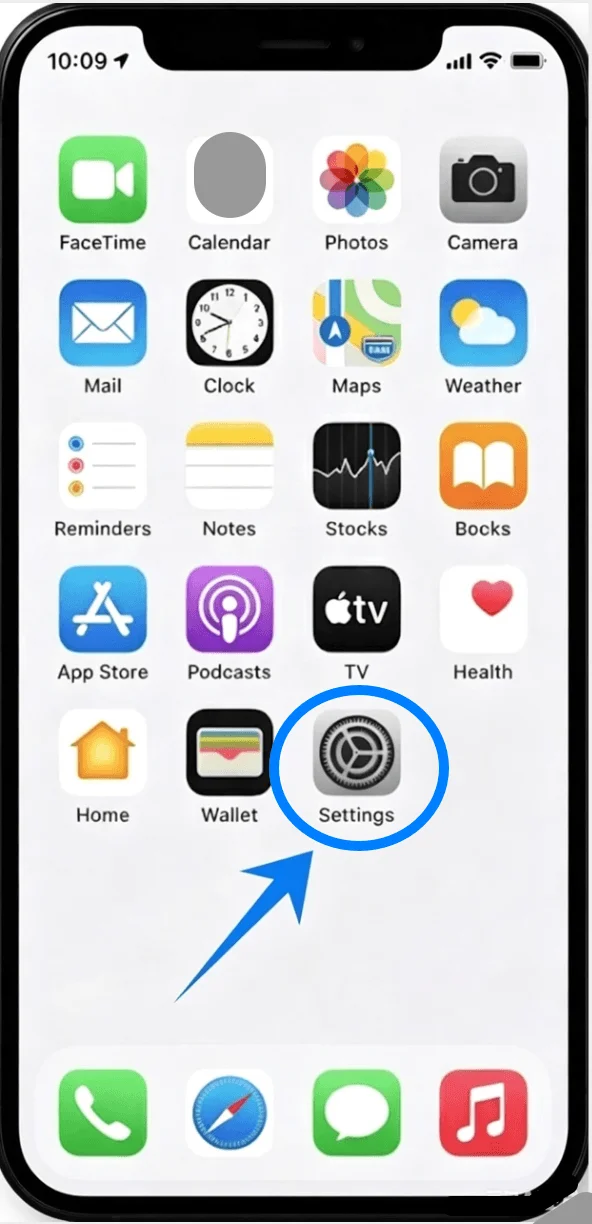
Scroll down and tap Cellular (On some devices, this may appear as “Mobile Service” or “Mobile Data”)
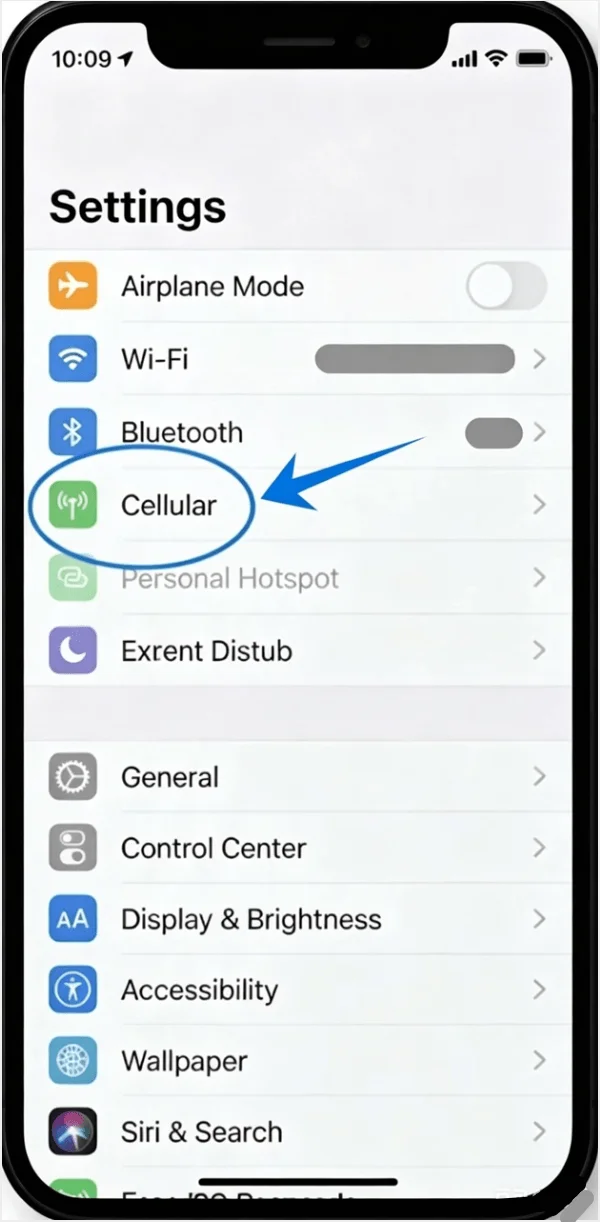
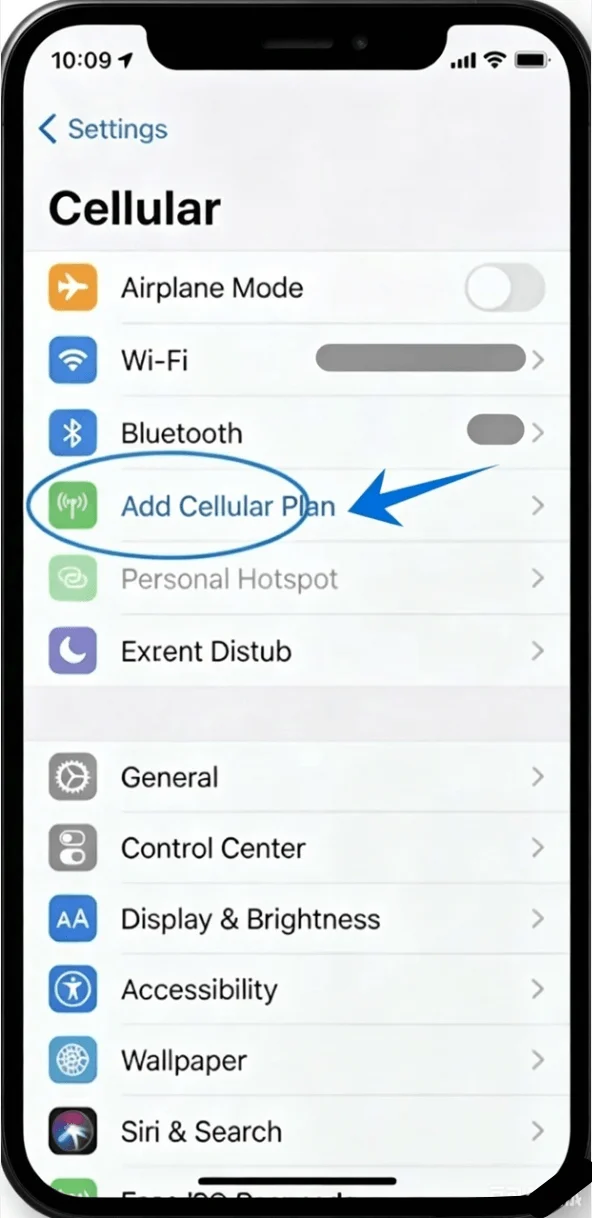
Step 2: Add a New eSIM Plan
Tap Set Up Cellular if no cellular plan is installed, or tap Add Cellular Plan to add a new line
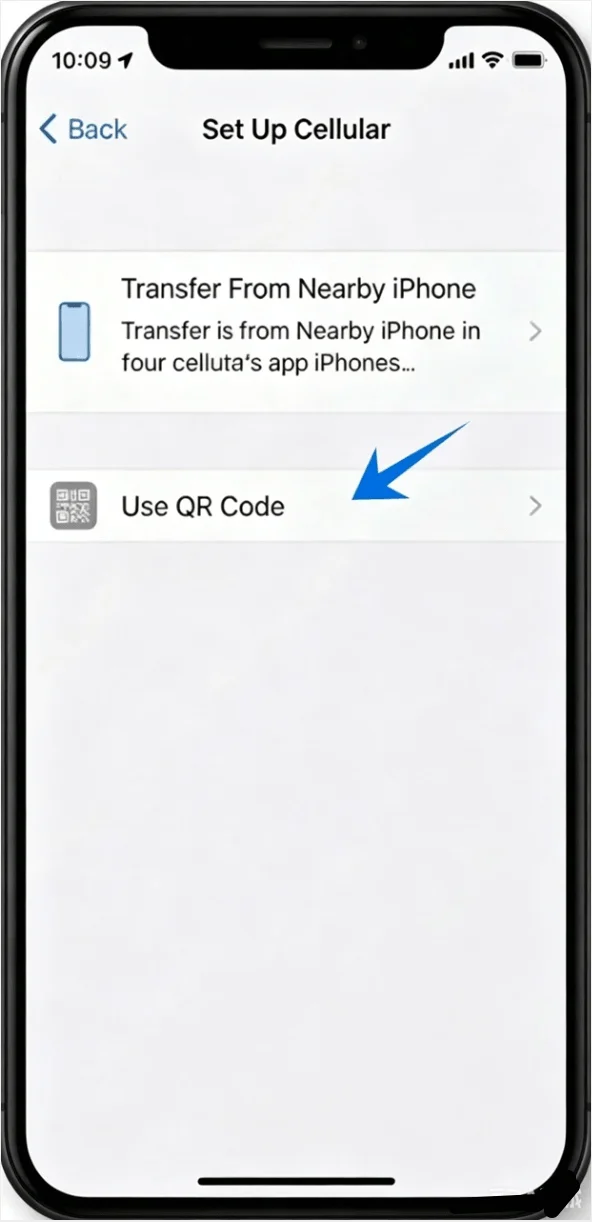
Step 3: Choose QR Code Option
On the “Set Up Cellular” screen, tap Use QR Code
Step 4: Scan the QR Code
Position your iPhone camera over the QR code provided by your carrier
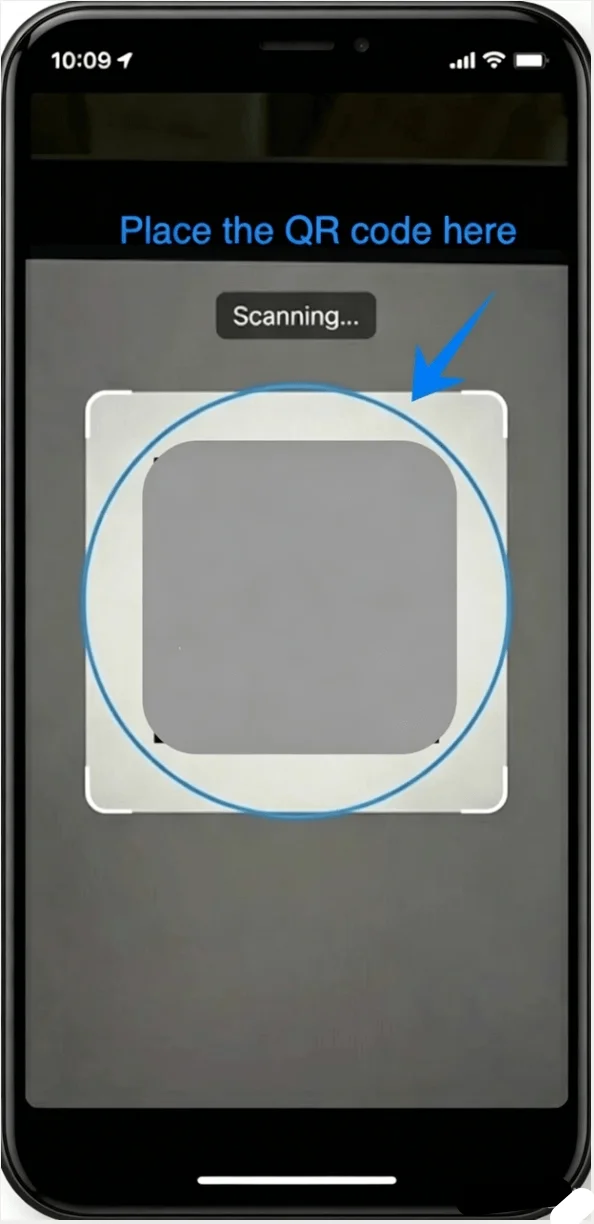
Wait for the device to recognize the code automatically
Step 5: Confirm Plan Addition
When prompted, tap Add Cellular Plan
Step 6: Label the eSIM Line
Select a label for the new line (e.g., Primary, Secondary, Business, or custom)
Tap Continue
Step 7: Set Default Line Preferences
Choose your default line for:
Calls and SMS → tap your preferred line → tap Continue
iMessage & FaceTime → select a line → tap Continue
Cellular Data → select a line → tap Continue
Step 8: Complete Setup
Wait for activation to finish
Tap Done when prompted
Method 2: Install eSIM via Manual Input
Step 1: Open Cellular Settings
Tap Settings
Scroll down and tap Cellular (On some devices, this may appear as “Mobile Service” or “Mobile Data”)
Step 2: Add a New eSIM Plan
Tap Set Up Cellular if no cellular plan is installed, or tap Add Cellular Plan to add a new line
Step 3: Choose Manual Entry
On the setup screen, tap Enter Details Manually (located at the bottom)
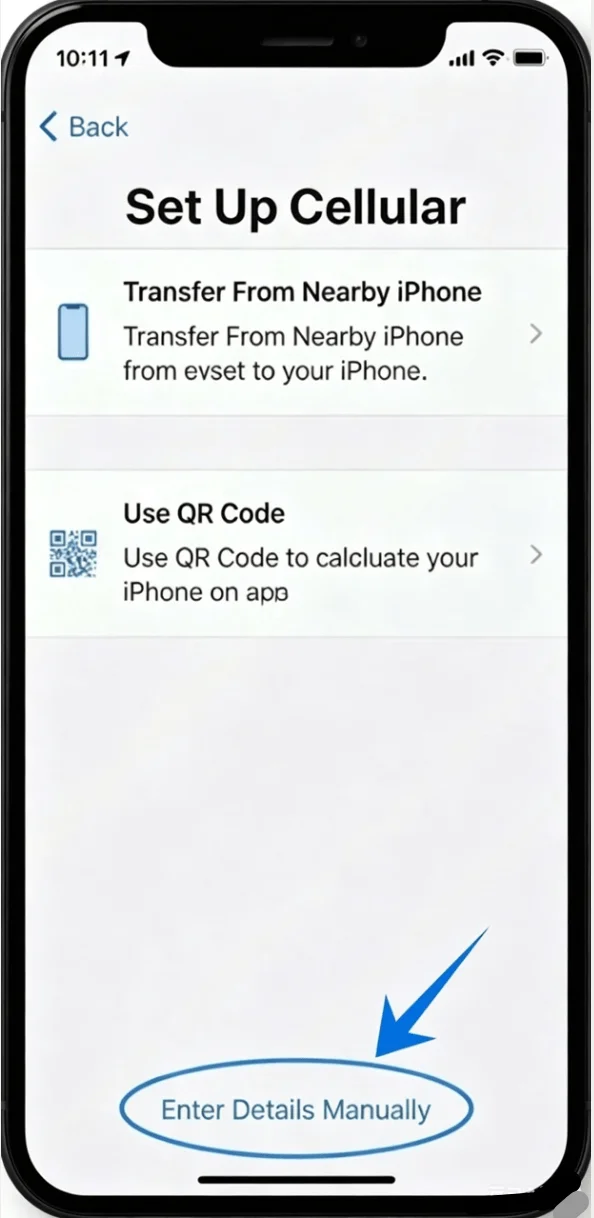
Step 4: Enter Activation Information
In the SM-DP+ Address field, type the address provided by your carrier
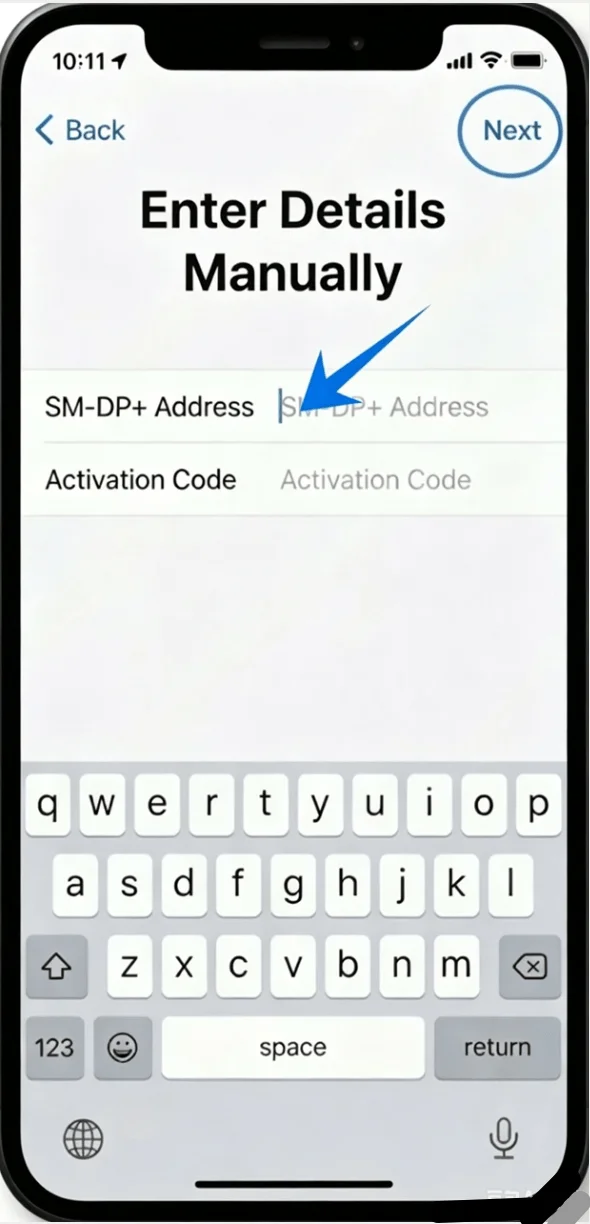
In the Activation Code field, enter the provided code
Tap Next (top-right corner)
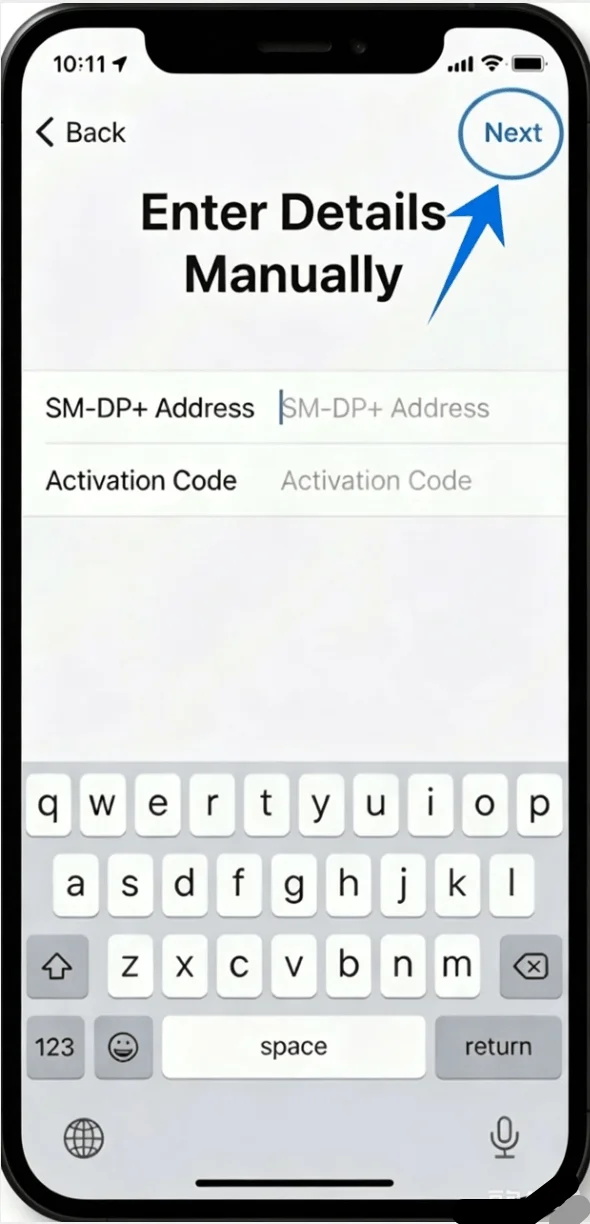
Step 5: Confirm Plan Addition
Tap Add Cellular Plan when prompted
Step 6: Label the eSIM Line
Assign a label (e.g., Primary, Travel, etc.)
Tap Continue
Step 7: Configure Line Usage
Set preferences for:
Default voice line → tap selection → tap Continue
iMessage & FaceTime → choose line → tap Continue
Cellular data → select line → tap Continue
Step 8: Complete Setup
Wait for activation to complete
Tap Done
How to Confirm Successful eSIM Installation
Check Cellular Plans
Go to Settings → Cellular (On some devices, this may appear as “Mobile Service” or “Mobile Data”)
Confirm that your new eSIM plan appears under Cellular Plans
Verify Signal Connection
Look at the top-right corner of the screen
Ensure signal bars are visible for the new line
Test Connectivity
Make a call:
Open Phone → tap Keypad → dial a number → tap Call
Note: Some eSIM plans may not include voice calling support, so this feature might not be available depending on your plan.
Test mobile data:
Turn off Wi-Fi → open Safari → load a webpage
Check Line Status
Go to Settings → Cellular (On some devices, this may appear as “Mobile Service” or “Mobile Data”) → [Your eSIM Plan]
Confirm that:
Turn On This Line is enabled (toggle is green)
Status shows Connected or similar
Conclusion
Your iPhone 12 mini is now configured with the iRoamly eSIM, giving you access to mobile data for browsing, apps, and other online services.
Whether you’re using it for everyday connectivity or specific situations, you can control how your device uses the eSIM directly through system settings.
The setup also makes it easy to switch data usage or adapt your connection based on different scenarios, providing a more flexible way to stay online.