
When you need to get connected quickly, having a solution that doesn’t require physical setup can make a big difference.
eSIM offers exactly that—a digital way to activate a cellular plan without inserting a card.
On the iPhone 13 Pro, the process is handled entirely through system settings, making it both simple and efficient.
If you already have your iRoamly eSIM details, this guide will walk you through each step to ensure a smooth installation and activation experience.
Preparations Before Setting Up iRomly eSIM
Before starting, ensure you have the following:
A stable internet connection (Wi-Fi or cellular)
A valid eSIM QR code or manual activation details (SM-DP+ address and activation code) provided by your carrier
Your iPhone 13 Pro powered on and unlocked
The device updated to the latest iOS version (recommended for compatibility)
Method 1: Install eSIM via QR Code
Step 1: Open Cellular Settings
Tap Settings
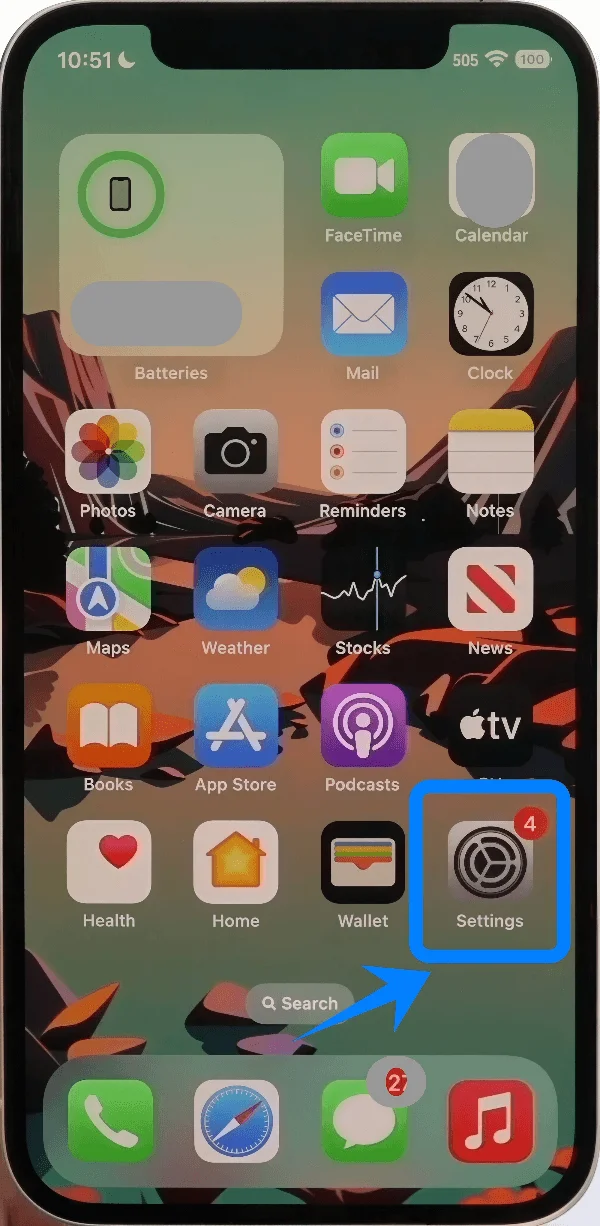
Scroll down and tap Cellular (On some devices, this may appear as “Mobile Service” or “Mobile Data”)
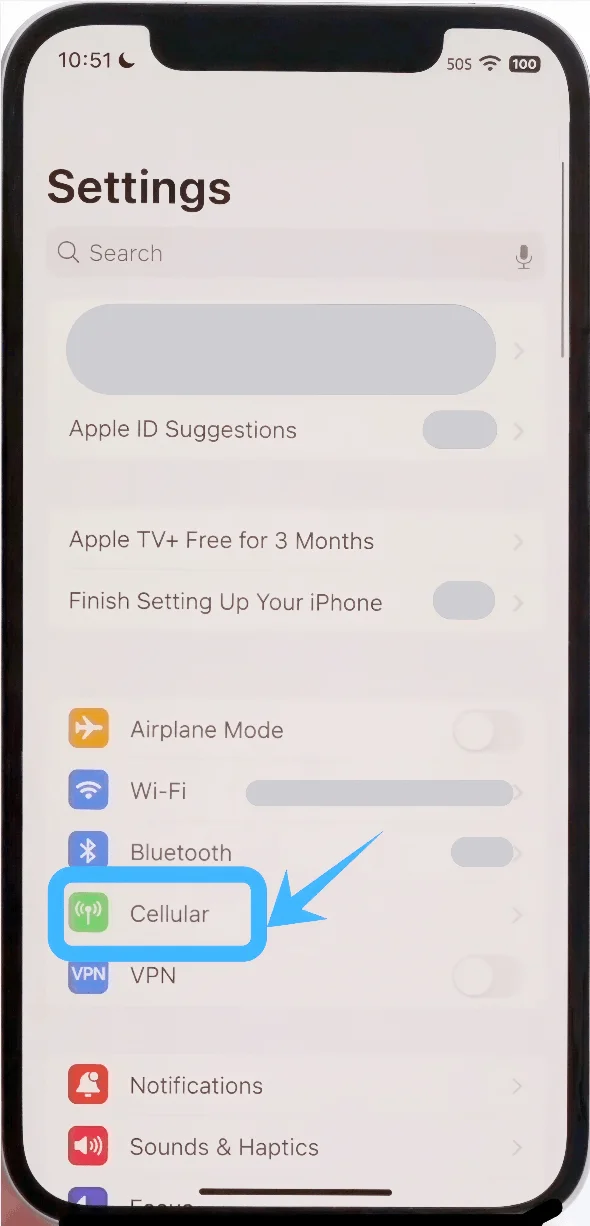
Step 2: Add eSIM Plan
Tap Set Up Cellular if no cellular plan is installed, or tap Add Cellular Plan to add a new line
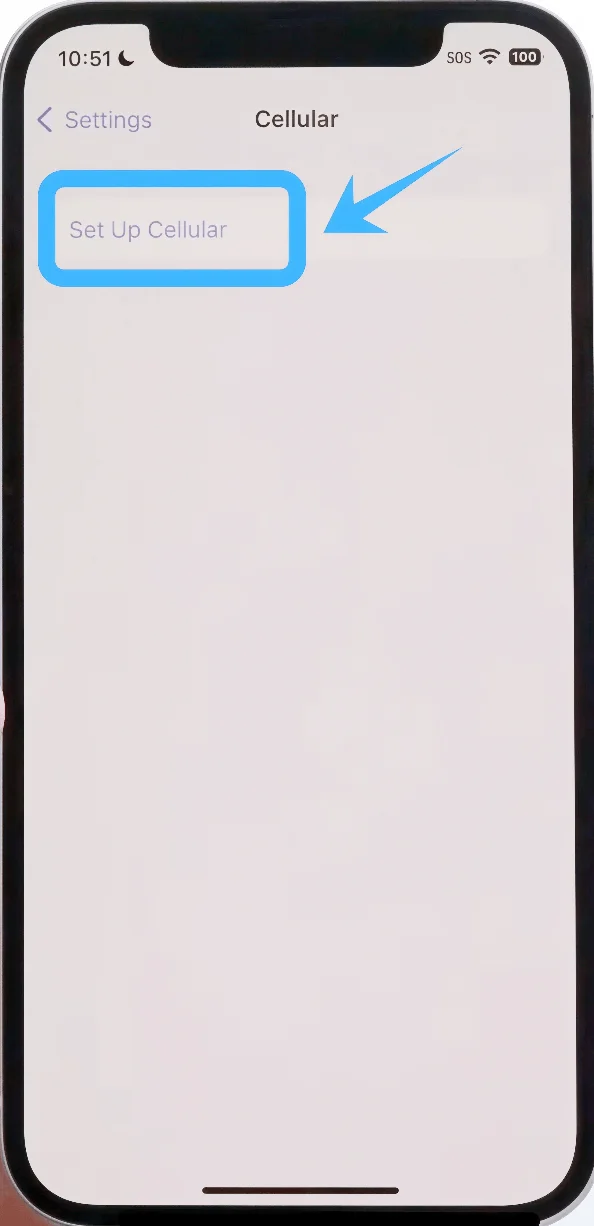
Step 3: Select QR Code Option
Tap Use QR Code
Step 4: Scan the QR Code
Position your iPhone so the QR code appears inside the camera frame
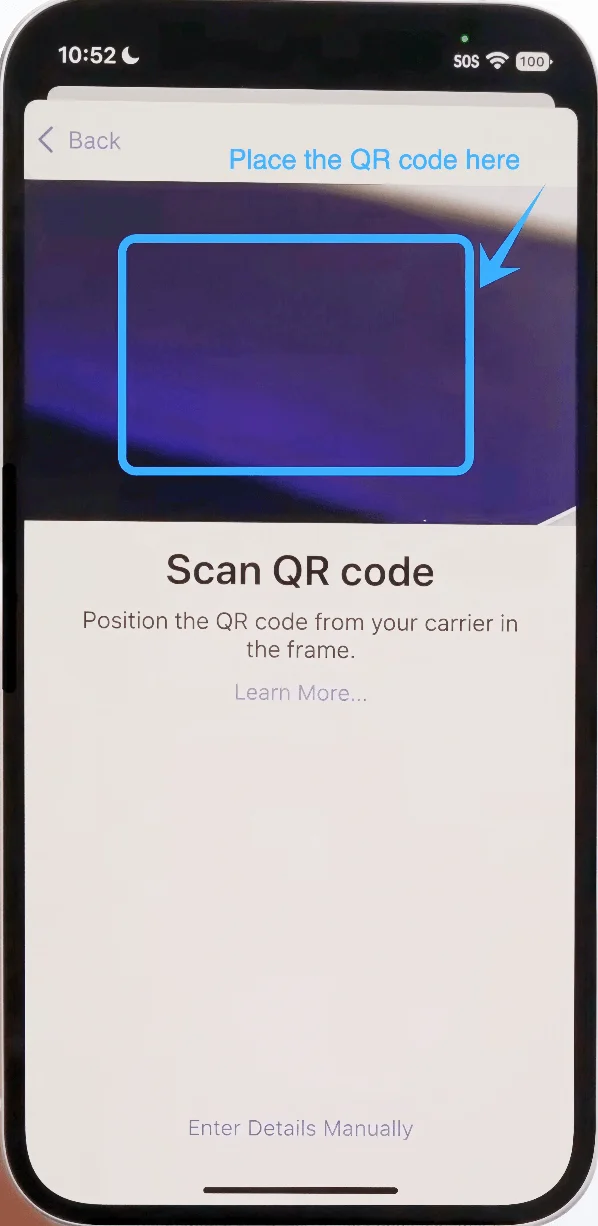
Wait for the device to recognize the code automatically
Step 5: Confirm Plan Addition
When prompted, tap Add Cellular Plan
Step 6: Label the eSIM Line
Select a label (e.g., Primary, Secondary, or Business)
Tap Continue
Step 7: Set Default Line Preferences
Choose your Default Line for calls and message, tap Continue
Select which line to use for iMessage & FaceTime, tap Continue
Choose the line for Cellular Data, tap Continue
Method 2: Install eSIM via Manual Input
Step 1: Open Cellular Settings
Tap Settings
Scroll down and tap Cellular (On some devices, this may appear as “Mobile Service” or “Mobile Data”)
Step 2: Add eSIM Plan
Tap Set Up Cellular if no cellular plan is installed, or tap Add Cellular Plan to add a new line
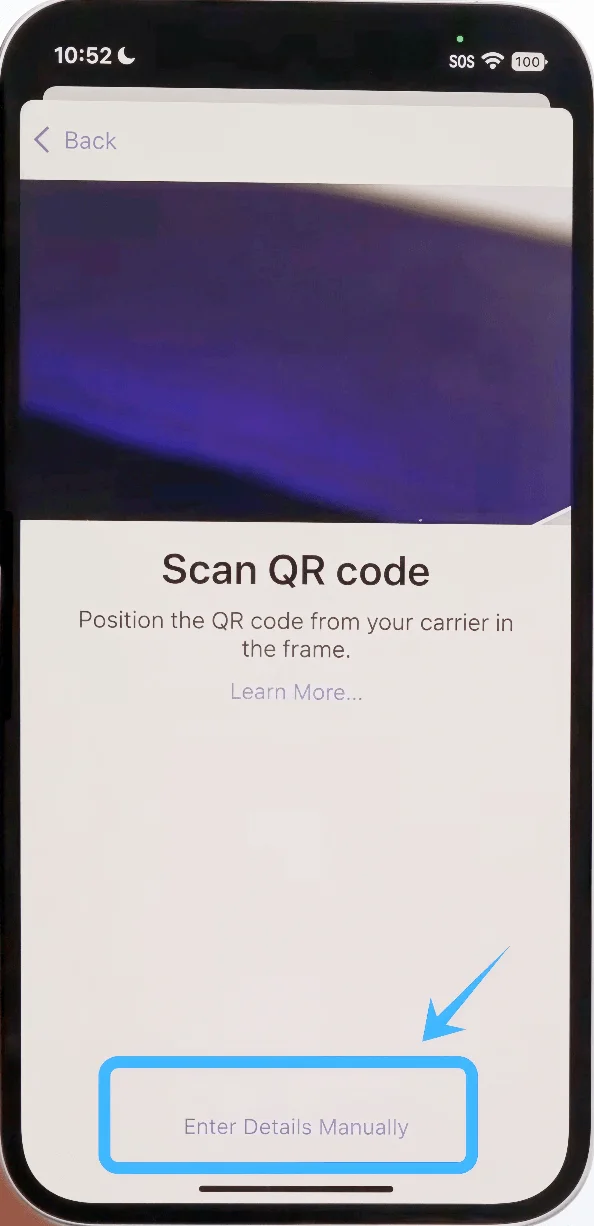
Step 3: Select Manual Entry Option
Tap Enter Details Manually
Step 4: Enter Activation Details
Tap the SM-DP+ Address field, enter the address exactly as provided by your carrier
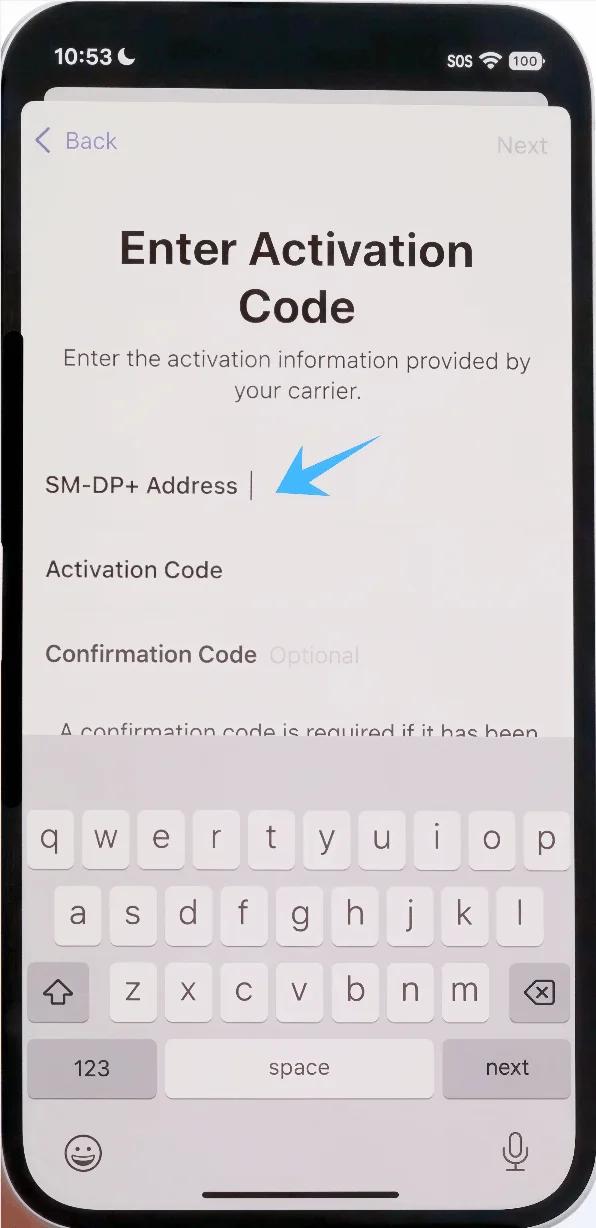
Tap the Activation Code field, enter the activation code exactly as provided
Tap the Confirmation Code field (if visible), enter the code provided by your carrier
After entering all required information, tap Next
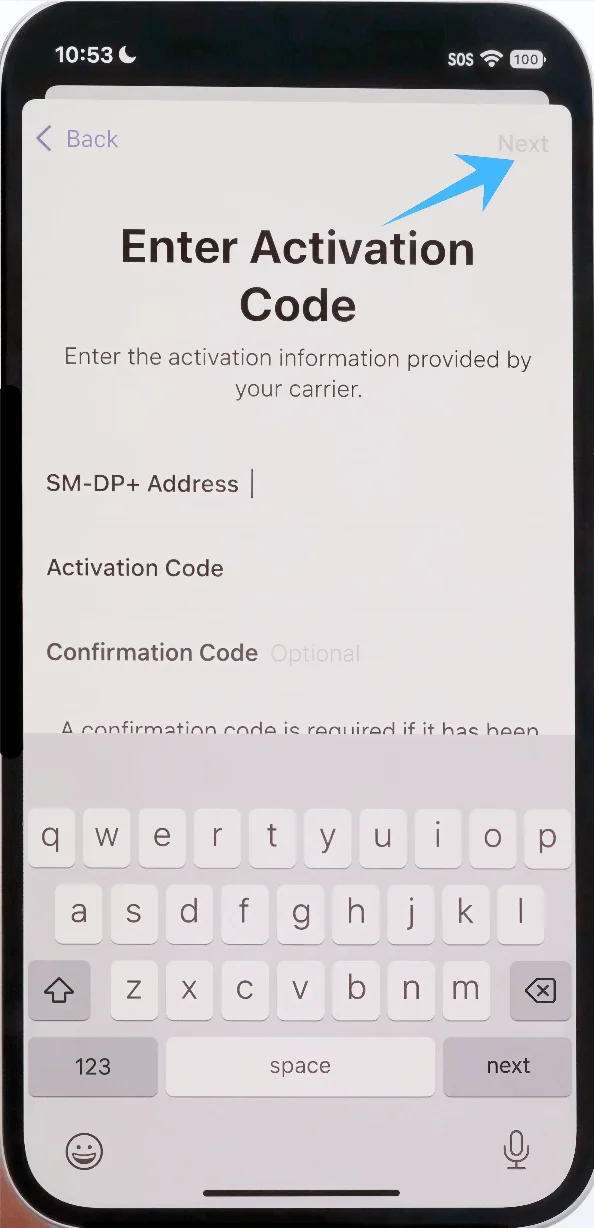
Step 5: Confirm Plan Addition
Tap Add Cellular Plan when prompted
Step 6: Configure Line Settings
Select a label for the new plan and tap Continue
Choose:
Default Line → tap Continue
iMessage & FaceTime line → tap Continue
Cellular Data line → tap Continue
How to Confirm Successful eSIM Installation
Step 1: Check Cellular Plans
Go to Settings
Tap Cellular (On some devices, this may appear as “Mobile Service” or “Mobile Data”)
Confirm that the new plan appears under Cellular Plans
Step 2: Verify Signal Status
Look at the status bar (top-right corner)
Ensure signal bars appear for the newly added line
Step 3: Test Connectivity
Make a phone call using the new line:
Open Phone
Tap Keypad
Dial a number and confirm connection
Note: Some eSIM plans may not include voice calling support, so this feature might not be available depending on your plan.
Test mobile data:
Disable Wi-Fi
Open a browser and load a webpage
Step 4: Confirm Line Selection
Go to Settings → Cellular (On some devices, this may appear as “Mobile Service” or “Mobile Data”)
Tap the new plan and verify it is turned on
Conclusion
At this point, your eSIM should be successfully set up and ready for use. The process is simpler than traditional SIM installation and requires minimal effort once you understand the steps.
Even first-time users can complete it without difficulty by following the instructions carefully.
Going forward, you’ll be able to add or switch eSIMs using the same method, making it a convenient option for managing your connectivity.