
As mobile connectivity continues to evolve, eSIM is becoming a preferred option for many users.
Instead of relying on a physical card, an eSIM allows you to download and activate a mobile plan directly on your device. This digital approach makes setup faster, more flexible, and easier to manage.
On the iPhone 15, the process has been streamlined to be especially user-friendly.
In this guide, we’ll walk you through the steps to install and activate your iRoamly eSIM so you can get connected quickly and without confusion.
Preparations Before Setting Up iRomly eSIM
Before starting, ensure you have the following:
A stable internet connection (Wi-Fi or cellular)
A valid eSIM QR code or manual activation details (SM-DP+ address and activation code) provided by your carrier
Your iPhone 15 powered on and unlocked
The device updated to the latest iOS version (recommended for compatibility)
Method 1: Install eSIM Using QR Code
Step 1: Open Cellular Settings
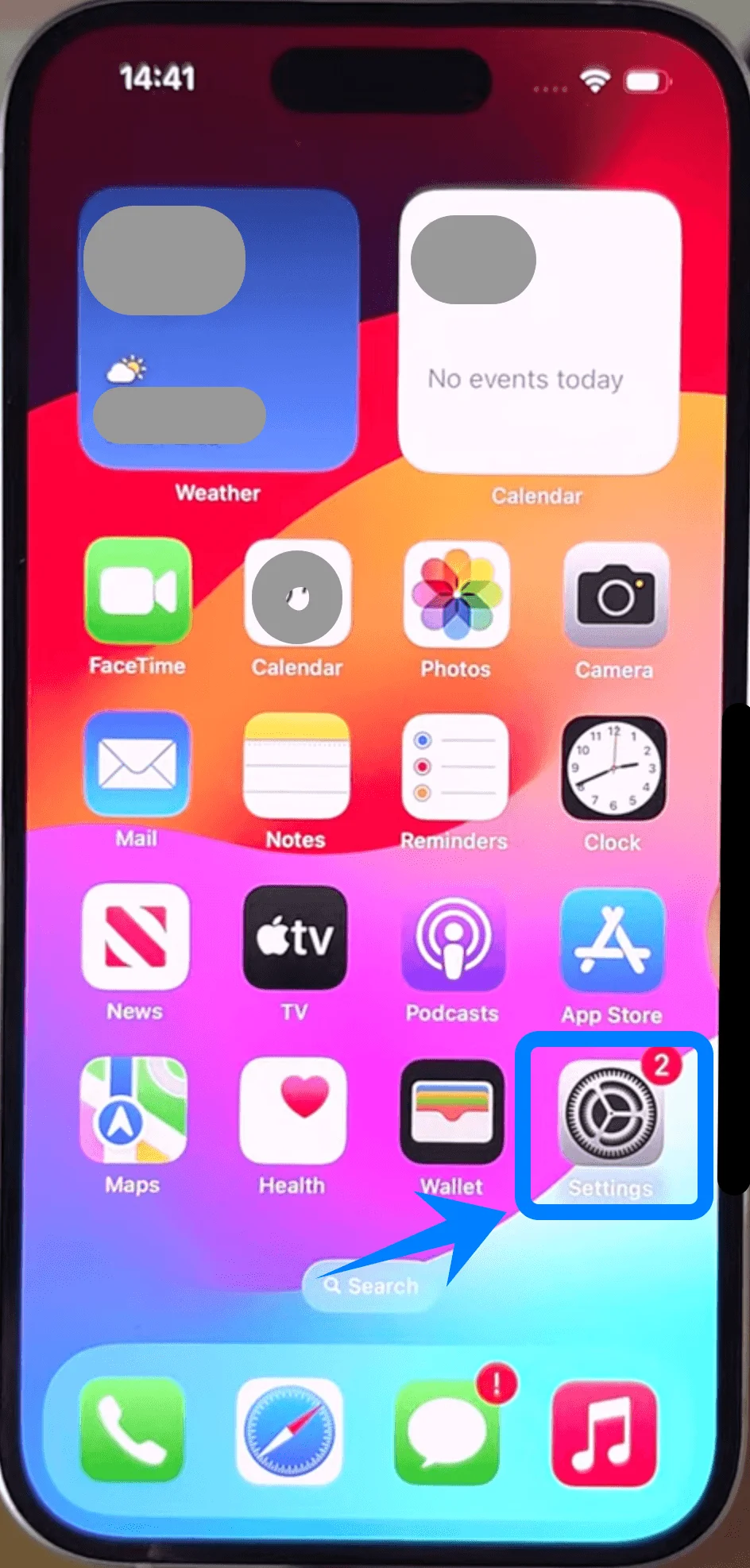
Tap Settings on the Home Screen
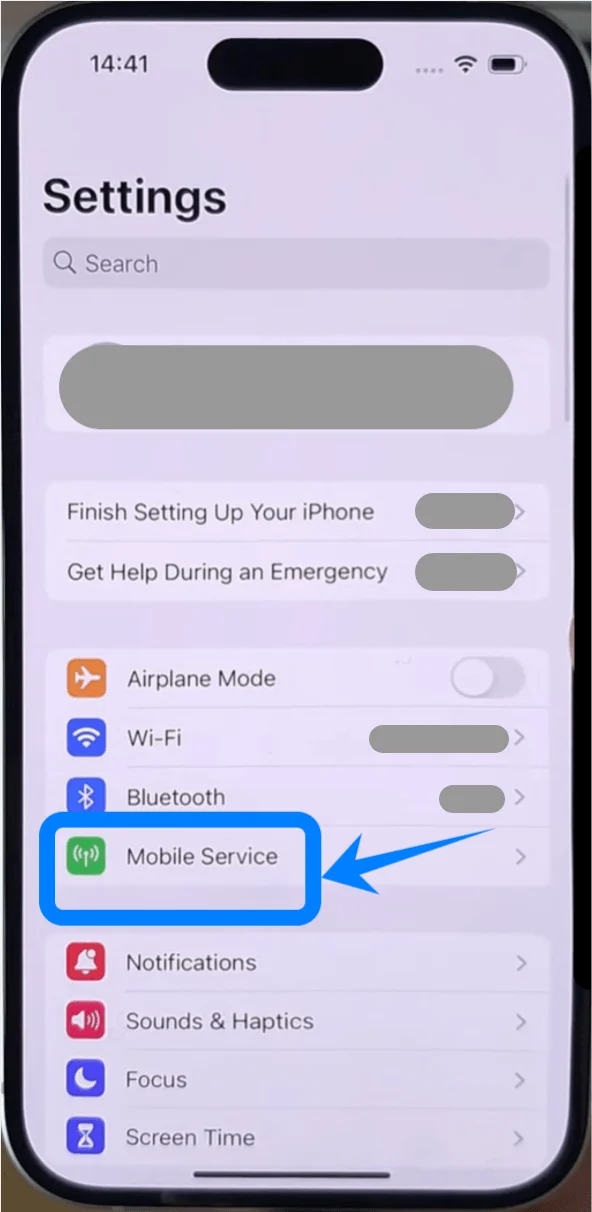
Scroll down and tap Mobile Service (On some devices, this may appear as “Cellular” or “Mobile Data”)
Step 2: Start eSIM Setup
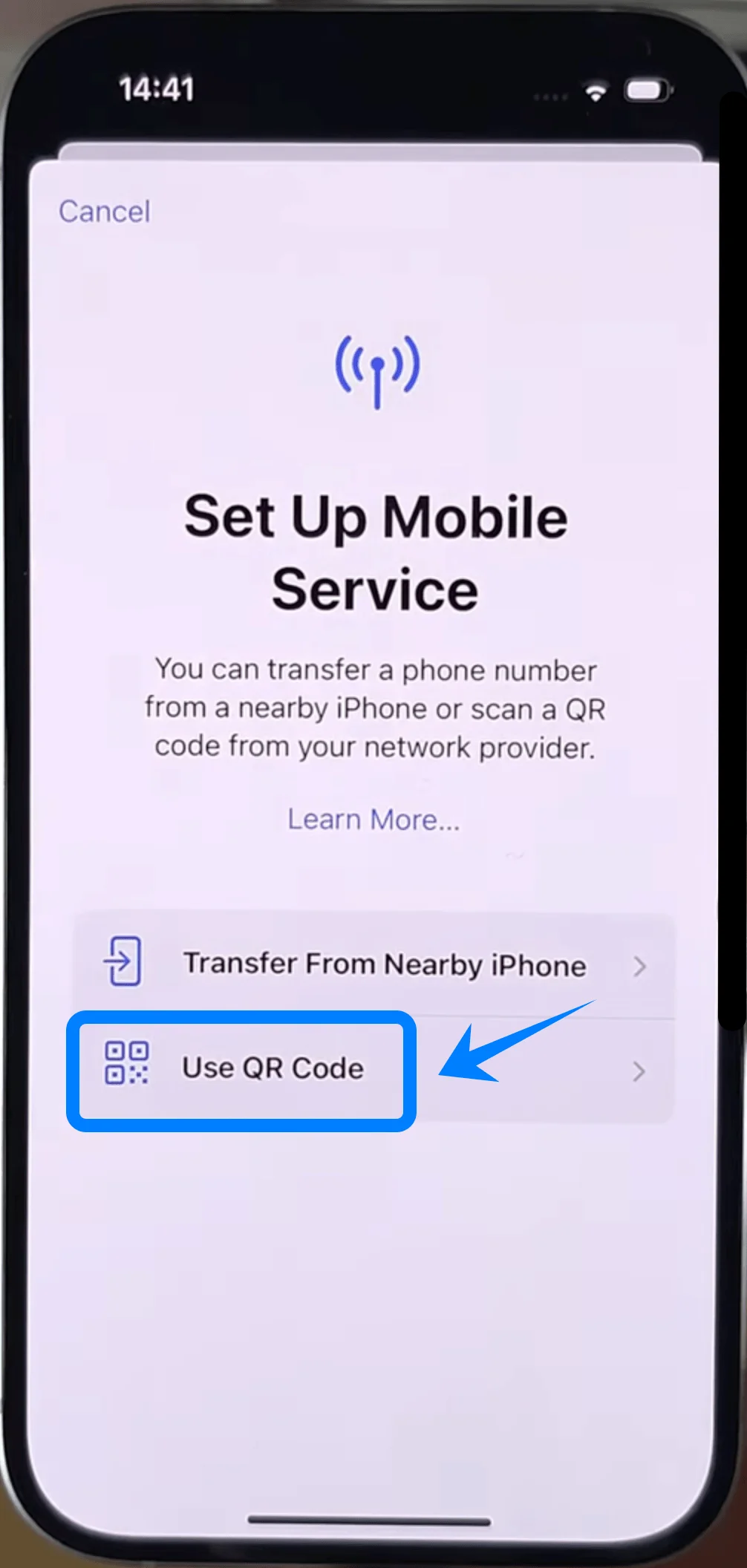
Tap Add eSIM if you already have an existing cellular plan, or tap Set Up Cellular if this is your first plan
Tap Use QR Code
Step 3: Scan the QR Code
Position your iPhone camera over the QR code provided by your carrier
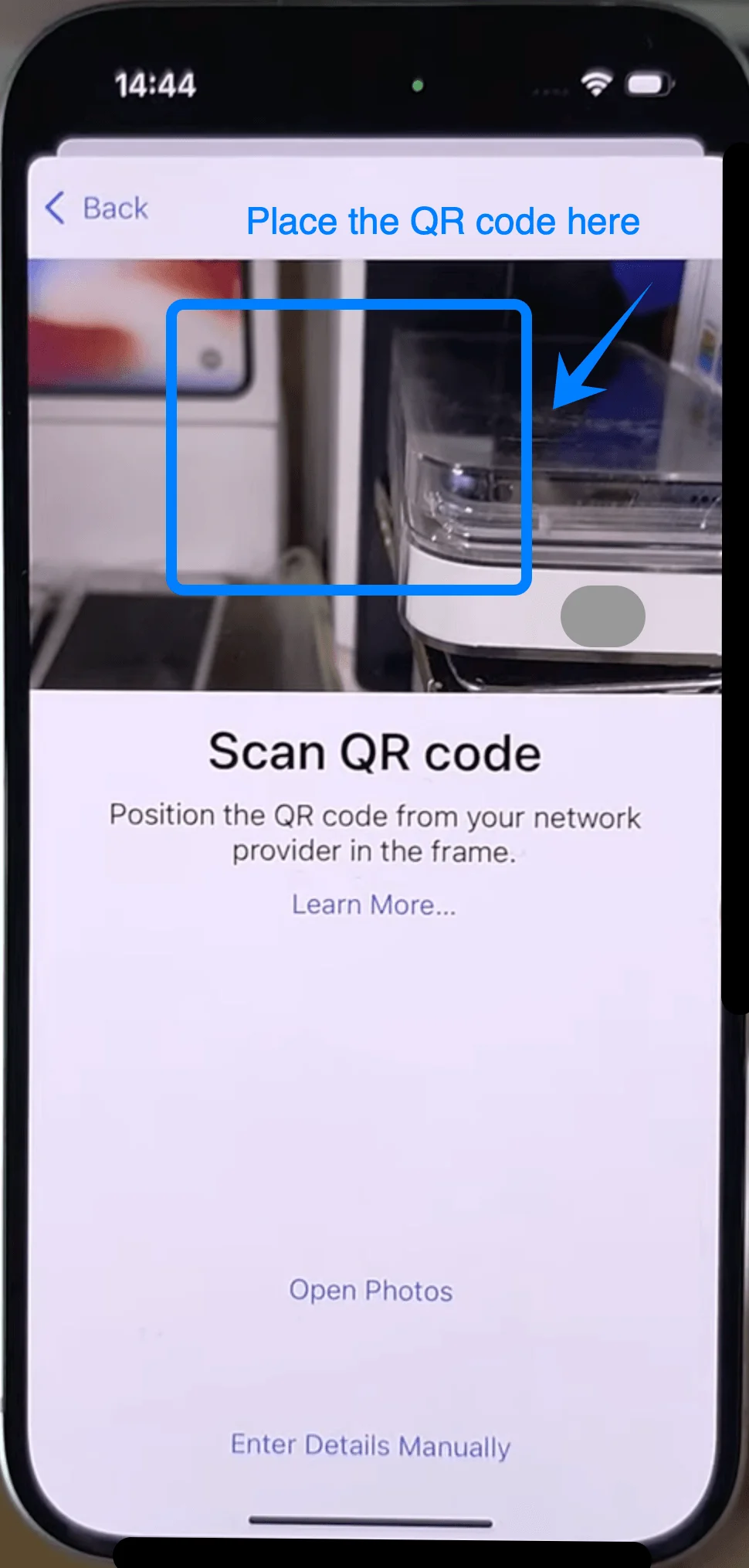
Wait for the device to recognize the code automatically
Step 4: Confirm Activation
When prompted, tap Continue
Tap Add Cellular Plan
Step 5: Label the eSIM Line
Select a label (e.g., Primary, Secondary, or Business)
Tap Continue
Step 6: Set Default Line Preferences
Choose your default line for:
Calls → tap your preferred line → tap Continue
Messages → tap your preferred line → tap Continue
Cellular Data → select a line → tap Done
Method 2: Install eSIM Using Manual Input
Step 1: Open Cellular Settings
Tap Settings on the Home Screen
Scroll down and tap Mobile Service (On some devices, this may appear as “Cellular” or “Mobile Data”)
Step 2: Start eSIM Setup
Tap Add eSIM if you already have an existing cellular plan, or tap Set Up Cellular if this is your first plan
Tap Enter Details Manually
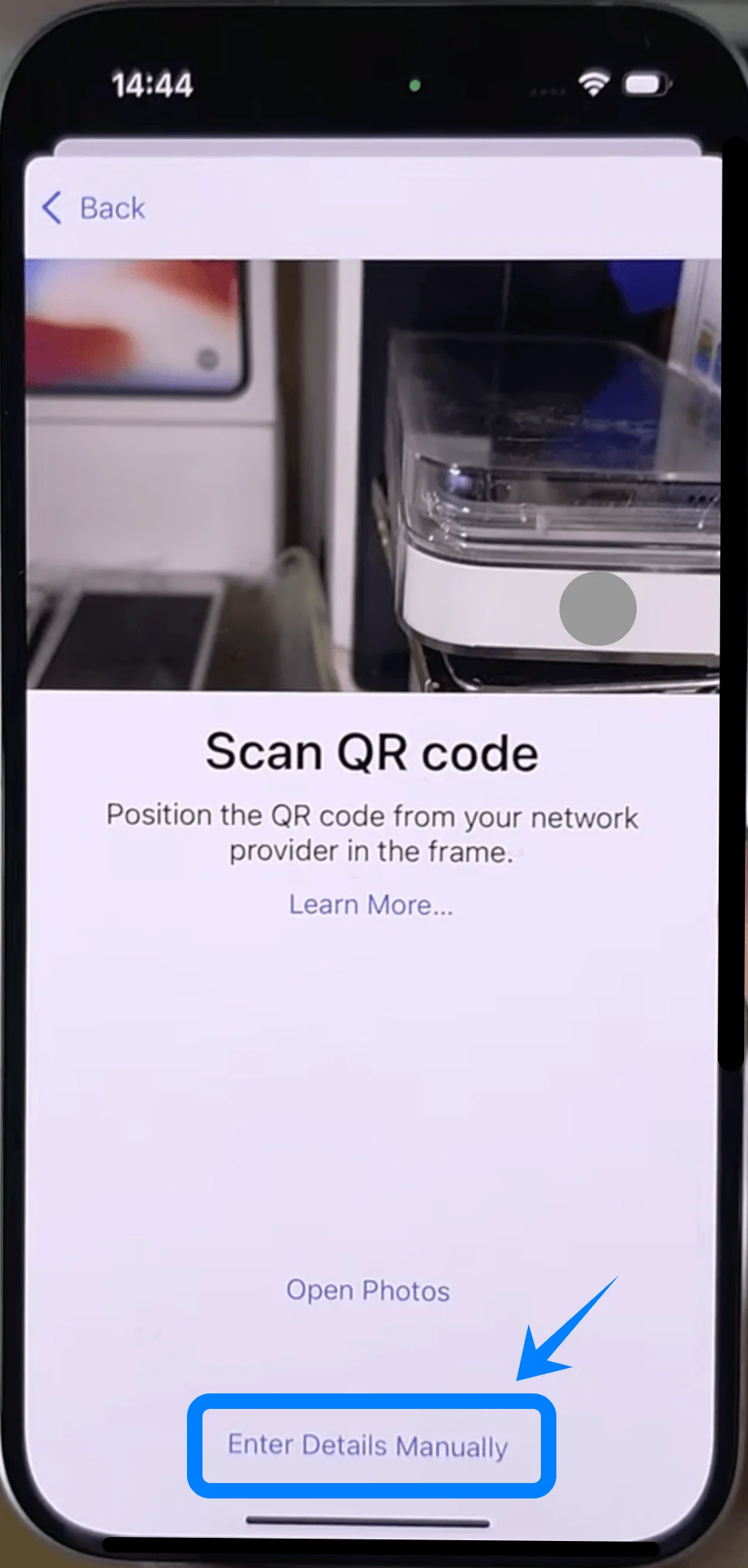
Step 3: Enter Activation Information
Tap the field labeled SM-DP+ Address
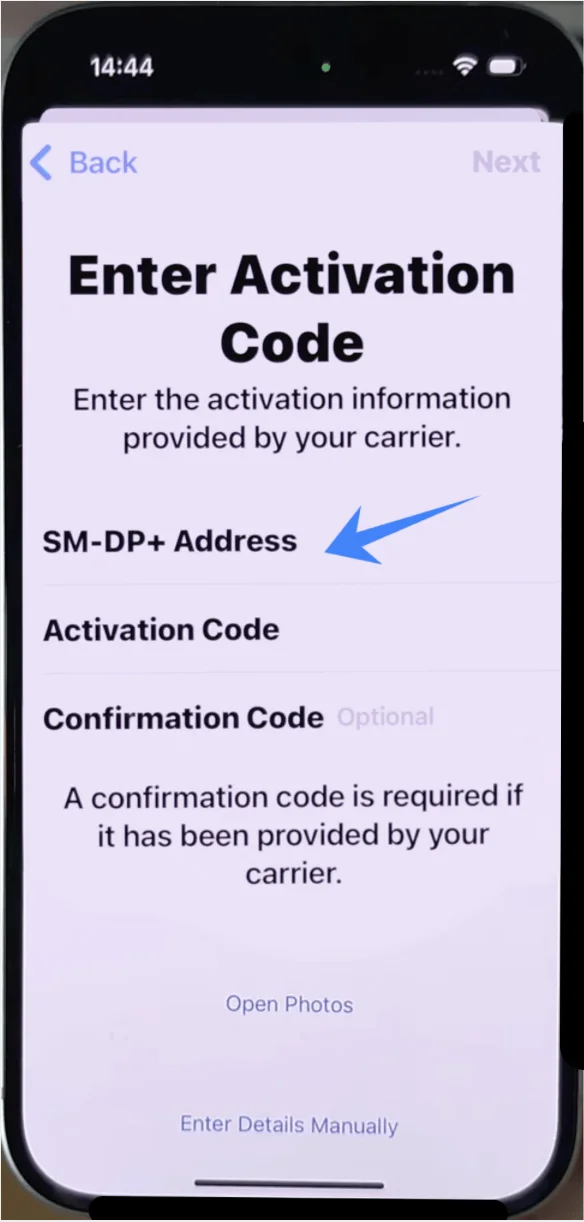
Enter the address provided by your carrier
Tap the field labeled Activation Code
Enter the activation code provided by your carrier
Tap Next
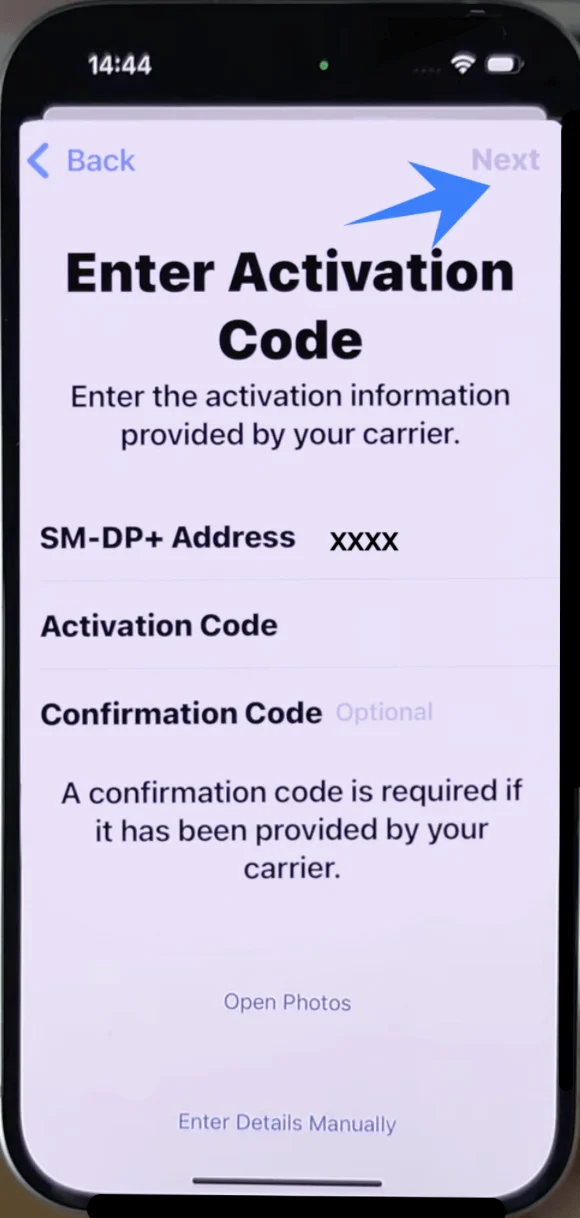
Step 4: Confirm Installation
Tap Add Cellular Plan when prompted
Step 5: Label the eSIM Line
Choose a label (e.g., Primary, Secondary, or Business)
Tap Continue
Step 6: Set Default Line Preferences
Select your preferred line for calls → tap Continue
Select your preferred line for messages → tap Continue
Select your preferred line for cellular data → tap Done
How to Confirm eSIM Installation
After completing either method, verify that the eSIM is active:
Check in Settings
Open Settings
Tap Mobile Service (On some devices, this may appear as “Cellular” or “Mobile Data”)
Confirm that a new plan appears under Cellular Plans
Check Signal Status
Look at the top-right corner of the screen
Confirm that signal bars appear for the new line
Check Line Status
Tap the newly added plan under Cellular Plans
Ensure the toggle Turn On This Line is enabled (green)
Optional Functional Test
Place a test call or enable cellular data to confirm connectivity
Conclusion
By following the steps above, you’ve successfully integrated your iRoamly eSIM into your device and established a working connection.
This approach not only improves efficiency but also reduces the limitations associated with traditional SIM cards.
As eSIM adoption continues to grow, this method of connectivity will become the standard. You’re now fully equipped to take advantage of a more flexible and modern mobile experience.