
The Pixel 9 Pro XL has a large, sharp display and Google’s standard Pixel SIM settings, which makes it a practical phone for installing a travel eSIM before leaving home. For an iRoamly travel eSIM, the important menu is Settings > Network & internet > SIMs, where Pixel Android keeps physical SIMs and downloaded eSIM profiles together.
This guide walks through both installation paths for the Pixel 9 Pro XL: scanning the iRoamly QR code and entering the activation details manually. QR setup is usually fastest when the QR code is on a separate screen or printed voucher. Manual entry is useful when the QR code will not scan, when the setup details are easier to paste, or when the QR code is displayed on the same phone.
The steps below assume an unlocked Pixel 9 Pro XL with eSIM support, English system labels, and Wi-Fi available. Regional or carrier-sold variants can affect eSIM availability, so check the compatibility notes before installing.
Preparations Before Setting Up iRomly eSIM
Connect the Pixel 9 Pro XL to reliable Wi-Fi before downloading the iRoamly eSIM.
Confirm the phone is unlocked and eSIM-capable. If Add SIM or Set up an eSIM is missing, check the carrier lock, region, Android update, and whether the phone shows an EID.
Keep your iRoamly QR code and manual setup details ready. iRoamly may provide a QR code plus manual information such as an SM-DP+ Address and Activation Code; Pixel’s manual path can use a complete Activation code string in the LPA:1$... format.
Install the eSIM 1-2 days before travel when possible, but do not casually delete it after installation. Many eSIM profiles are single-use and cannot simply be reinstalled from the same QR code.
Check your iRoamly plan details before installing. iRoamly eSIM validity starts from activation; for current destination plans, the validity period commonly begins when the eSIM connects to a supported network.
iRoamly eSIM plans may not include voice calls or SMS. Many travel plans are data-only, while some plan types may include calls or SMS, so check the specific plan details before relying on phone-number service.
Shared Setup Steps
Open Settings, then tap Network & internet. You should see the Pixel network settings page with SIMs listed near the top.
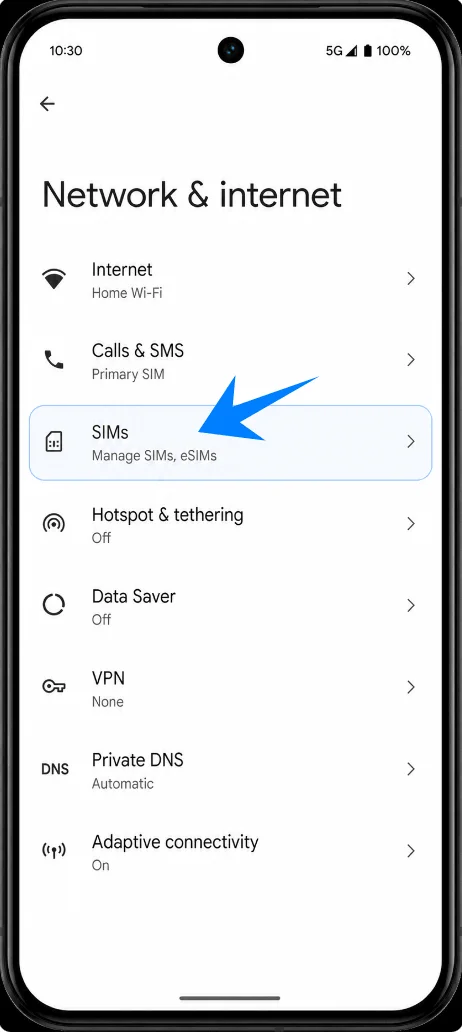
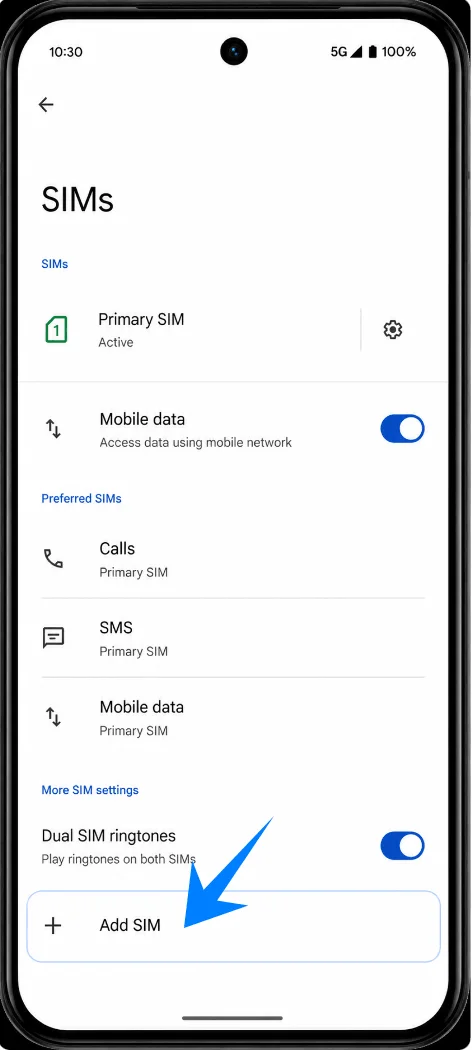
Tap SIMs, then tap Add SIM. The Pixel should open the add-SIM flow where another SIM profile can be added.
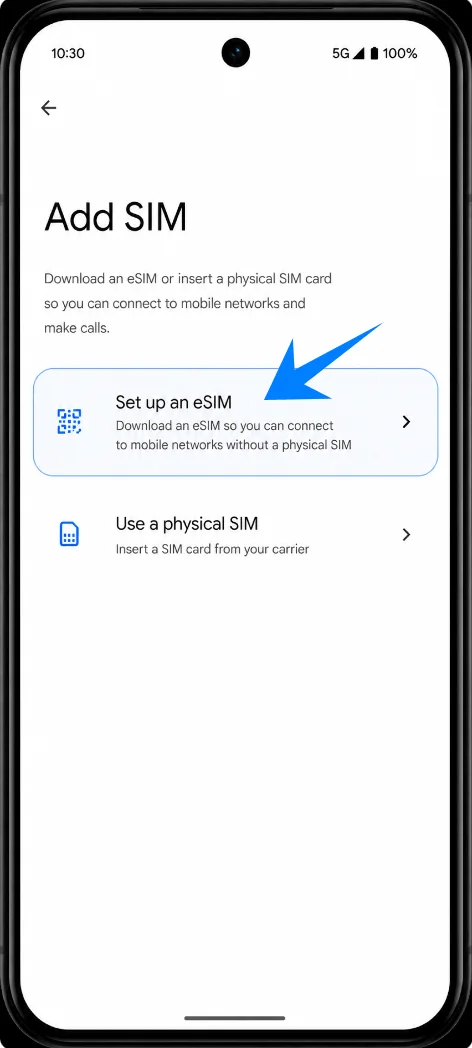
Tap Set up an eSIM. Keep Wi-Fi connected while Android opens the eSIM setup flow.
Method 1: Install the iRoamly eSIM by Scanning a QR Code
On the eSIM setup screen, choose the QR-code setup option, then point the Pixel 9 Pro XL camera at the iRoamly QR code. Keep the full QR code inside the scan frame.
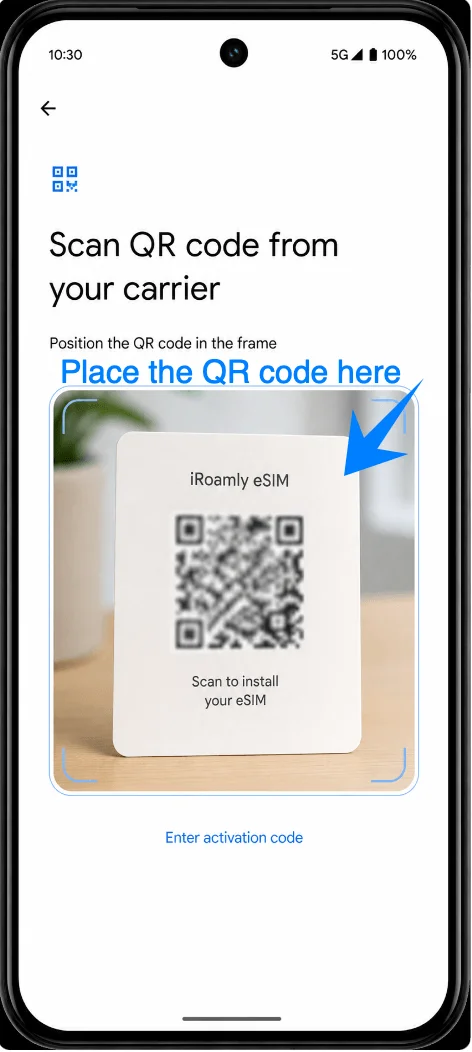
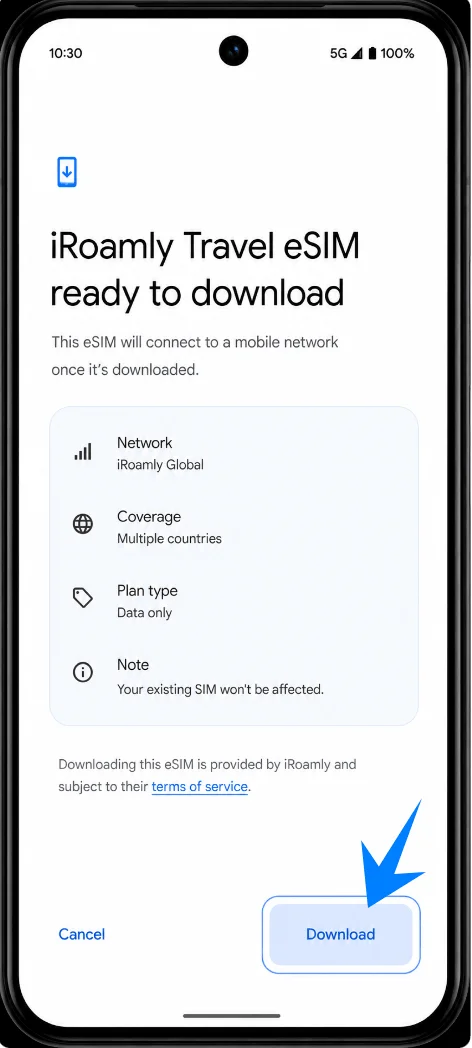
When Android finds the iRoamly eSIM profile, tap Download or Activate to start downloading the eSIM. Keep Wi-Fi connected until the download finishes.
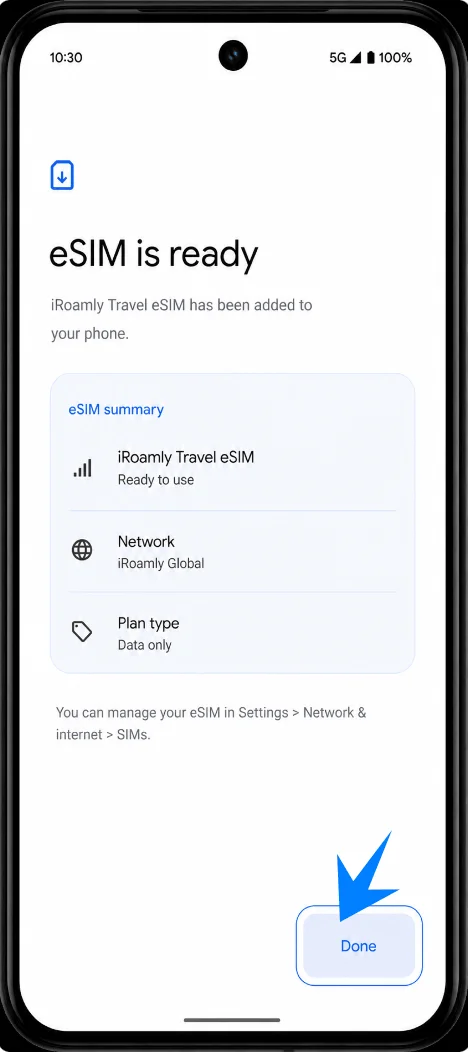
Tap Done when the Pixel confirms the eSIM is installed. If Android offers to label the line, name it iRoamly or Travel eSIM so it is easy to recognize later.
Method 2: Install the iRoamly eSIM by Manual Entry
Open Settings, tap Network & internet, tap SIMs, then tap Add SIM. This returns to the same Pixel SIM menu used for QR setup.
Tap Set up an eSIM. Keep the phone on Wi-Fi and continue until the QR setup screen appears.
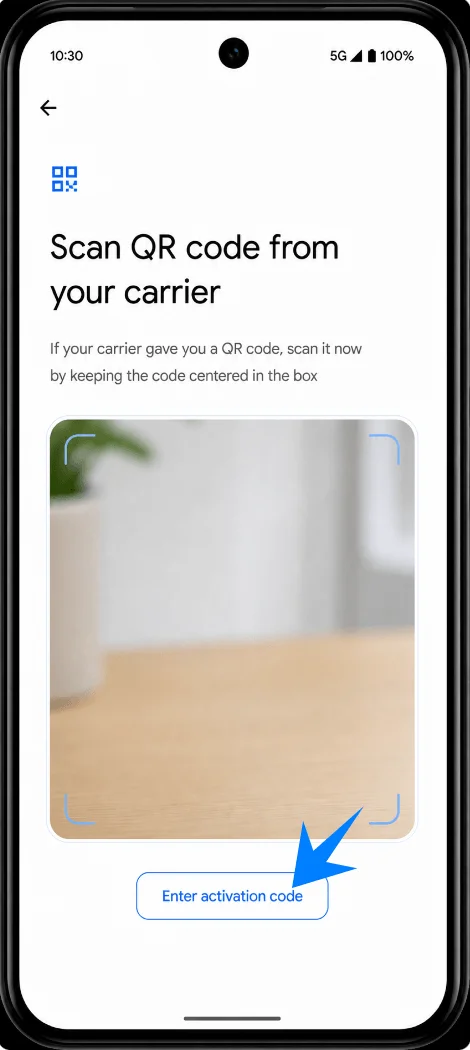
On the QR setup screen, tap Enter activation code. The Pixel should open the manual activation screen instead of using the camera scanner.
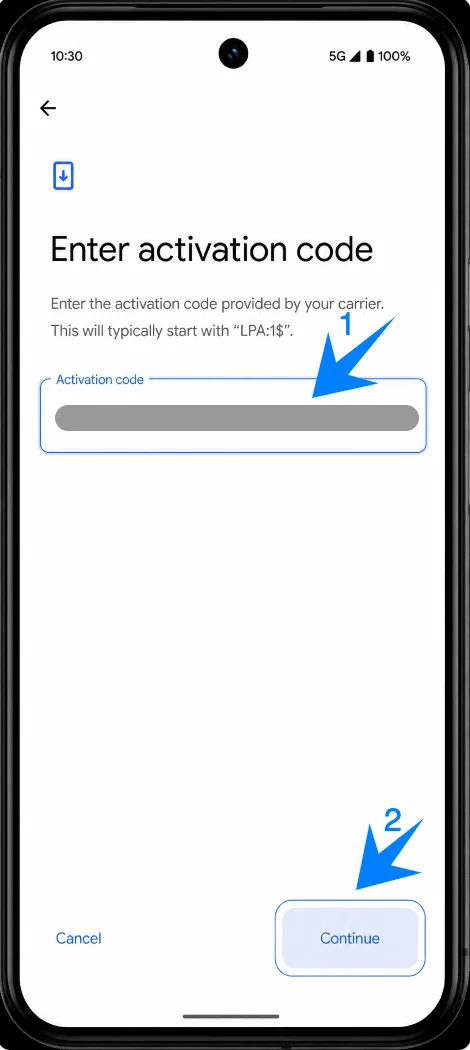
Enter the iRoamly manual details exactly as provided. On this Pixel manual screen, paste the complete combined Activation code string, such as LPA:1$example.smdp.address$PLACEHOLDER-CODE, then tap Continue. If your iRoamly order shows separate SM-DP+ Address and Activation Code values, combine or copy them in the format shown by iRoamly before pasting.
Tap Download or Activate when Android finds the iRoamly eSIM profile, then wait for the download to finish without disconnecting Wi-Fi.
Tap Done when the installation confirmation appears. Label the new SIM iRoamly or Travel eSIM if the Pixel asks you to name it.
How to Confirm the iRoamly eSIM Was Installed
Open Settings, tap Network & internet, then tap SIMs. Look for the new iRoamly or travel eSIM entry in the SIM list.
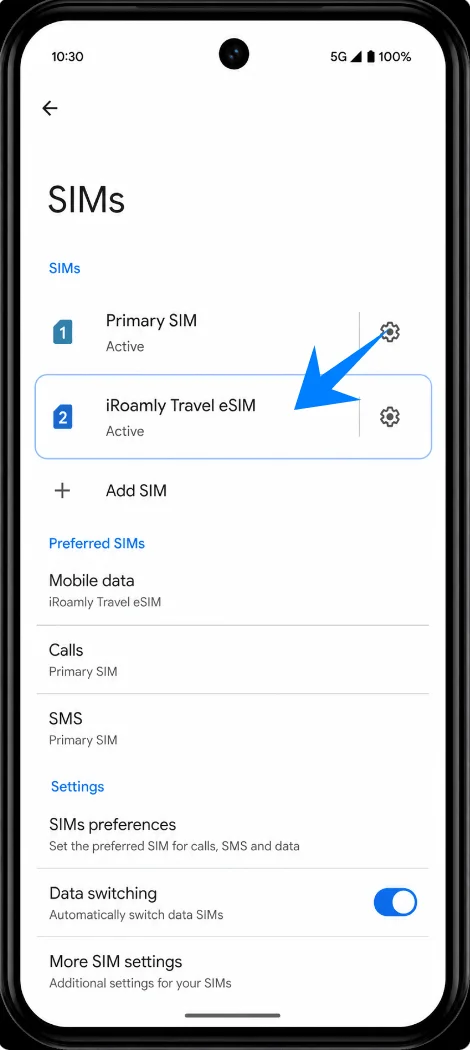
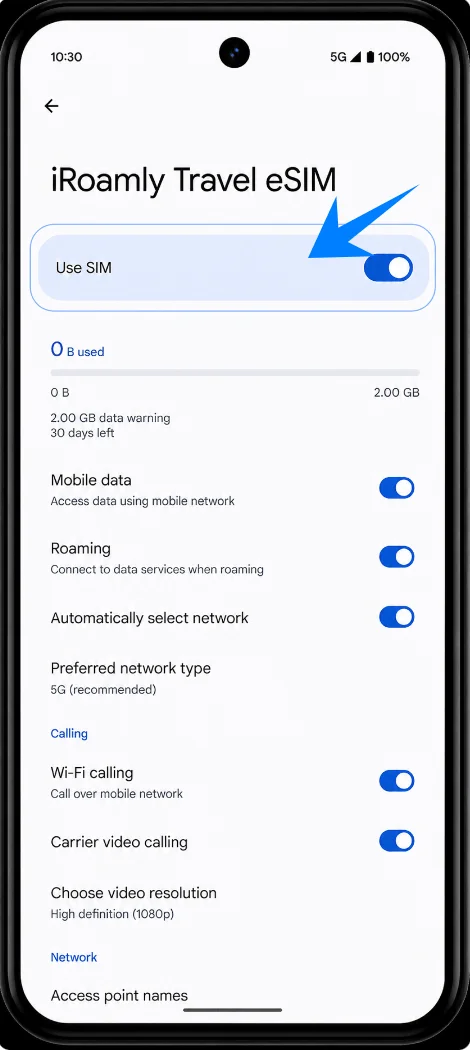
Tap the iRoamly eSIM entry and confirm that Use SIM is available or switched on. If the Pixel says activation is still pending, keep Wi-Fi connected and wait for the profile to finish provisioning.
Set Up the iRoamly eSIM for Travel Data
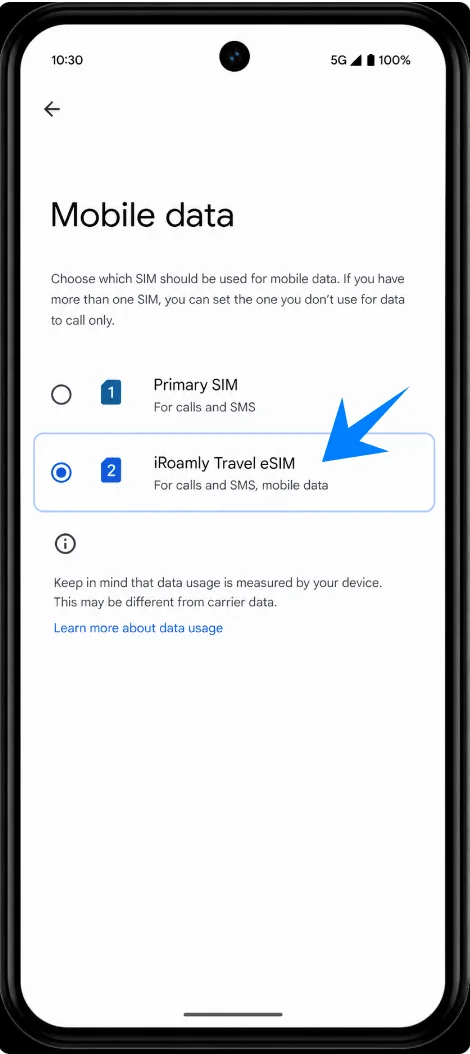
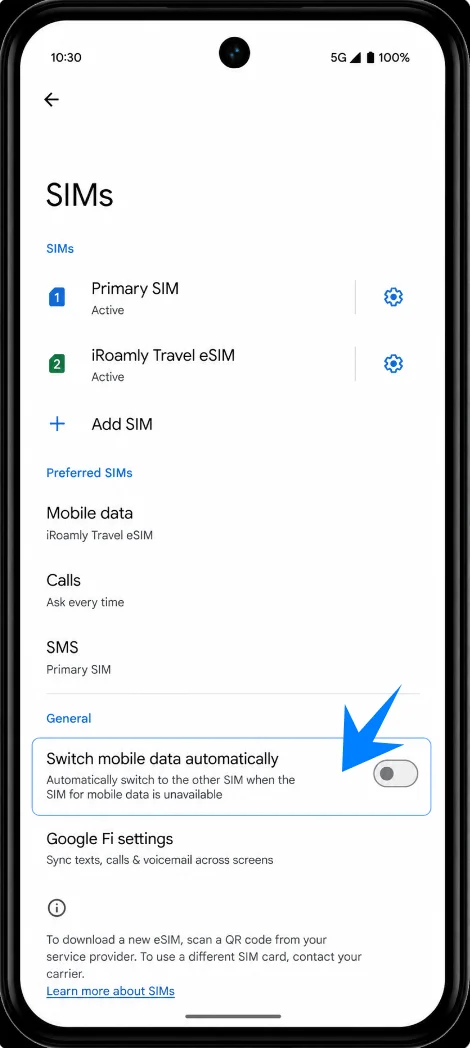
In Settings > Network & internet > SIMs, tap Mobile data, then choose the iRoamly eSIM as the data SIM when you are ready to use the travel plan.
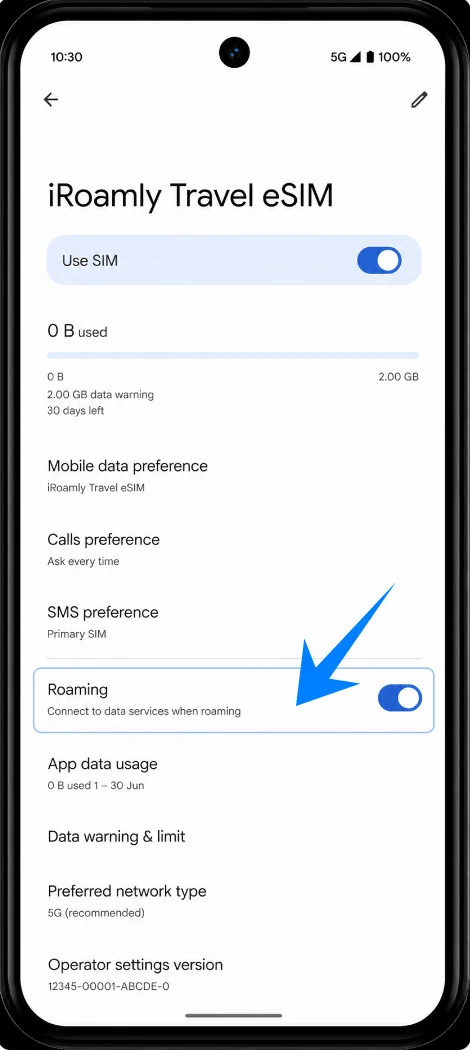
Open the iRoamly eSIM entry, then turn on Roaming if your iRoamly plan or destination instructions require it. Travel eSIMs often need roaming enabled to connect to partner networks.
If the Pixel shows Switch mobile data automatically, turn it off unless you intentionally want Android to switch away from iRoamly. This helps avoid using your primary SIM for travel data by accident.
Troubleshooting
If Add SIM or Set up an eSIM is missing, update Android, check that the phone is unlocked, confirm the Pixel 9 Pro XL has an EID, and ask the carrier whether that variant supports eSIM.
If the QR code does not scan, clean the camera lens, increase the brightness of the screen showing the QR code, keep the code inside the scan frame, or use the manual method.
If Android says the QR code or activation code was already used, do not delete and retry repeatedly. Contact iRoamly support because eSIM activation codes are often single-use.
If the eSIM installs but there is no data, select iRoamly for Mobile data, turn on Roaming for the iRoamly SIM if required, restart the phone, and confirm the destination is covered by the plan.
If activation stays pending, keep Wi-Fi connected, wait several minutes, and check whether the plan is meant to activate only after connecting to a supported network at the destination.
If calls or SMS do not work, check the exact iRoamly plan type. Many iRoamly travel eSIMs provide data without a phone number; calls and SMS vary by plan.
If you no longer need the travel line, turn off Use SIM for the iRoamly eSIM instead of deleting it unless iRoamly support tells you removal is safe.
Conclusion
For the Pixel 9 Pro XL, the reliable route is through Settings > Network & internet > SIMs > Add SIM > Set up an eSIM. Use QR scanning when the iRoamly code is easy to scan, and use manual entry when you need to paste the activation code format instead.
After installation, confirm the iRoamly eSIM appears under SIMs, select it for Mobile data, enable roaming if your destination plan requires it, and remember that plan validity starts from activation, commonly when the eSIM connects to a supported network.