
The Samsung Galaxy S20 Ultra and Galaxy S20 Ultra 5G are designed with advanced connectivity features, including full support for eSIM technology.
With eSIM, users can activate a mobile plan digitally, manage multiple network profiles more efficiently, and complete setup directly from the device settings without additional equipment.
This modern approach to mobile connectivity provides greater flexibility for users who need convenient access to mobile data at home or while traveling.
In this article, you’ll learn how to install and activate an iRoamly eSIM on your Samsung Galaxy S20 Ultra series device step by step using both QR code and manual setup options.

Meet iRoamly for Easier Travel Connectivity
iRoamly is a travel eSIM service that offers mobile data options for many destinations worldwide. Depending on where you are going, available plans may include destination, local, regional, or global choices with different data amounts, validity periods, and features.
After installation on a compatible phone, the travel data line can help with navigation, messaging, translations, bookings, and other on-the-go needs abroad.
On the Galaxy S20 Ultra and Galaxy S20 Ultra 5G, iRoamly can be installed through Samsung settings by QR code or manual activation details. The steps below keep the focus on adding the eSIM profile, enabling it, and confirming the phone can connect normally.
Preparations Before Setting Up iRoamly eSIM
Before starting the installation process, make sure you have the following ready:
A stable internet connection (Wi-Fi is recommended)
A valid eSIM QR code or activation code provided by your carrier
Your Galaxy S20 Ultra or Galaxy S20 Ultra 5G powered on and unlocked
The device updated to the latest available One UI version for better eSIM compatibility
The carrier account activated and eligible for eSIM service
If your travel plans include France or Italy, setting up the corresponding eSIM while you have reliable internet access can save you from doing the full installation after arrival. Just check the plan's activation terms before setting it up in advance.
Method 1: Install eSIM Using a QR Code
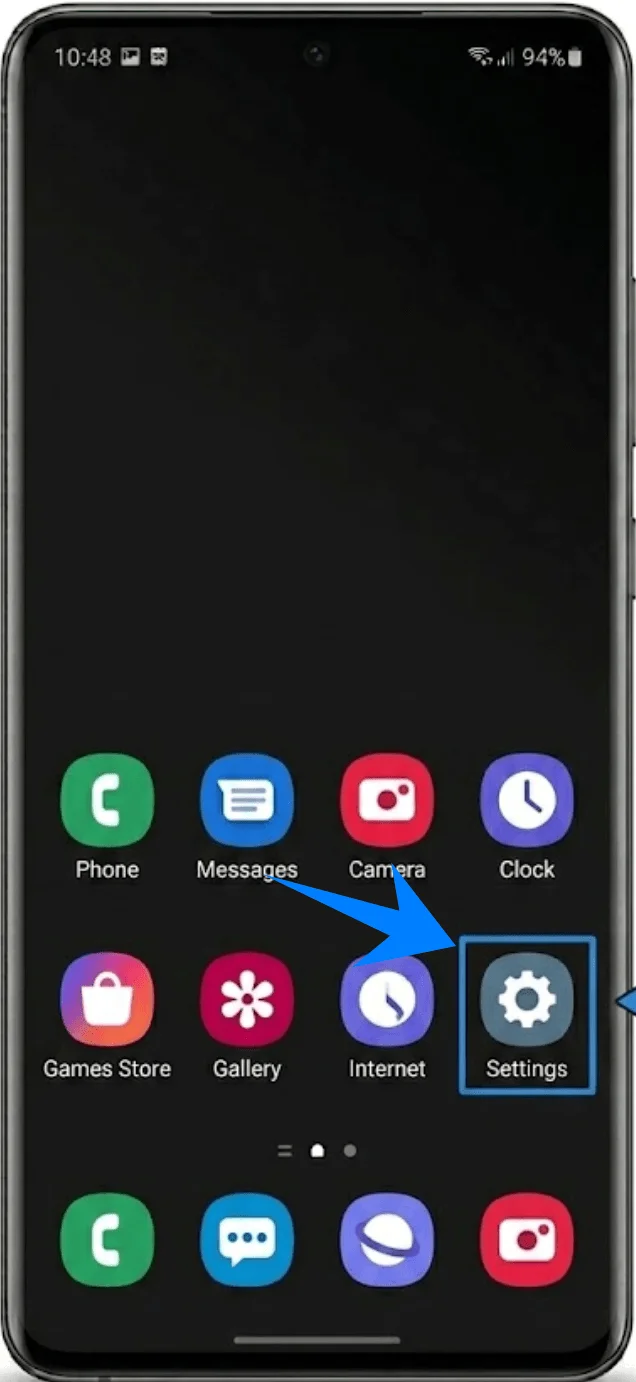
Step 1: Open SIM Card Manager
Open Settings
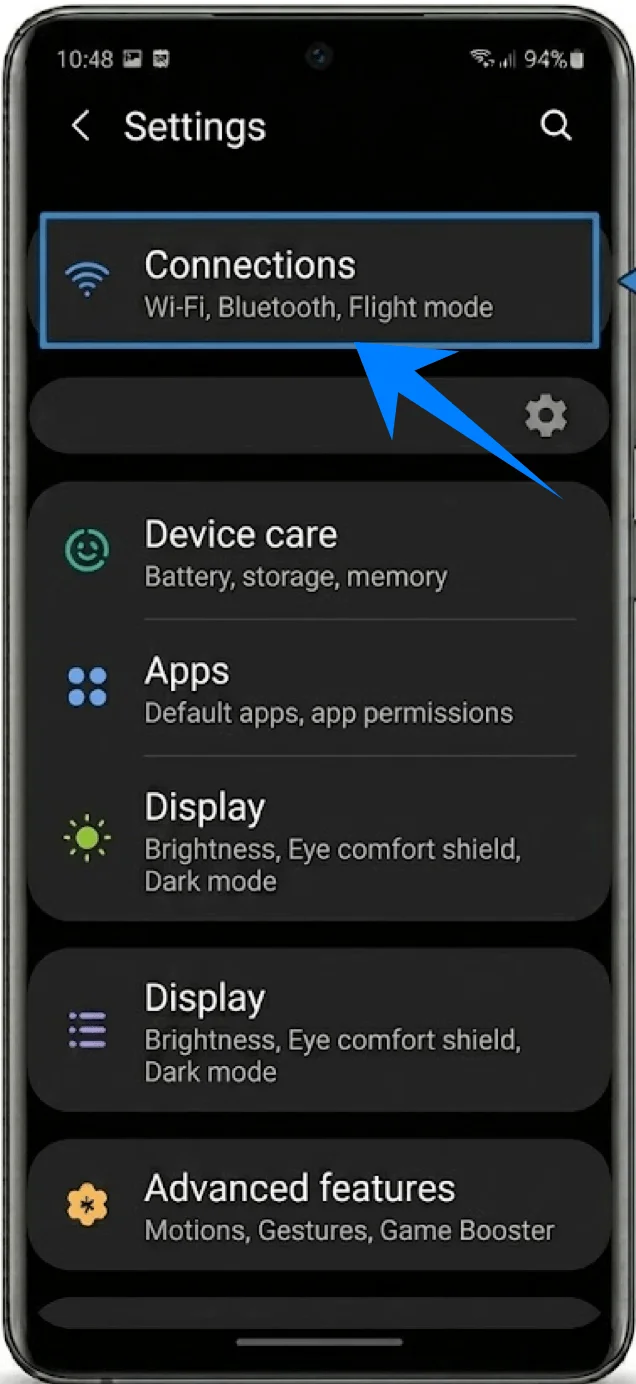
Tap Connections
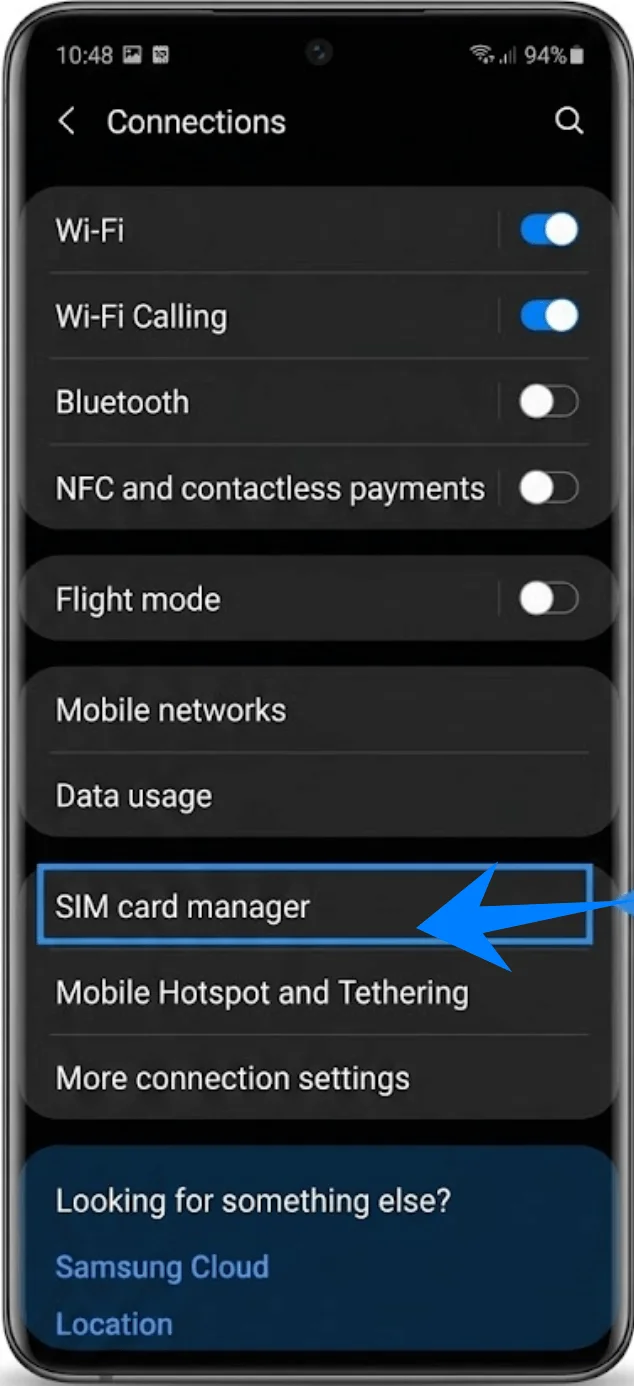
Tap SIM card manager
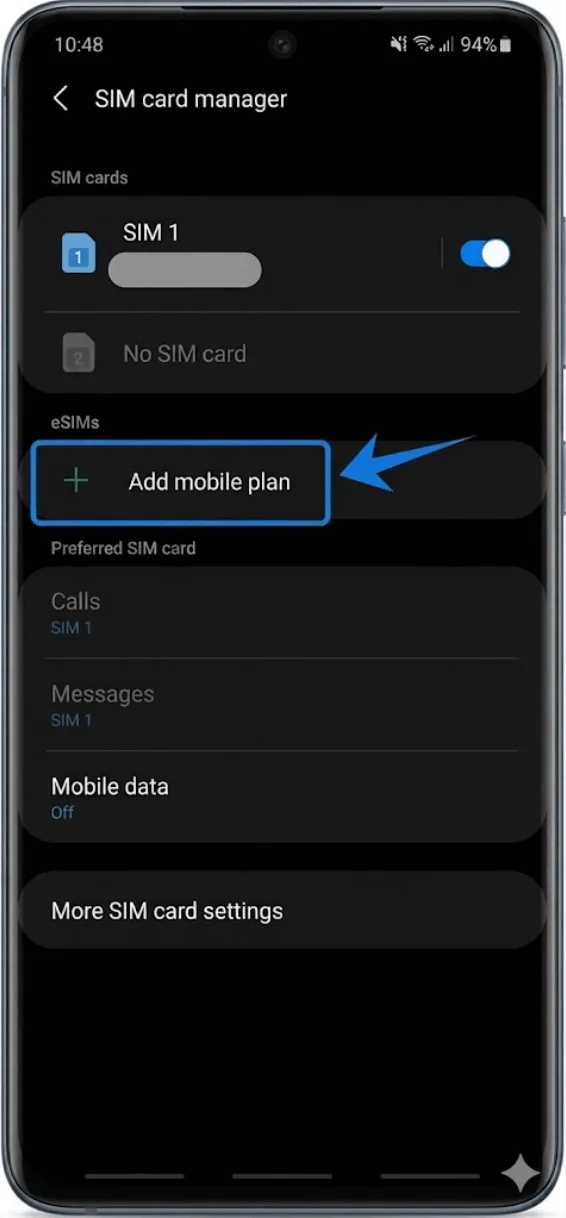
Step 2: Begin eSIM Setup
In SIM card manager, Tap Add mobile plan
Wait for the phone to search for available plans
If no plans are found automatically, the device will display additional setup options.
Step 3: Select QR Code Installation
Under Other ways to add plans
Tap Add using QR code
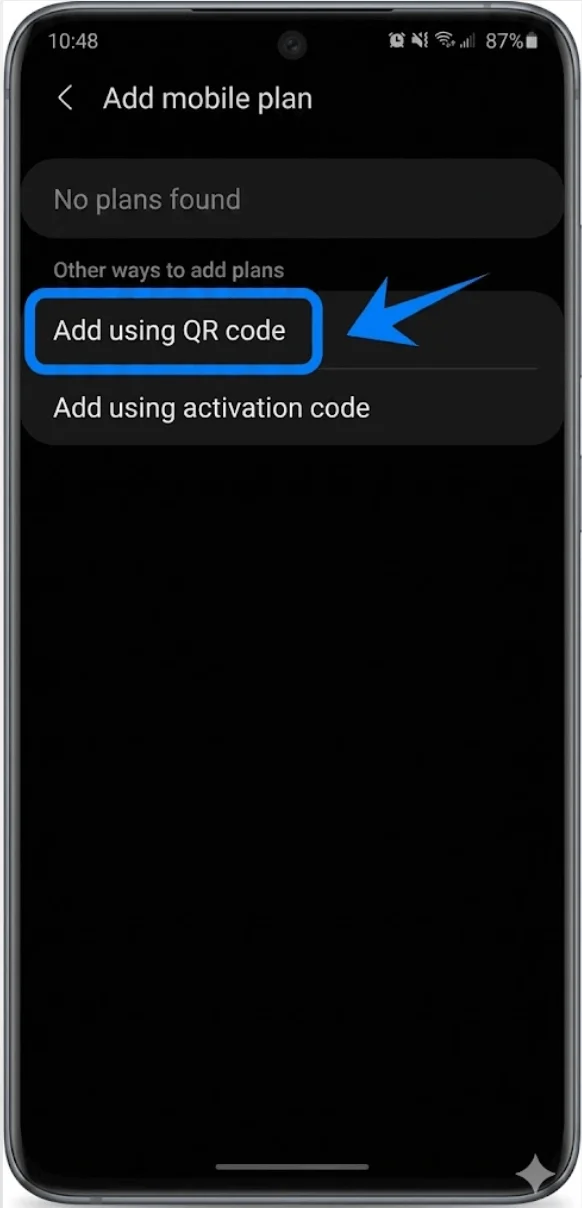
The camera scanner will open automatically.
Step 4: Scan the Carrier QR Code
Hold the phone over the QR code
Position the QR code inside the scanner frame
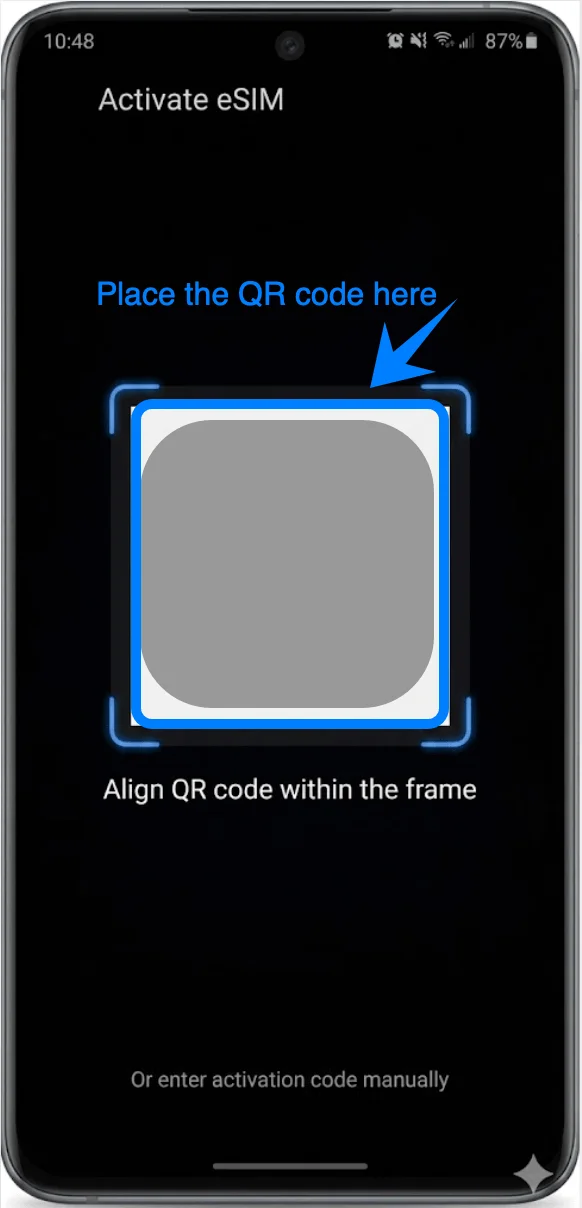
Wait for the phone to recognize the code
The device will automatically retrieve the carrier profile information.
Step 5: Download the eSIM Profile
When the mobile plan appears on screen, tap Add
Wait while the eSIM profile downloads
If prompted, tap Confirm
Do not close the Settings app during installation.
Step 6: Enable the eSIM
After installation completes:
Return to SIM card manager
Locate the newly installed eSIM
Turn on the toggle switch next to the eSIM if it is disabled
Step 7: Configure Preferred SIM Settings
If you use both a physical SIM and eSIM:
Inside SIM card manager
Select your preferred line for:
Calls
Messages
Mobile data
Tap each category and choose the desired SIM.
Method 2: Install eSIM Using an Activation Code
Step 1: Open SIM Card Manager
Open Settings
Tap Connections
Tap SIM card manager
Step 2: Begin eSIM Setup
In SIM card manager, Tap Add mobile plan
Wait for the setup screen to appear
Step 3: Select Manual Activation
Under Other ways to add plans
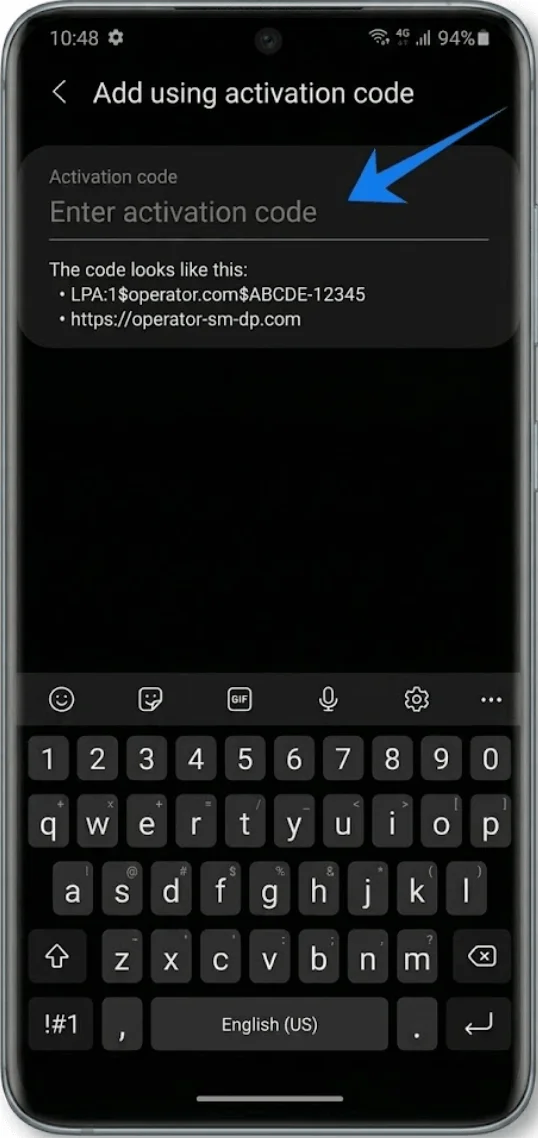
Tap Add using activation code
The manual activation screen will open.
Step 4: Enter the SM-DP+ Address
Tap the SM-DP+ Address field
Enter the address provided by your carrier
Tap Continue or Next if prompted
Step 5: Enter the Activation Code
Tap the Activation code field
Carefully enter the activation code exactly as provided
Activation codes are often case-sensitive.
Step 6: Enter the Confirmation Code
If your carrier provided a confirmation code:
Tap the Confirmation code field
Enter the provided code
If no confirmation code was supplied, leave this field empty.
Step 7: Download the eSIM
Tap Add
Wait while the phone connects to the carrier server
The eSIM profile will download automatically
This process may take several minutes.
Step 8: Enable the eSIM
After installation:
Return to SIM card manager
Locate the installed eSIM
Turn on the toggle switch if necessary
How to Confirm the eSIM Was Successfully Installed
Check the SIM Card Manager
Open Settings
Tap Connections
Tap SIM card manager
You should see:
The eSIM listed under SIMs
The carrier name displayed
The eSIM toggle enabled
Check Network Signal
Look at the top-right corner of the screen.
A successful installation will usually display:
Signal bars
LTE, 4G, or 5G indicator
Test Mobile Data
Turn off Wi-Fi
Open a web browser
Visit a website
If the page loads successfully, the eSIM mobile data connection is working.
Test Calls and Messages
Open the Phone app
Make a test call
Send a text message
This confirms the eSIM line is fully activated.
Note: Some eSIM plans may not include voice calling support, so this feature might not be available depending on your plan.
More Samsung eSIM Setup Guides
Setting up another Samsung phone? These eSIM activation guides may help.
Conclusion
With the iRoamly eSIM successfully installed, your Galaxy S20 Ultra or Galaxy S20 Ultra 5G should now be ready to connect to the mobile network normally.
Once the activation details are entered correctly and the eSIM profile finishes downloading, the device will usually connect automatically within a few moments.
After setup, you can manage mobile data, preferred SIM settings, and additional eSIM profiles directly from Samsung’s SIM card manager whenever needed.