
eSIM technology has made staying connected while traveling much easier than before. Instead of removing your physical SIM card or carrying extra SIM tools, you can simply download a mobile plan directly onto your phone within minutes.
For Samsung Galaxy S25+ users, eSIM offers a more flexible and convenient way to manage travel data without changing your main number or handling tiny plastic cards.
If you recently purchased an iRoamly eSIM and are unsure how to install or activate it on your Galaxy S25+, this guide will walk you through the entire process step by step.
From scanning a QR code to manually entering activation details and configuring mobile data settings, you’ll learn everything you need to get your eSIM ready before your trip.
Preparations Before Setting Up iRomly eSIM
Connect the Galaxy S25+ to stable Wi-Fi.
Make sure the phone is unlocked and eSIM-capable. Some regional or carrier variants can limit eSIM features.
Keep your iRoamly QR code or manual installation details ready on another device, printed page, or email.
Install the eSIM 1-2 days before travel if your iRoamly plan allows it, but do not turn it on for travel data until you are ready to use it.
Check your iRoamly plan details before installing. iRoamly eSIM validity starts from activation, and many travel plans count activation when the eSIM connects to a supported destination network. Confirm the trigger shown on your purchased plan.
Do not delete the iRoamly eSIM casually. Many eSIMs cannot be installed again after deletion unless support reissues them.
iRoamly travel eSIM plans may be data-only, or may vary by destination and plan type. Do not assume voice calls or SMS are included unless your specific plan says so.
Method 1: Install the iRoamly eSIM by Scanning a QR Code
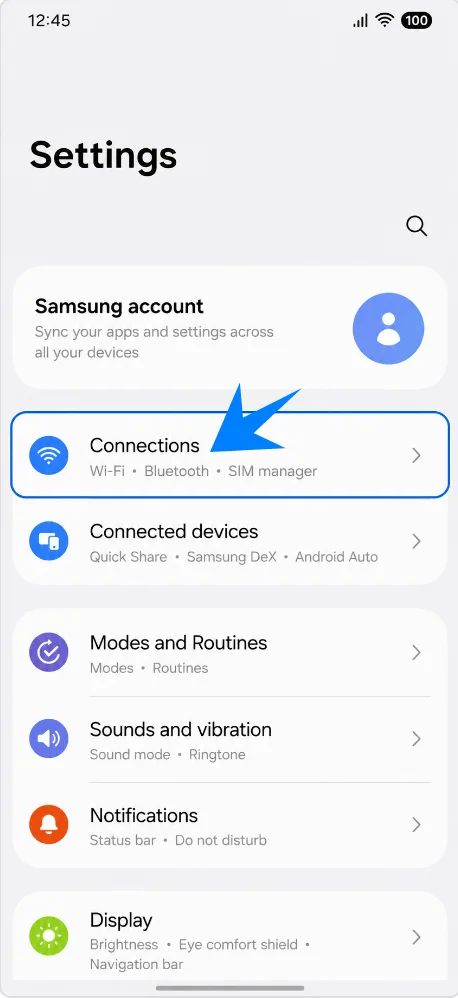
Open Settings, then tap Connections. You should see Samsung's connection controls, including Wi-Fi, Bluetooth, mobile network settings, and SIM manager.
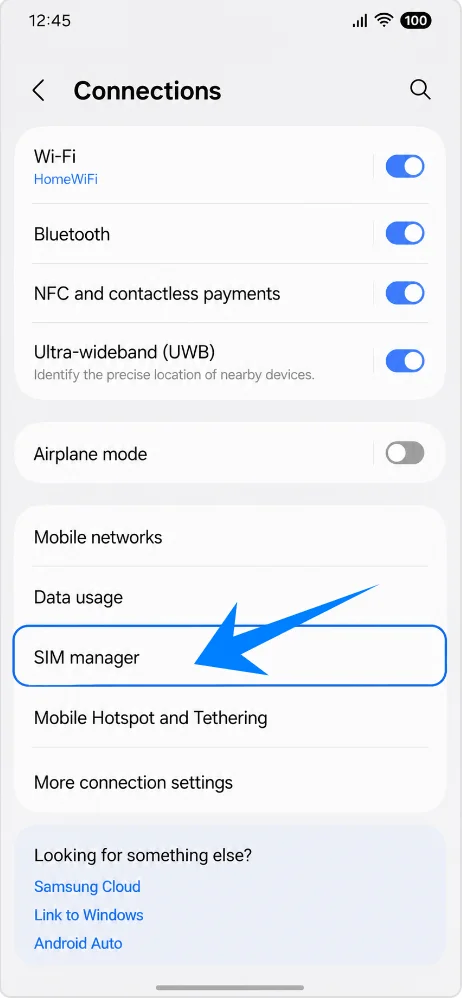
Tap SIM manager. This opens the page where Samsung lists physical SIMs, eSIMs, preferred SIMs, and mobile data switching.
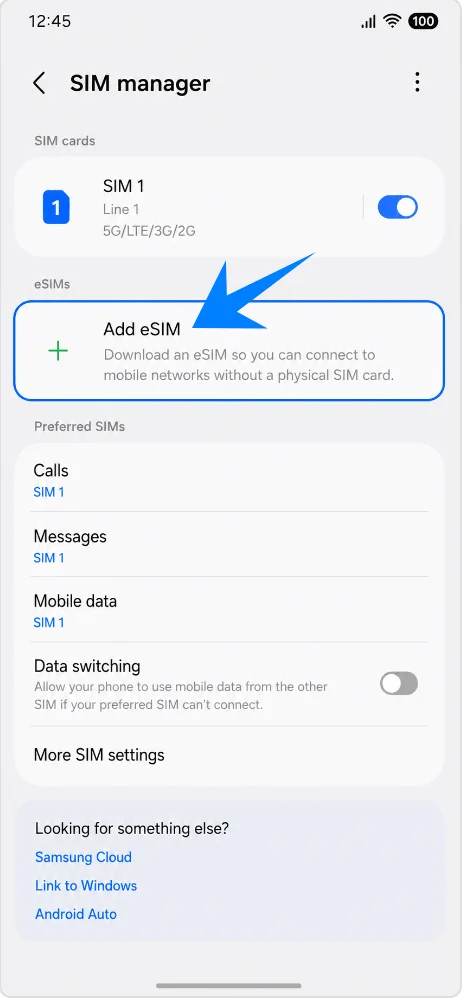
Tap Add eSIM. The phone will start the Samsung flow for downloading a new eSIM profile.
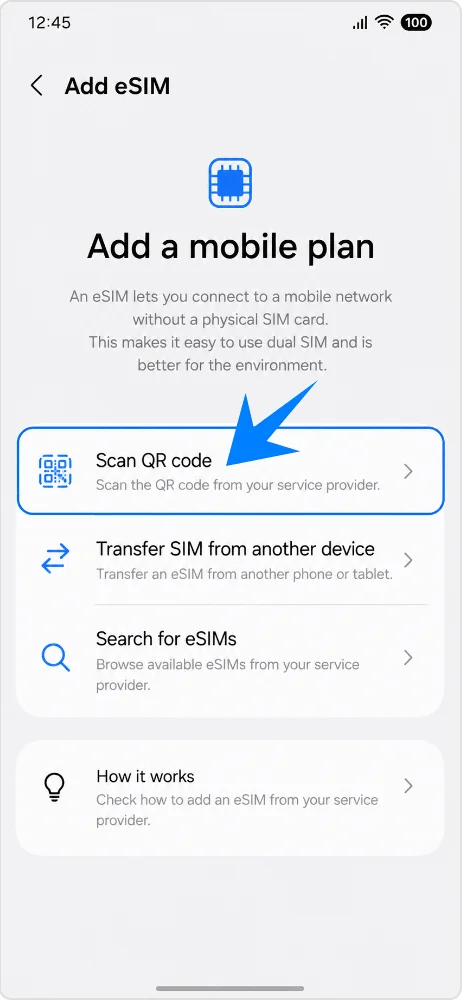
Tap Scan QR code. This opens the eSIM QR scanner.
Point the scanner at the iRoamly eSIM QR code. Keep the code flat, bright, and fully inside the scan frame until the phone recognizes it.
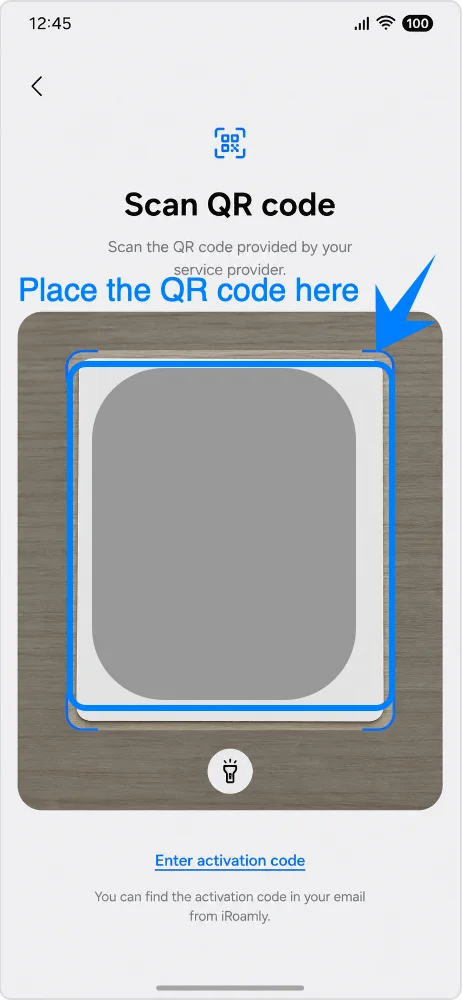
Review the plan page, then tap Add. The Galaxy S25+ will download the iRoamly eSIM profile over Wi-Fi.
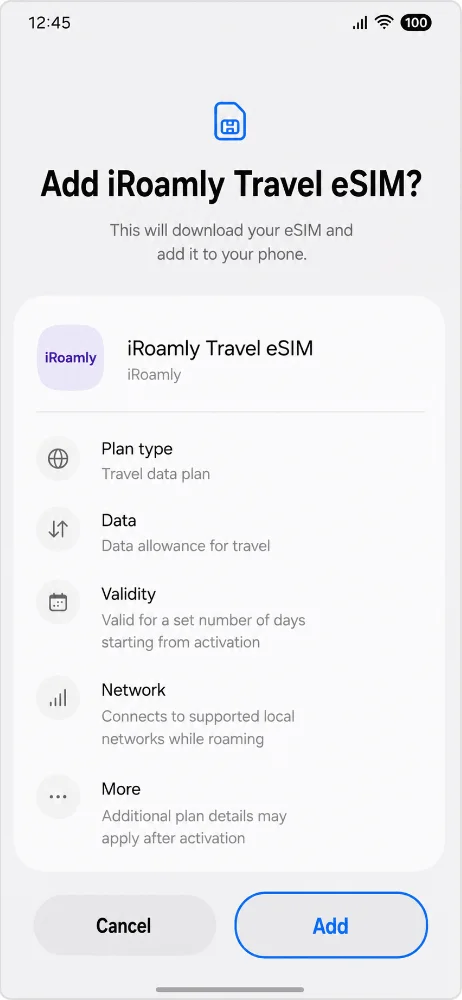
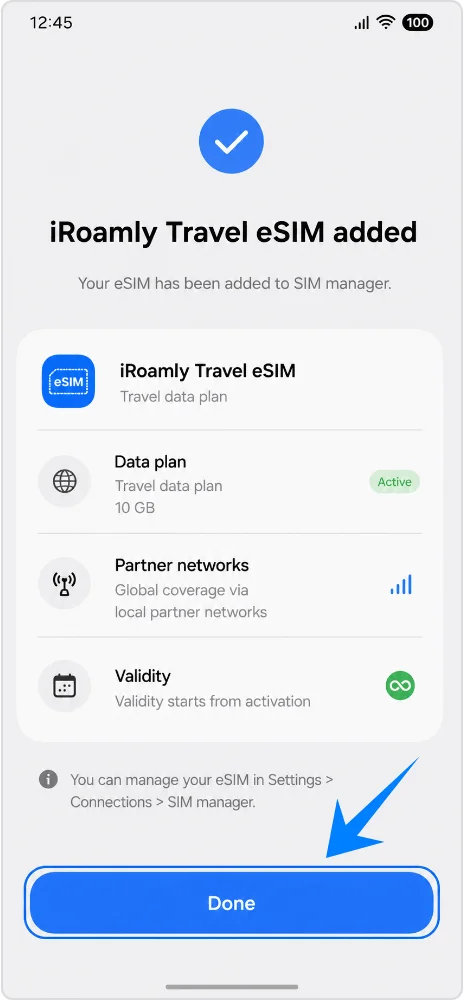
Wait for the download to finish, then tap Done. If Samsung or iRoamly prompts you to restart, restart before testing data.
Method 2: Install the iRoamly eSIM by Manual Entry
Open Settings, then tap Connections. This is the same starting point as the QR method, but the manual path will branch from the QR scanner screen.
Tap SIM manager. Confirm that you are on the Samsung page for SIM and eSIM management.
Tap Add eSIM. The phone will open the eSIM setup options.
Tap Scan QR code. On Samsung phones, the manual entry link is usually inside or below the QR-code screen.
Tap Enter activation code at the bottom of the QR screen. This opens the manual eSIM activation form.
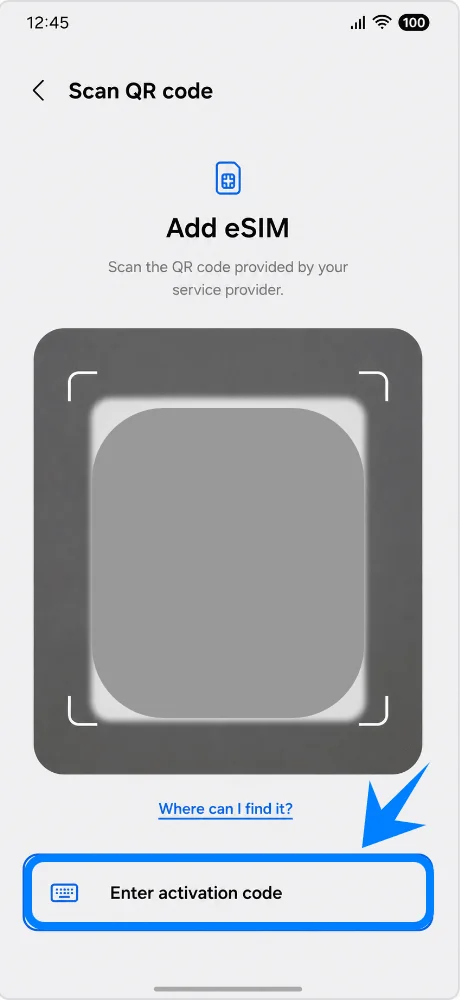
Enter the iRoamly manual details, then tap Connect. Use the SM-DP+ Address, Activation Code, and optional Confirmation Code exactly as iRoamly provides them. If your Galaxy S25+ firmware shows one combined Activation code field instead of separate fields, paste the full iRoamly activation string in the format LPA:1$smdp.example$ACTIVATION-CODE.
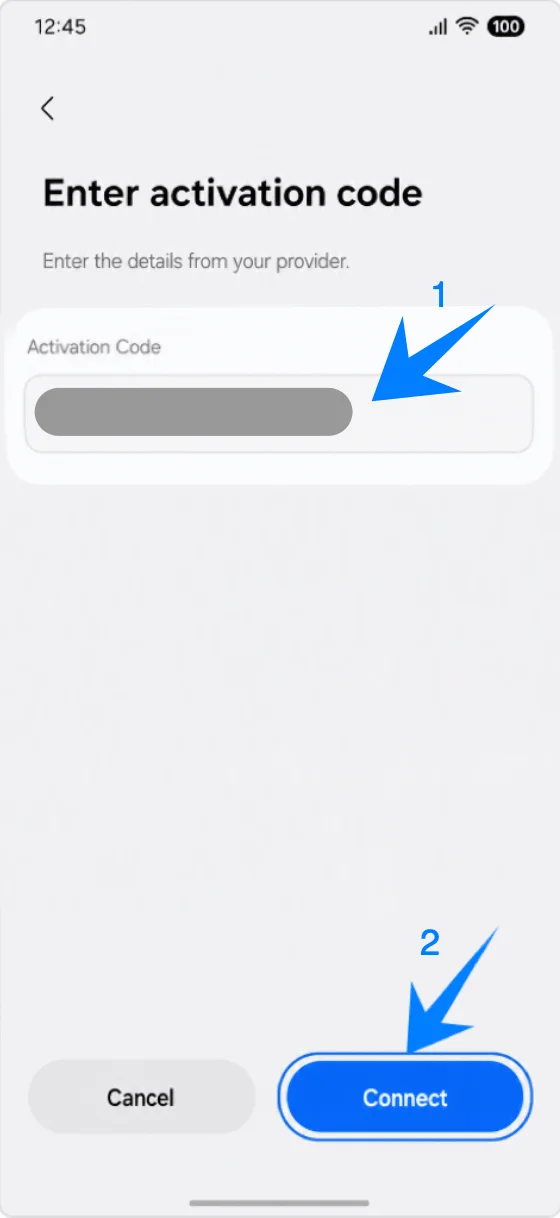
Review the plan page, then tap Add. The phone will download the same iRoamly eSIM profile as it would with the QR method.
Wait for setup to complete, then tap Done. Keep Wi-Fi connected until the eSIM has fully downloaded.
How to Confirm the iRoamly eSIM Was Installed
Open Settings > Connections > SIM manager, then look under eSIMs for iRoamly Travel eSIM. Make sure the switch beside the iRoamly eSIM is turned on when you want the line available.
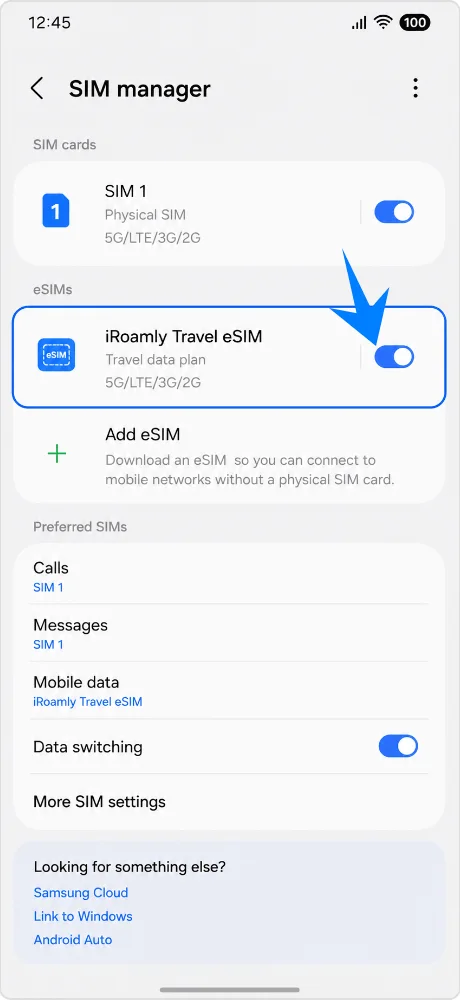
Set Up the iRoamly eSIM for Travel Data
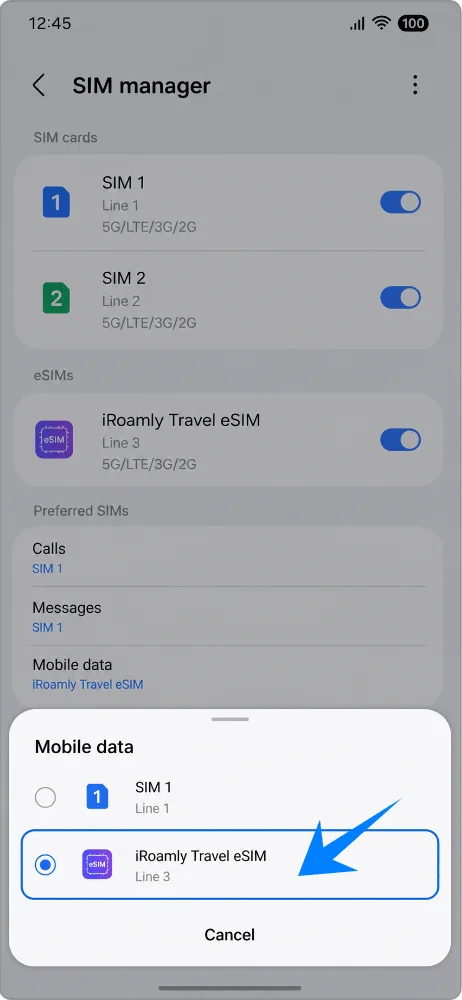
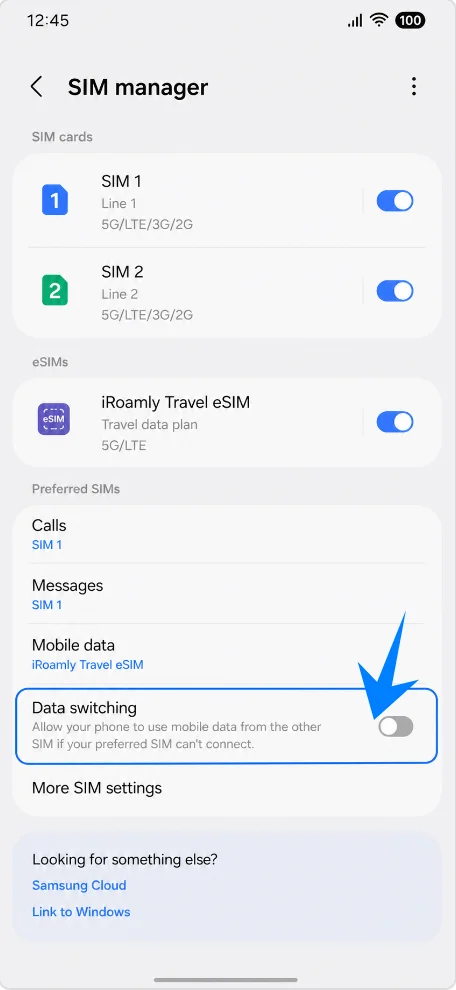
In SIM manager, tap Mobile data, then select iRoamly Travel eSIM. This tells the Galaxy S25+ to use the iRoamly line for cellular data instead of your primary SIM.
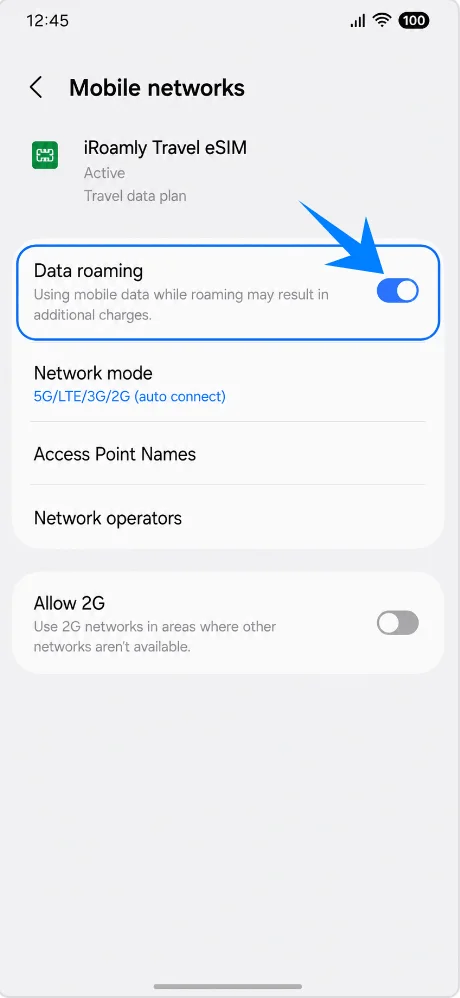
Open the iRoamly eSIM's Mobile networks settings, then turn on Data roaming if your iRoamly plan or destination instructions require roaming. Travel eSIMs usually need roaming enabled to use partner networks abroad.
Return to SIM manager, then leave Data switching off if you do not want the phone to switch mobile data back to another SIM automatically. This helps avoid accidental roaming or data charges on your primary line.
Troubleshooting
No Add eSIM: Update the Galaxy S25+, check that it is unlocked, confirm the model/region supports eSIM, and look for an EID in phone information. Some carrier firmware can hide or restrict eSIM controls.
QR code fails: Increase screen brightness on the device showing the QR code, clean the S25+ camera lens, keep the code flat, or use the manual entry method.
Code already used: eSIM activation codes are usually single-use. Do not delete the profile and try again unless iRoamly support tells you to.
eSIM installed but no data: Select iRoamly Travel eSIM for Mobile data, turn on Data roaming if required, restart the phone, and confirm that your destination is covered by the purchased plan.
Activation pending: Some travel eSIMs install before they activate. If your plan activates on network connection, it may remain inactive until the phone reaches a supported destination network.
Primary SIM takes over data: Turn off Data switching, then reselect iRoamly Travel eSIM under Mobile data.
Voice or SMS does not work: Check the exact iRoamly plan type. Many travel eSIM plans are data-only.
Conclusion
With your iRoamly eSIM successfully installed on the Galaxy S25+, your phone is now ready for a more flexible and convenient travel data experience.
Because the eSIM is stored digitally inside the device, you can manage your mobile plans directly through Samsung’s settings without removing your primary SIM card or carrying extra physical cards while traveling.
Before your trip begins, make sure the iRoamly eSIM is selected for mobile data and that roaming settings are enabled if required by your destination. Once those settings are configured correctly, your Galaxy S25+ should be ready to connect to supported networks more smoothly when you arrive abroad.