
eSIM technology has made mobile connectivity more flexible and efficient by allowing users to activate a cellular plan digitally, without needing a physical SIM card.
On the iPhone 16 Pro, this feature is fully supported and easy to use, making it simple to add and manage multiple plans directly from your device.
In this guide, we’ll walk you through the step-by-step process to install and activate your iRoamly eSIM on iPhone 16 Pro.

Stay Connected Abroad with iRoamly
iRoamly Travel eSIM provides mobile data plans for travelers across individual destinations and multi-country regions, with data allowances, validity, and plan types varying by location. Installed travel data can support navigation, messaging, ride-hailing, bookings, and other online tasks during a trip.
The iPhone 16 Pro supports digital eSIM setup, so an iRoamly plan can be added without replacing a physical card and then managed from the phone’s cellular settings. The guide below covers QR-code and manual installation before showing how to check the connection.
Preparations Before Setting Up iRoamly eSIM
Before starting, ensure you have the following. Once you have chosen an eSIM for your destination, such as an eSIM for Italy, you can install the plan before the trip and select it for mobile data when needed.
A stable internet connection (Wi-Fi or cellular)
A valid eSIM QR code or manual activation details (SM-DP+ address and activation code) provided by your carrier
Your iPhone 16 Pro powered on and unlocked
The device updated to the latest iOS version (recommended for compatibility)
Method 1: Install eSIM via QR Code Scanning
Step 1: Open Cellular Settings
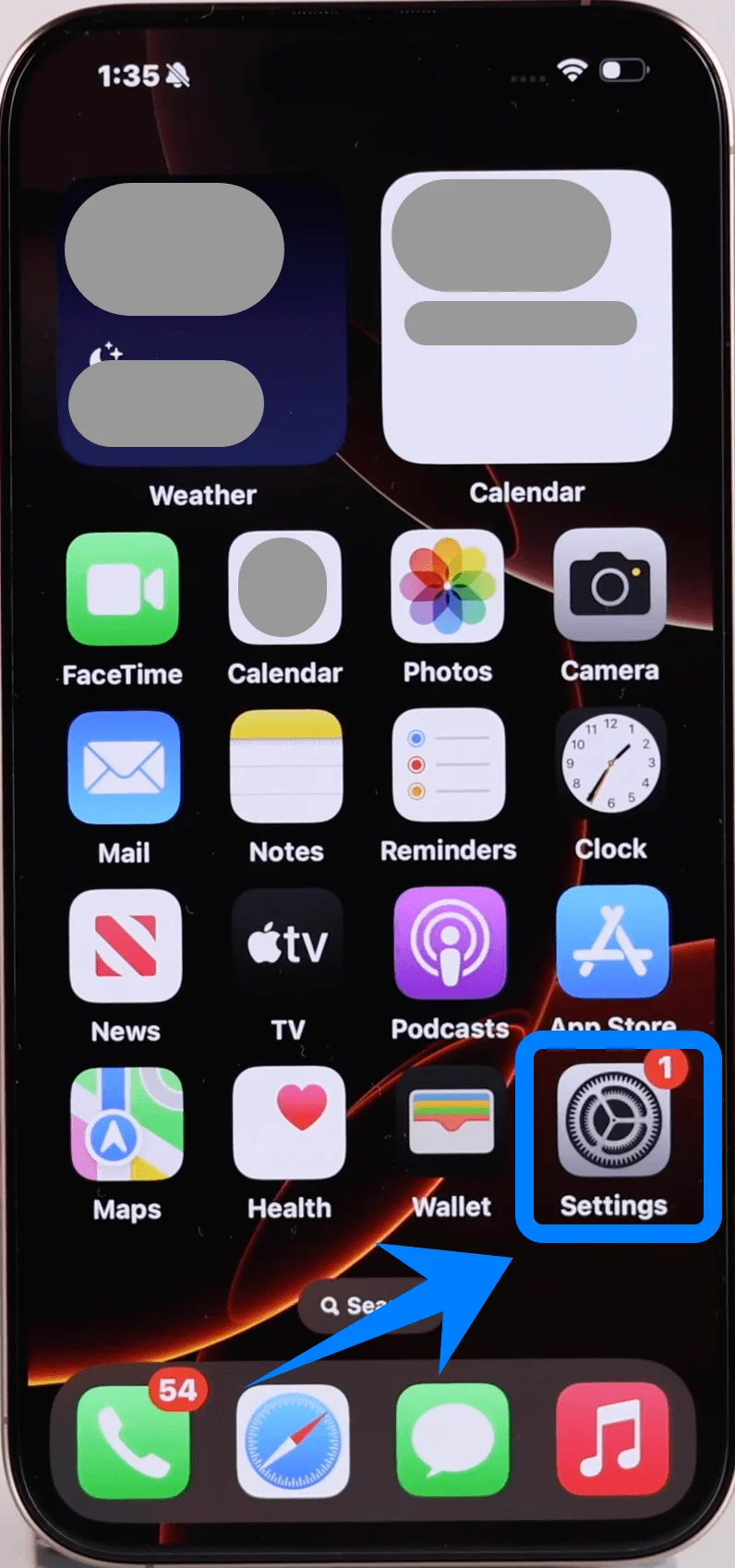
Tap Settings
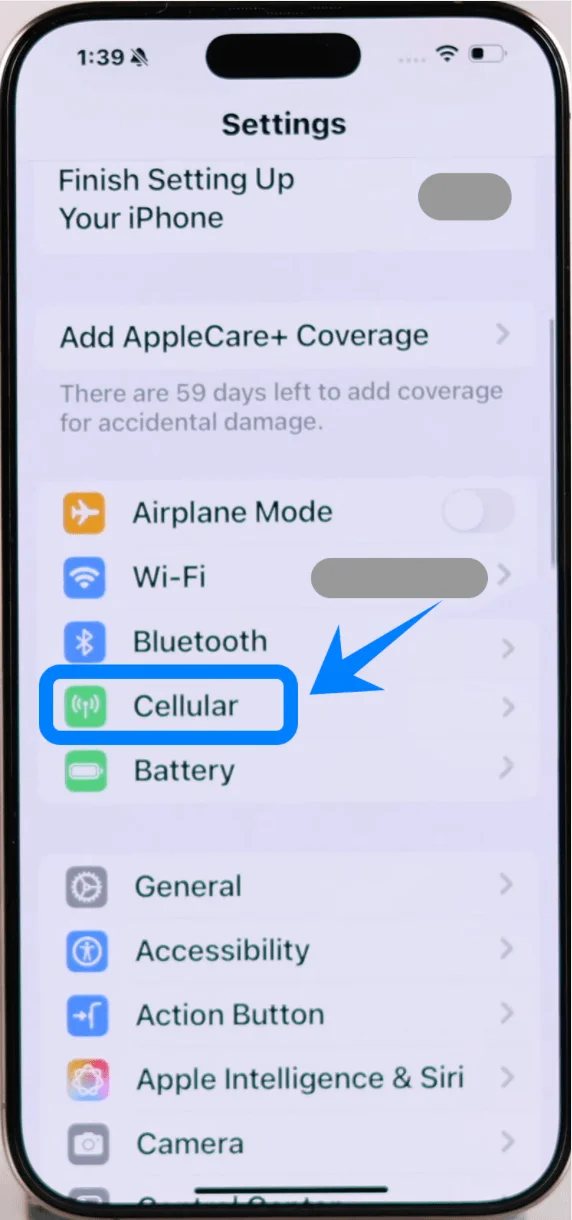
Scroll down and tap Cellular (On some devices, this may appear as “Mobile Service” or “Mobile Data”)
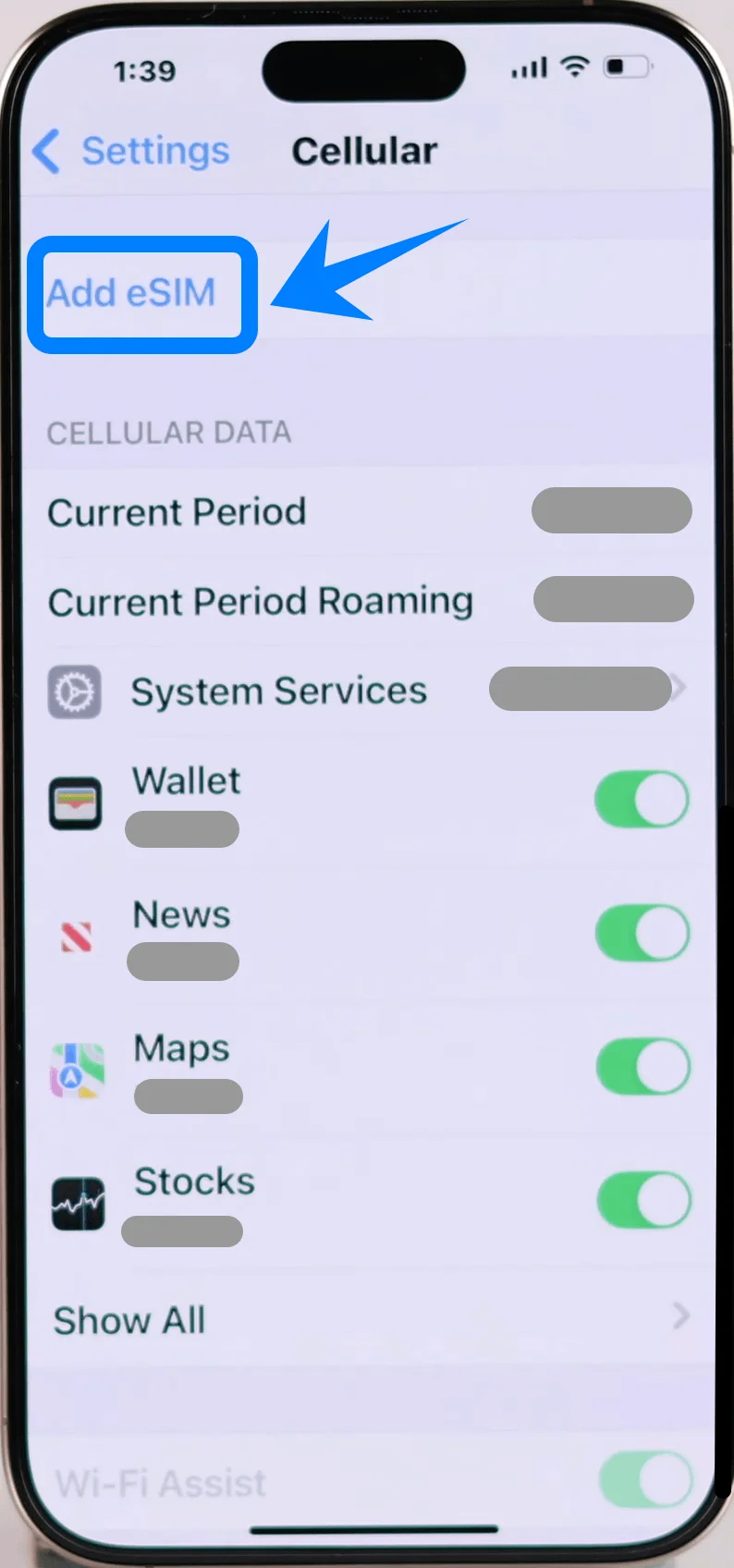
Step 2: Add eSIM
Tap Add eSIM if you already have an existing cellular plan, or tap Set Up Cellular if this is your first plan
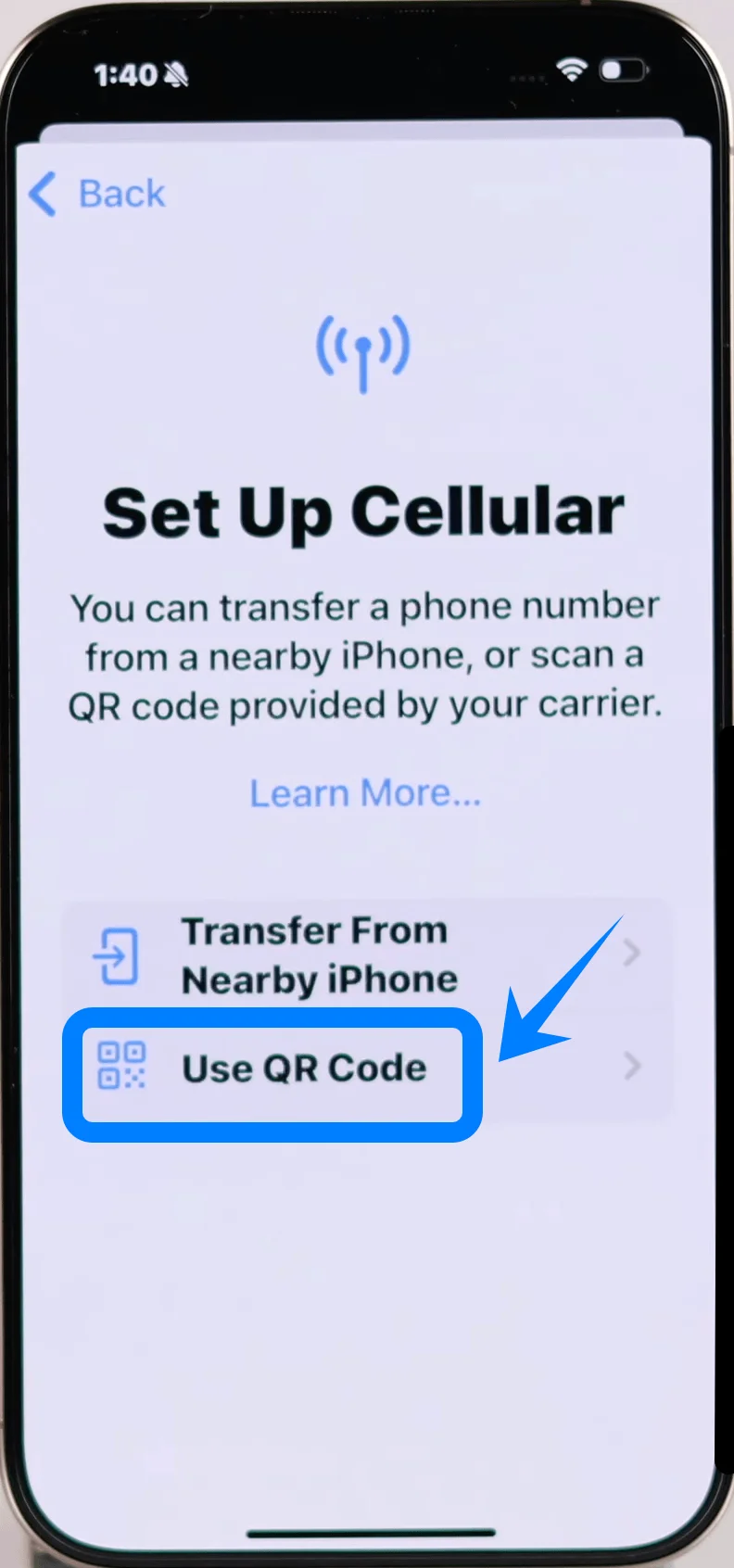
Step 3: Choose QR Code Option
Tap Use QR Code
Step 4: Scan the QR Code
The camera will open automatically
Position the QR code within the frame
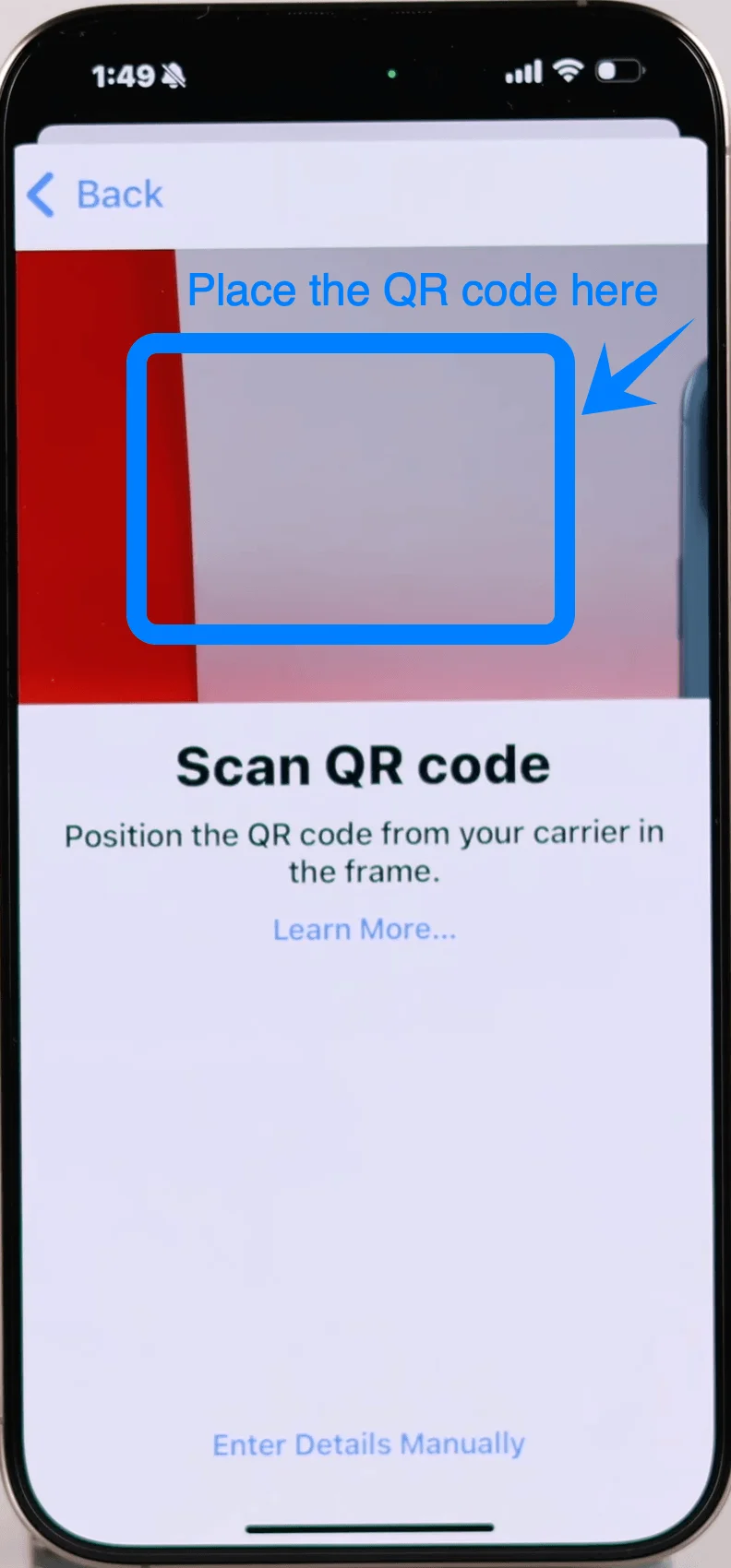
Wait for the system to recognize it
Step 5: Confirm eSIM Activation
When prompted, tap Continue
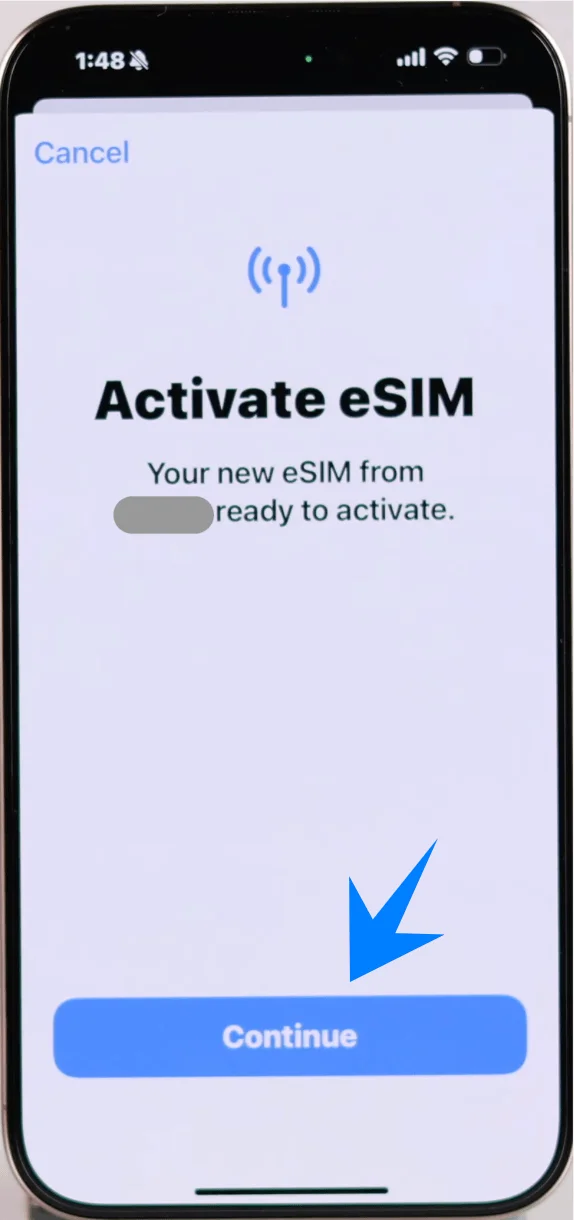
Then tap Add Cellular Plan
Step 6: Label the eSIM (if prompted)
Select a label (e.g., Primary, Secondary, Business)
Tap Continue
Step 7: Set Default Line Preferences
Select default lines for:
Voice calls
iMessage & FaceTime
Cellular data
Tap Continue after each selection
Method 2: Install eSIM via Manual Input
Step 1: Open Cellular Settings
Tap Settings
Scroll down and tap Cellular (On some devices, this may appear as “Mobile Service” or “Mobile Data”)
Step 2: Add eSIM
Tap Add eSIM if you already have an existing cellular plan, or tap Set Up Cellular if this is your first plan
Step 3: Select Manual Entry Option
Tap Use QR Code
On the next screen, tap Enter Details Manually
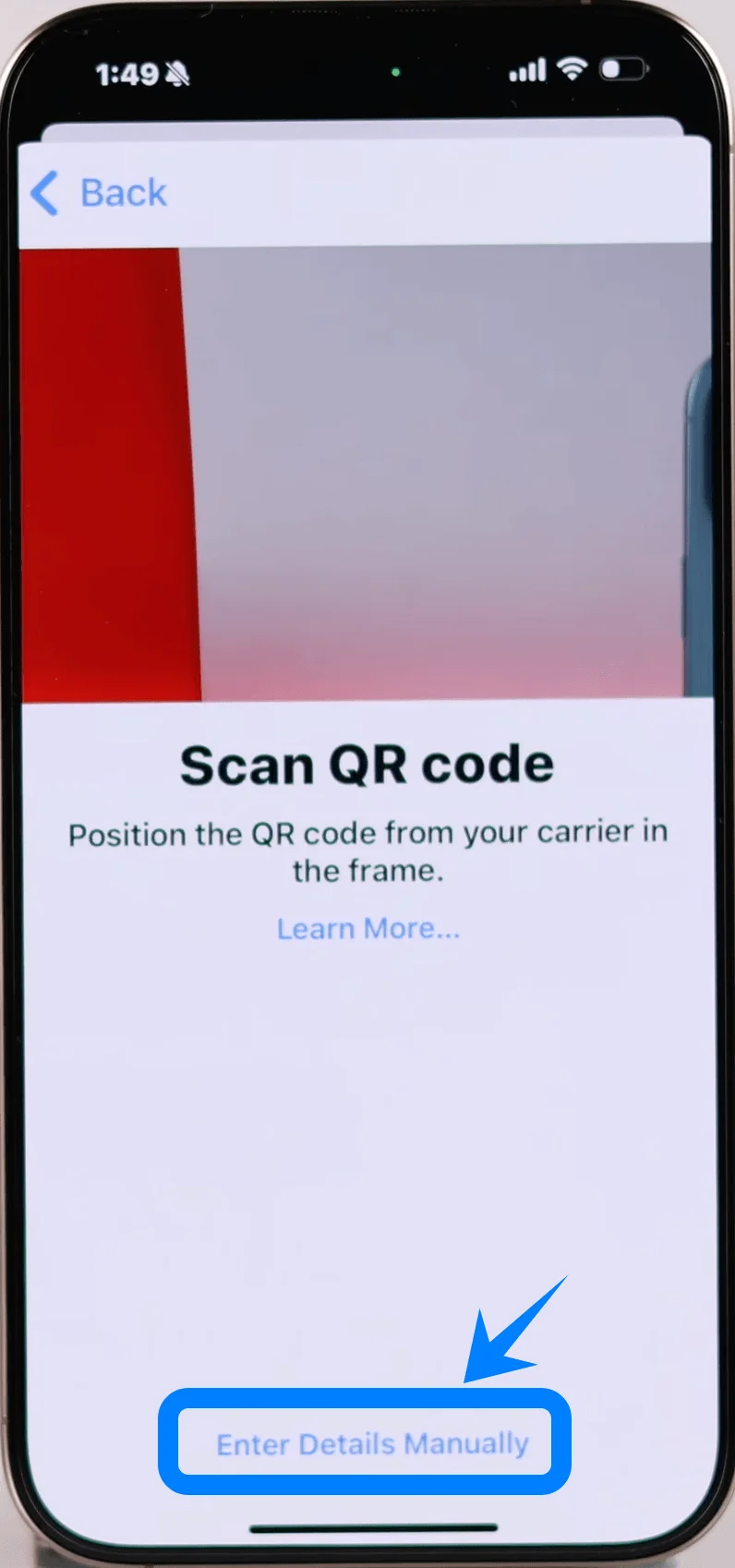
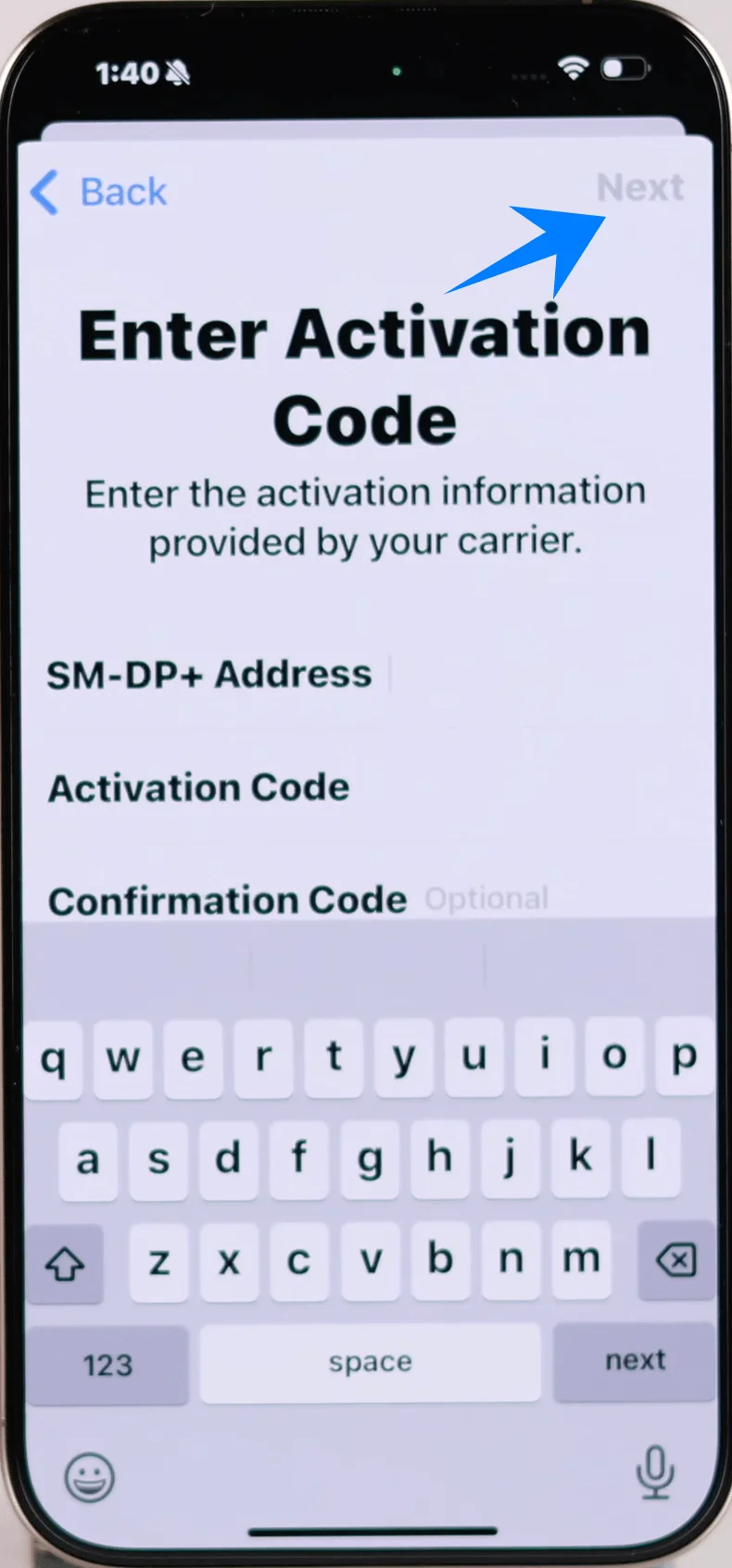
Step 4: Enter SM-DP+ Address
In the SM-DP+ Address field, type the address provided by your carrier
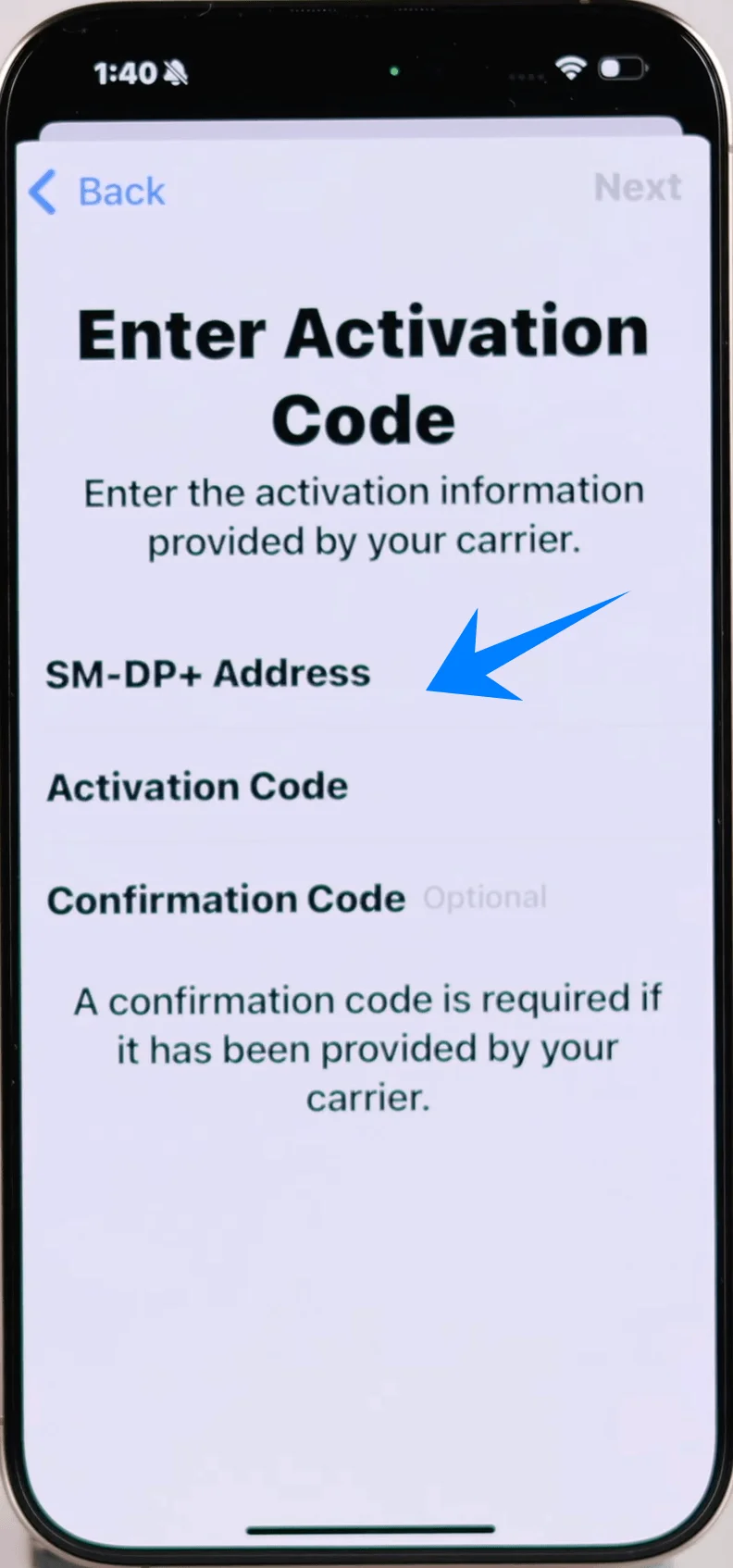
In the Activation Code field, enter the code exactly as provided
Tap Next
Step 5: Confirm Installation
Tap Add Cellular Plan when prompted
Step 6: Label the eSIM
Select a label (e.g., Primary, Secondary, Business)
Tap Continue
Step 7: Configure Default Line Settings
Select default lines for:
Voice calls
iMessage & FaceTime
Cellular data
Tap Continue after each selection
How to Confirm Successful eSIM Installation
After completing either method, verify installation using the following checks:
Check 1: Cellular Plan Appears
Go to Settings → Cellular (On some devices, this may appear as “Mobile Service” or “Mobile Data”)
Confirm your new plan is listed under SIMs
Check 2: Signal Indicator
Look at the top-right corner of the screen
Ensure signal bars appear for the new line
Check 3: Enable the Line
Path: Settings → Cellular (On some devices, this may appear as “Mobile Service” or “Mobile Data”) → Select the new eSIM
Ensure Turn On This Line is enabled (toggle is green)
Check 4: Test Connectivity
Open Safari
Load a webpage using cellular data (disable Wi-Fi if necessary)
eSIM Activation Guides for Other iPhones
Have another iPhone to set up? The guides below may help.
Conclusion
Once the setup is complete, iRoamly eSIM will provide a stable and reliable data connection on your iPhone 16 Pro.
Whether you're browsing the web, using navigation apps, or staying in touch online, you can expect a smooth experience.
If you need to adjust any settings, you can easily manage them directly on your device to ensure your connection continues to meet your needs.