
As mobile connectivity continues to evolve, eSIM is becoming a preferred choice for many users.
Unlike traditional physical SIM cards, an eSIM allows you to download and activate a cellular plan directly on your device without inserting or replacing any hardware.
For iPhone 16e users, this means a faster and more flexible setup experience, especially when switching between different networks.
If you’ve already received your iRoamly eSIM details, this guide will walk you through the installation and activation process step by step, helping you get connected as quickly as possible.
Meet iRoamly for Easier Travel Connectivity
iRoamly is a travel eSIM service that provides mobile data for destinations around the world.
Travelers can choose from local, regional, and global plans, with allowances, validity periods, and plan types varying by destination. Once installed, travel data can support maps, messaging, translations, ride-hailing, bookings, and timely travel updates.
On an eSIM-compatible iPhone 16e, an iRoamly plan can be installed digitally and selected for mobile data while traveling. The instructions below explain both QR-code and manual setup, then show how to confirm the new line is active.
Preparations Before Setting Up iRoamly eSIM
Before starting, ensure you have the following. If Japan is your next destination, preparing the travel eSIM before departure can leave less to configure after you arrive.
A stable internet connection (Wi-Fi or cellular)
A valid eSIM QR code or manual activation details (SM-DP+ address and activation code) provided by your carrier
Your iPhone 16e powered on and unlocked
The device updated to the latest iOS version (recommended for compatibility)
Method 1: Install eSIM via QR Code Scanning
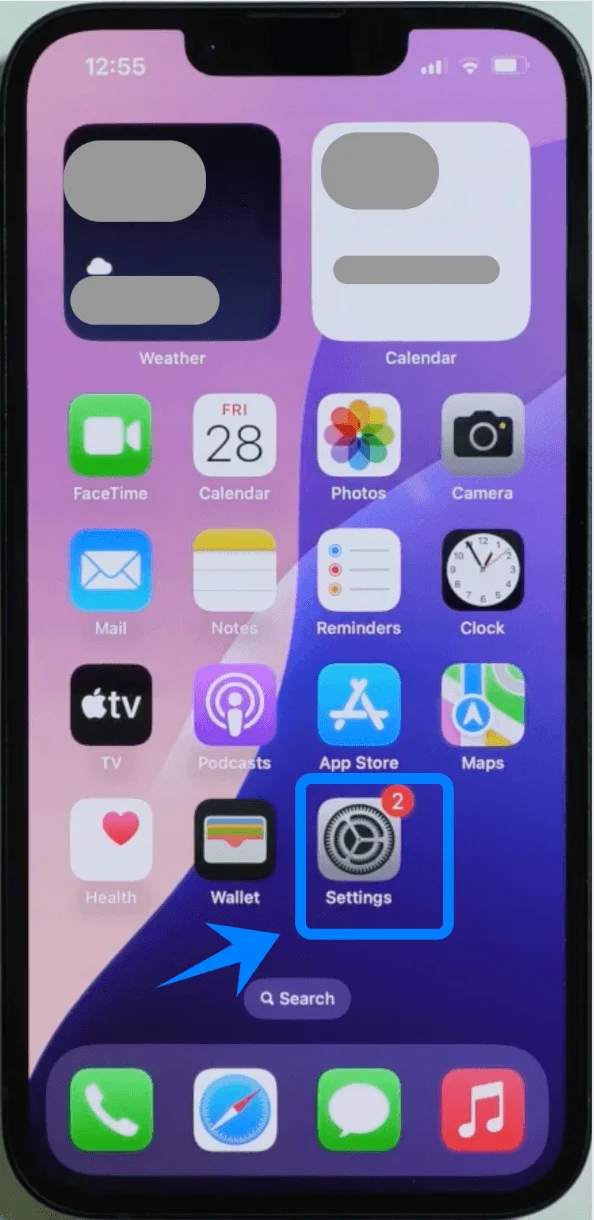
Step 1: Open Settings
Tap Settings on the Home Screen
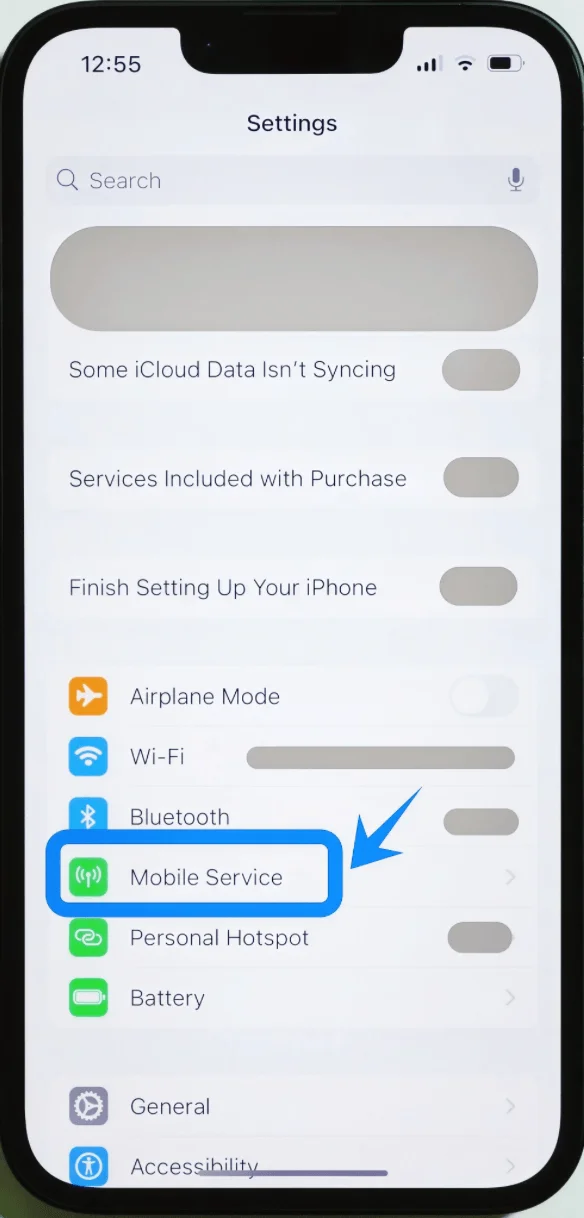
Step 2: Navigate to Cellular Settings
Scroll down and tap Mobile Service (On some devices, this may appear as “Cellular” or “Mobile Data”)
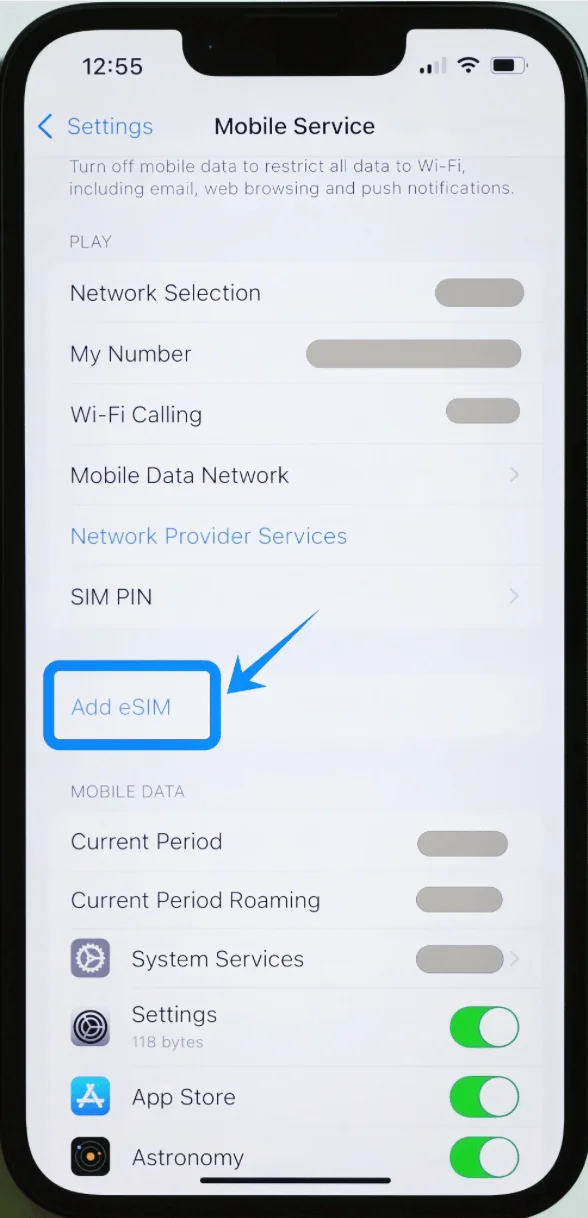
Step 3: Add eSIM
Tap Add eSIM if you already have an existing cellular plan, or tap Set Up Cellular if this is your first plan
Step 4: Choose QR Code Option
Tap Use QR Code
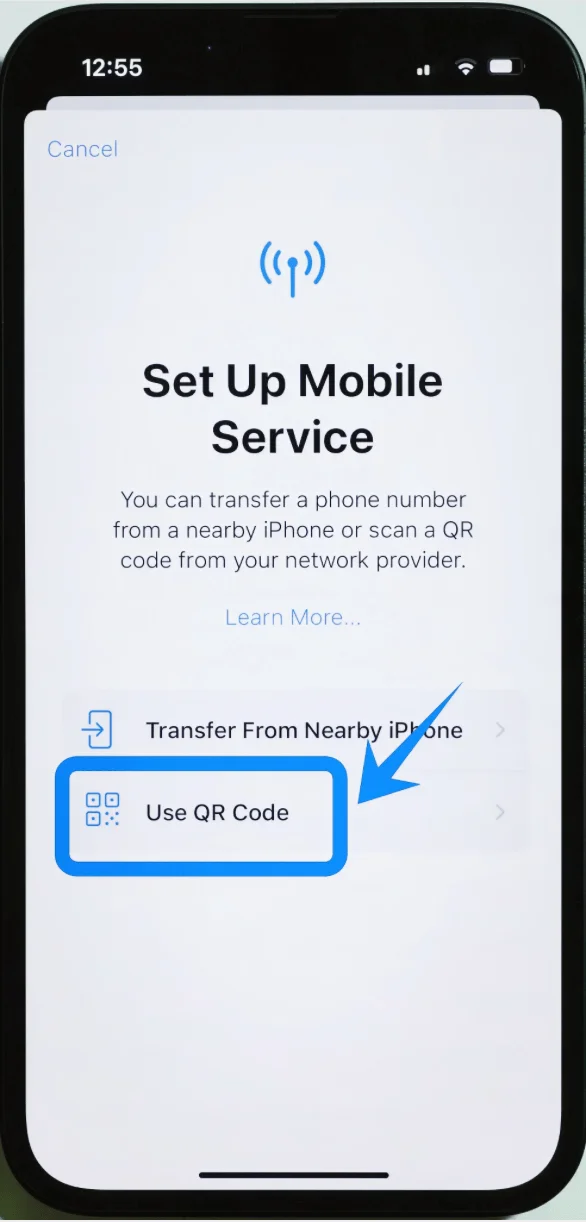
Step 5: Scan the QR Code
Position the iPhone camera over the QR code
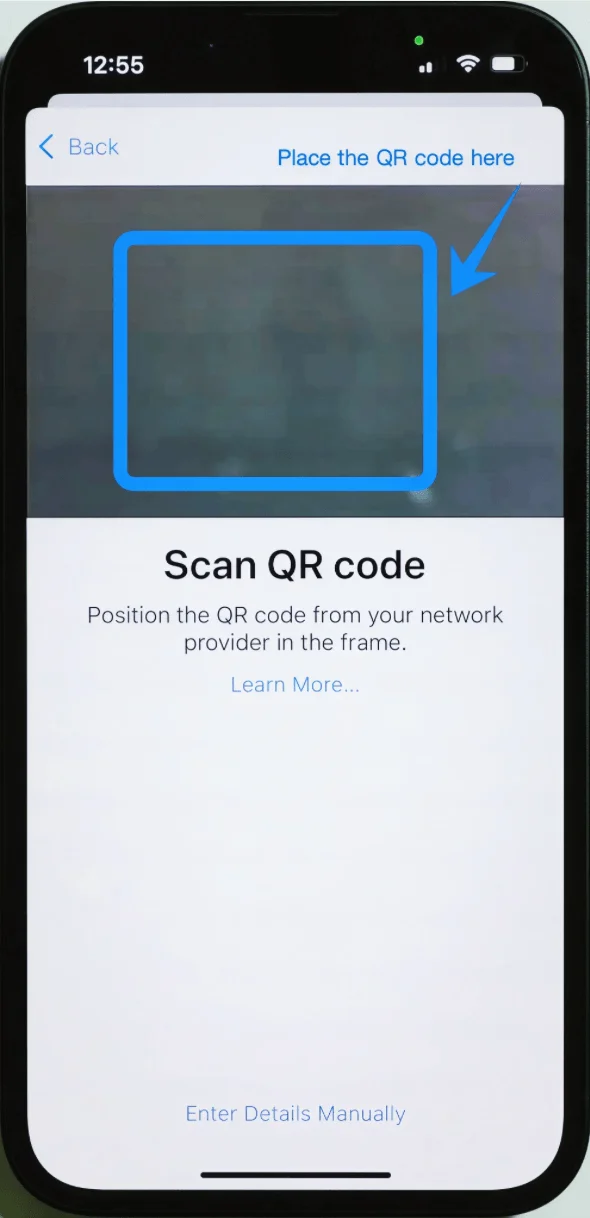
Wait for the code to be recognized automatically
Step 6: Confirm Plan Addition
When prompted, tap Continue
Step 7: Add Cellular Plan
Tap Add Cellular Plan
Step 8: Label the eSIM
Select a label (e.g., Primary, Secondary, Travel)
Tap Continue
Step 9: Configure Default Line (if prompted)
Select how the new eSIM will be used:
Default line for calls
iMessage & FaceTime
Mobile data
Tap Continue after each selection
Method 2: Install eSIM via Manual Input
Step 1: Open Settings
Tap Settings on the Home Screen
Step 2: Navigate to Cellular Settings
Scroll down and tap Mobile Service (On some devices, this may appear as “Cellular” or “Mobile Data”)
Step 3: Add eSIM
Tap Add eSIM if you already have an existing cellular plan, or tap Set Up Cellular if this is your first plan
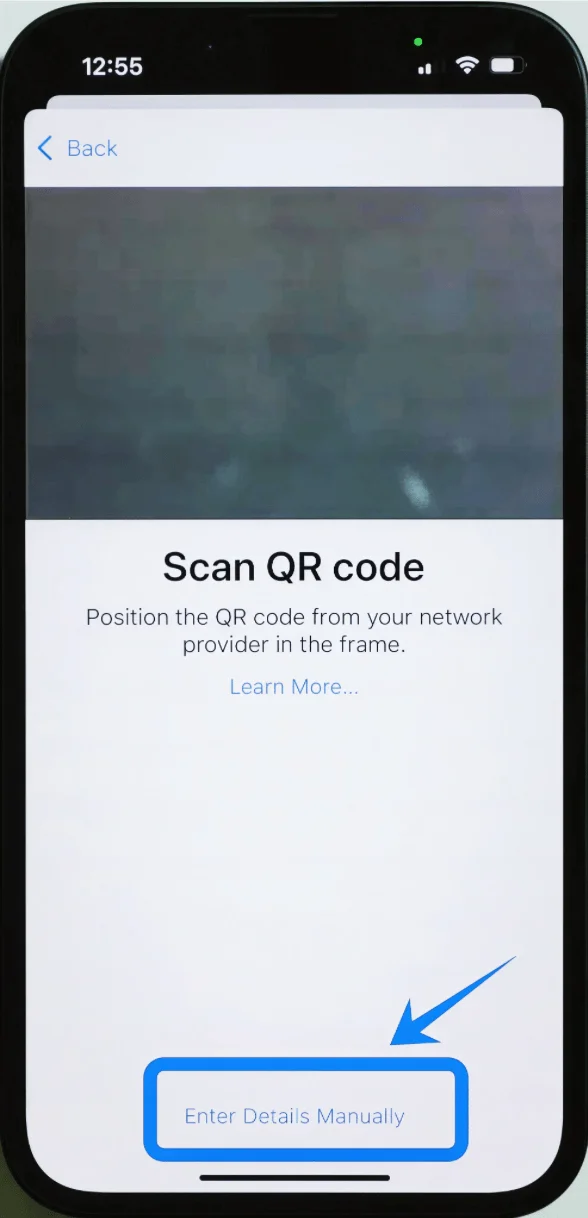
Step 4: Choose Manual Entry
Tap Use QR Code
On the QR scanning screen, tap Enter Details Manually at the bottom
Step 5: Enter Activation Details
Tap the SM-DP+ Address field and enter the address provided by your carrier
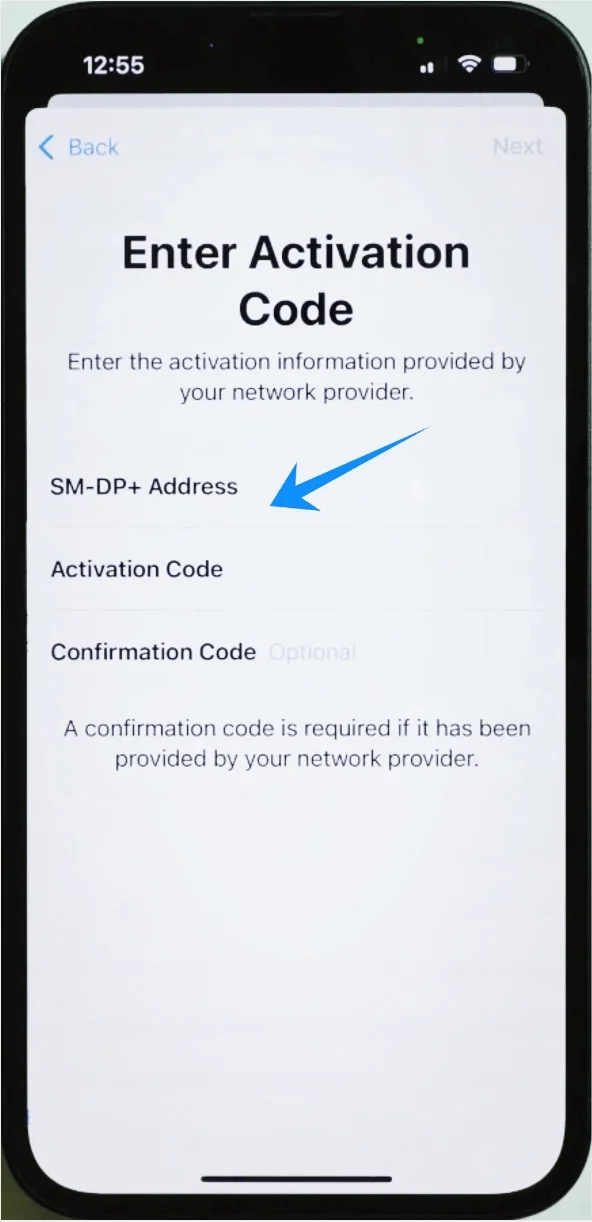
Tap the Activation Code field and enter the code
(If required) enter the Confirmation Code
Tap Next
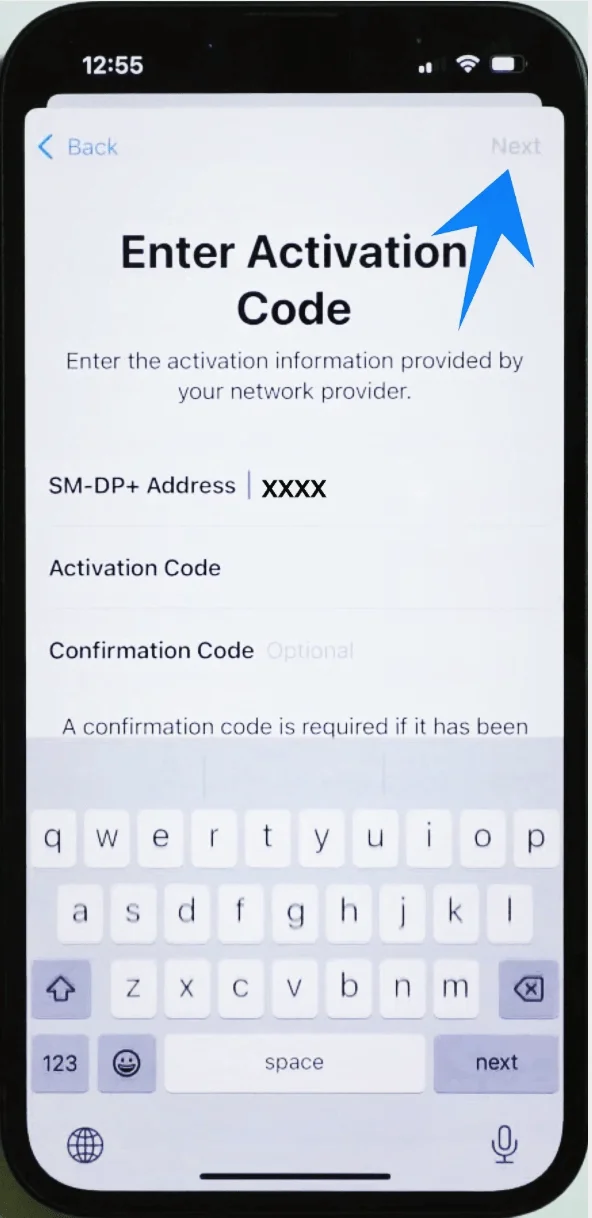
Step 6: Download eSIM Profile
Wait while the iPhone connects to the carrier server
Step 7: Add Cellular Plan
Tap Add Cellular Plan
Step 8: Label the eSIM
Select a label (e.g., Primary, Secondary, Travel)
Tap Continue
Step 9: Configure Usage Preferences
Select how the new eSIM will be used:
Default line for calls
iMessage & FaceTime
Mobile data
Tap Continue after each selection
How to Confirm Successful eSIM Installation
After completing either method, verify installation using the steps below:
Step 1: Open Settings
Tap Settings
Step 2: Go to Cellular
Scroll down and tap Mobile Service (On some devices, this may appear as “Cellular” or “Mobile Data”)
Step 3: Check Cellular Plans
Under SIMs or Cellular Plans, confirm:
Your new eSIM is listed
The status shows On or Active
Step 4: Verify Signal
Look at the status bar (top-right corner): Signal bars should appear for the new line
Step 5: Test Connectivity
Open Safari
Load a webpage using cellular data
Alternatively, place a test call
Note: Some eSIM plans may not include voice calling support, so this feature might not be available depending on your plan.
More iPhone eSIM Setup Guides
Using another iPhone? These eSIM setup and activation guides may help.
Conclusion
Now that your iRoamly eSIM is set up on your iPhone 16e, you’re ready to stay connected wherever you go.
Whether you’re navigating a new city, checking maps, or staying in touch with friends and family, your connection is just a tap away.
The flexibility of eSIM also means you can easily switch or add plans depending on your travel needs, making your journey smoother and more convenient.