
As smartphones continue to evolve, eSIM has become a more convenient alternative to physical SIM cards.
It allows users to activate mobile service directly from device settings, but the process still requires careful setup for first-time users.
In this guide, we’ll take you through the full installation process on an iPhone 16 so you can start using iRoamly eSIM without confusion.
Preparations Before Setting Up iRomly eSIM
Before starting, ensure you have the following:
A stable internet connection (Wi-Fi or cellular)
A valid eSIM QR code or manual activation details (SM-DP+ address and activation code) provided by your carrier
Your iPhone 16 powered on and unlocked
The device updated to the latest iOS version (recommended for compatibility)
Method 1: Install eSIM Using QR Code Scanning
Step 1: Open Settings
Locate and tap on the Settings.
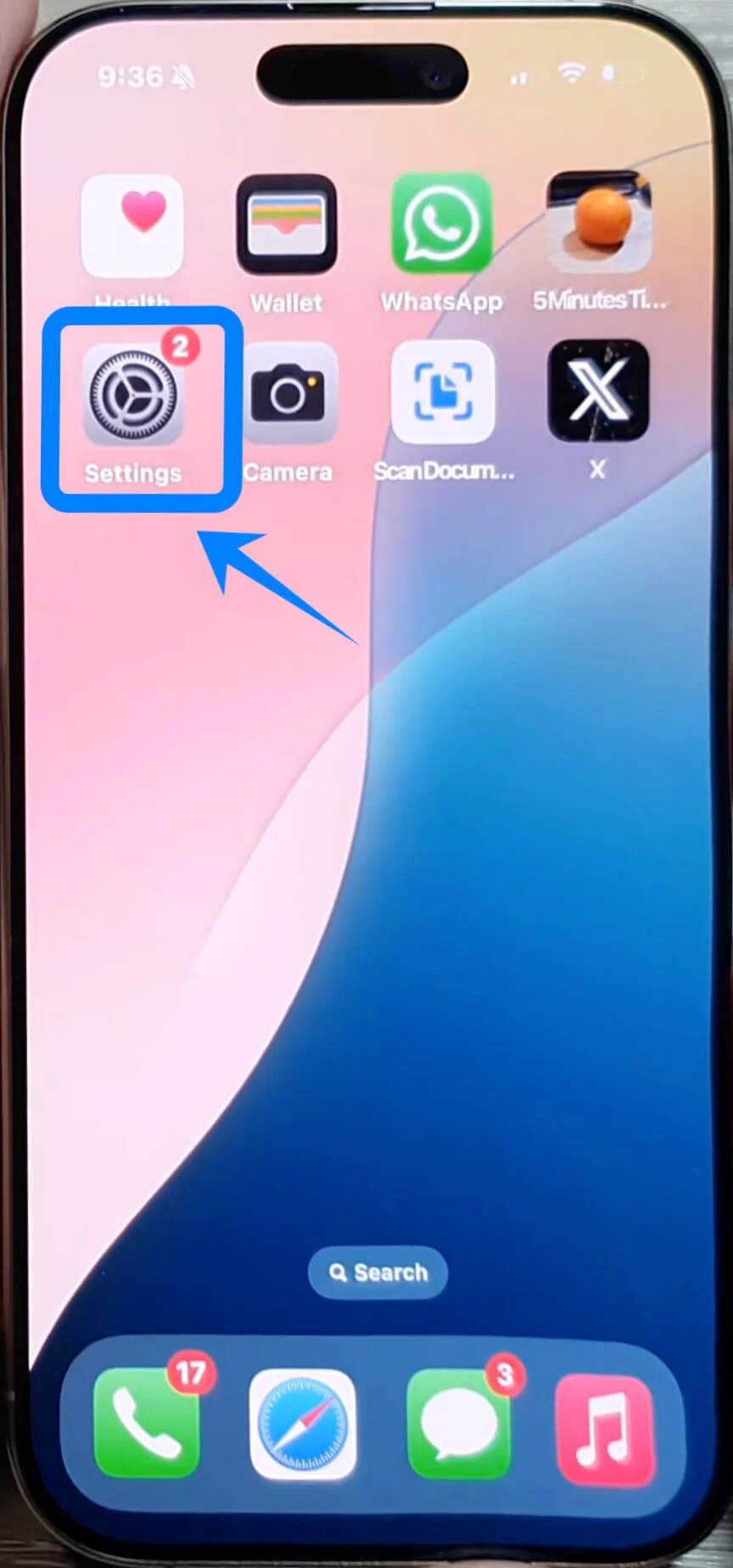
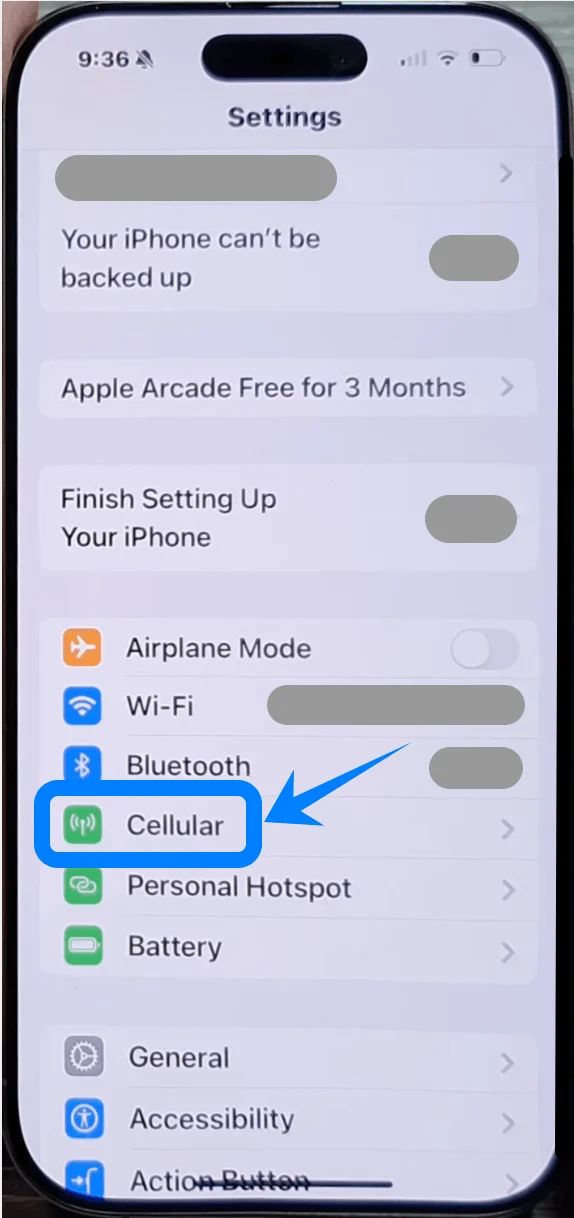
Step 2: Access Cellular Settings
Scroll down and tap Cellular (On some devices, this may appear as “Mobile Service” or “Mobile Data”).
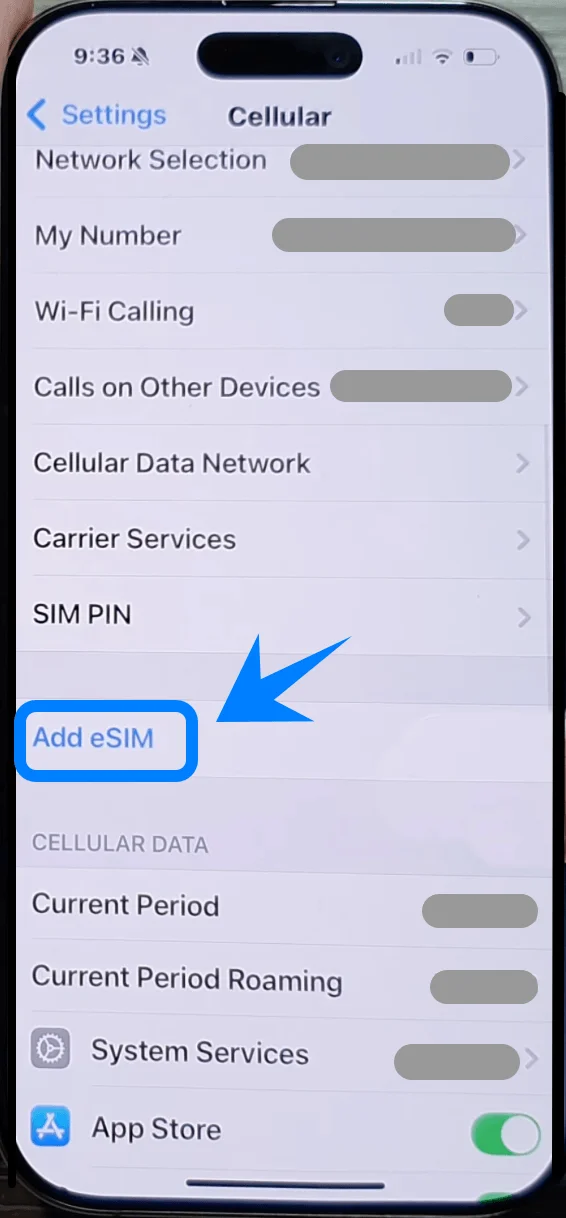
Step 3: Add Cellular Plan
Tap "Add eSIM" if you already have an existing cellular plan, or tap "Set Up Cellular" if this is your first plan.
Step 4: Scan the QR Code
If you have received a QR code from your carrier, tap Use QR Code.
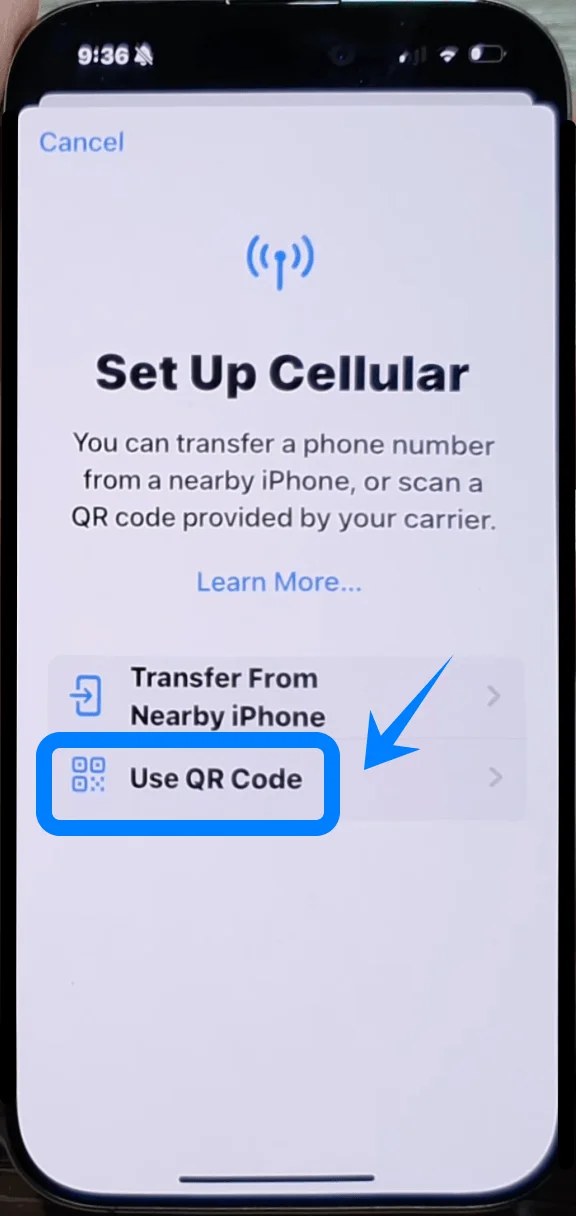
Your iPhone will open the camera app to scan the QR code.
Align the QR code within the frame on your screen, ensuring it is clear and properly centered.
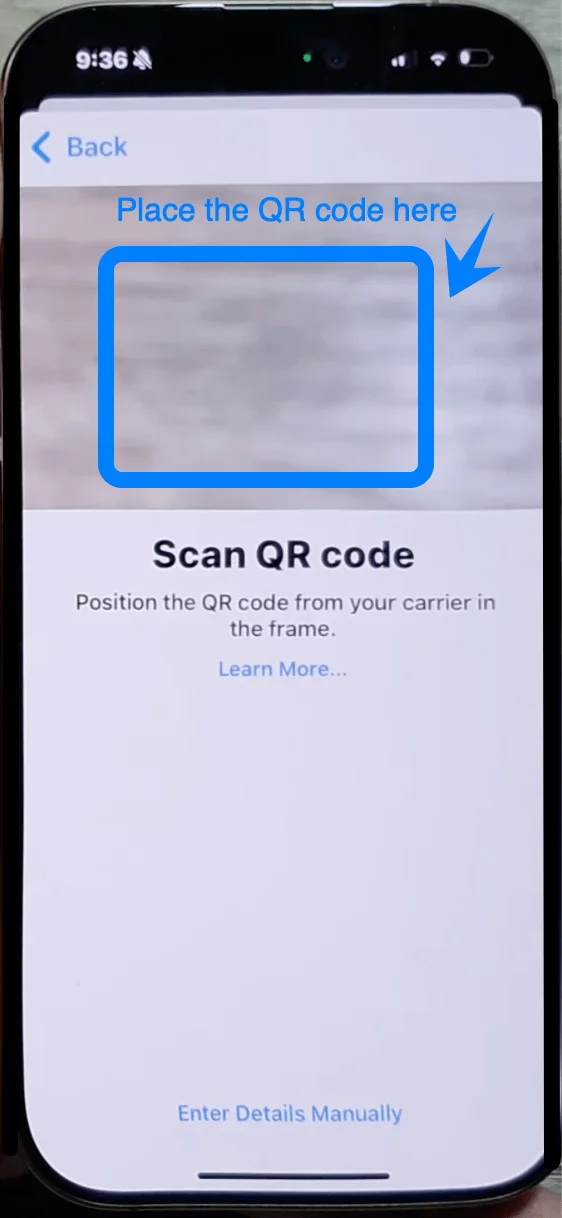
Once the QR code is detected, the system will automatically read it and display your carrier’s details.
Step 5: Install eSIM
Tap on Add Cellular Plan once the QR code has been scanned. Your eSIM will be activated and added to your device.
You may be prompted to enter a confirmation code if required by your carrier.
Step 6: Confirm eSIM Installation
Once the eSIM is installed, you should see the new plan listed under the Cellular Plans section in the Cellular menu.
To confirm it's activated, you can check that the status of the new eSIM shows as Active or Connected.
Method 2: Install eSIM Using Manual Input
Step 1: Open Settings
Tap on the Settings.
Step 2: Access Cellular Settings
In the Settings app, scroll down and select Cellular (On some devices, this may appear as “Mobile Service” or “Mobile Data”).
Step 3: Add Cellular Plan
Tap "Add eSIM" if you already have an existing cellular plan, or tap "Set Up Cellular" if this is your first plan. You will be presented with two options: scanning a QR code or entering the details manually.
Step 4: Select "Enter Details Manually"
Choose Enter Details Manually.
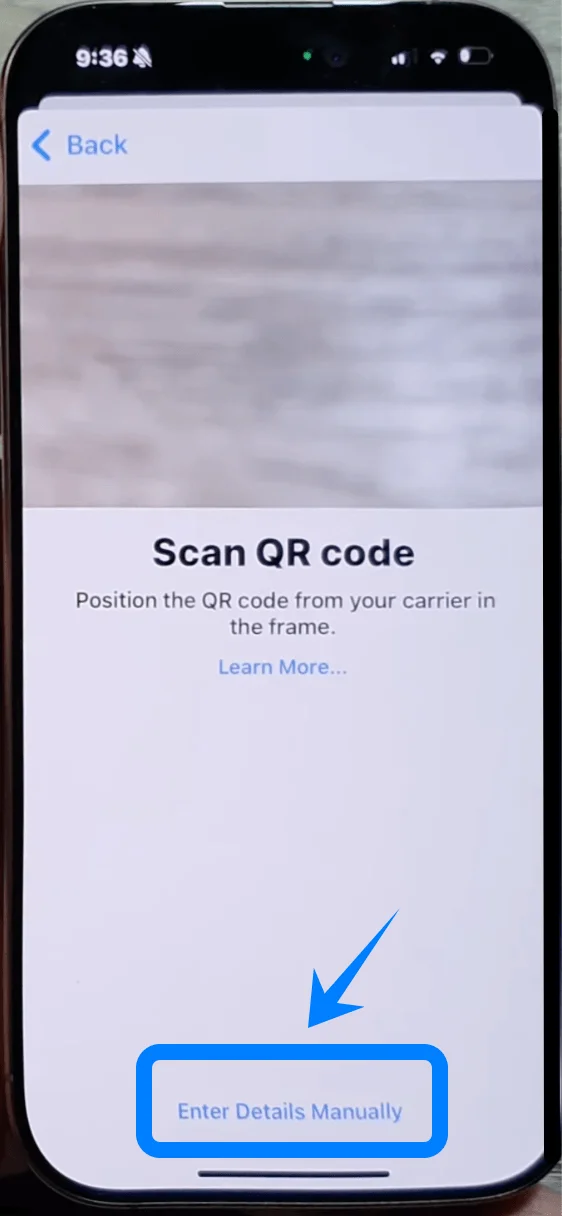
You will now see fields where you need to enter your eSIM details, such as the Activation Code, SM-DP+ Address, and Activation Code PIN. These details are typically provided by your carrier.
Step 5: Enter the eSIM Activation Details
Enter the Activation Code in the appropriate field.
Enter the SM-DP+ Address (this is the server address needed for activation).
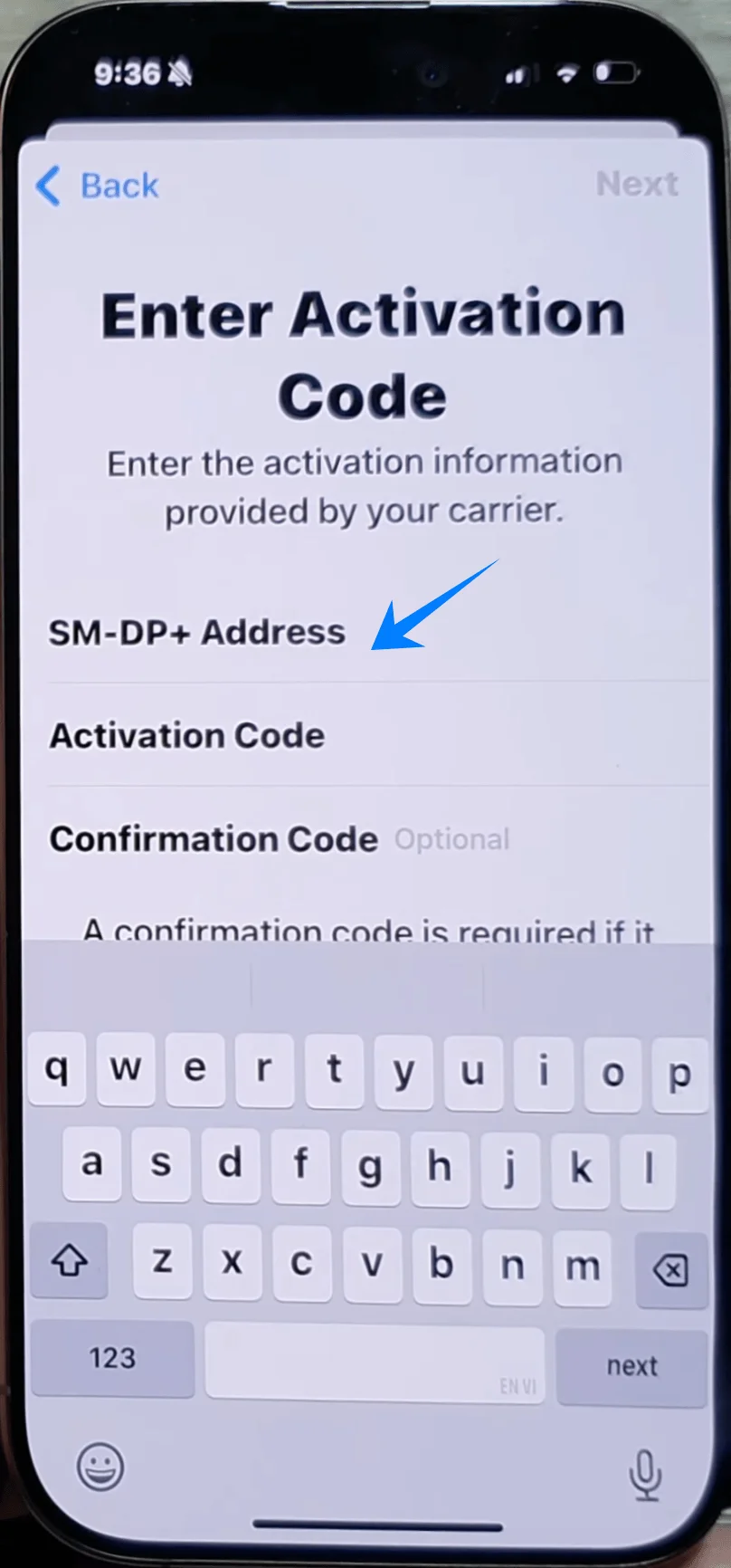
Input the Activation Code PIN if required.
Once all fields are filled, tap Next to proceed.
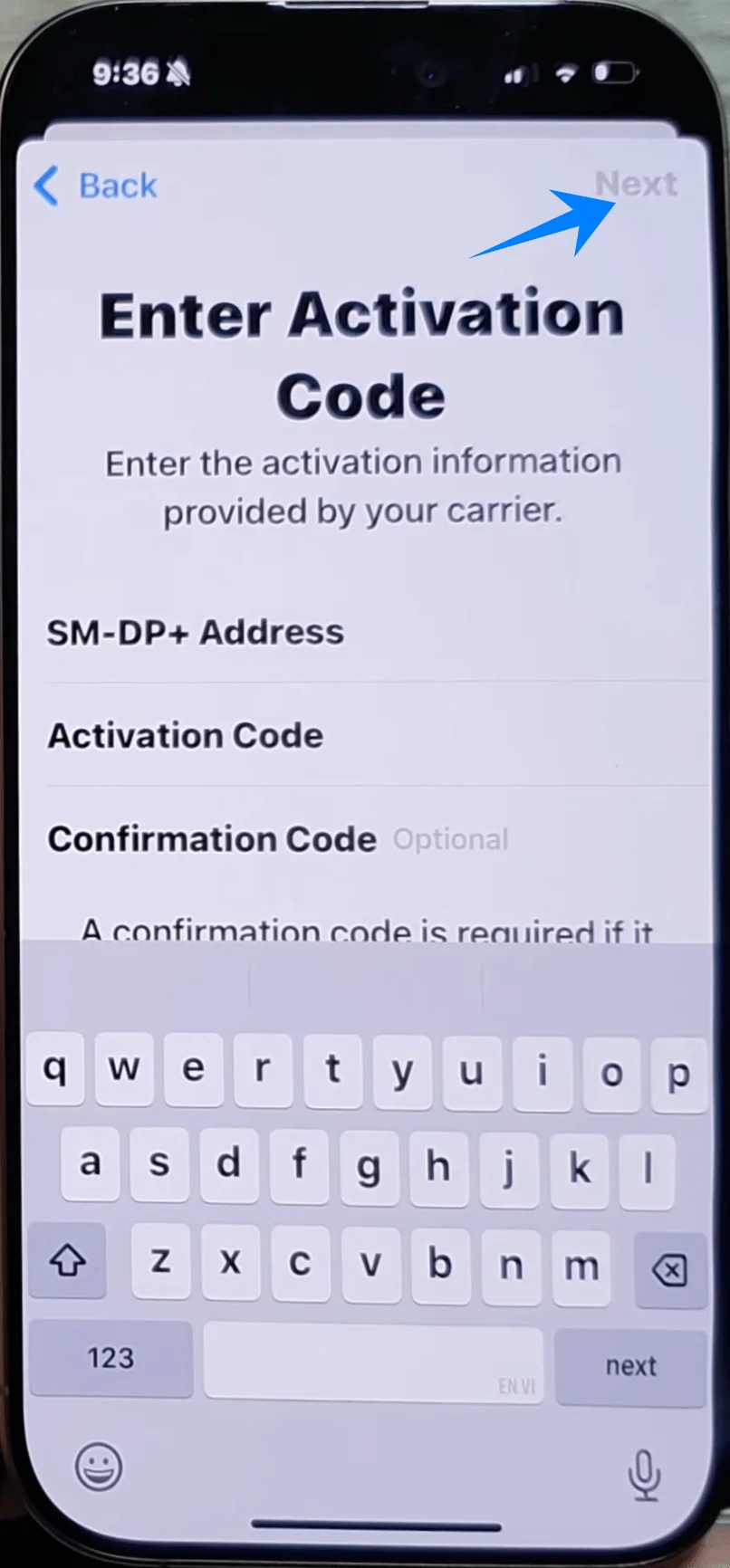
Step 6: Install eSIM
After entering the details correctly, tap Add Cellular Plan to finalize the installation of the eSIM.
The phone will automatically process and activate the eSIM with the carrier’s details.
Step 7: Confirm eSIM Installation
To confirm the eSIM installation, go back to the Cellular menu.
Under Cellular Plans, you should see the newly added eSIM listed as Active or Connected.
How to Confirm eSIM Installation
Once the eSIM has been installed using either method, you can verify its success by following these steps:
Open the Settings app and tap on Cellular (On some devices, this may appear as “Mobile Service” or “Mobile Data”).
Scroll down to the Cellular Plans section. Here, you should see the newly activated eSIM.
If the eSIM is successfully activated, its status will be marked as Active or Connected.
You can also check the Cellular Data section in the same menu to ensure that the eSIM is being used for mobile data.
Additionally, you can try making a call or sending a text message to check if the eSIM is functioning properly.
Conclusion
You’ve now completed the installation and activation of your iRoamly eSIM. The process is quick, straightforward, and handled entirely within your device, which highlights the efficiency of eSIM technology.
Without the need for physical SIM cards, managing your connection becomes simpler and more flexible. In the future, you can easily update or add new plans whenever needed, all within a few steps.