
The Google Pixel 3a XL can use eSIM on supported variants, which makes it a practical phone for installing an iRoamly travel eSIM before a trip. Google notes important exceptions for some Pixel 3a models, including phones bought in Japan and phones bought with Verizon service, so check your exact device if the eSIM option does not appear.
This guide uses the current Pixel Android path: Settings > Network & internet > SIMs > Add SIM > Set up an eSIM. On older software or carrier-customized builds, labels may vary slightly, but the Pixel flow should still center on Network & internet, SIMs, and Add SIM.
You can install the iRoamly travel eSIM by scanning the QR code from your iRoamly order, or by entering the manual activation code if the QR code is on the same phone, damaged, or hard to scan. Both methods below are written as complete flows.
Stay Connected Abroad with iRoamly on Pixel 3a XL
iRoamly eSIM provides digital mobile-data plans for international travel. Depending on the destination, travelers may find local, regional, or global coverage options whose allowances, validity, plan types, and other features vary.
After setup, the travel line can help keep navigation, messaging, translations, bookings, and trip updates available on the road.
A compatible Google Pixel 3a XL can install an iRoamly eSIM without replacing its physical SIM. The guide below keeps the QR-code and manual-entry routes separate, followed by the checks and mobile-data settings needed to prepare the line for travel.
Preparations Before Setting Up iRoamly eSIM
Connect the Pixel 3a XL to stable Wi-Fi before starting.
Confirm the phone is unlocked and eSIM-capable. Pixel 3a XL models bought in Japan or with Verizon service may not support eSIM.
Keep your iRoamly QR code or manual activation details open on another screen, printed copy, or in your iRoamly account/order email.
Install the iRoamly eSIM 1-2 days before travel when possible, but avoid turning on travel data until you need it.
Do not delete the iRoamly eSIM casually after installation. Many travel eSIMs cannot be reinstalled once removed or after the QR code has been used.
iRoamly plan validity starts from activation. For iRoamly travel eSIM plans, activation is generally when the eSIM connects to a supported destination network, but you should always check the exact plan details in your order.
iRoamly eSIM plans may not include voice calls or SMS. Voice/SMS availability varies by plan, so check the specific plan details before relying on them.
Planning a trip to Turkey? You can choose an eSIM for Turkey and prepare it on your Pixel 3a XL before departure, subject to the plan's activation terms. Italy eSIM options are also available if Italy is on your itinerary.
Method 1: Install the eSIM by Scanning a QR Code
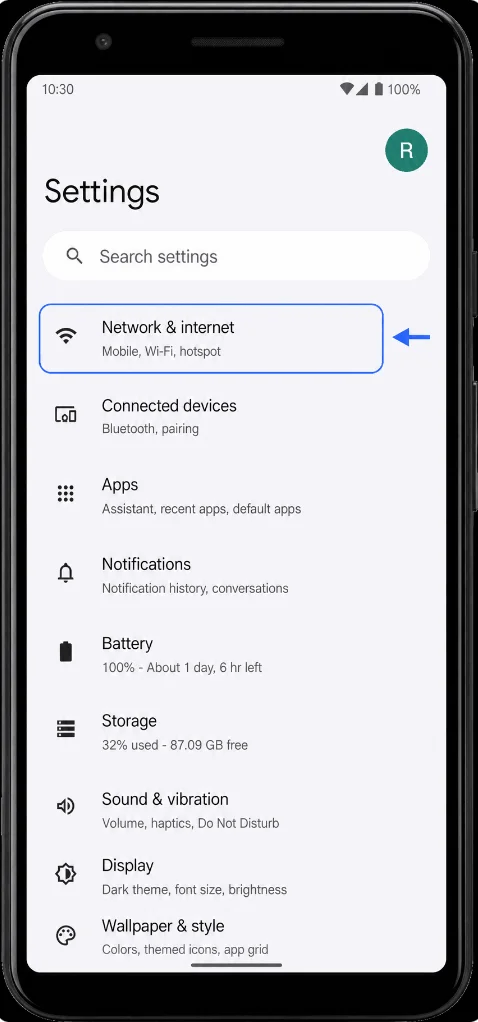
Open Settings, then tap Network & internet. You should see the Pixel network settings page with internet, SIM, hotspot, and VPN options.
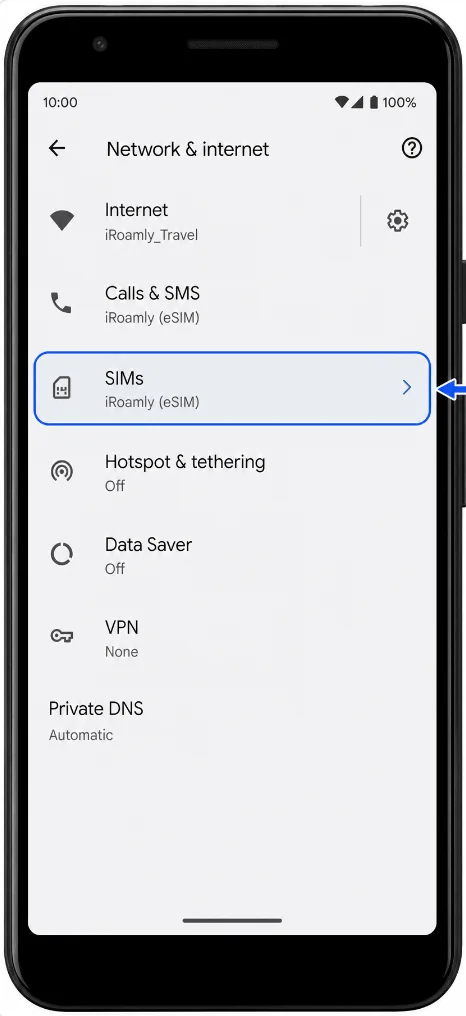
Tap SIMs. You should see the SIM settings page for your current SIM or mobile service.
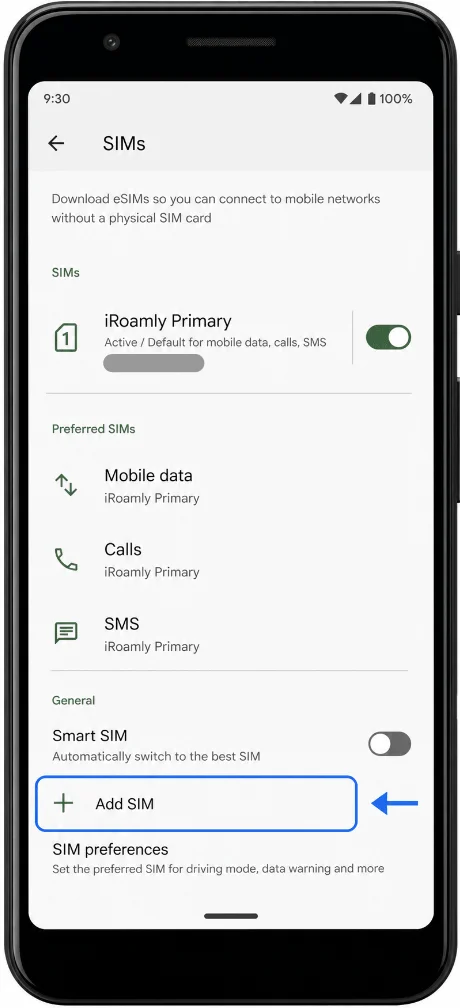
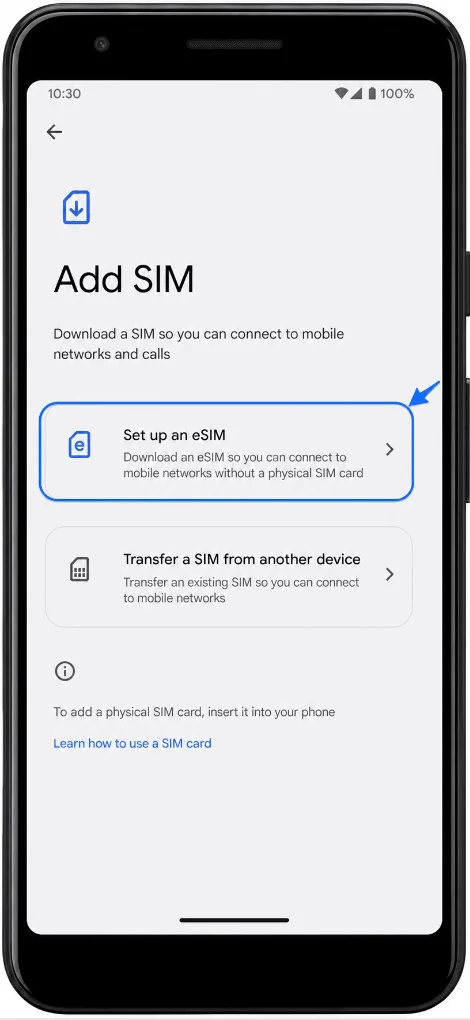
Tap Add SIM. The Pixel should open the setup screen for adding a new SIM or eSIM.
Tap Set up an eSIM. The phone should move to the eSIM setup flow and prepare the QR scanner.
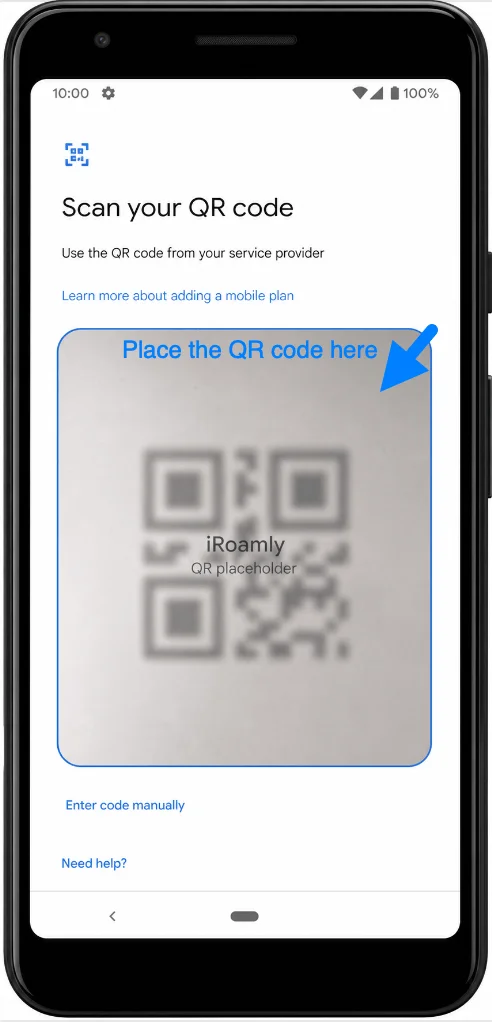
Point the camera at the iRoamly QR code and keep the code inside the scanner frame. When the Pixel recognizes the code, follow the on-screen prompts and tap Download or Continue if asked.
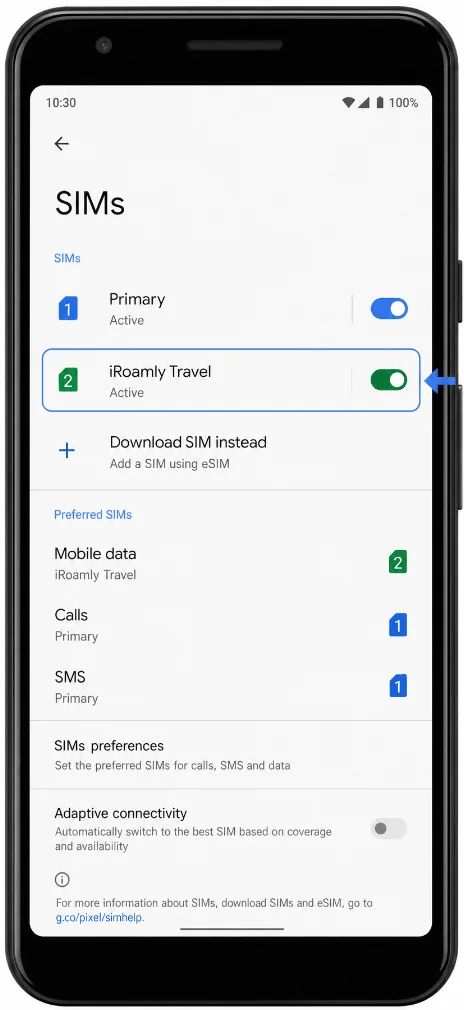
Wait for the eSIM download to finish, then tap Done when the setup completes. The new iRoamly line should appear in Settings > Network & internet > SIMs.
Method 2: Install the eSIM by Manual Entry
Open Settings, then tap Network & internet. This takes you to the same Pixel network settings page used for QR-code setup.
Tap SIMs. You should see the SIM settings page for the phone.
Tap Add SIM. The Pixel should open the add-SIM setup screen.
Tap Set up an eSIM. The phone should open the eSIM setup flow.
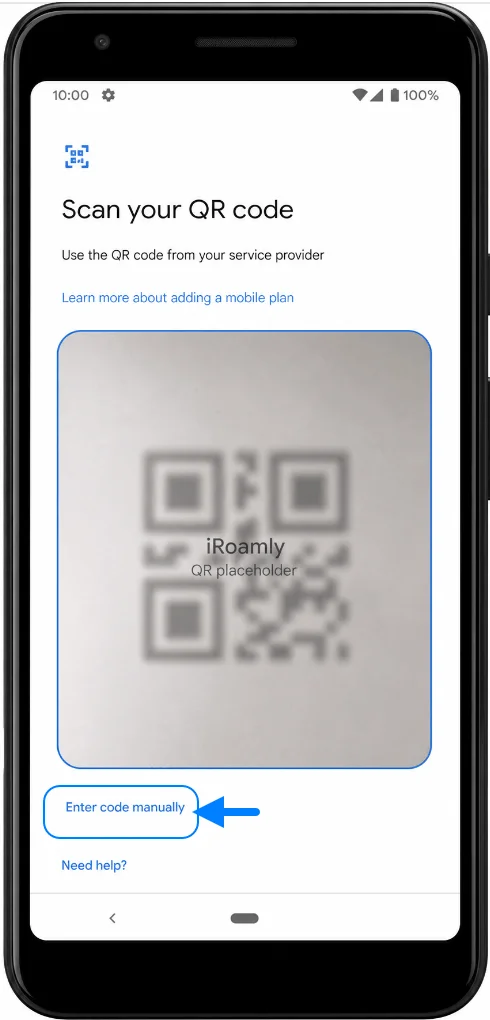
On the QR-code screen, tap Enter code manually or the manual-code option shown near the bottom of the screen. The Pixel should open a manual activation page.
In Activation code, enter the manual activation code from iRoamly, then tap Continue. Pixel Android uses one activation-code field for the full code string, so use the complete code exactly as iRoamly provides it. If iRoamly shows separate SM-DP+ address and activation-code values, combine or enter them only in the format iRoamly instructs for Android.
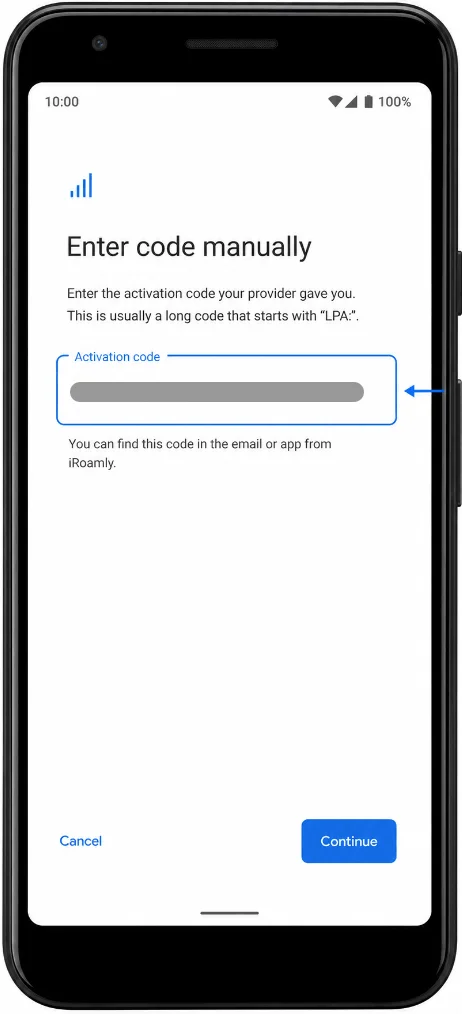
Review the on-screen eSIM information, then tap Download or Continue if prompted. Wait until the phone confirms the eSIM has been added, then tap Done.
How to Confirm the eSIM Was Installed
Go to Settings > Network & internet > SIMs and look for the new iRoamly line. It may appear as iRoamly, iRoamly Travel, the destination carrier name, or another label from the eSIM profile. Confirm that the line is present and can be turned on.
Set Up the eSIM for Mobile Data
In Settings > Network & internet > SIMs, open the preferred SIM or mobile data option and choose the iRoamly eSIM for Mobile data when you want to use the travel plan. Keep your primary SIM selected for calls or SMS if your iRoamly plan is data-only.
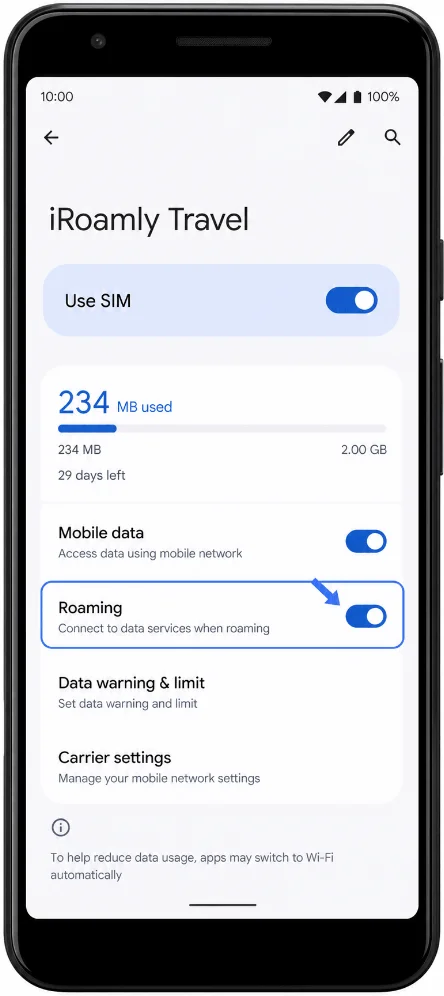
Tap the iRoamly eSIM line, turn on Use SIM, and turn on Roaming if your iRoamly destination plan requires roaming. To avoid unwanted data use, turn off any automatic mobile-data switching option if your software shows one.
Troubleshooting
If Add SIM or Set up an eSIM is missing, confirm your Pixel 3a XL variant supports eSIM. Pixel 3a phones bought in Japan or with Verizon service may not support eSIM.
If the QR code says it has already been used, do not delete and reinstall repeatedly. Check your iRoamly account and contact iRoamly support with your order details.
If the phone stays on Activating or Downloading, keep Wi-Fi connected, wait a few minutes, and restart the Pixel if the setup page recommends it.
If the eSIM installs but mobile data does not work after arrival, open Settings > Network & internet > SIMs, select the iRoamly line for Mobile data, turn on Use SIM, and enable Roaming if required by the plan.
If calls or SMS do not work, check your iRoamly plan details. Many travel eSIM plans are data-only.
If the destination network does not connect, toggle airplane mode off and on, restart the phone, and confirm you are in a supported country or region for that iRoamly plan.
More Google Pixel eSIM Setup Guides
Need to set up an eSIM on another Pixel model? These guides may help.
Conclusion
Installing the iRoamly eSIM before your trip helps move an important part of travel preparation off your checklist. Once the profile has been downloaded to your Pixel 3a XL, it remains available in the SIM settings and can be activated according to your plan requirements.
Rather than spending time configuring connectivity while traveling, you can focus on making sure your plan details, coverage, and device settings are ready ahead of time. A quick review before departure is often all that's needed to ensure the eSIM is prepared for use.