
The Google Pixel 2 is an unusual Pixel model for eSIM setup because eSIM support is limited to phones bought with Google Fi service. If your Pixel 2 was not purchased with Google Fi service, the eSIM setup options may not appear, even if the phone is unlocked for physical SIM use.
This guide explains how to install an iRoamly travel eSIM on a Google Fi Pixel 2 using the Pixel Android settings flow: Settings > Network & internet > Mobile network > Advanced > Carrier or Add carrier. It covers both ways iRoamly can provide setup details: scanning the QR code and entering the manual activation information.
Use the QR code method when you can display the iRoamly QR code on another screen or print it. Use manual entry when the QR code cannot be scanned, the camera view is unavailable, or you received the iRoamly SM-DP+ Address and Activation Code separately.
Preparations Before Setting Up iRoamly eSIM
Connect the Pixel 2 to a stable Wi-Fi network before starting. The phone must download the eSIM profile from the carrier server.
Confirm that your Pixel 2 is the Google Fi version and is unlocked for the travel eSIM you plan to use.
Keep your iRoamly QR code or manual activation details ready in your iRoamly account or purchase email.
Install the iRoamly eSIM 1-2 days before travel when appropriate, but check the plan details first. iRoamly plan validity starts from activation, and for many travel eSIMs activation occurs when the eSIM is installed or when it first connects to a supported destination network, depending on the plan.
Do not delete the iRoamly eSIM after installation unless iRoamly support tells you to. A used eSIM profile may not be reinstallable.
iRoamly travel eSIM plans may not include voice calls or SMS. Availability varies by plan, so check the specific plan details before relying on calling or texting.
Method 1: Install the eSIM by Scanning a QR Code
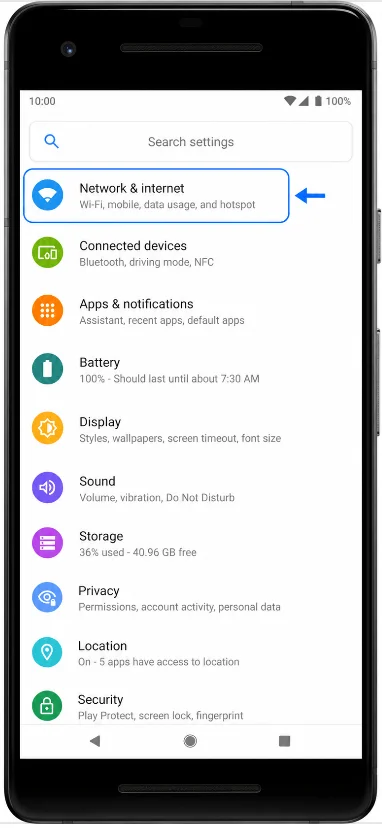
Open Settings on the Pixel 2 and tap Network & internet. You should see Wi-Fi, mobile network, and data connection settings.
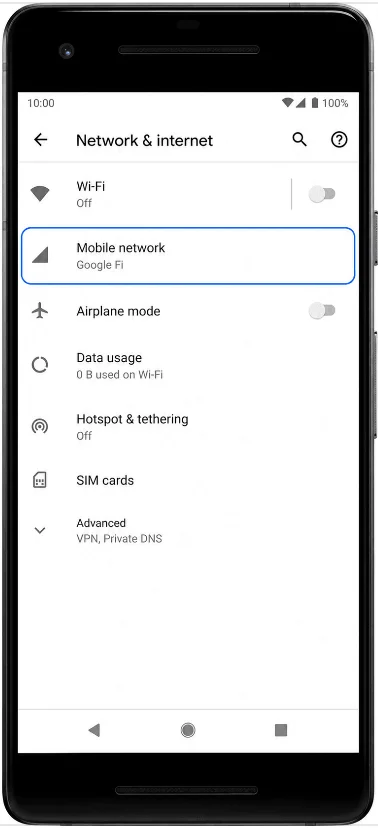
Tap Mobile network. If the phone has a physical SIM inserted, you may see that SIM first; continue into the mobile network settings page.
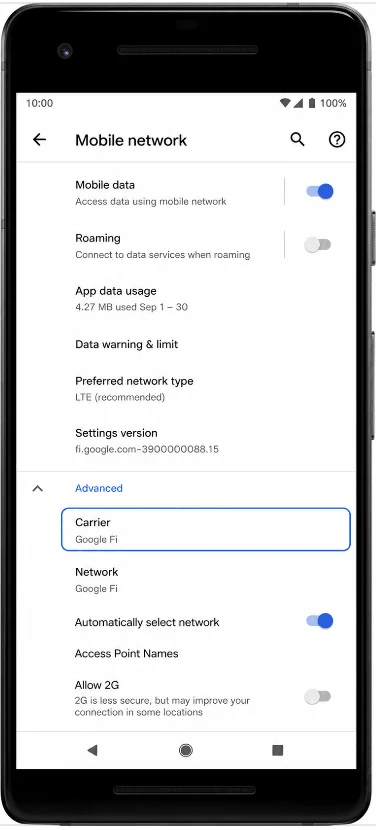
Tap Advanced, then tap Carrier or Add carrier. On some Android builds, the same action may appear as Add more or Download a SIM instead?.
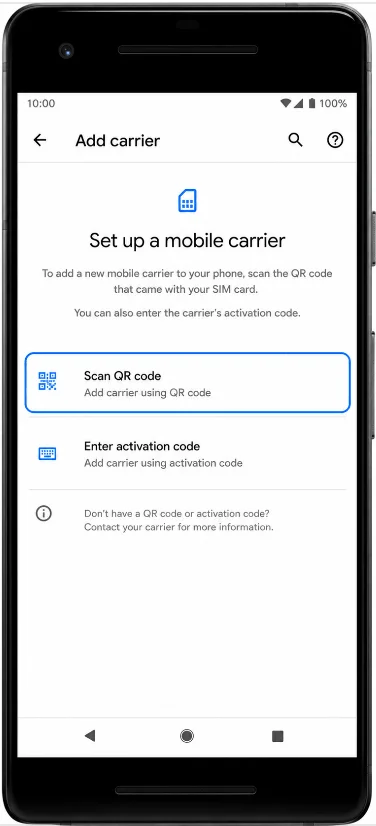
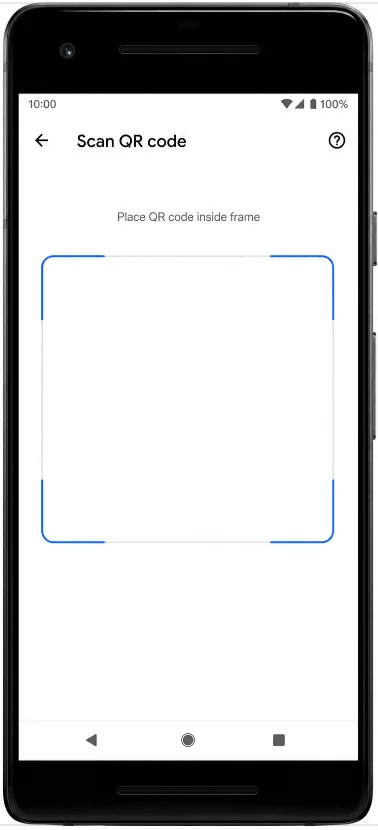
Tap Add carrier, then choose the option to scan a QR code. The Pixel 2 should open the eSIM download scanner.
Scan the iRoamly QR code from another screen or a printed copy. Keep the full QR code inside the scanner frame until the phone recognizes it.
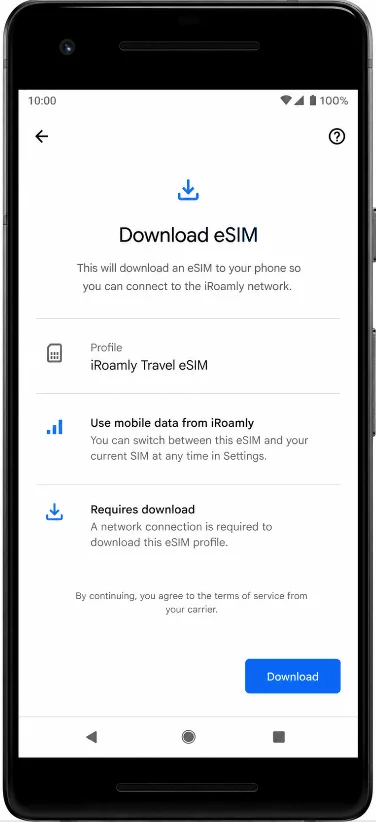
Review the detected iRoamly eSIM profile, then tap Start, Download, or the on-screen confirmation button. Wait for the Pixel 2 to finish downloading the eSIM.
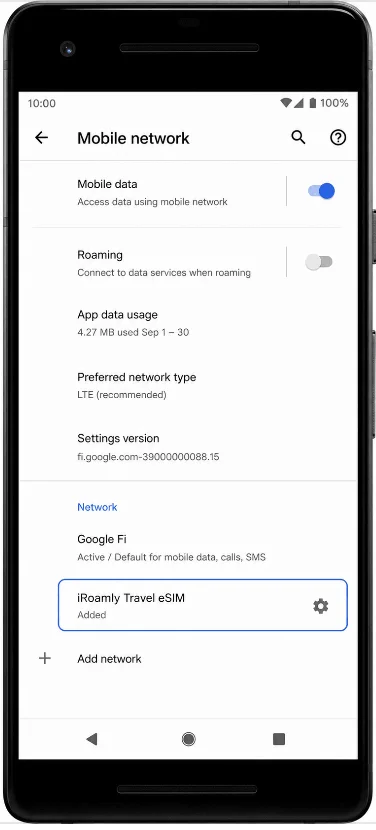
When setup finishes, tap Done. The iRoamly eSIM should now be listed in the Pixel 2 mobile network settings.
Method 2: Install the eSIM by Manual Entry
Open Settings on the Pixel 2 and tap Network & internet. This is the same entry point used for QR-code installation.
Tap Mobile network to open the Pixel 2 mobile connection settings.
Tap Advanced, then tap Carrier or Add carrier. If your software version shows Download a SIM instead?, tap that option to start eSIM setup.
On the QR-code scanner screen, tap Need help?, Enter it manually, or the manual-entry option shown on your Pixel 2. The phone should open the activation-code entry page.
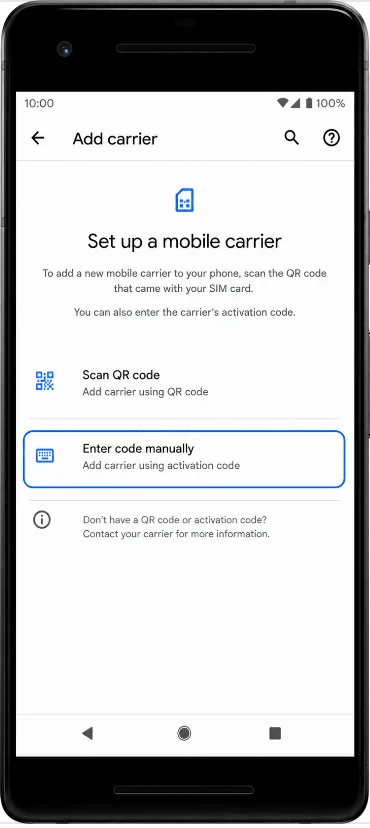
Enter the iRoamly SM-DP+ Address and Activation Code exactly as provided. If your Pixel 2 shows a single Activation code field, enter the full manual activation string from iRoamly. Leave Confirmation Code blank unless iRoamly provides one, then tap Continue.
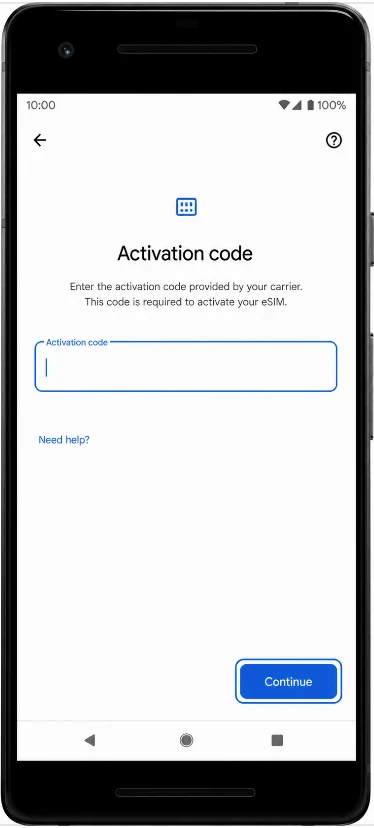
Review the detected iRoamly eSIM profile, then tap Start, Download, or the on-screen confirmation button. Keep Wi-Fi connected until the download finishes.
When setup finishes, tap Done. The iRoamly eSIM should be saved under the Pixel 2 mobile network settings.
How to Confirm the eSIM Was Installed
Open Settings, tap Network & internet, then tap Mobile network. Look for the iRoamly eSIM or a newly added downloaded SIM profile in the carrier list.
Tap the iRoamly eSIM profile and confirm that the line is available. If the profile has an on/off switch, leave it on when you are ready to use the travel data plan.
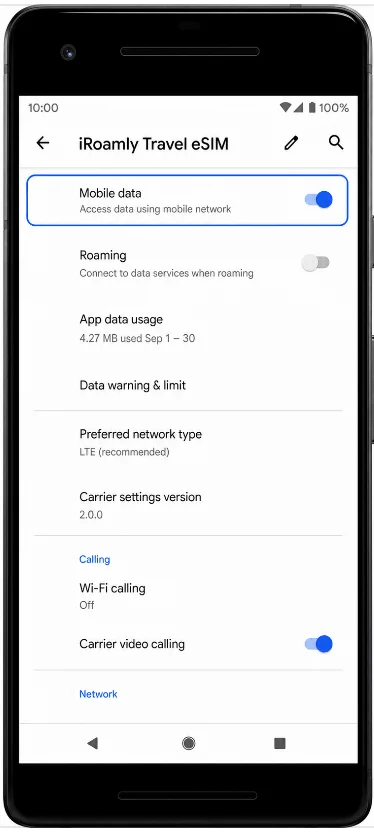
Set Up the eSIM for Mobile Data
Open Settings > Network & internet > Mobile network, then select the iRoamly eSIM profile. Confirm that Mobile data is turned on for the iRoamly line when you want to use travel data.
Tap Roaming and turn it on if your iRoamly destination plan requires data roaming. Travel eSIMs often need roaming enabled to connect to partner networks abroad.
If the Pixel 2 asks which SIM to use for mobile data, choose the iRoamly eSIM for travel data. Keep your primary SIM from taking over data automatically if you want to avoid roaming charges on your home line.
Troubleshooting
Add carrier or eSIM setup is missing: Confirm the phone is a Google Pixel 2 bought with Google Fi service. Non-Fi Pixel 2 devices may not support eSIM. Also update Android, restart the phone, and check again under Settings > Network & internet > Mobile network.
The QR code was already used: Do not delete the installed profile. If the code was scanned on the wrong device or the profile was removed, contact iRoamly support because eSIM profiles are often single-use.
The eSIM installs but there is no data: Make sure the iRoamly eSIM is turned on, selected for mobile data, and allowed to use roaming if the destination plan requires it. Restart the Pixel 2 after changing these settings.
Activation is pending: Stay connected to Wi-Fi and wait a few minutes. Some travel eSIMs complete activation only after the phone reaches a supported destination network.
Manual entry does not work: Recheck every character in the SM-DP+ Address and Activation Code. Do not add spaces unless iRoamly includes them. If your Pixel 2 shows only one activation-code field, use the full manual activation string from iRoamly.
Region, carrier, or software limitations appear: Pixel 2 eSIM behavior can depend on the original purchase channel and Android build. If the eSIM menu is unavailable, the phone may not be compatible with travel eSIM installation.
Conclusion
Once the iRoamly eSIM has been successfully installed on your Pixel 2, the most important compatibility hurdle is already out of the way. Because eSIM support on the Pixel 2 is limited to specific Google Fi versions, simply reaching the point where the profile is downloaded and visible in your mobile network settings confirms that the device is capable of using the travel eSIM.
From there, you can manage the line through Android settings and prepare it for use according to your travel plans. Before departure, it's worth reviewing your plan details and activation requirements so you know what to expect when connecting in your destination.