
The Google Pixel 3 can be a practical travel phone for an iRoamly travel eSIM, but compatibility depends on where the device was purchased. Pixel 3 phones bought with service from many US or Canadian carriers other than Sprint or Google Fi, and Pixel 3 phones bought in Australia, Japan, or Taiwan, may not support eSIM. Before you buy or install a travel eSIM, make sure your specific Pixel 3 shows an eSIM setup option.
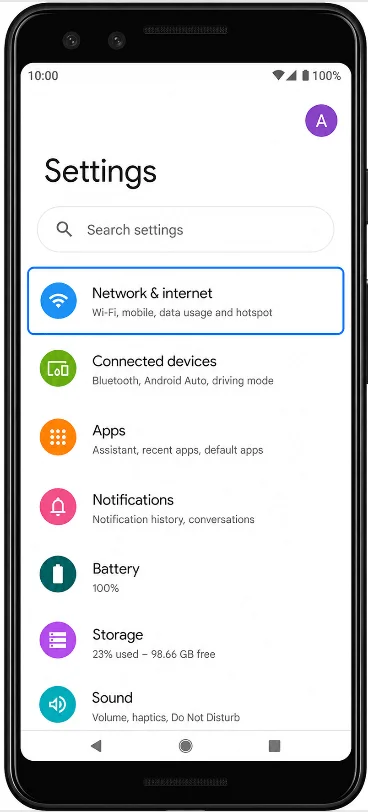
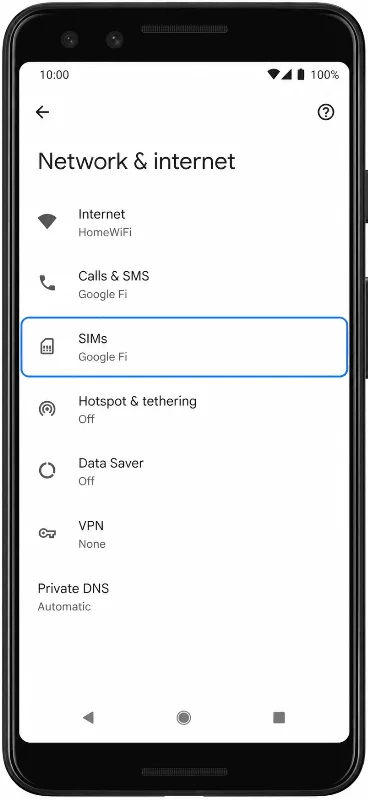
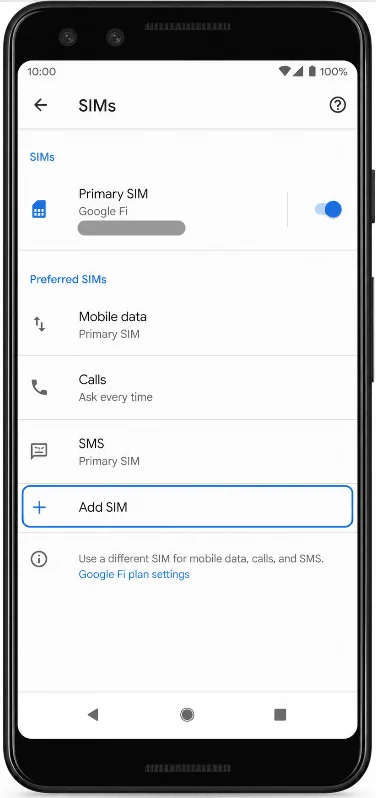
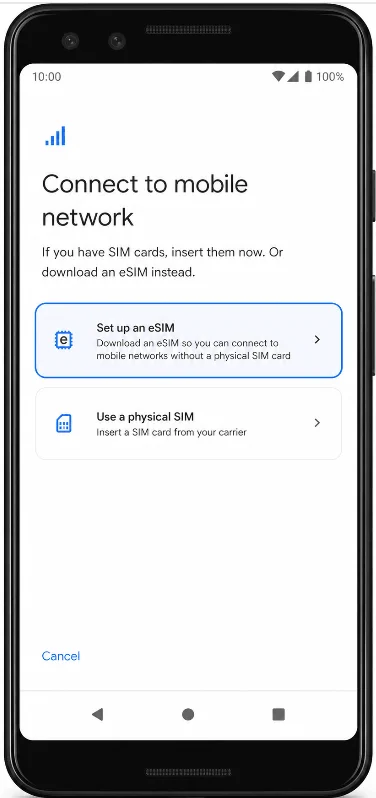
This guide uses the Pixel-style Android Settings path: Settings > Network & internet > SIMs > Add SIM > Set up an eSIM. On some older Pixel 3 software builds, the labels may appear as Mobile network, Add Carrier, or Download a SIM instead of SIMs, Add SIM, or Set up an eSIM.
You can install the iRoamly eSIM by scanning the QR code from your iRoamly order, or by entering the manual activation details if the QR code is not available on another screen. The QR method is usually faster. Manual entry is useful when you cannot scan the code, the QR image is blurry, or you are setting up from the same phone that received the order email.
Preparations Before Setting Up iRoamly eSIM
Connect the Pixel 3 to stable Wi-Fi before starting.
Confirm the Pixel 3 is unlocked and eSIM-capable. If the Add SIM, Set up an eSIM, Download a SIM, or Add Carrier option is missing, the phone, region, carrier variant, or software build may not support eSIM.
Keep your iRoamly QR code or manual activation details ready. Use only the QR code and activation details from your own iRoamly order email or account page.
Install the eSIM 1-2 days before travel when your plan allows it, so you still have time to fix Wi-Fi, account, or compatibility issues.
iRoamly eSIM plan validity starts from activation. For many current iRoamly travel plans, the validity period starts when the eSIM connects to a supported network, so check the exact validity policy on your specific plan before installing or turning it on.
Some iRoamly eSIM plans are data-only. Voice calls and SMS vary by plan, so do not assume they are included unless your iRoamly plan details say so.
Do not delete the iRoamly eSIM after installation unless iRoamly Support tells you to. Many eSIM QR codes can be used only once.
Method 1: Install the eSIM by Scanning a QR Code
Open Settings, then tap Network & internet. You should see the Pixel network settings area where SIM and mobile network options are managed.
Tap SIMs. The Pixel should open the SIM management page for the physical SIM and any installed eSIM profiles.
Tap Add SIM. The phone should show options for adding a physical SIM or setting up an eSIM.
Tap Set up an eSIM. The Pixel should move to the eSIM setup flow and prepare the QR scanner.
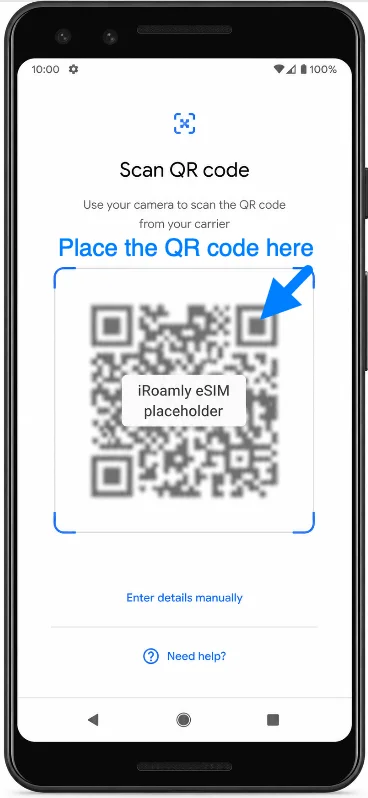
When the Scan QR code screen appears, scan the QR code from your iRoamly order email or iRoamly account page. Keep the full QR code inside the scan frame until the phone recognizes it.
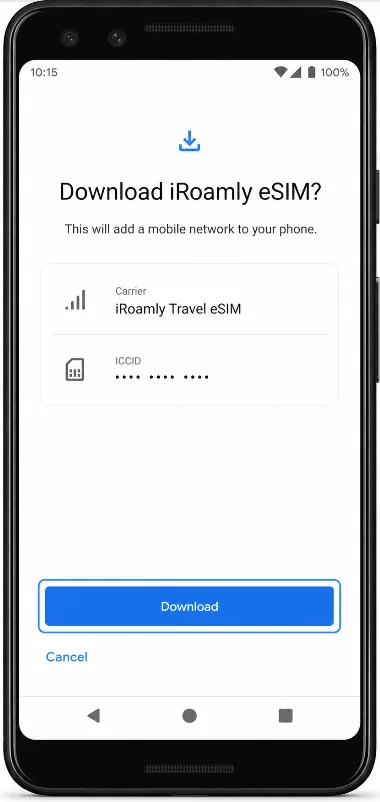
Review the iRoamly eSIM download screen, then tap Download. Stay on Wi-Fi until the Pixel finishes adding the eSIM profile.
Method 2: Install the eSIM by Manual Entry
Open Settings, then tap Network & internet. This is the same starting point used for QR setup.
Tap SIMs. The Pixel should open the SIM management page.
Tap Add SIM. The phone should show the add-SIM setup options.
Tap Set up an eSIM. The Pixel should open the eSIM setup flow.
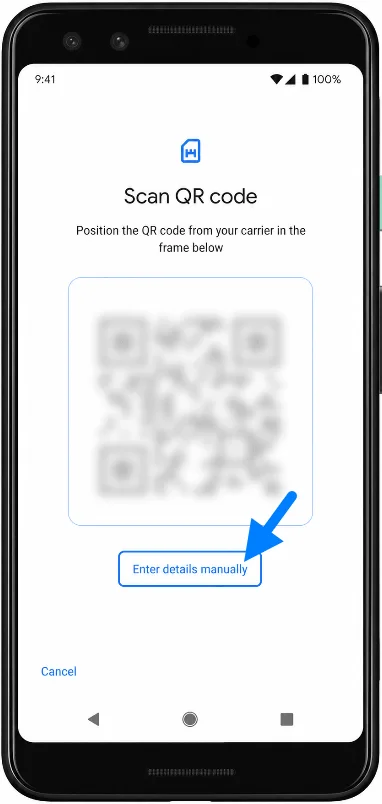
On the Scan QR code screen, tap Enter details manually or the manual-entry help link shown on your software version. The phone should open an activation-code entry screen.
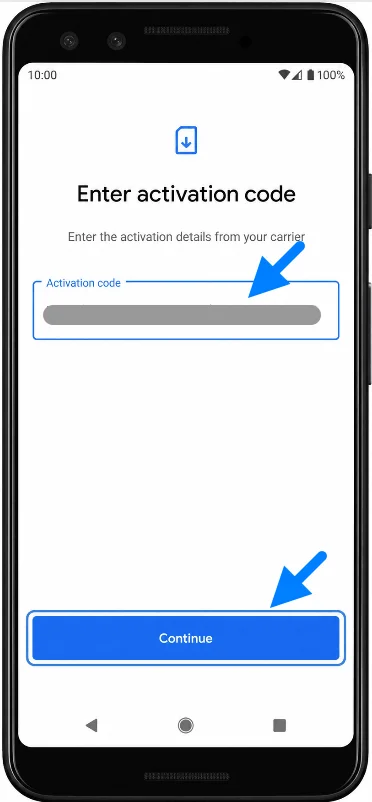
In the Activation code field, enter the manual eSIM details from iRoamly, then tap Continue. If iRoamly gives the details as an SM-DP+ Address and Activation Code, use the full activation-code format requested by your Pixel screen or follow the exact format shown in your iRoamly order instructions.
Review the iRoamly eSIM download screen, then tap Download. Keep Wi-Fi connected until the download finishes.
How to Confirm the eSIM Was Installed
Open Settings > Network & internet > SIMs. Look for iRoamly Travel eSIM or a newly added eSIM line under the SIM list.
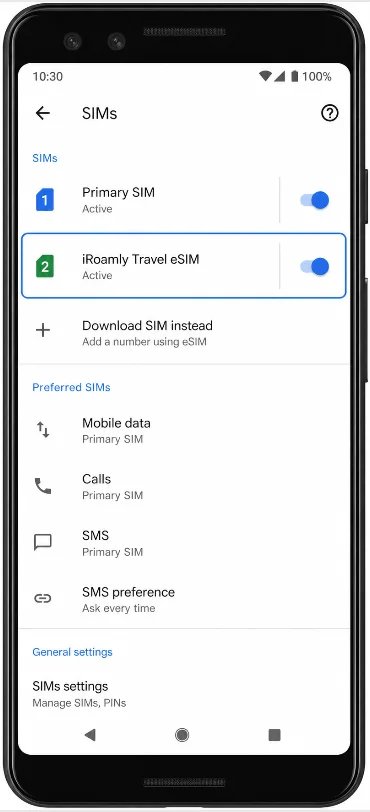
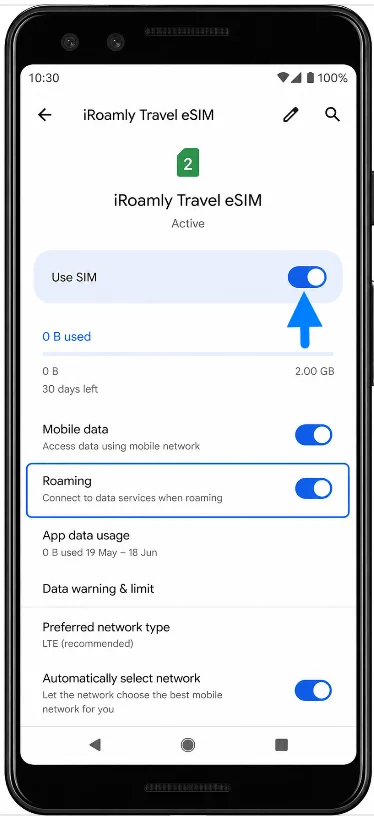
Tap the iRoamly eSIM line and confirm Use SIM is turned on. If the line is off, turn it on before travel or when you are ready to use the plan.
Set Up the eSIM for Mobile Data
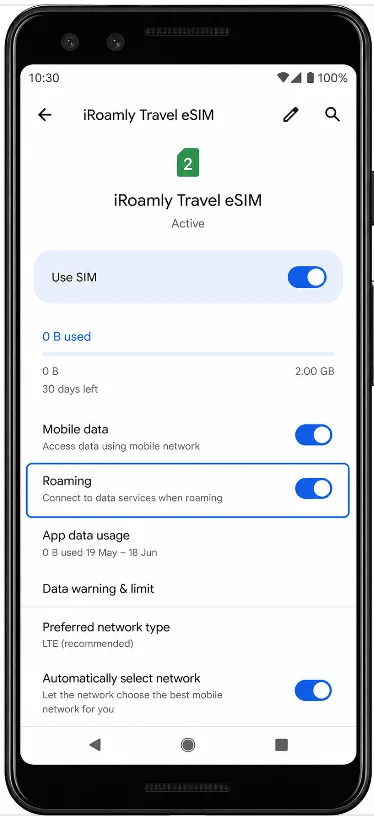
Go to Settings > Network & internet > SIMs, then tap iRoamly Travel eSIM. Confirm Use SIM is on and set mobile data to use the iRoamly line when you want travel data to run through the eSIM.
Turn on Roaming for the iRoamly eSIM if your destination plan or iRoamly instructions require it. To avoid unwanted charges on your home SIM, check that the Pixel is not automatically using your primary SIM for mobile data while you travel.
Troubleshooting
Missing Add SIM or eSIM setup option: confirm the phone is a Pixel 3 variant that supports eSIM, update Android if possible, restart the phone, and check that the device is unlocked. Some Pixel 3 carrier and regional models do not support eSIM.
QR code already used: do not delete and reinstall the eSIM repeatedly. Many travel eSIM QR codes are single-use, so contact iRoamly Support if the QR code fails after a previous installation attempt.
No data after installation: connect to Wi-Fi, confirm the iRoamly eSIM is turned on, set it as the mobile data SIM, turn on Roaming if required, and restart the Pixel 3.
Activation pending: if you are not yet in the destination country or supported network area, the plan may not fully activate until it connects to a supported network. Check the validity policy on your iRoamly plan.
Manual code does not work: copy the manual details exactly from iRoamly. If the Pixel asks for one Activation code field but iRoamly displays separate SM-DP+ Address and Activation Code values, follow the full-code format shown in your iRoamly instructions or ask iRoamly Support for the correct combined code.
Voice or SMS not working: check your iRoamly plan details. Many travel eSIMs are for mobile data only and do not include normal calls or text messages.
Conclusion
For a compatible Pixel 3 on Pixel-style Android Settings, the QR-code method is the simplest way to install an iRoamly travel eSIM: open Settings, go to Network & internet, enter SIMs, add an eSIM, and scan the iRoamly QR code. Manual entry follows the same Pixel setup path, but uses the Enter details manually option and the activation details from your iRoamly order.
After installation, always confirm that the iRoamly eSIM appears under SIMs, turn on the line when you are ready to use it, choose it for mobile data, and enable roaming if your destination plan requires it. Keep your primary SIM from taking over mobile data unless you intentionally want to use your home carrier.