
The Google Pixel 3a is an older but still travel-friendly Pixel model because it can use one physical SIM and one eSIM. That makes it a good match for an iRoamly travel eSIM when you want mobile data abroad without removing your everyday SIM card.
However, some Pixel 3a regional and carrier variants may not support eSIM, including certain Verizon, Japan, Southeast Asia, and Hong Kong models. Before purchasing or installing an iRoamly eSIM, make sure your device includes an eSIM setup option.
On Pixel Android, the eSIM setup path is in Settings > Network & internet > SIMs > Add SIM. From there, the phone lets you set up an eSIM by scanning the iRoamly QR code or by using the manual activation details if the QR code is unavailable, damaged, or being read from the same phone.

Get Your Pixel Ready for Travel with iRoamly
iRoamly eSIM is a travel eSIM service that provides mobile data plans for international trips. Available choices may include destination, local, regional, and global plans, while data allowances, validity, and features can vary by destination and package.
Once installed on a compatible phone, the travel data can support practical needs such as navigation, messaging, translation, booking access, ride-hailing, and trip updates.
On a Google Pixel 3a that supports eSIM, this guide explains how to install the iRoamly travel eSIM and select it for mobile data. The steps below cover QR-code scanning, manual activation entry, installation confirmation, and the data-line settings used during travel.
Preparations Before Setting Up iRoamly eSIM
Connect the Pixel 3a to stable Wi-Fi before installing the iRoamly eSIM.
Make sure your Pixel 3a is carrier-unlocked and that your region or carrier variant supports eSIM.
Keep the iRoamly QR code or the manual activation details ready. Manual details may be shown as an activation code, or as SM-DP+ Address plus Activation Code details that need to be entered exactly as iRoamly provides them.
Do not delete the iRoamly eSIM after installation unless iRoamly Support tells you to. Many travel eSIM profiles cannot simply be reinstalled after removal.
Install the iRoamly eSIM 1-2 days before travel when possible, but check your plan details first. iRoamly eSIM validity starts from activation, and the exact activation trigger can vary by plan.
iRoamly travel eSIM plans may not include voice calls or SMS. Voice/SMS availability varies by plan, so check the plan details before relying on anything beyond mobile data.
For a single-country trip, you can prepare a destination eSIM such as an eSIM for Japan, France eSIM, or Spain eSIM, then choose the iRoamly line for mobile data when the trip begins.
Method 1: Install the iRoamly eSIM by Scanning a QR Code
Open Settings, then tap Network & internet. You should see the Pixel network page with Wi-Fi, mobile network, and SIM-related settings.
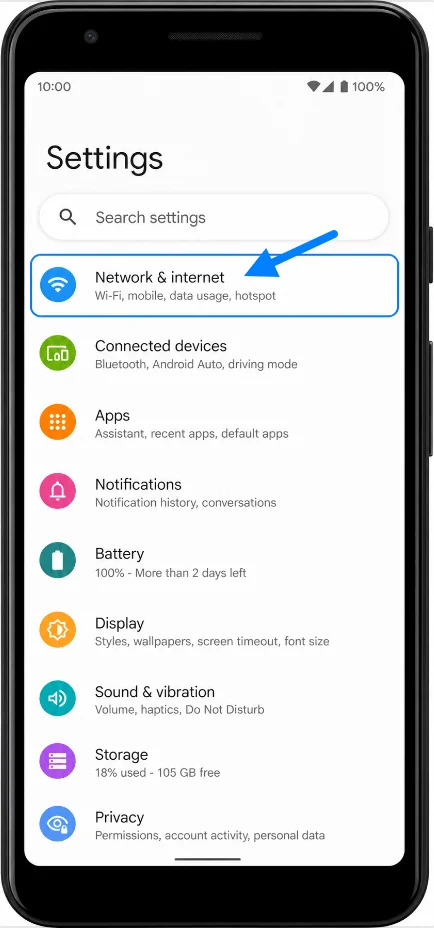
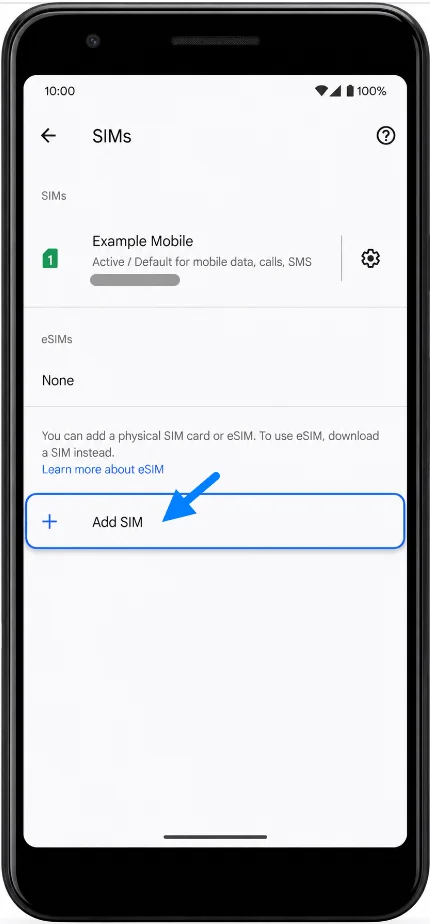
Tap SIMs, then tap Add SIM. The Pixel should open the setup screen for adding a new SIM or eSIM.
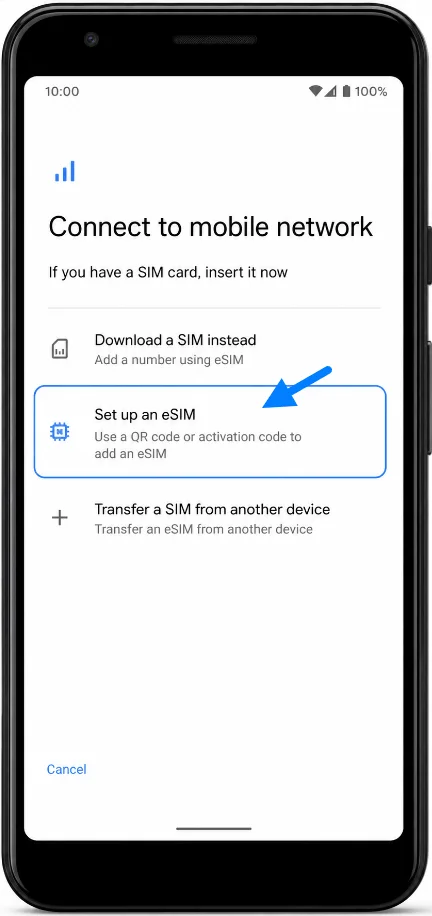
Tap Set up an eSIM. The Pixel should move to the eSIM setup flow and prepare to find or download a SIM profile.
When the QR scanner appears, point the Pixel 3a camera at the iRoamly QR code. Keep the code inside the frame until the phone recognizes the eSIM details.
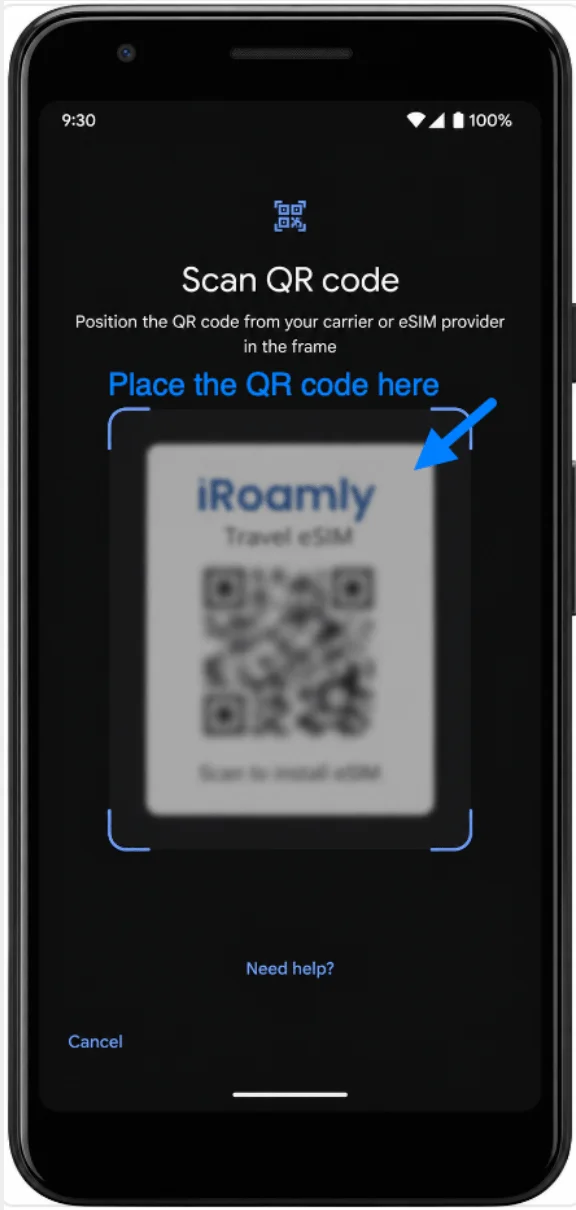
Review the detected iRoamly eSIM details, then tap Download or Activate if prompted. Wait for the phone to finish downloading the eSIM profile.
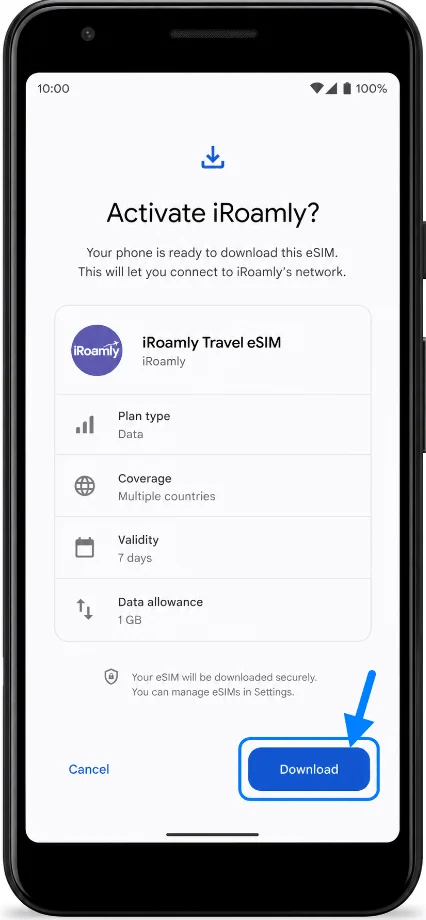
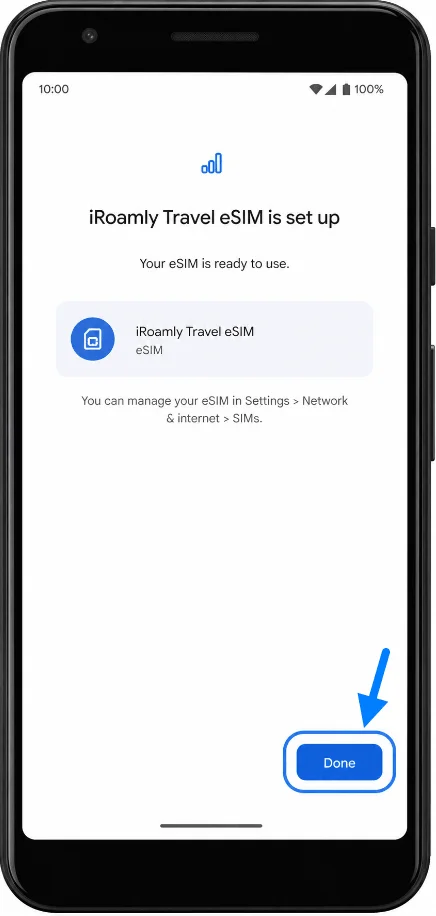
Tap Done when the setup finishes. The iRoamly eSIM should now appear under Settings > Network & internet > SIMs.
Method 2: Install the iRoamly eSIM by Manual Entry
Open Settings, then tap Network & internet. This is the same Pixel network page used for QR-code setup.
Tap SIMs, then tap Add SIM. The Pixel should open the add-SIM setup screen.
Tap Set up an eSIM. The Pixel should enter the eSIM setup flow.
On the QR-code screen, tap Need help? or Enter code manually if it is shown. The manual-entry page should appear.

Enter the iRoamly manual activation information exactly as provided. If the Pixel shows one Activation code field, enter the complete activation string from iRoamly. If iRoamly provides separate SM-DP+ Address and Activation Code details, combine or enter them in the format requested by the Pixel screen, then tap Continue.
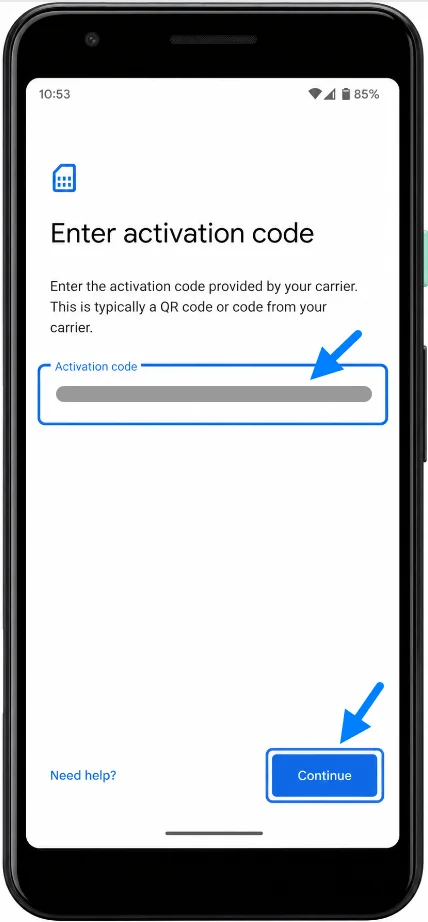
Review the iRoamly eSIM details, then tap Download or Activate if prompted. Wait until the eSIM profile finishes downloading.
Tap Done when setup completes. The iRoamly eSIM should now be listed in the Pixel SIMs settings.
How to Confirm the iRoamly eSIM Was Installed
Open Settings, tap Network & internet, then tap SIMs. Look for the newly added iRoamly eSIM or travel eSIM profile in the SIM list.
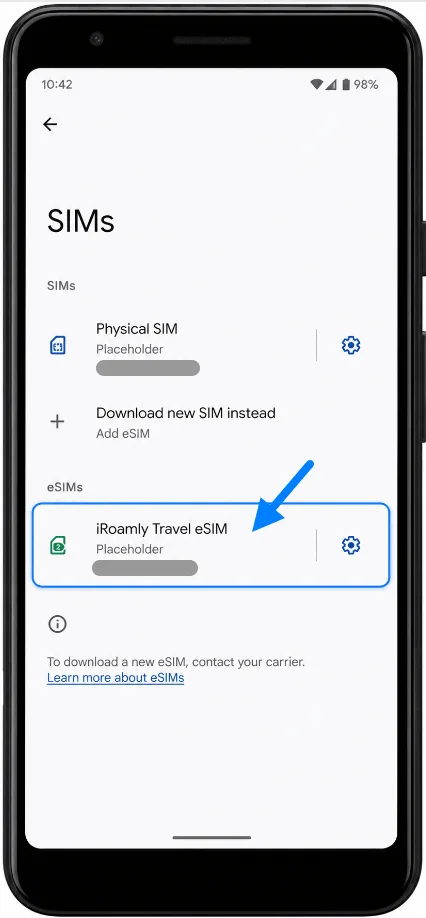
Tap the iRoamly eSIM entry and confirm the line is turned on. If the phone shows a SIM name field, rename the line to iRoamly so it is easier to recognize while traveling.
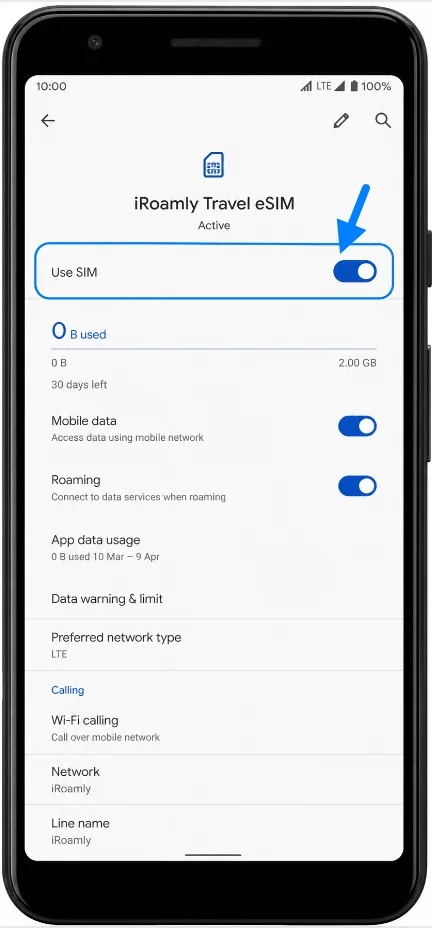
Set Up the iRoamly eSIM for Travel Data
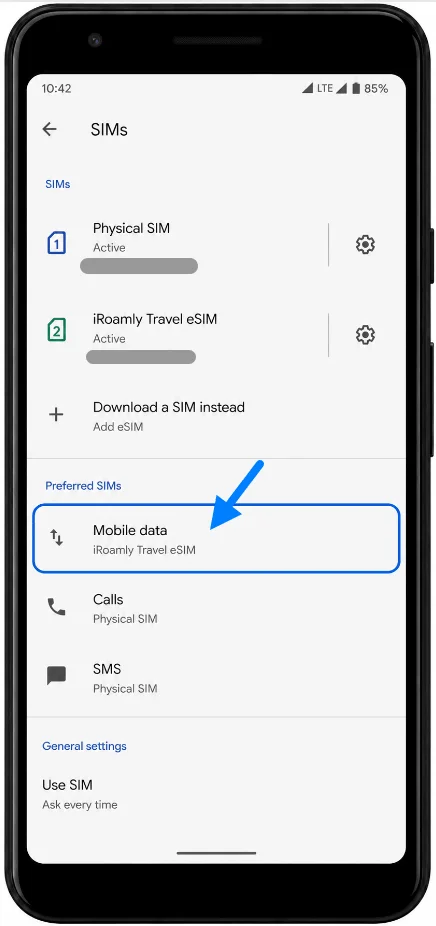
Open Settings > Network & internet > SIMs, then choose the iRoamly eSIM for mobile data. The Pixel should show iRoamly as the data SIM or preferred mobile data line.
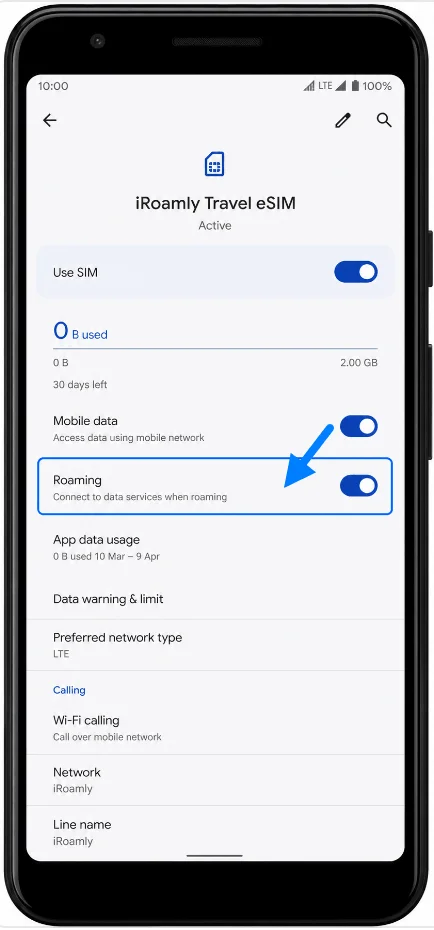
Open the iRoamly eSIM settings and turn on Roaming if your destination or iRoamly plan instructions require it. Keep your primary SIM selected for calls or SMS only if you want to avoid roaming charges on that line.
Check the Preferred SIMs section. Keep Mobile data set to the iRoamly eSIM, and leave Calls and SMS on your physical SIM if you want your primary number to stay available while iRoamly handles travel data.
Troubleshooting
If Add SIM or Set up an eSIM is missing, confirm the Pixel 3a is unlocked, connected to Wi-Fi, and using a region or carrier variant that supports eSIM.
If the QR code has already been used, do not delete and reinstall the eSIM. Contact iRoamly Support because many eSIM QR codes are single-use.
If the QR code will not scan, clean the camera lens, increase screen brightness on the device showing the QR code, or use manual entry instead.
If manual entry fails, check every character in the activation details. Do not add spaces, change capitalization, or guess missing parts of the code.
If the eSIM shows Activating or Downloading for a long time, keep Wi-Fi connected, wait a few minutes, and restart the Pixel 3a if the setup screen recommends it.
If there is no data after installation, check that the iRoamly eSIM is turned on, selected for mobile data, and allowed to use roaming if the plan requires it at your destination.
If your primary SIM is still being used for data, return to Settings > Network & internet > SIMs and set mobile data back to the iRoamly eSIM.
If service still does not appear after arrival, confirm the plan covers your destination and that the plan validity has started according to your iRoamly plan details.
More Google Pixel eSIM Setup Guides
Setting up another Pixel phone? These eSIM activation guides may help.
Conclusion
With the iRoamly eSIM successfully added to your Pixel 3a, one important part of your travel preparation is already complete. The profile stays stored on the device, allowing you to manage your travel data line and primary SIM separately without additional setup.
Before departure, it's worth confirming that your preferred SIM settings match your intended usage so everything is ready when you need it. Once that's done, your Pixel 3a should be prepared to use the iRoamly eSIM according to your plan's activation and coverage requirements.