
Google Pixel 4 supports eSIM on compatible unlocked models, making it a practical phone for using an iRoamly travel eSIM before an international trip. This guide is written for Pixel 4 running the final Pixel Android 13-era Settings layout, where the eSIM path is usually Settings > Network & internet > SIMs > Add SIM > Set up an eSIM. Menu wording can vary slightly by Android update, carrier, and region.
You can install an iRoamly travel eSIM on Pixel 4 in two ways. The QR code method is fastest when you can display the iRoamly QR code on another device or print it. Manual entry is useful when the QR code is unavailable, blurry, or cannot be scanned.
This article covers both methods from the start screen through confirmation, then shows how to select the iRoamly eSIM for mobile data and enable roaming when your destination plan requires it.
Preparations Before Setting Up iRoamly eSIM
Connect your Pixel 4 to a stable Wi-Fi network before starting. The phone must download the eSIM profile during setup.
Confirm that your Pixel 4 is unlocked and supports eSIM in your region and carrier variant. If Add SIM or Set up an eSIM is missing, your software, region, or carrier configuration may not allow eSIM setup.
Keep your iRoamly QR code or manual activation details ready. Use only the details from your iRoamly order email, account page, or app.
Install the travel eSIM 1-2 days before departure when appropriate, but do not delete and reinstall it casually. Many travel eSIM profiles are single-use after installation.
iRoamly eSIM validity starts from activation, not from reading this guide. Check the specific iRoamly plan details for the activation trigger, because it may be tied to installation or first connection to a supported destination network.
iRoamly travel eSIM plans may not include voice calls or SMS. Voice/SMS availability varies by plan, so review the plan details before relying on it for calls or texts.
Method 1: Install the eSIM by Scanning a QR Code
Open Settings, then tap Network & internet. You should see the Pixel network settings page.
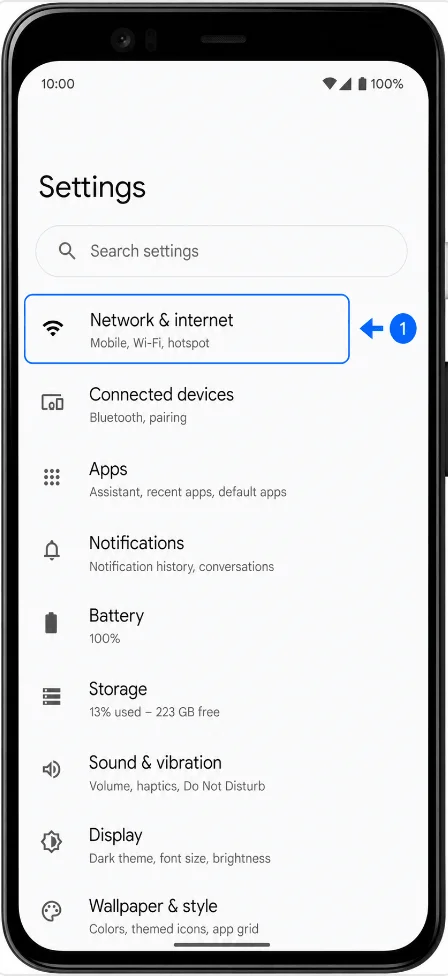
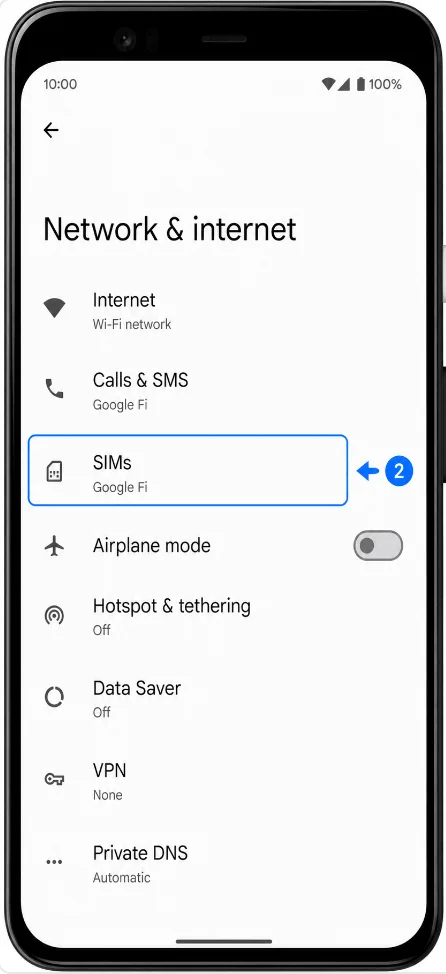
Tap SIMs. Pixel opens the SIM management page for your physical SIM and eSIM profiles.
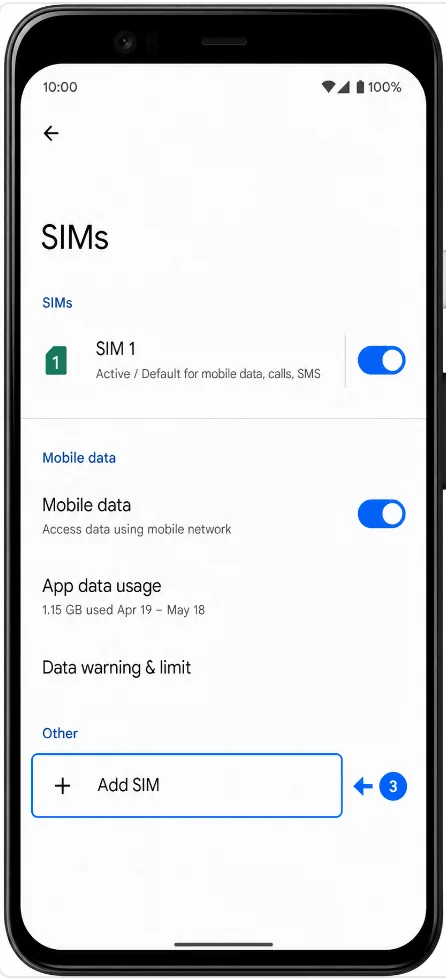
Tap Add SIM. Pixel starts the SIM setup flow.
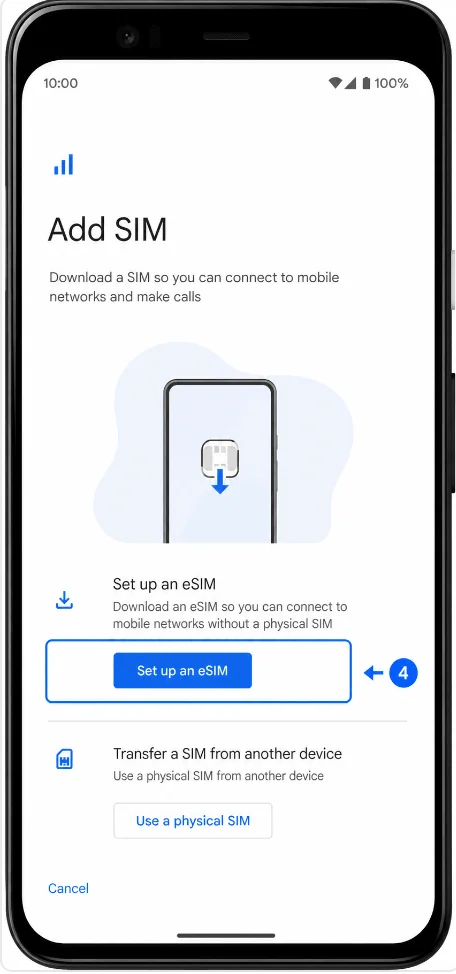
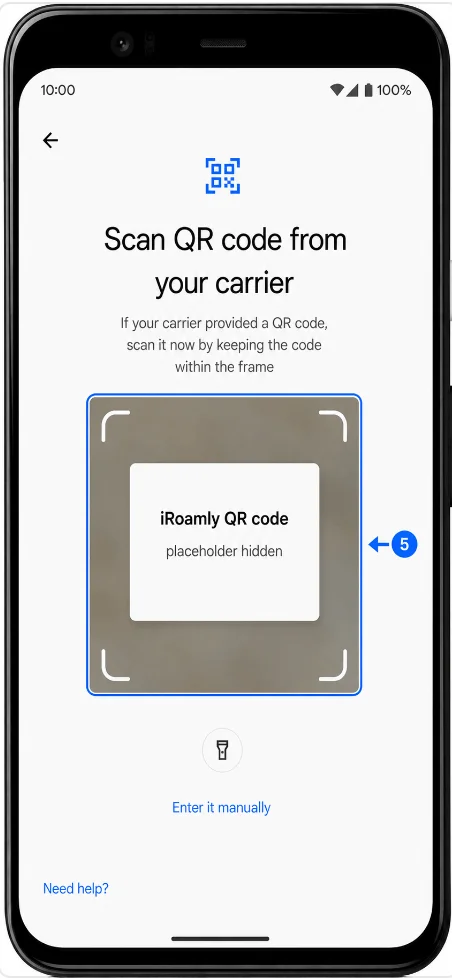
Tap Set up an eSIM. Pixel opens the eSIM setup scanner.
Scan the iRoamly QR code from your order email, account page, or app. Keep the full QR code inside the scanner frame until Pixel recognizes it.
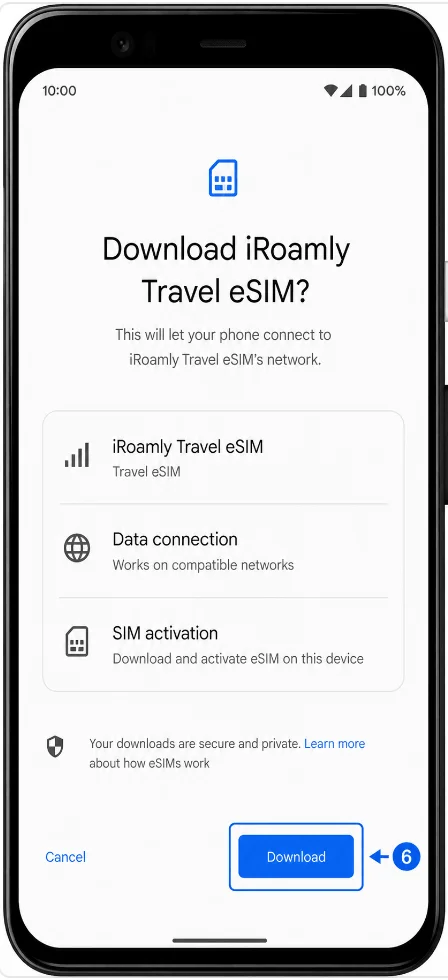
When Pixel shows the iRoamly eSIM profile, tap Download and wait for the setup to finish. If Pixel asks for confirmation again, confirm the download.
Method 2: Install the eSIM by Manual Entry
Open Settings, then tap Network & internet. You should see the Pixel network settings page.
Tap SIMs. Pixel opens the SIM management page.
Tap Add SIM. Pixel starts the SIM setup flow.
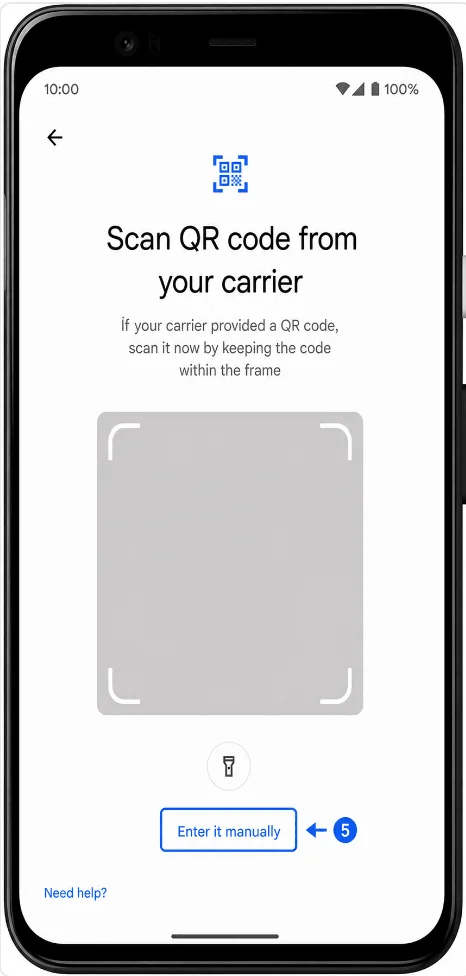
Tap Set up an eSIM. Pixel opens the QR setup screen.
On the QR setup screen, tap Enter it manually. If your software version shows Need help?, tap it first, then choose the manual entry option.
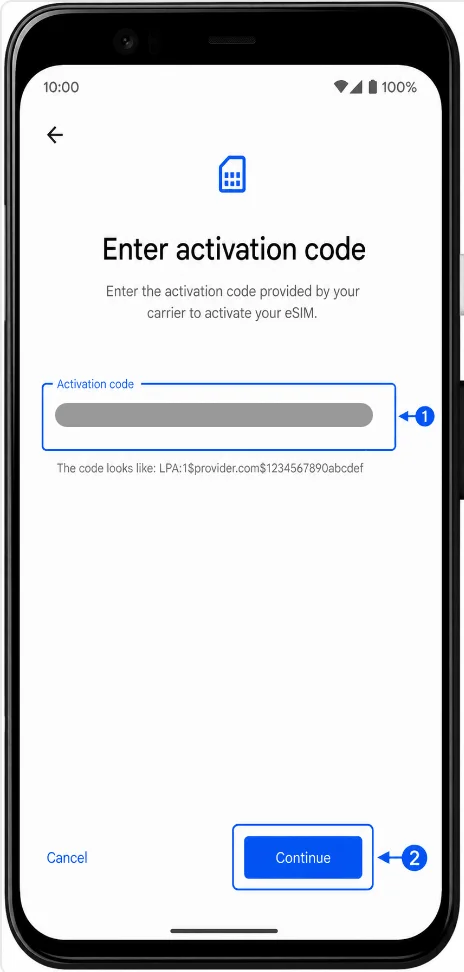
In the Activation code field, enter the full manual activation code from iRoamly, then tap Continue. If iRoamly provides separate SM-DP+ Address and Activation Code values, enter them in the complete Pixel activation-code format shown by iRoamly, commonly LPA:1$SM-DP+ Address$Activation Code. Leave any optional confirmation code blank unless iRoamly provides one.
When Pixel shows the iRoamly eSIM profile, tap Download and wait until the eSIM finishes installing.
How to Confirm the eSIM Was Installed
Open Settings > Network & internet > SIMs, then look for iRoamly Travel eSIM in the SIM list. The eSIM should appear as active, available, or ready to configure, depending on your Android version and whether you are already in the destination country.
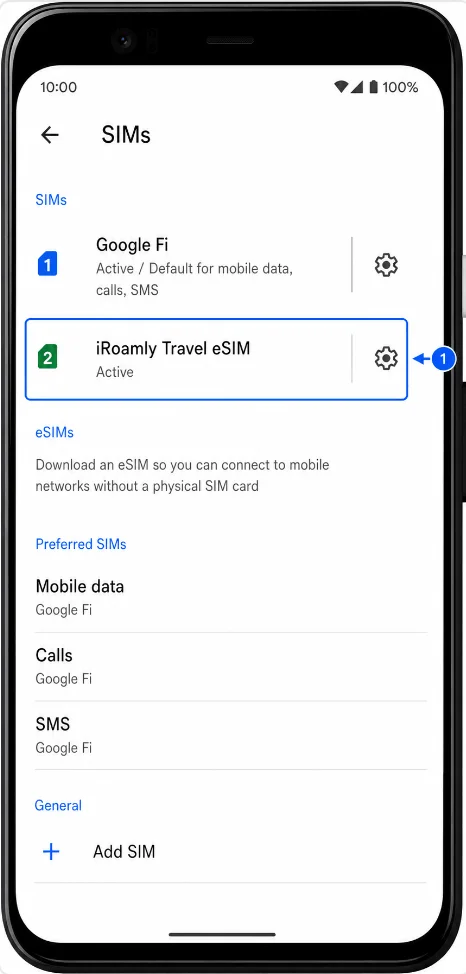
Set Up the eSIM for Mobile Data
In Settings > Network & internet > SIMs, open the Mobile data selection and choose iRoamly Travel eSIM. This tells Pixel to use the iRoamly line for data instead of your primary SIM.
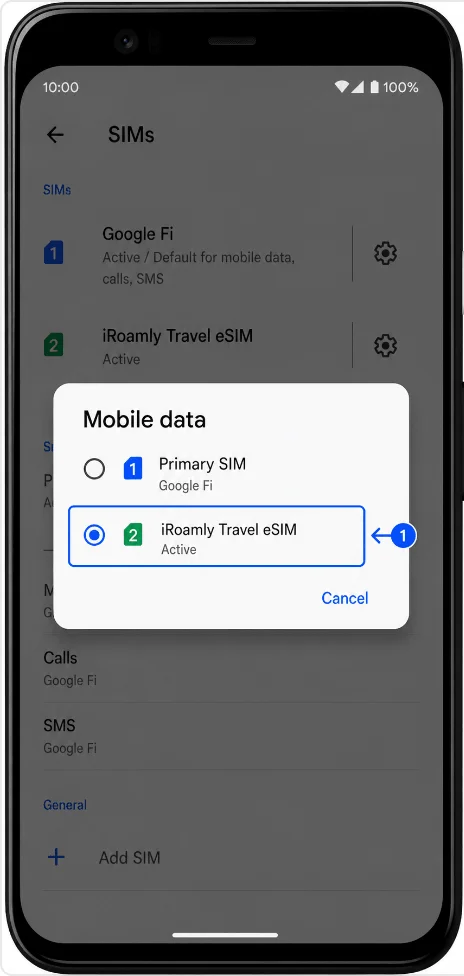
Open the iRoamly Travel eSIM settings page, turn on Use SIM, and enable Roaming if your iRoamly plan or destination instructions require roaming. Keep your primary SIM selected for calls or SMS only if you still need it and understand any home-carrier charges.
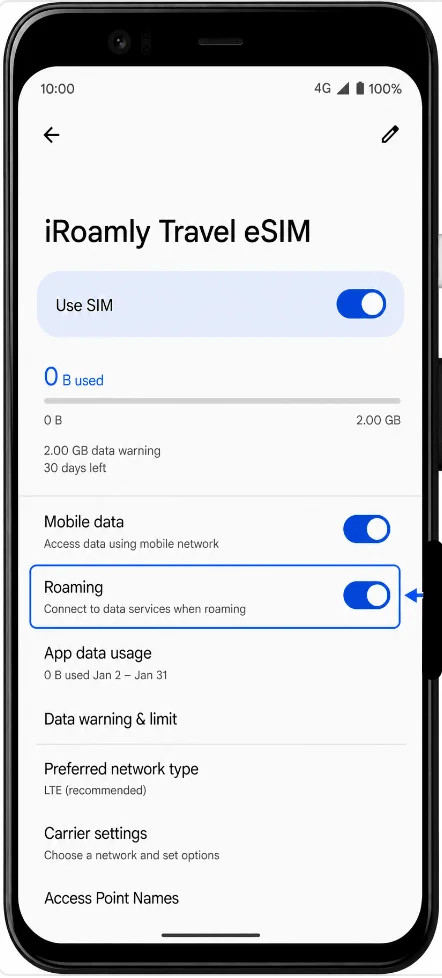
Troubleshooting
Add SIM or Set up an eSIM is missing: confirm the Pixel 4 is unlocked, updated, and eSIM-capable in your region. Some carrier or regional variants may hide eSIM setup.
The QR code was already used: many travel eSIM profiles can be installed only once. Do not delete the iRoamly eSIM unless iRoamly support tells you to.
The QR code will not scan: clean the display showing the QR code, increase brightness, avoid glare, or use Method 2 with manual entry.
Manual entry fails: copy the full activation code exactly as iRoamly provides it. Watch for missing $ separators, spaces, or line breaks.
The eSIM is installed but there is no data: choose iRoamly Travel eSIM for Mobile data, turn on Use SIM, enable Roaming if required, and restart the phone after the eSIM finishes downloading.
Activation is pending: if you are not yet in the destination country, the eSIM may stay pending until Pixel reaches a supported network. Check the plan details for the activation trigger.
Data switches back to your primary SIM: return to Settings > Network & internet > SIMs and set Mobile data to iRoamly Travel eSIM. Disable automatic data switching if your Pixel software shows that option.
Conclusion
Whether you installed the iRoamly eSIM by scanning a QR code or entering the activation details manually, the final result is the same: a travel data line that can be managed directly from your Pixel 4's SIM settings.
Before traveling, verify that the eSIM has been downloaded correctly, check that it is configured for mobile data, and review any roaming requirements associated with your plan. A quick settings check before departure can help ensure a smoother connection experience once the eSIM is activated.