
Google lists this phone as Pixel 5a (5G), so Pixel 5a and Pixel 5a 5G refer to the same model for this guide. It supports eSIM on compatible unlocked devices, although carrier and regional variants can affect whether the eSIM setup option appears.
For iRoamly travel eSIM setup, the Pixel 5a uses the Pixel Android path through Settings, Network & internet, SIMs, and Add SIM. Menu labels may vary slightly by Android version, but the setup flow is centered on adding a SIM and choosing the eSIM download option.
This guide covers both ways to install an iRoamly travel eSIM: scanning the iRoamly QR code and entering the manual activation details. QR setup is usually fastest, while manual entry is useful if the QR code is on the same phone, will not scan clearly, or cannot be displayed on another device.
Preparations Before Setting Up iRoamly eSIM
Connect the Pixel 5a / Pixel 5a 5G to stable Wi-Fi before starting.
Confirm the phone is unlocked and eSIM-capable for your region or carrier variant.
Keep the iRoamly QR code or manual activation details ready.
Install the eSIM 1-2 days before travel when possible, but keep the iRoamly line turned off until you are ready to use it.
Do not delete the eSIM after installation unless iRoamly Support tells you to. Many travel eSIM profiles are single-use and may not reinstall after removal.
iRoamly eSIM plan validity starts from activation. For travel plans, check the specific plan details because the activation trigger may depend on when the eSIM connects to a supported destination network.
iRoamly travel eSIM plans may not include voice calls or SMS. Voice/SMS availability varies by plan, so check your exact iRoamly plan before relying on those services.
Method 1: Install the eSIM by Scanning a QR Code
Open Settings, then tap Network & internet. You should see the Pixel network settings page with mobile, Wi-Fi, and SIM options.
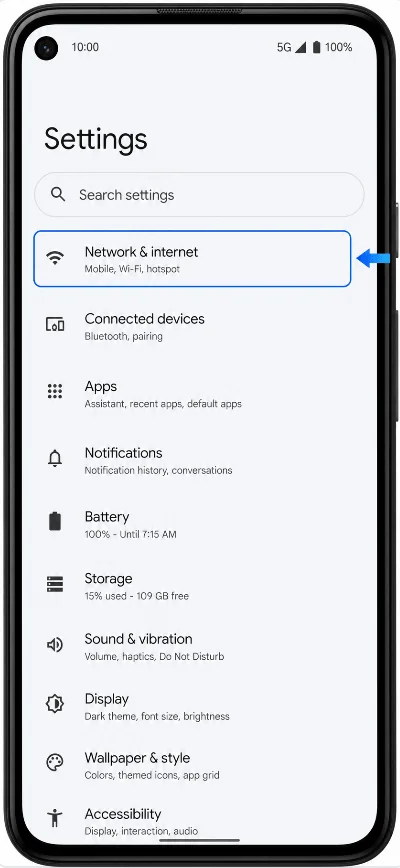
Tap SIMs. You should see the SIM settings page where installed SIMs and eSIM options are managed.
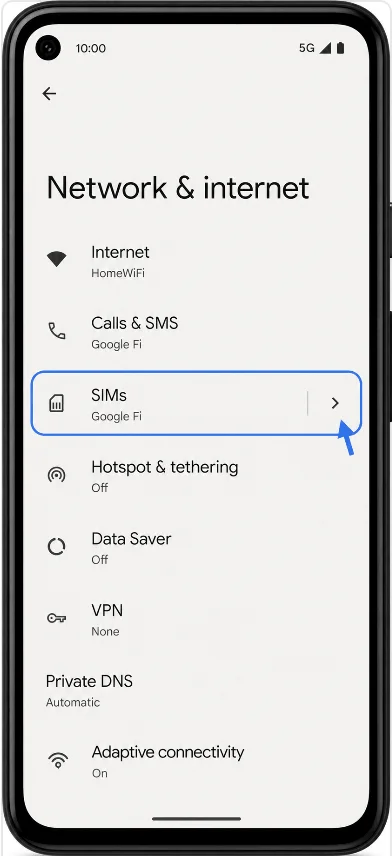
Tap Add SIM. Android should open the setup path for adding a physical SIM or downloading an eSIM.
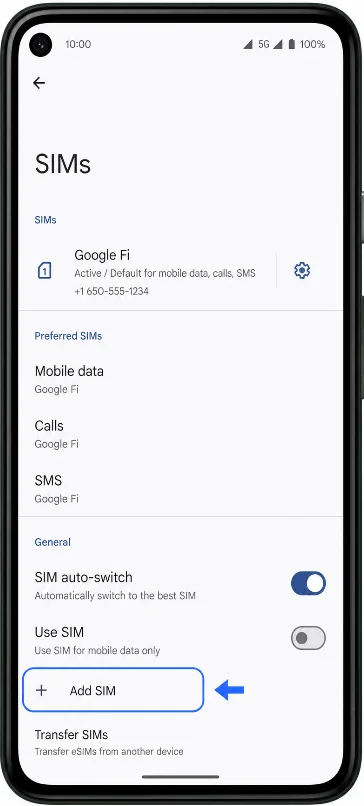
Tap Set up an eSIM. If your Android version shows Download a SIM instead?, tap that option and continue to the QR setup screen.
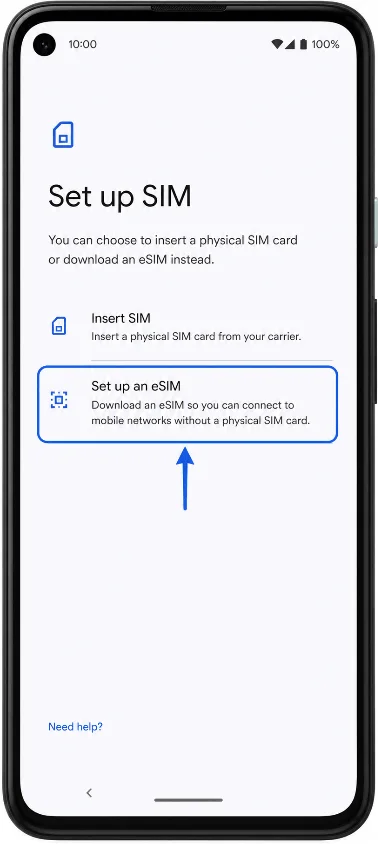
Choose the QR-code setup option, then scan the iRoamly eSIM QR code from your email, iRoamly account, or another screen. Keep the QR code flat, well lit, and fully visible.
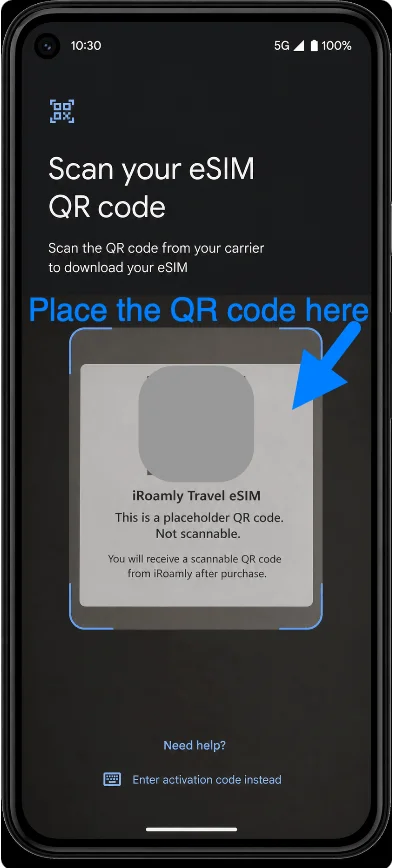
Review the detected iRoamly eSIM profile, then tap Download or Set up when prompted. Keep Wi-Fi connected while the profile downloads.
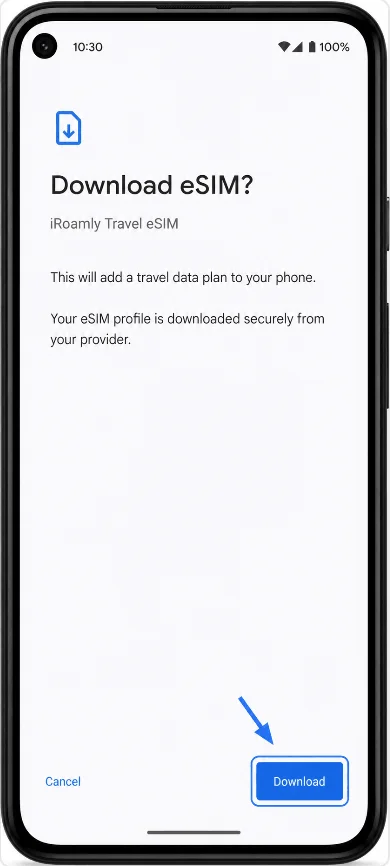
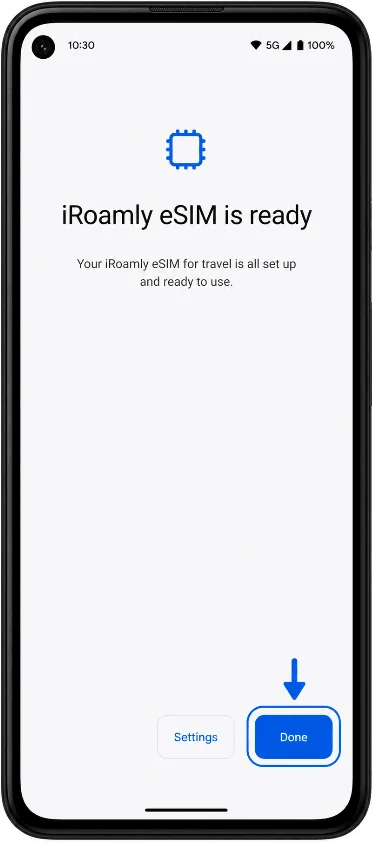
Wait for the setup to finish, then tap Done or Settings. If Android recommends a restart, restart the phone before testing mobile data.
Method 2: Install the eSIM by Manual Entry
Open Settings, then tap Network & internet. This is the same starting point used for QR-code setup.
Tap SIMs to open the SIM management screen.
Tap Add SIM to begin adding a new SIM or eSIM profile.
Tap Set up an eSIM. If your phone shows Download a SIM instead?, tap that option.
On the QR-code setup screen, tap Need help?, Enter details manually, Enter activation code, or the equivalent manual-entry option shown by your Android version. The exact wording can vary slightly.
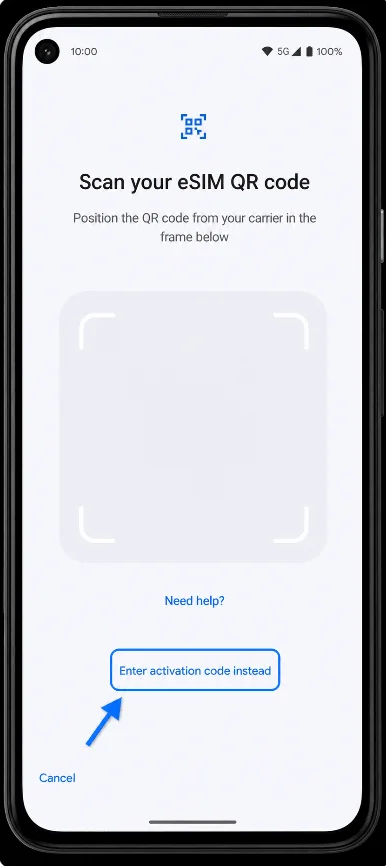
Enter the manual activation information from iRoamly. On recent Pixel Android versions, manual setup commonly uses one activation-code field, often a full activation string. If iRoamly provides separate SM-DP+ Address and Activation Code, use the complete manual activation string if iRoamly provides one; if your Pixel only shows one field and you only have separate values, contact iRoamly Support before guessing the format.
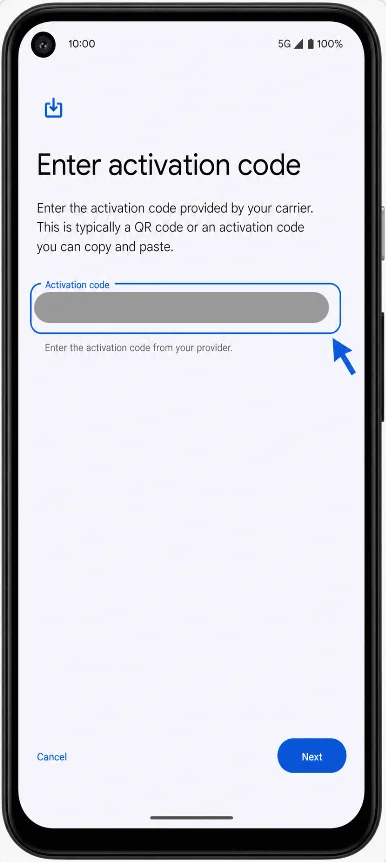
Tap Next, Download, or Set up, then wait for the iRoamly eSIM to download over Wi-Fi.
When setup finishes, tap Done or Settings. Restart the phone if Android or iRoamly setup guidance recommends it.
How to Confirm the iRoamly eSIM Was Installed
Open Settings, tap Network & internet, then tap SIMs. Look for the newly installed iRoamly eSIM in the SIM list. It may appear as a carrier name, Downloaded SIM, Travel, or another default label until you rename it.
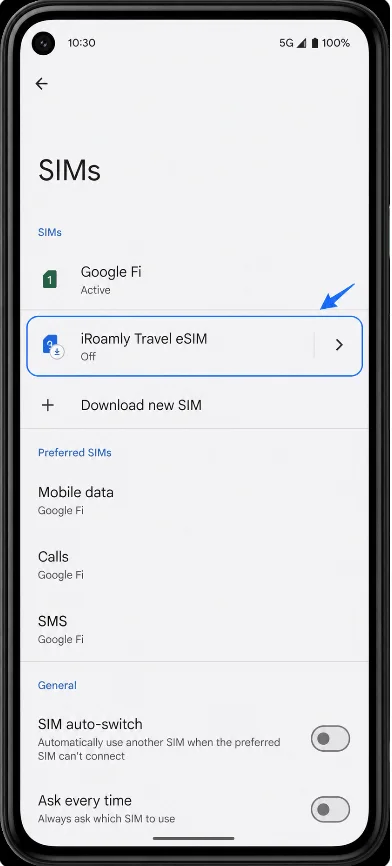
Tap the iRoamly eSIM and confirm that Use SIM is available. If you are still at home before travel, you can leave the iRoamly line turned off until you arrive.
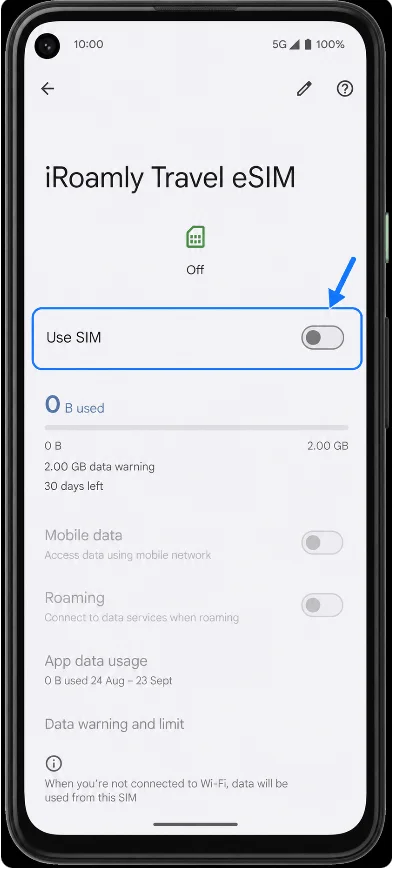
Set Up the eSIM for Mobile Data
Open Settings > Network & internet > SIMs, then tap the iRoamly eSIM. Turn on Use SIM when you are ready to use the travel plan.
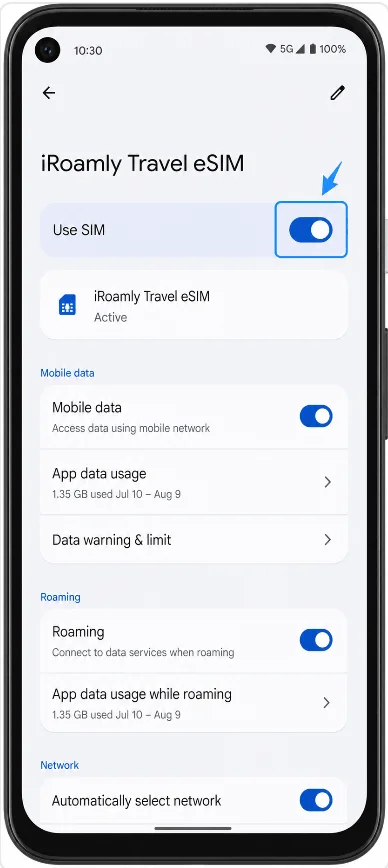
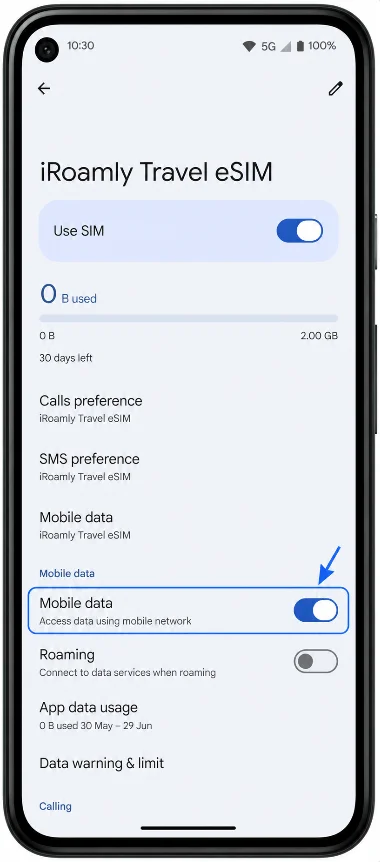
Turn on Mobile data for the iRoamly eSIM. This allows the Pixel to use the iRoamly line for internet access.
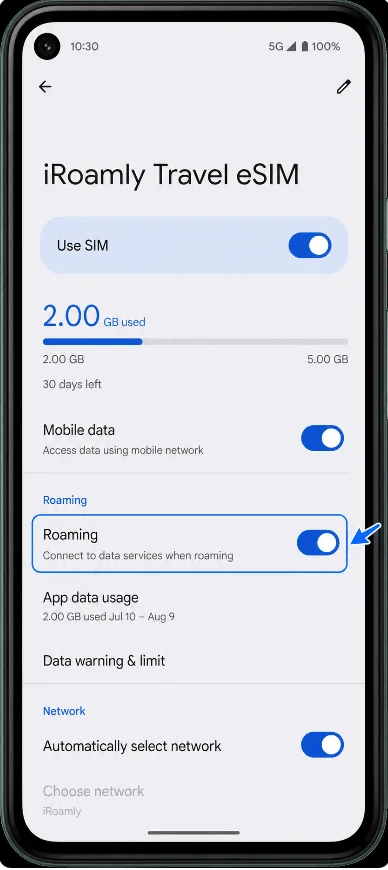
Turn on Roaming if your iRoamly destination plan requires roaming for data access.
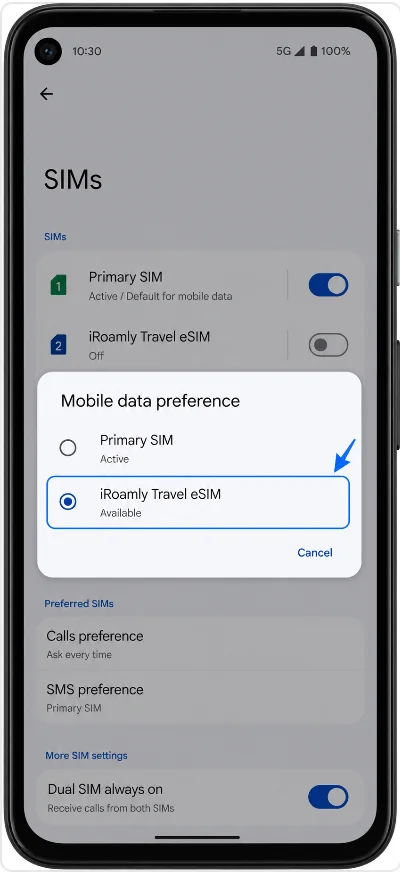
Go back to SIMs, tap Mobile data, and choose the iRoamly eSIM as the data SIM. If you keep your primary SIM active for calls or texts, avoid automatic data switching unless you intentionally want the phone to switch away from iRoamly data.
Troubleshooting
If Add SIM or Set up an eSIM is missing, update Android, restart the phone, confirm the device is unlocked, and check whether your carrier or regional variant supports eSIM.
If the QR code says it has already been used, do not delete and retry repeatedly. Contact iRoamly Support because eSIM QR codes are usually single-use.
If the QR code will not scan, display it on a larger screen, improve the lighting, or use manual entry.
If manual entry fails, confirm whether your Pixel expects a full activation-code string rather than separate SM-DP+ Address and Activation Code fields.
If the eSIM installs but data does not work, turn on the iRoamly eSIM, select it for Mobile data, enable Roaming, then toggle Airplane mode on and off.
If activation is pending, wait until you are in the supported destination network and connected to local coverage.
If dual-SIM behavior is not what you expect, remember that Pixel 5a / Pixel 5a 5G supports one physical SIM plus one eSIM for dual-SIM use; it does not support two active eSIMs at the same time.
Conclusion
Installing an iRoamly eSIM on the Pixel 5a / Pixel 5a 5G is a straightforward process once you know where to find the eSIM settings. After the installation is complete, take a moment to confirm that the iRoamly profile appears under Settings > Network & internet > SIMs, then make sure it is selected for Mobile data when you're ready to use your travel plan.
Depending on your destination and plan requirements, you may also need to enable Roaming on the iRoamly line. Before your trip, it's worth reviewing your plan details one last time so you know when service activates and what features are included. With those checks completed, your eSIM should be ready whenever you need it.