
Google Pixel 5 supports eSIM, including one nano SIM and one eSIM profile. This guide assumes a Pixel 5 using the current Pixel Android settings path: Settings > Network & internet > SIMs > Add SIM > Set up an eSIM. Menu names can vary slightly by Android version, region, carrier firmware, or whether another SIM is already active.
An iRoamly travel eSIM lets you add a destination data plan before a trip without swapping your physical SIM. Use the QR code method when your iRoamly QR code is displayed on another device or printed. Use manual entry when the QR code cannot be scanned, is on the same phone, or you only have activation details.
This article covers both setup paths, how to confirm the eSIM is installed, and how to select the iRoamly eSIM for mobile data after arrival.
Preparations Before Setting Up iRomly eSIM
Connect your Pixel 5 to stable Wi-Fi.
Make sure the phone is unlocked and eSIM-capable.
Have your iRoamly travel eSIM QR code or manual activation details ready.
Install the eSIM 1-2 days before travel while you have internet access.
Do not delete the iRoamly eSIM to troubleshoot unless iRoamly support tells you to. Many travel eSIM profiles cannot be reused after removal.
iRoamly eSIM plan validity starts from activation. For many travel plans, activation is tied to connecting to a supported network, so check the current plan details before turning the line on.
iRoamly plans are often data-only. Voice calls and SMS vary by plan, so check the exact plan details before relying on calls or texts.
Method 1: Install the iRoamly eSIM by Scanning a QR Code
Open Settings, then tap Network & internet.
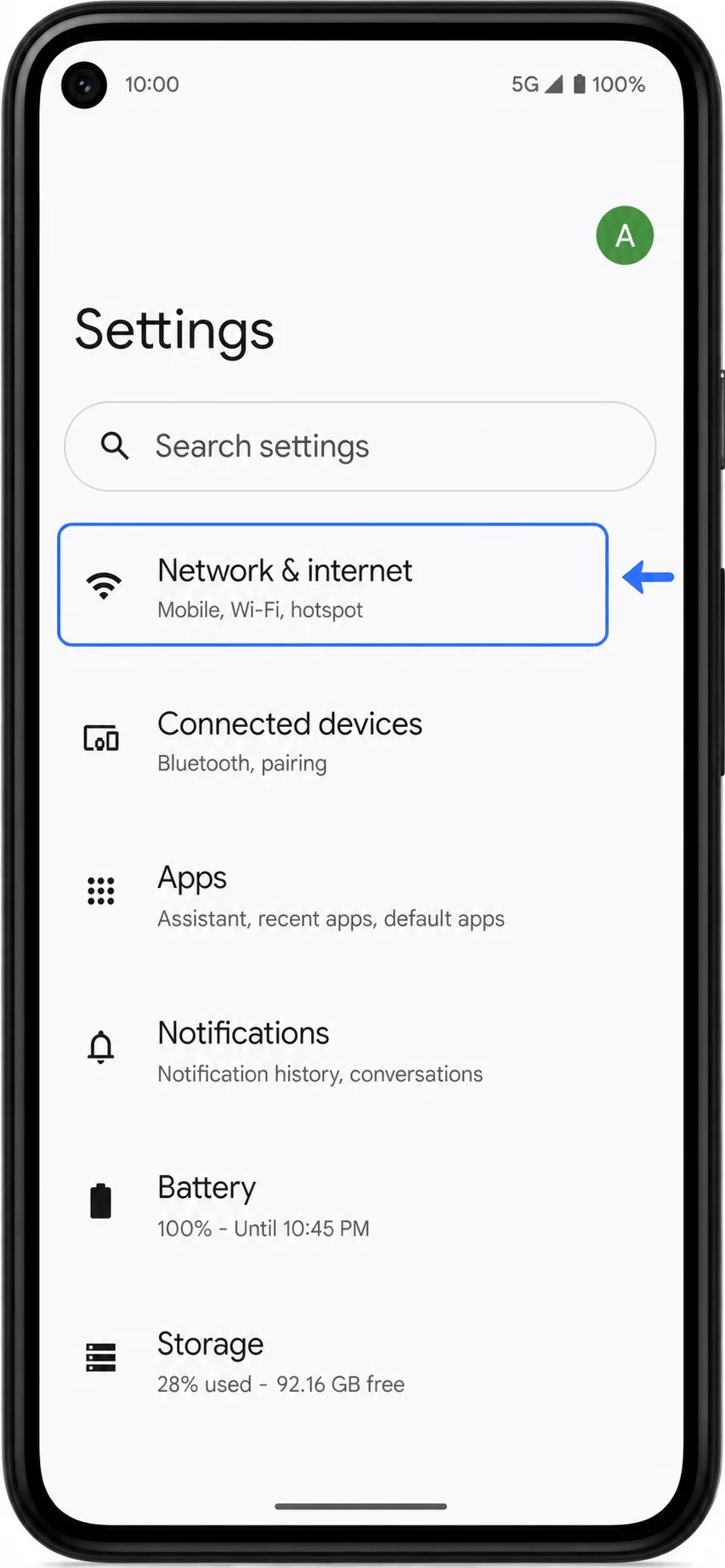
Tap SIMs.
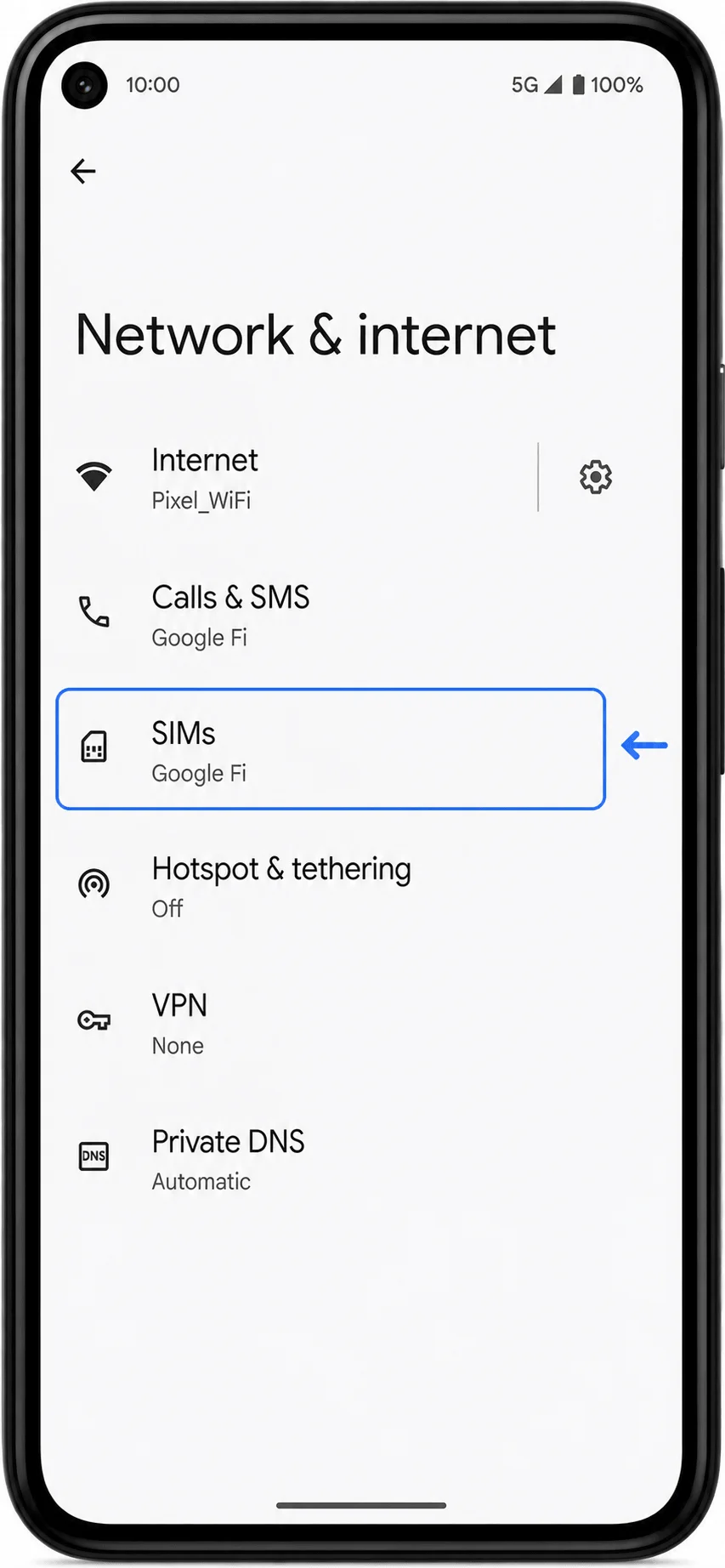
Tap Add SIM.
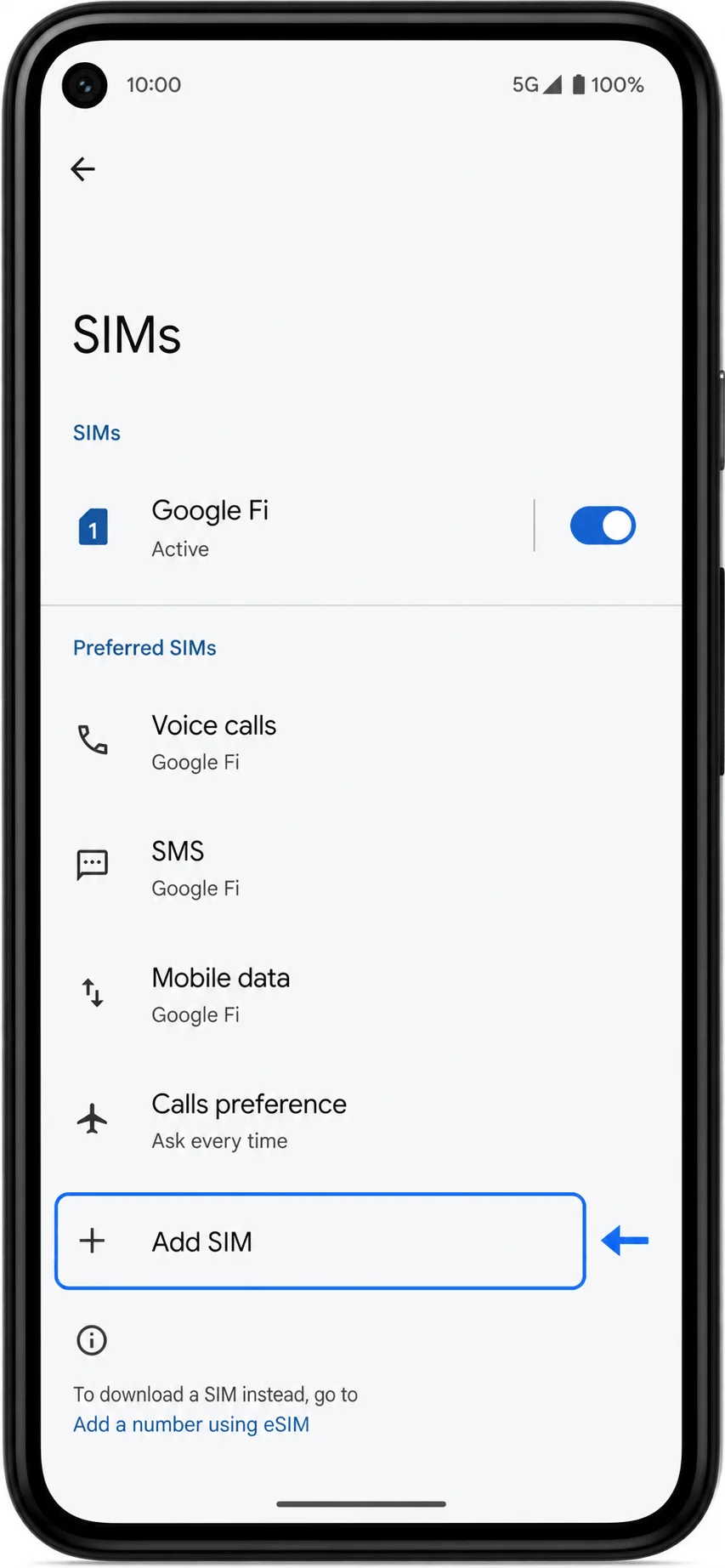
Tap Set up an eSIM.

When the QR scanner opens, scan the iRoamly QR code from another phone, tablet, computer screen, or printed page.
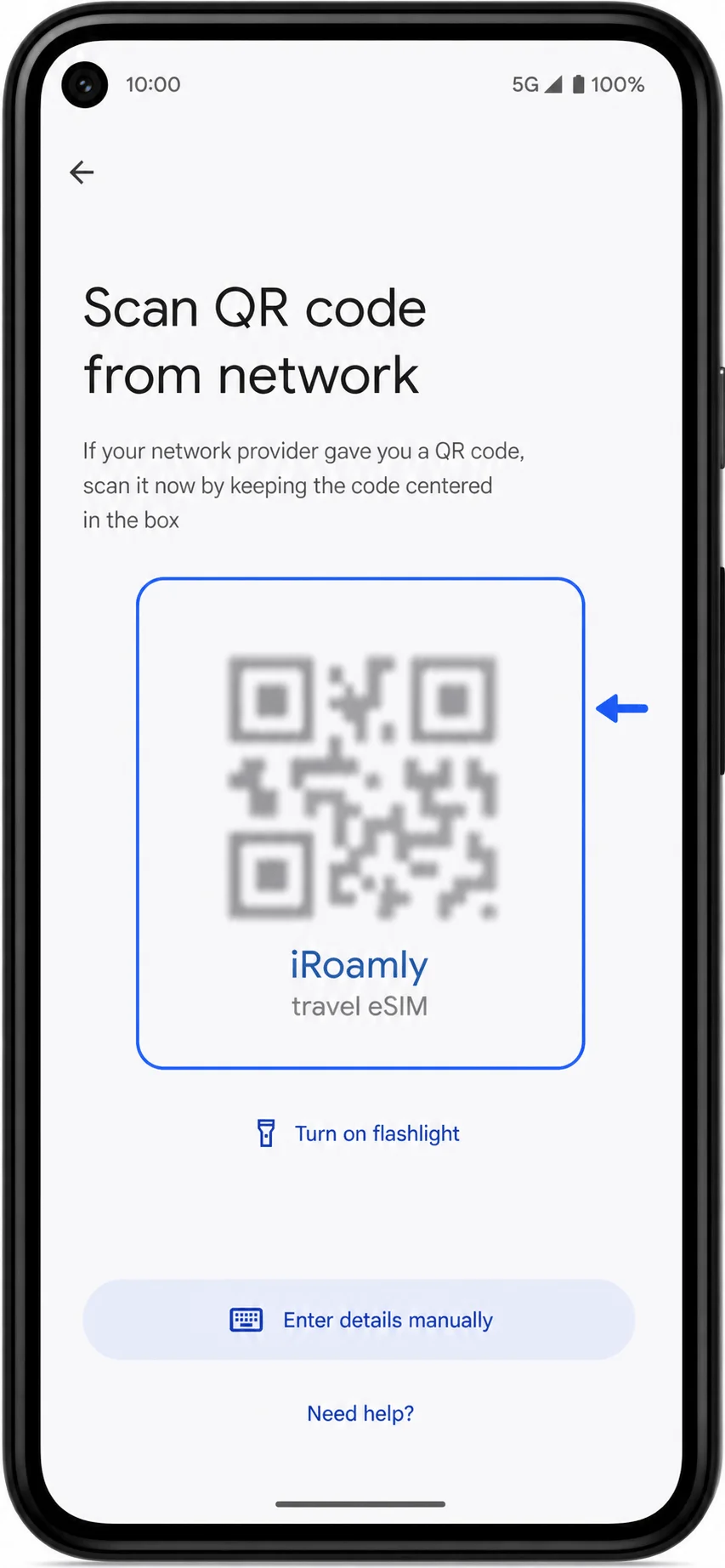
Review the detected iRoamly eSIM, then tap Download or Set up to add it to the Pixel 5.
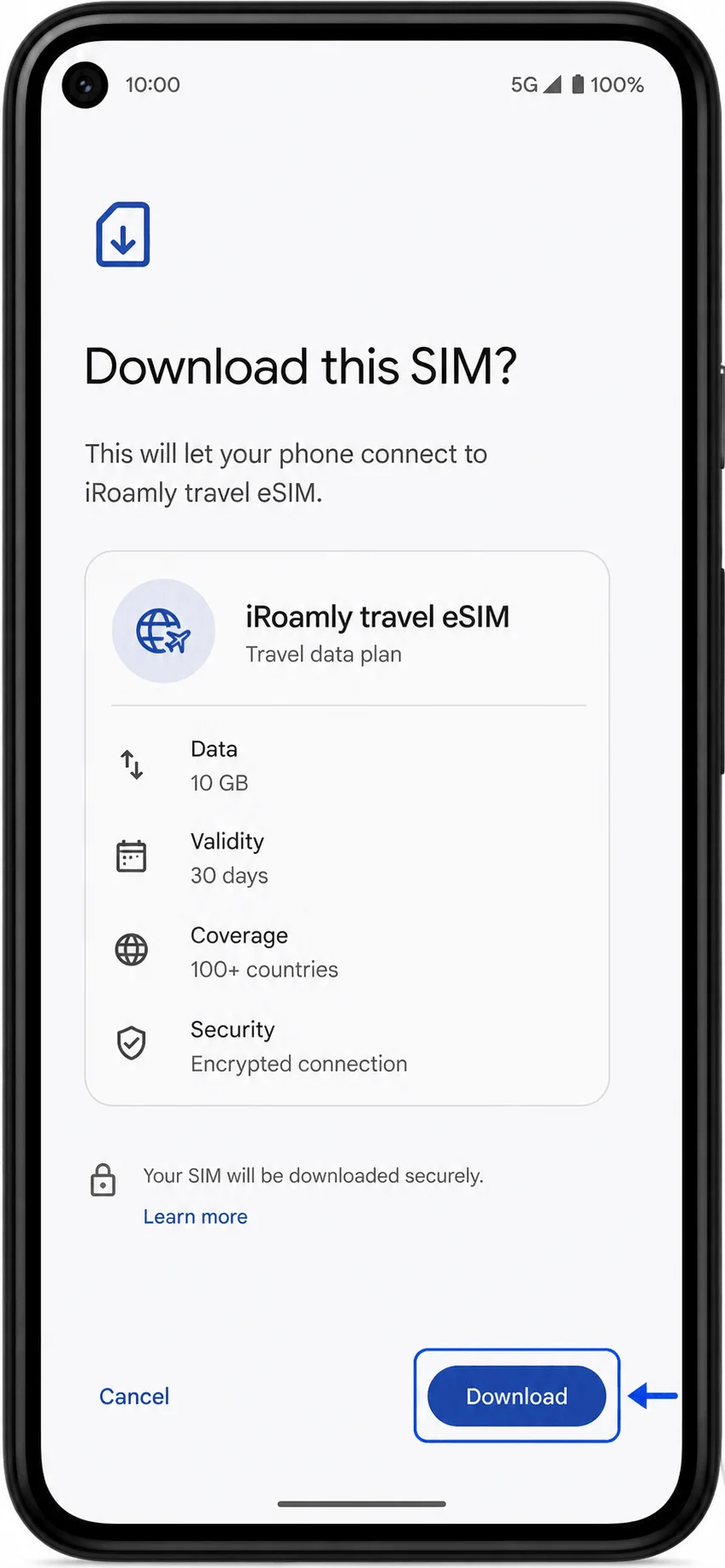
Method 2: Install the iRoamly eSIM by Manual Entry
Open Settings, then tap Network & internet.
Tap SIMs.
Tap Add SIM.
Tap Set up an eSIM.
On the QR scanner screen, tap Enter details manually. If your Android version shows Need help? first, tap it and then choose the manual-entry option.
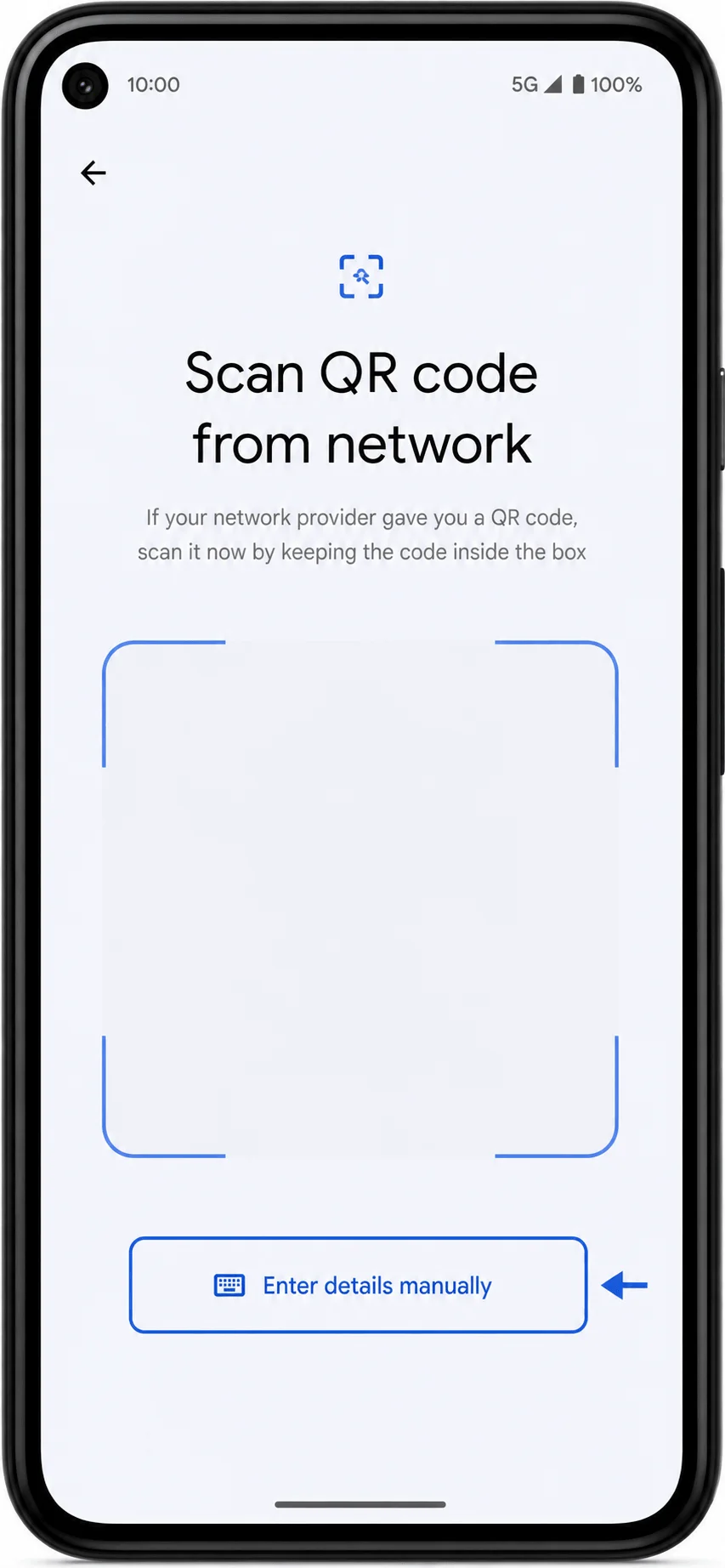
Enter the iRoamly manual activation details exactly as provided. If separate fields appear, enter the SM-DP+ Address, Activation Code, and optional Confirmation Code. If your Pixel shows one activation-code field, paste the full activation string exactly, including any LPA: prefix and colons.
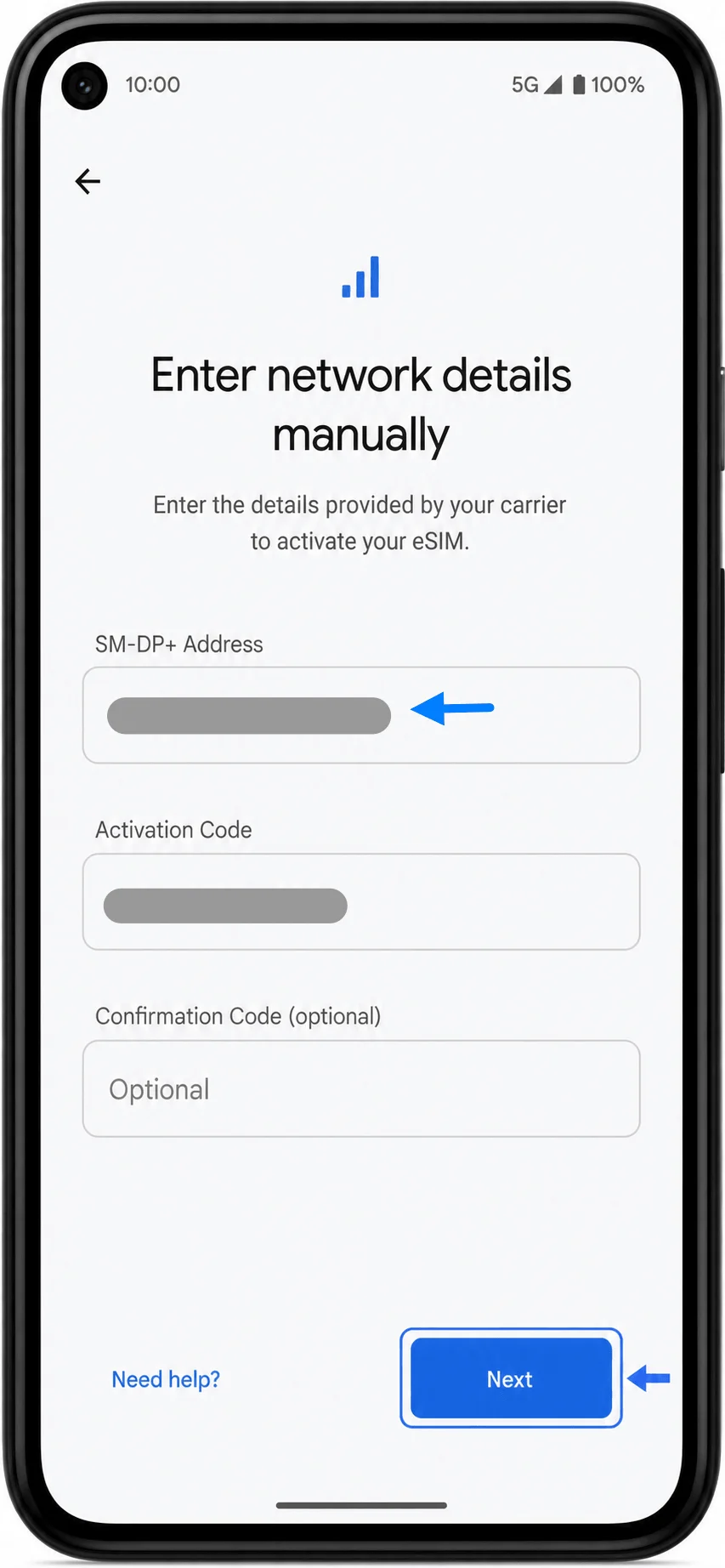
Tap Next, review the iRoamly eSIM information, then tap Download or Set up.
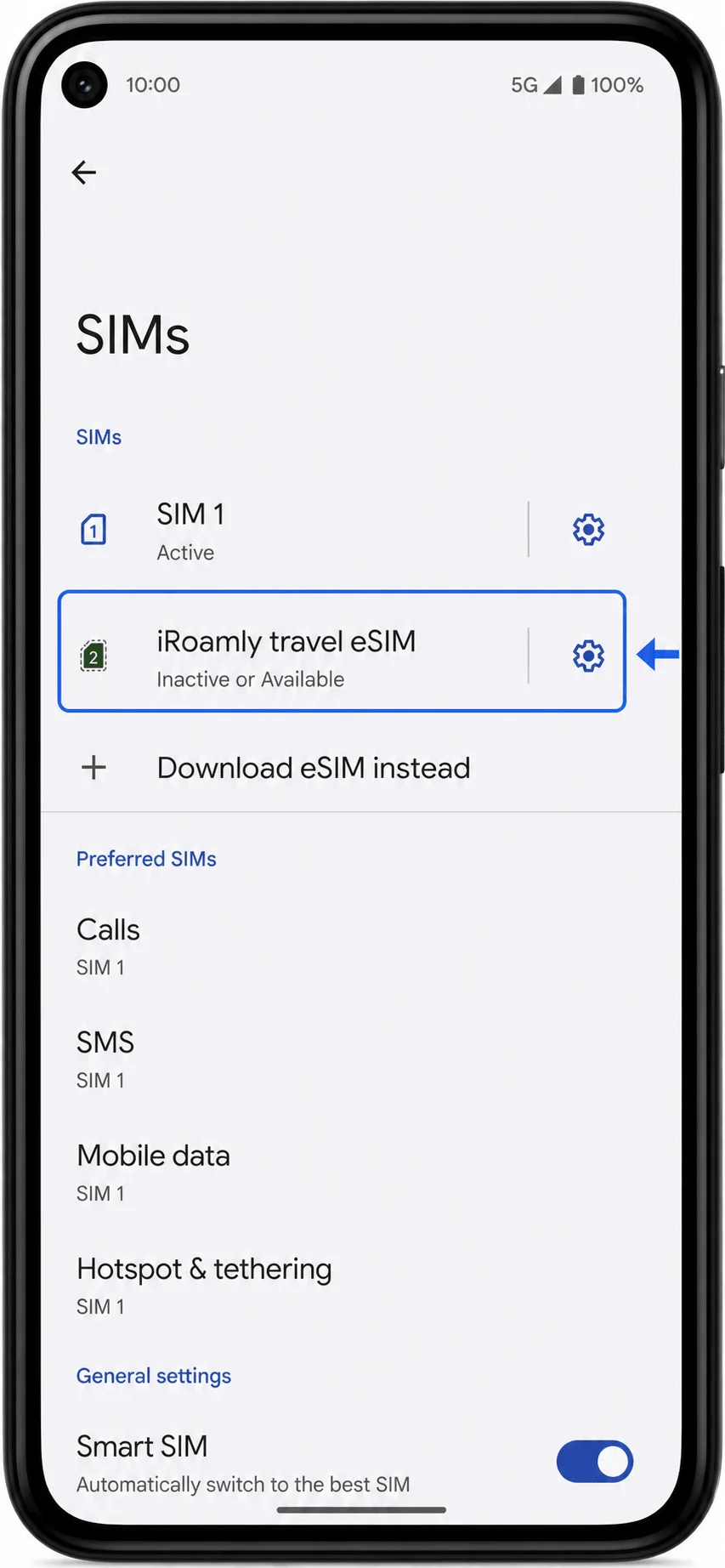
Wait for the download to finish, then return to Settings > Network & internet > SIMs and look for the iRoamly eSIM in the list.
How to Confirm the iRoamly eSIM Was Installed
Open Settings > Network & internet > SIMs, then look for iRoamly travel eSIM or a newly added travel eSIM profile.
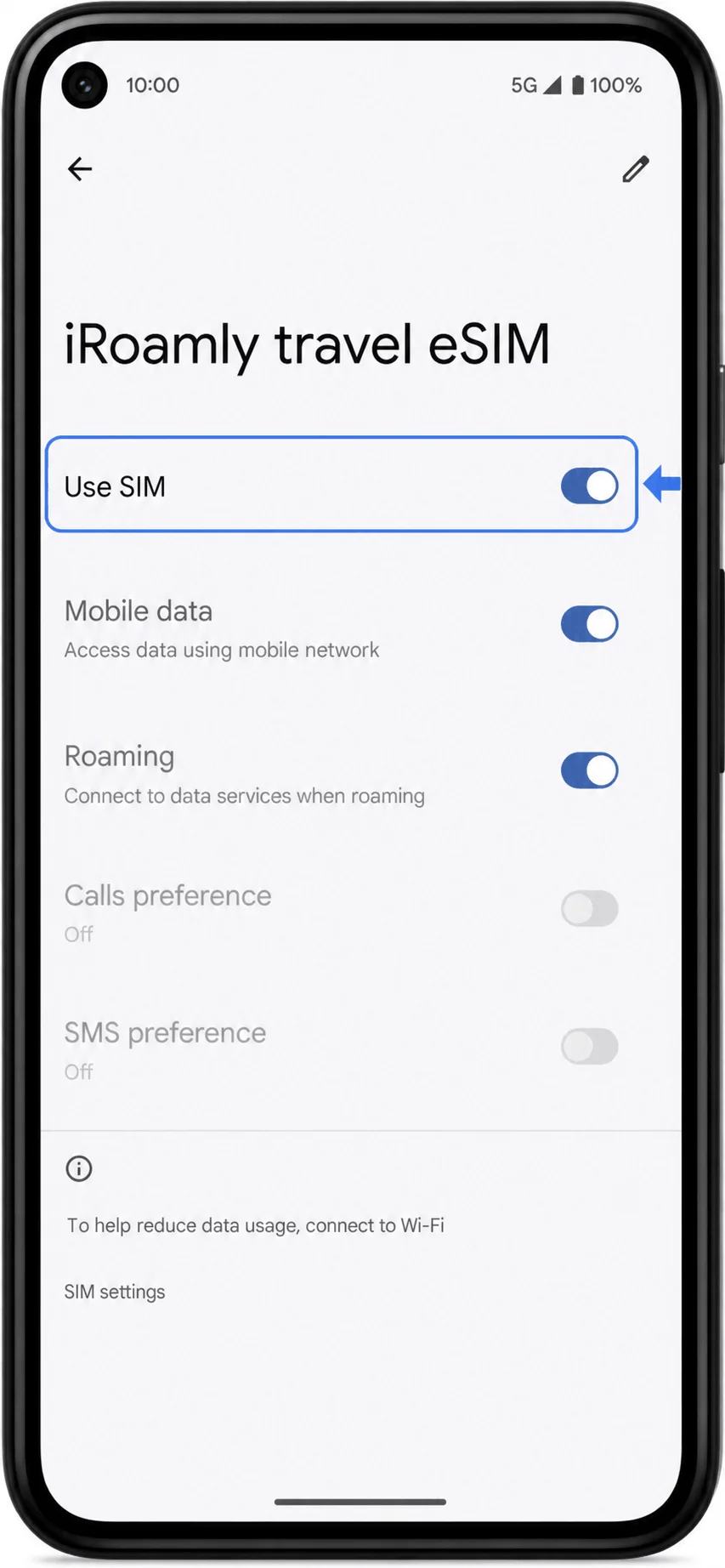
Tap the iRoamly eSIM and confirm that Use SIM is available. If you installed before travel, you can leave it off until you arrive, depending on your plan instructions.
Set Up the iRoamly eSIM for Travel Data
At your destination, open Settings > Network & internet > SIMs, tap the iRoamly eSIM, then turn on Use SIM.
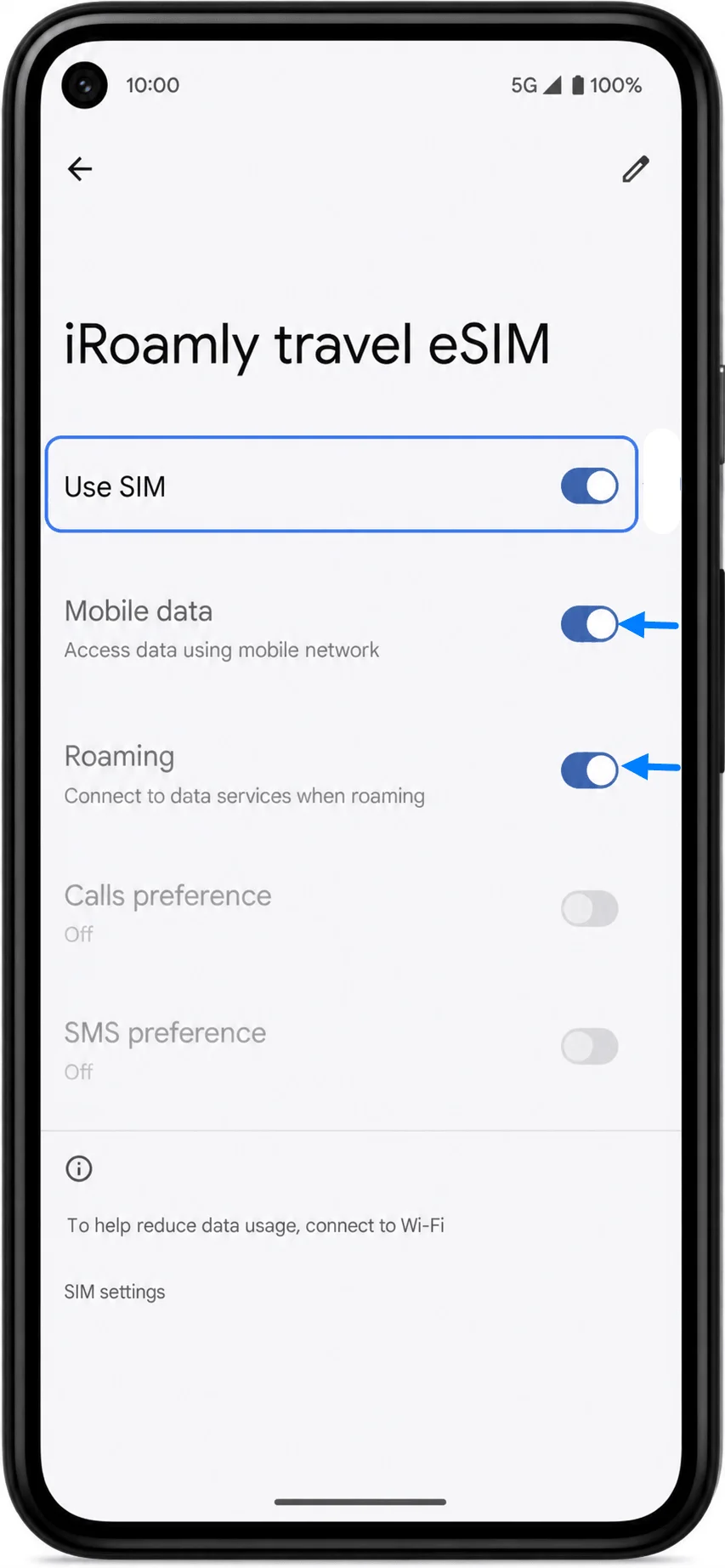
In the iRoamly eSIM settings, turn on Mobile data and enable Roaming or Data roaming if your iRoamly plan requires roaming to connect to partner networks.
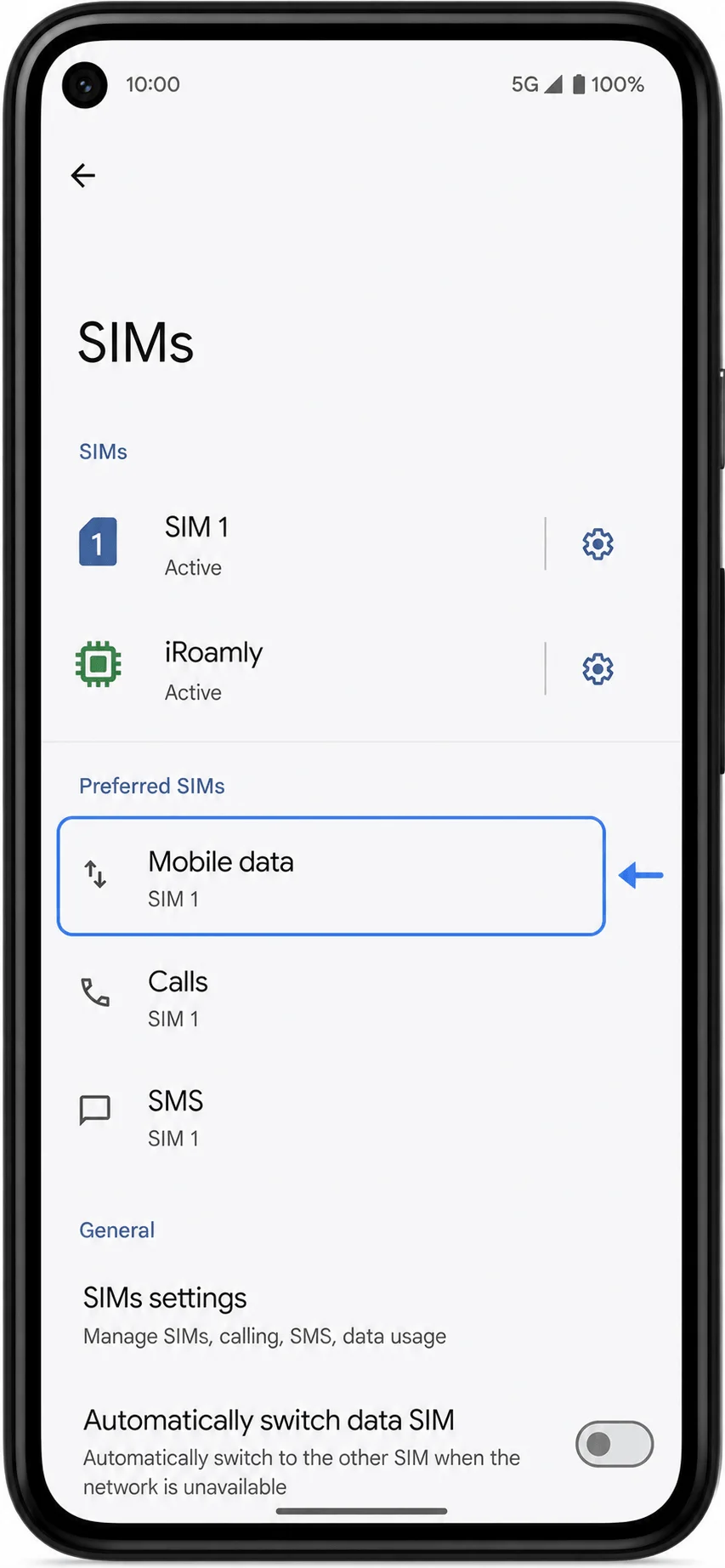
Go back to SIMs, tap Mobile data under preferred SIM settings.
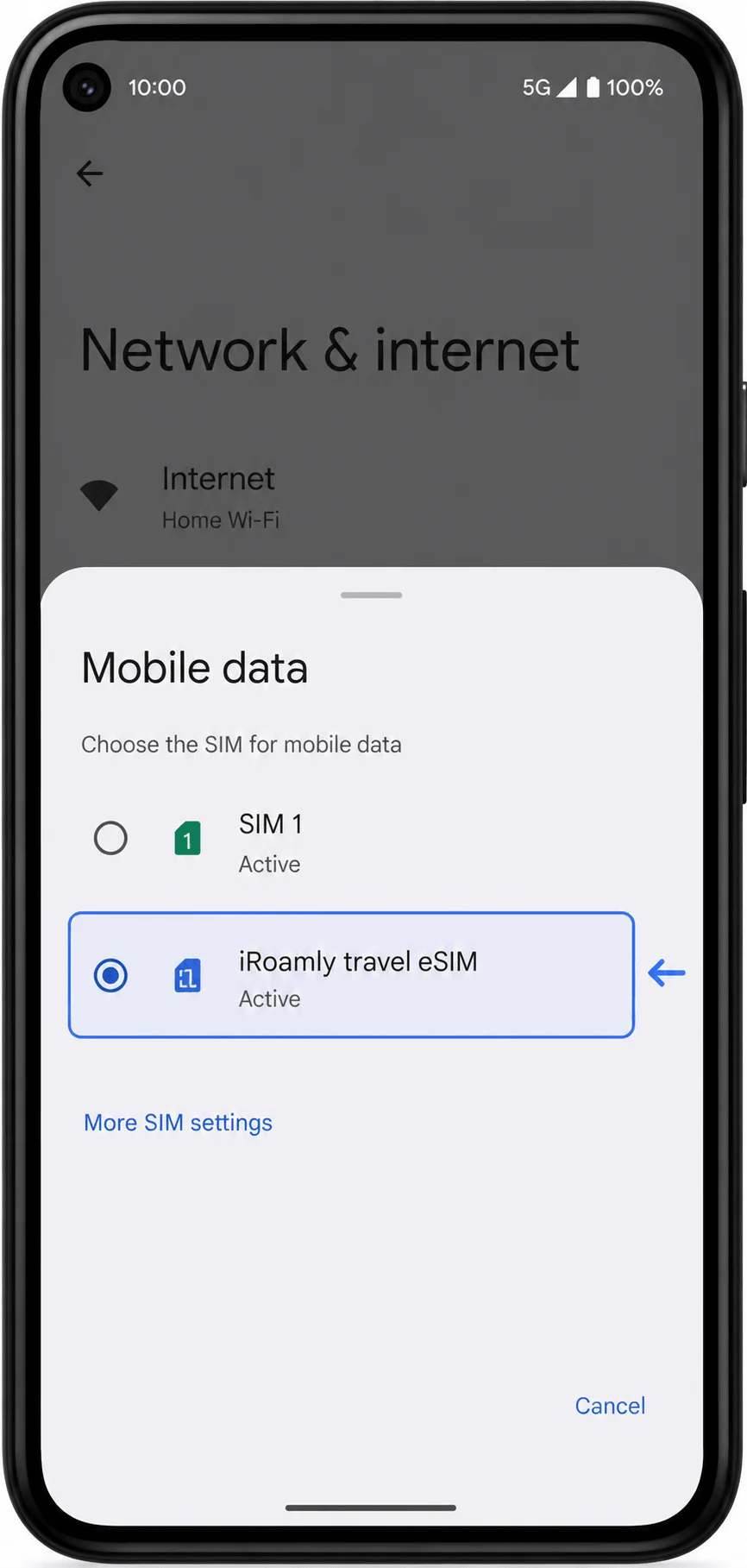
Select iRoamly travel eSIM for mobile data. Keep data roaming off for your primary SIM if you want to avoid accidental carrier roaming charges.
Troubleshooting
If Add SIM is missing, update Android, connect to Wi-Fi, and confirm the Pixel 5 is not carrier-locked or restricted by a work profile.
If the QR code was already used, do not delete and retry repeatedly. Contact iRoamly support because many eSIM QR codes can be installed only once.
If manual entry fails, check for extra spaces and confirm whether your Pixel asks for separate SM-DP+ Address and Activation Code fields or one full activation string.
If the eSIM installs but has no data, wait until you are in the covered destination, turn on the iRoamly eSIM, select it for Mobile data, and enable Data roaming.
If activation stays pending, restart the Pixel 5, reconnect to Wi-Fi, and check Settings > Network & internet > SIMs again.
If the phone asks for a specific carrier or refuses the eSIM, confirm the phone is unlocked and contact your carrier or iRoamly support before buying another plan.
Conclusion
Once your iRoamly eSIM has been successfully installed on the Pixel 5, most of the setup work is already done. The profile will remain available in your SIM settings, allowing you to switch to it when you're ready to use your travel data plan.
Before relying on the eSIM during your trip, confirm that it is selected for mobile data and that roaming is enabled if required by your plan. Taking a few minutes to verify these settings can help avoid connectivity issues later and ensure that your eSIM is ready to connect when you reach your destination.