
The Google Pixel 6 Pro supports eSIM on most unlocked models, making it a practical travel phone when you want mobile data without swapping a physical SIM.
On current Pixel Android builds, the main setup path is Settings > Network & internet > SIMs > Add SIM > Set up an eSIM. Some Android versions or carrier builds may use slightly different wording, such as Download a SIM instead?, but the SIM settings area is the same place to start.
This guide walks through both iRoamly travel eSIM installation methods on Pixel 6 Pro: scanning the iRoamly QR code and entering the manual activation code. The QR method is usually fastest when you can display the QR code on another screen or printed page.
Manual entry is useful when the camera cannot scan the code, when you are setting up from the same phone, or when iRoamly provides activation details that need to be typed in.

Stay Connected Abroad with iRoamly on Pixel 6 Pro
iRoamly is a travel eSIM service that provides mobile data plans for trips abroad. Travelers can choose available destination, regional, or global options, with data allowances, validity periods, and plan features varying by location.
Once installed on a compatible phone, that travel data can support practical needs such as maps, messaging, ride-hailing, bookings, translations, and travel updates.
For the Google Pixel 6 Pro, this guide keeps the iRoamly eSIM setup focused on QR-code installation, manual entry, confirmation, and mobile-data selection in Pixel settings. The steps below show how to add the travel eSIM profile and prepare the phone to use it when your trip begins.
If you install before departure, keep Wi-Fi available and save the QR code or manual activation details until the eSIM profile is confirmed on the device.
Preparations Before Setting Up iRoamly eSIM
Connect the Pixel 6 Pro to stable Wi-Fi before starting the eSIM download.
Confirm the phone is unlocked and eSIM-capable. Some carrier or regional variants may restrict eSIM use.
Keep your iRoamly QR code or manual activation details open in your iRoamly account or purchase email.
Do not delete an installed iRoamly eSIM unless iRoamly support tells you to. Reinstalling an eSIM may not be possible after the QR code or activation code has been used.
Install the eSIM 1-2 days before travel when possible, but do not turn on travel data roaming until you are ready to use the destination network.
iRoamly eSIM validity starts from activation, not from reading this guide. For travel eSIMs, activation is typically tied to installing the eSIM or connecting to a supported destination network, so check the exact trigger shown for your purchased iRoamly plan.
iRoamly plans may be data-only. Voice calls and SMS vary by plan, so check the plan details before relying on calls or texts.
Heading to Japan or the United States? Preparing the travel eSIM before the trip can leave the Pixel 6 Pro ready for mobile-data selection when you arrive.
Method 1: Install the iRoamly eSIM by Scanning a QR Code
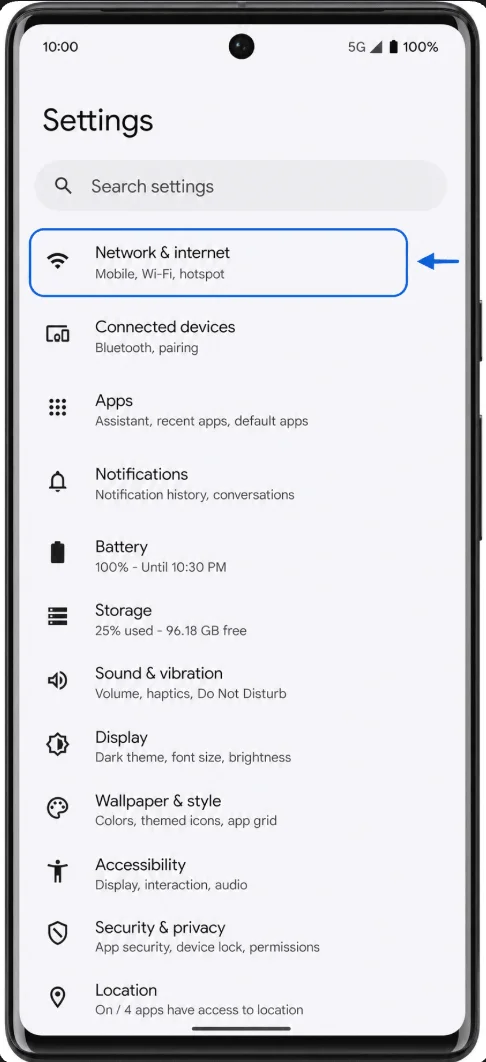
Open Settings on your Pixel 6 Pro, then tap Network & internet. You should see the network settings page with mobile and SIM options.
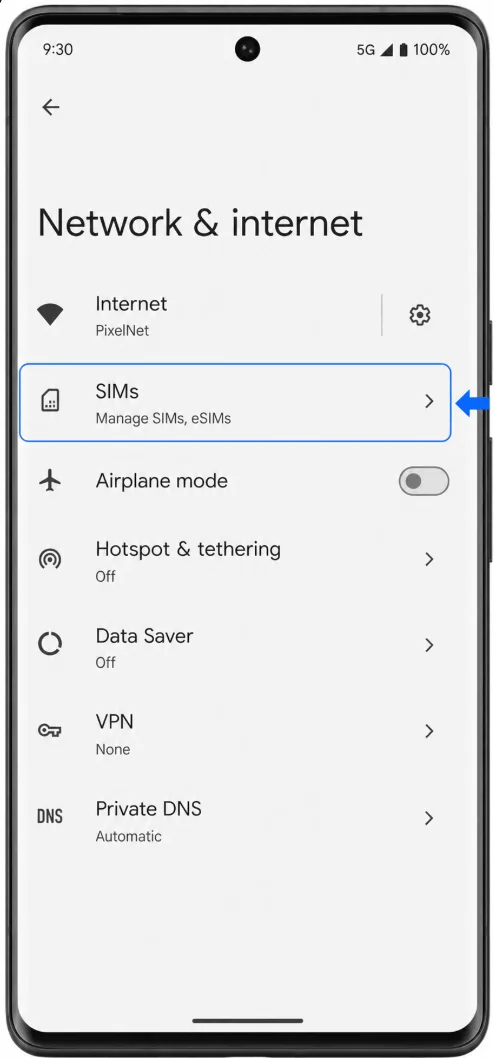
Tap SIMs. The Pixel 6 Pro opens the SIM management page where active SIMs and preferred SIM choices are listed.
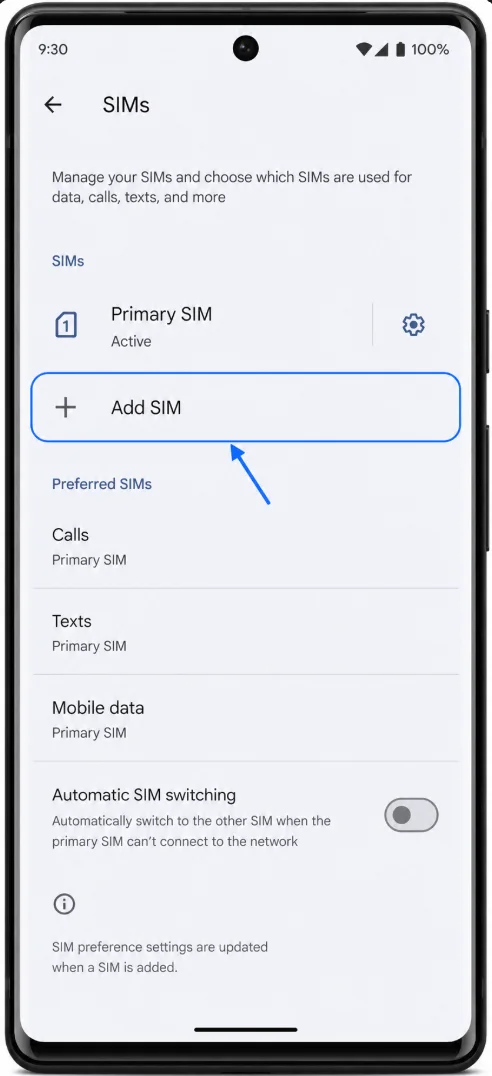
Tap Add SIM. If your phone already has a physical SIM or another eSIM, the Pixel 6 Pro keeps it listed and starts the add-SIM flow.
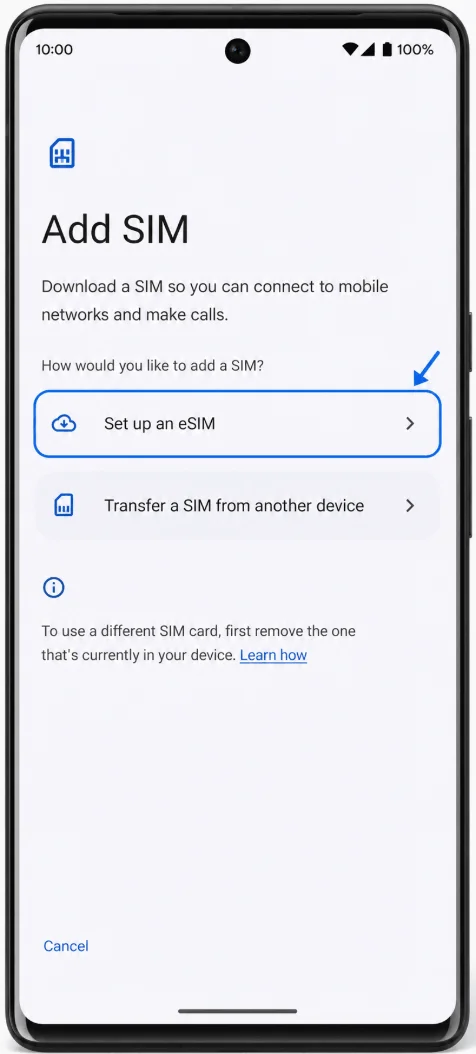
Tap Set up an eSIM. On some Pixel builds, this may appear as Download a SIM instead?; choose the option that downloads or sets up an eSIM.
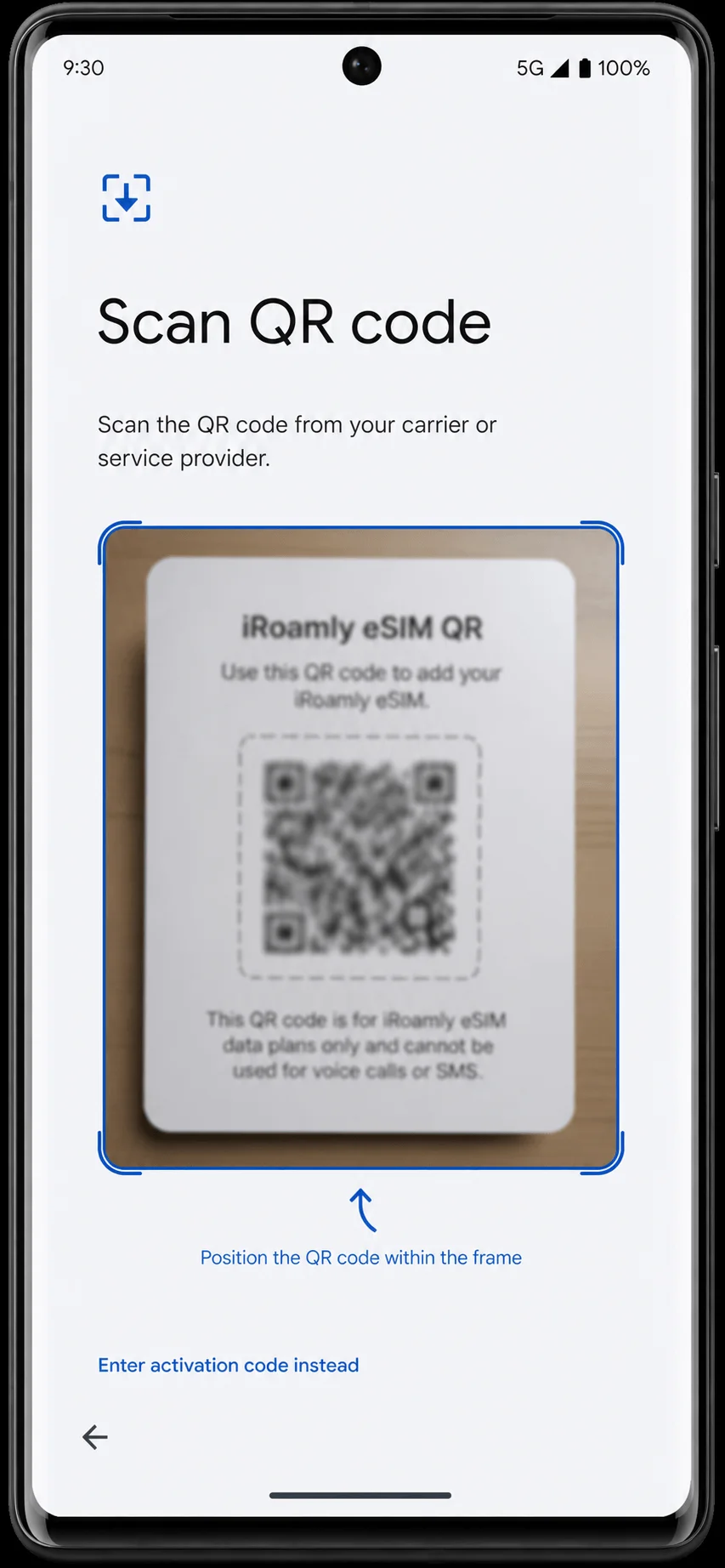
When the QR scanner opens, point the Pixel 6 Pro camera at the iRoamly QR code. Keep the QR code inside the scanning frame until the phone recognizes it.
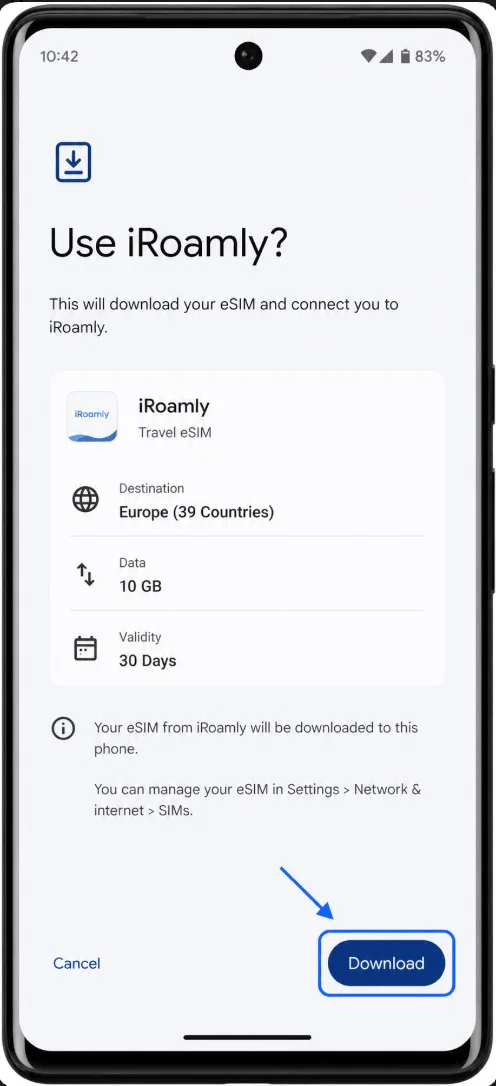
Review the iRoamly eSIM confirmation screen, then tap Download. Keep Wi-Fi connected while the Pixel downloads the eSIM profile.
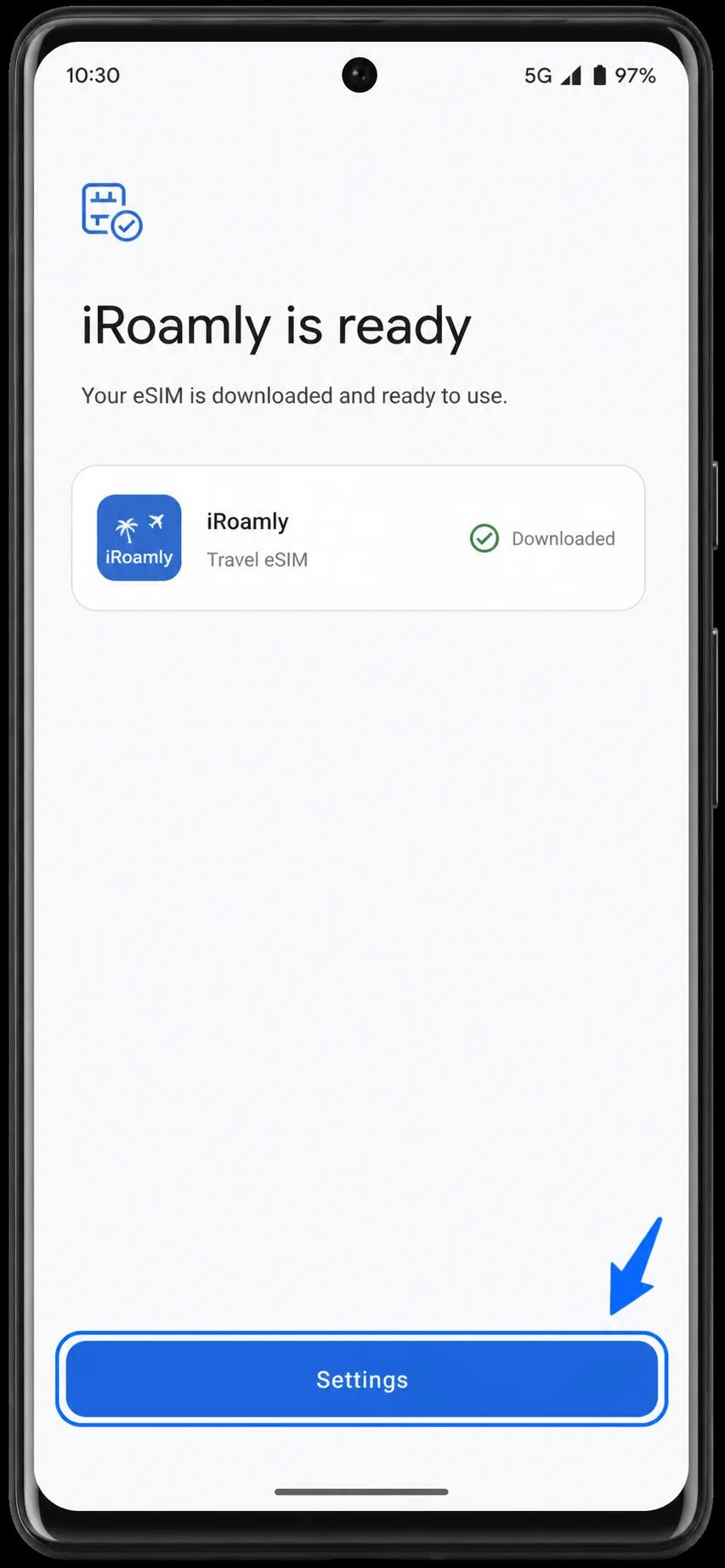
Wait until the setup complete screen says the iRoamly eSIM is ready, then tap Settings to return to SIM settings.
Method 2: Install the iRoamly eSIM by Manual Entry
Open Settings on your Pixel 6 Pro, then tap Network & internet. You should see the same network settings page used for QR setup.
Tap SIMs. The SIM management page opens with your current SIMs and preferred SIM choices.
Tap Add SIM. The Pixel 6 Pro starts the add-SIM flow.
Tap Set up an eSIM. If your software says Download a SIM instead?, tap that option to continue to eSIM setup.
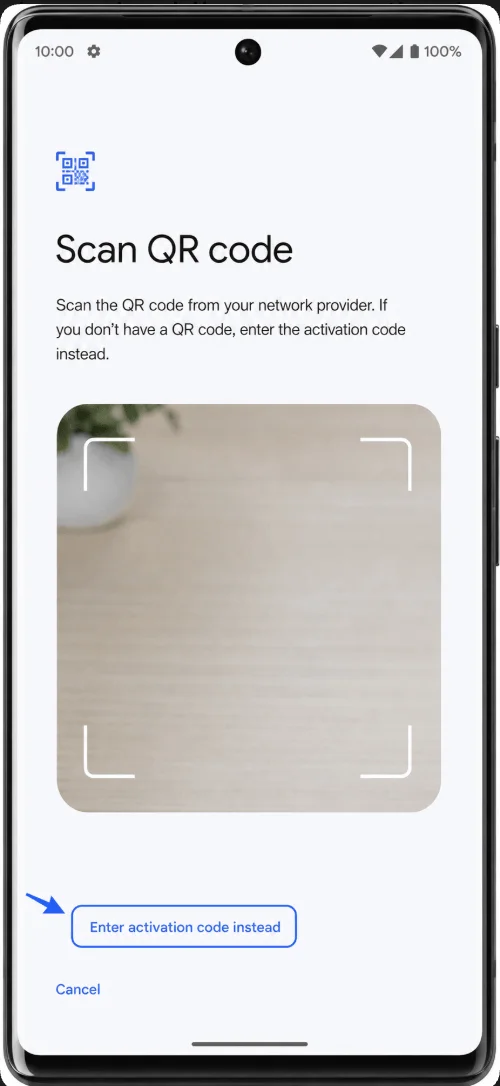
On the QR scanner screen, tap Enter activation code instead. This opens the manual eSIM entry page.
Tap the Activation code field, enter the manual activation code from iRoamly, then tap Continue. On current Pixel Android, manual entry is shown as one activation-code field. If iRoamly shows SM-DP+ Address and Activation Code separately, use the complete manual activation string provided in your iRoamly setup details, or ask iRoamly support for the combined Pixel-compatible code before continuing.
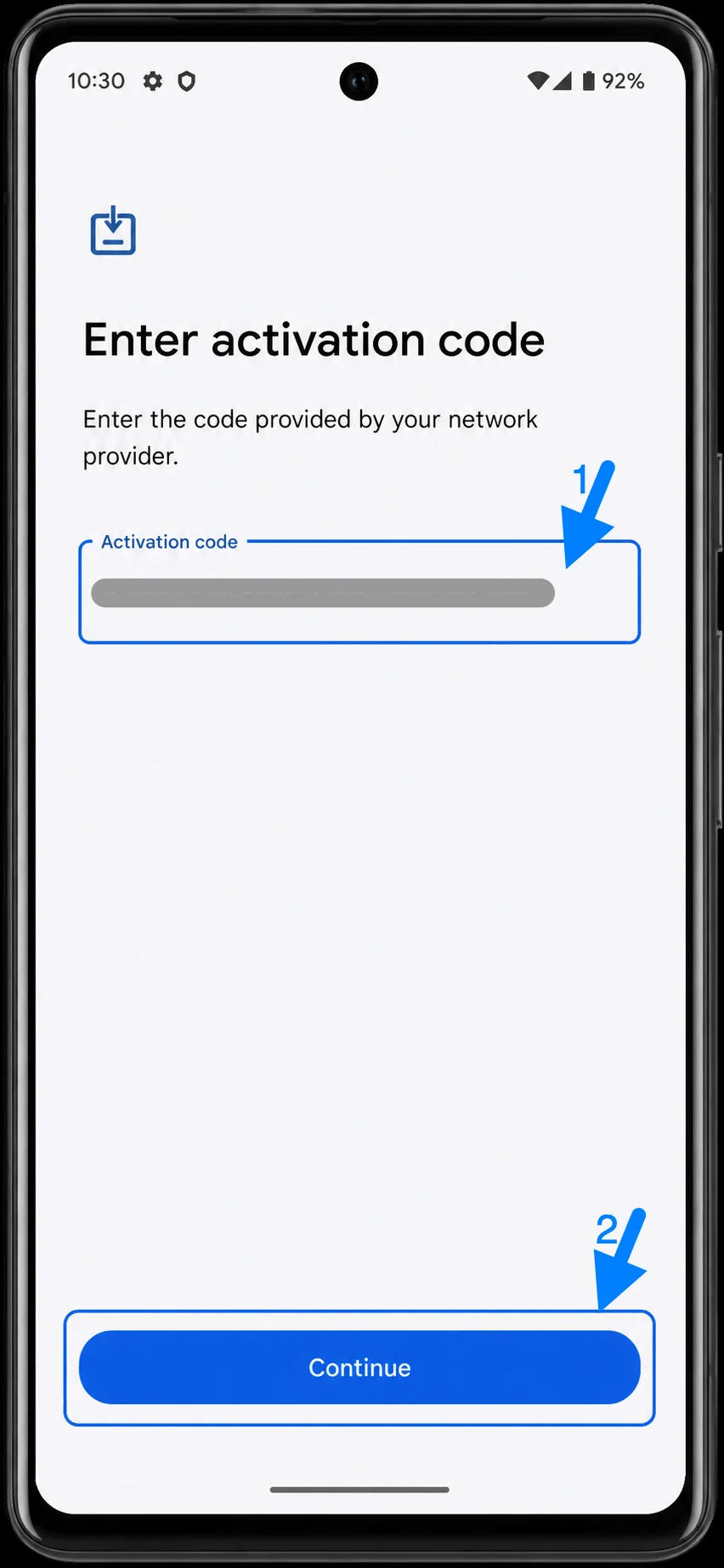
Review the iRoamly eSIM confirmation screen, then tap Download. Keep the phone on Wi-Fi until the download finishes.
Wait for the setup complete screen to show that iRoamly is ready, then tap Settings.
How to Confirm the iRoamly eSIM Was Installed
Open Settings > Network & internet > SIMs, then look for an eSIM entry named iRoamly or the plan label shown in your iRoamly account. The eSIM should appear as downloaded or active.
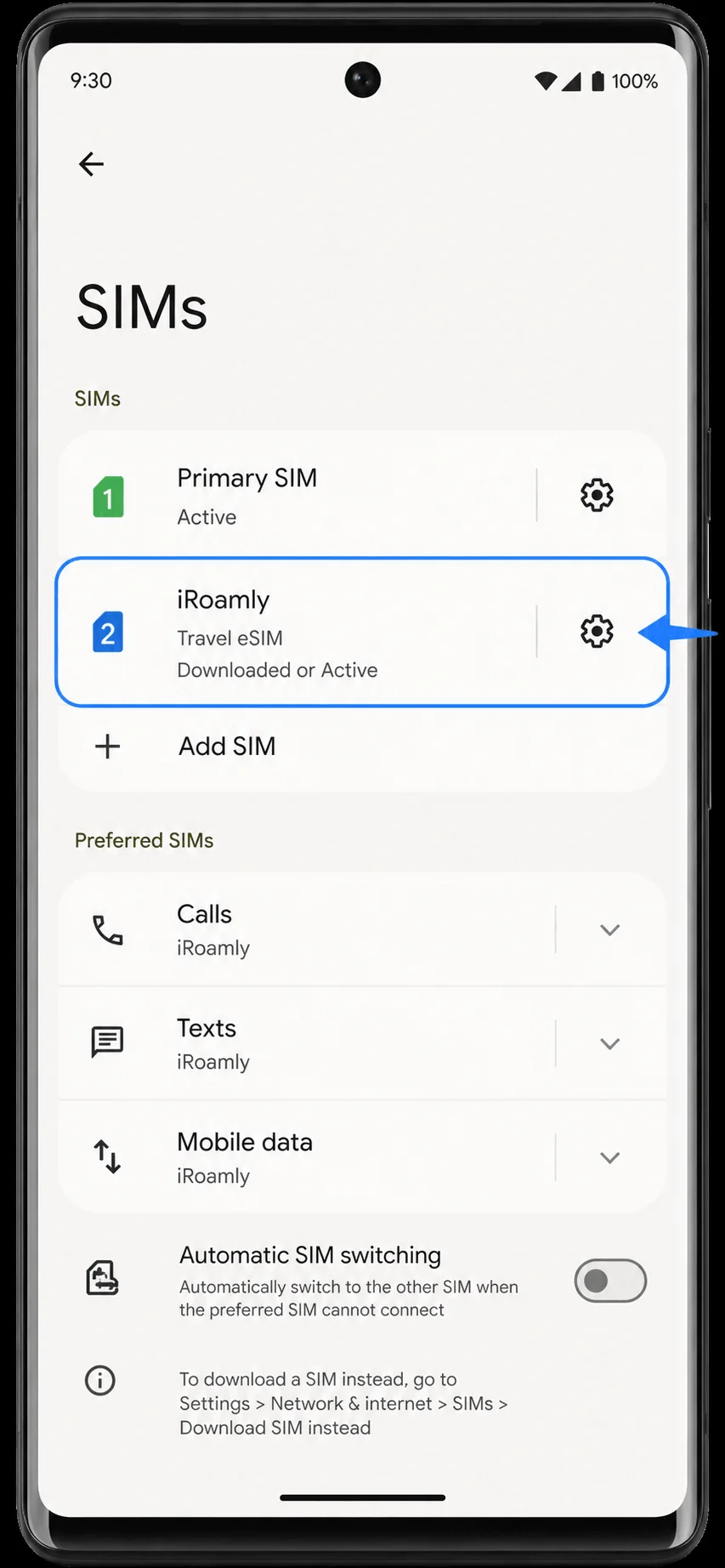
Tap the iRoamly eSIM entry and confirm Use SIM is turned on. If it is off, turn it on before trying to use travel data.
Set Up the iRoamly eSIM for Travel Data
Go to Settings > Network & internet > SIMs, tap Mobile data, and choose iRoamly. Keep calls and texts on your primary SIM unless your iRoamly plan explicitly includes voice or SMS.
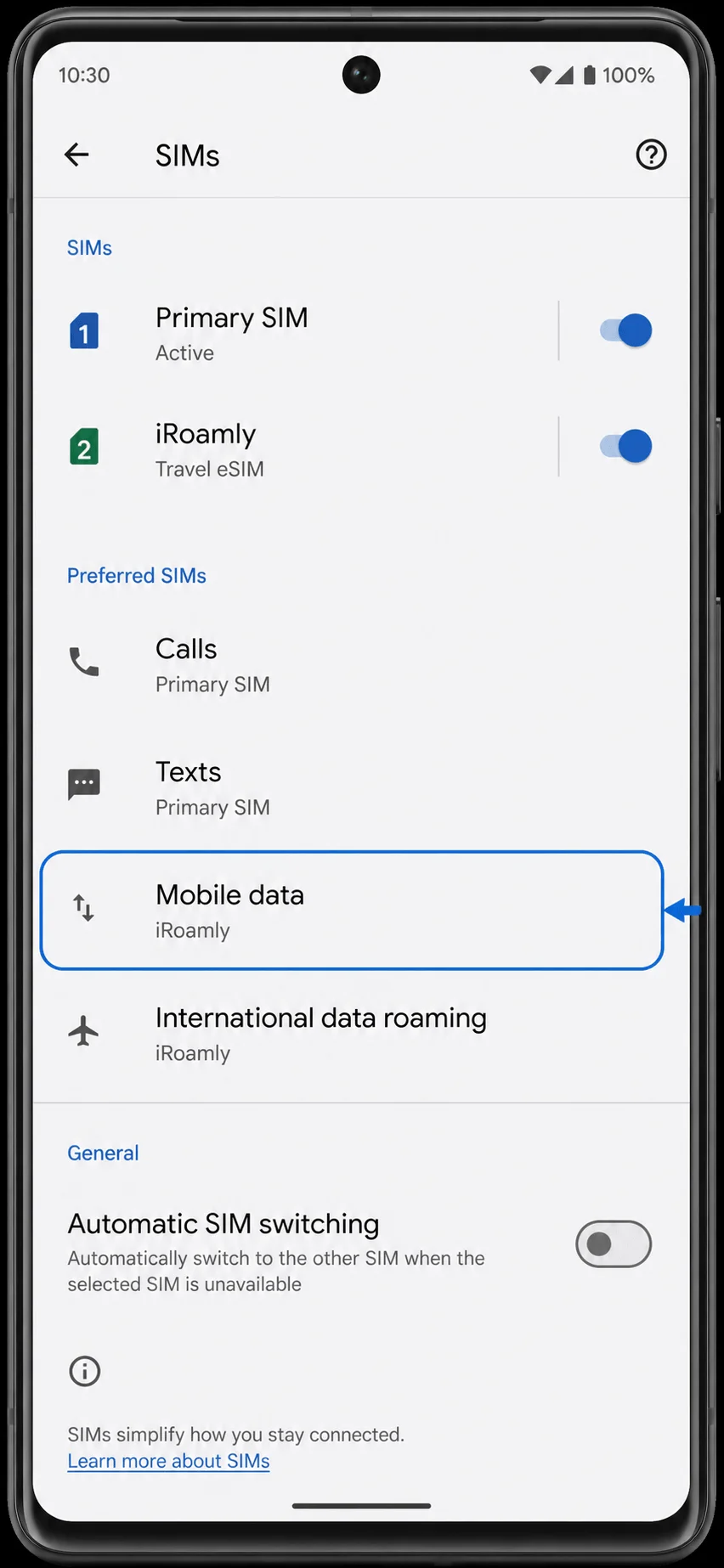
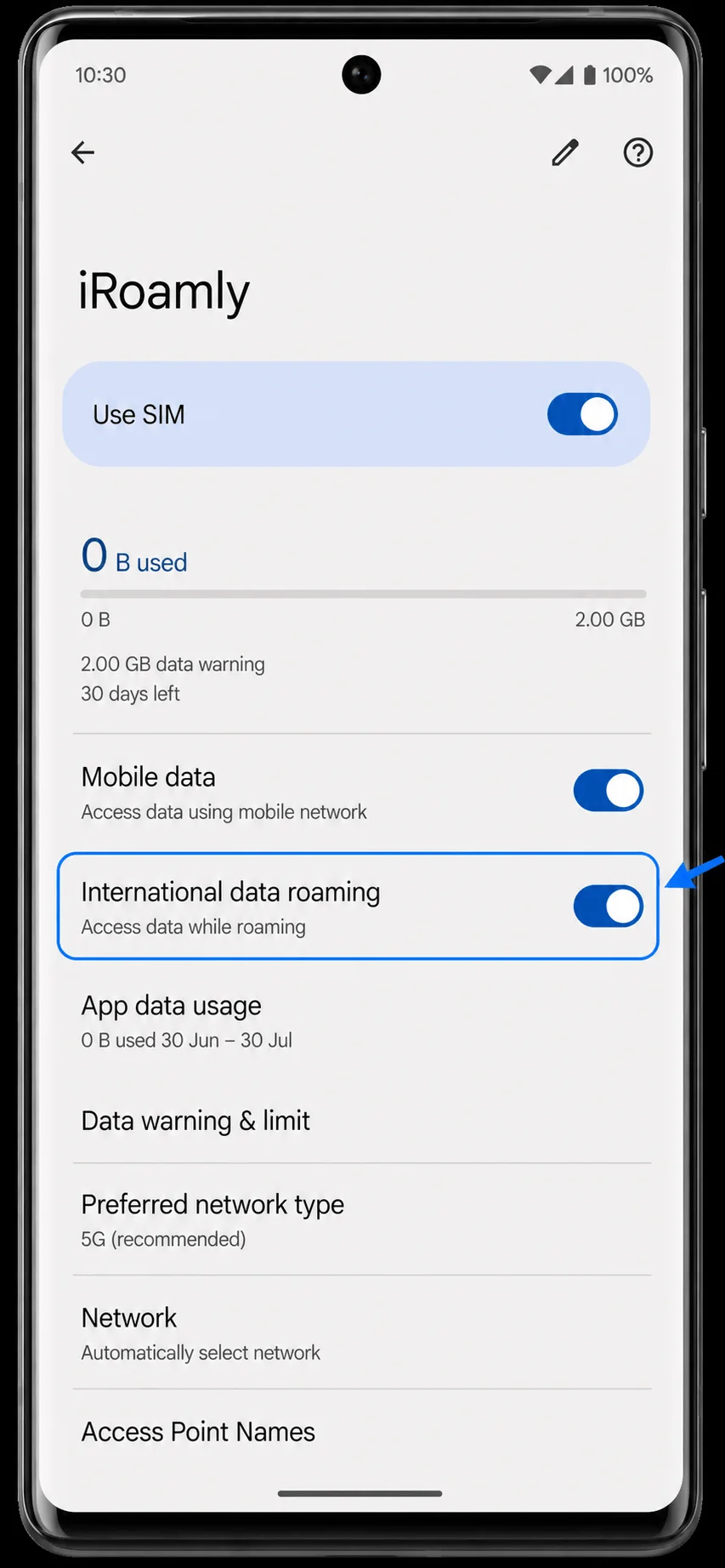
Open the iRoamly SIM details page, turn on Use SIM, turn on Mobile data, and enable International data roaming if your iRoamly destination plan requires roaming. Leave automatic SIM switching off if you want to avoid the phone moving data back to your primary SIM.
Troubleshooting
If Add SIM or Set up an eSIM is missing, confirm the Pixel 6 Pro is unlocked, updated, and not restricted by your carrier or region. Restart the phone and check Settings > Network & internet > SIMs again.
If the QR code says it has already been used, do not delete the eSIM and try again repeatedly. Contact iRoamly support because eSIM QR codes are usually single-use.
If manual entry fails, check for typos and confirm whether your iRoamly account provides a full Pixel-compatible activation code. Current Pixel Android manual entry commonly uses one Activation code field.
If the eSIM is downloaded but data does not work, confirm Mobile data is set to iRoamly, International data roaming is on when required, Wi-Fi is off for testing, and you are in the destination covered by the plan.
If activation is pending, keep Wi-Fi connected and wait a few minutes. Some travel plans activate only when the phone reaches a supported destination network.
If the phone keeps using your primary SIM for data, return to Settings > Network & internet > SIMs, set Mobile data to iRoamly, and turn off Automatic SIM switching if needed.
More Google Pixel eSIM Setup Guides
Need to activate an eSIM on another Pixel model? You may find these guides helpful.
Conclusion
At this point, your iRoamly eSIM should be installed and ready to use on the Pixel 6 Pro. If you're setting it up before departure, there's usually no need to make further changes until you're ready to start using the travel plan.
When the time comes, you can switch data usage to the iRoamly line and connect according to the plan's activation requirements. Keeping the eSIM installed ahead of time can make the transition to travel data much smoother, especially when you need a connection shortly after arriving at your destination.