
Google Pixel 6 supports eSIM on compatible carrier and regional variants, making it a practical phone for setting up an iRoamly travel eSIM before an international trip. This guide assumes a Pixel 6 running a current Pixel Android version, where the eSIM setup path is Settings > Network & internet > SIMs > Add SIM > Set up an eSIM. Menu names can vary slightly by Android version, carrier, or region.
You can install your iRoamly eSIM in two ways: by scanning the QR code from your iRoamly order, or by entering the activation code manually. QR setup is usually faster when you can display the code on another device or print it. Manual entry is useful if the camera cannot scan the code, the QR image is unavailable, or you are setting up from the same phone.
Preparations Before Setting Up iRomly eSIM
Connect your Pixel 6 to stable Wi-Fi before starting. The phone needs internet access to download the eSIM profile.
Confirm that your Pixel 6 is unlocked, supports eSIM in your region, and is not restricted by a carrier policy.
Keep your iRoamly QR code or manual activation details ready. If scanning, show the QR code on another screen or print it.
Do not delete the iRoamly eSIM after installation unless iRoamly support tells you to. Most travel eSIMs cannot be reinstalled freely after removal.
Install the eSIM about 1 to 2 days before travel when possible, but check your specific iRoamly plan details first. iRoamly plan validity starts from activation, and the activation trigger can vary by plan, such as installation or first connection to a supported network.
Check the plan details before relying on calls or texts. iRoamly travel eSIM plans may be data-only, and voice/SMS availability varies by plan.
Method 1: Install the eSIM by Scanning a QR Code
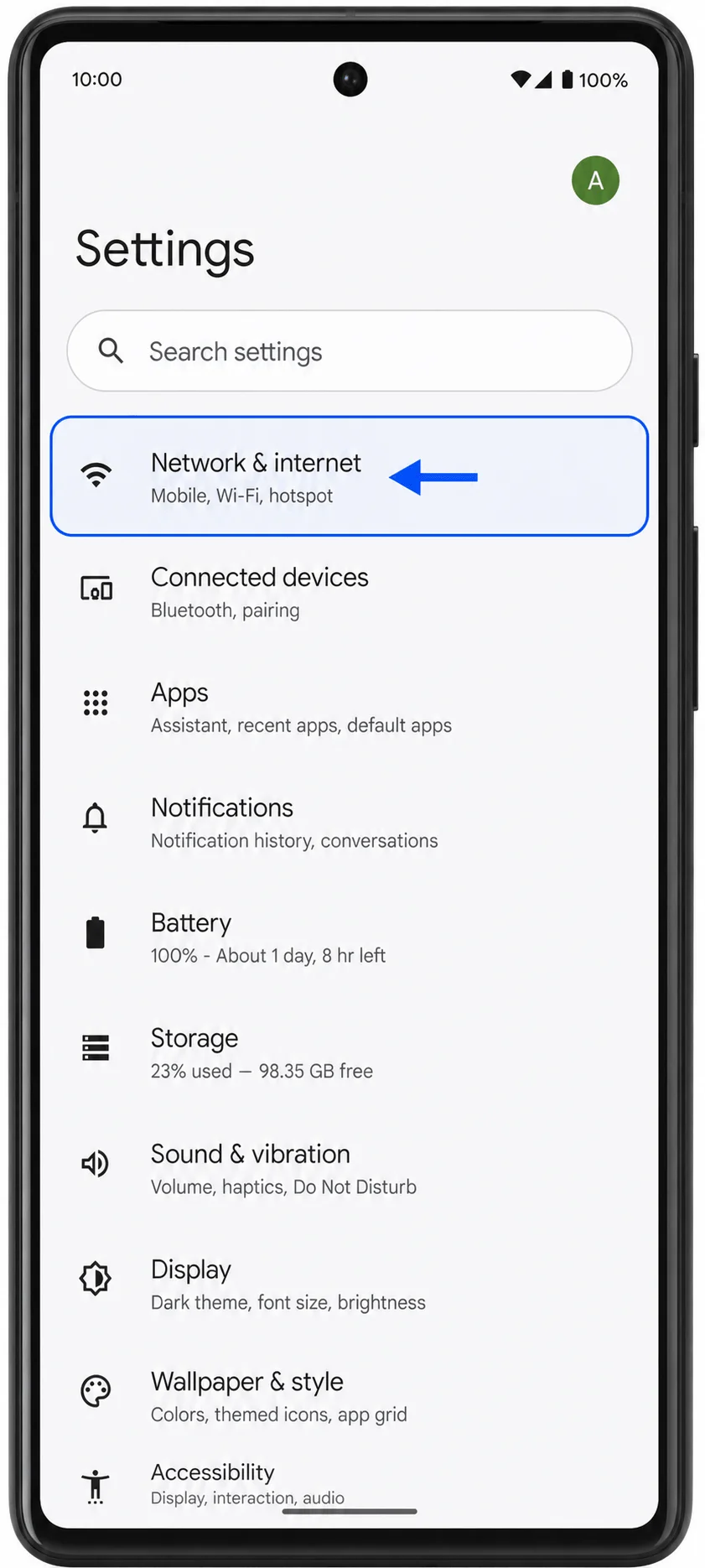
Step 1: Open Settings on your Pixel 6, then tap Network & internet. You should see the Pixel network settings page with internet, SIM, and connectivity options.
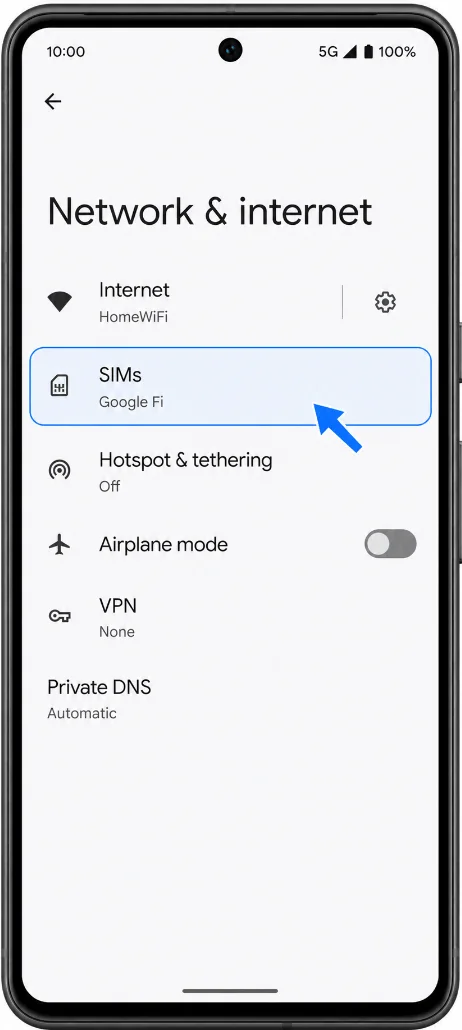
Step 2: Tap SIMs. You should see the SIM settings page where your current physical SIM or existing eSIM lines are listed.
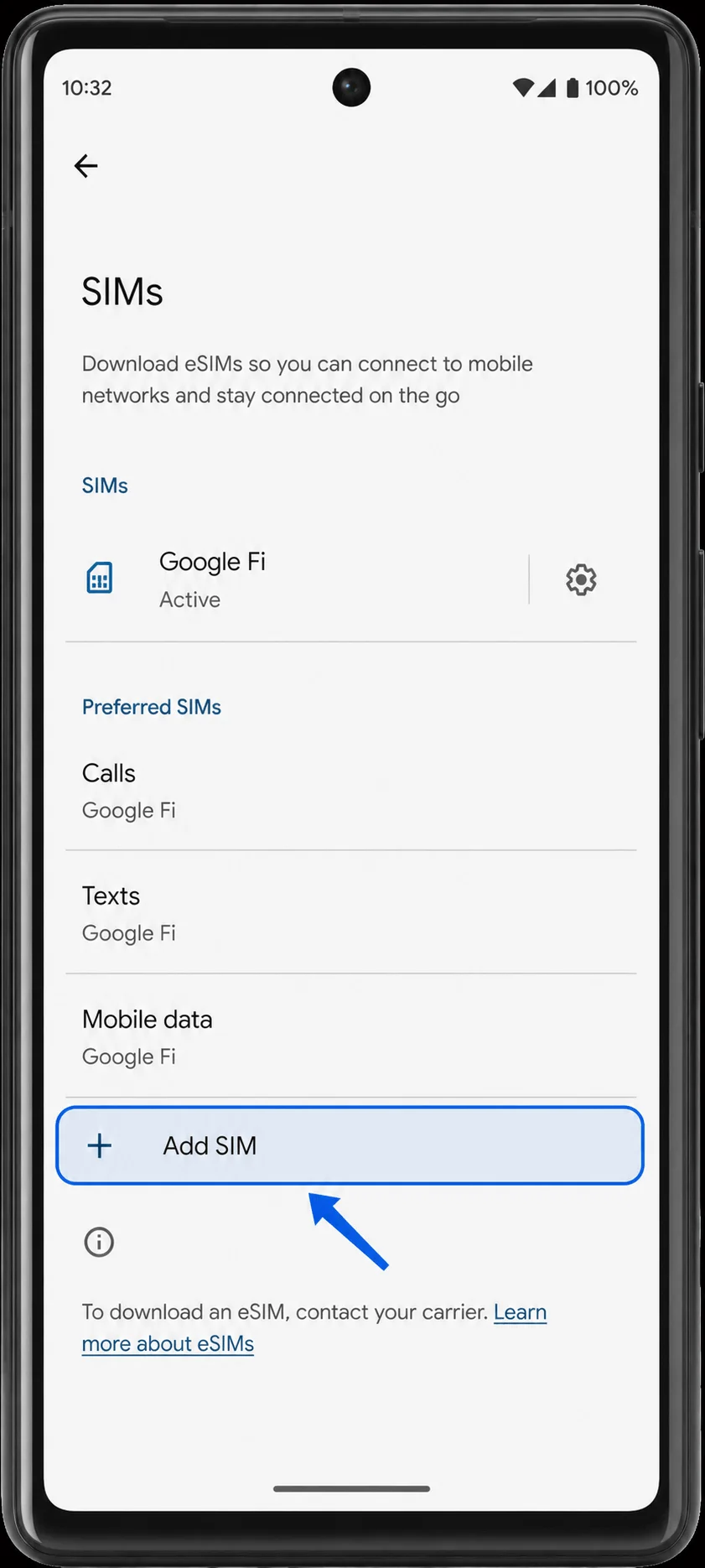
Step 3: Tap Add SIM, then choose Set up an eSIM. The phone should open the eSIM setup flow and prepare to scan a QR code.
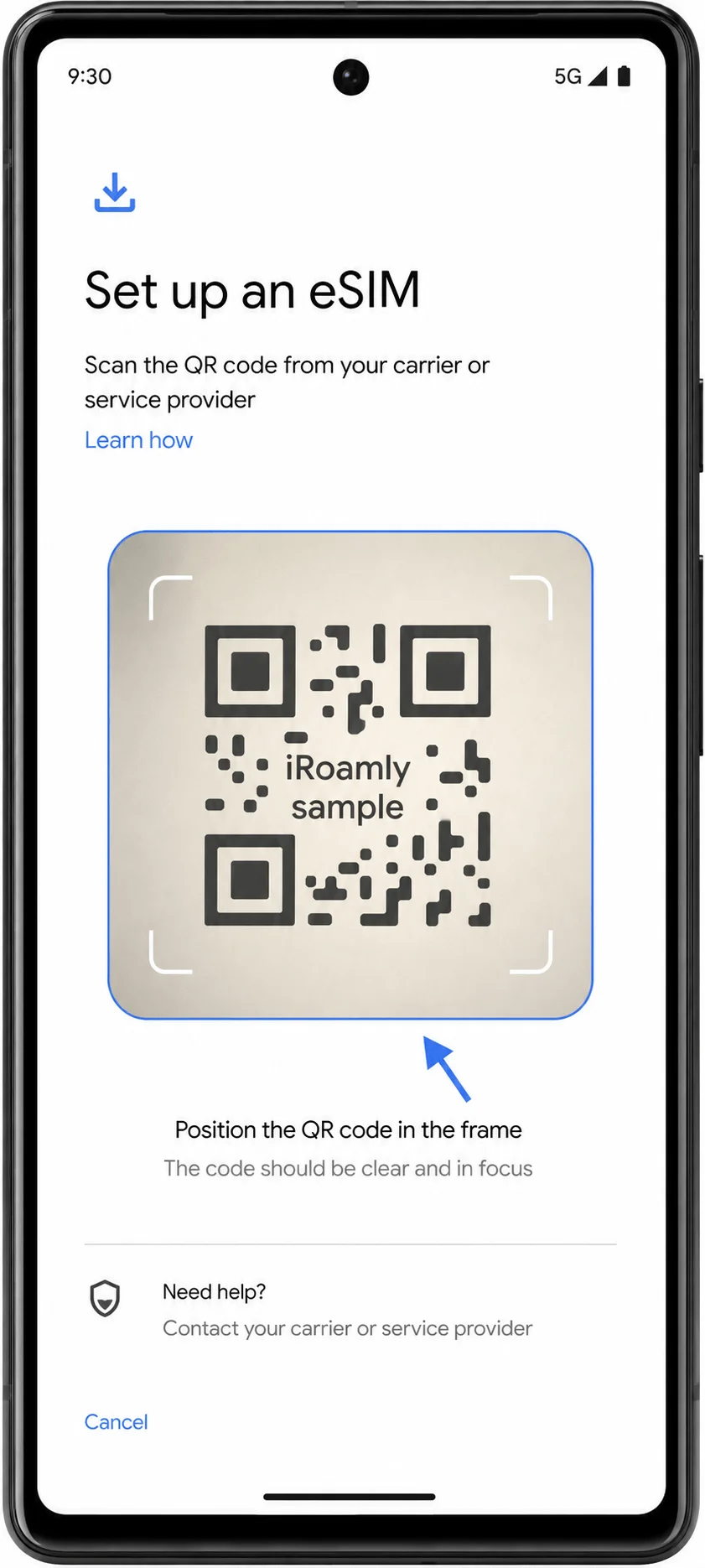
Step 4: On the eSIM setup screen, tap Set up an eSIM if prompted, then point the Pixel 6 camera at the iRoamly QR code. Keep the QR code inside the scanning frame until the phone detects the plan.
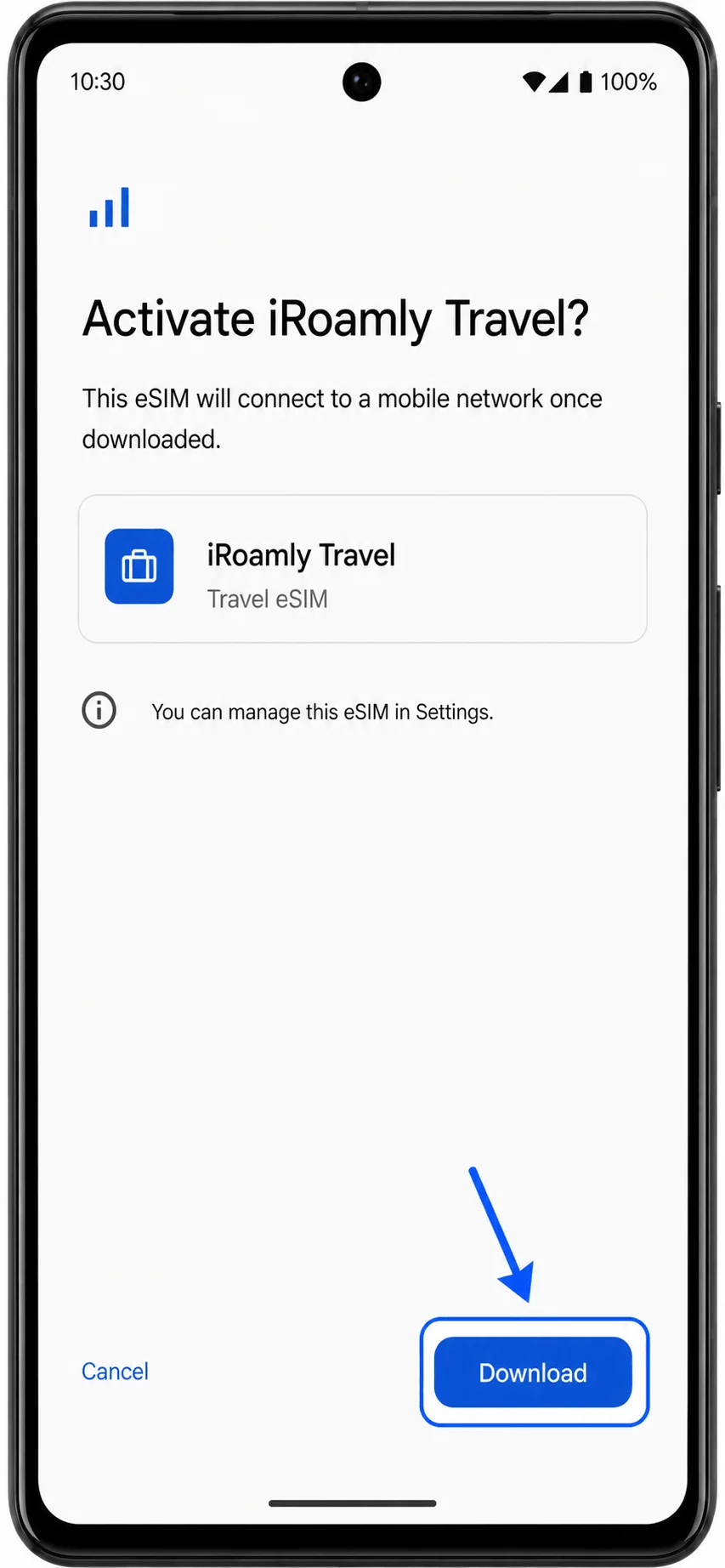
Step 5: When the iRoamly plan is found, tap Download or Activate if the confirmation screen appears. Wait until the Pixel 6 finishes downloading the eSIM, then tap Done.
Method 2: Install the eSIM by Manual Entry
Step 1: Open Settings on your Pixel 6, then tap Network & internet. You should return to the Pixel network settings page.
Step 2: Tap SIMs. You should see your current SIM list and the option to add another SIM.
Step 3: Tap Add SIM, then choose Set up an eSIM. The Pixel 6 should open the same eSIM setup flow used for QR installation.
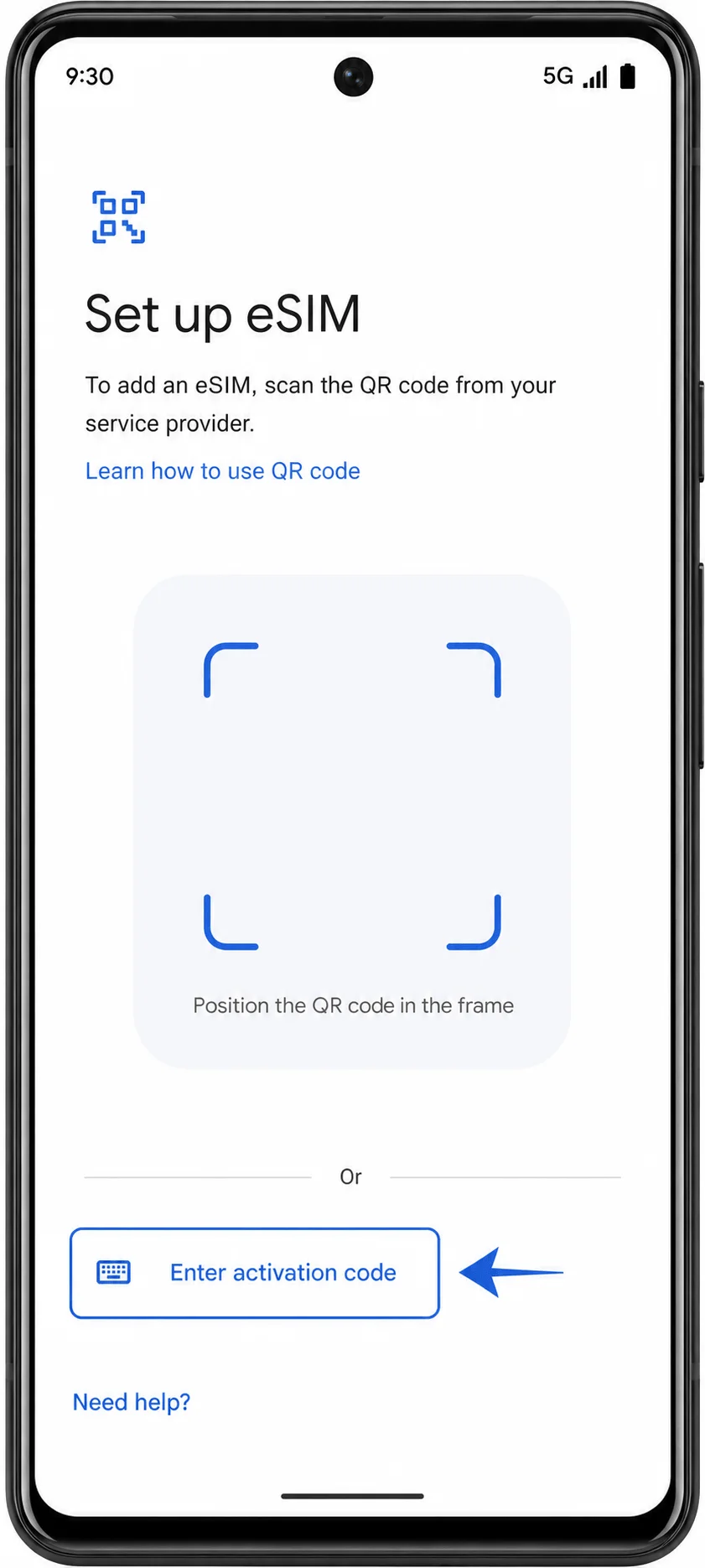
Step 4: On the QR scanning screen, tap the manual entry option, such as Enter activation code or Need help? followed by Enter it manually, depending on your Android version. You should see a manual activation screen.
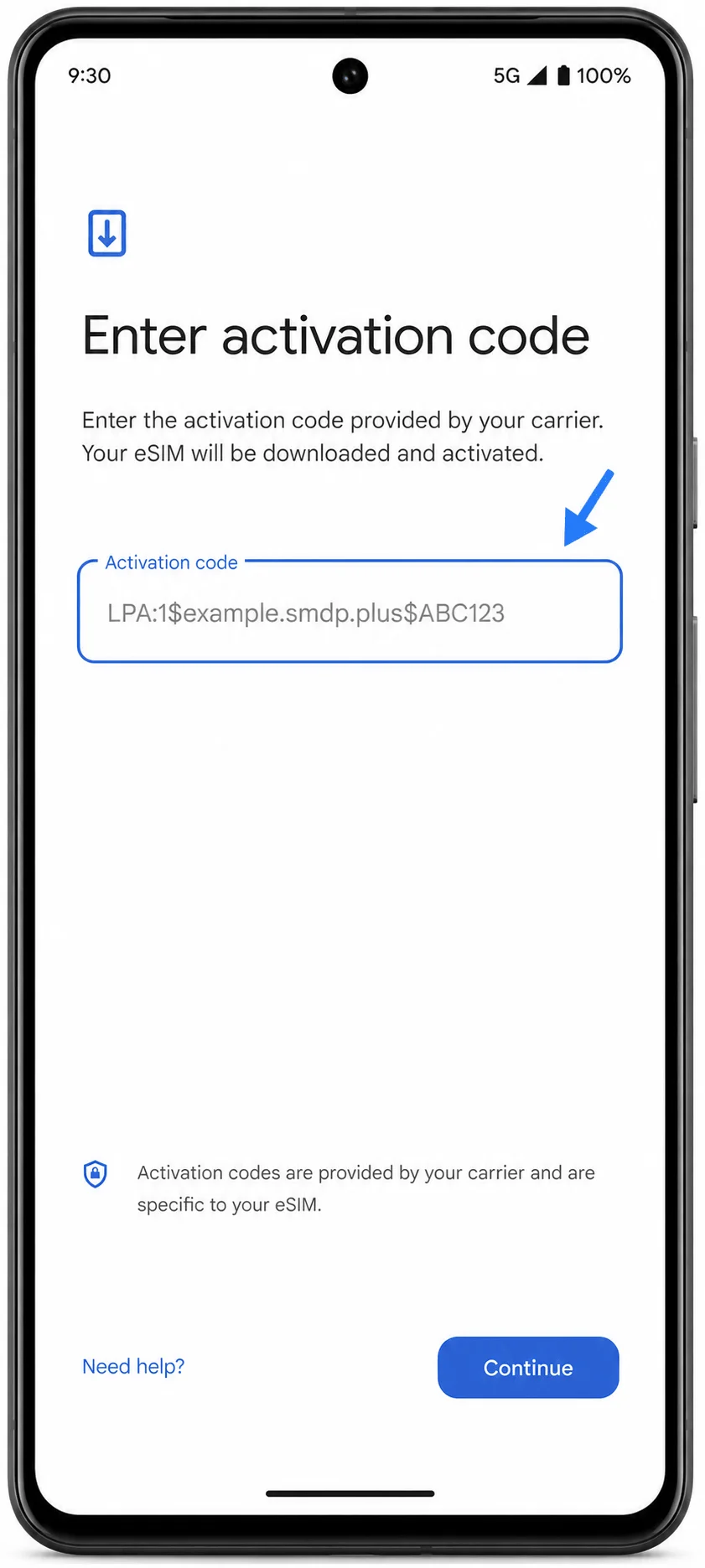
Step 5: Enter the iRoamly manual activation code in the Activation code field. If iRoamly provides an SM-DP+ Address and an Activation Code separately, enter them in the full Android activation-code format requested on Pixel: LPA:1$SM-DP+ Address$Activation Code. Do not include spaces, and only use the placeholder format if you are following a sample.
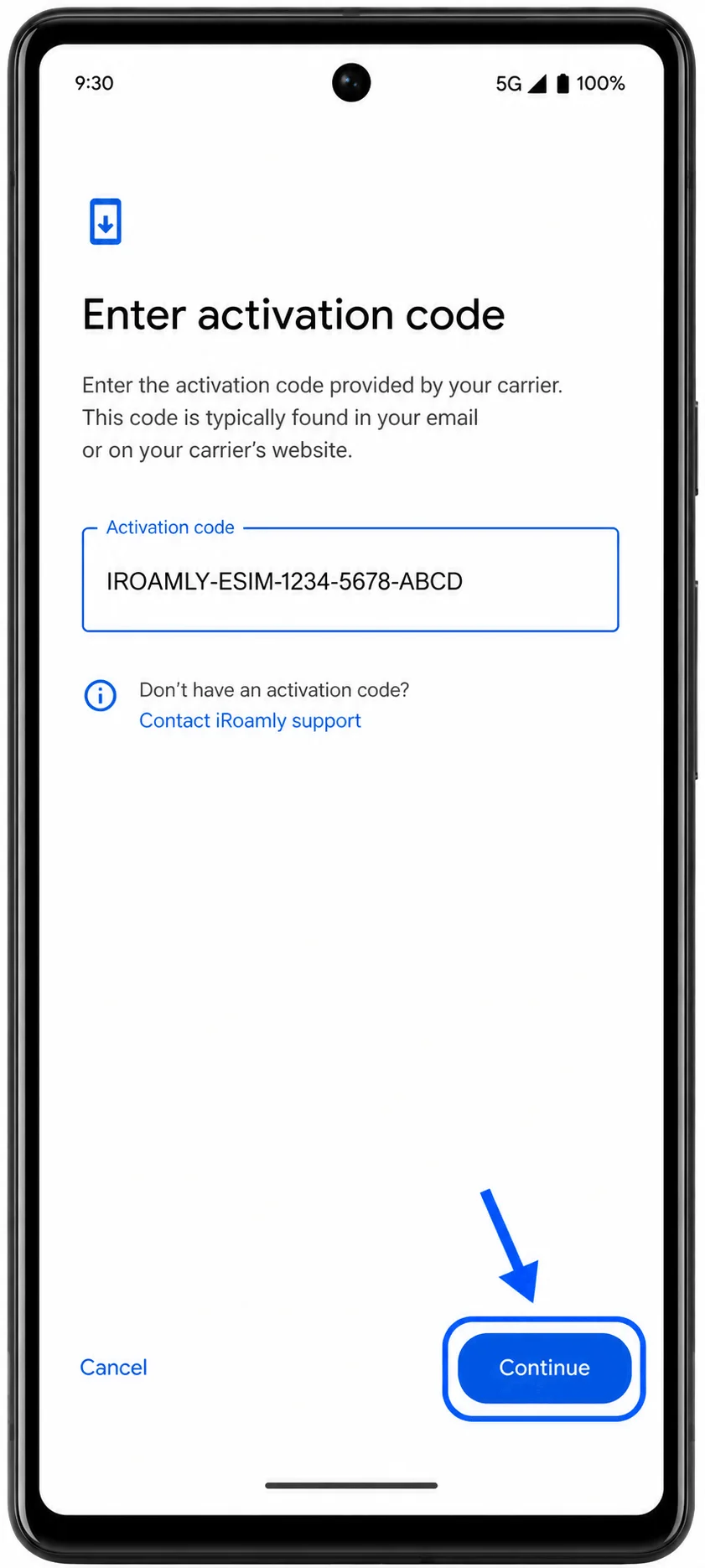
Step 6: Tap Continue, then tap Download or Activate when the Pixel 6 finds the iRoamly plan. Wait for the eSIM to finish downloading, then tap Done.
How to Confirm the eSIM Was Installed
Step 1: Open Settings > Network & internet > SIMs. Look for the new iRoamly eSIM in the SIM list, usually shown as a downloaded SIM or a line that you can rename.
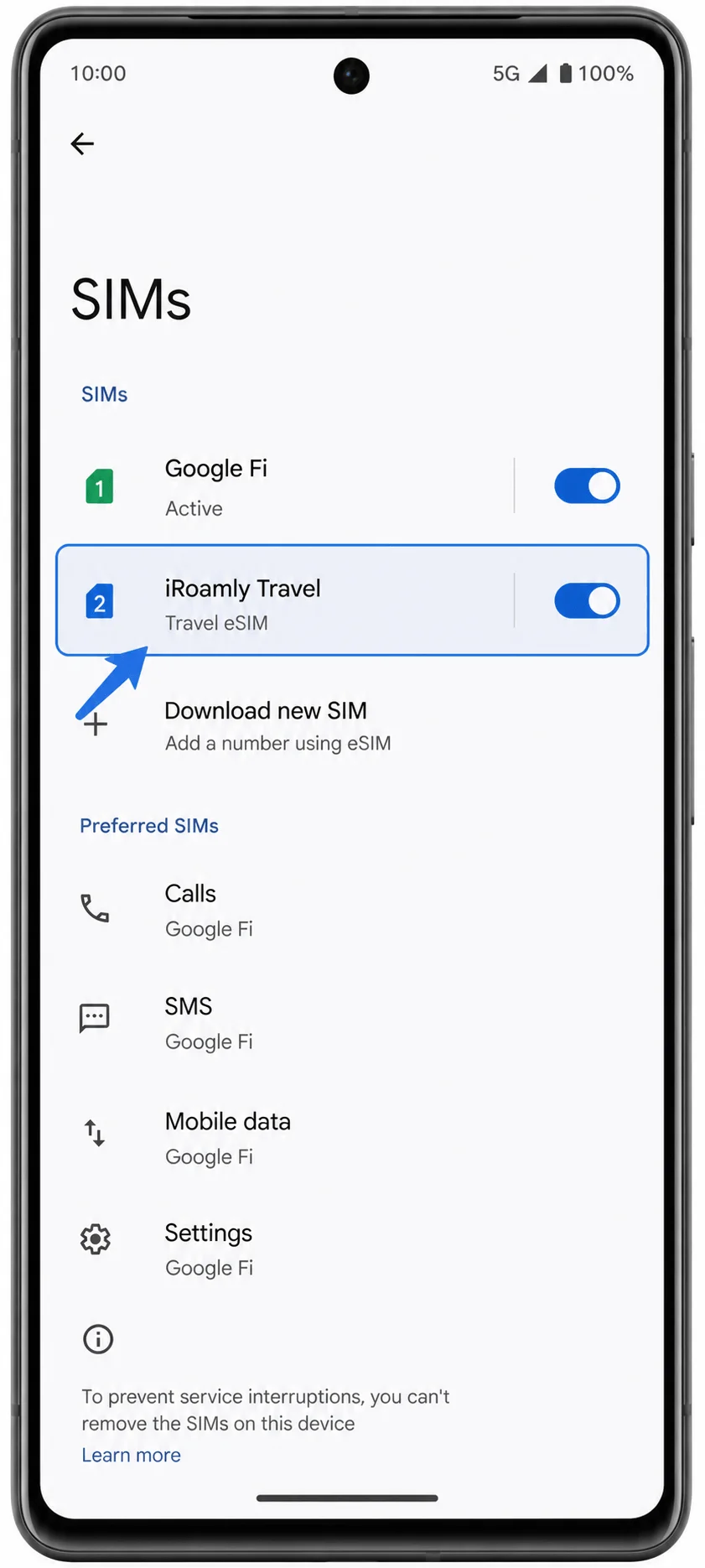
Step 2: Tap the iRoamly eSIM entry and check that Use SIM is available or turned on. If the phone asks you to name the line, use a clear label such as iRoamly Travel.
Set Up the eSIM for Mobile Data
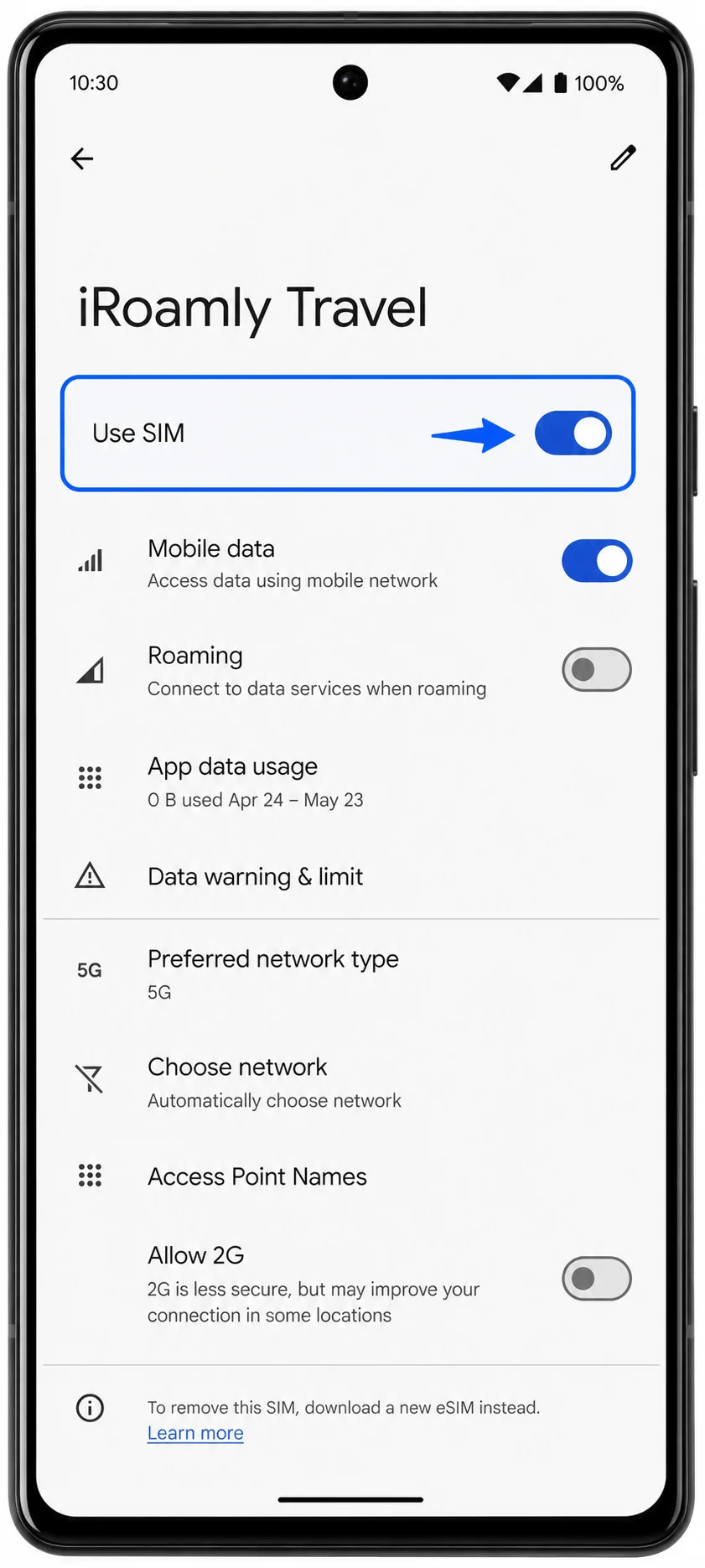
Step 1: Open Settings > Network & internet > SIMs, then tap the iRoamly eSIM. Turn on Use SIM if it is off.
Step 2: In the same iRoamly eSIM details screen, tap Mobile data or select the iRoamly eSIM when Android asks which SIM to use for mobile data. This helps prevent the Pixel 6 from using your primary SIM for travel data.
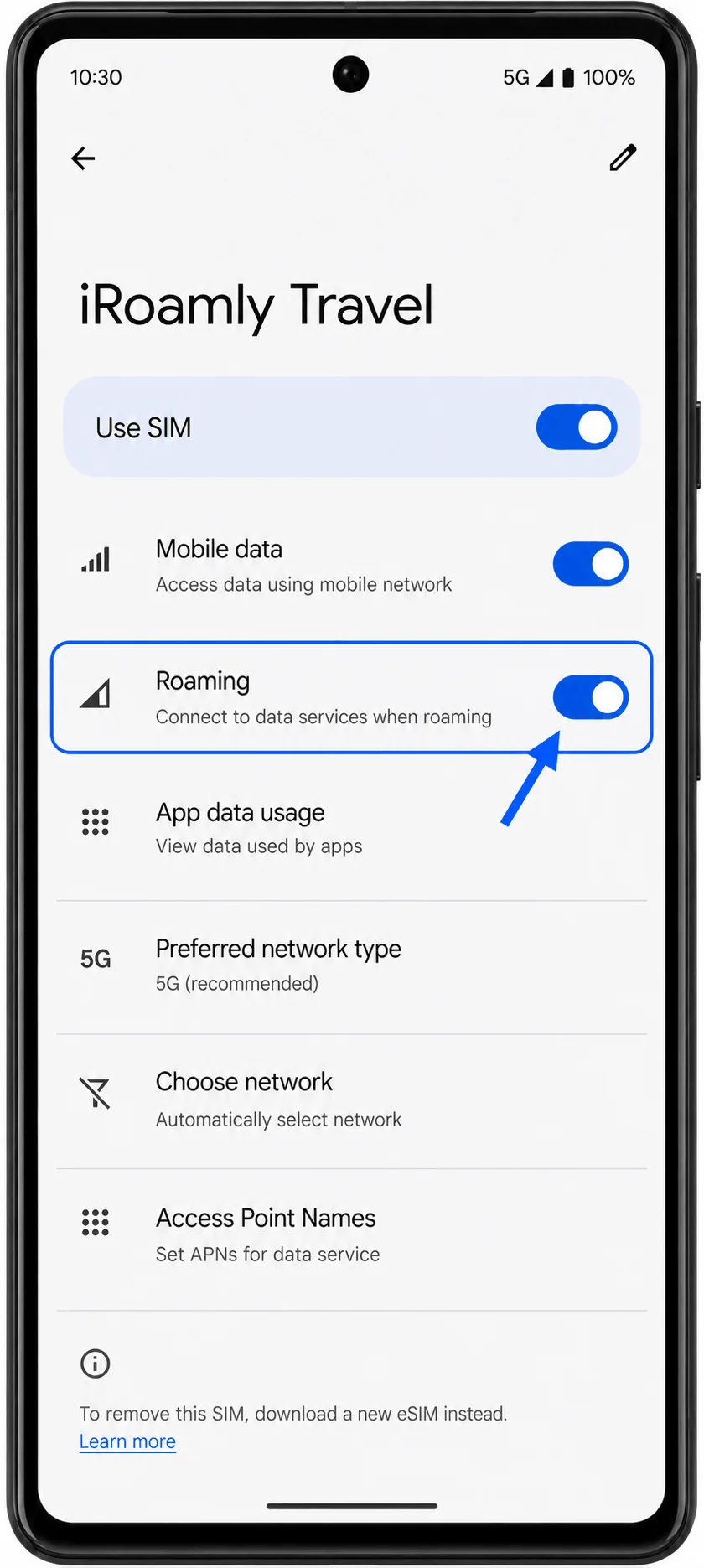
Step 3: Turn on Roaming for the iRoamly eSIM if your iRoamly plan or destination instructions require it. Keep roaming off for your primary SIM unless you intentionally want to use that line abroad.
Troubleshooting
Add SIM or Set up an eSIM is missing: confirm that your Pixel 6 supports eSIM in your region, is unlocked, and has the latest Android update. Some carrier or regional variants can hide eSIM options.
The QR code was already used: do not delete and reinstall repeatedly. Contact iRoamly support if the eSIM was removed or the QR code no longer works.
No data after installation: confirm that the iRoamly eSIM is turned on, selected for mobile data, and allowed to use roaming if your destination requires it. Restart the Pixel 6 after changing these settings.
Activation is pending: stay connected to Wi-Fi and wait a few minutes. If the plan is designed to activate only when it connects to a supported network, full service may not appear until you arrive.
Manual entry does not work: recheck every character in the activation code. If your iRoamly details are split into SM-DP+ Address and Activation Code, use the exact full activation-code format requested by the Pixel manual-entry field.
Calls or SMS do not work: check your iRoamly plan details. Many travel eSIM plans are data-only, and voice/SMS support is not guaranteed.
Conclusion
Now that your iRoamly eSIM is installed, your Pixel 6 is ready to support you throughout your travels. Instead of spending time searching for a local carrier or troubleshooting mobile data after landing, you can arrive with your travel connectivity already in place.
When you're ready to use the plan, enable the iRoamly line, select it for mobile data, and follow the plan's roaming instructions if needed. With everything configured ahead of time, getting online abroad can be simple and stress-free.