
The Google Pixel 7 Pro supports eSIM, so it can use an iRoamly travel eSIM when the phone is unlocked and the regional or carrier variant allows eSIM use. This guide uses the Pixel Android path Settings > Network & internet > SIMs > Add SIM > Set up an eSIM. Menu names may vary slightly by Android version, carrier, or region.
QR-code installation is usually the fastest option when your iRoamly QR code is available on another screen or printed. Manual entry is the fallback when the QR code cannot be scanned or you only have the activation details from your iRoamly order page or email.
Both methods download the eSIM profile to the phone. After installation, you still need to confirm the iRoamly line appears under SIMs, choose it for mobile data when you are ready to travel, and enable roaming if your plan or destination instructions require it.
Preparations Before Setting Up iRomly eSIM
Connect the Pixel 7 Pro to stable Wi-Fi before downloading the eSIM.
Make sure the phone is unlocked and eSIM-capable.
Keep your iRoamly QR code or manual activation details ready.
Install the eSIM 1-2 days before travel when possible, but avoid turning it on for travel data too early.
iRoamly eSIM validity starts from activation. For travel data plans, activation is typically tied to using the eSIM on a supported network in the covered destination; always check the exact plan details in your iRoamly order.
iRoamly travel eSIM plans may be data-only. Voice calls and SMS vary by plan, so do not assume they are included.
Do not delete the eSIM after installation unless iRoamly support tells you to. Many eSIM profiles cannot be reinstalled after deletion.
Shared Setup Steps
Use these steps before either QR-code installation or manual entry.
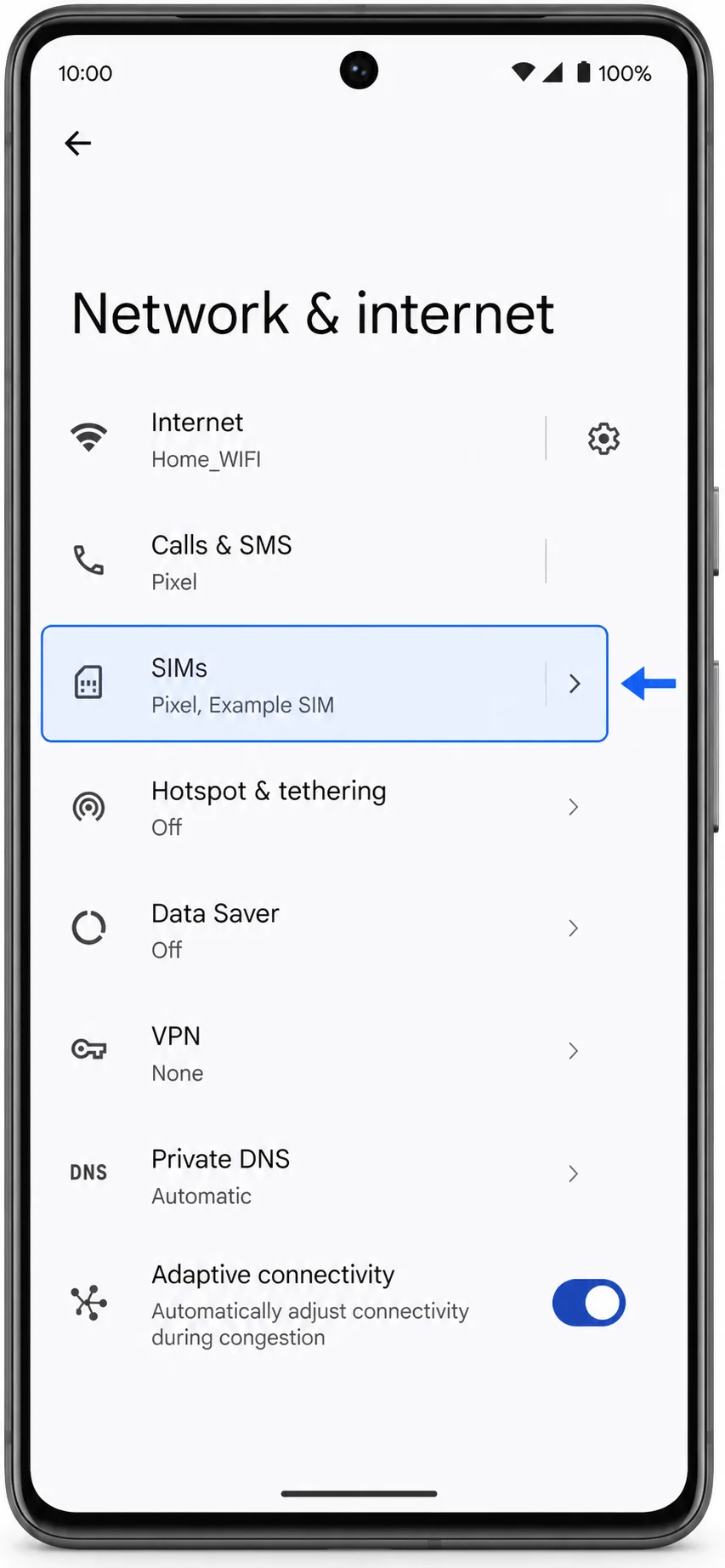
Open Settings, then tap Network & internet. On the next screen, tap SIMs.
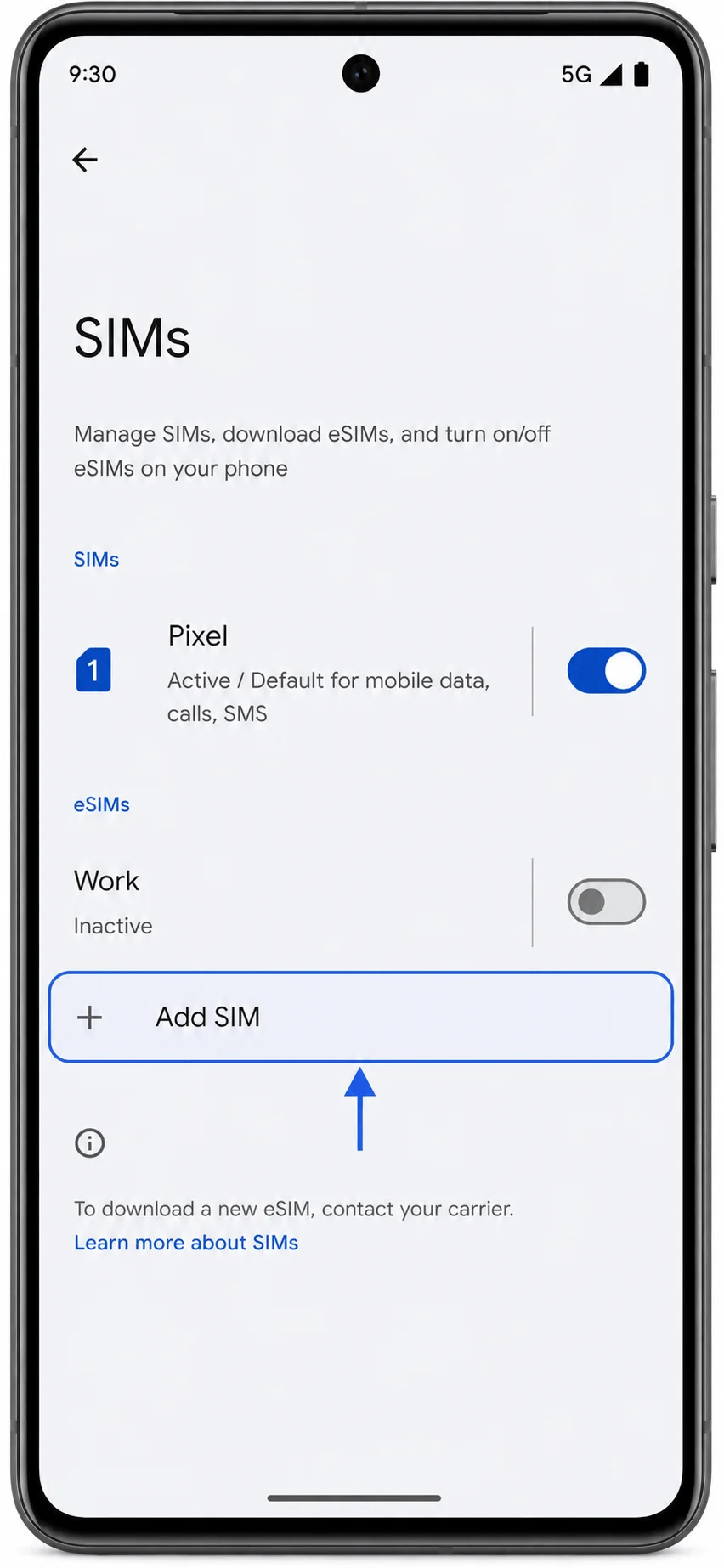
On the SIMs screen, tap Add SIM.
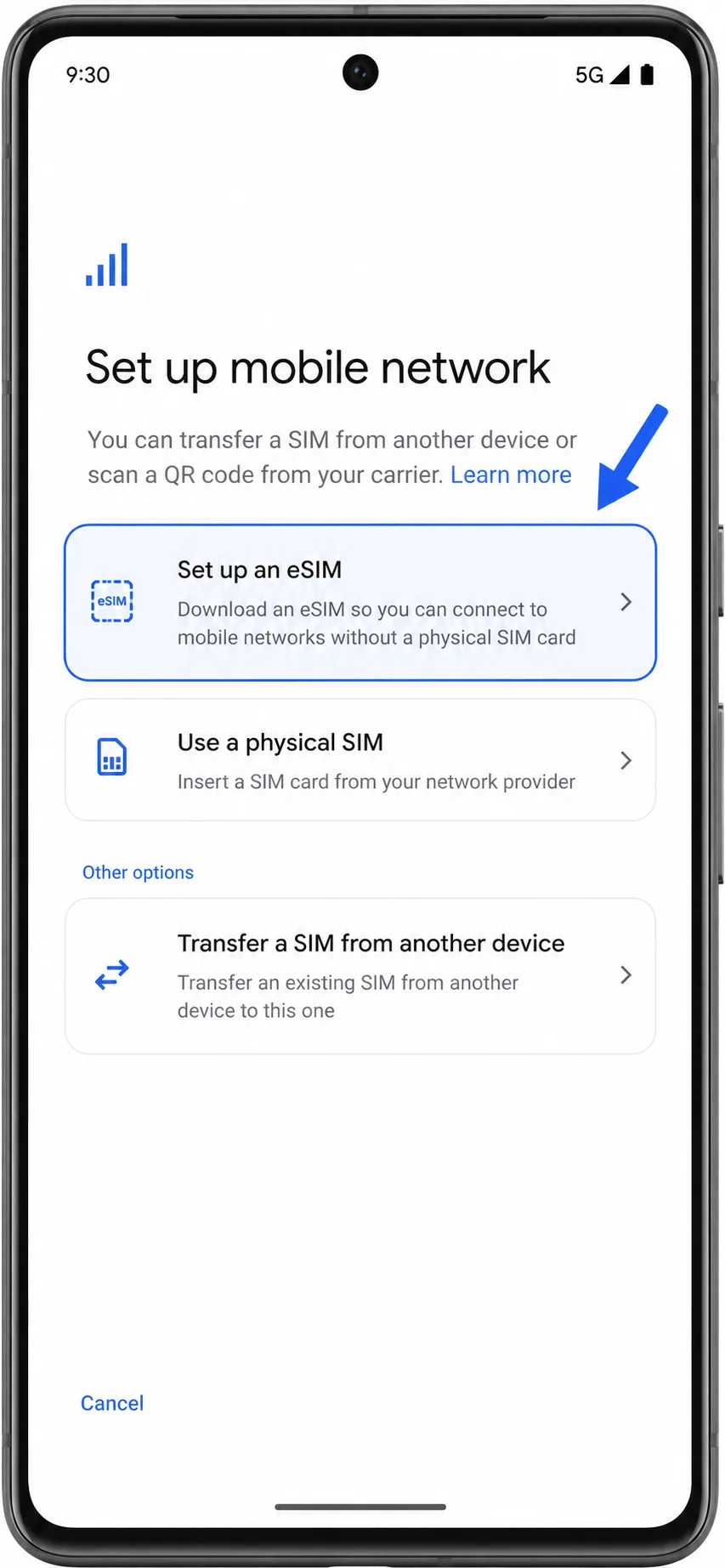
On the setup screen, tap Set up an eSIM.
Method 1: Install the iRoamly eSIM by Scanning a QR Code
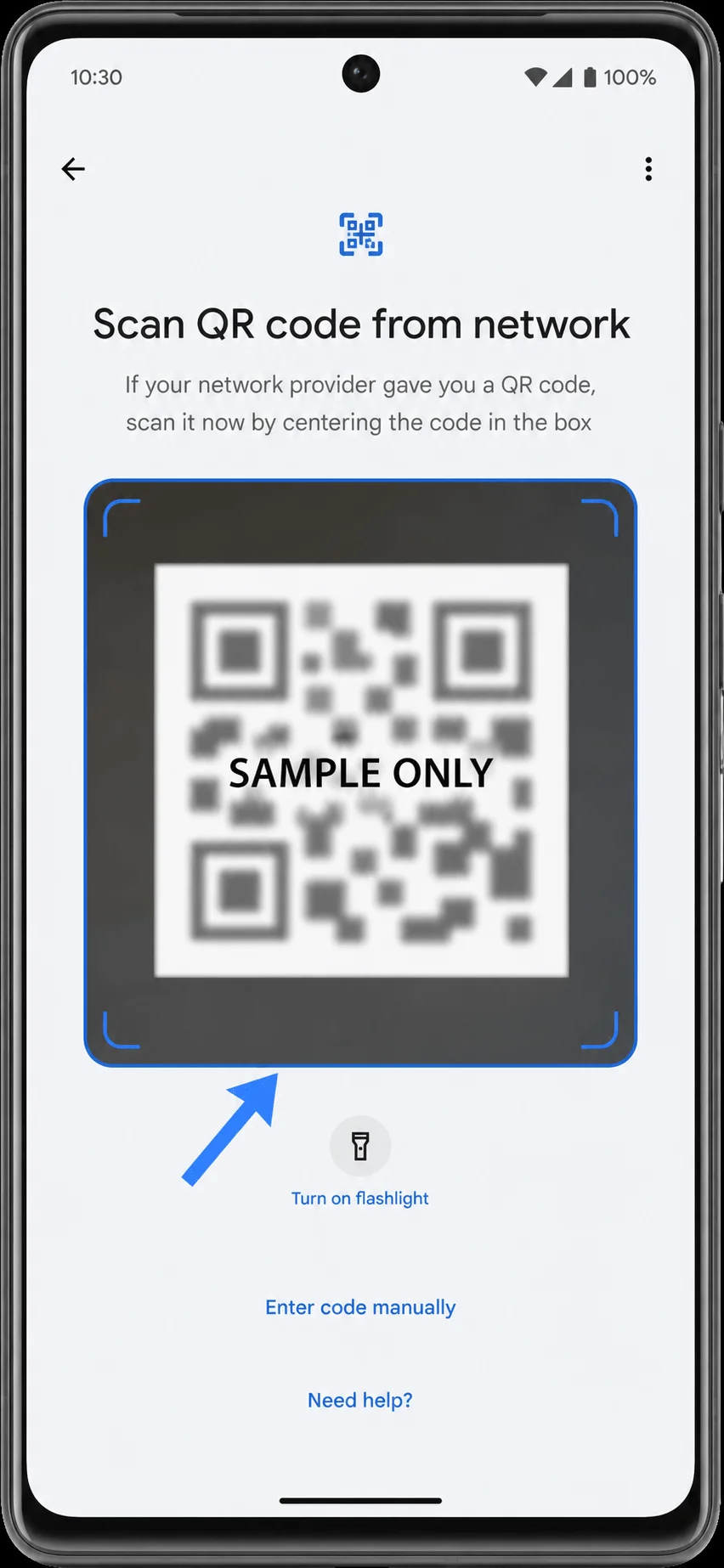
When the QR scanner opens, scan the iRoamly QR code. Keep the QR code steady until the Pixel recognizes it.
Review the download prompt, then tap Download. Wait while the Pixel downloads the iRoamly eSIM profile.
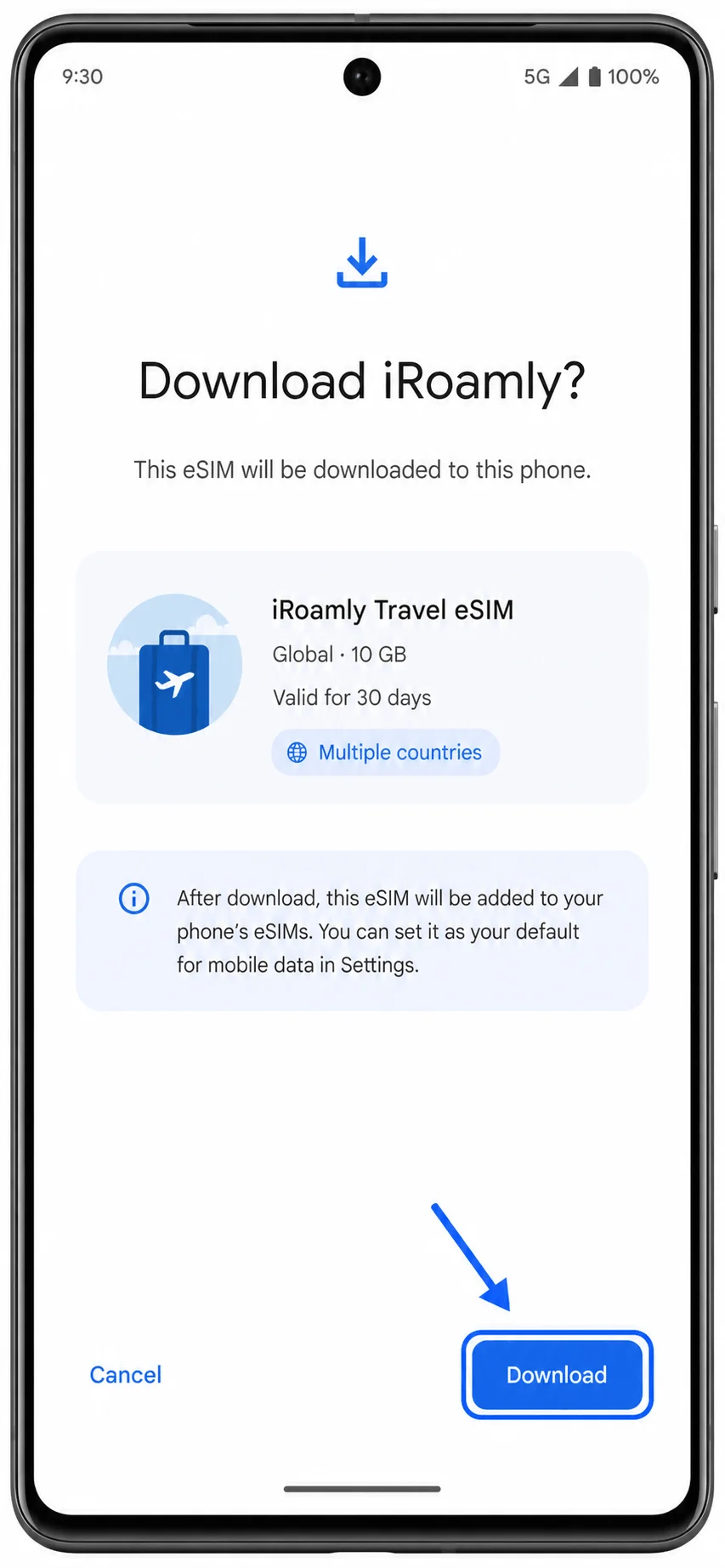
When setup finishes, tap Done or return to Settings > Network & internet > SIMs. If the phone asks for a label, name the line iRoamly.
Method 2: Install the iRoamly eSIM by Manual Entry
Open Settings, tap Network & internet, tap SIMs, tap Add SIM, then tap Set up an eSIM. This takes you to the same QR scanner used in Method 1.
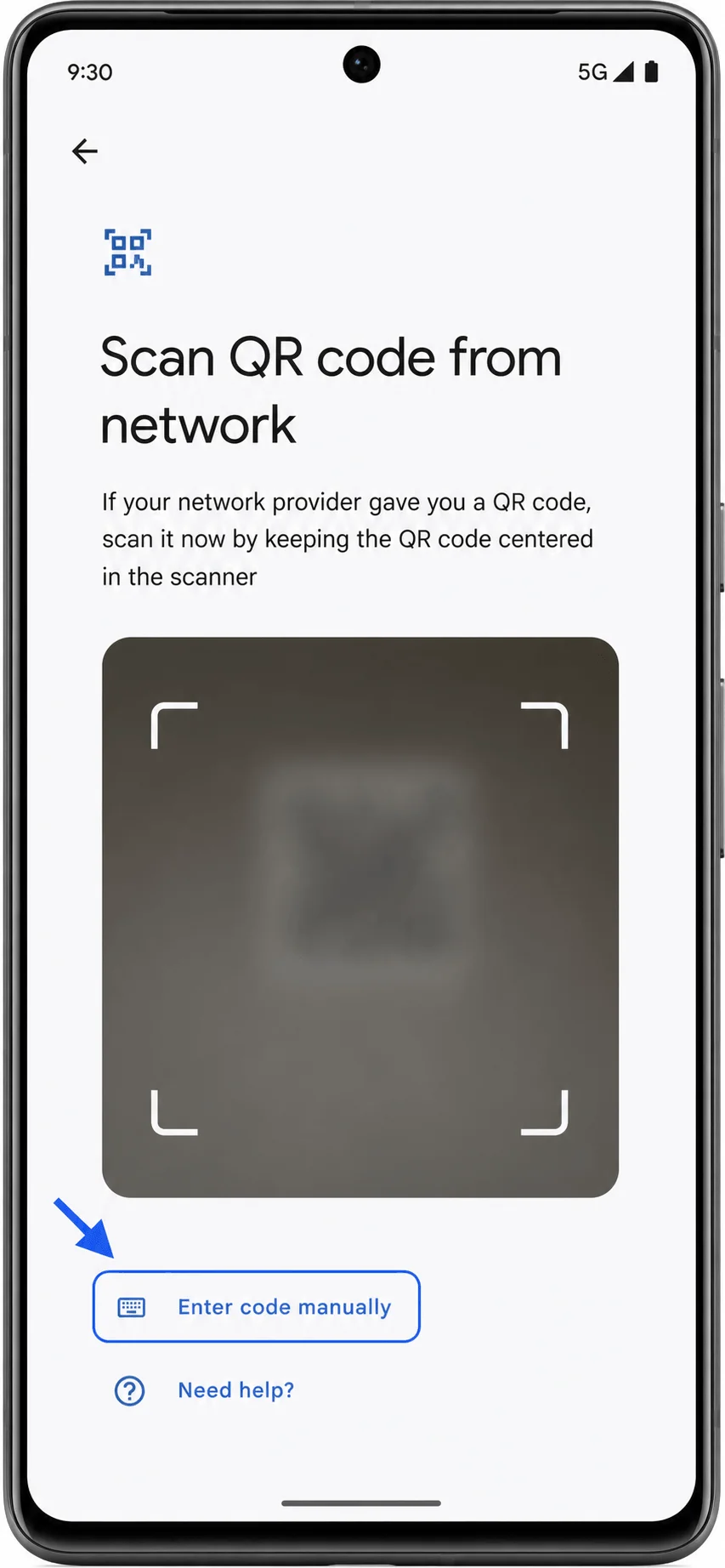
On the QR scanner screen, tap Enter code manually.
Enter the manual activation details from iRoamly. On Pixel Android, manual setup commonly uses one Activation code field. If iRoamly provides separate SM-DP+ Address and Activation Code values, enter them in the full activation-code format when required, such as LPA:1$SM-DP+ Address$Activation Code, using only the real details from your iRoamly order.
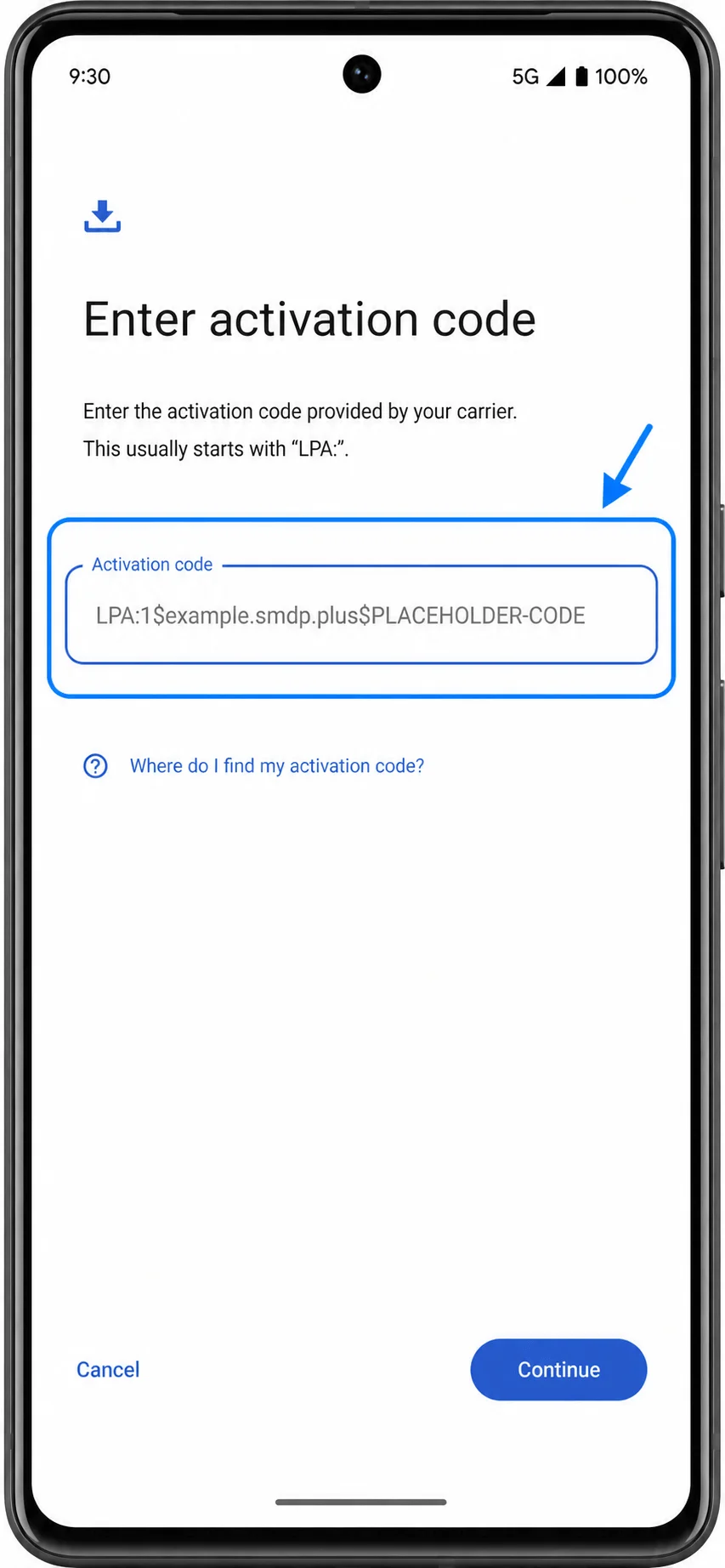
Tap Continue or Download, then wait for the Pixel to download the eSIM profile.
When setup finishes, tap Done or return to Settings > Network & internet > SIMs. If the phone asks for a label, name the line iRoamly.
How to Confirm the iRoamly eSIM Was Installed
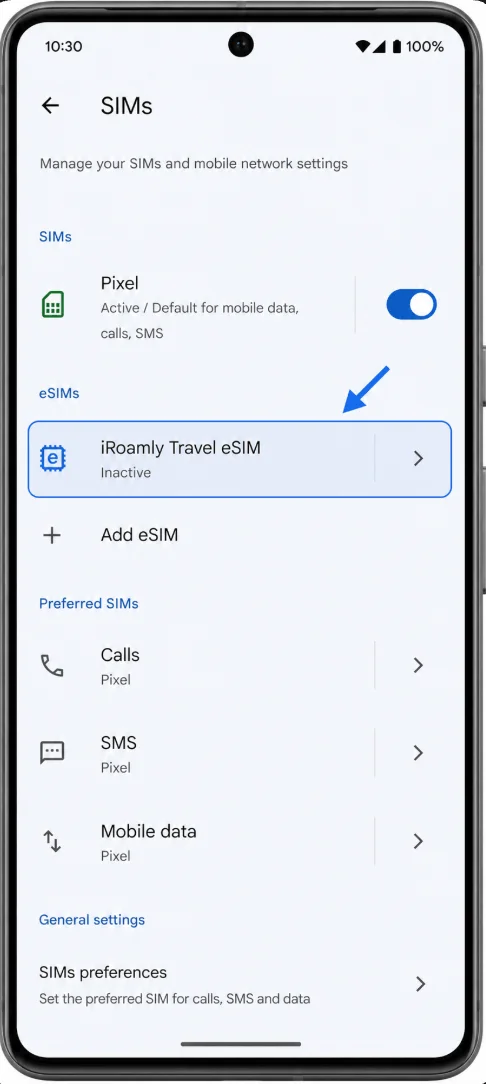
Open Settings > Network & internet > SIMs. Confirm that iRoamly or iRoamly Travel eSIM appears in the SIM list.
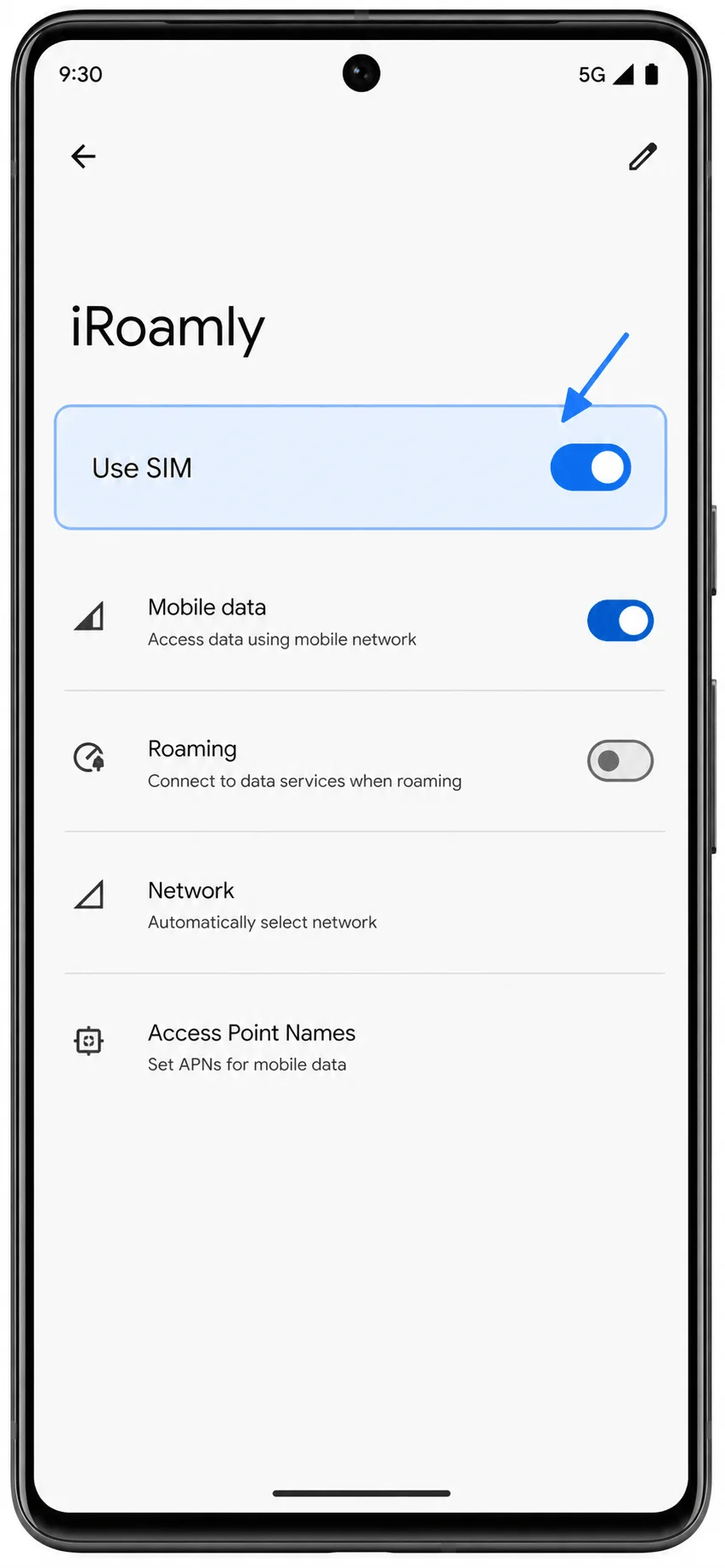
Tap the iRoamly eSIM and confirm that the Use SIM switch is available. If you are not ready to use the travel plan yet, you can leave it off until travel day.
Set Up the iRoamly eSIM for Travel Data
When you arrive in the covered destination or are ready to start using the travel data plan, open Settings > Network & internet > SIMs, tap the iRoamly eSIM, and turn on Use SIM.
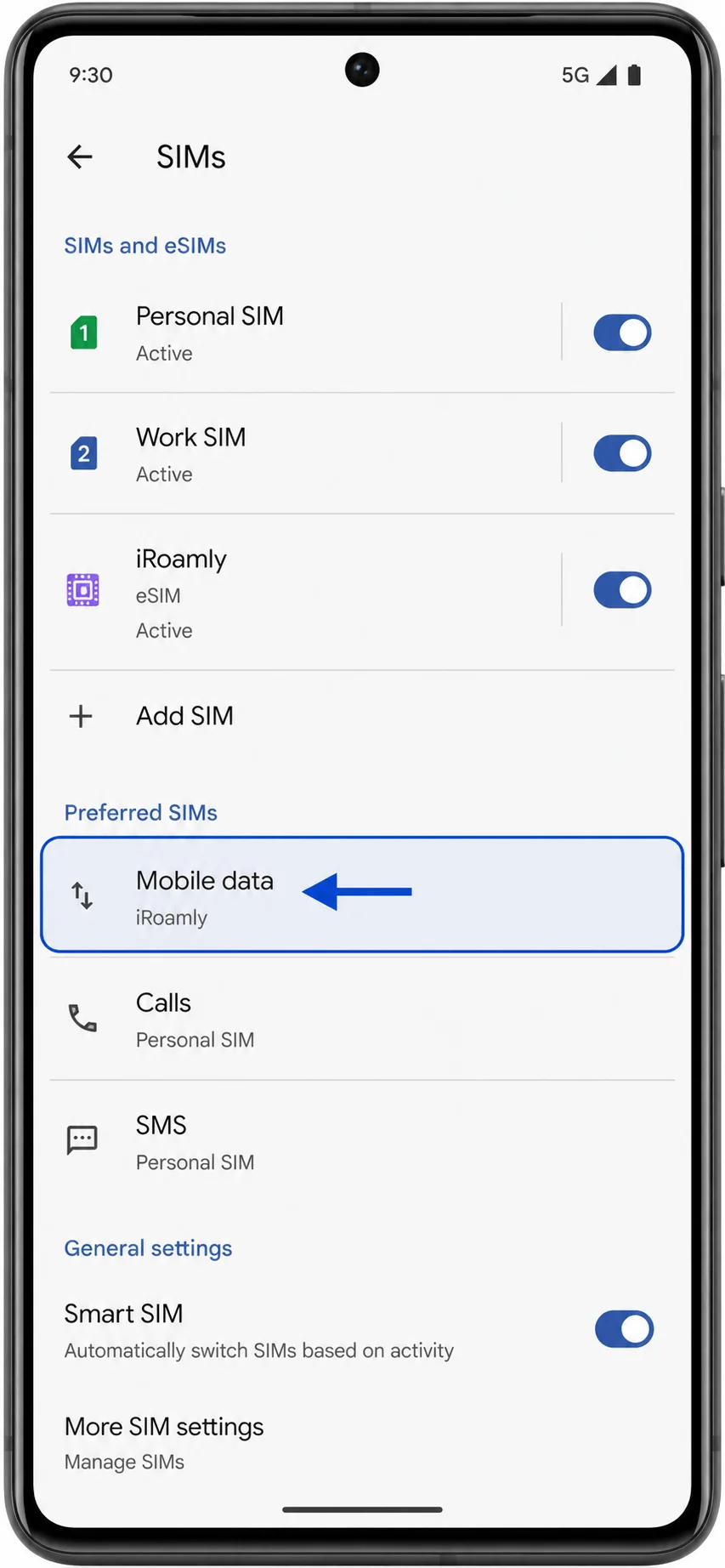
Return to the SIMs screen, tap Mobile data, and select the iRoamly eSIM for mobile data. Keep your primary SIM selected for calls or SMS if your iRoamly plan is data-only.
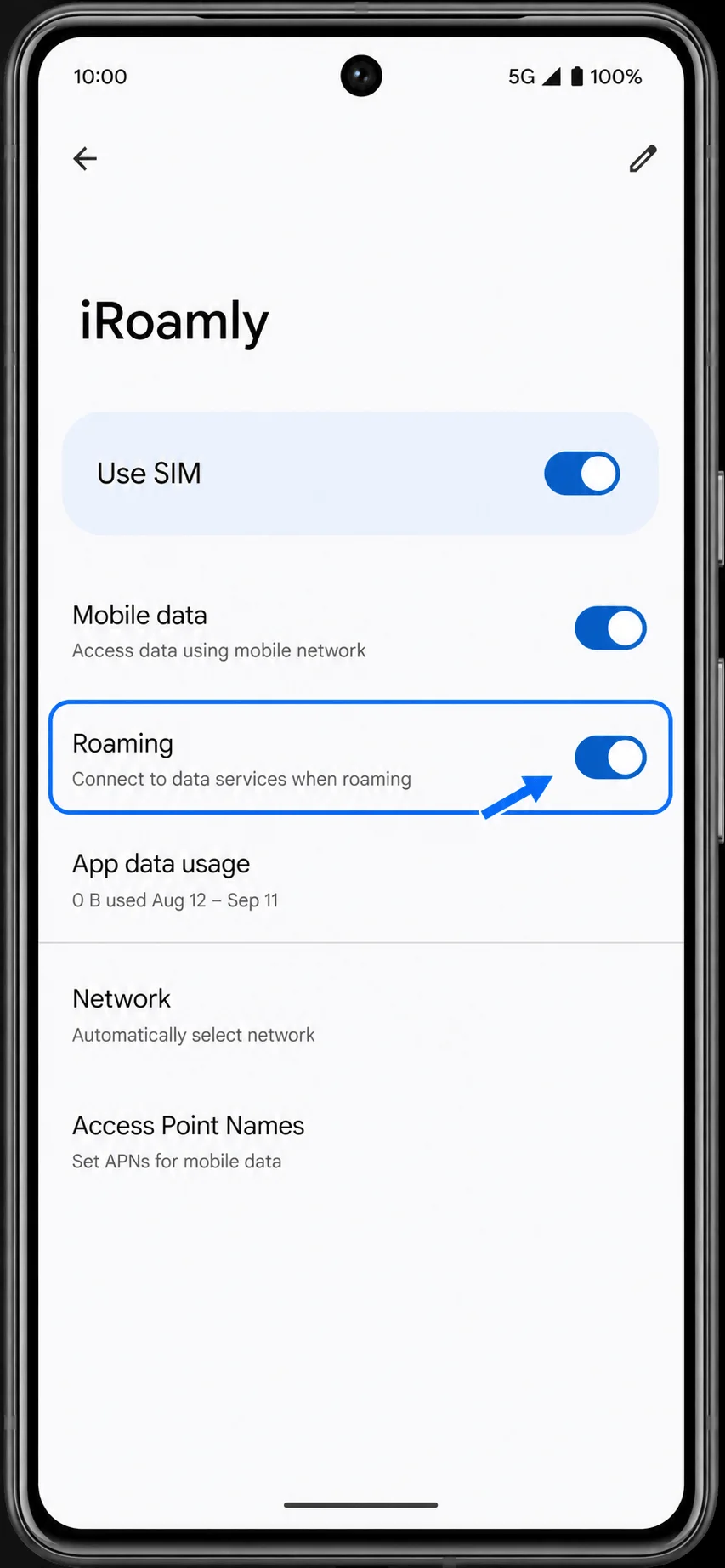
Open the iRoamly eSIM details again and turn on Roaming if your iRoamly plan or destination instructions require it. Then turn Wi-Fi off briefly to confirm mobile data works.
Troubleshooting
If Add SIM or Set up an eSIM is missing, confirm the Pixel 7 Pro is unlocked, updated, and not from a region or carrier variant that restricts eSIM.
If the QR code has already been used, contact iRoamly support. Do not delete and reinstall the eSIM repeatedly.
If the QR code will not scan, use manual entry and copy the activation details exactly from iRoamly.
If manual entry fails, check whether iRoamly provides one full activation-code string or separate SM-DP+ Address and Activation Code values. Pixel Android commonly expects one full activation-code string.
If the eSIM installs but has no data, confirm that Use SIM is on, iRoamly is selected for Mobile data, and Roaming is enabled if required.
If activation stays pending, wait until you are in the plan's covered destination, then restart the phone or toggle Airplane mode on and off.
If your primary SIM keeps taking over data, return to Settings > Network & internet > SIMs > Mobile data and select iRoamly again.
Conclusion
With your iRoamly eSIM installed on the Pixel 7 Pro, you've already taken care of one of the most important travel essentials before leaving home. Instead of searching for a local SIM card or relying on airport Wi-Fi after landing, you can have your mobile data plan ready to go as soon as you arrive in a supported destination.
Before your trip, take a moment to confirm that the eSIM is installed correctly, review your plan's activation rules, and check whether roaming needs to be enabled. Once everything is in place, you'll be able to stay connected for navigation, messaging, ride-hailing, and other everyday travel needs without unnecessary setup or delays.