
The Google Pixel 7a supports eSIM, so you can install an iRoamly travel eSIM before your trip and use it for mobile data after arrival.
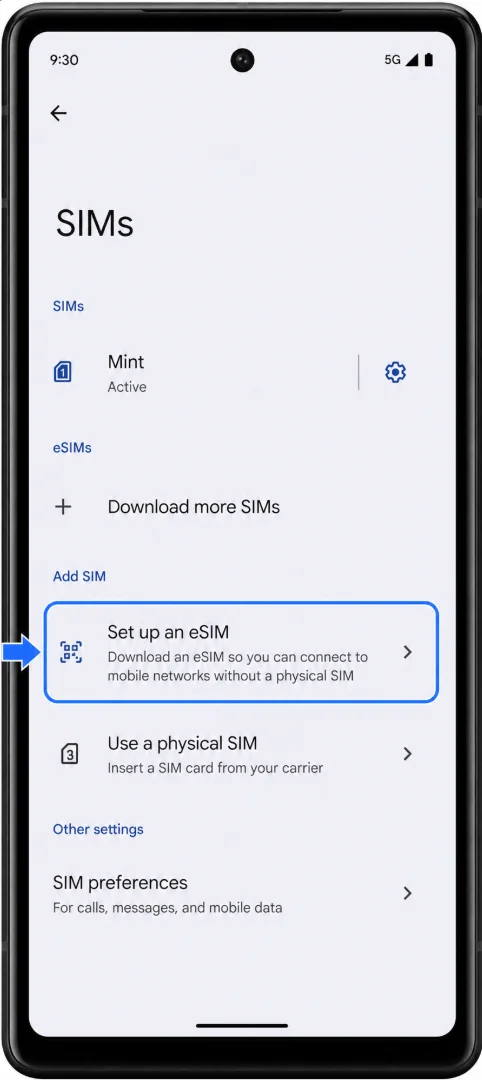
On most Pixel 7a phones running current Pixel Android, the setup path is Settings > Network & internet > SIMs > Add SIM > Set up an eSIM. Menu names may vary slightly depending on Android version, carrier, or region.
This guide explains both ways to install your iRoamly eSIM: scanning the QR code and entering the activation details manually. QR code setup is usually the fastest method, while manual entry is useful if the QR code is displayed on the same phone or cannot be scanned.

Meet iRoamly for Easier Travel Connectivity
iRoamly is a travel eSIM service that offers mobile data options for destinations around the world. Available plans can include local, regional, and global choices, while data amounts, validity, plan types, and features vary by destination and package.
With the travel eSIM installed, mobile data can support everyday trip needs such as navigation, messaging, translations, ride-hailing, bookings, and travel alerts.
For an eSIM-compatible Google Pixel 7a, the setup below shows how to install the iRoamly profile and choose it for mobile data. Follow the QR-code path or the manual-entry path, then confirm the profile before switching data use to the travel line.
If you set up before leaving, keep the activation details available until the phone confirms the eSIM has downloaded successfully.
Preparations Before Setting Up iRoamly eSIM
Make sure your Google Pixel 7a is unlocked, supports eSIM, and is connected to stable Wi-Fi. Keep your iRoamly QR code or manual activation details ready from your iRoamly email, app, or account page.
Install the eSIM 1-2 days before travel when possible, but do not turn it on for data use until you are ready. iRoamly plan validity generally starts when the eSIM is activated and connects to a supported network at the destination.
Most iRoamly travel eSIM plans are for mobile data, and voice/SMS availability depends on the specific plan, so check your plan details before relying on calls or text messages.
Do not delete the eSIM after installation unless iRoamly support tells you to. Many eSIM QR codes and activation codes can only be used once.
Planning a trip to France? Installing the travel eSIM before departure can reduce what you need to configure after arrival. For Spain, you can use the same Pixel 7a setup flow after selecting the destination plan.
Method 1: Install the eSIM by Scanning a QR Code
Open the Settings app on your Google Pixel 7a.
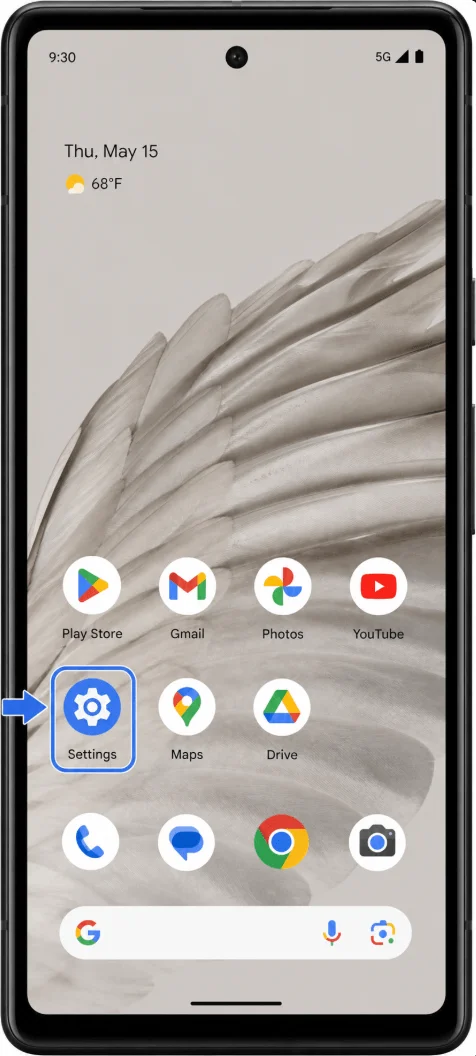
Tap Network & internet.
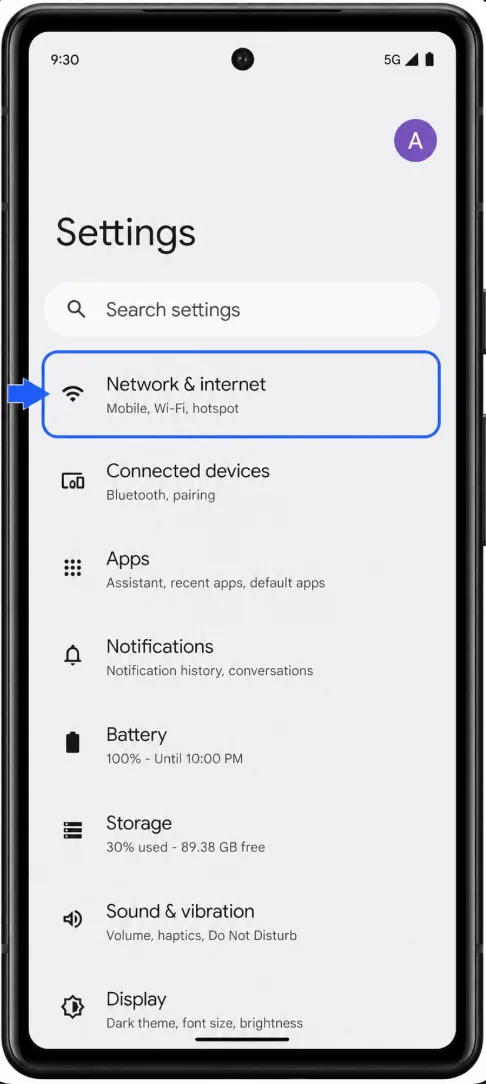
Tap SIMs.
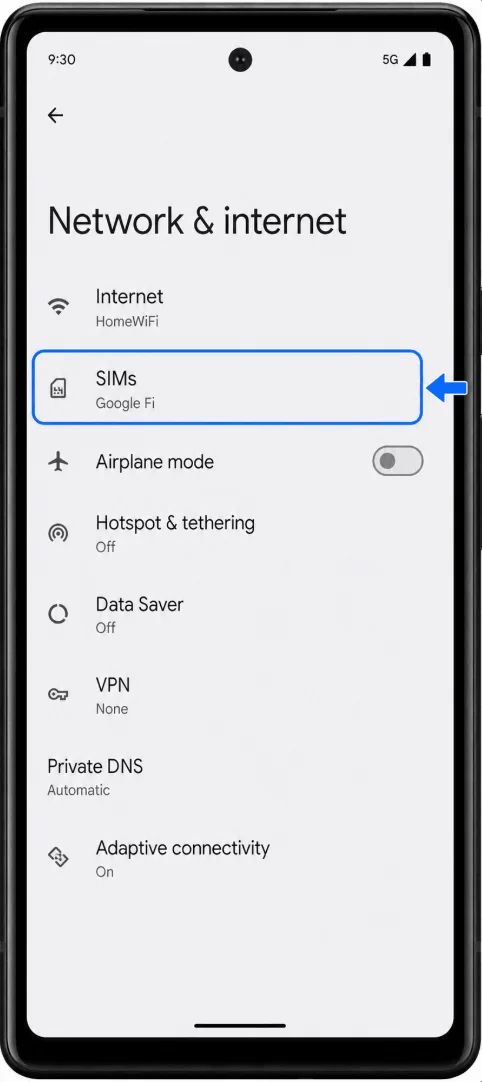
Tap Add SIM. If your Pixel shows a + button beside SIMs, tap the + button instead.
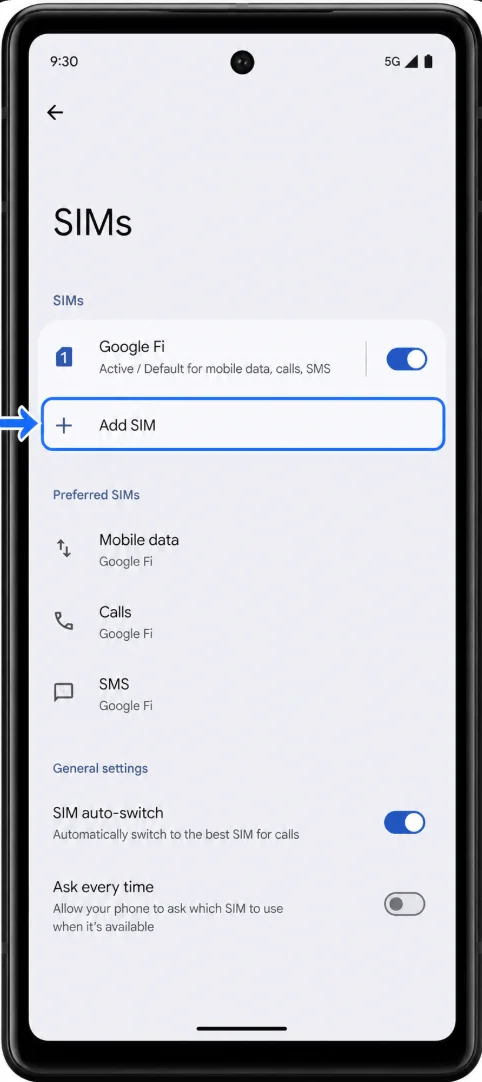
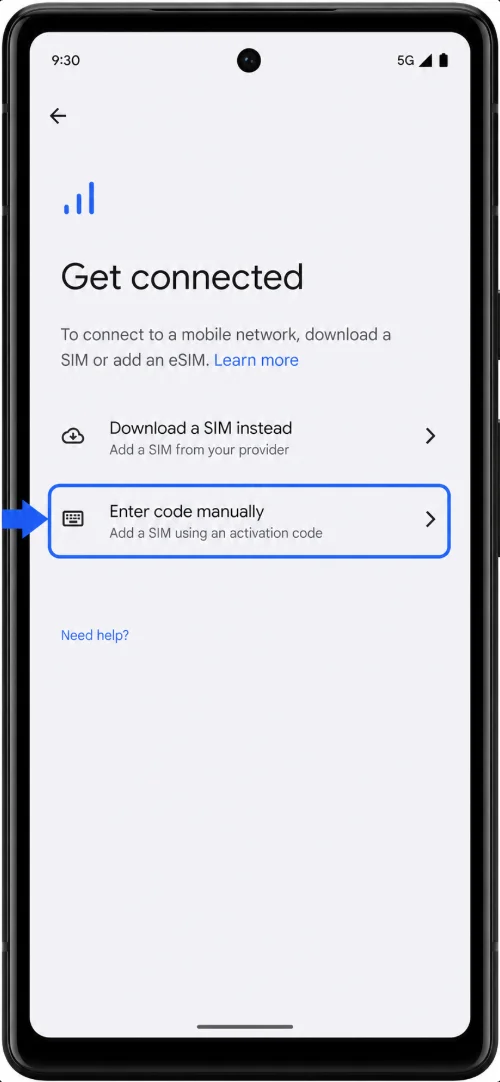
Tap Set up an eSIM. On some Android versions, this may appear as Download a SIM instead.
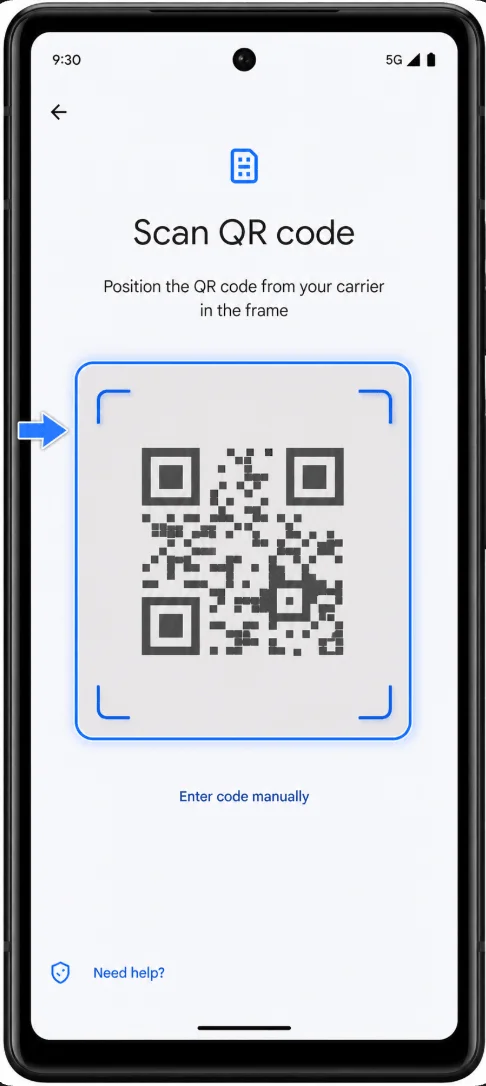
When the QR scanner opens, scan the iRoamly QR code from your email, iRoamly app, or iRoamly account page.
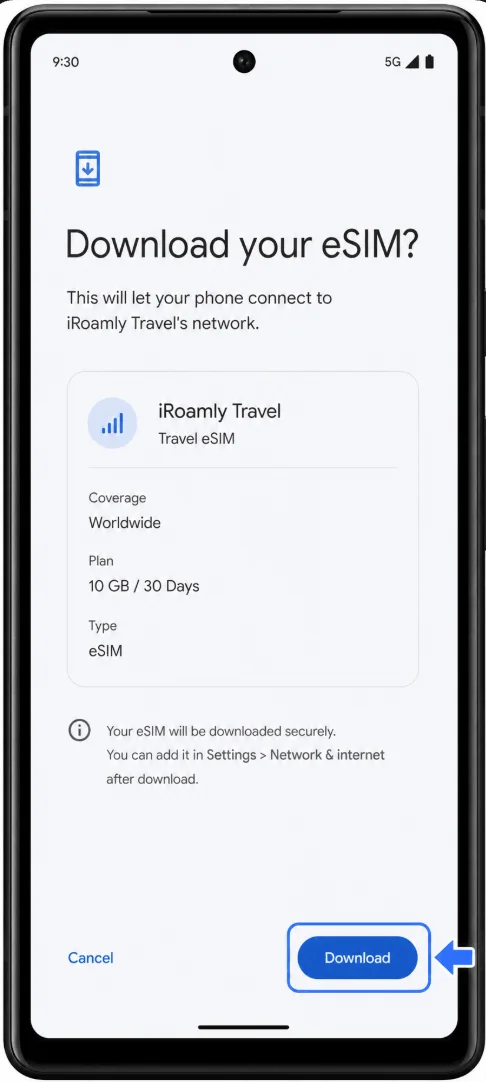
Confirm the detected iRoamly eSIM, then tap Download, Activate, or the equivalent confirmation button shown on your Pixel.
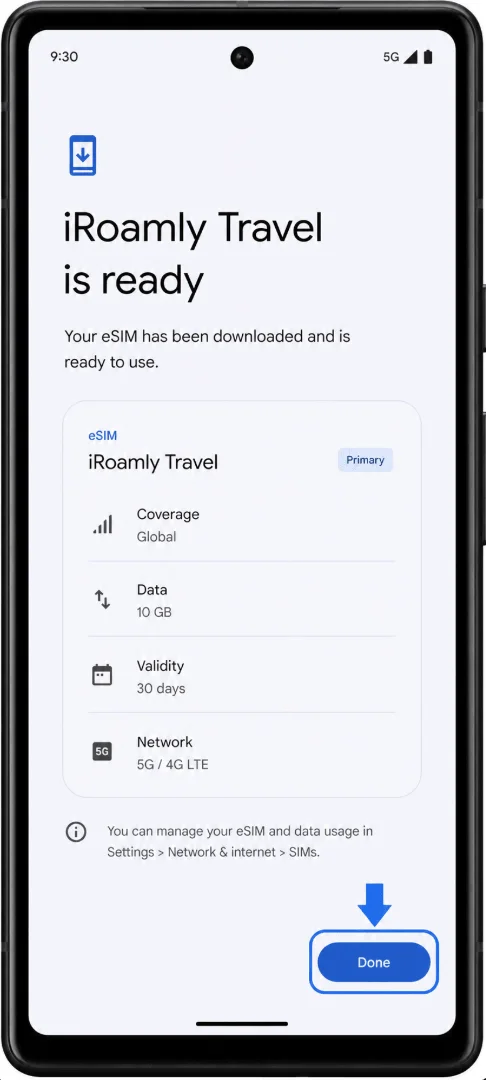
Wait for the eSIM download to finish, then tap Done or Settings.
Method 2: Install the eSIM by Manual Entry
Open the Settings app on your Google Pixel 7a.
Tap Network & internet.
Tap SIMs.
Tap Add SIM, or tap the + button beside SIMs if that is what your Pixel shows.
Tap Set up an eSIM. If your screen says Download a SIM instead?, tap that option and continue.
On the QR scanner screen, tap Need help?, Enter code manually, or a similar manual-entry option.
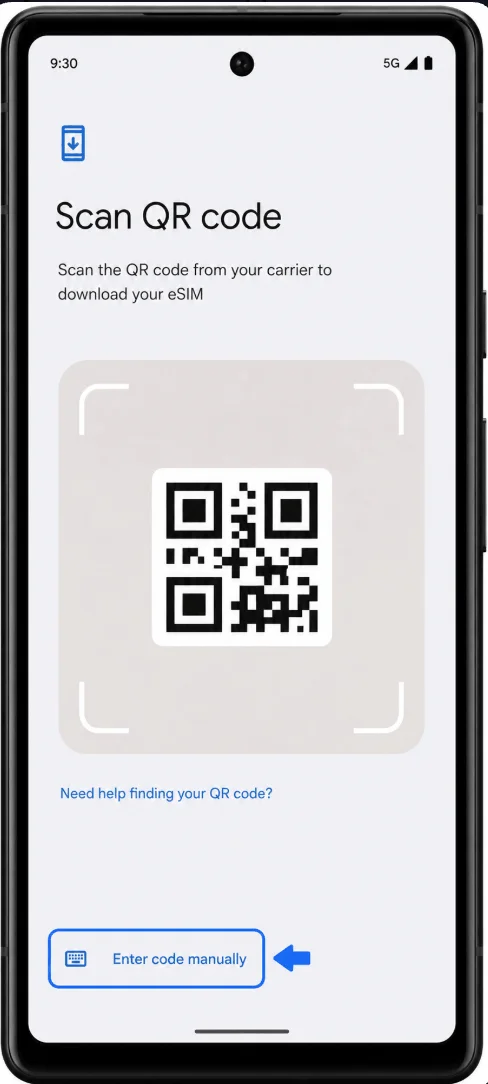
Tap Enter code manually or Enter activation code.
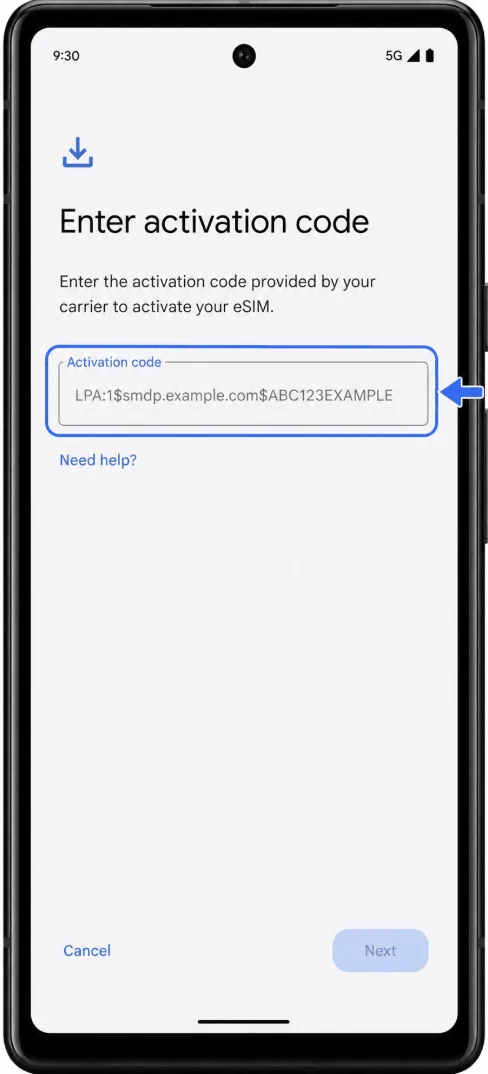
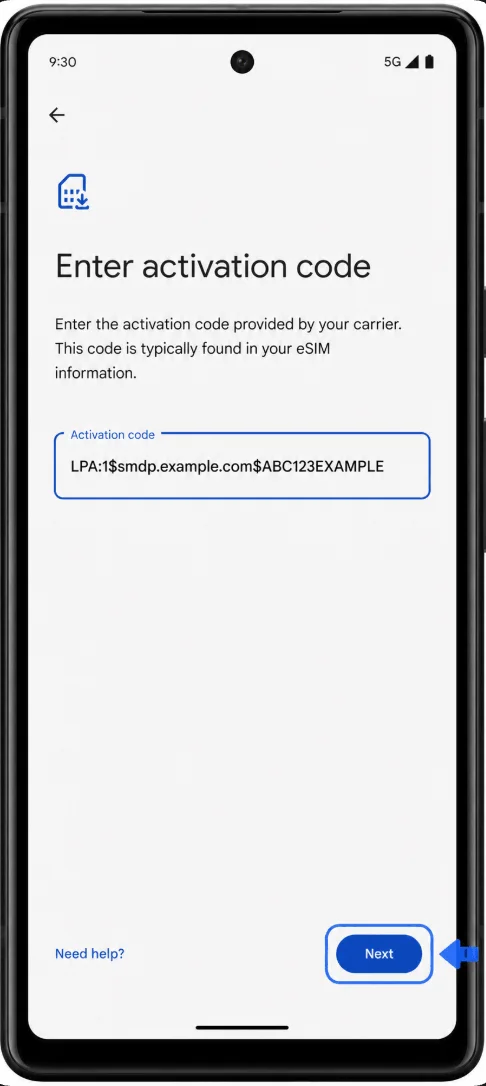
Enter the full iRoamly activation code exactly as provided. On Pixel Android, manual setup usually uses one complete activation-code string, such as LPA:1$smdp.example.com$ABC123EXAMPLE, rather than separate SM-DP+ Address and Activation Code fields.
Tap Continue, Next, or Download.
Wait for the eSIM to download, then tap Done or Settings.
How to Confirm the eSIM Was Installed
Go to Settings > Network & internet > SIMs.
Look for the newly installed iRoamly eSIM in the SIM list. It may appear as iRoamly, Travel, the destination carrier name, or another travel eSIM profile name.
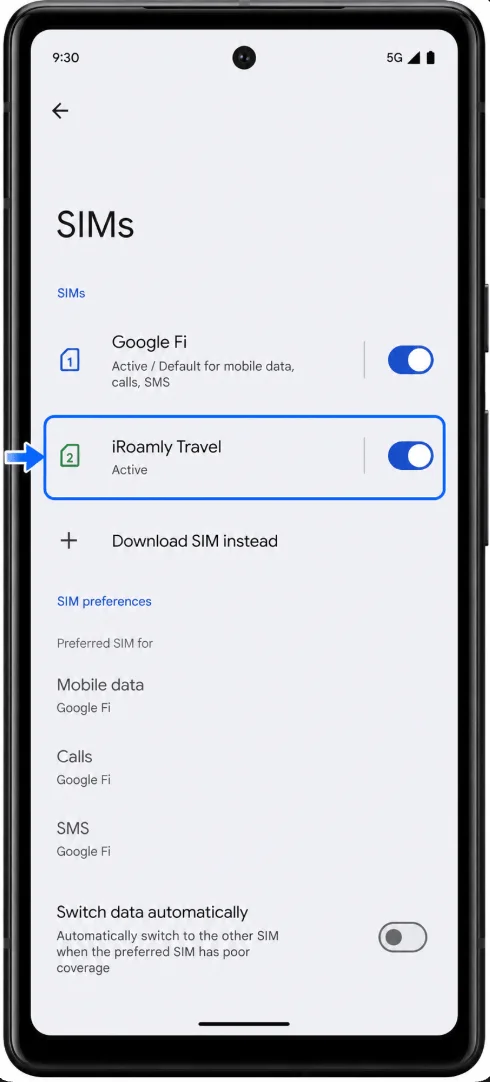
Tap the iRoamly eSIM profile and confirm that the profile details are visible.
If you are not ready to use the plan yet, leave the eSIM installed but avoid turning it on for travel data until needed.
Set Up the eSIM for Mobile Data
When you arrive at your destination or are ready to use the plan, go to Settings > Network & internet > SIMs.
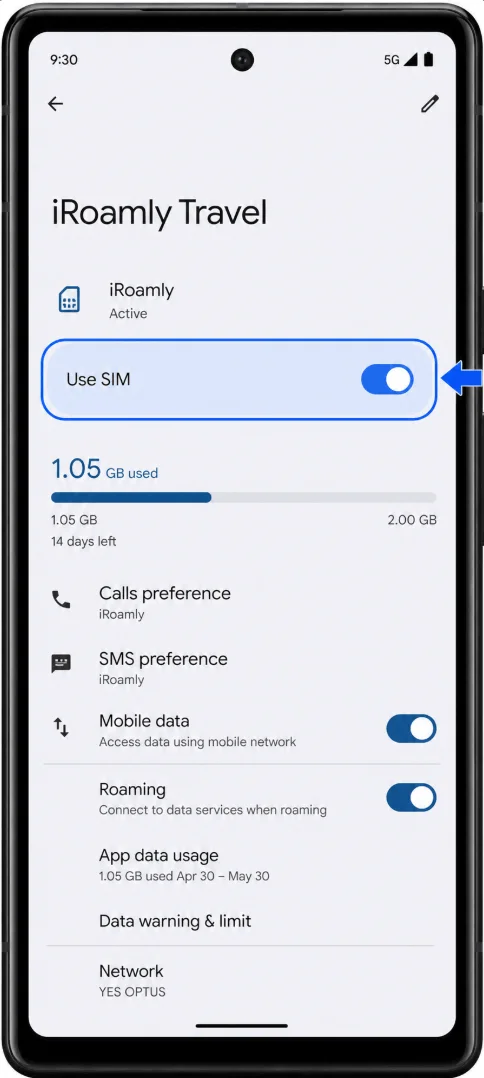
Tap the iRoamly eSIM profile.
Turn on Use SIM.
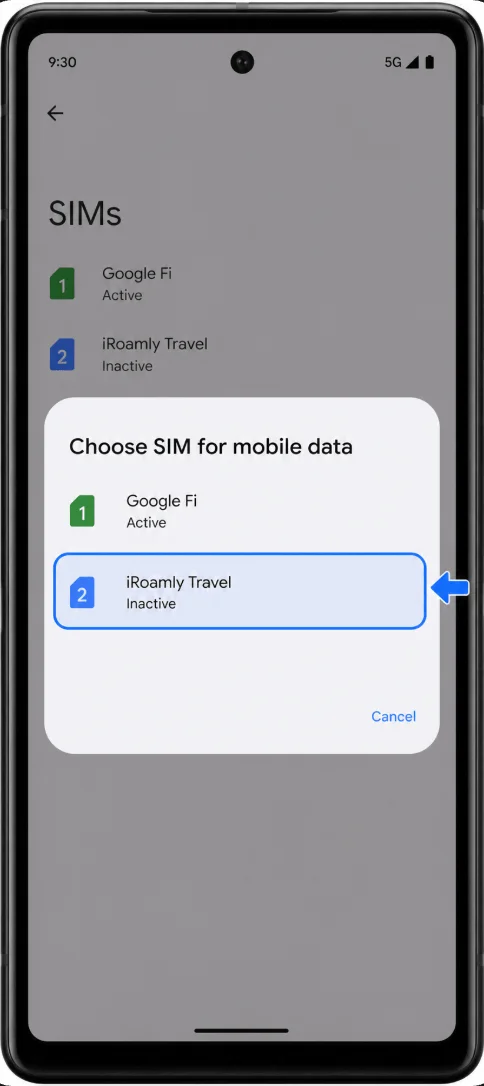
Go back to the SIM settings and tap Mobile data.
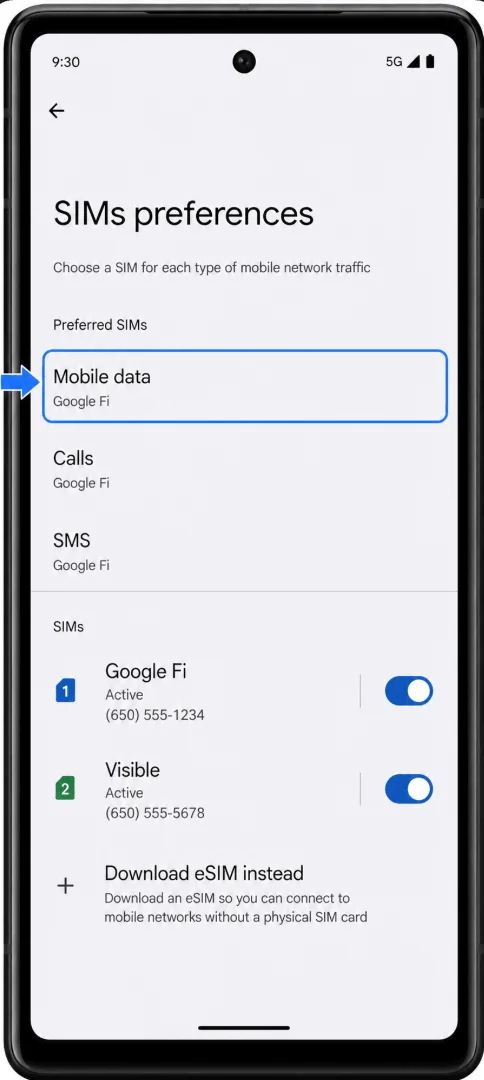
Select the iRoamly eSIM as the mobile data SIM.
Open the iRoamly eSIM profile and turn on Roaming or Data roaming if your iRoamly plan or destination requires it.
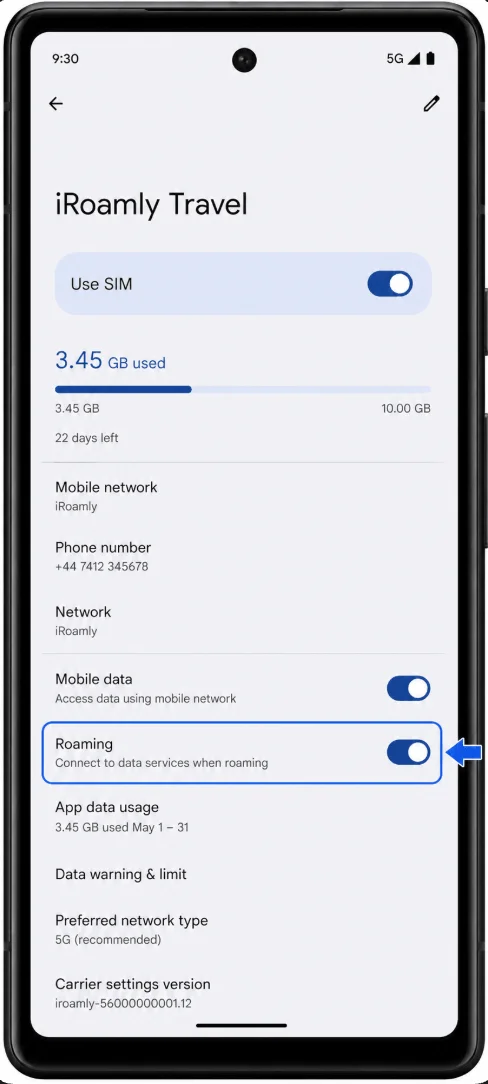
To avoid unexpected charges on your primary SIM, keep your primary SIM’s data roaming turned off unless you intentionally want to use it.
Troubleshooting
If Add SIM or Set up an eSIM is missing, confirm that your Pixel 7a is unlocked, updated, and not restricted by your carrier or region. Restart the phone and check again under Settings > Network & internet > SIMs.
If the QR code says it has already been used, do not delete and reinstall the eSIM repeatedly. Most eSIM QR codes are single-use, so contact iRoamly support with your order details.
If the eSIM installs but mobile data does not work after arrival, make sure the iRoamly eSIM is turned on, selected for Mobile data, and has Roaming enabled if required. You can also toggle Airplane mode on and off, then restart the phone.
If activation stays pending, keep the phone connected to Wi-Fi during installation. Some travel eSIMs do not fully activate until they connect to a supported network at the destination.
If your Pixel 7a is carrier-locked or from a region/carrier variant that limits eSIM, the eSIM setup menu may not appear even though the model supports eSIM hardware. Contact the original carrier or seller to confirm unlock and eSIM support.
More Google Pixel eSIM Setup Guides
Need to activate an eSIM on another Pixel model? You may find these guides helpful.
Conclusion
The Pixel 7a makes travel eSIM setup straightforward, giving you the flexibility to prepare your connectivity before you leave. After installing the iRoamly eSIM, verify that the profile appears in your SIM settings and review your plan details so you know exactly when service begins and what features are included.
With everything configured ahead of time, you can arrive at your destination ready to use maps, messaging apps, ride-hailing services, and other essentials without unnecessary delays..