
This guide is for installing an iRoamly travel eSIM on Google Pixel 7. The steps below assume a Pixel 7 running current Pixel Android, where the eSIM path is usually Settings > Network & internet > SIMs > Add SIM > Set up an eSIM. Some Android versions, carrier builds, or regions may show slightly different labels such as Download eSIM instead, but the setup flow is the same Pixel eSIM flow.
You can install the iRoamly eSIM in two ways: by scanning the QR code from your iRoamly order, or by manually entering the activation code if the QR code is on the same phone, the camera cannot scan it, or the QR code email is not easy to display on another screen.
Preparations Before Setting Up iRoamly eSIM
Connect your Pixel 7 to a stable Wi-Fi network before starting.
Make sure your Pixel 7 is unlocked and eSIM-capable for your region and carrier variant.
Keep your iRoamly QR code or manual activation details ready from your iRoamly order email or account page.
Do not delete an installed eSIM profile unless iRoamly support tells you to. Most travel eSIMs cannot simply be reinstalled after removal.
Install the iRoamly eSIM 1-2 days before travel when possible, but check your plan details first. iRoamly plan validity starts from activation; the exact activation trigger can vary by plan, so confirm it on the specific plan page or order details before installing early.
iRoamly travel eSIM plans may be data-only. Voice calls and SMS availability vary by plan, so check the plan details instead of assuming calls or texts are included.
Method 1: Install the eSIM by Scanning a QR Code
Open Settings, then tap Network & internet. The Pixel 7 should open the network settings area where SIM options are managed.
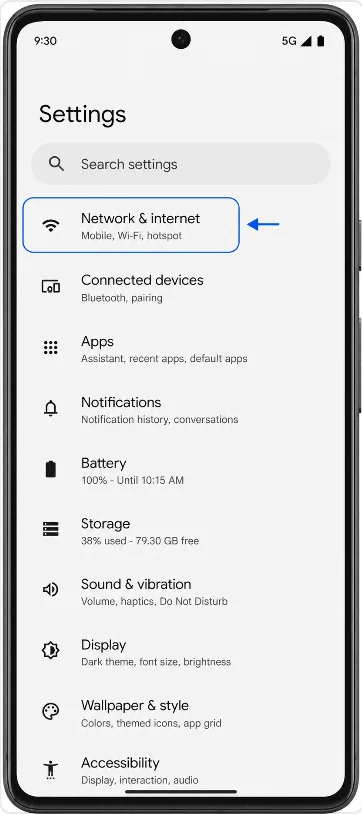
Tap SIMs. You should see the SIM management page for your physical SIMs and eSIMs.
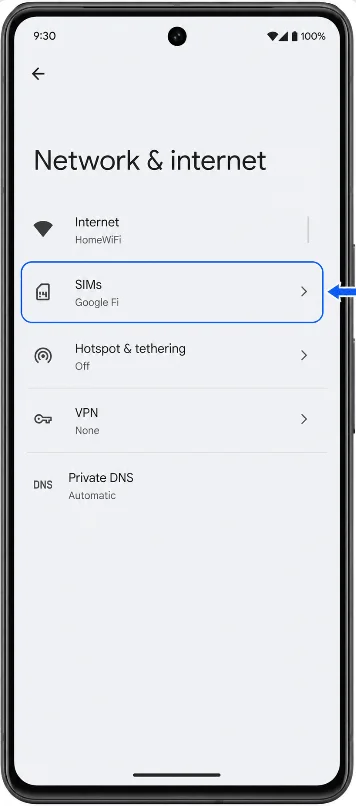
Tap Add SIM. If your Android build shows Download eSIM instead, tap that option when prompted. The phone should move into the eSIM setup flow.
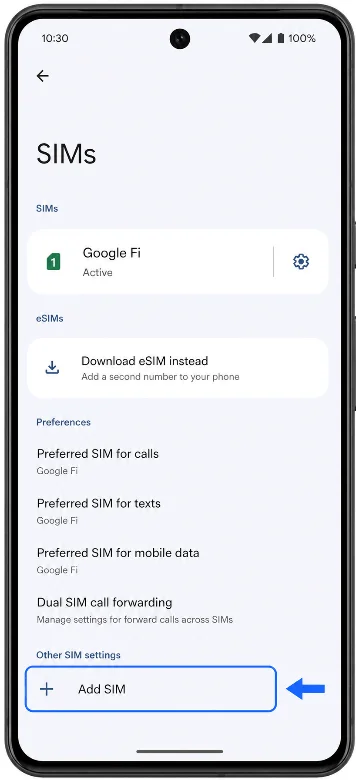
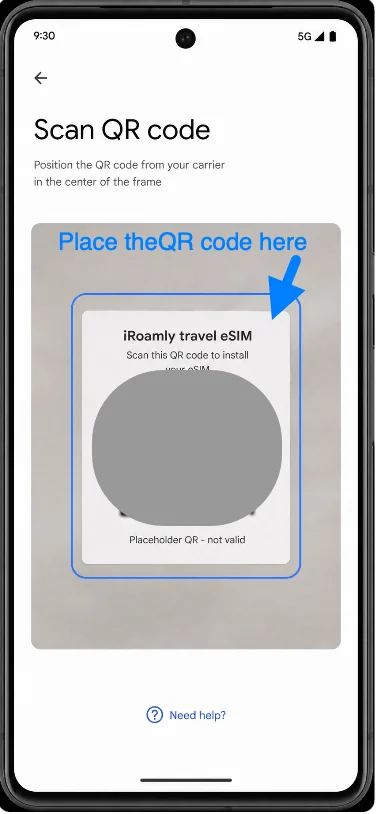
Tap Set up an eSIM. Your Pixel 7 should open the QR-code setup screen.
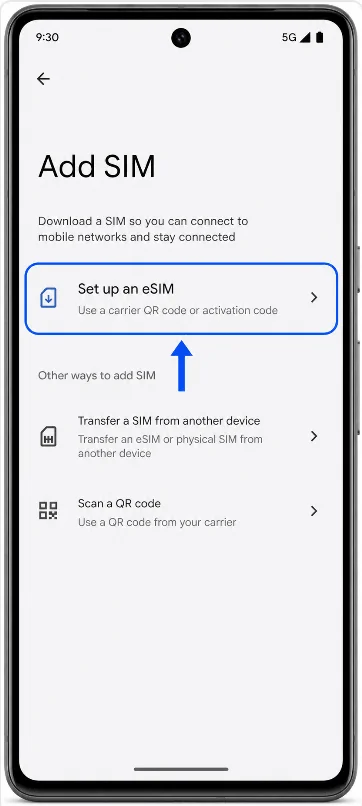
Point the Pixel 7 camera at the iRoamly QR code from your order. Keep the QR code flat, bright, and inside the scanning frame until the phone detects the eSIM.
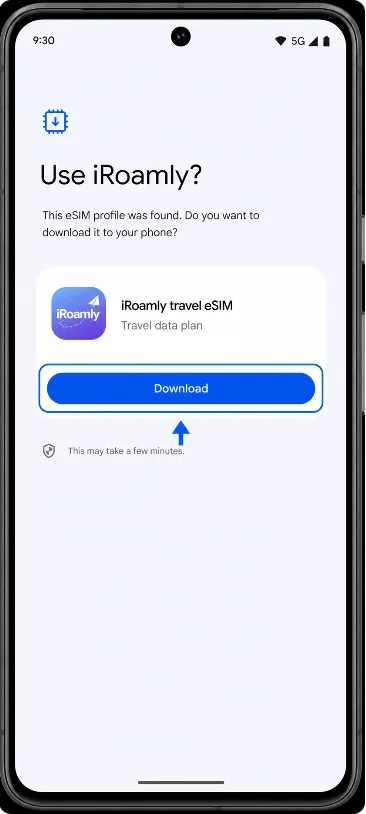
Review the detected iRoamly profile, then tap Download. Keep Wi-Fi connected and wait until the eSIM download finishes.
Method 2: Install the eSIM by Manual Entry
Open Settings, then tap Network & internet. This starts the same Pixel eSIM setup route used for QR-code installation.
Tap SIMs. The Pixel 7 should show the page where you can add or manage SIM profiles.
Tap Add SIM. If your software shows Download eSIM instead, choose it to continue with an eSIM instead of a physical SIM.
Tap Set up an eSIM. The phone should open the QR-code setup screen.
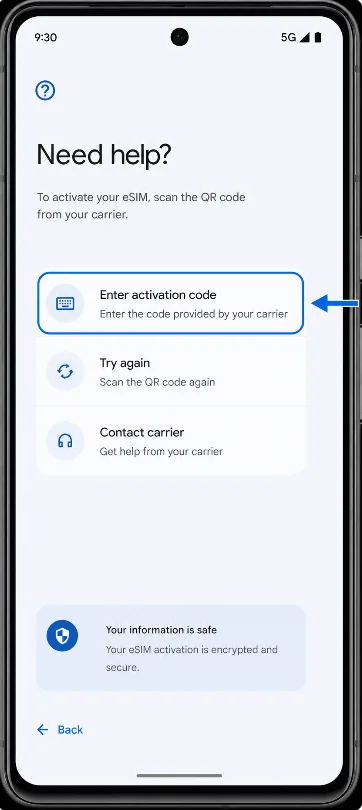
On the QR-code screen, tap Need help?, then choose Enter activation code. This opens Pixel's manual eSIM activation screen.
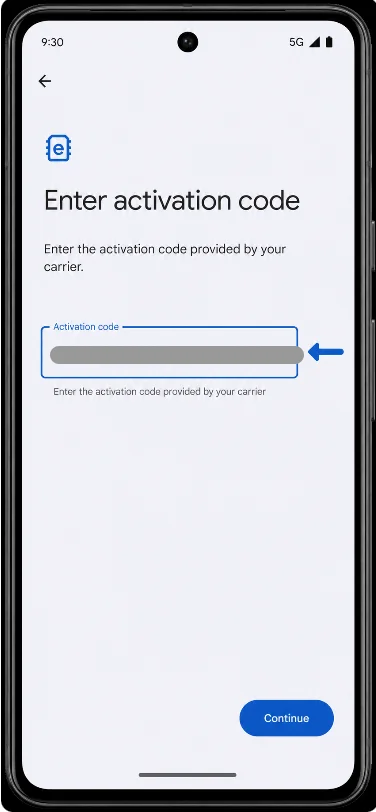
Enter the iRoamly manual activation details, then tap Continue. Pixel Android commonly uses one Activation code field; if iRoamly gives you an SM-DP+ Address and an Activation Code, enter them in the activation-code format provided by iRoamly or paste the complete code string from your order details.
Review the detected iRoamly profile, then tap Download. Keep the Pixel 7 on Wi-Fi until the eSIM finishes downloading.
How to Confirm the eSIM Was Installed
Go to Settings > Network & internet > SIMs, then look for iRoamly or iRoamly travel eSIM in the SIM list. The profile should appear as downloaded or active.
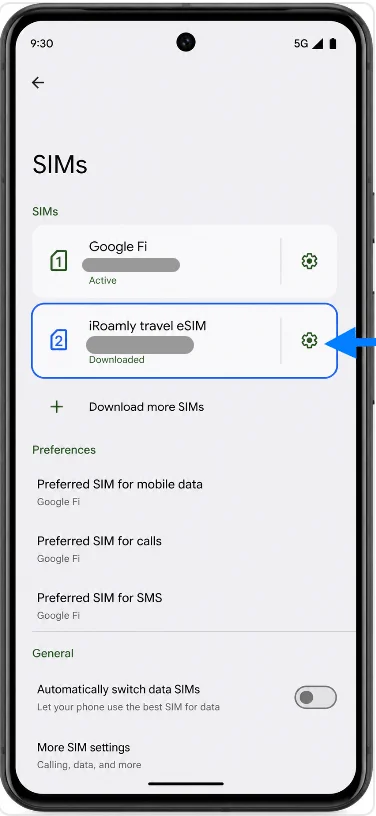
Tap the iRoamly eSIM profile and make sure Use SIM is turned on when you are ready to use the travel plan. If you are not yet at your destination, leave mobile data settings unchanged until travel day unless your iRoamly plan instructions say otherwise.
Set Up the eSIM for Mobile Data
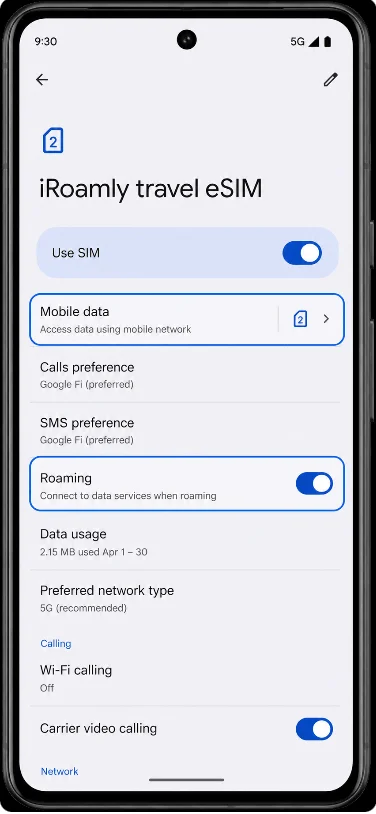
Open Settings > Network & internet > SIMs, tap iRoamly travel eSIM, and turn on Use SIM. Then tap Mobile data and choose the iRoamly line for travel data when you are ready to use the plan.
On the same iRoamly eSIM settings page, turn on Roaming if your destination plan or iRoamly instructions require data roaming. If your primary SIM is still installed, avoid switching mobile data back to the primary SIM by mistake while traveling.
Troubleshooting
If Add SIM or Set up an eSIM is missing, confirm that your Pixel 7 model supports eSIM in your region, update Android, restart the phone, and check whether the carrier or device lock blocks eSIM use.
If the QR code says it has already been used, do not delete the eSIM profile and try again repeatedly. Contact iRoamly support with your order details.
If the QR code will not scan, increase screen brightness on the device showing the QR code, clean the Pixel camera lens, or use Method 2 with manual activation.
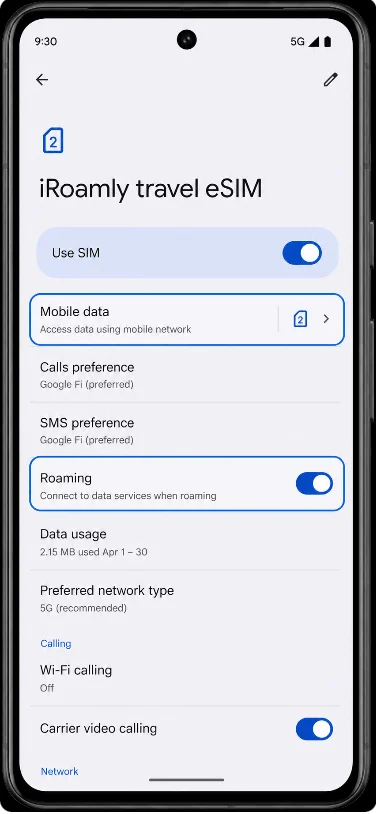
If the eSIM is installed but mobile data does not work, check that Use SIM is on for iRoamly, select iRoamly for Mobile data, enable Roaming if required, turn airplane mode on and off, and restart the phone.
If activation stays pending, stay connected to Wi-Fi and wait a few minutes. Some travel eSIMs complete activation only after reaching a supported destination network.
If calls or SMS do not work, check your iRoamly plan details. Many travel eSIM plans are data-only, so app-based calling or messaging over data may be needed.
Conclusion
Now that your iRoamly eSIM is installed, your Pixel 7 is ready for travel whenever you are. The biggest advantage of setting up early is convenience—you can take care of everything from home and avoid troubleshooting connectivity issues while on the move.
When your trip starts, simply enable the iRoamly line, use it for mobile data, and follow any roaming requirements listed in your plan. A quick check before departure can go a long way toward ensuring a seamless connection once you arrive at your destination.