
The Pixel 9 uses Google’s current Pixel Android eSIM flow, so travel eSIM setup happens from Settings > Network & internet > SIMs > Add SIM > Set up an eSIM. That path is useful for an iRoamly travel eSIM because you can install the profile over Wi-Fi before a trip, then choose when to turn the travel data line on.
This guide covers both ways to add the iRoamly eSIM on a Pixel 9: scanning the QR code and entering the manual activation code. The QR code method is usually the cleanest if you can show the code on another screen. Manual entry is the backup for times when the QR code is on the same phone, the scanner cannot read it, or you prefer to paste the activation string from your iRoamly order details.
The screenshots assume a Pixel 9 with English Pixel Android 15 menus. Region, carrier firmware, or Android updates can slightly change labels, but the verified Pixel path uses Network & internet, SIMs, Add SIM, and Set up an eSIM.
Preparations Before Setting Up iRomly eSIM
Connect the Pixel 9 to stable Wi-Fi before installing the iRoamly travel eSIM.
Confirm the phone is unlocked and eSIM-capable. If Add SIM or Set up an eSIM is missing, check the device region, carrier lock status, and Android update status.
Keep the iRoamly QR code or manual activation details ready from your iRoamly account or purchase email.
Install the iRoamly eSIM about 1-2 days before your trip when the plan allows it, but avoid turning on travel data too early.
iRoamly eSIM validity starts from activation. iRoamly’s setup guidance says activating travel data too early can consume plan validity, so check your specific plan for the exact activation trigger before you switch the travel line on.
iRoamly eSIM plans may not include voice calls or SMS. Voice/SMS support varies by plan, so check the plan details instead of assuming calls or texts are included.
Do not delete the iRoamly eSIM casually after installation. Many eSIM profiles cannot simply be reinstalled from the same QR code without support.
Shared Setup Steps
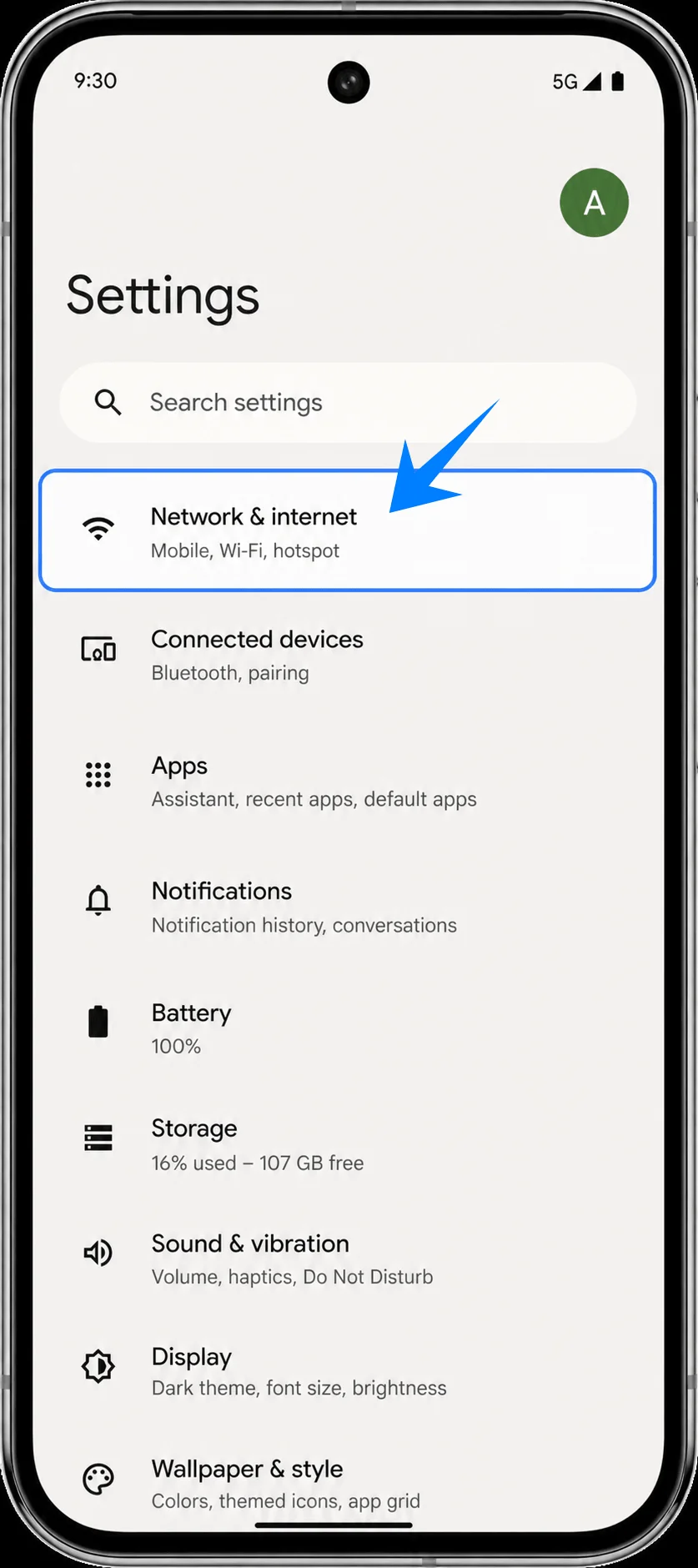
Open Settings on the Pixel 9 and tap Network & internet. You should see the network settings page with Internet, SIMs, and other connectivity options.
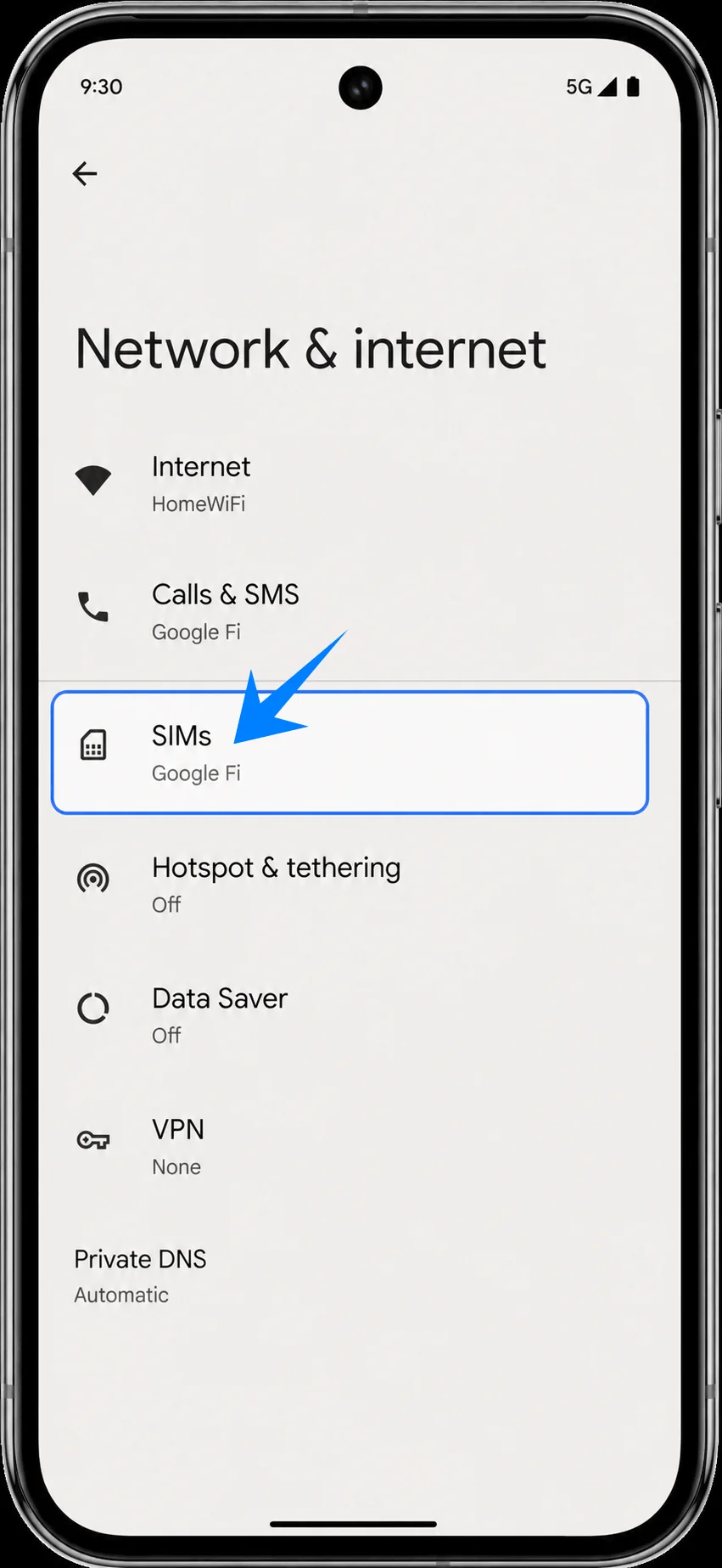
Tap SIMs on the Network & internet screen. You should see the SIMs page where your current line and SIM preferences are managed.
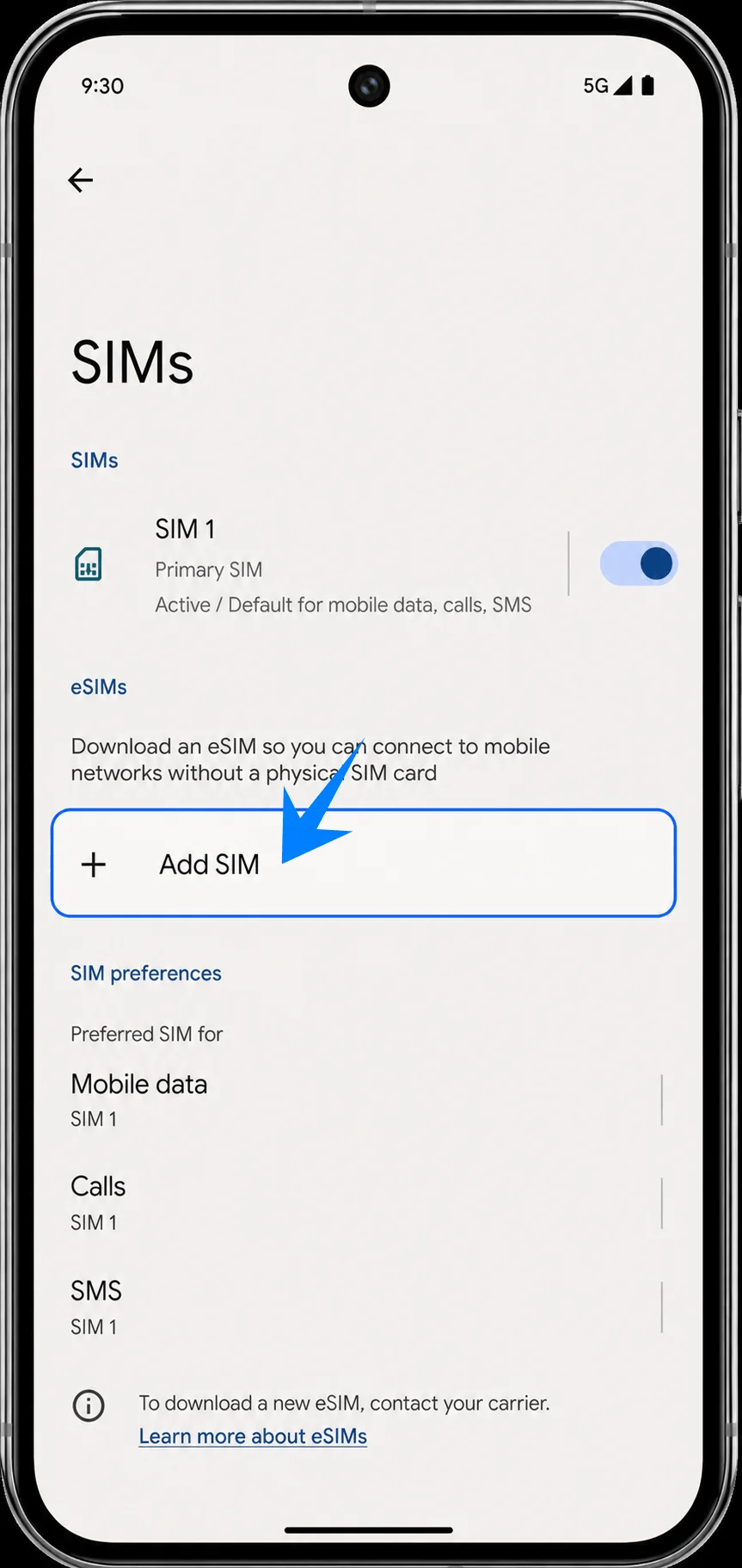
Tap Add SIM on the SIMs screen. The Pixel 9 should open the add-SIM flow for downloading an eSIM.
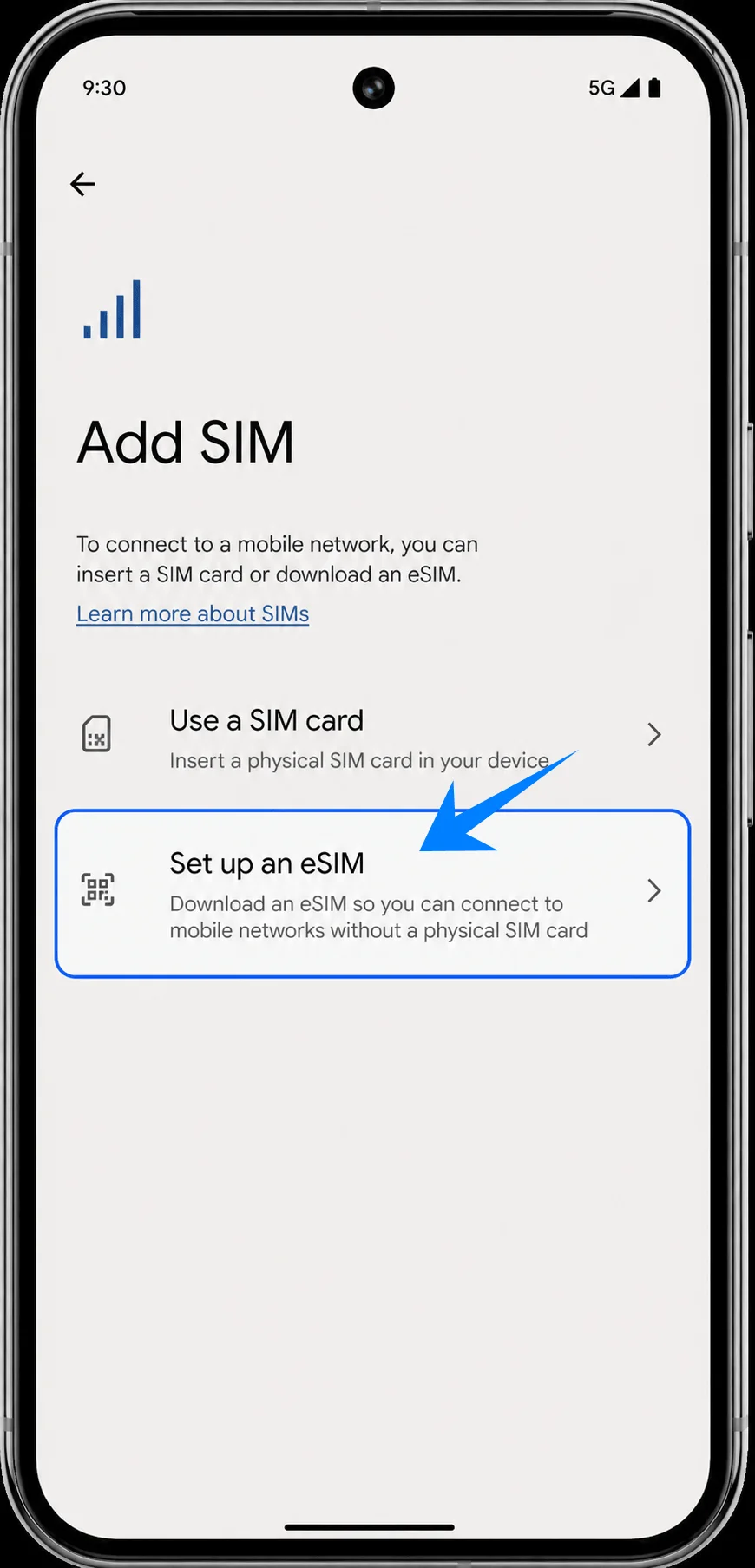
Tap Set up an eSIM. The phone should continue to the eSIM setup screen where you can scan a QR code or choose manual activation.
Method 1: Install the iRoamly eSIM by Scanning a QR Code
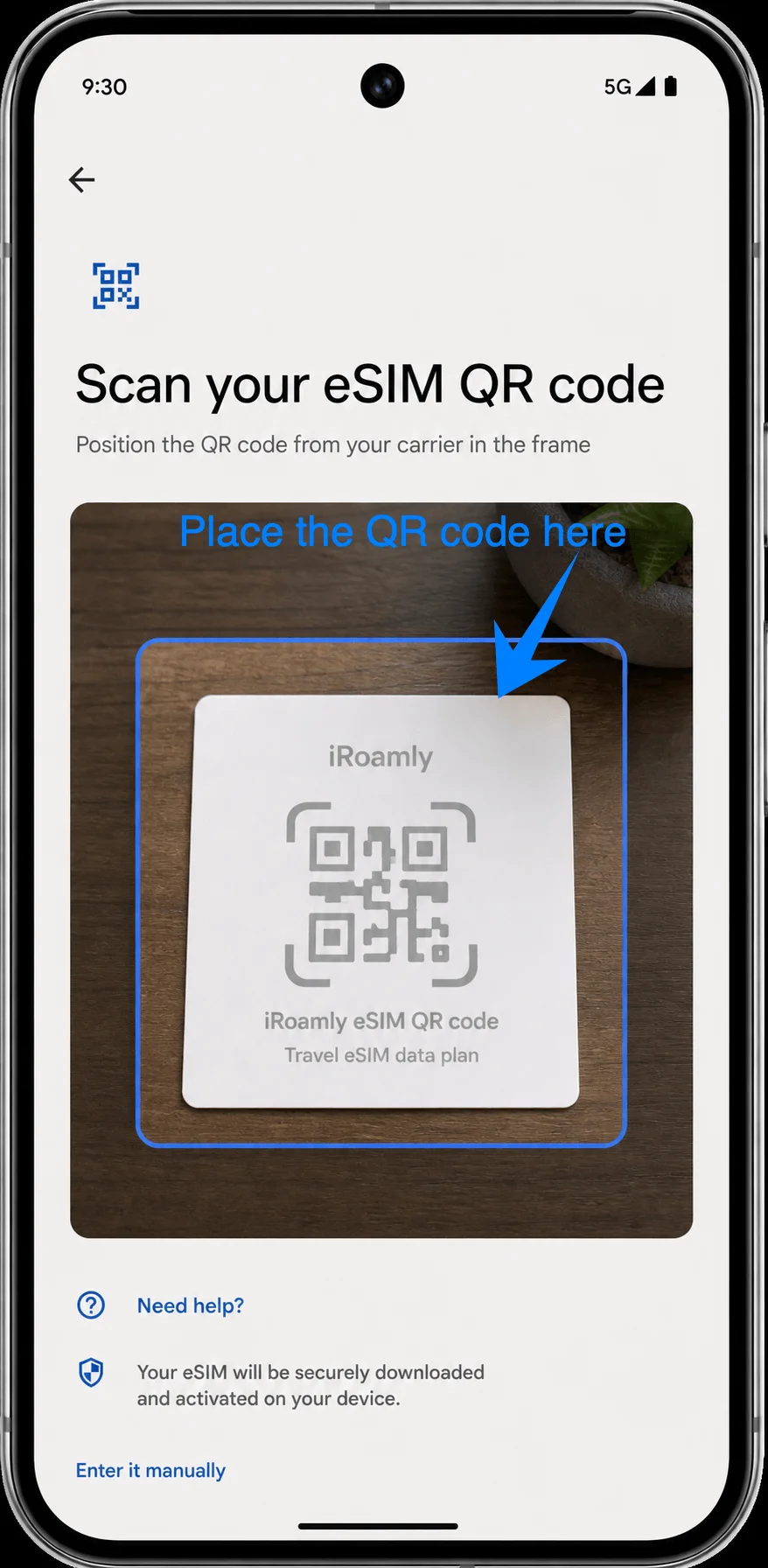
On the QR setup screen, point the Pixel 9 scanner at the iRoamly QR code from your purchase email or iRoamly account. Keep the code inside the scan frame until the phone recognizes the eSIM profile.
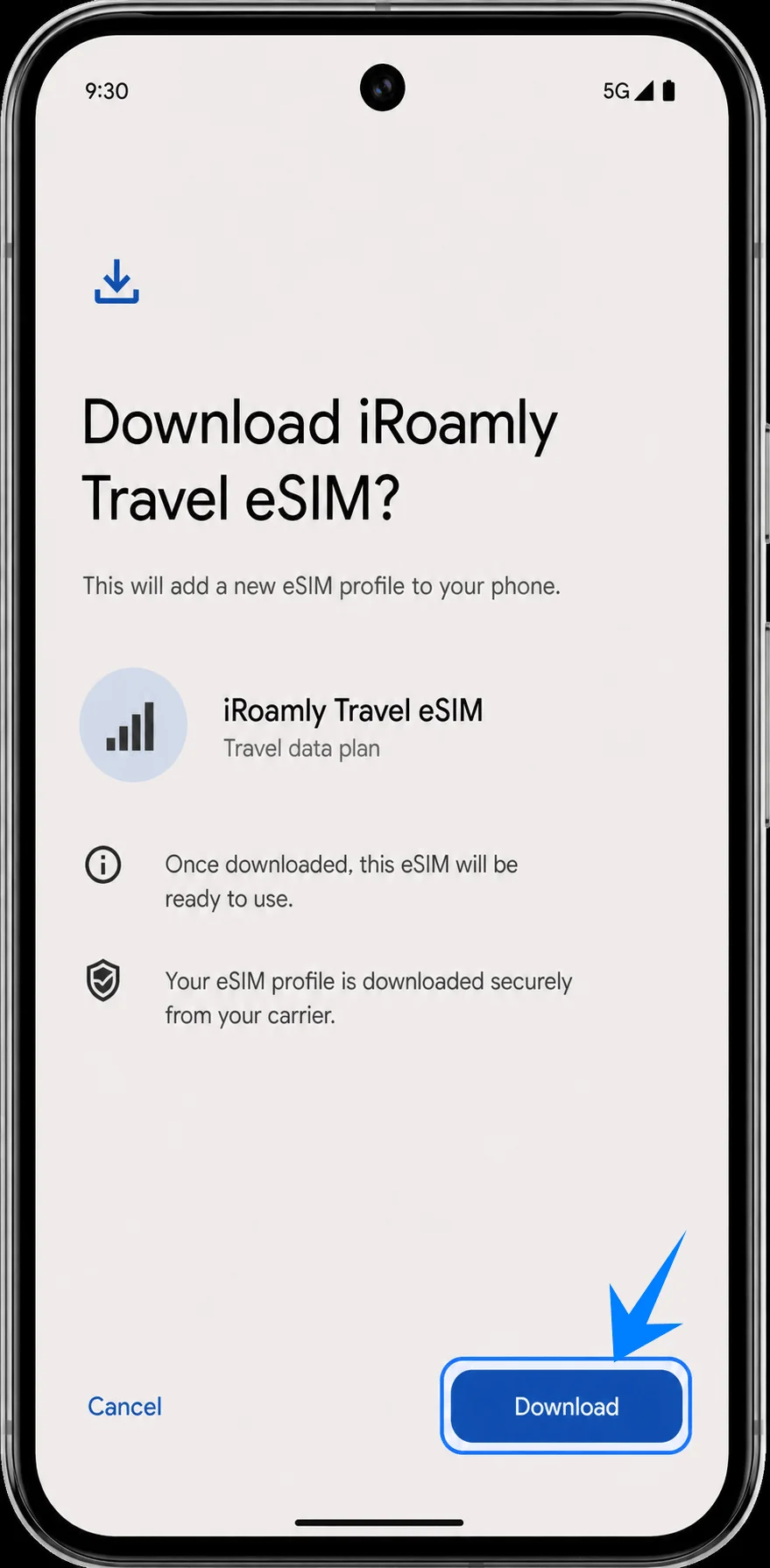
Review the detected iRoamly Travel eSIM profile and tap Download. The Pixel 9 should begin adding the iRoamly travel eSIM to the phone.
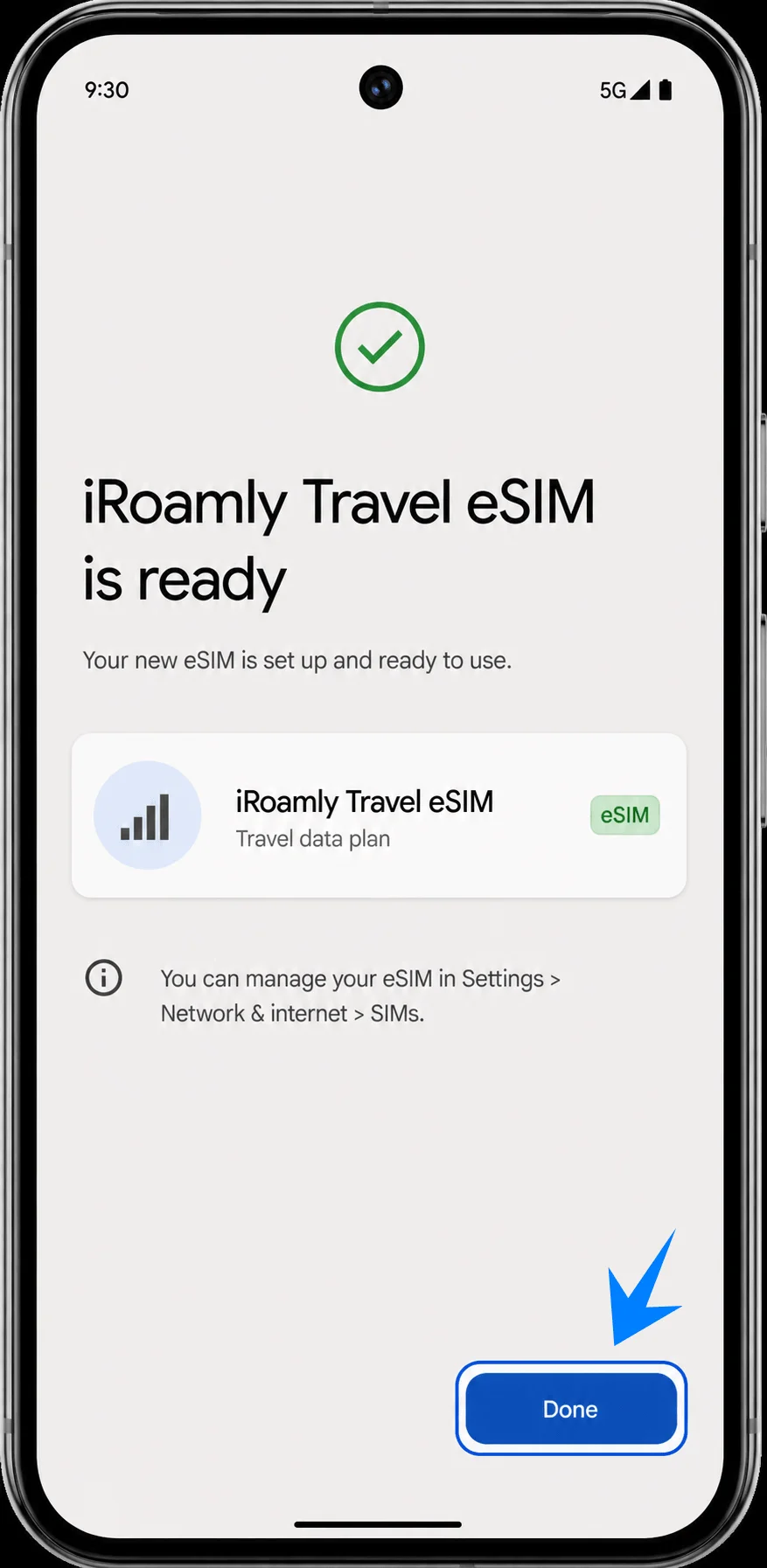
Wait for the eSIM download to finish, then tap Done when the phone shows that the iRoamly eSIM is ready.
Method 2: Install the iRoamly eSIM by Manual Entry
Open Settings, tap Network & internet, tap SIMs, tap Add SIM, tap Set up an eSIM, then use the manual option on the QR setup screen. If Android shows Need help?, tap it and choose the option to enter the code manually.
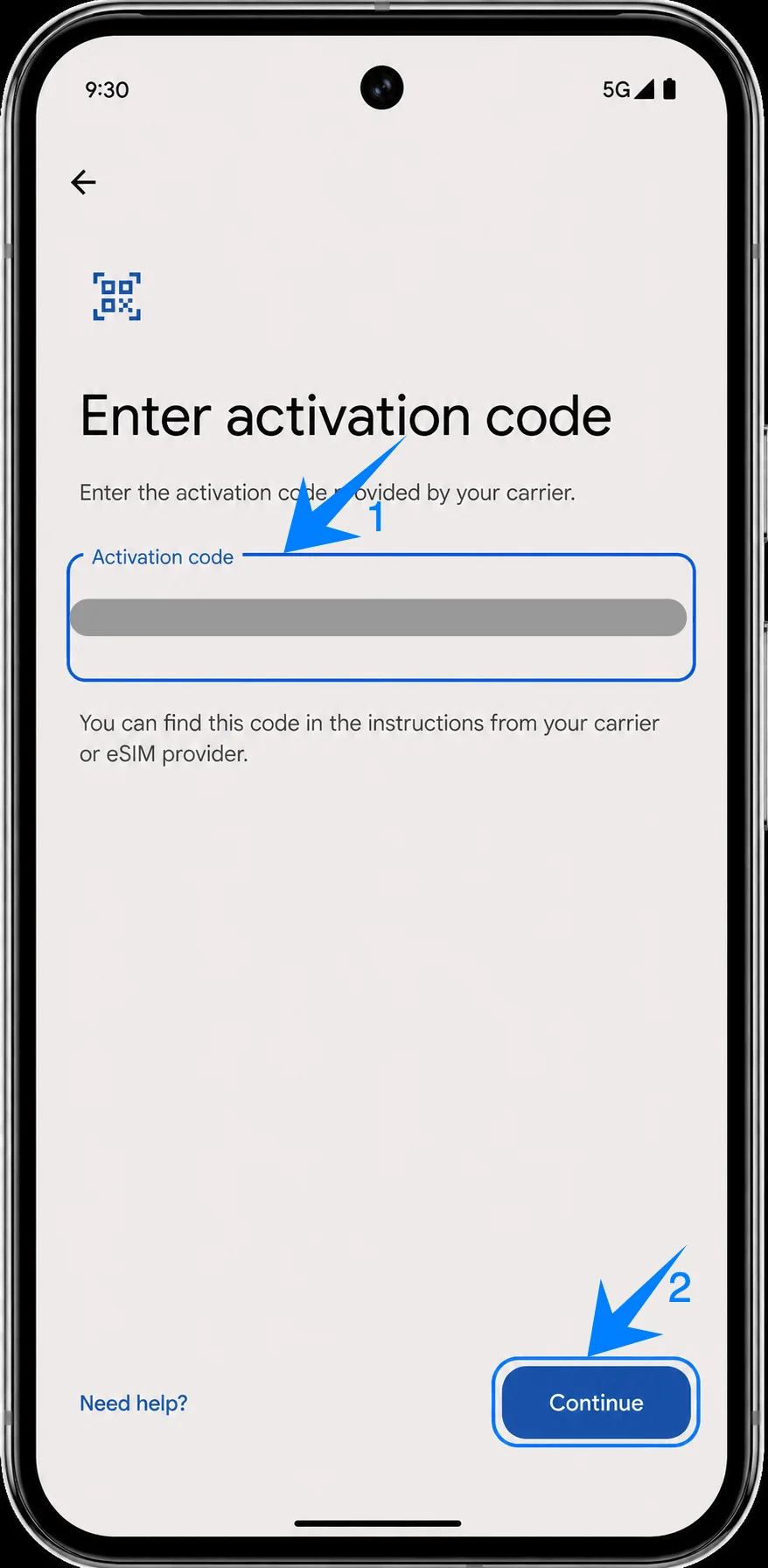
Enter the complete activation code string in the single Activation code field, then tap Continue. If iRoamly lists separate values, combine them in Pixel’s activation-code format, such as LPA:1$SM-DP+ Address$Activation Code, using the exact details from your iRoamly account or email.
Review the detected iRoamly Travel eSIM profile and tap Download. The Pixel 9 should start downloading the same iRoamly travel eSIM profile you would have added with the QR code.
Wait for the installation to complete, then tap Done when the Pixel 9 shows the iRoamly eSIM is ready.
How to Confirm the iRoamly eSIM Was Installed
Open Settings, tap Network & internet, then tap SIMs. Confirm that iRoamly Travel eSIM appears as an available SIM or eSIM profile on the SIMs page.
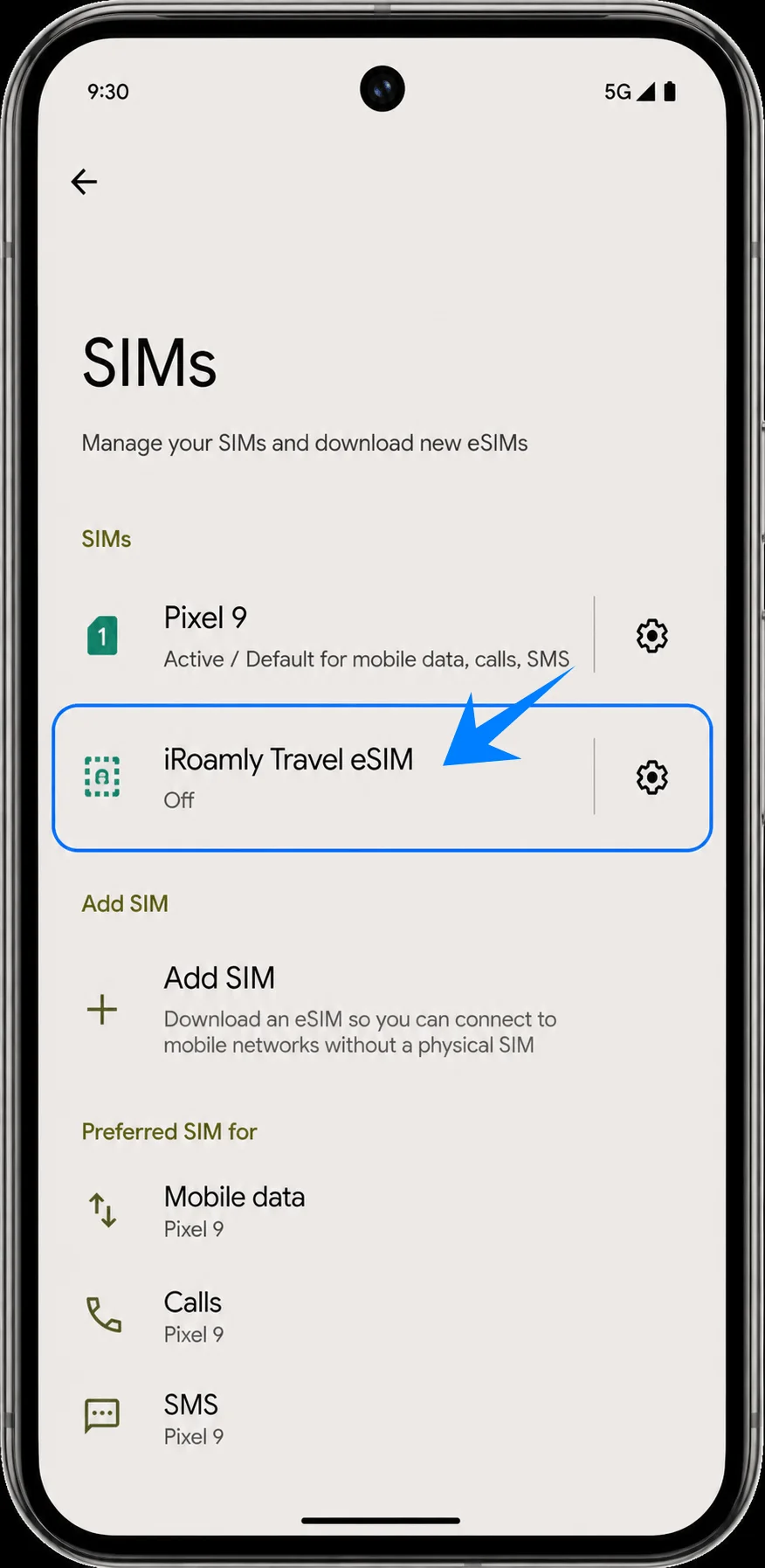
Tap the iRoamly Travel eSIM entry and confirm that Use SIM is available. Turn it on when you are ready to use the travel eSIM; if you are still at home, keep the profile installed but avoid using travel data until the trip begins.
Set Up the iRoamly eSIM for Travel Data
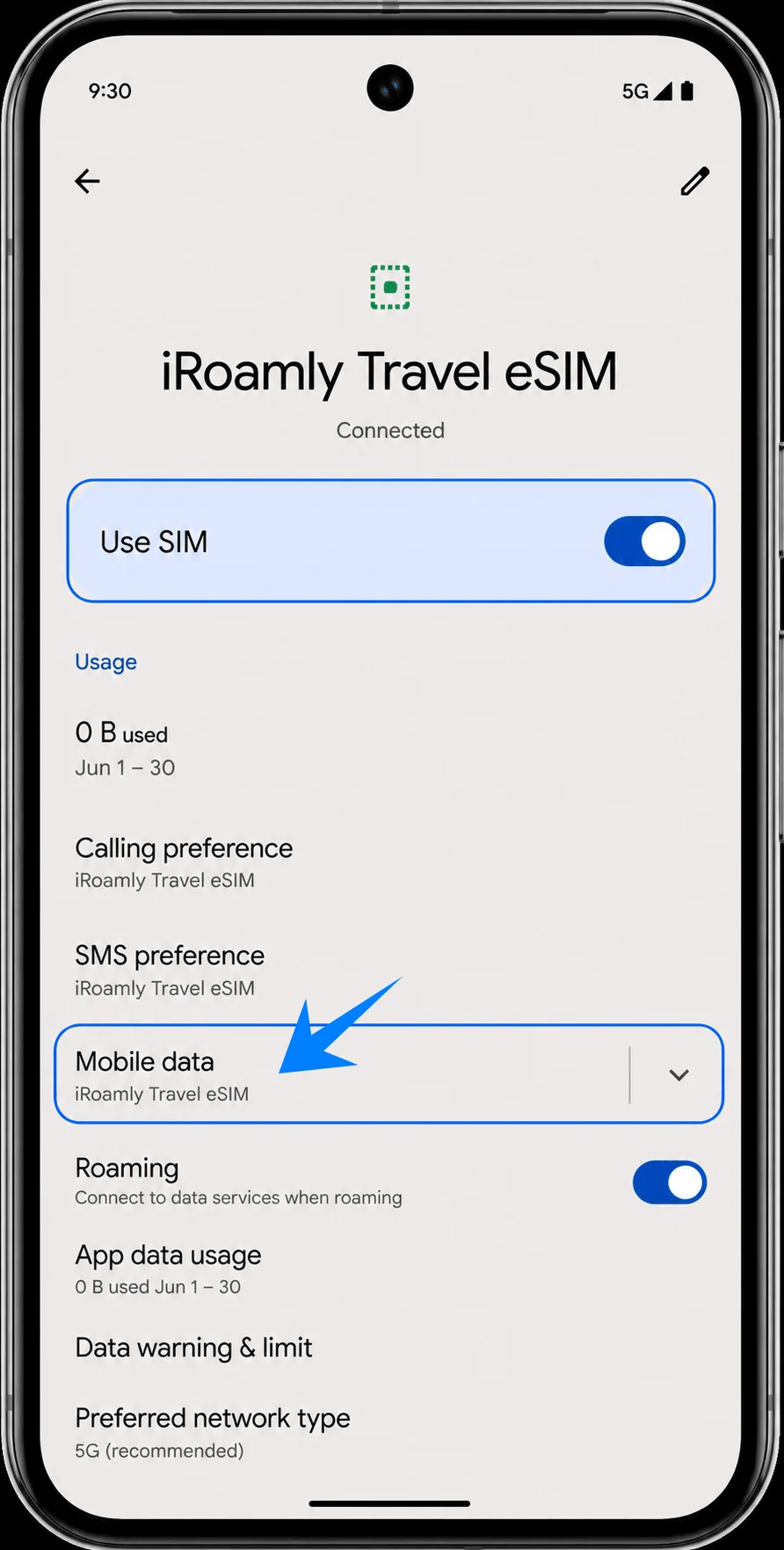
Open Settings > Network & internet > SIMs, tap iRoamly Travel eSIM, then turn on Use SIM. Set Mobile data or the mobile data preference to iRoamly Travel eSIM when you want the Pixel 9 to use the travel plan for cellular data.
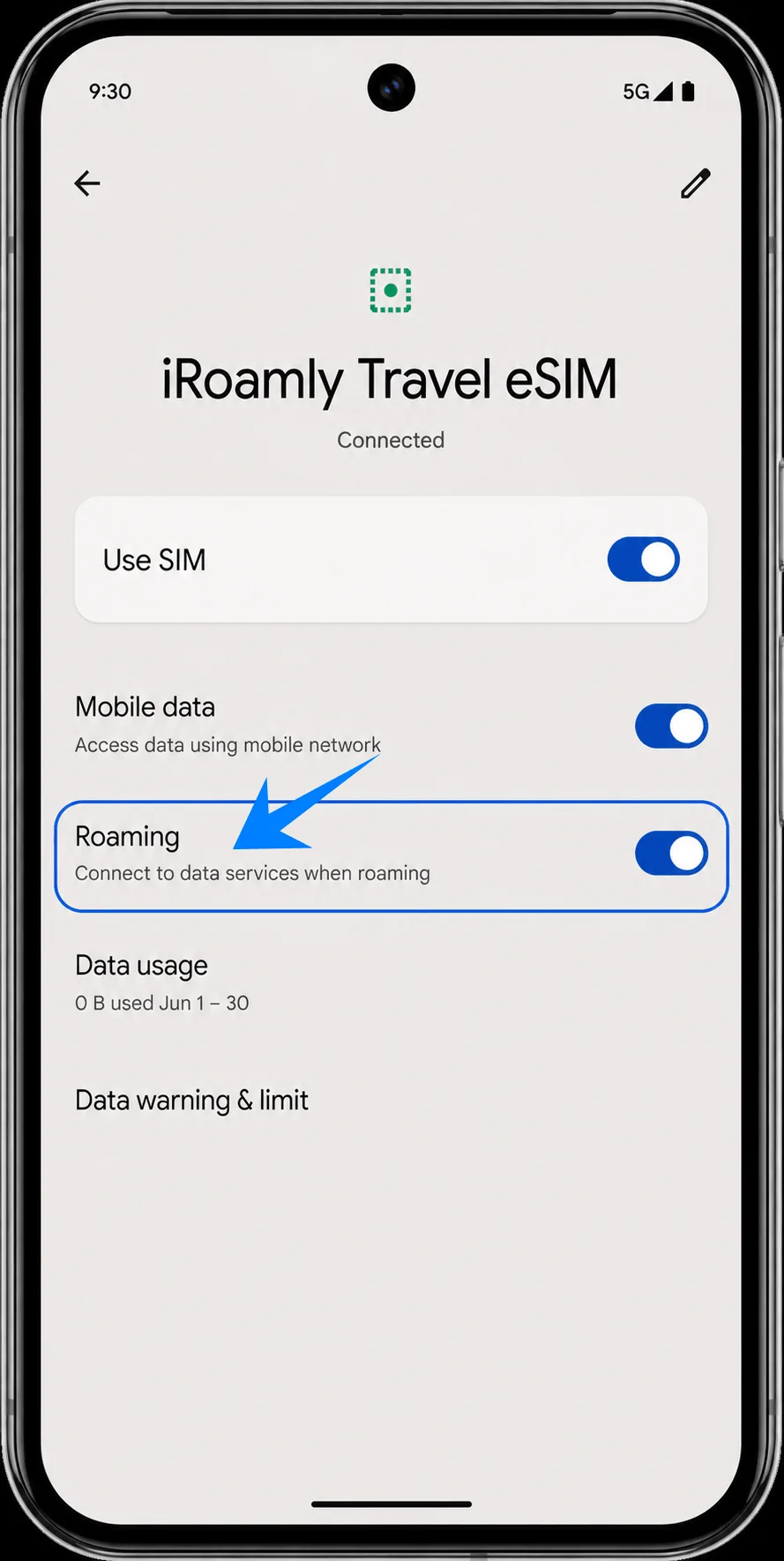
On the iRoamly Travel eSIM detail page, turn on Roaming when your destination plan requires roaming. Leave calls and texts on your primary SIM unless your iRoamly plan specifically includes voice or SMS.
Troubleshooting
If Add SIM or Set up an eSIM is missing, confirm the Pixel 9 is unlocked, updated, and eSIM-enabled for your region and carrier firmware. Also check whether the phone shows an EID in device information.
If the QR code does not scan, use the manual method and enter the complete iRoamly activation code string in Pixel’s Activation code field.
If the QR code says it has already been used, do not delete and retry repeatedly. Contact iRoamly support because many eSIM QR codes are single-use.
If the eSIM installs but has no data, choose iRoamly Travel eSIM for mobile data, turn on Roaming if required, restart the phone, and confirm the plan covers your current destination.
If activation stays pending, keep Wi-Fi connected, wait a few minutes, restart the Pixel 9, and check that the iRoamly plan is within its valid activation window.
If calls or SMS do not work, check the exact iRoamly plan details. Many travel eSIM plans are data-only, and voice/SMS availability varies by plan.
If you are not ready to use the plan, disable the iRoamly line instead of deleting it. Deleting an eSIM can prevent reuse of the same QR code or activation details.
Conclusion
With your iRoamly eSIM installed on the Pixel 9, you're one step closer to a smoother travel experience. Setting up the eSIM before you leave means you can avoid dealing with SIM card purchases, activation steps, or connectivity issues after arrival. When your trip begins, simply enable the iRoamly line, select it for mobile data, and make sure roaming is turned on if your plan requires it.
Before departure, it's also worth checking your plan's activation rules and included services so there are no surprises once you're abroad. With everything prepared in advance, you can focus more on your trip and less on finding a connection.