
The Pixel 10 Pro Fold is a foldable phone, but eSIM setup is still easiest to follow on the closed cover display.
The cover screen uses the same portrait Settings flow travelers are most likely to use while installing an iRoamly travel eSIM before a trip, so this guide shows the phone closed rather than in the wider unfolded tablet layout.
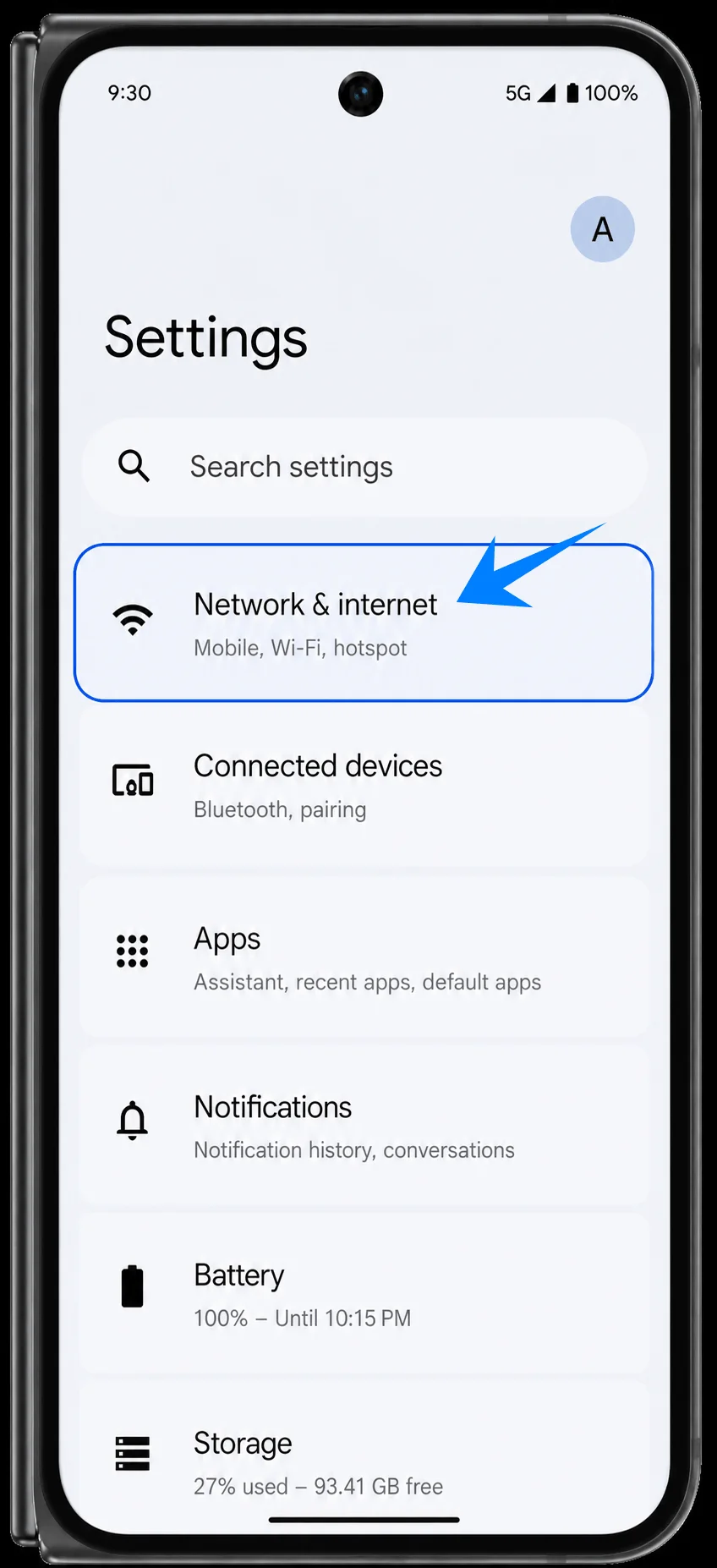
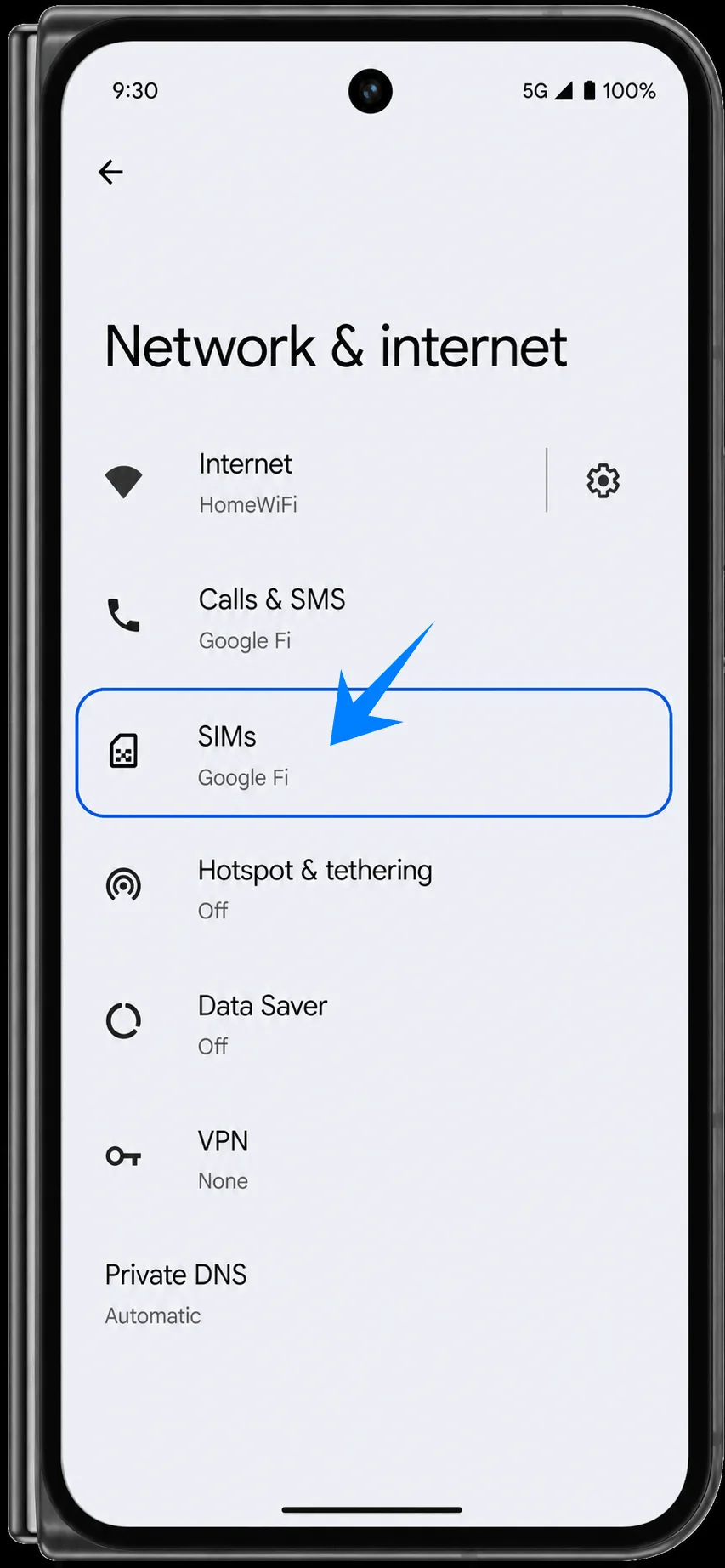
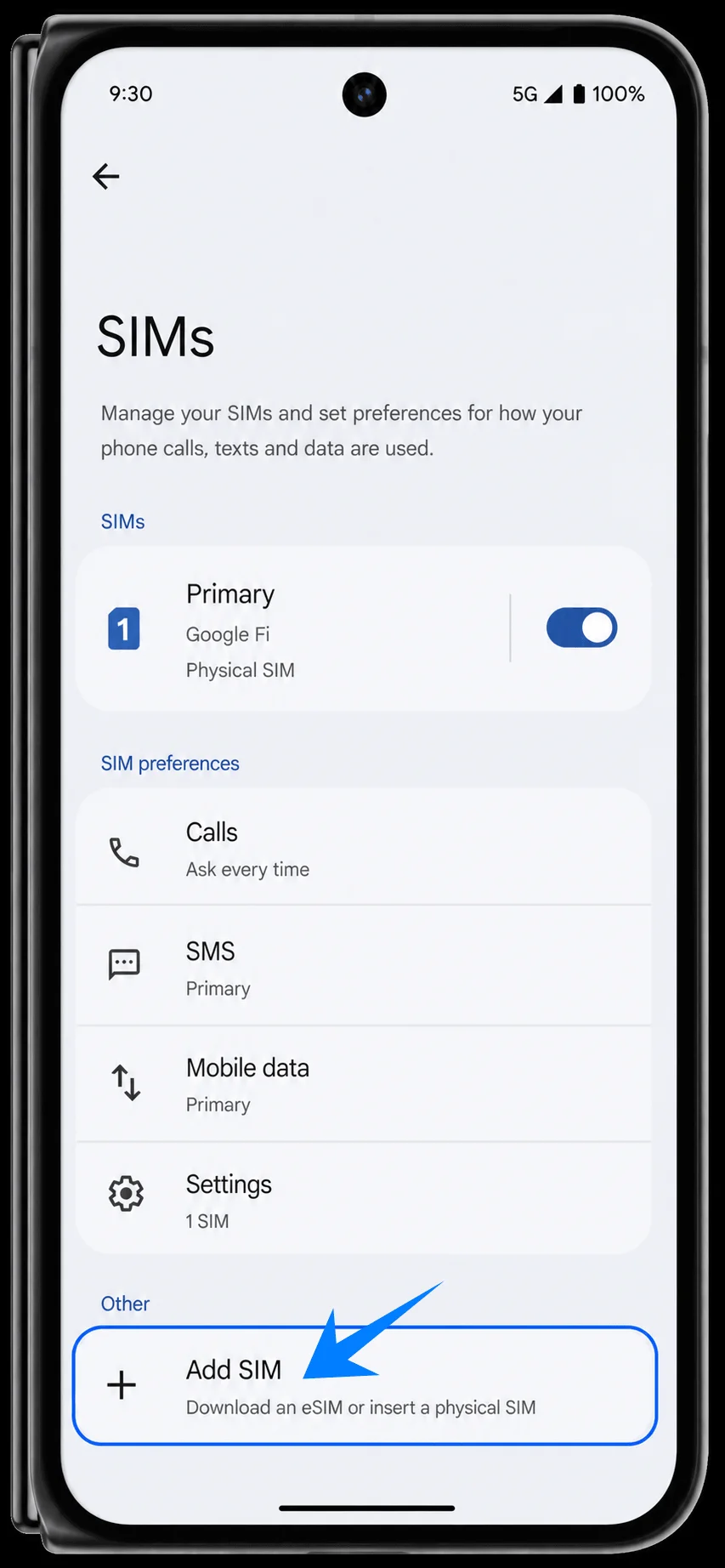
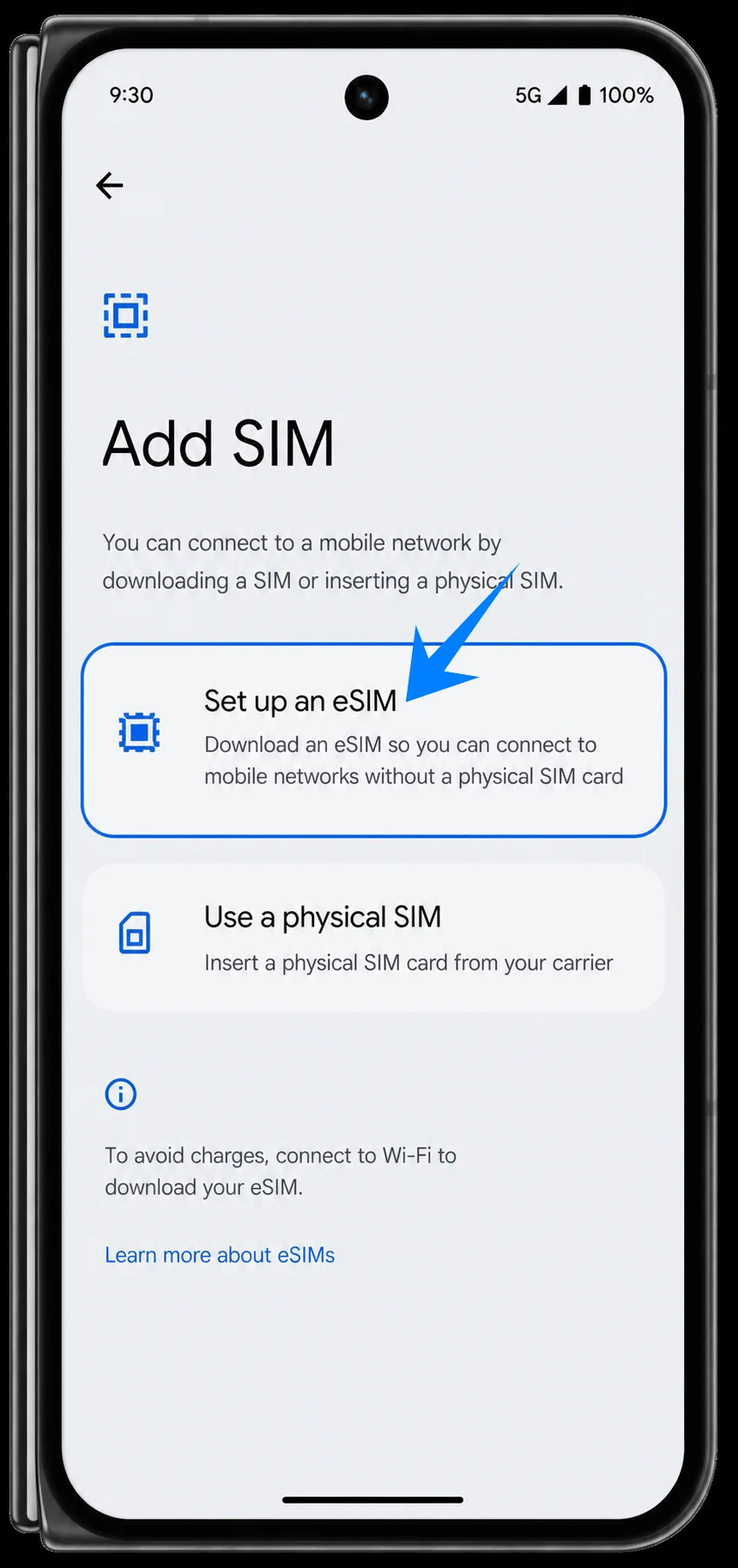
On Pixel Android 16, the setup path is Settings > Network & internet > SIMs > Add SIM > Set up an eSIM. From there, you can either scan the iRoamly QR code or use the manual option from the QR screen.
The QR method is usually fastest when you have your iRoamly code on another screen or printed copy. Manual entry is useful when the QR code will not scan, when you are copying details from your iRoamly account, or when you need to install while looking at the code on the same phone.

Travel with Mobile Data from iRoamly
iRoamly Travel eSIM is a travel eSIM service for mobile data in destinations worldwide. Depending on where you are going, available choices may include destination plans, regional plans, or global coverage, with data allowances, validity, and plan features varying by destination.
Once installed on a compatible phone, the mobile data line can support maps, messaging, bookings, translations, and travel updates abroad.
For a Pixel 10 Pro Fold that supports eSIM, an iRoamly plan can be installed through Pixel Android settings and selected for travel data without replacing your primary SIM. The existing steps below continue with the shared setup path, then show the QR-code and manual-entry methods.
Preparations Before Setting Up iRoamly eSIM
Connect the Pixel 10 Pro Fold to stable Wi-Fi before starting the eSIM download. If Spain is your next destination, you can prepare the travel eSIM in advance and have the profile installed before you leave.
Make sure the phone is unlocked and eSIM-capable. Some regional or carrier variants may limit eSIM availability.
Keep your iRoamly QR code or manual activation details ready. Do not share them publicly.
Install the travel eSIM 1-2 days before travel when the plan allows it, but do not casually delete it after installation. Many eSIMs cannot simply be reinstalled after removal.
iRoamly eSIM validity starts from activation. Check the exact plan details for what triggers activation before installing or using the plan.
iRoamly travel eSIM plans may not include voice calls or SMS. Voice/SMS availability varies by plan, so confirm the specific plan details before travel.
Shared Setup Steps
Open Settings, then tap Network & internet. You should see the network settings menu for internet, calls, SIMs, and hotspot options.
Tap SIMs. You should see the SIM settings page with your current SIM profile and SIM preferences.
Tap Add SIM. The phone will start the flow for adding either a downloaded eSIM or a physical SIM.
Tap Set up an eSIM. The Pixel will move to the eSIM setup flow and prepare to scan or enter activation details.
Method 1: Install the iRoamly eSIM by Scanning a QR Code
On the Scan QR code screen, point the Pixel 10 Pro Fold camera at the iRoamly QR code from your iRoamly email or account page. Keep the code flat and fully inside the scanner area until the phone recognizes it.
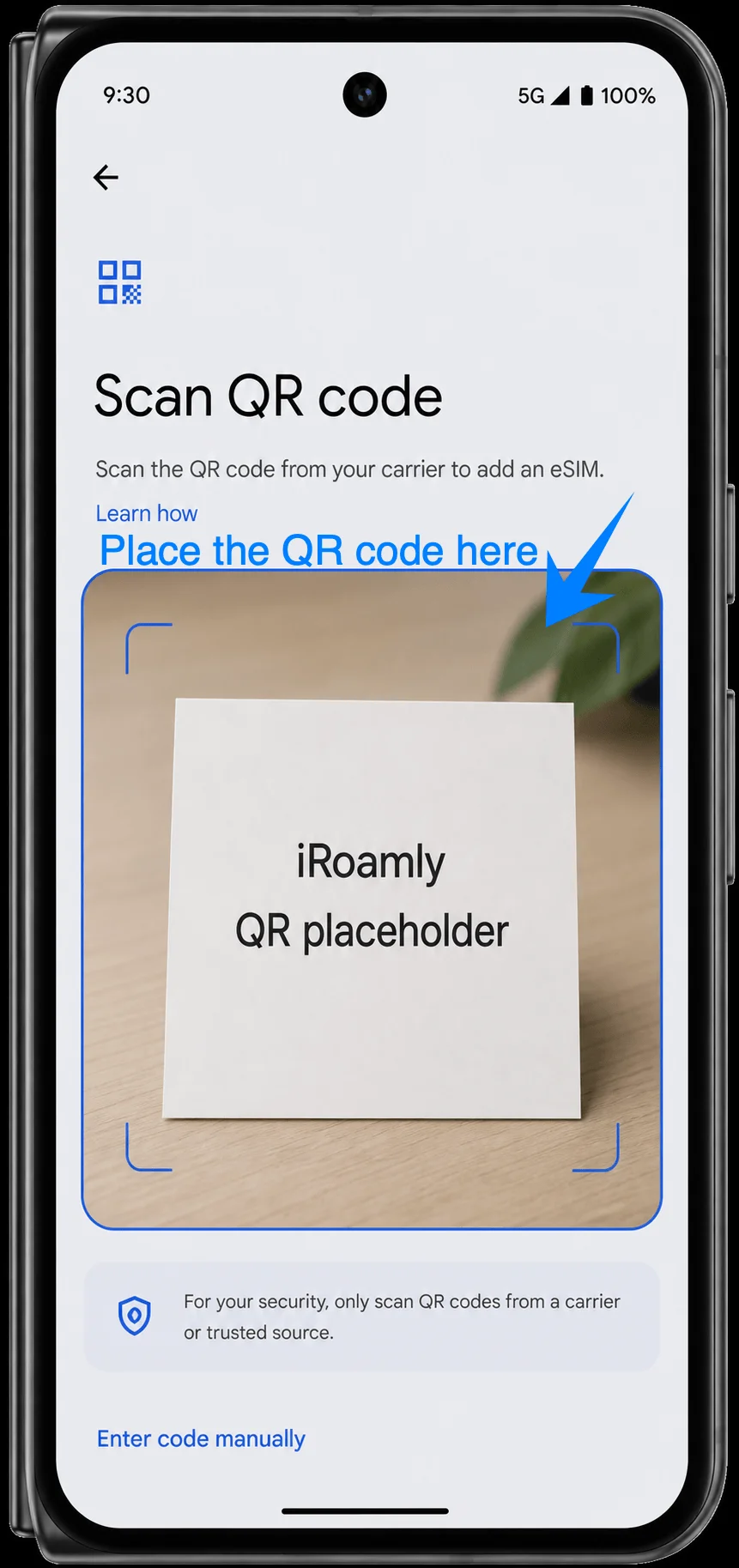
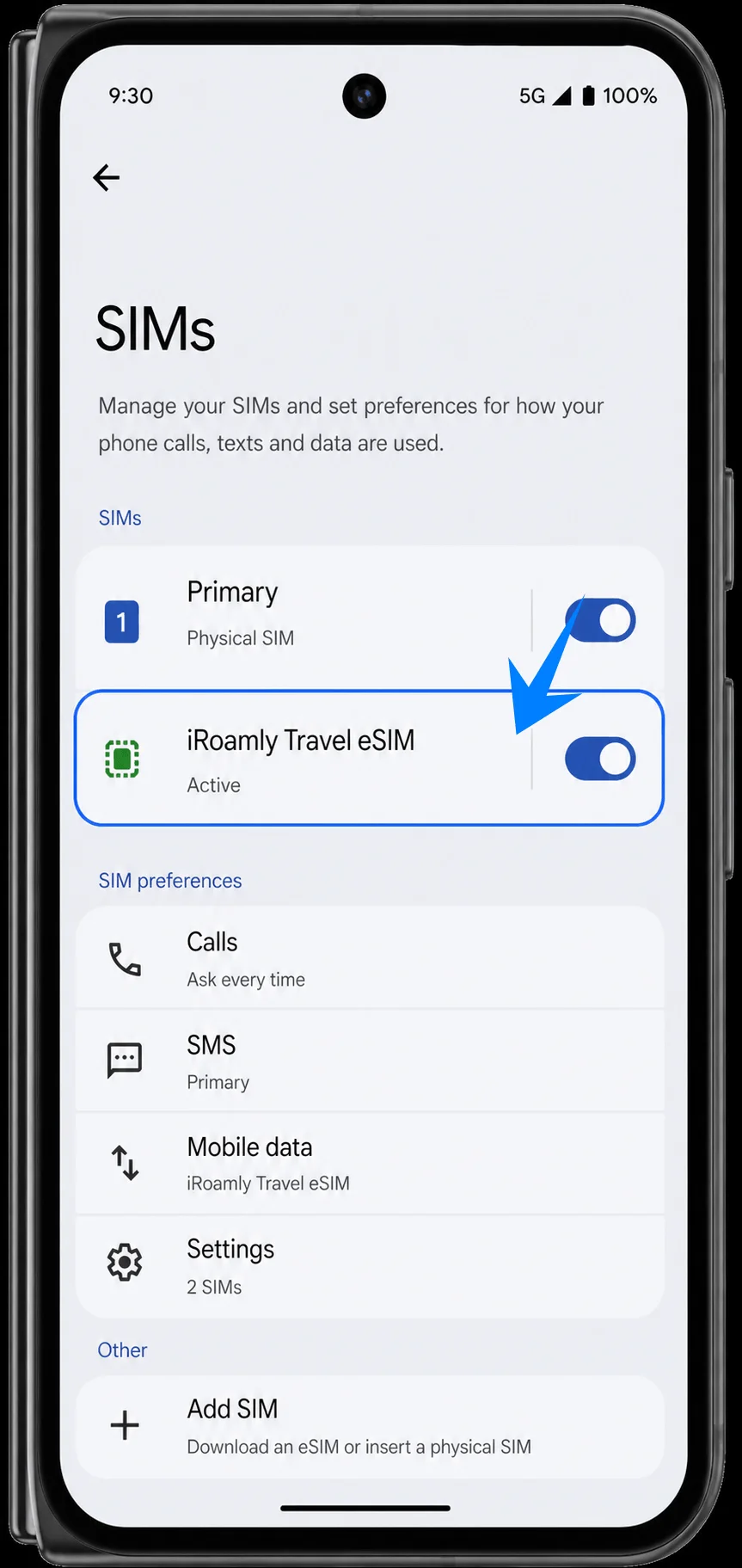
Tap the on-screen download or confirmation button when the Pixel shows the detected eSIM plan. Keep Wi-Fi connected until the download finishes, then return to Settings > Network & internet > SIMs and confirm that iRoamly Travel eSIM appears.
Method 2: Install the iRoamly eSIM by Manual Entry
Follow the same setup path: open Settings, tap Network & internet, tap SIMs, tap Add SIM, then tap Set up an eSIM. When the QR scanner appears, tap Enter code manually.
In the single Activation code field, enter the full iRoamly activation string, then tap Continue. Pixel's manual page uses one full activation code field; if your iRoamly details are shown as separate values, combine them in the format LPA:1$SM-DP+ address$Activation code unless iRoamly gives you a ready-made full code.
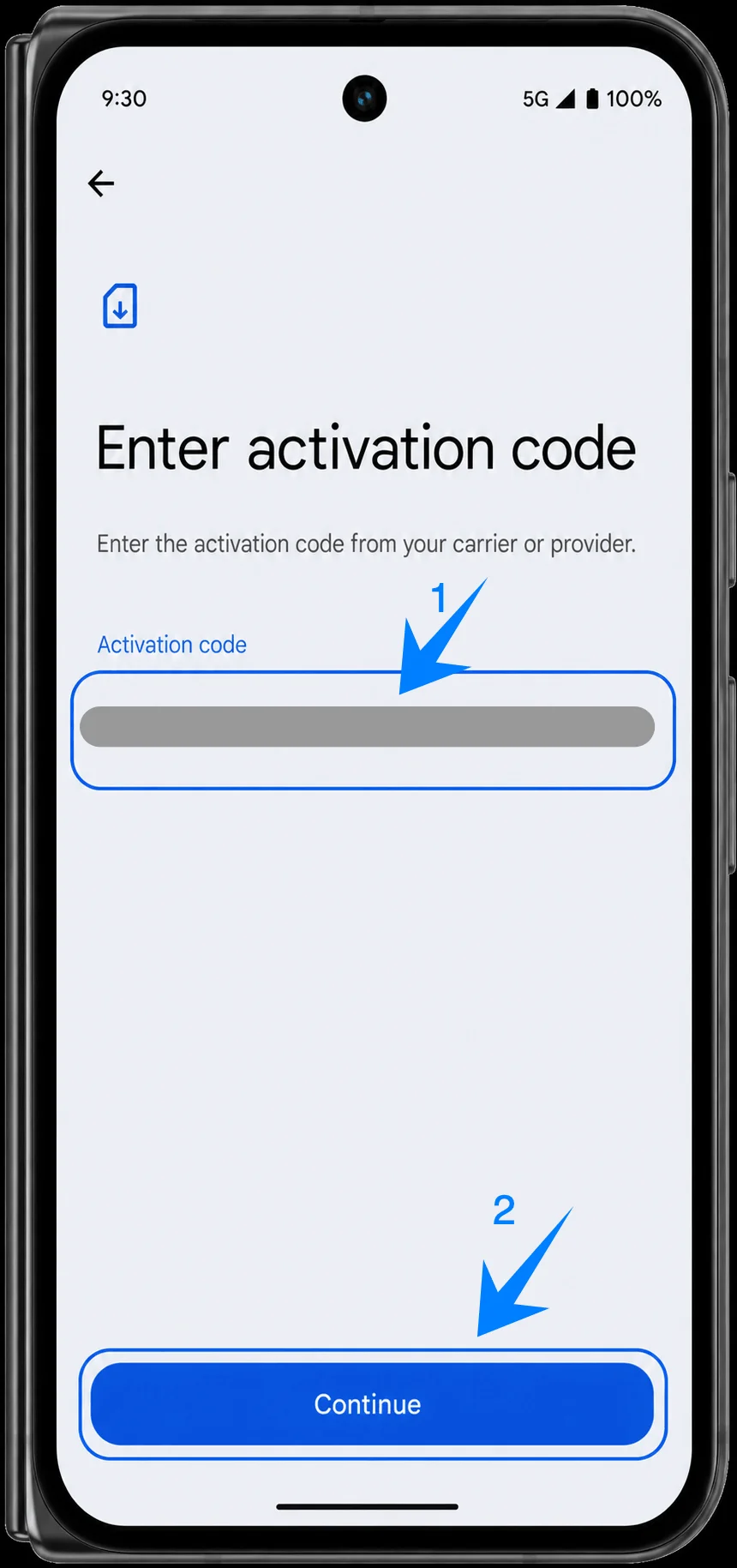
Review the detected iRoamly plan, tap the download or confirmation button, and keep Wi-Fi connected until setup finishes. Return to Settings > Network & internet > SIMs and confirm that iRoamly Travel eSIM appears in the SIM list.
How to Confirm the iRoamly eSIM Was Installed
Open Settings > Network & internet > SIMs and look for iRoamly Travel eSIM. The eSIM should appear as an available or active SIM profile, separate from your primary SIM.
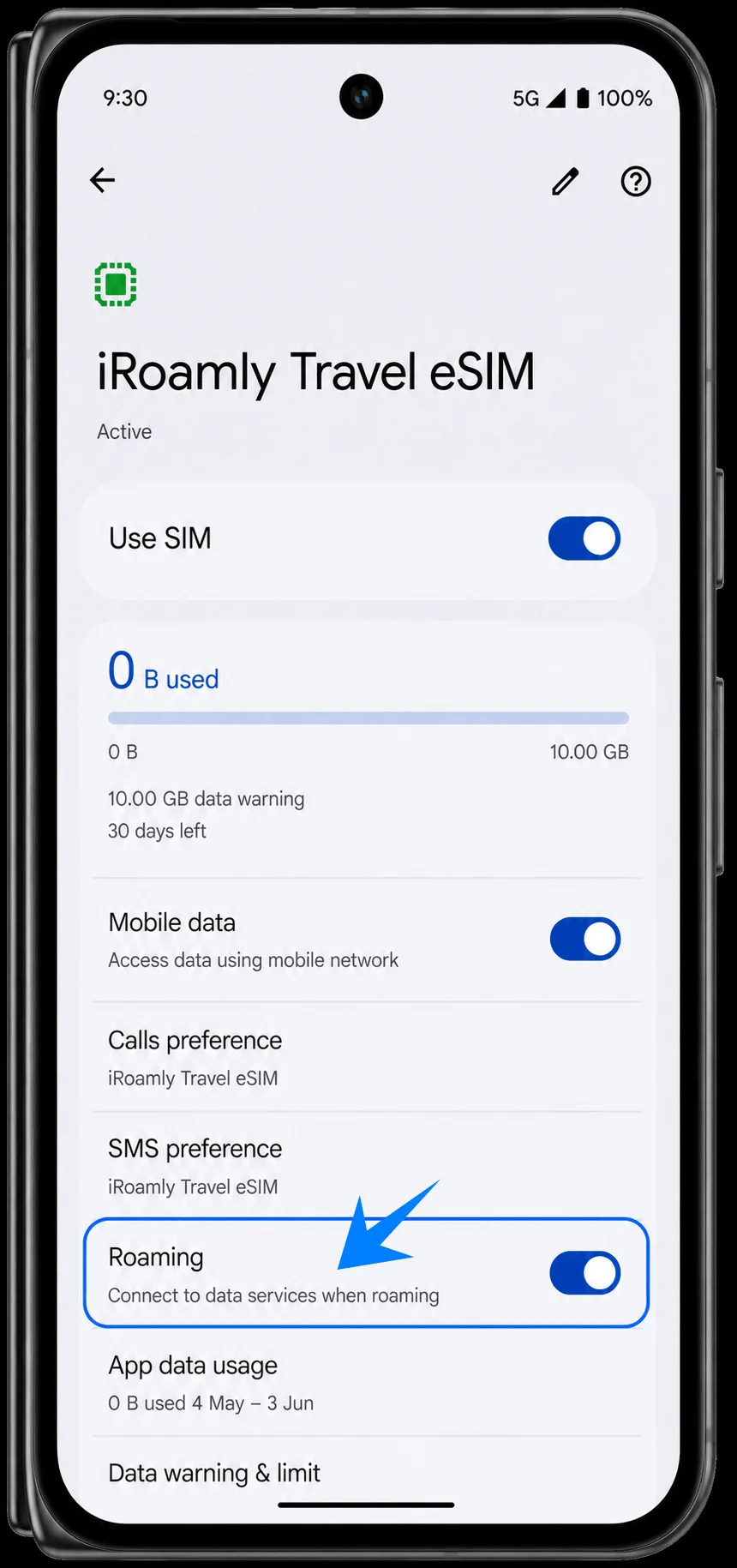
Set Up the iRoamly eSIM for Travel Data
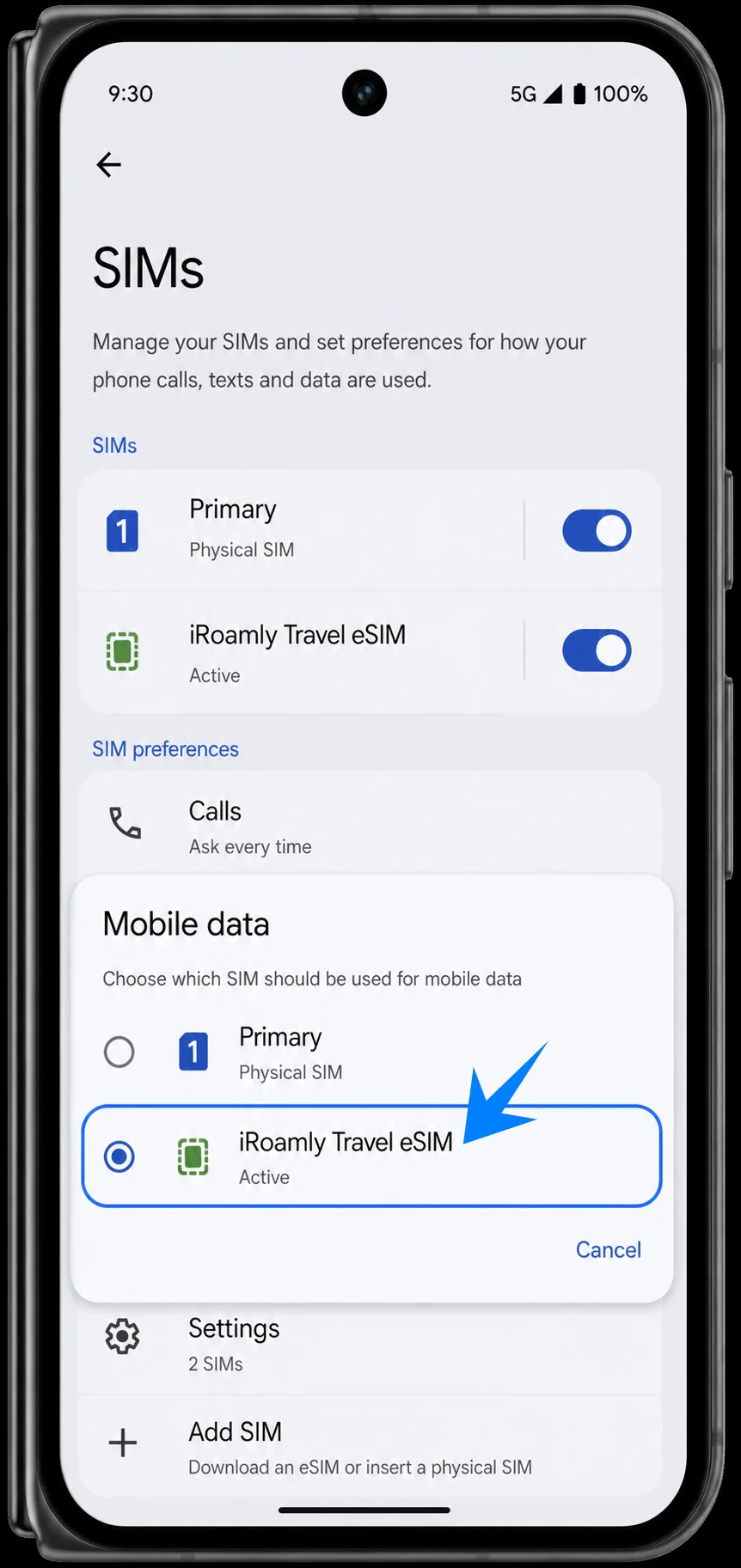
In Settings > Network & internet > SIMs, open Mobile data or the mobile data preference, then choose iRoamly Travel eSIM for data. This helps prevent the phone from using your primary SIM for travel data.
Open the iRoamly Travel eSIM detail page and turn on Use SIM. Turn on Roaming if your iRoamly plan or destination instructions require it. Leave calls and SMS on your primary SIM unless your iRoamly plan explicitly supports those services.
Troubleshooting
If you do not see Add SIM, update Android, confirm the phone is unlocked, check that the model variant supports eSIM, and make sure your carrier or region has not disabled eSIM features.
If the QR code will not scan, brighten the other screen, clean the camera lens, keep the full code inside the scanner frame, or use Enter code manually.
If the QR code was already used, do not delete the installed eSIM and try again. Contact iRoamly support from your account or order page.
If the eSIM installs but data does not work, select iRoamly Travel eSIM for Mobile data, enable Roaming when required, restart the phone, and confirm your destination is covered by the purchased plan.
If activation stays pending, keep Wi-Fi connected and wait a few minutes. Some plans finish activation only when the phone reaches a supported destination network.
If voice calls or SMS do not work, check the plan details. Many travel eSIM plans are data-focused, and voice/SMS support is not automatic.
If you need to stop using the plan temporarily, turn off Use SIM instead of deleting the eSIM unless iRoamly support tells you to remove it.
More Pixel eSIM Setup Guides
Setting up another Pixel phone? These eSIM activation guides may help.
Conclusion
After your iRoamly eSIM is downloaded and activated, you're only a few settings away from being travel-ready. Check that the eSIM is enabled, assign it as your preferred data line, and confirm that roaming is turned on when required by the plan.
If you installed the eSIM before your trip, avoid deleting it unless instructed by iRoamly support. By verifying your setup in advance and understanding your plan's activation rules, you can make the transition to destination mobile data much more seamless.