
The Moto G Power 5G (2024) can use a physical nano SIM and eSIM on supported market and carrier variants. Motorola notes that eSIM availability can vary by country, region, and carrier, so check your exact model and unlocked status before you start.
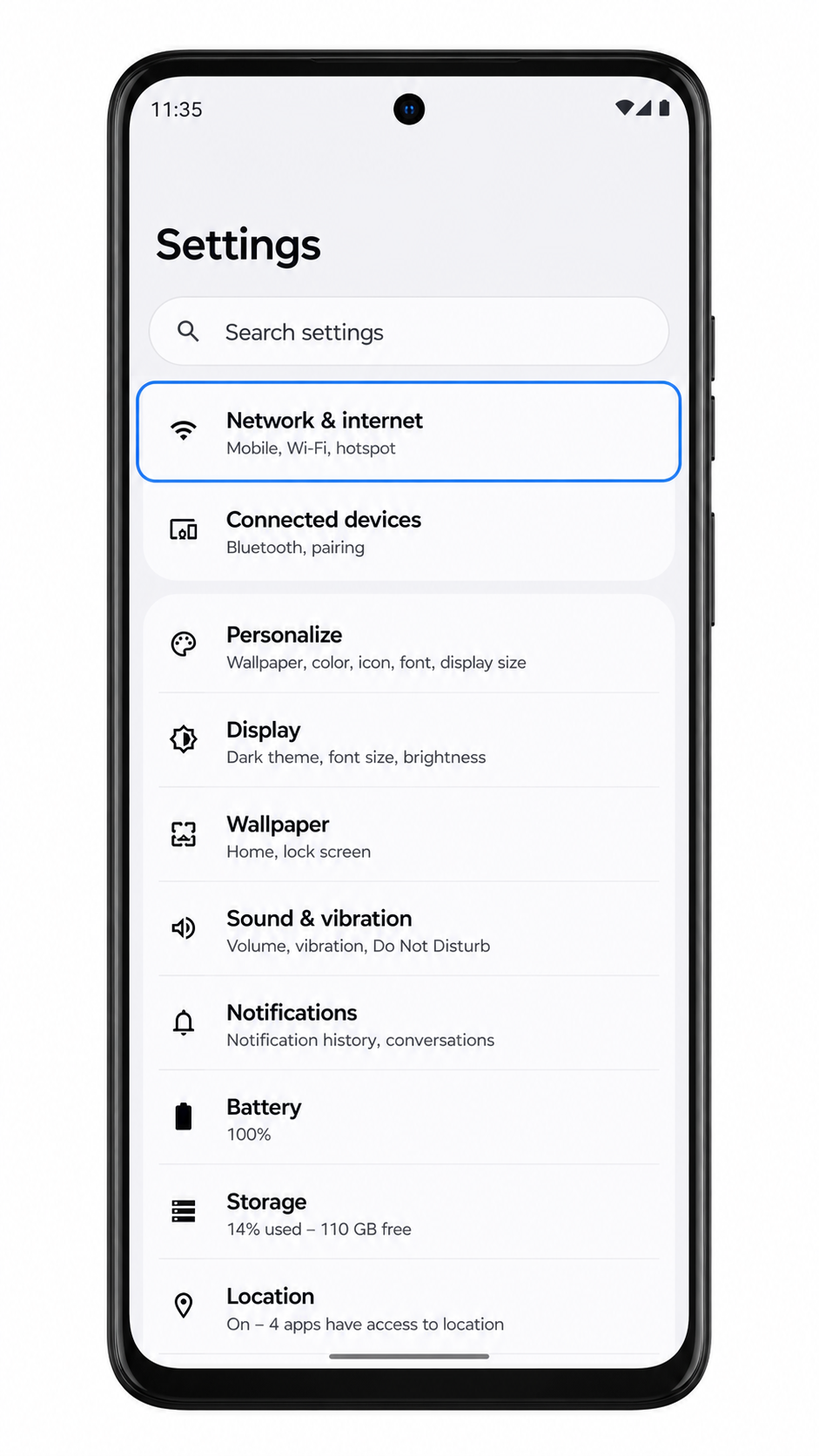
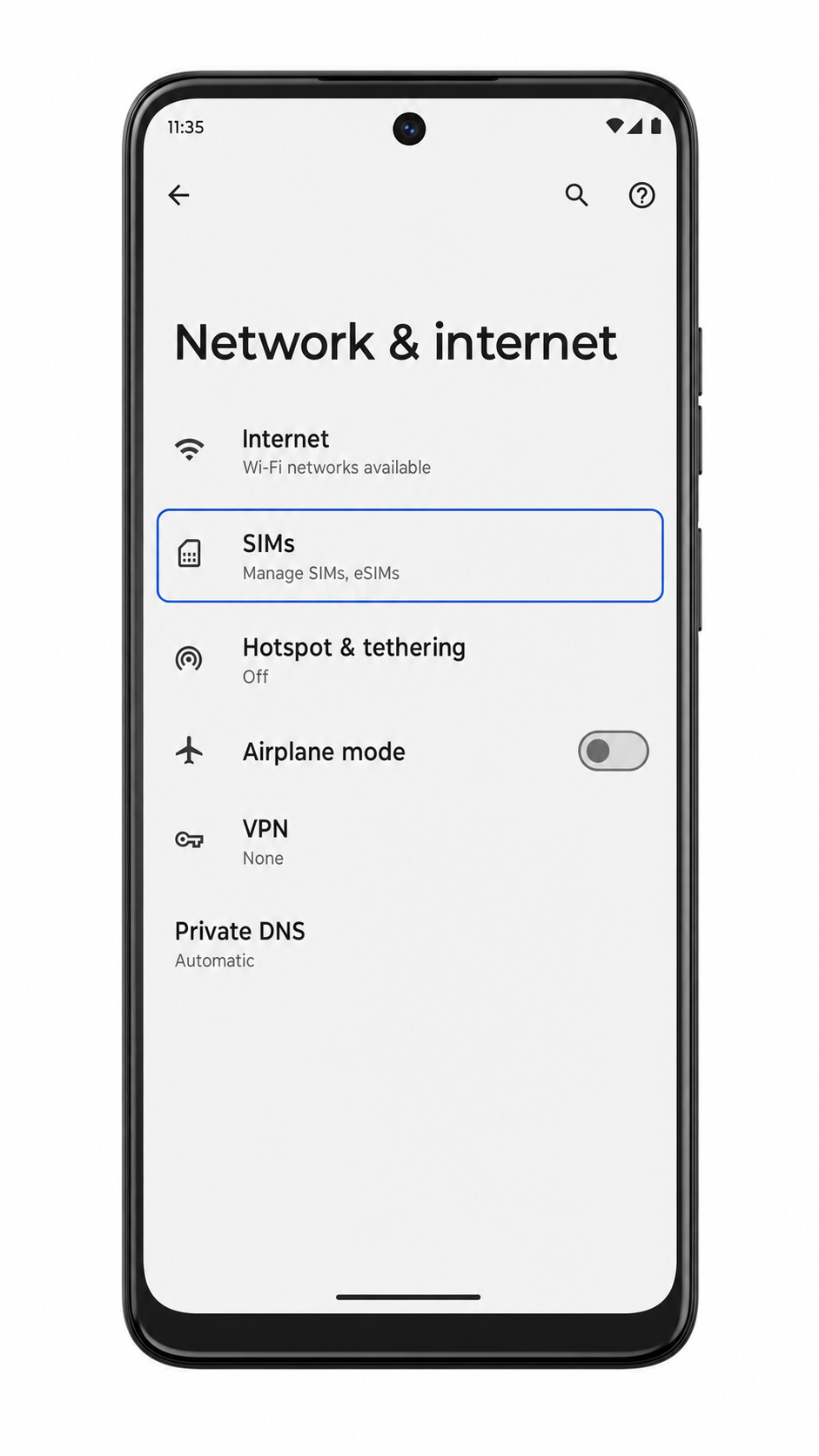
For most Moto G Power 5G (2024) phones running Motorola's Android 14-style My UX, the eSIM path is in Settings > Network & internet > SIMs. Some carrier firmware may show Add eSIM, Download a SIM, or Set up an eSIM with slightly different wording.
This guide shows both iRoamly travel eSIM setup methods: scanning the QR code and entering the manual activation details. The QR code method is faster, while manual entry is useful when you are reading the QR code on the same phone or the camera cannot scan it clearly.
Before You Set Up Your iRoamly eSIM
Connect the Moto G Power 5G (2024) to stable Wi-Fi before downloading the eSIM.
Confirm that your phone is unlocked, supports eSIM in your region, and is running current Motorola software.
Keep your iRoamly QR code, SM-DP+ Address, Activation Code, and optional Confirmation Code ready.
Install the travel eSIM 1-2 days before departure when possible, but check your plan details first. iRoamly plan validity starts from activation, and the exact trigger can vary by plan.
Do not delete the iRoamly eSIM after installation unless support tells you to. A used eSIM QR code or activation code may not be reusable.
iRoamly travel eSIM plans may be data-only. Voice calls and SMS availability vary by plan, so check the plan page before relying on them.
Method 1: Install eSIM by Scanning a QR Code
1. Open Settings on your Moto G Power 5G (2024), then tap Network & internet.
2. Tap SIMs to open the SIM and mobile network settings.
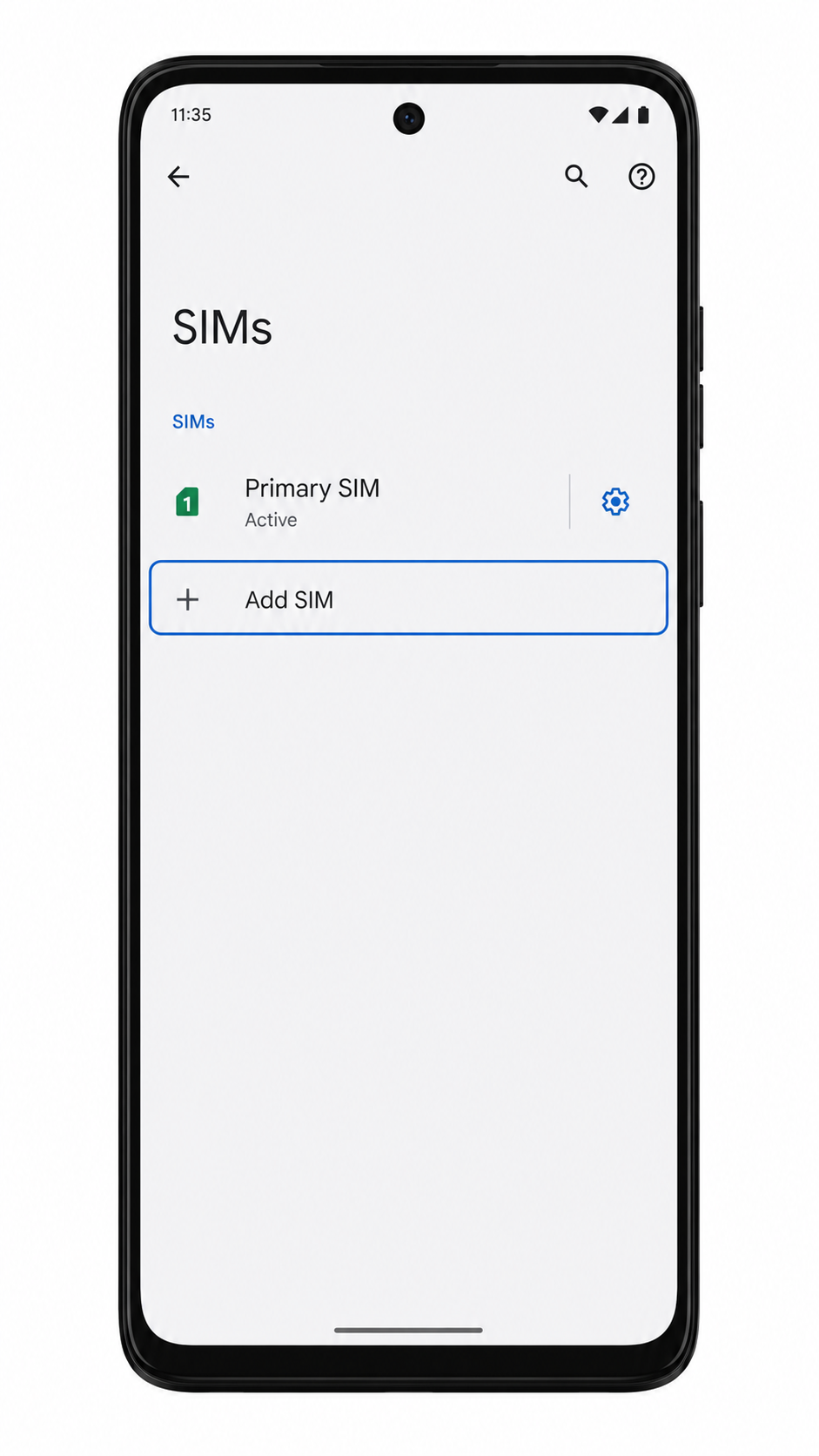
3. Tap Add SIM, Add eSIM, or Download a SIM, depending on the label shown on your phone.
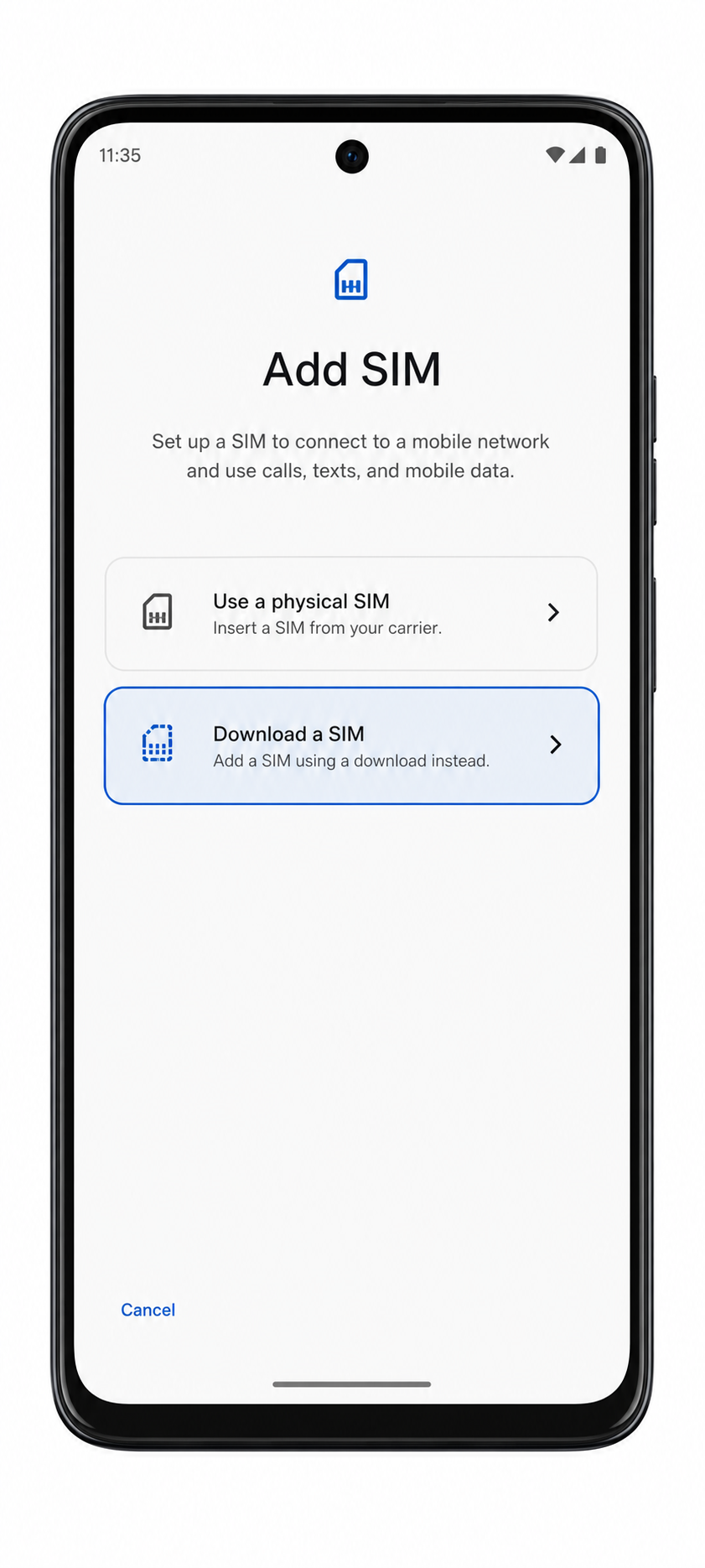
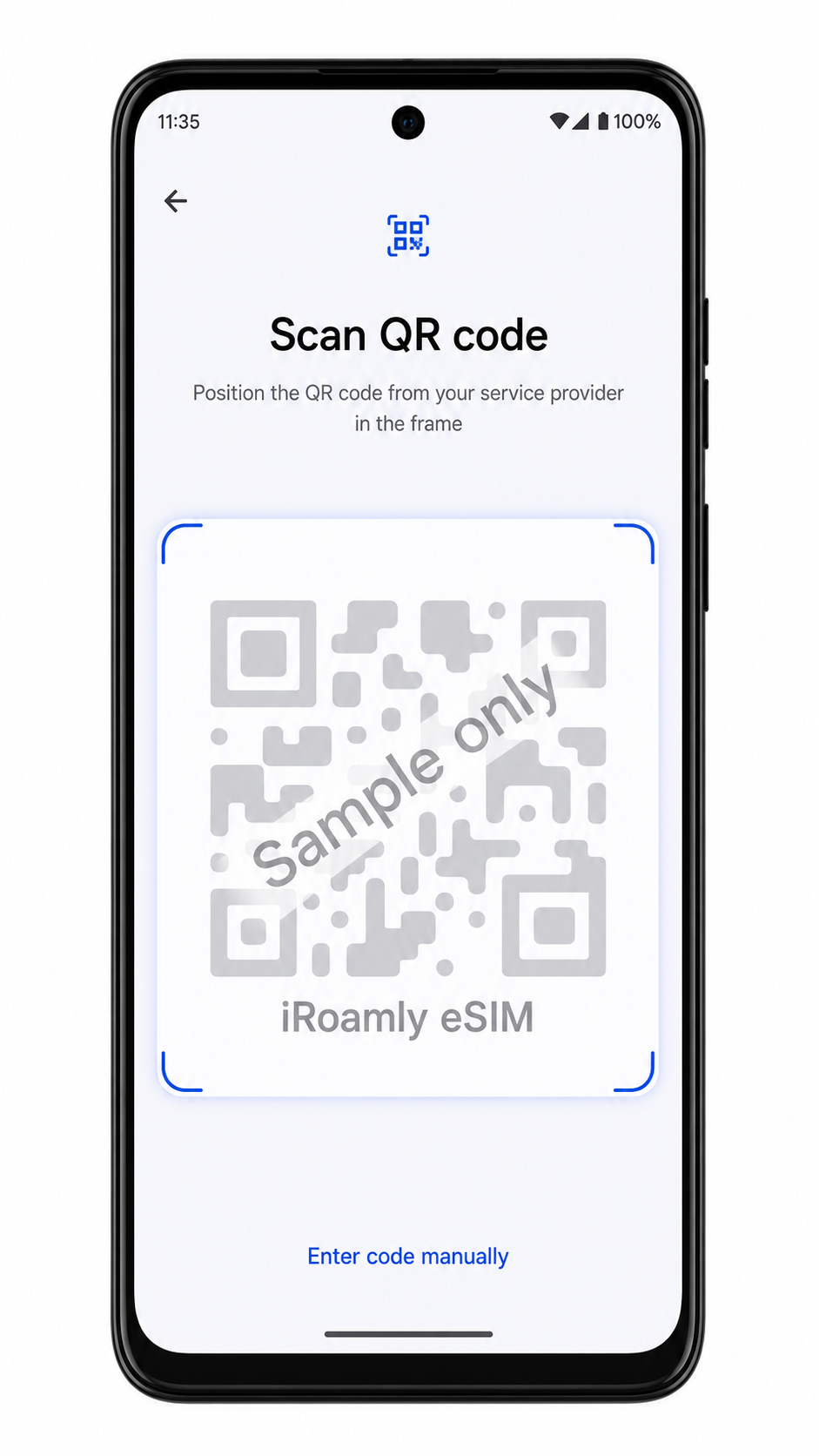
4. Choose the option to set up an eSIM, then tap Use QR code or Scan QR code if your phone asks how you want to add the SIM.
5. Point the camera scanner at the iRoamly QR code from your purchase email or iRoamly account page.
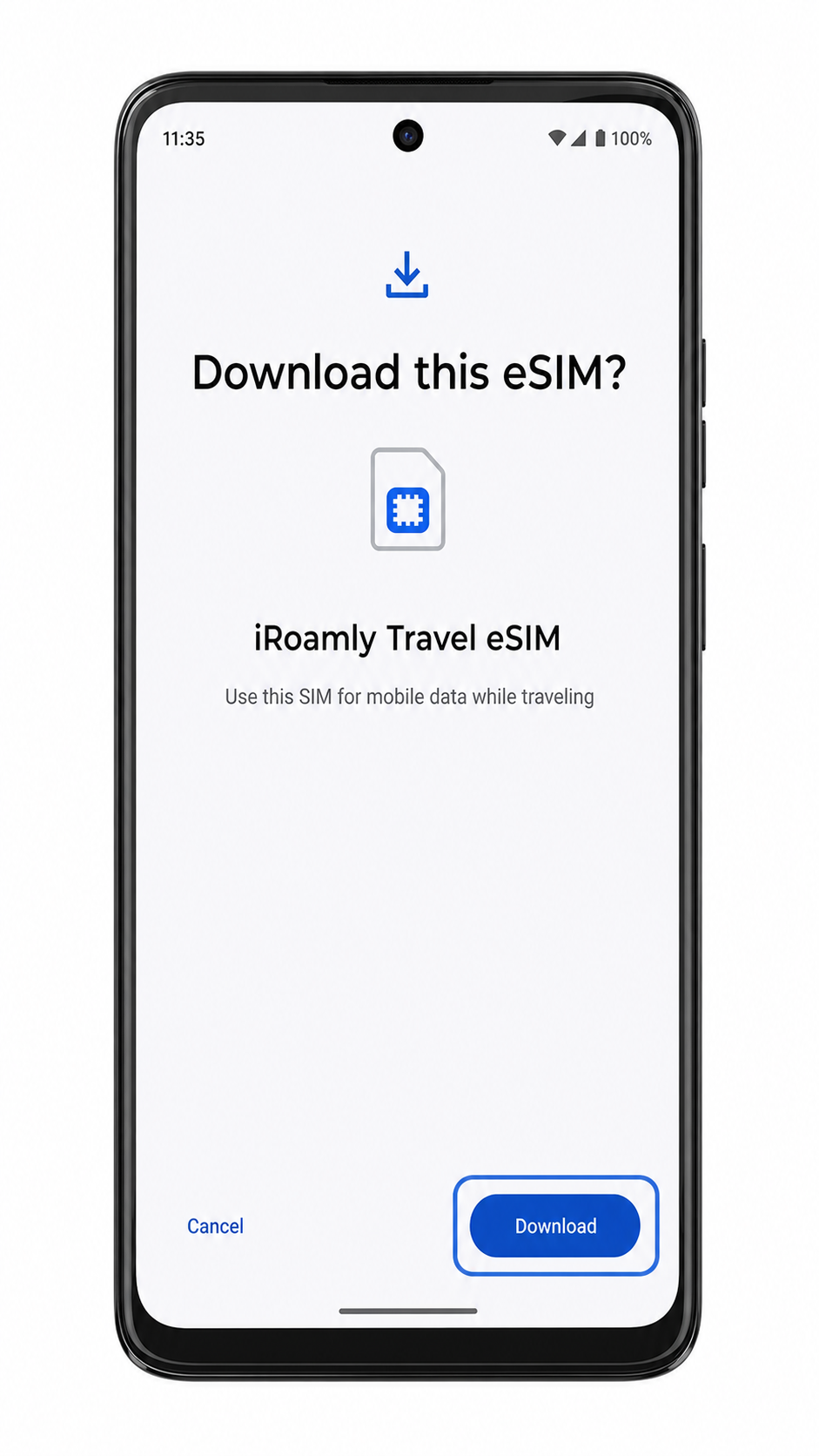
6. When the iRoamly eSIM plan appears, tap Download, then wait for the phone to finish adding the eSIM.
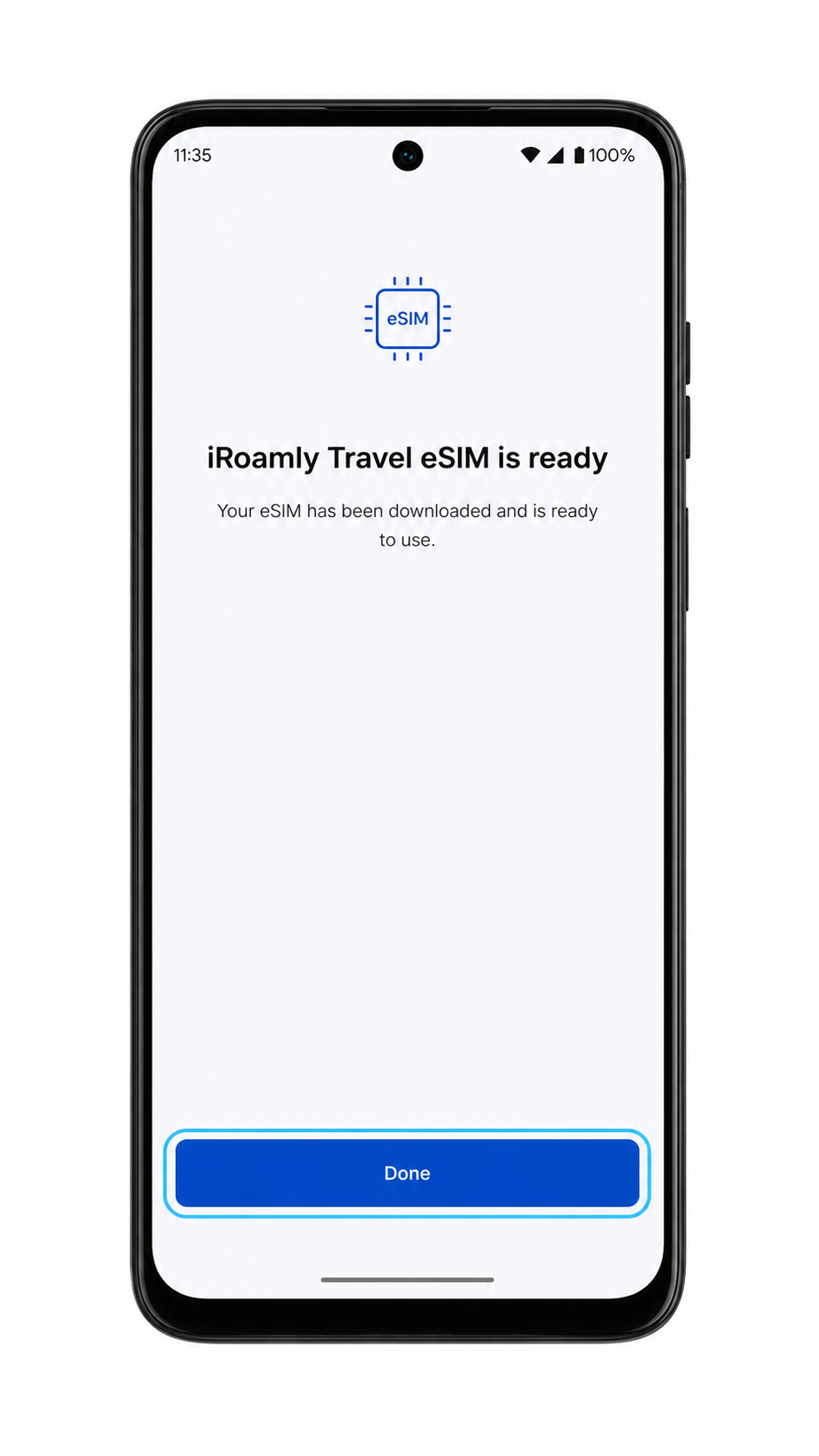
7. Tap Done after the installation completes. If the phone asks for a label, name the line iRoamly.
Method 2: Install eSIM Manually
1. Open Settings, then tap Network & internet.
2. Tap SIMs to return to the SIM settings page.
3. Tap Add SIM, Add eSIM, or Download a SIM.
4. On the QR setup screen, tap Enter details manually, Enter activation code, or Need help? if the manual option is hidden behind help text.
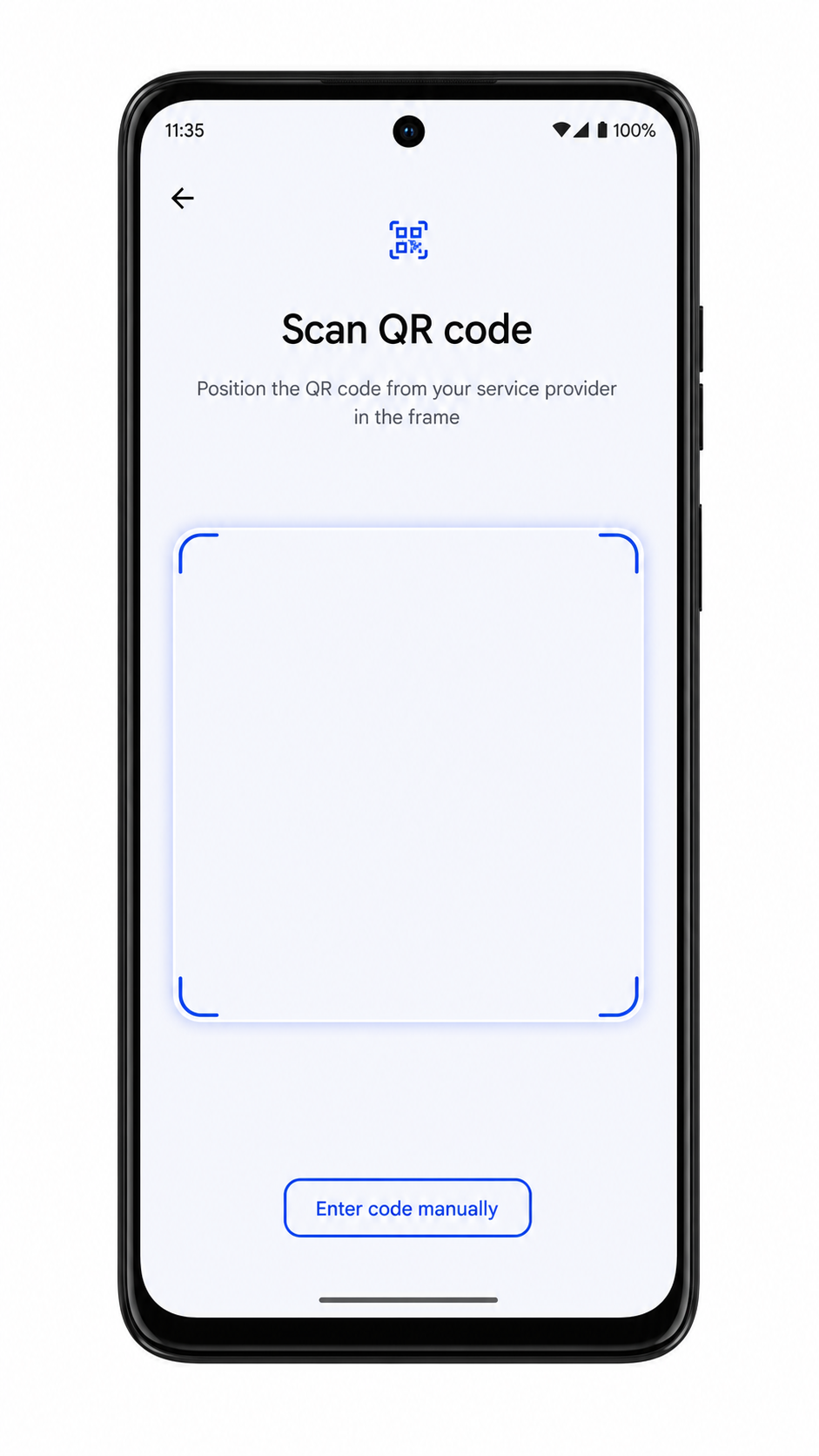
5. Enter the iRoamly SM-DP+ Address and Activation Code exactly as provided. If your phone shows a Confirmation Code field and iRoamly gave you one, enter it; otherwise leave it blank.
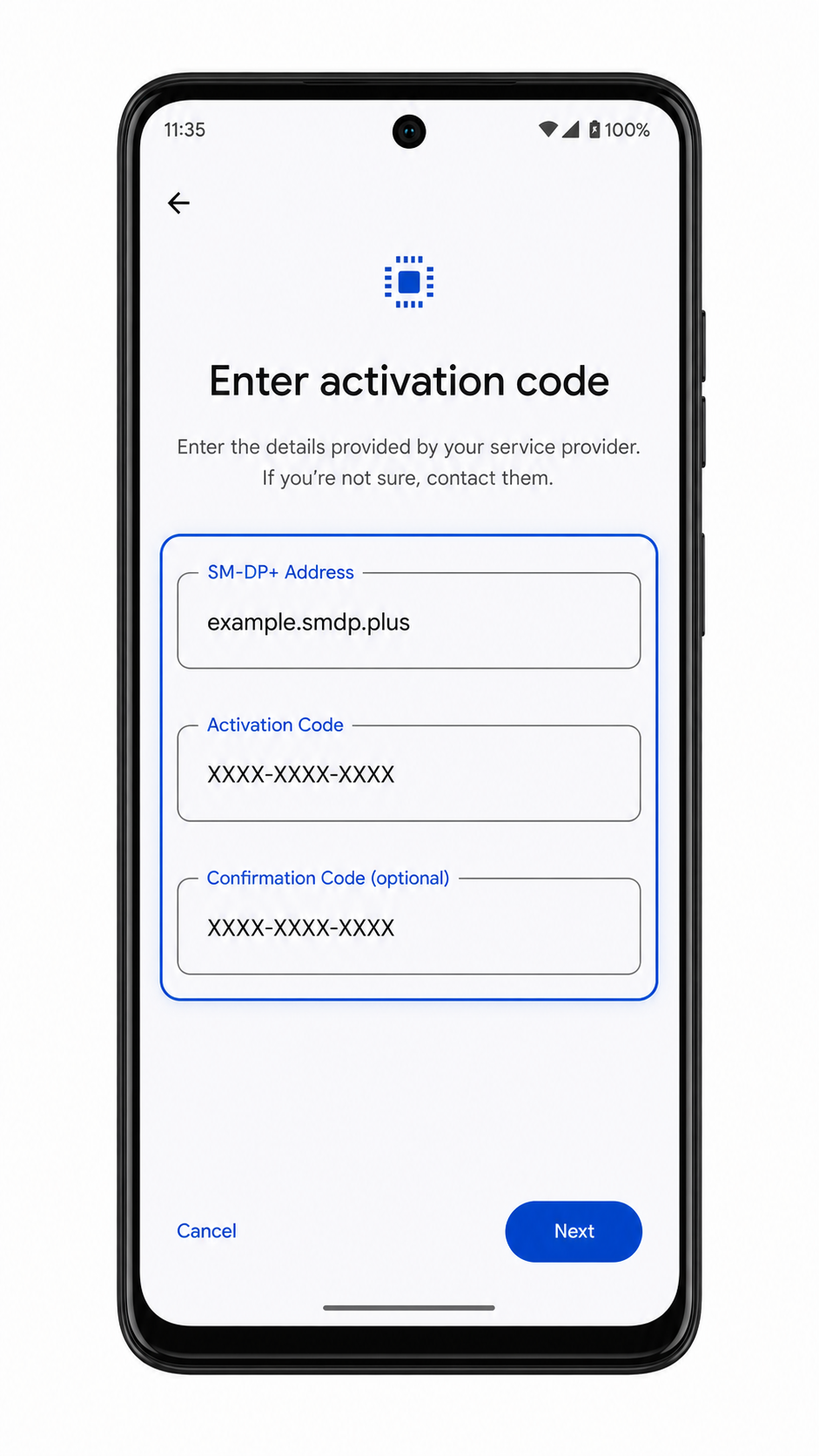
6. Tap Continue, review the iRoamly eSIM plan, then tap Download.
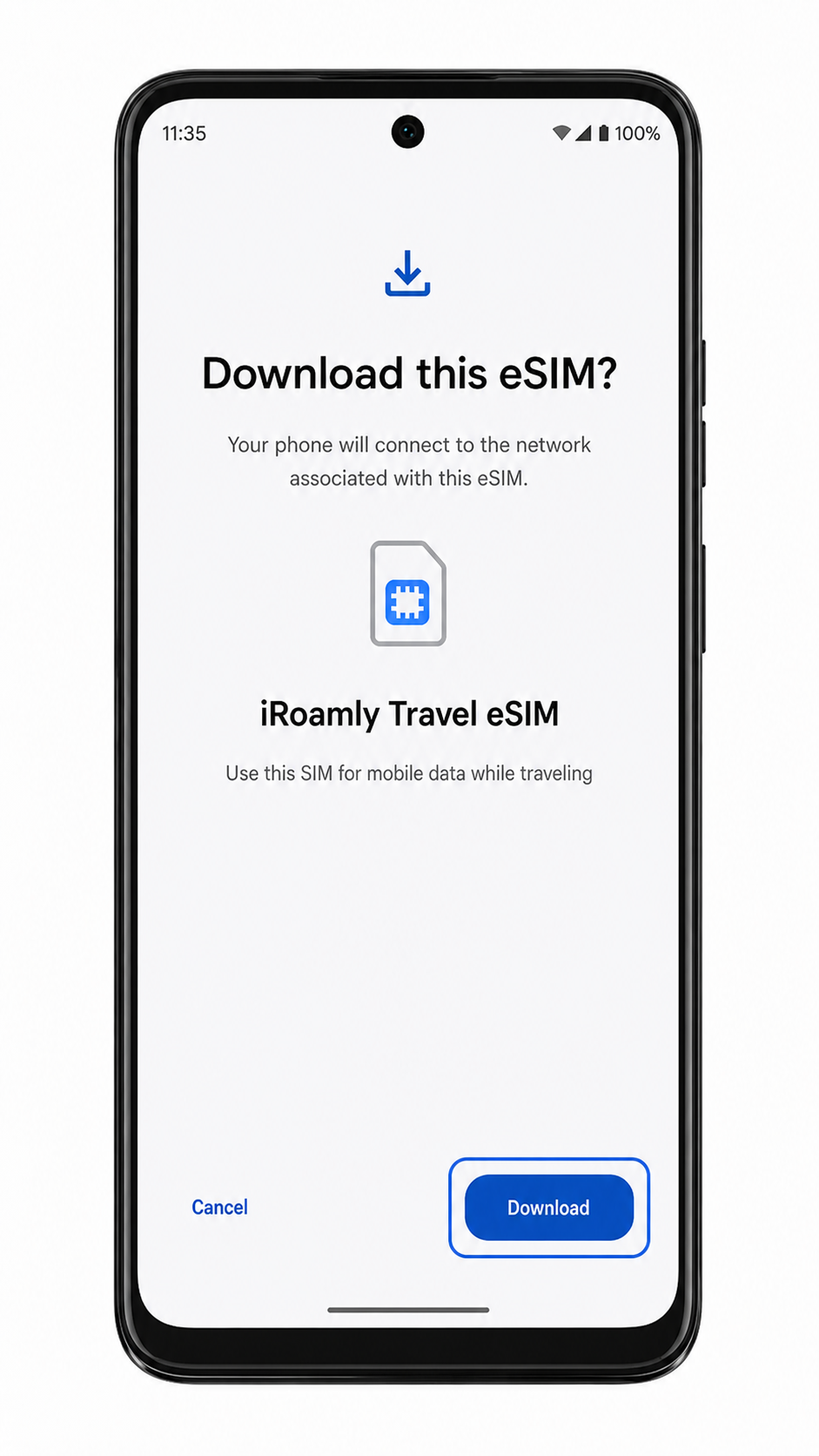
7. Tap Done when the Moto G Power 5G (2024) says the eSIM has been added.
How to Confirm Your iRoamly eSIM Is Installed
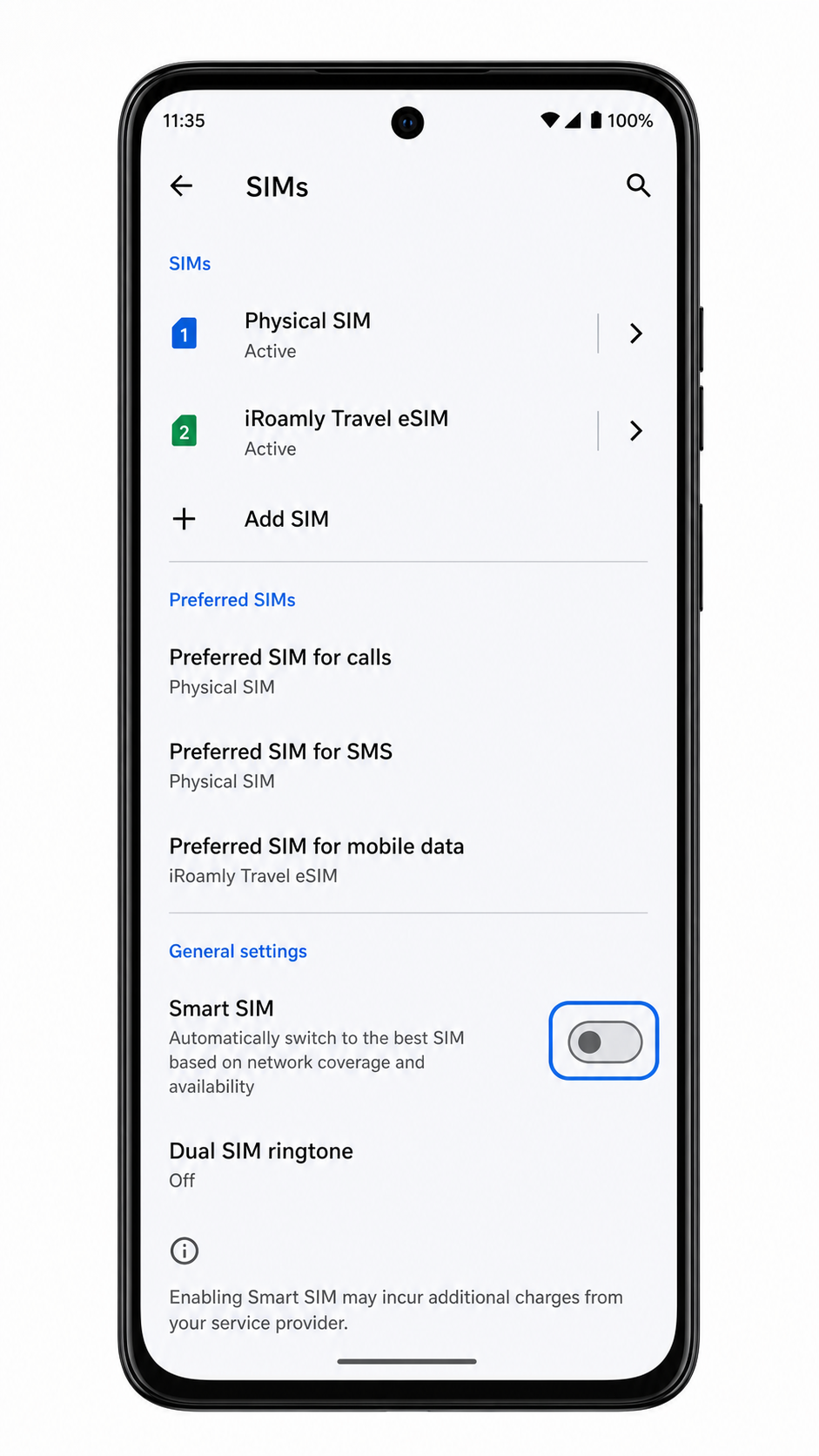
1. Go to Settings > Network & internet > SIMs, then look for the new iRoamly eSIM profile in the SIM list.
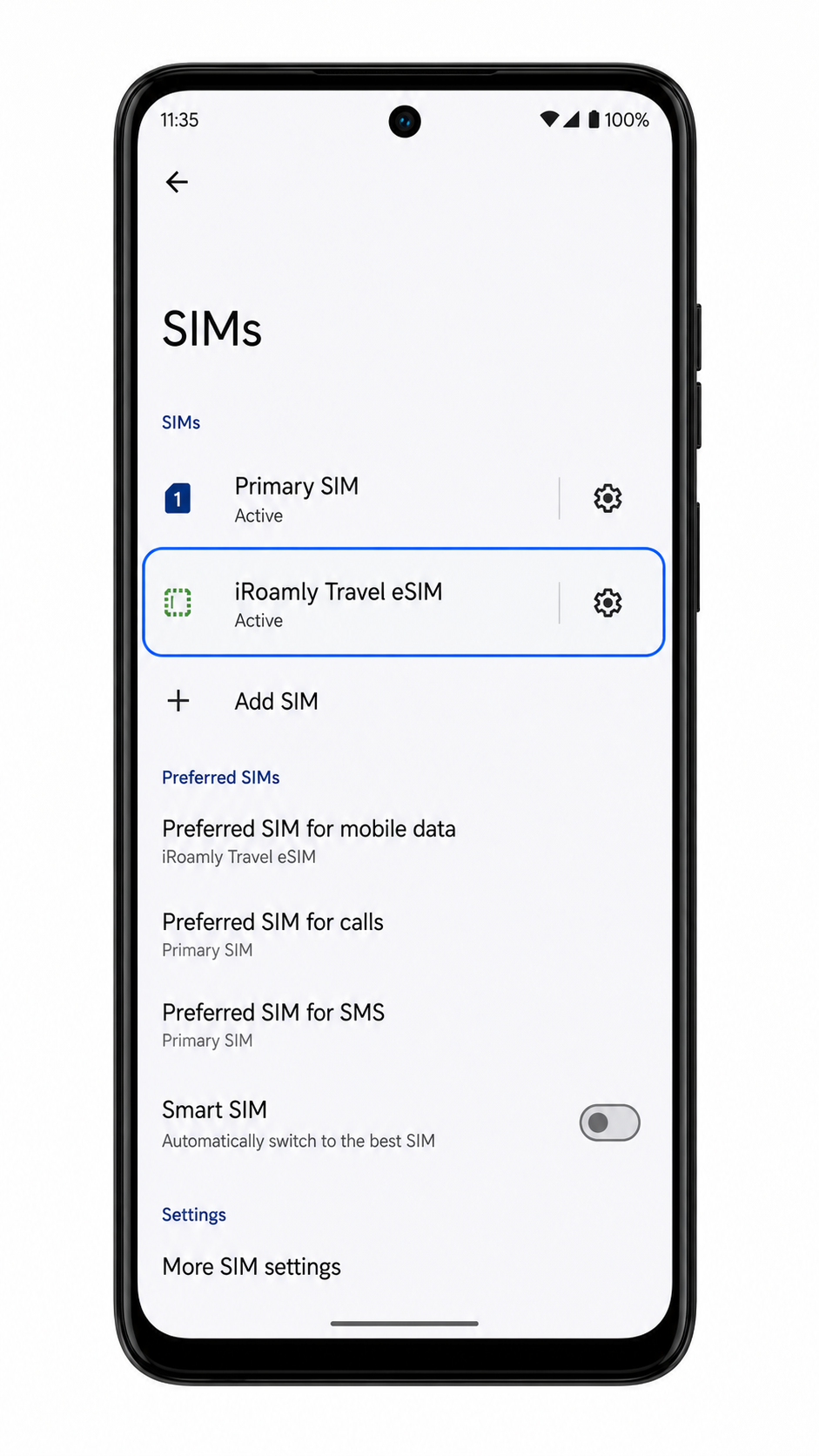
2. Tap the iRoamly eSIM profile and confirm the line toggle is on. You may also see an EID or eSIM profile details page in this area.
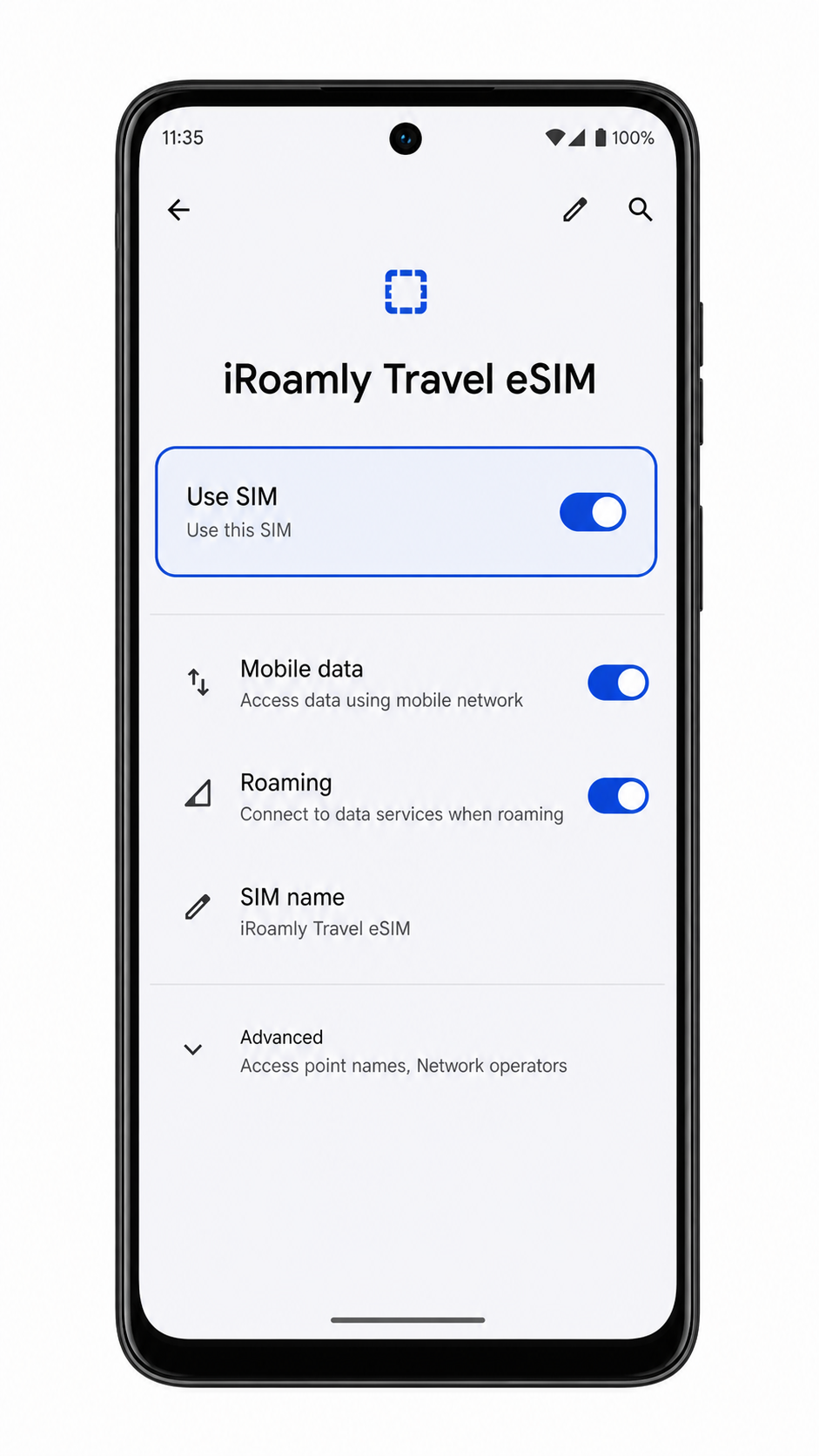
3. If your iRoamly plan includes SMS or calling, test those services only after the plan details confirm they are included. For data-only plans, use a browser or maps app to test mobile data after you configure the data settings below.
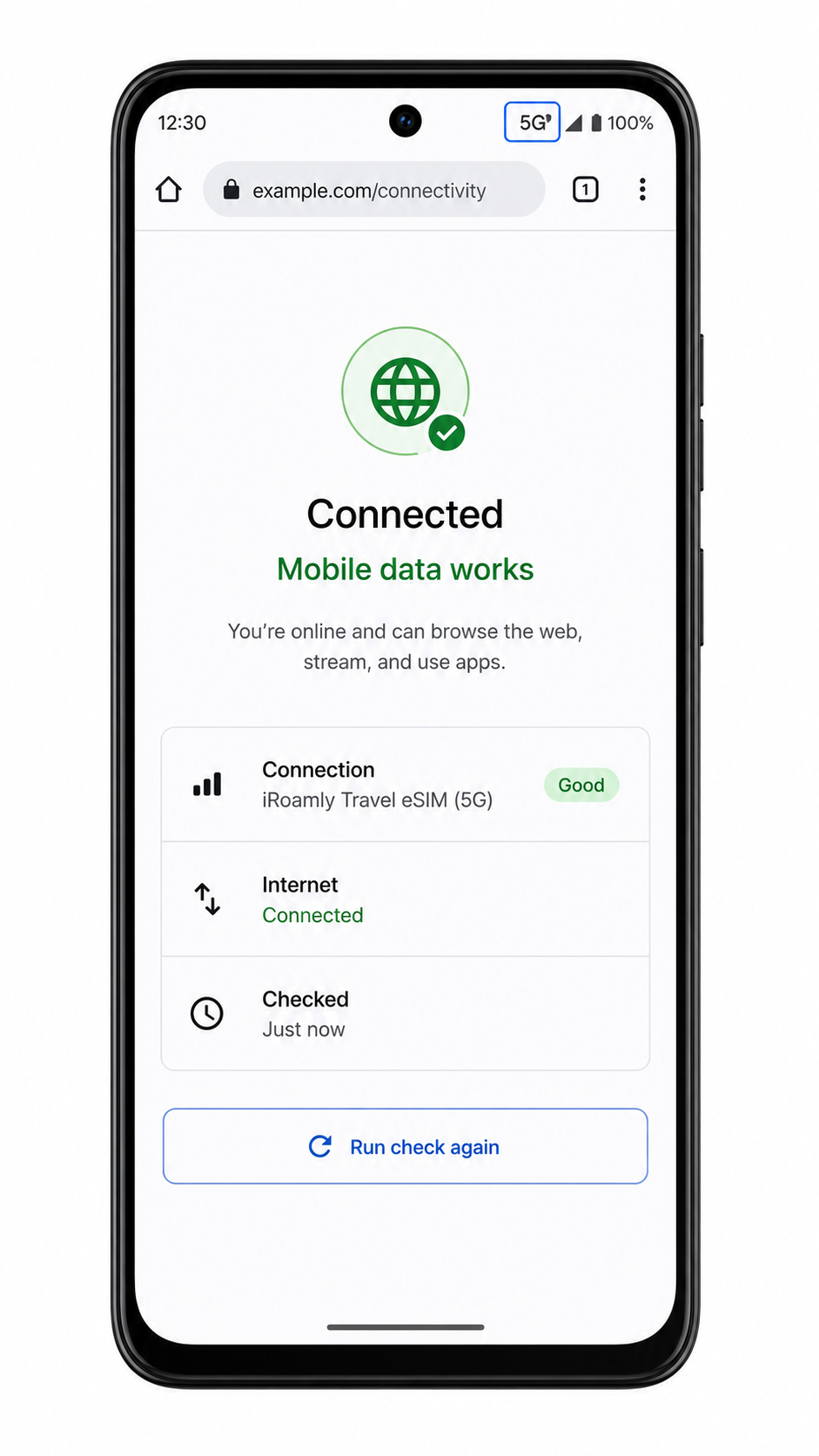
Configure eSIM for Mobile Data
1. Open Settings > Network & internet > SIMs, then tap the iRoamly eSIM profile.
2. Turn on Use SIM for the iRoamly eSIM if it is not already enabled.
3. Tap Mobile data or Preferred SIM for mobile data, then choose the iRoamly eSIM for travel data.
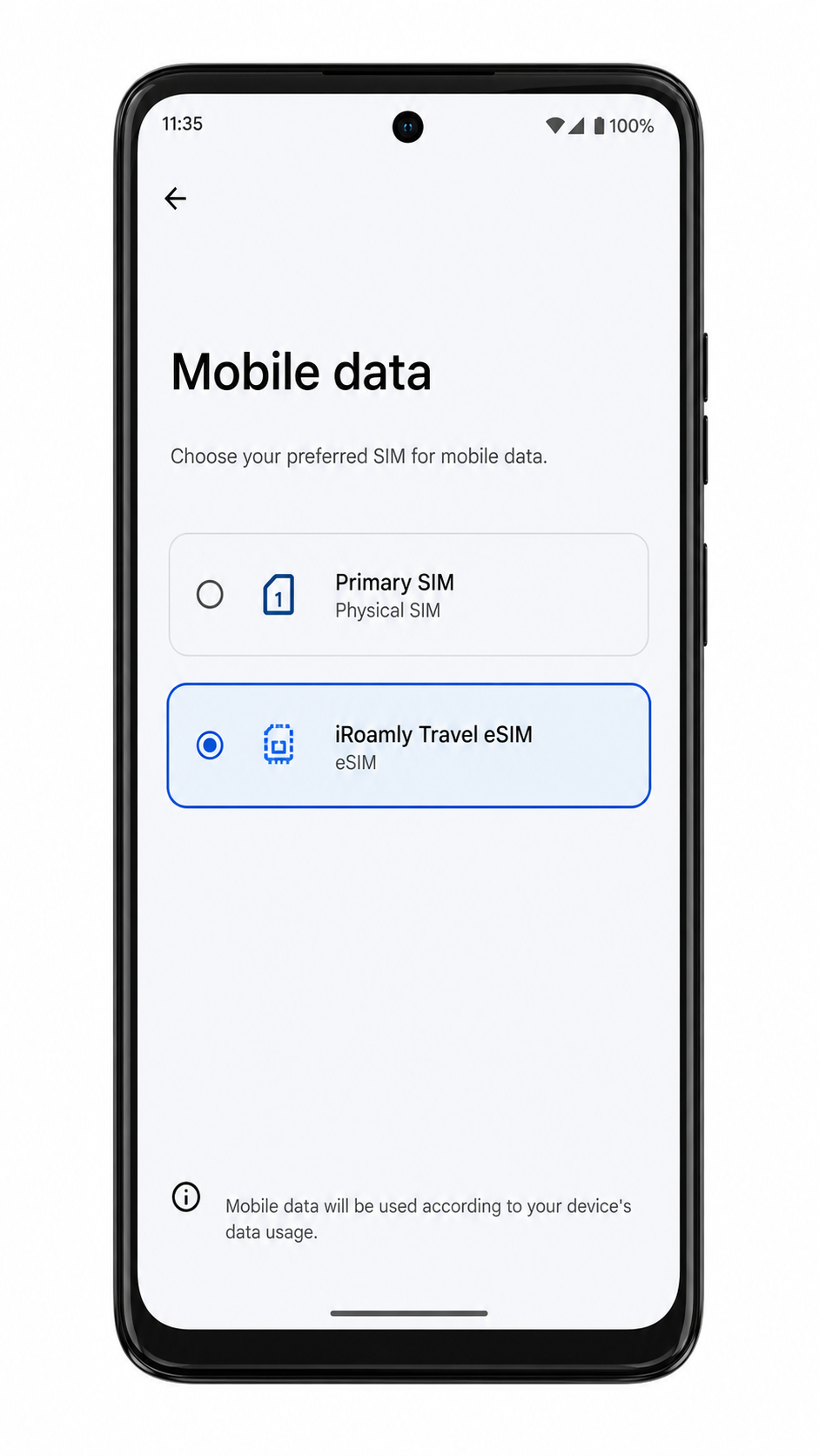
4. Turn on Roaming or Data roaming for the iRoamly eSIM if your destination plan requires it.
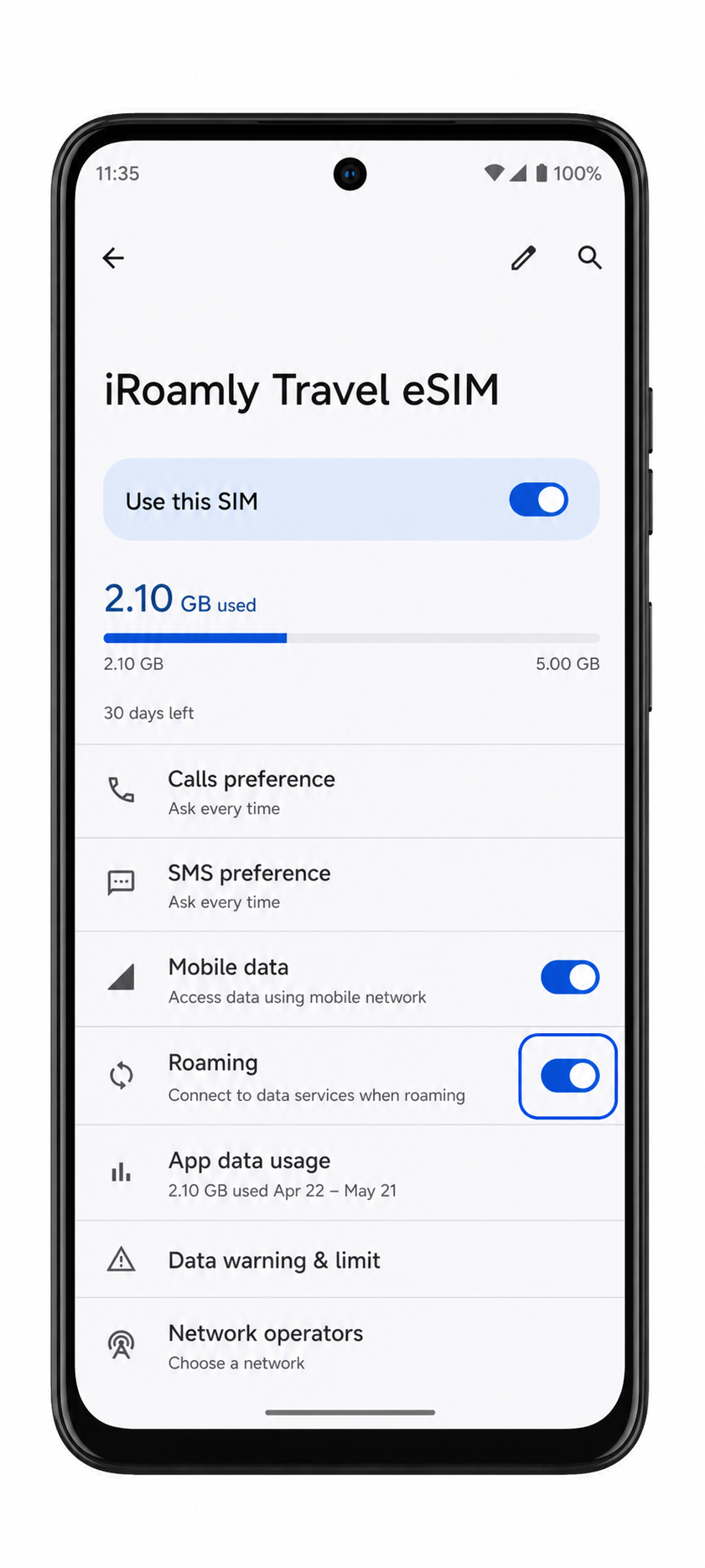
5. Keep your primary SIM enabled for calls or texts if needed, but make sure mobile data stays on the iRoamly eSIM to avoid unwanted roaming charges from your home carrier.
Troubleshooting
Add SIM, Add eSIM, or Download a SIM is missing: confirm your Moto G Power 5G (2024) variant supports eSIM, install software updates, restart the phone, and check whether your carrier firmware blocks eSIM setup.
QR code will not scan: brighten the other screen, enlarge the QR code, clean the camera lens, or use manual entry instead.
QR code was already used: do not delete and reinstall repeatedly. Contact iRoamly support because many eSIM activation codes can be installed only once.
Activation stays pending: keep Wi-Fi connected, wait several minutes, restart the phone, then check the iRoamly profile again under SIMs.
No data after installation: select the iRoamly eSIM for Mobile data, turn on data roaming if the plan requires it, disable VPN temporarily, and test in an area with coverage.
Manual entry fails: recheck the SM-DP+ Address, Activation Code, and optional Confirmation Code. Do not add spaces unless iRoamly shows them as part of the code.
Voice or SMS does not work: many travel eSIM plans are data-only. Check the specific iRoamly plan before troubleshooting calls or messages.
Conclusion
For the Motorola Moto G Power 5G (2024), you can quickly get your iRoamly eSIM up and running by following the QR code method through Settings > Network & internet > SIMs > Add SIM, or by using manual entry when scanning is not possible. Once installed, you should return to the SIMs menu and make sure your iRoamly eSIM is visible and enabled.
Before you travel, set the iRoamly eSIM as your mobile data line and turn on roaming if your plan requires it. By doing this in advance, you ensure your phone connects smoothly when you arrive at your destination, helping you stay online without switching physical SIM cards or adjusting settings under pressure.