
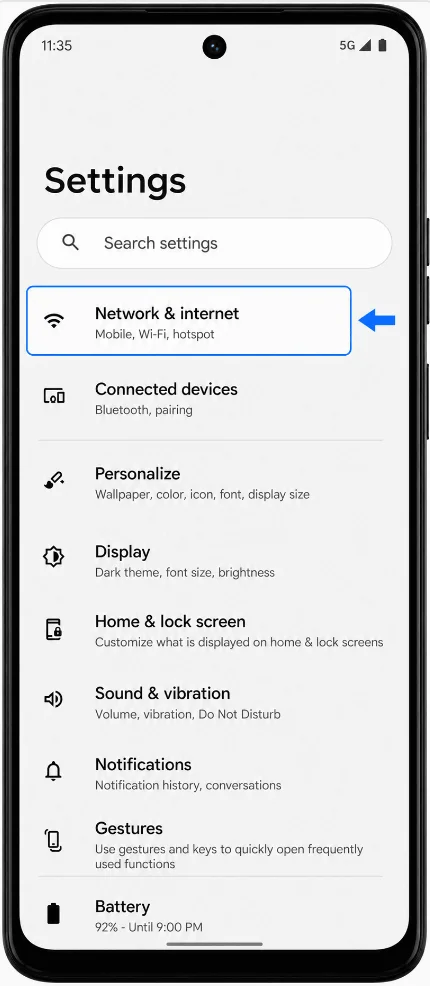
This guide is for the Moto G34 running Android 14 with Motorola's near-stock Android interface. On this software path, eSIM setup starts in Settings > Network & internet > SIMs & mobile network, then uses Download a new eSIM to open the eSIM setup screen. Menu names can vary slightly by software version, country, and carrier firmware.
The Moto G34 is sold in regional variants, and eSIM availability may depend on the exact model, market, and carrier support. If your phone does not show Download a new eSIM, treat that as a compatibility or region/carrier-variant warning rather than a setup mistake.
Use the QR-code method when you can display the iRoamly QR code on another screen or print it. Use manual entry when the QR code cannot be scanned, when the camera cannot focus, or when iRoamly gives you activation details that need to be typed into the Moto eSIM setup screen.
Preparations Before Setting Up iRoamly eSIM
Connect the Moto G34 to stable Wi-Fi before downloading the iRoamly travel eSIM.
Make sure the phone is unlocked and that your Moto G34 variant supports eSIM in your country or region.
Keep your iRoamly QR code or manual activation details ready. Do not share them publicly.
Install the iRoamly eSIM 1-2 days before travel when possible, but check the plan details first. iRoamly eSIM validity starts from activation, and the activation trigger is shown in the current plan or order details.
Do not delete the iRoamly eSIM after installing unless iRoamly support tells you to. Many travel eSIMs cannot be reinstalled after removal or after the QR code has been used.
iRoamly travel eSIM plans may be data-only. Voice calls and SMS vary by plan, so check the exact iRoamly plan details before relying on them.
Method 1: Install the eSIM by Scanning a QR Code
Open Settings, then tap Network & internet. You should see the network settings page for Wi-Fi, SIMs, hotspot, and related options.
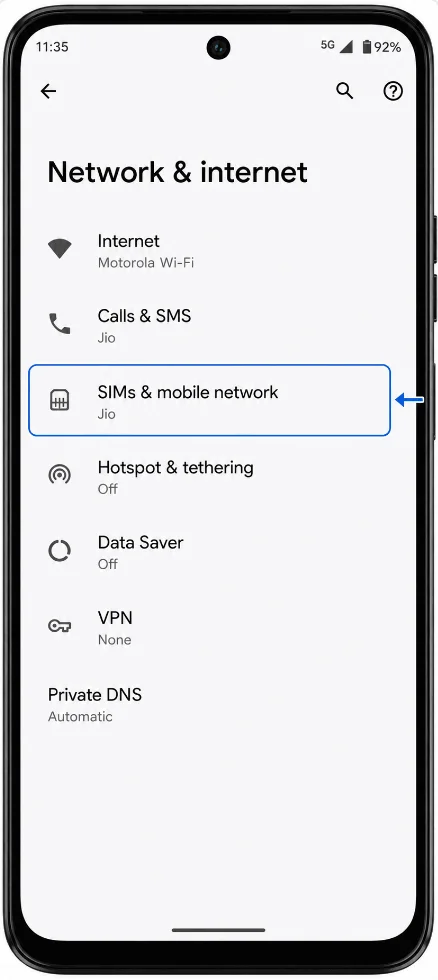
Tap SIMs & mobile network. The Moto G34 should show your current SIM card and the mobile network settings.
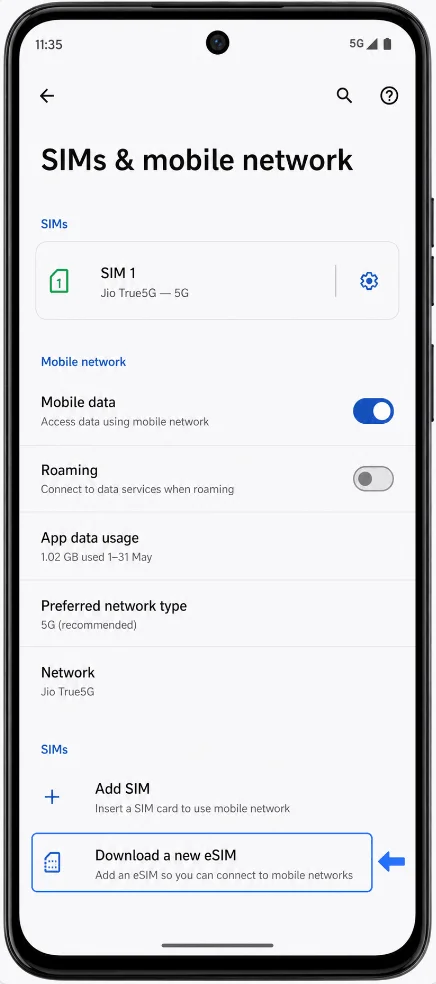
Tap Download a new eSIM. The phone should open the Android eSIM setup flow.
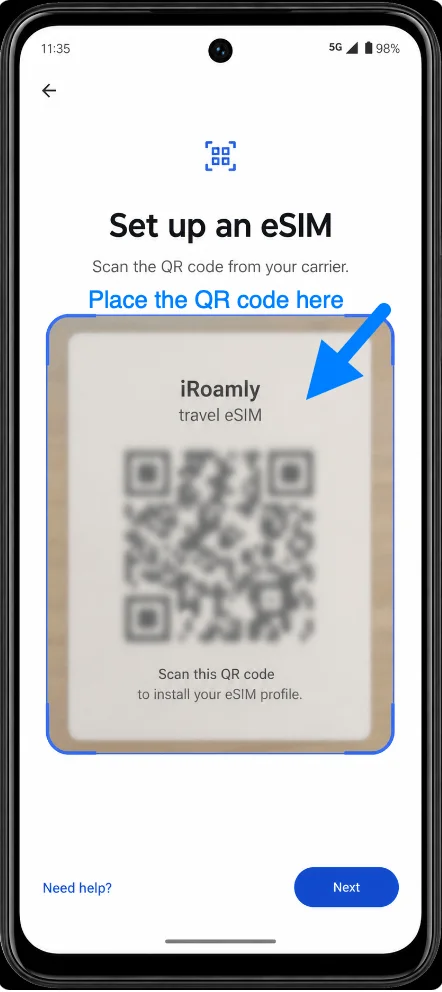
On Set up an eSIM, scan the iRoamly QR code from your order email, iRoamly account, or another device screen. Keep the QR code inside the scanner frame until the phone recognizes it.
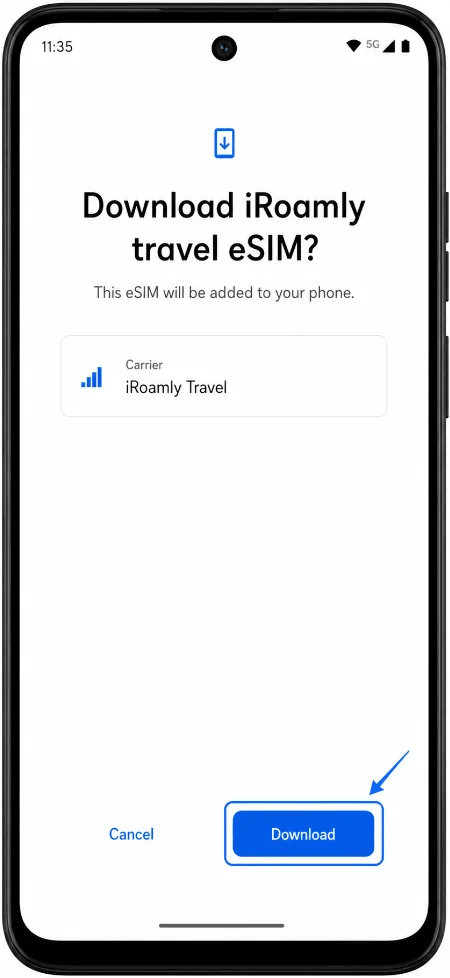
When the phone shows the iRoamly travel eSIM download confirmation, tap Download. The Moto G34 should start adding the eSIM profile.
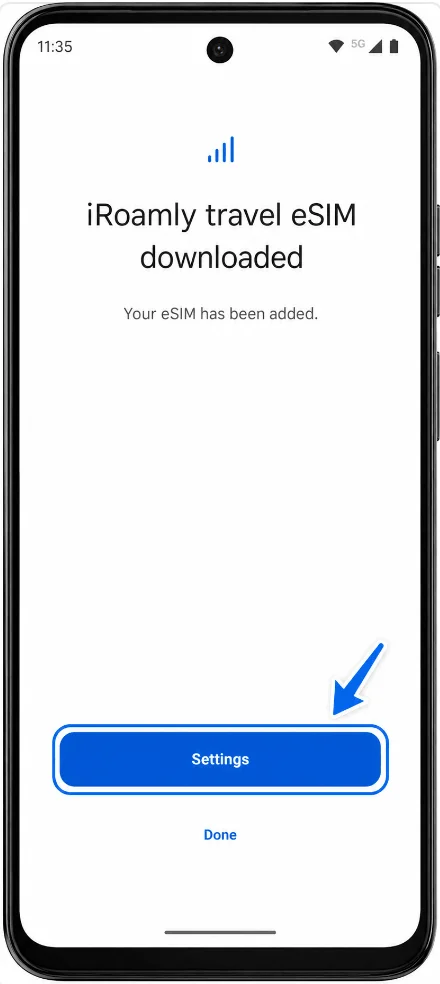
When iRoamly travel eSIM downloaded appears, tap Settings to return to the SIM settings area. If your phone only shows Done, tap it, then go back to Settings > Network & internet > SIMs & mobile network.
Method 2: Install the eSIM by Manual Entry
Open Settings, then tap Network & internet. You should see the same Android network settings page used for the QR-code method.
Tap SIMs & mobile network. The Moto G34 should show your installed SIMs and mobile network controls.
Tap Download a new eSIM. The phone should open the Set up an eSIM screen.
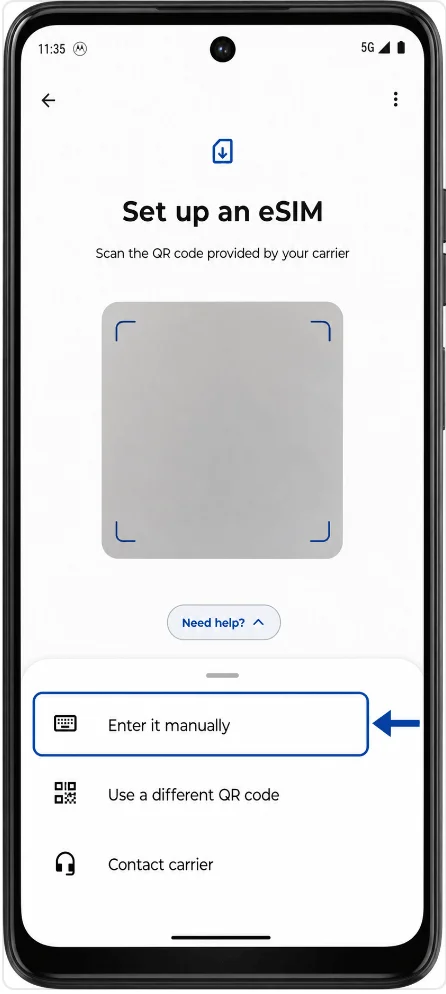
On Set up an eSIM, tap Need help?, then tap Enter it manually. The phone should open the manual activation screen.
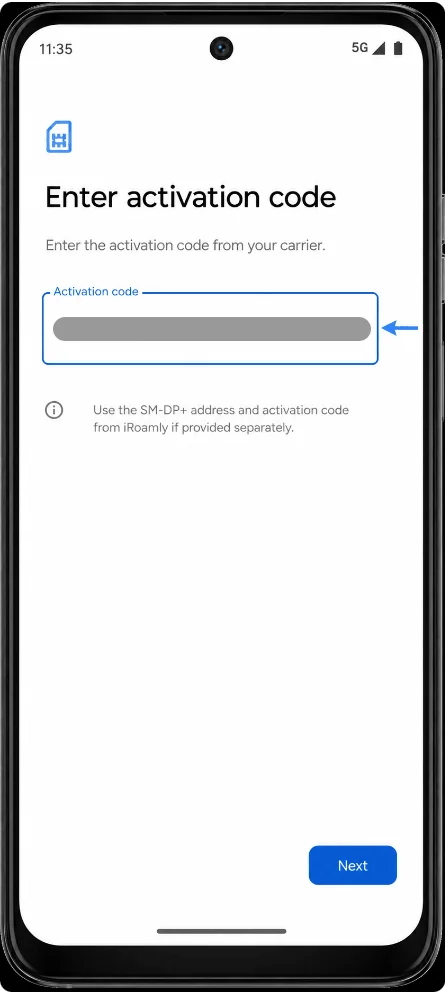
Tap the Activation code field and enter the iRoamly manual activation details. If iRoamly gives you one full activation string, paste it exactly. If iRoamly gives you a separate SM-DP+ Address and Activation Code, enter them in the full activation-code format requested by the Moto screen, then tap Next.
When the phone shows the iRoamly travel eSIM download confirmation, tap Download. The Moto G34 should begin adding the eSIM profile.
When iRoamly travel eSIM downloaded appears, tap Settings. If Settings is not shown, tap Done, then return to Settings > Network & internet > SIMs & mobile network.
How to Confirm the eSIM Was Installed
Go to Settings > Network & internet > SIMs & mobile network. Look for iRoamly Travel eSIM in the SIM cards list.
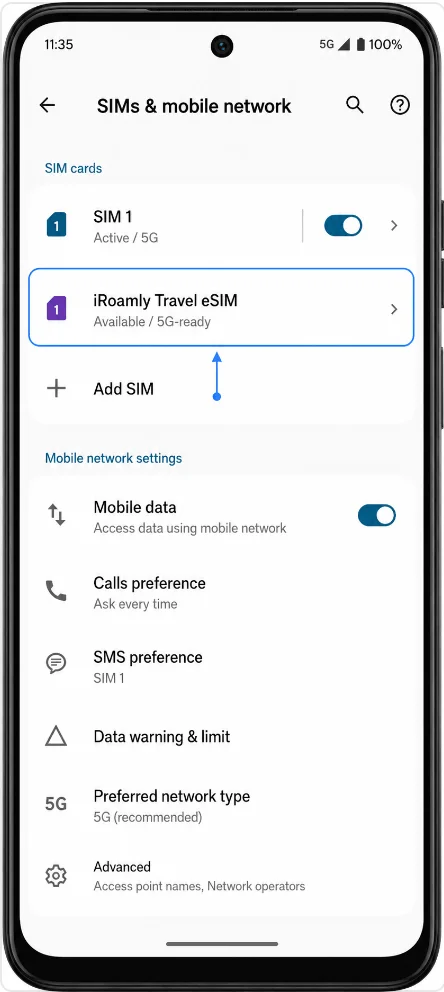
Tap iRoamly Travel eSIM and check that the profile can be turned on with Use SIM. If the eSIM is listed but still pending, keep Wi-Fi connected and wait for the phone to finish downloading or activating the profile.
Set Up the eSIM for Mobile Data
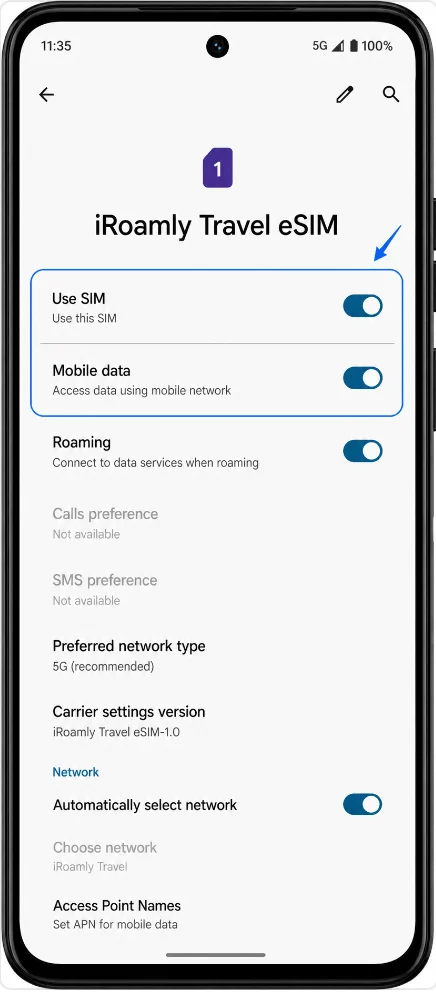
Open Settings > Network & internet > SIMs & mobile network, then tap iRoamly Travel eSIM. The eSIM detail page should open.
Turn on Use SIM, then turn on Mobile data for the iRoamly eSIM. This makes the travel eSIM available for data service.
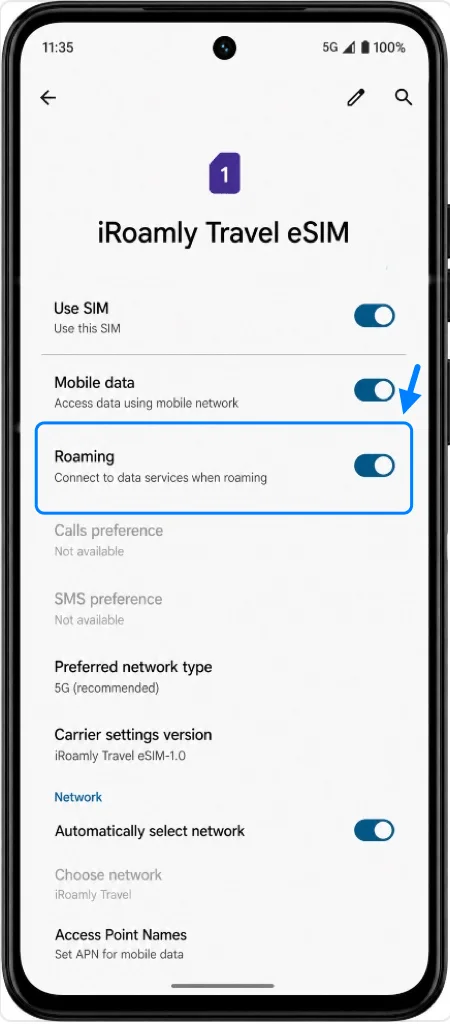
Turn on Roaming for the iRoamly eSIM if your destination plan requires roaming. Keep calls and SMS on your primary SIM unless your specific iRoamly plan says voice or SMS is included.
Troubleshooting
Download a new eSIM is missing: Confirm that your Moto G34 variant supports eSIM in your region and that your carrier firmware has not disabled eSIM. Update Android, restart the phone, and check Settings > Network & internet again.
The QR code was already used: Most travel eSIM QR codes can be installed only once. Do not delete the eSIM and try again unless iRoamly support confirms it can be reissued.
Manual entry does not work: Check every character in the activation details. If iRoamly provides separate SM-DP+ Address and Activation Code, make sure they are entered in the activation-code format expected by the Moto manual-entry screen.
The eSIM is installed but there is no data: Turn on Use SIM, select the iRoamly eSIM for Mobile data, enable Roaming if required, and restart the phone after arriving in the destination country.
Activation is pending: Keep the Moto G34 on Wi-Fi and wait. Some travel eSIMs do not fully activate until they connect to a supported destination network.
Voice calls or SMS are unavailable: Many iRoamly travel eSIM plans are data-only. Check the plan details before assuming calls or text messages are supported.
Conclusion
After installation, the iRoamly eSIM becomes part of your Moto G34's mobile network settings and can be managed just like any other SIM profile on the device. Whether you installed it by QR code or manual activation, there's usually no need to repeat the setup process as long as the profile remains installed.
Taking a few moments to confirm your preferred data settings before travel can help ensure a smoother experience later, allowing you to focus on using the service rather than configuring it when you arrive.