
The Moto G35 is available in eSIM-capable variants, commonly using one physical SIM together with one eSIM. Because eSIM availability can still depend on market, carrier firmware, and region, check that your phone shows an eSIM setup option before buying or installing your iRoamly travel eSIM.
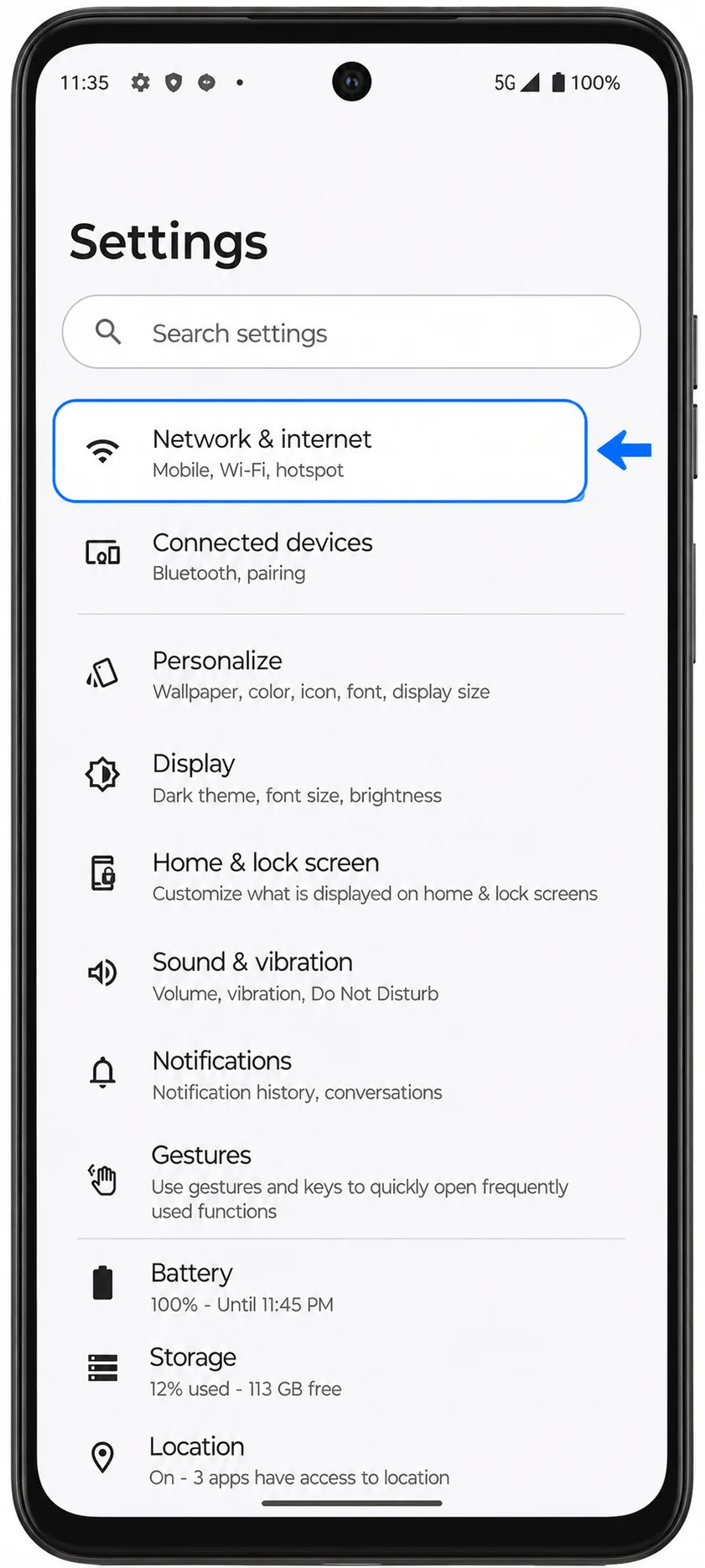
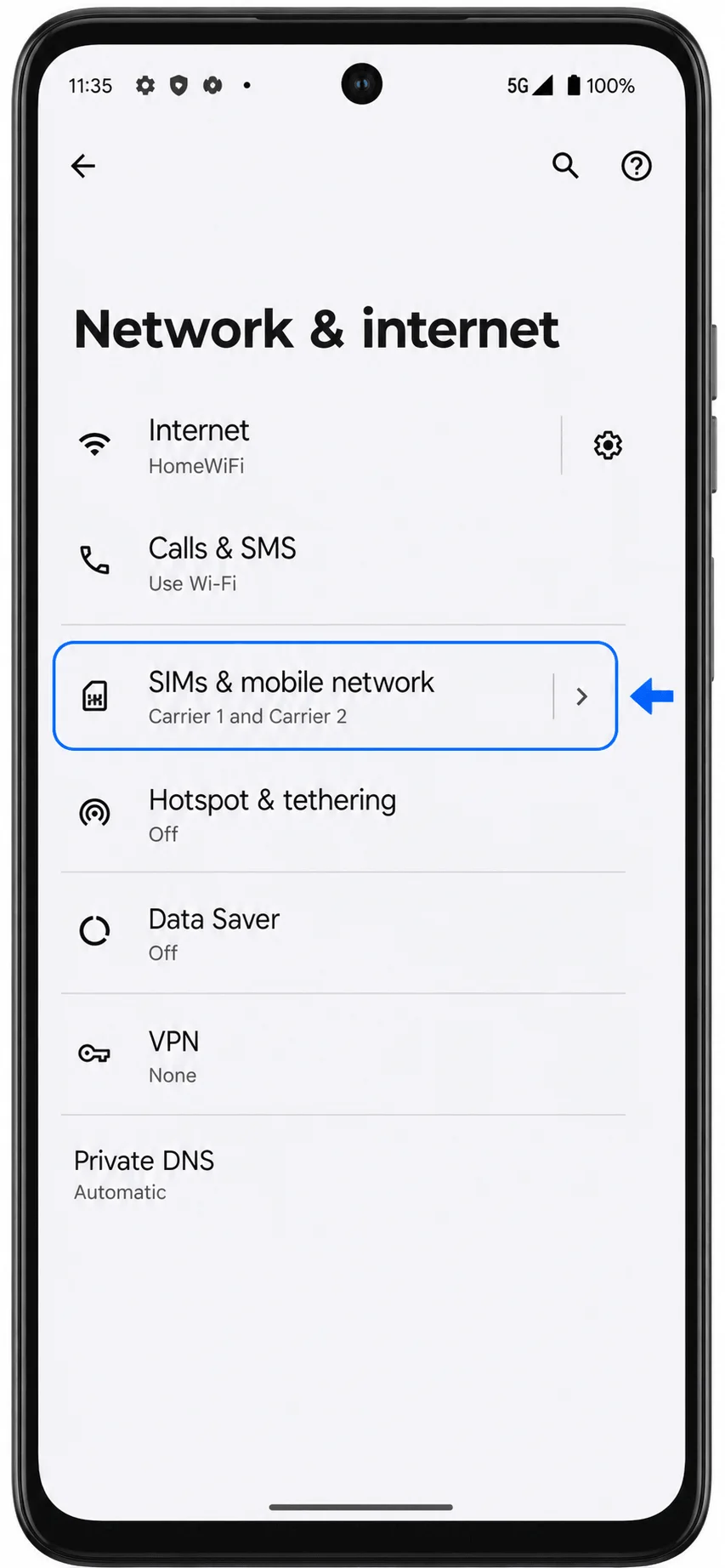
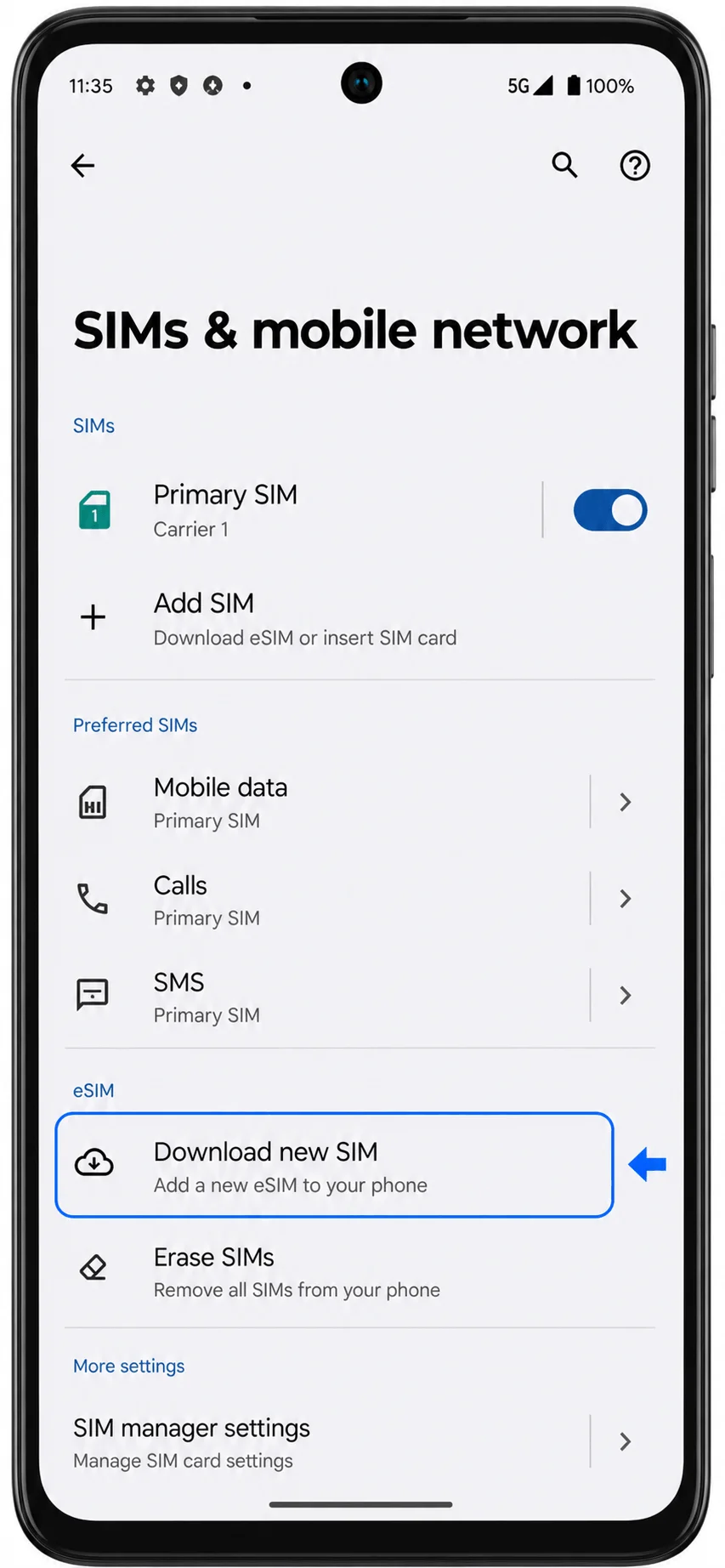
On Motorola Android 14, the relevant path is usually Settings > Network & internet > SIMs & mobile network, then the option to download or add a new SIM.
This guide uses that Moto G35-style menu flow and covers both ways to install an iRoamly travel eSIM: scanning the QR code and entering the activation code manually.
The QR method is usually fastest when you have the iRoamly QR code on another screen or printed page. Manual entry is useful if the QR code will not scan, if you are setting up from the same phone, or if you only have the activation details from your iRoamly account or email. Menu names may vary slightly by Android update, region, or carrier version.

Stay Connected on Your Trip with iRoamly
iRoamly eSIM provides mobile data for travelers through downloadable eSIM plans. Its range includes local country plans alongside regional and global options; data amounts, validity periods, and available features differ between plans.
Once connected, travel data lets you use messaging, maps, and transport apps without depending on nearby Wi-Fi.
On a supported, unlocked Moto G35, an iRoamly eSIM can become the phone's travel data line. The following sections cover preparation, QR-code and manual installation, and the final mobile data settings on this model.
Preparations Before Setting Up iRoamly eSIM
Connect the Moto G35 to stable Wi-Fi before starting.
Confirm that your Moto G35 variant is unlocked and supports eSIM. If Download new SIM, Add eSIM, or a similar option is missing, your variant or carrier firmware may not support eSIM.
Keep your iRoamly QR code or manual activation details ready. Use placeholder details only in screenshots; never share a real QR code or activation code publicly.
Do not delete the installed iRoamly eSIM unless iRoamly support tells you to. Many travel eSIMs cannot simply be reinstalled after removal.
Install the eSIM 1 to 2 days before travel when possible, but check your plan timing first. iRoamly eSIM validity starts from activation, and the activation trigger can vary by plan, such as installation or first connection to a supported network.
Before leaving home, you can get a destination plan such as a Japan eSIM or a travel eSIM for Turkey ready on your Moto G35, as long as the plan's activation terms allow advance installation.
iRoamly travel eSIM plans may be data-only. Voice calls and SMS availability vary by plan, so check the exact plan details before relying on calling or texting.
Method 1: Install the iRoamly eSIM by Scanning a QR Code
Open Settings, then tap Network & internet. You should see Motorola's network settings page with SIM and connectivity options.
Tap SIMs & mobile network. The phone should open the SIM management screen where your physical SIM and mobile network options are listed.
Tap Download new SIM or the closest Add eSIM option shown on your Moto G35. You should see the eSIM setup flow begin.
Tap Set up an eSIM, then choose the QR-code setup screen if prompted. The camera scanner should open and ask you to scan your carrier QR code.
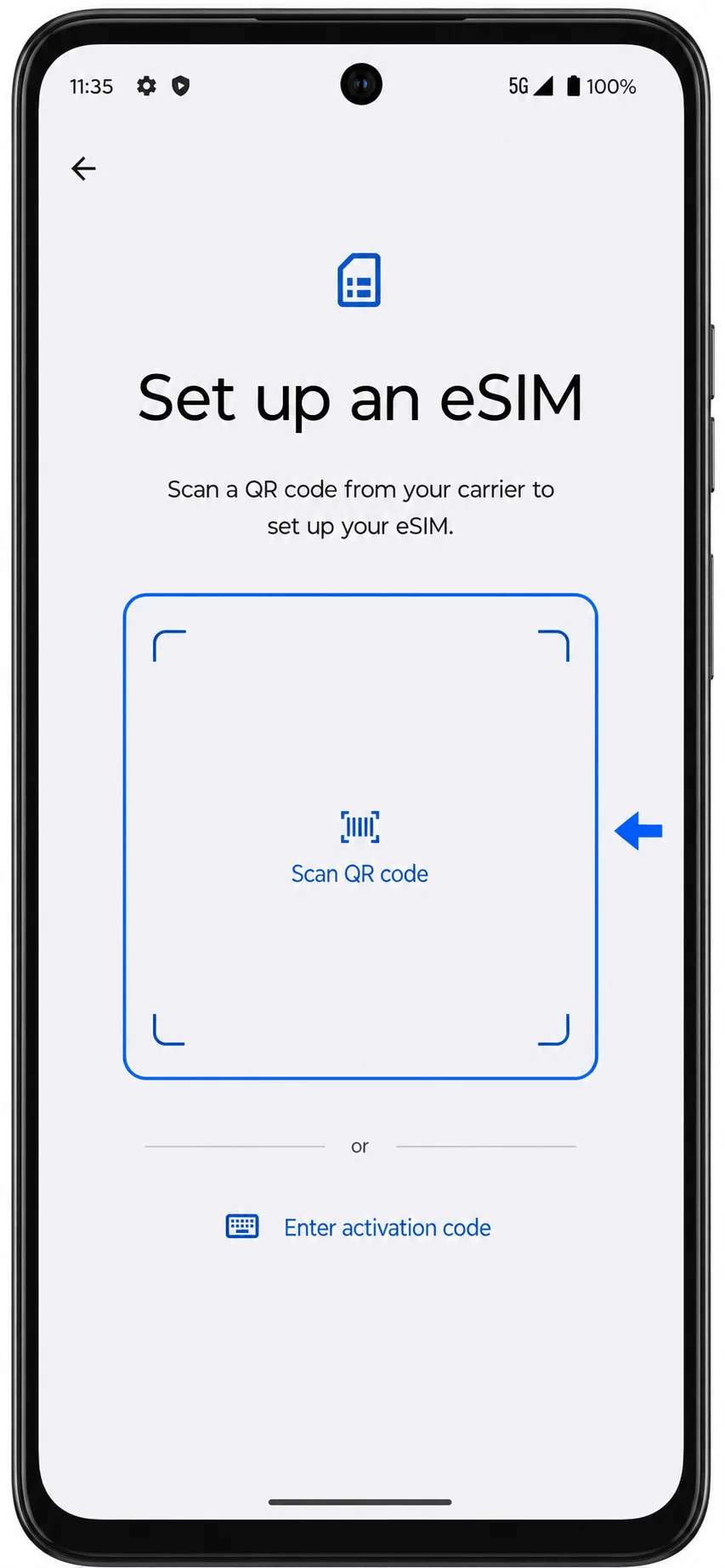
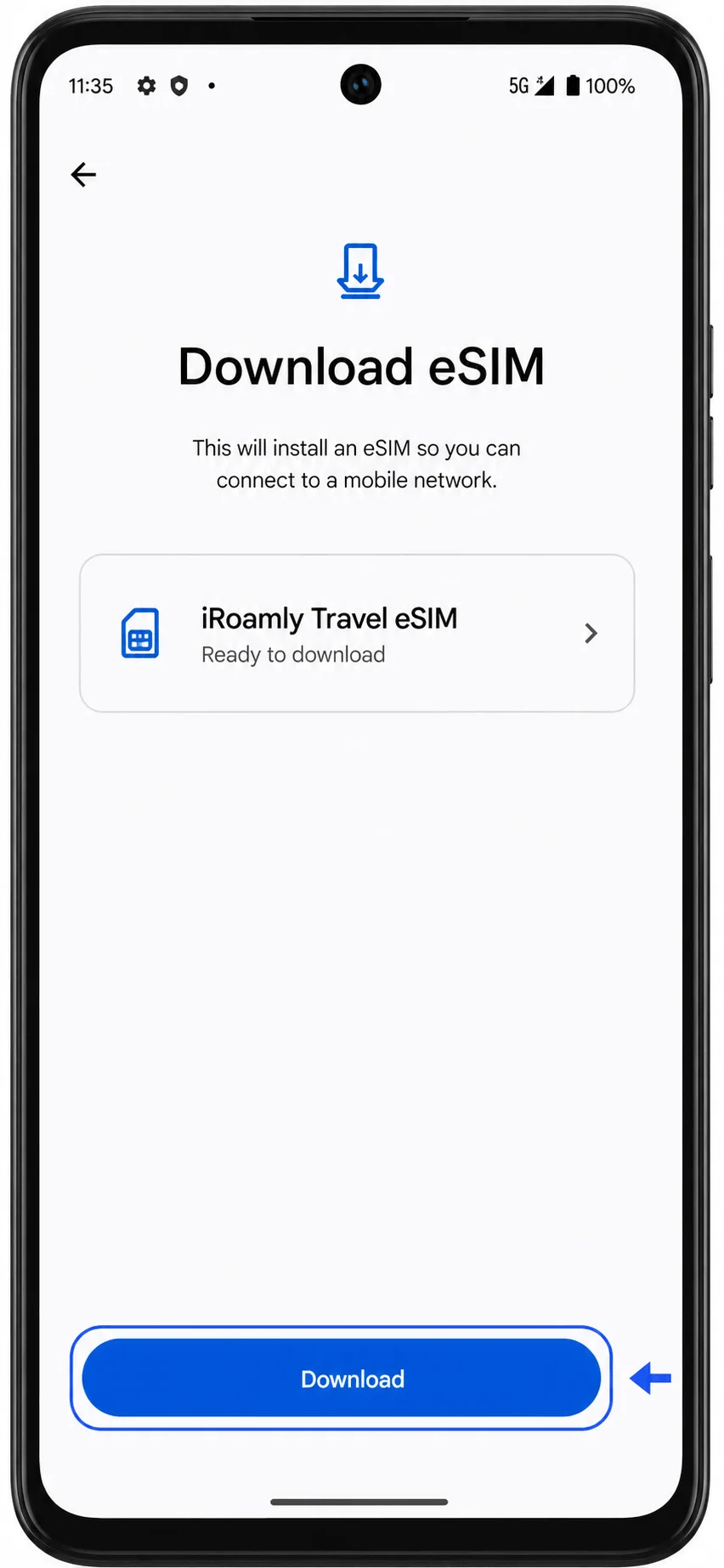
Point the camera at the iRoamly QR code, wait for the phone to recognize it, then tap Download or Continue when the iRoamly eSIM profile is shown. Keep the phone on Wi-Fi until the download finishes.
Method 2: Install the iRoamly eSIM by Manual Entry
Open Settings, then tap Network & internet. This is the same starting point used for QR-code setup.
Tap SIMs & mobile network. Confirm that the SIM management page opens before continuing.
Tap Download new SIM or the closest Add eSIM option available on your Moto G35. The eSIM setup flow should start.
Tap Set up an eSIM to reach the QR-code scanner screen. Instead of scanning, look for the manual-entry option on the scanner page.
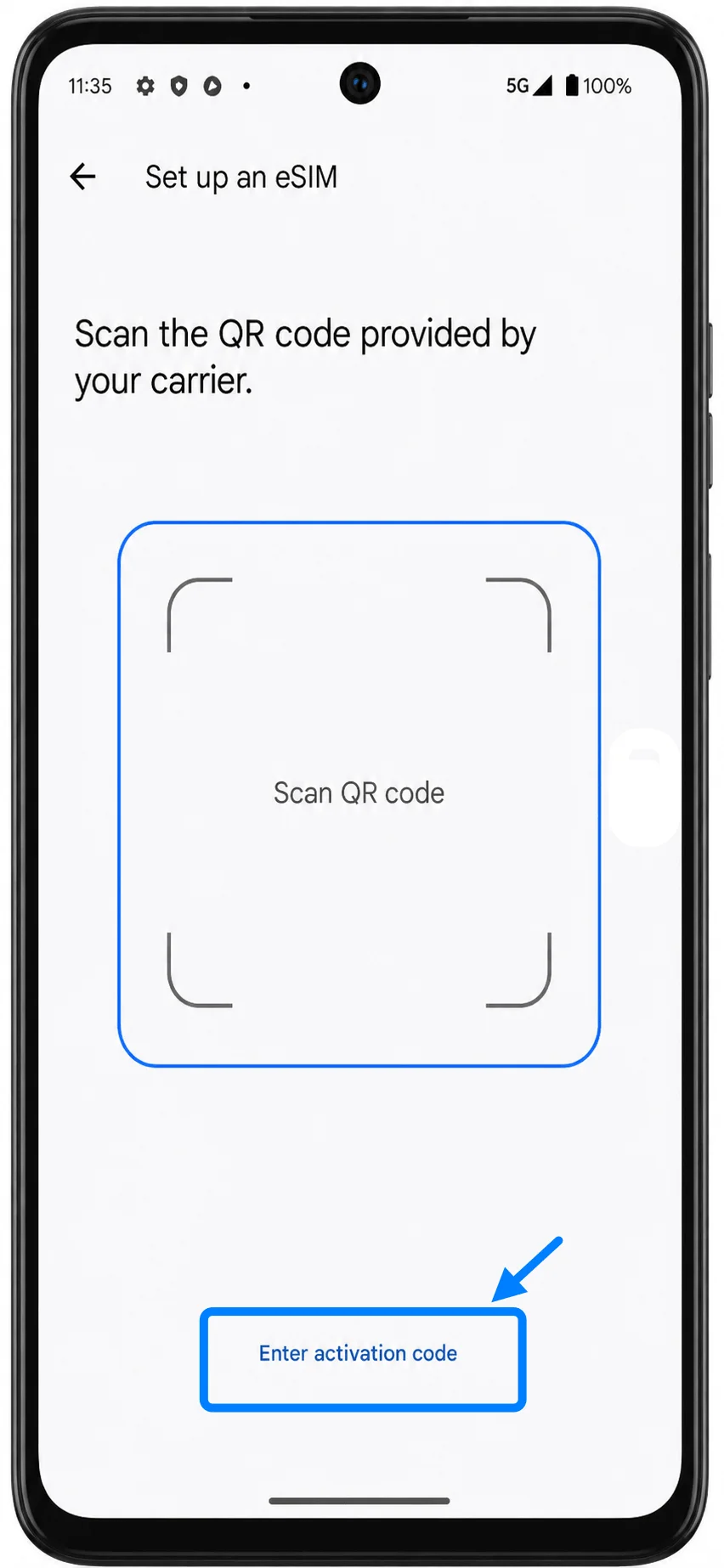
Tap Enter activation code, then enter the full activation code string exactly as provided by iRoamly. On this Motorola Android flow, manual setup is typically entered as one activation-code string rather than separate SM-DP+ Address and Activation Code fields.
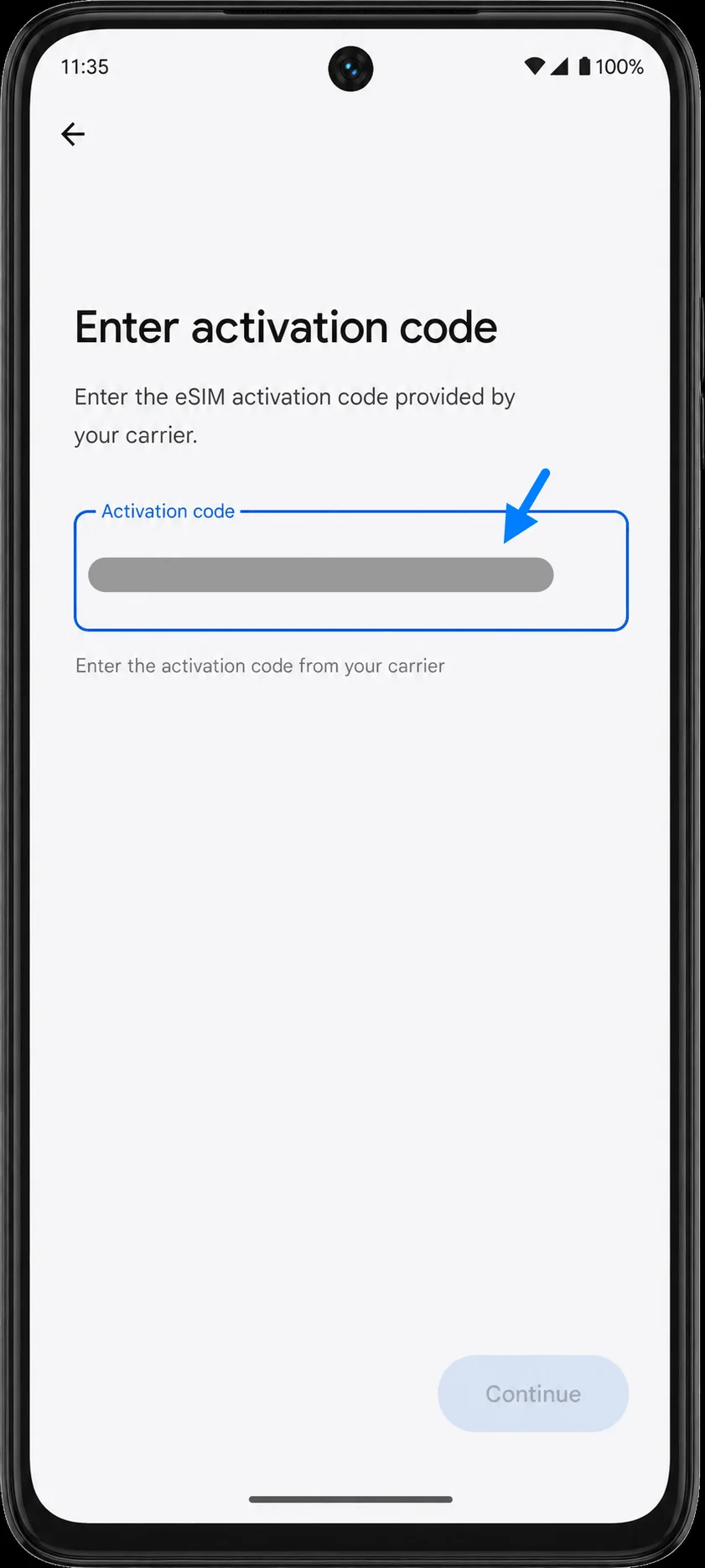
Tap Continue, review the iRoamly eSIM profile, then tap Download. Stay on Wi-Fi until Android confirms the eSIM has been downloaded.
How to Confirm the iRoamly eSIM Was Installed
Open Settings > Network & internet > SIMs & mobile network, then look for the newly added iRoamly eSIM under your SIM list. It may appear with a generic carrier label until you rename it.
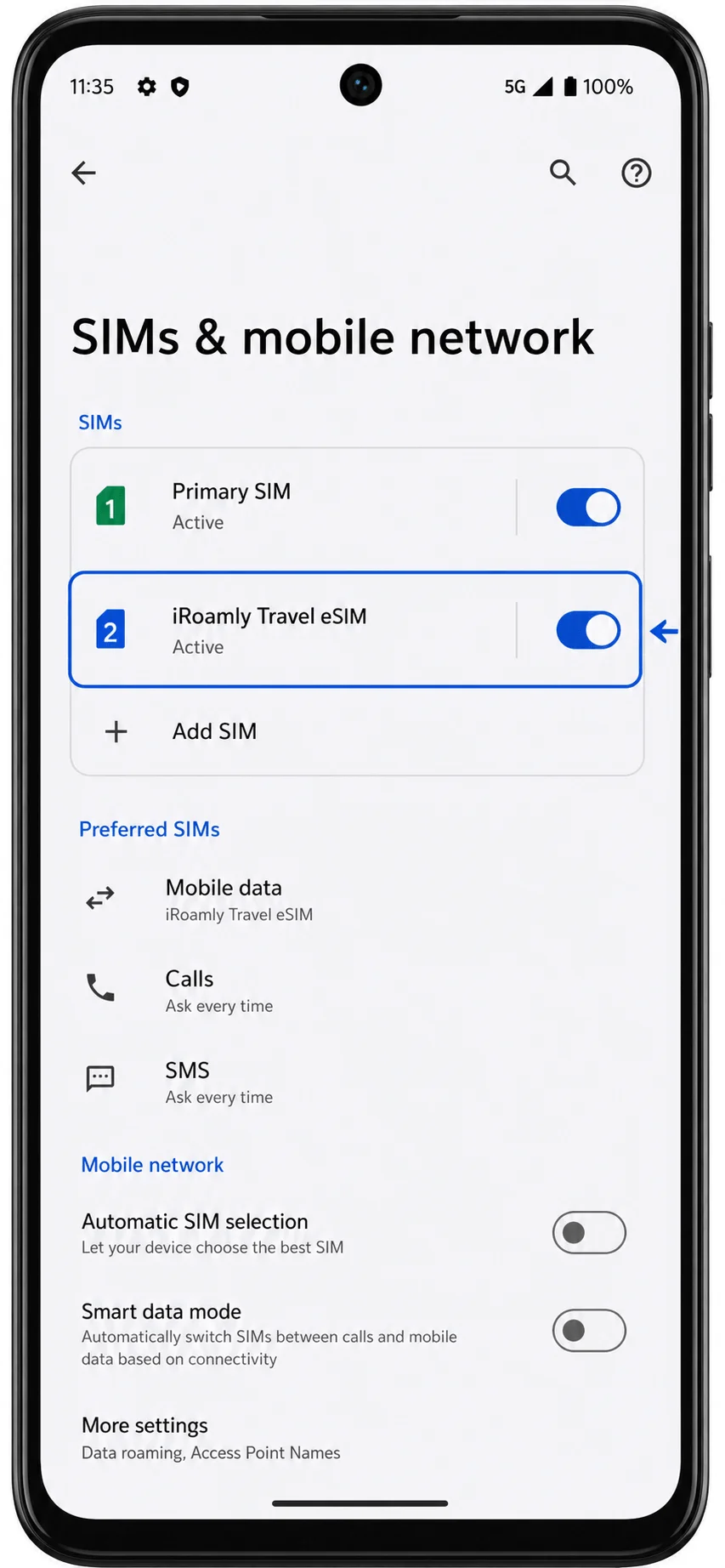
Tap the iRoamly eSIM entry and confirm that Use SIM is available or turned on. If Android asks whether to enable the SIM, approve it when you are ready to use the travel plan.
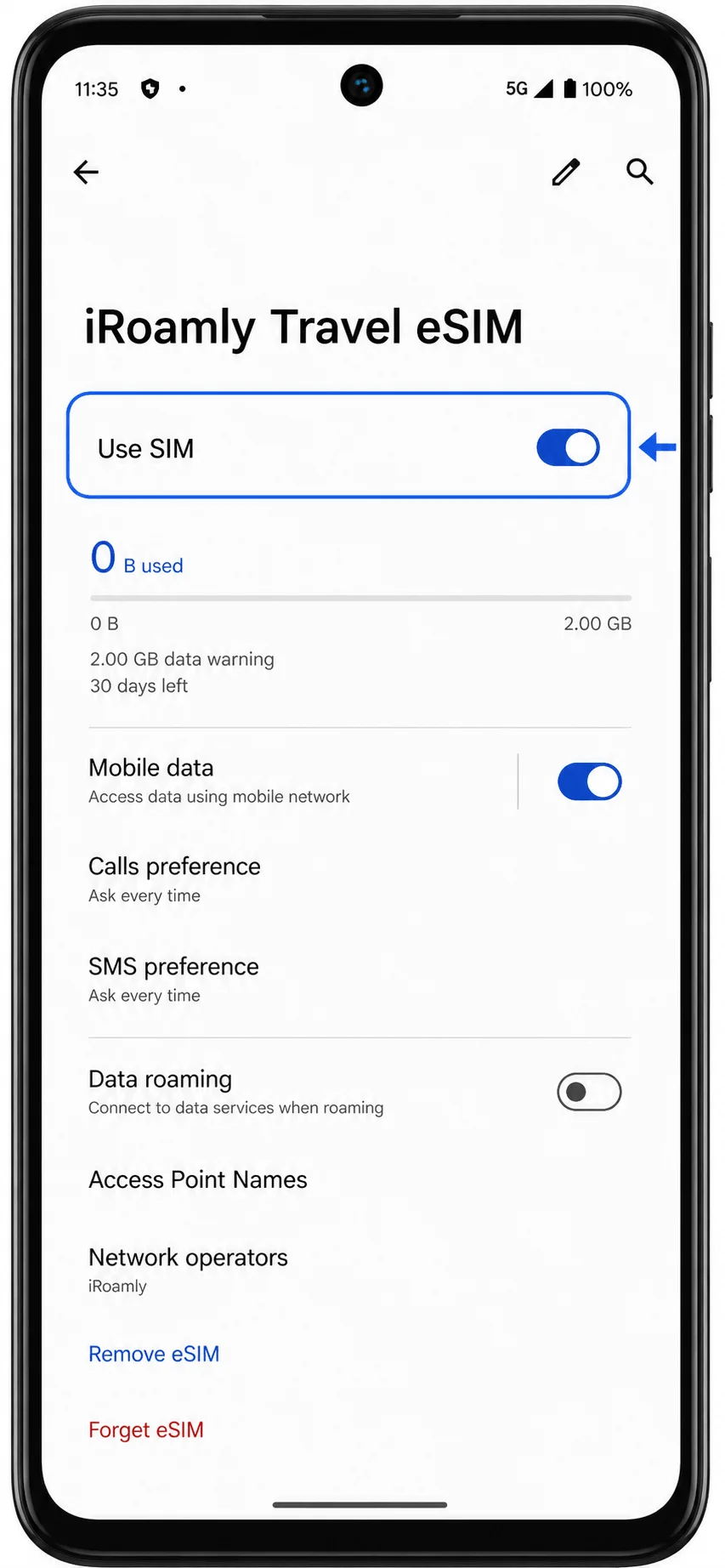
Set Up the iRoamly eSIM for Travel Data
In Settings > Network & internet > SIMs & mobile network, open the mobile data setting and select the iRoamly eSIM for data when you want to use the travel plan.
Open the iRoamly eSIM details and turn on Roaming or Data roaming if your iRoamly plan or destination requires it. Keep your primary SIM from taking mobile data if you want to avoid roaming charges on your home line.
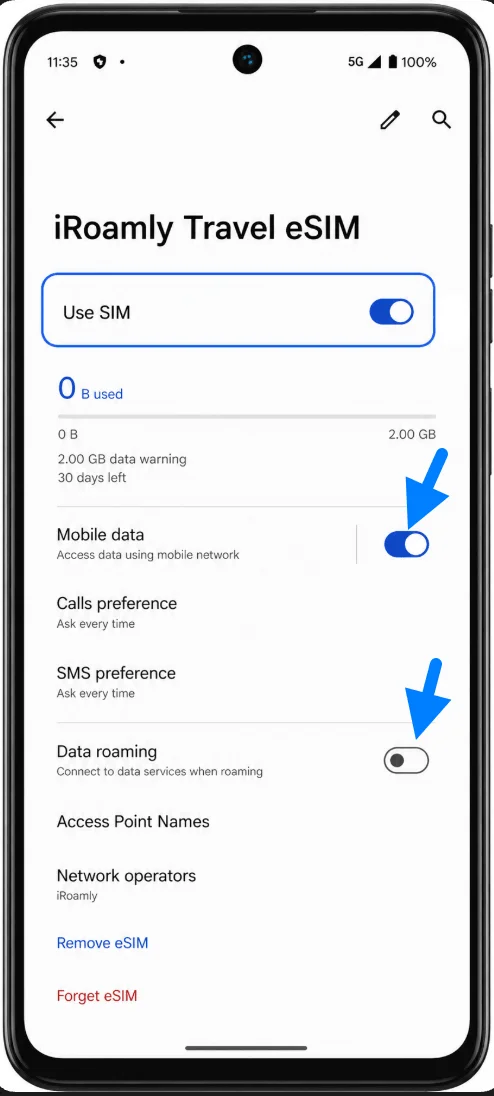
Troubleshooting
Download new SIM or Add eSIM is missing: confirm that your Moto G35 variant supports eSIM, that the phone is unlocked, and that your carrier firmware has not disabled eSIM setup.
The QR code says it was already used: do not delete and retry repeatedly. Contact iRoamly support, because many eSIM QR codes are single-use after installation.
No data after installation: check that the iRoamly eSIM is turned on, selected for mobile data, and allowed to use data roaming if required for your destination.
Activation is pending: keep Wi-Fi connected, wait a few minutes, and restart the Moto G35 if Android recommends it or the setup appears stuck.
Manual entry fails: enter the full activation code exactly as iRoamly provides it, including punctuation. If your Moto G35 shows separate fields instead, copy the matching SM-DP+ Address, Activation Code, and optional confirmation code from iRoamly.
Voice or SMS does not work: many travel eSIM plans are data-focused. Check your iRoamly plan details before assuming calls or text messages are included.
Other Moto G eSIM Setup Guides
Setting up a different Moto G? You may find the right guide here.
Conclusion
Once the iRoamly eSIM is installed on your Moto G35, you can leave it on the device and have it ready whenever your travel plan becomes active. This means one less thing to worry about when preparing for a trip, especially if you prefer to avoid handling SIM cards or mobile network setup after landing.
Whether you need access to maps, messaging apps, transportation services, or travel information, having the eSIM configured in advance can make the transition to mobile data much smoother. With the profile already downloaded and available, you'll be better prepared to get online when you need it most.