
This guide is for the Motorola Moto G53 / Moto G53 5G when the phone is an eSIM-capable regional model and is running Motorola's near-stock Android 13 or Android 14 software. Motorola's own Moto G53 help path uses Settings > Network & internet > SIM preferences for eSIM setup. On some updated builds or carrier variants, the same area may appear as SIMs, Mobile network, or SIMs & mobile network.
An iRoamly travel eSIM is useful when you want mobile data abroad without swapping your physical SIM. The Moto G53 can install an iRoamly eSIM by scanning the QR code from your purchase email or iRoamly account. If the QR code is on the same phone, the camera cannot scan it, or the QR code does not read cleanly, you can use manual entry instead.
The steps below cover both methods separately. Before you begin, confirm that your exact Moto G53 variant supports eSIM in your region and is carrier-unlocked. If the download and set up an eSIM option is missing, the phone software, carrier firmware, or regional model may not support eSIM installation.
Preparations Before Setting Up iRoamly eSIM
Connect the Moto G53 to a stable Wi-Fi network before installing the iRoamly eSIM.
Make sure the phone is unlocked and that your Moto G53 variant supports eSIM. Motorola eSIM support can vary by region and carrier firmware.
Keep your iRoamly QR code or manual activation details ready. iRoamly provides the QR code and activation code after purchase, usually by email or in your iRoamly account.
Install the eSIM 1-2 days before travel when possible, while you still have reliable Wi-Fi.
Do not delete the iRoamly eSIM after installation unless iRoamly Support or your carrier tells you to. eSIM QR codes and activation codes are usually single-use.
iRoamly eSIM validity starts from activation. For many current iRoamly travel plans, the validity period starts when the eSIM connects to a supported network, but you should always check the activation rule shown on your specific plan.
iRoamly travel eSIM plans may be data-only. Voice calls and SMS availability varies by plan, so check the plan details before relying on calls or texts.
Method 1: Install the eSIM by Scanning a QR Code
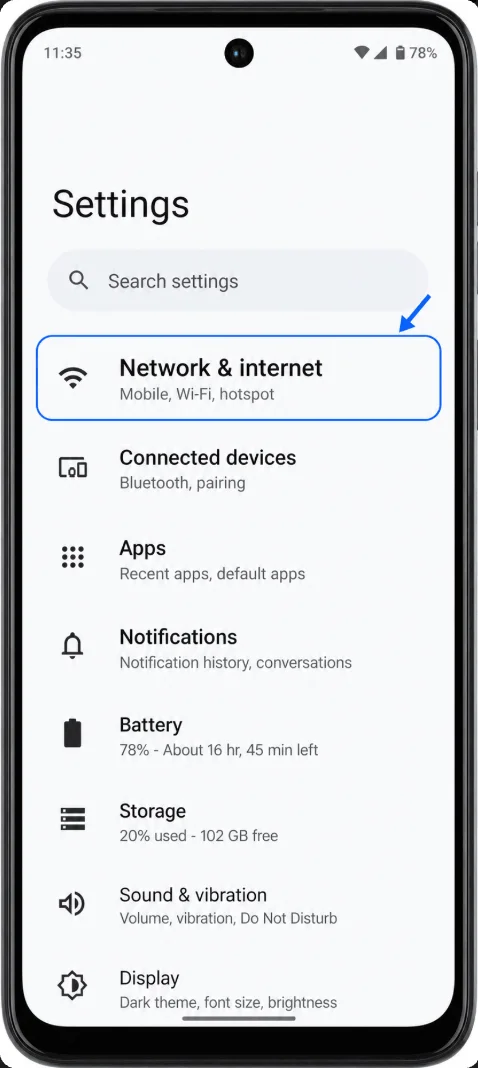
Open Settings on the Moto G53, then tap Network & internet. You should see the network settings page with Wi-Fi, mobile network, hotspot, and SIM-related options.
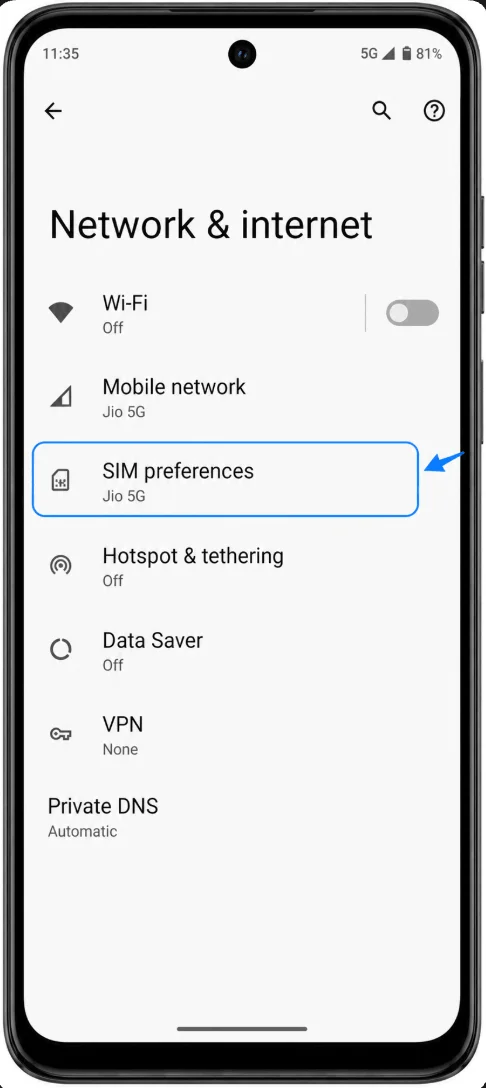
Tap SIM preferences. If your software uses a newer label, tap SIMs, Mobile network, or SIMs & mobile network instead. You should see your physical SIM and the eSIM setup option.
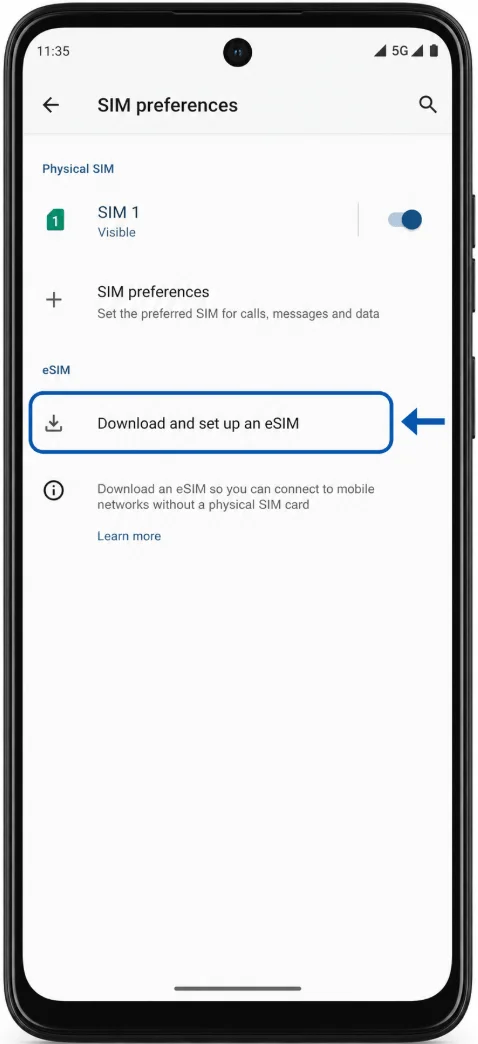
Tap the option to download and set up an eSIM. On some Moto G53 builds, this may appear as Download a SIM, Download new SIM, or Add eSIM. The phone should open the eSIM setup flow.
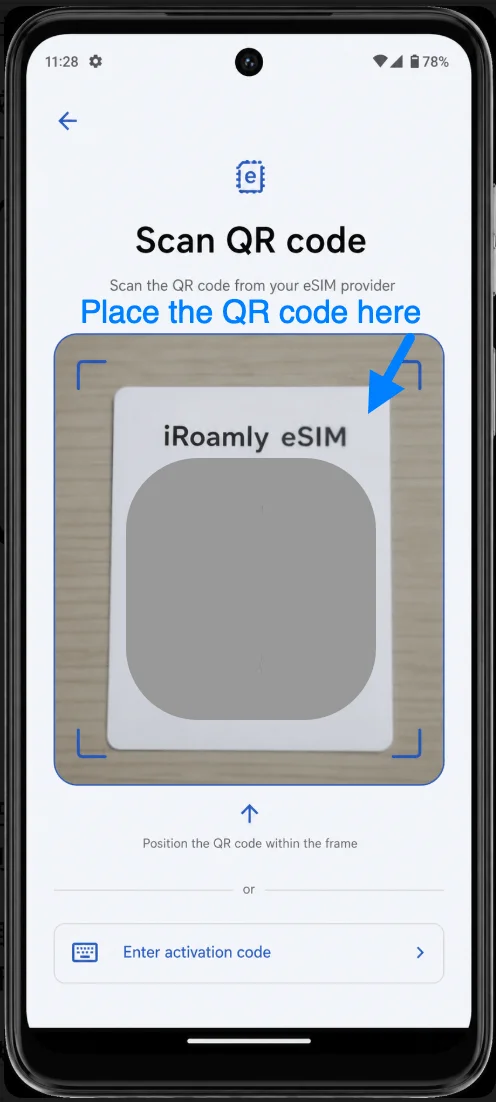
Choose Scan QR code if the phone asks how you want to add the eSIM. Point the Moto G53 camera at the iRoamly QR code from another screen or a printed copy, and keep the code inside the scanner frame until it is recognized.
Review the detected iRoamly mobile plan, then tap Download or Activate when prompted. Keep the phone connected to Wi-Fi until the eSIM profile finishes downloading.
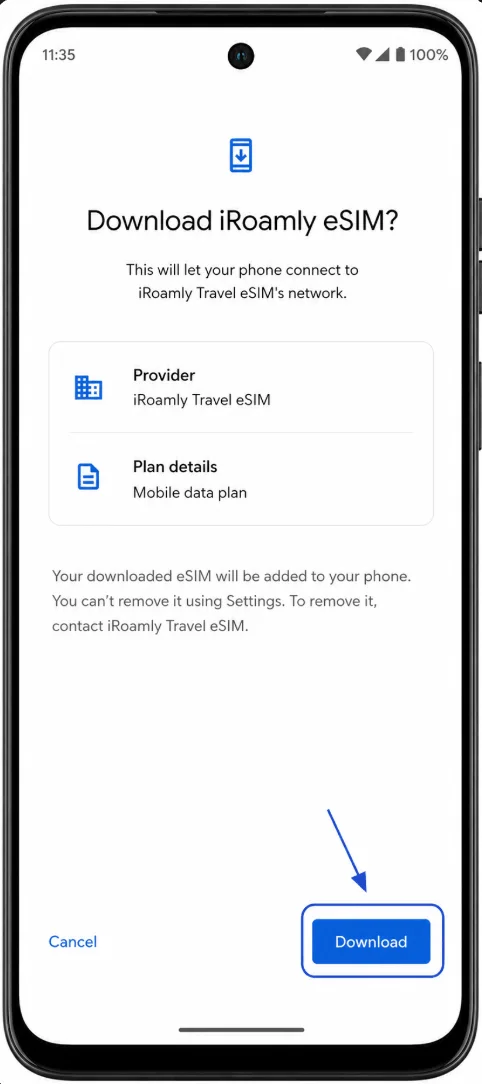
When setup finishes, tap Done. If the phone asks for a label, name the line iRoamly so it is easy to identify later in SIM settings.

Method 2: Install the eSIM by Manual Entry
Open Settings, tap Network & internet, then tap SIM preferences. On updated or carrier-modified software, tap SIMs, Mobile network, or SIMs & mobile network if that is the label shown on your Moto G53.
Tap the option to download and set up an eSIM, Download a SIM, Download new SIM, or Add eSIM. The phone should open the eSIM setup flow instead of the normal physical SIM settings.
On the QR code screen, tap Enter activation code, Enter code manually, or Need help? if the manual option is hidden. The Moto G53 should show a manual activation-code field.
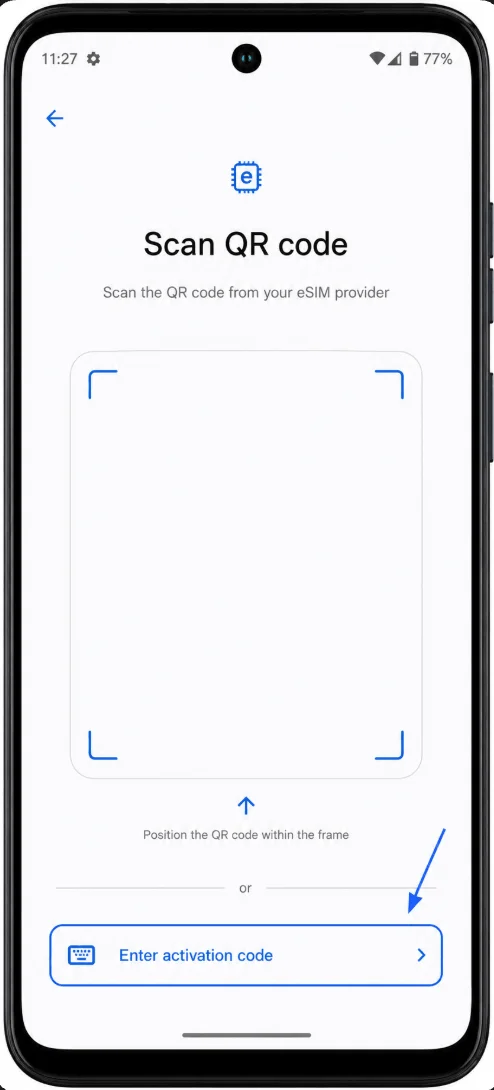
Enter the manual iRoamly activation string exactly as provided. For this Android/Motorola flow, the manual screen commonly uses one full activation code string, often beginning with LPA:1$ and containing the SM-DP+ address plus the matching activation token. If iRoamly instead separates the details in your account, combine or paste them only in the format iRoamly provides for Android manual installation.
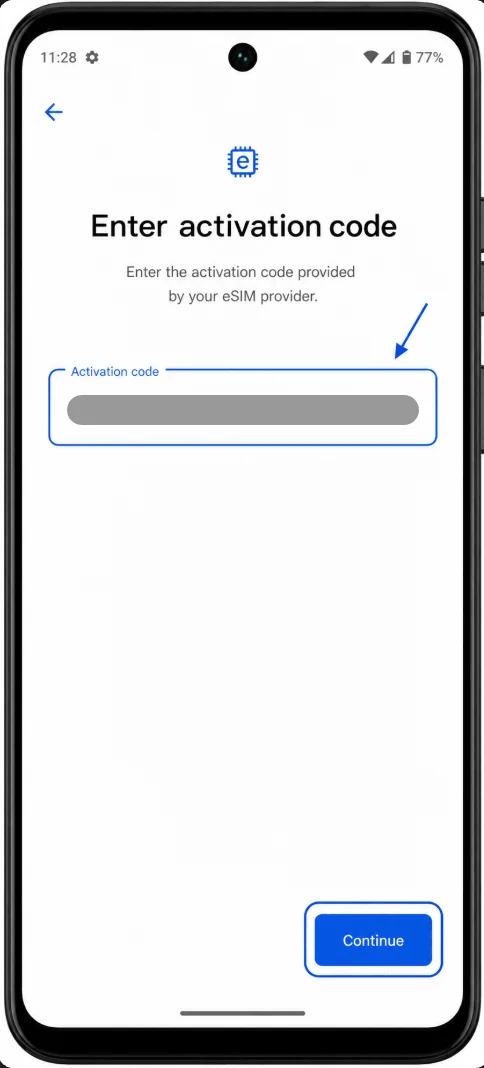
Tap Continue, Connect, or Download and wait while the Moto G53 downloads the iRoamly eSIM over Wi-Fi. Do not leave the setup screen until the phone confirms the profile is installed.
Tap Done after installation finishes. If prompted, label the new eSIM line iRoamly so it is easy to choose for mobile data when you arrive.
How to Confirm the eSIM Was Installed
Open Settings > Network & internet > SIM preferences. Confirm that an eSIM line named iRoamly, Downloaded SIM, or a carrier profile from the iRoamly plan appears alongside your physical SIM.
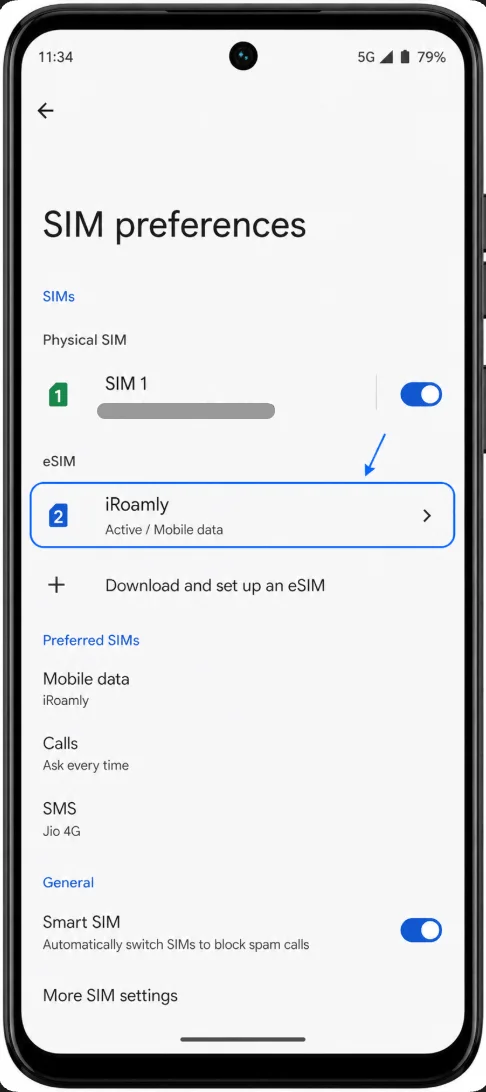
Tap the iRoamly eSIM line and confirm the line is turned on. If the plan has not connected yet because you are not in the destination country, it may show as installed but not active until it reaches a supported network.
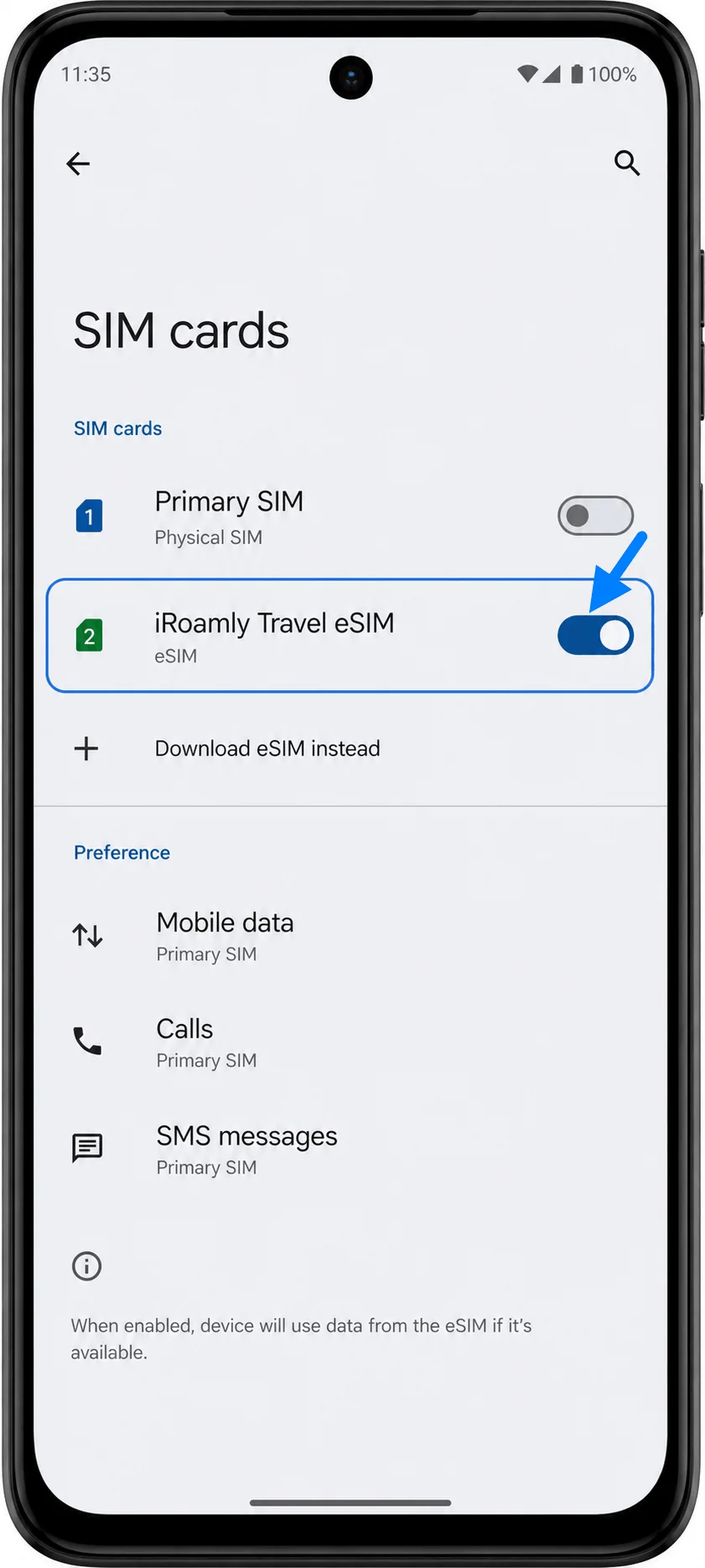
Set Up the eSIM for Mobile Data
Open Settings > Network & internet > SIM preferences, then choose the preferred SIM option for Mobile data or Data. Select the iRoamly eSIM as the mobile-data line when you are ready to use the travel plan.
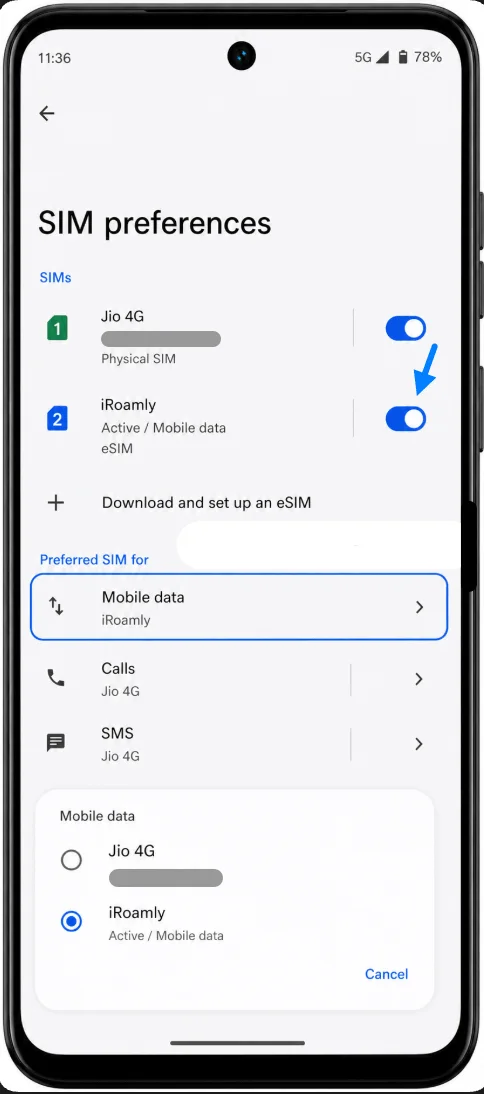
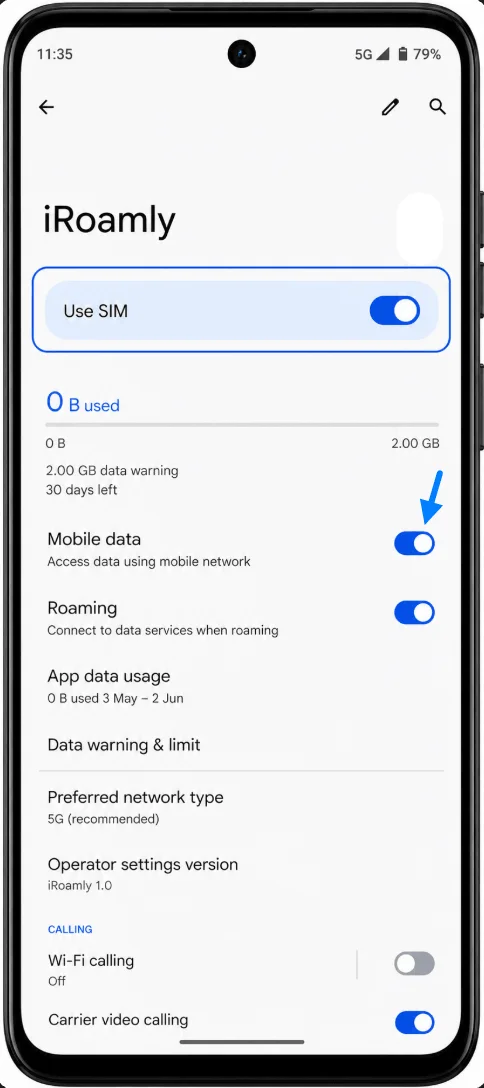
Open the iRoamly eSIM line settings and turn on Mobile data if it is off. Keep your primary SIM selected for calls or SMS only if you still want to receive those services on your home number.
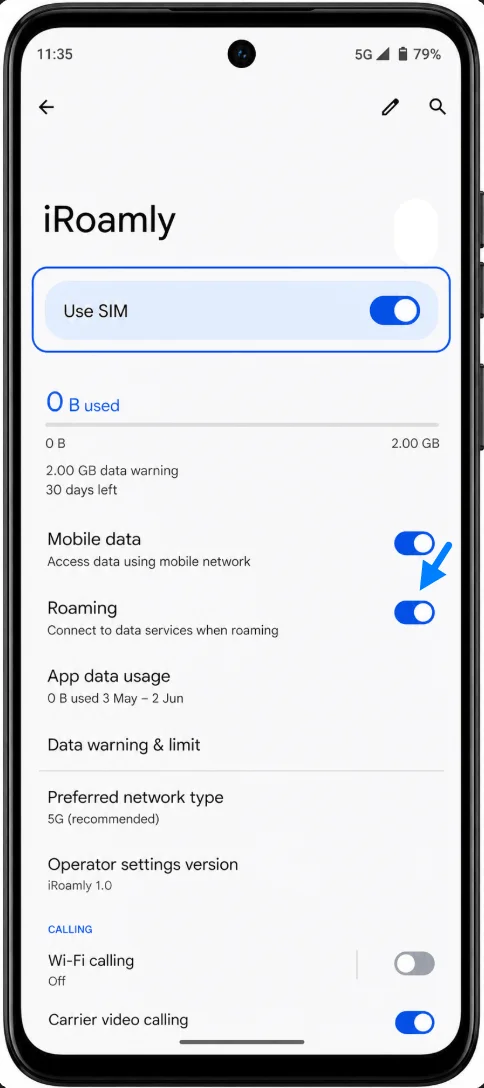
In the iRoamly eSIM line settings, turn on Roaming or Data roaming if your iRoamly plan or destination instructions require it. Travel eSIMs often need roaming enabled to connect through partner networks.
If the Moto G53 offers automatic SIM switching or a dual-SIM profile, choose Manual and keep iRoamly selected for mobile data while abroad. This helps avoid unwanted data use on your primary SIM.
Troubleshooting
If download and set up an eSIM, Download a SIM, or Add eSIM is missing, confirm that your exact Moto G53 model supports eSIM in your region, that the phone is carrier-unlocked, and that you are using the owner profile rather than a guest or secondary Android user.
If the iRoamly QR code says it has already been used, do not delete and reinstall the eSIM. Contact iRoamly Support because eSIM QR codes and activation codes are usually single-use.
If the QR code will not scan, increase the brightness on the device showing the QR code, open the code on another screen, or use Method 2 with the manual activation code.
If manual entry fails, check every character in the activation string. Do not add spaces, and make sure the full LPA:1$... string or the exact Android manual format from iRoamly is entered.
If the eSIM installs but has no data, wait until you are in the plan's covered destination, select iRoamly for mobile data, turn on mobile data and data roaming for the iRoamly line, then restart the phone or toggle Airplane mode on and off.
If the eSIM shows Activating or No service, it may not be able to connect until it reaches a supported partner network. Confirm the destination is covered by your iRoamly plan.
If your Moto G53 is a carrier variant, the carrier firmware may hide eSIM setup or restrict manual activation. In that case, contact the carrier or Motorola Support to confirm eSIM availability for your exact model number.
Conclusion
For the Moto G53, the most reliable starting point is Motorola's Settings > Network & internet > SIM preferences path, then the option to download and set up an eSIM. Scanning the iRoamly QR code is quickest when you can display it on another screen, while manual entry is the practical backup when you only have the activation details.
After installation, confirm that the iRoamly line appears in SIM preferences, select it for mobile data, and turn on roaming for the iRoamly line if your travel plan requires it. That final SIM selection matters on the Moto G53 because dual-SIM settings can otherwise keep data on your primary SIM.