
The Moto G53J 5G is an Android 13 Motorola phone sold with eSIM support in Japan, making it a practical travel phone when you want mobile data without swapping a physical SIM.
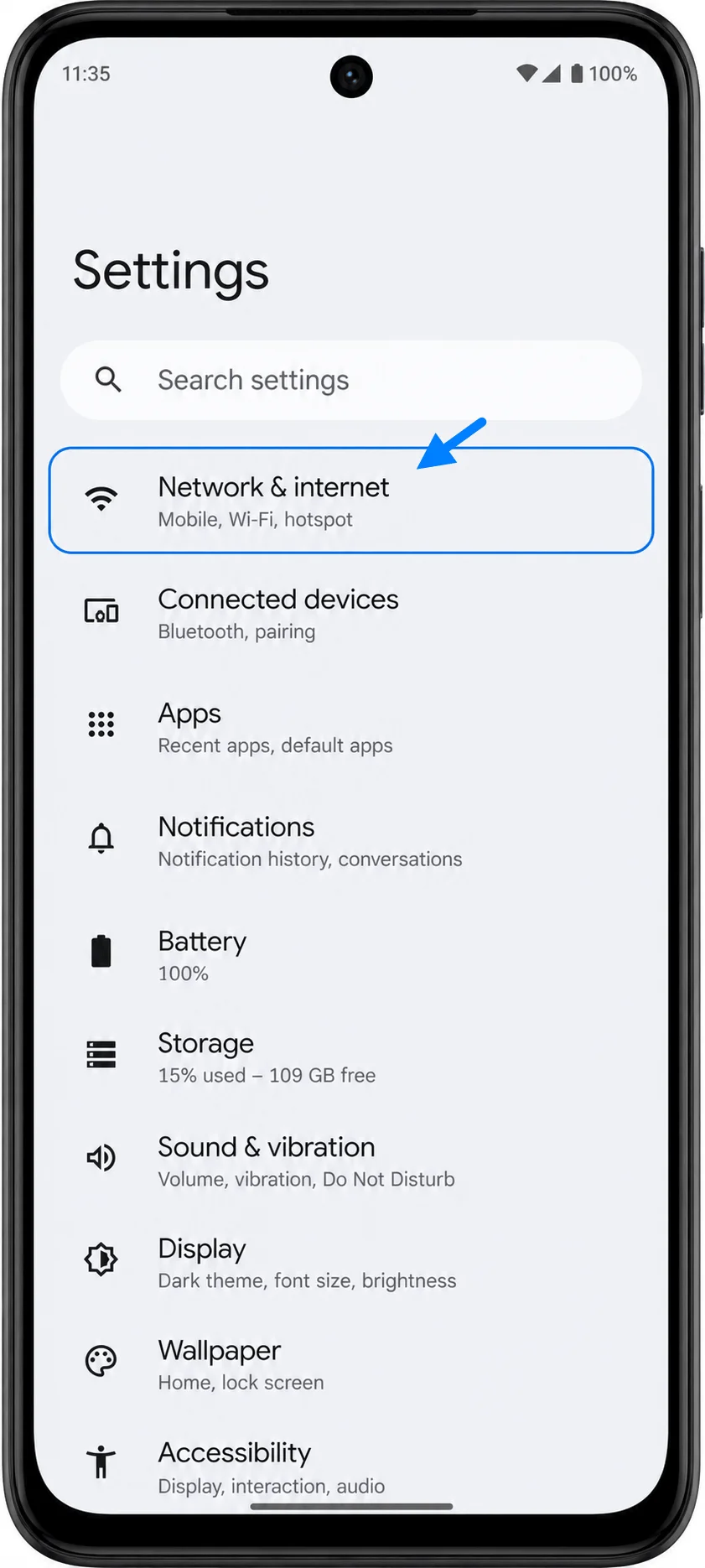
On this model, the setup path is based on Motorola's near-stock Android menus: Settings > Network & internet > SIM cards, then the option to download or add an eSIM.
This guide explains how to install an iRoamly travel eSIM on the Moto G53J 5G using either the QR code from your iRoamly order or the manual activation-code method.
The QR method is usually faster when you can display the QR code on another screen. Manual entry is useful if the QR code will not scan, you are setting up from the same phone, or you only have the activation details in text form.
Menu names can vary slightly by Android build, carrier firmware, or language setting. If your Moto G53J 5G shows Add eSIM, Download a SIM, or Download a SIM instead?, treat those as the eSIM setup entry point for this guide.

Travel with Mobile Data from iRoamly
iRoamly is a travel eSIM service that provides mobile data plans for trips around the world. Travelers can choose available destination, local, regional, or global options, with data amounts, validity periods, and plan features varying by location.
Once installed on a compatible phone, the travel data can support everyday needs such as maps, messaging, translations, ride-hailing, bookings, and travel updates.
For the Moto G53J 5G, this guide keeps the focus on adding an iRoamly travel eSIM through Motorola's Android settings and selecting it for mobile data. The existing instructions below cover both QR-code installation and manual activation-code entry.
Preparations Before Setting Up iRoamly eSIM
Connect the Moto G53J 5G to a stable Wi-Fi network before starting. The phone needs internet access to download the eSIM profile.
Make sure your Moto G53J 5G is unlocked and that your exact device variant supports eSIM.
Keep your iRoamly QR code or manual activation details ready. If you are scanning a QR code, display it on another phone, tablet, or computer.
Do not delete the iRoamly eSIM after installation unless iRoamly support tells you to. Many travel eSIM profiles cannot be reinstalled after removal.
Install the eSIM 1 to 2 days before travel when possible, but check your plan details first. iRoamly plan validity starts from activation, and for many travel eSIMs activation is tied to installation or first connection to a supported destination network.
iRoamly eSIM plans may be data-only. Voice calls and SMS availability vary by plan, so check the specific plan page or order details before relying on calls or texts.
For a single-destination trip, you can prepare a country-specific travel eSIM in advance, such as an eSIM for Japan, France eSIM, or Spain eSIM, then select the iRoamly line for mobile data when you are ready to use it abroad.
Method 1: Install the eSIM by Scanning a QR Code
Open Settings on your Moto G53J 5G, then tap Network & internet. You should see the network settings menu next.
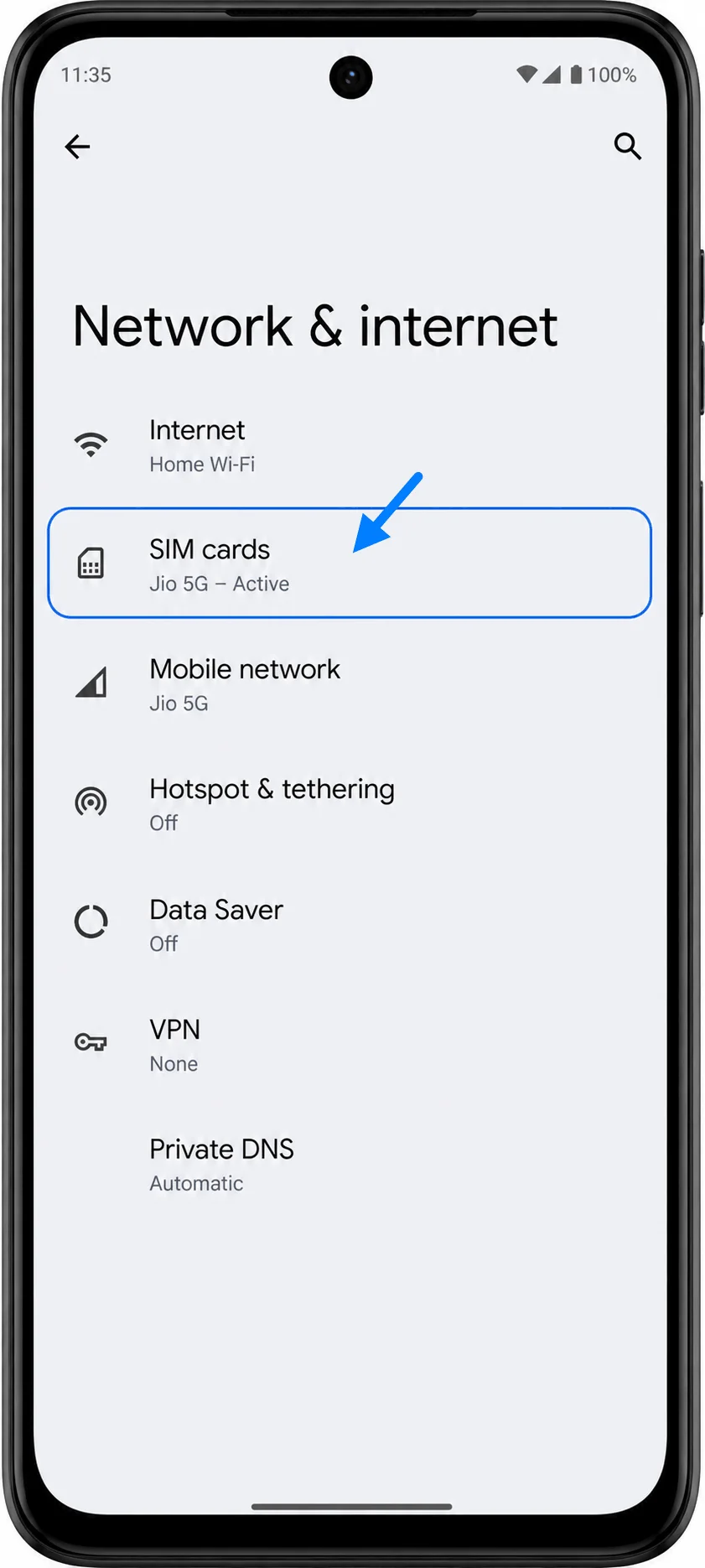
Tap SIM cards. This opens the page where your physical SIM and eSIM options are managed.
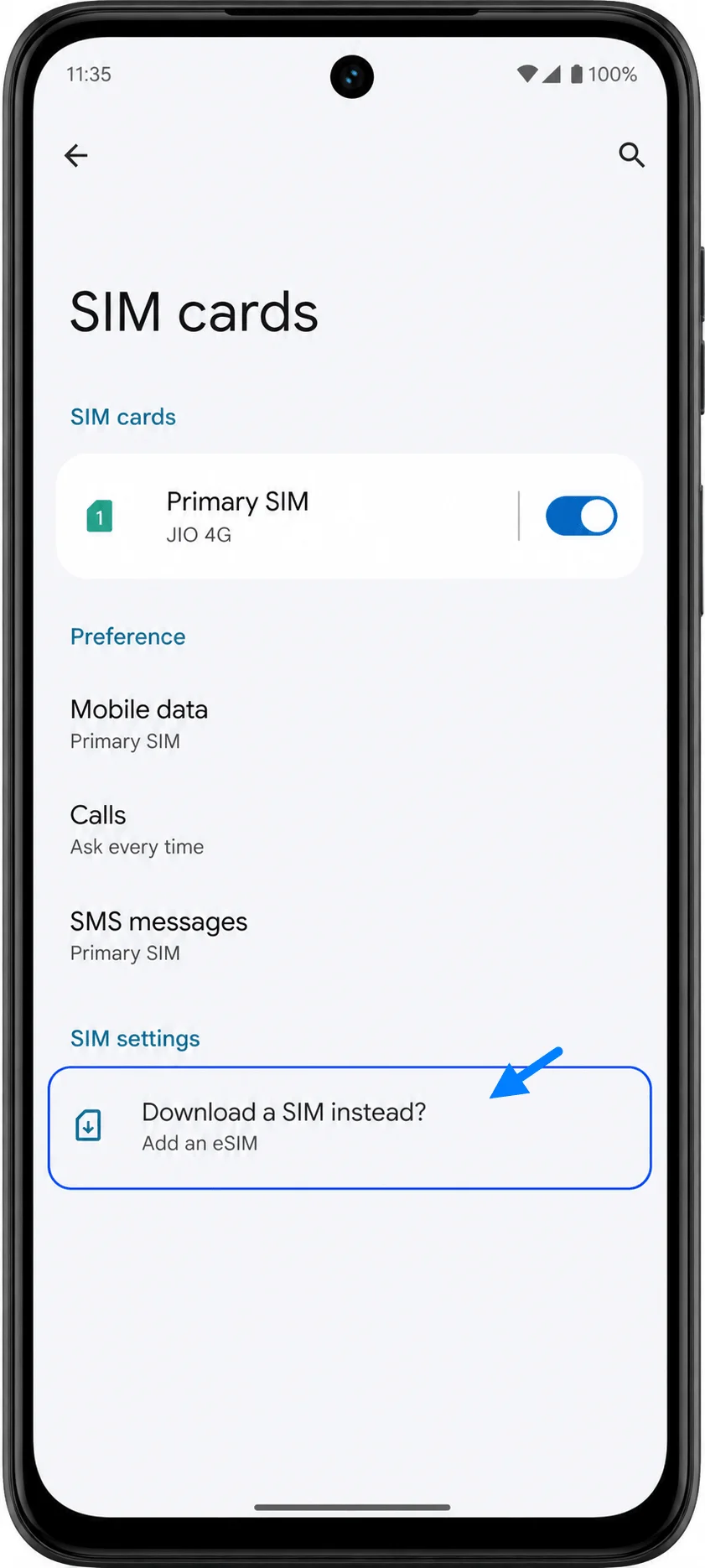
Tap Download a SIM instead? or the similar Add eSIM option. The Moto G53J 5G should open the eSIM download flow.
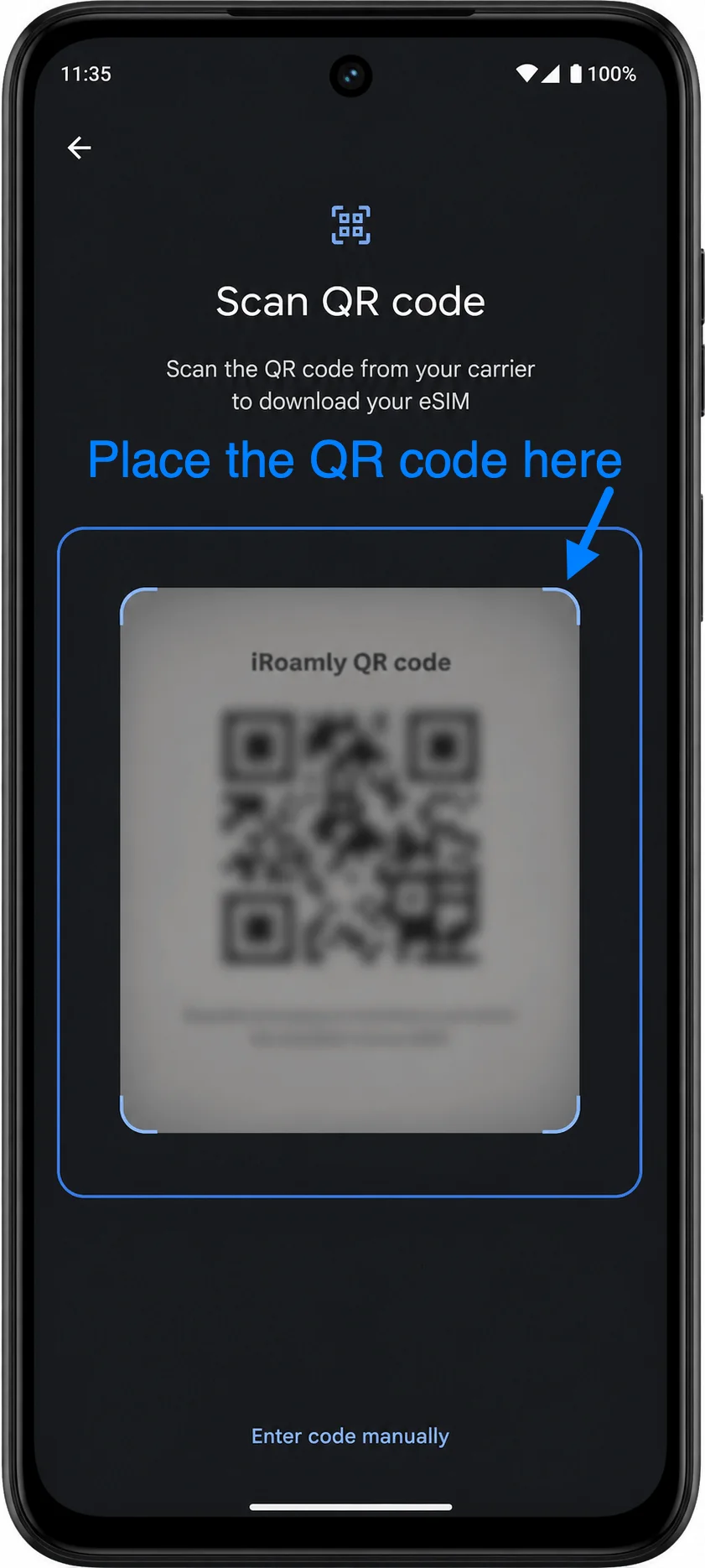
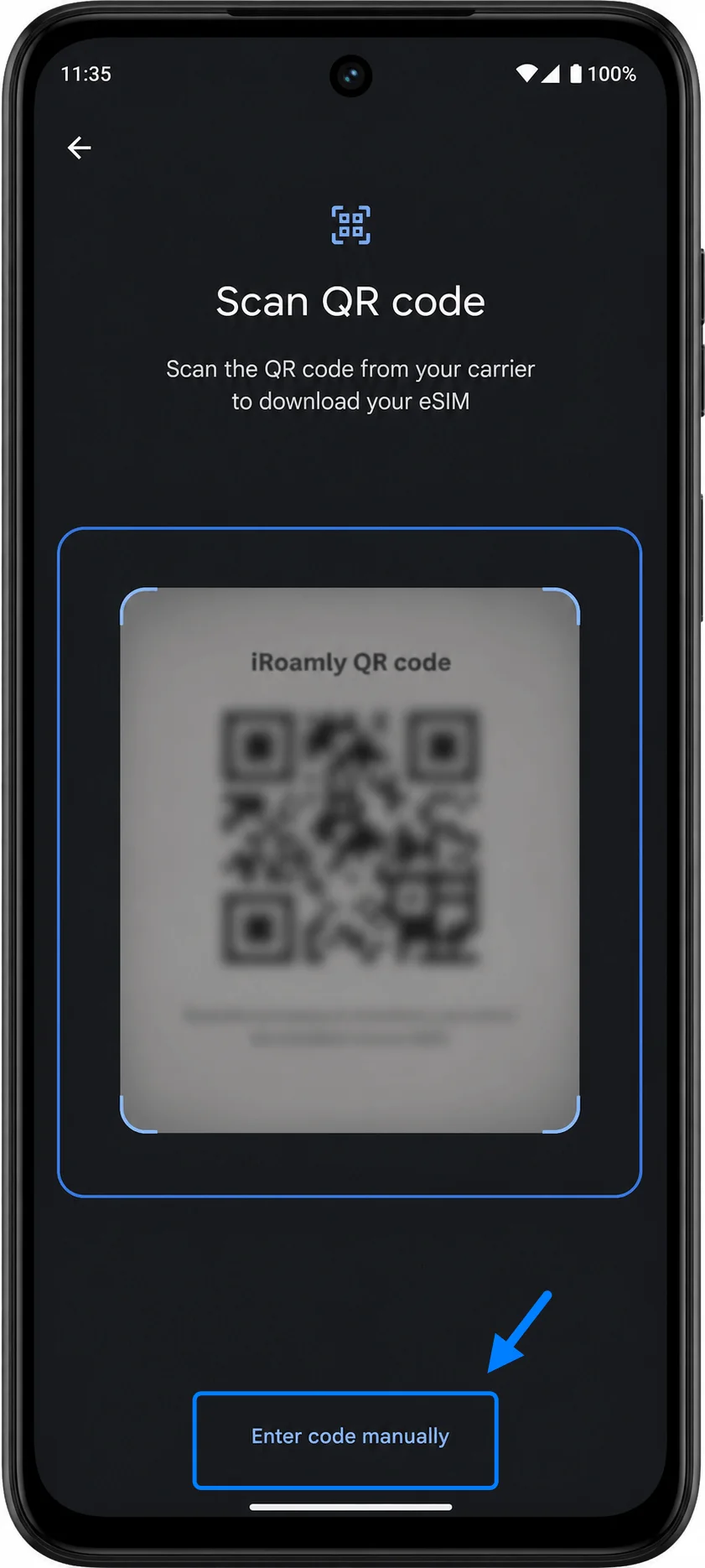
On the QR setup screen, point the camera at the iRoamly QR code. Keep the whole code inside the scanner box until the phone recognizes it.
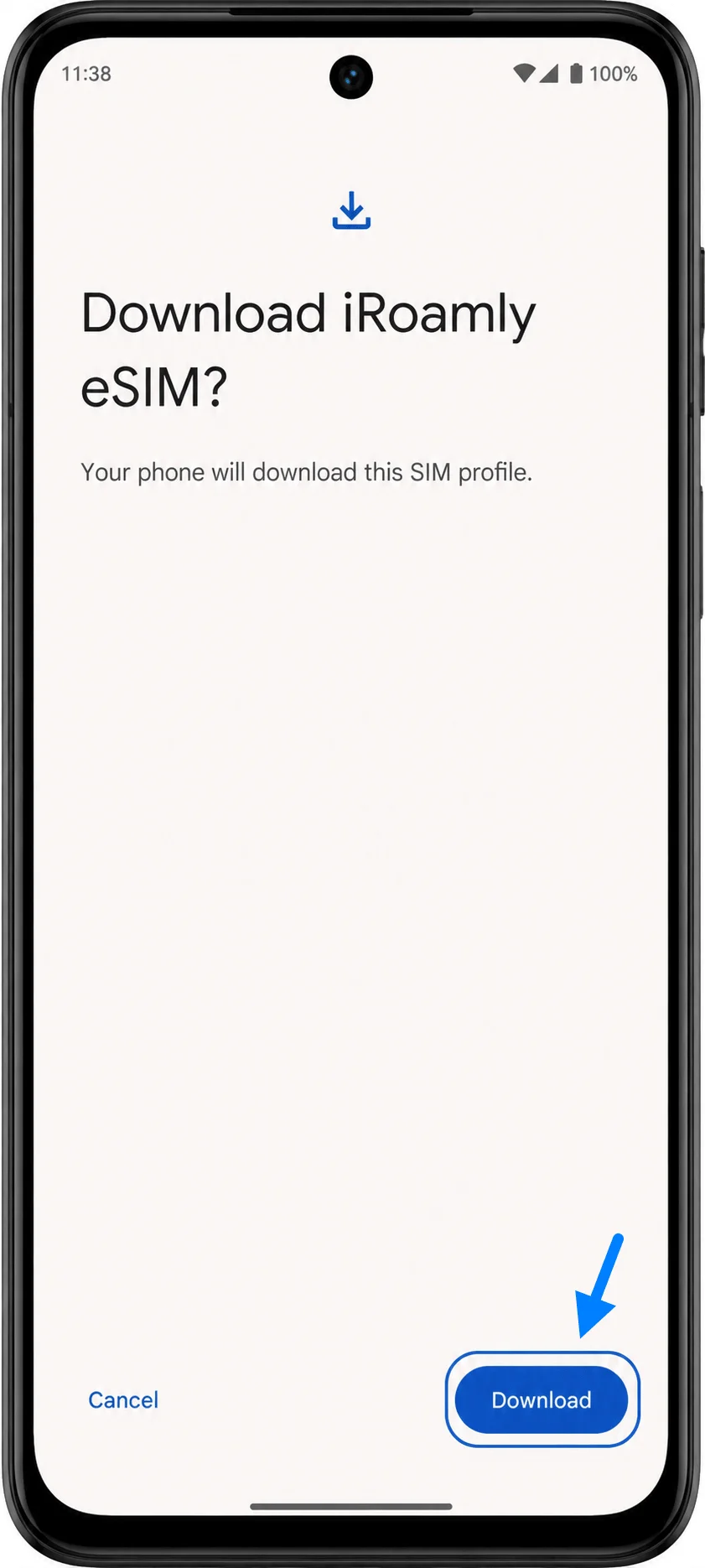
When the phone shows the iRoamly eSIM download confirmation, tap Download. Keep Wi-Fi connected and wait until the eSIM profile finishes downloading.
Method 2: Install the eSIM by Manual Entry
Open Settings on your Moto G53J 5G, then tap Network & internet. You should see the same network settings page used for QR setup.
Tap SIM cards. This takes you to the Moto G53J 5G SIM management screen.
Tap Download a SIM instead? or the similar Add eSIM option. The eSIM setup flow should open.
On the QR setup screen, tap Enter code manually or Enter activation code. This opens Android's manual eSIM activation page.
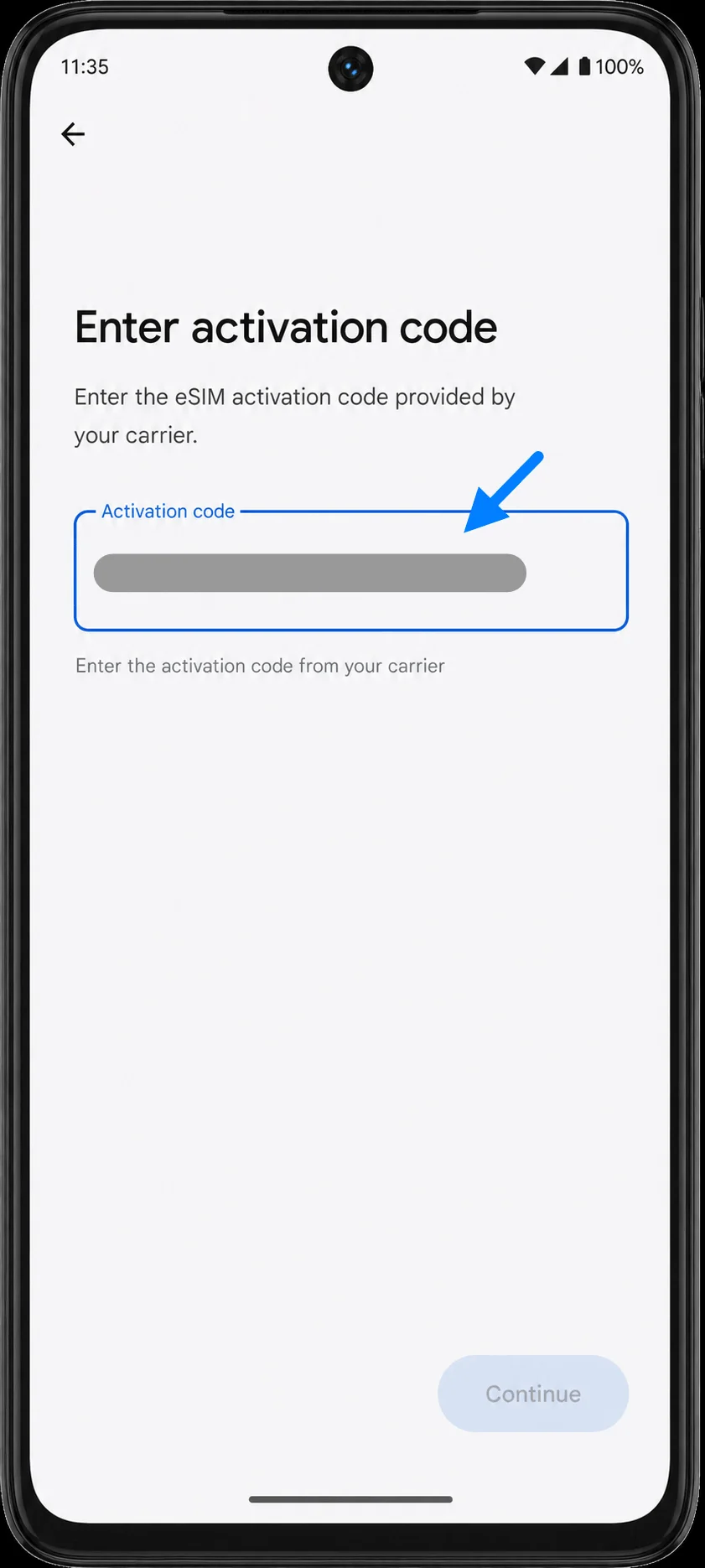
Enter the full activation-code string from iRoamly in the Activation code field. On Android, this is usually one complete code in the format LPA:1$SM-DP+ADDRESS$ACTIVATION-CODE, rather than separate iPhone-style SM-DP+ Address and Activation Code fields. Tap Continue after entering the code.
When the phone shows the iRoamly eSIM download confirmation, tap Download. Wait on Wi-Fi until the Moto G53J 5G reports that the eSIM has been added.
How to Confirm the eSIM Was Installed
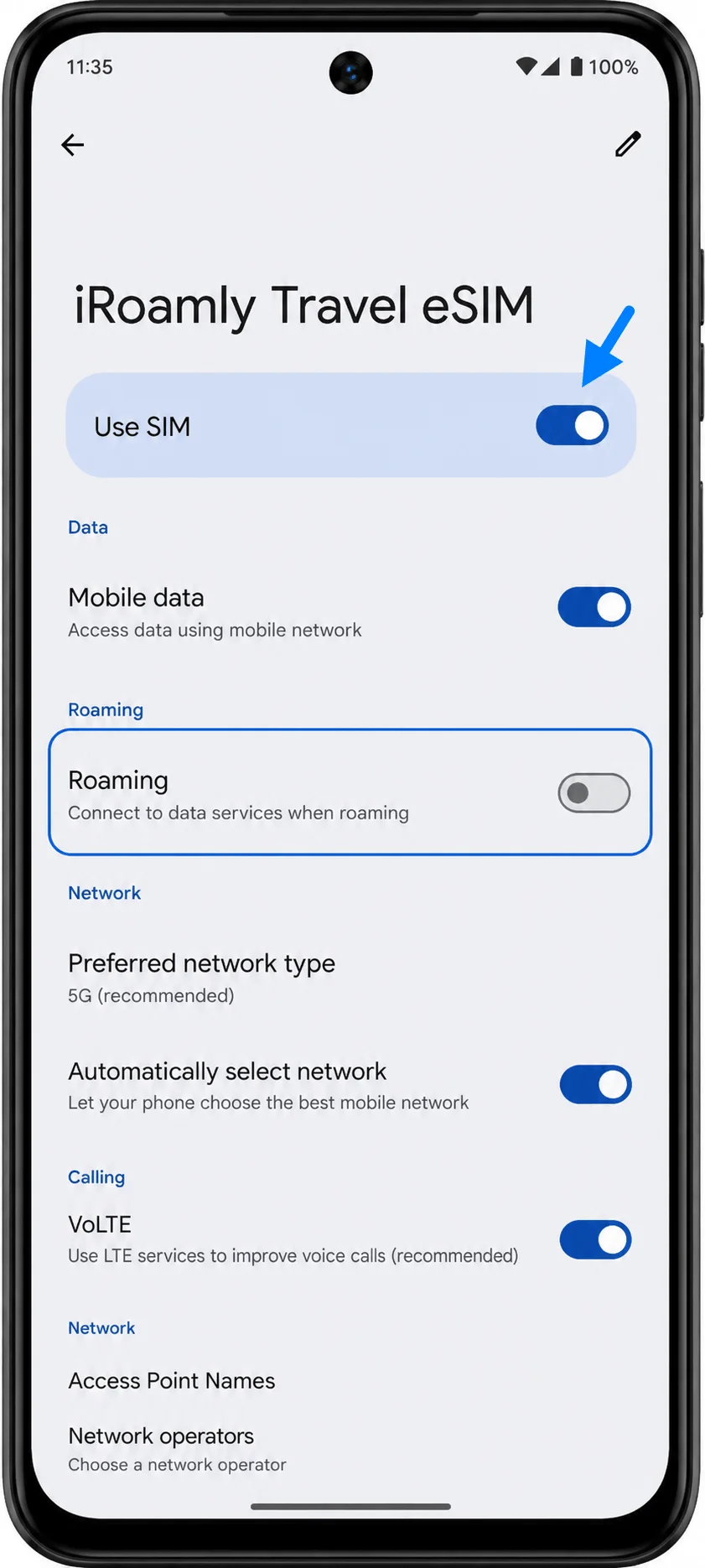
Go back to Settings > Network & internet > SIM cards and look for iRoamly Travel eSIM or a newly added eSIM profile. Turn on the eSIM if it is not already enabled.
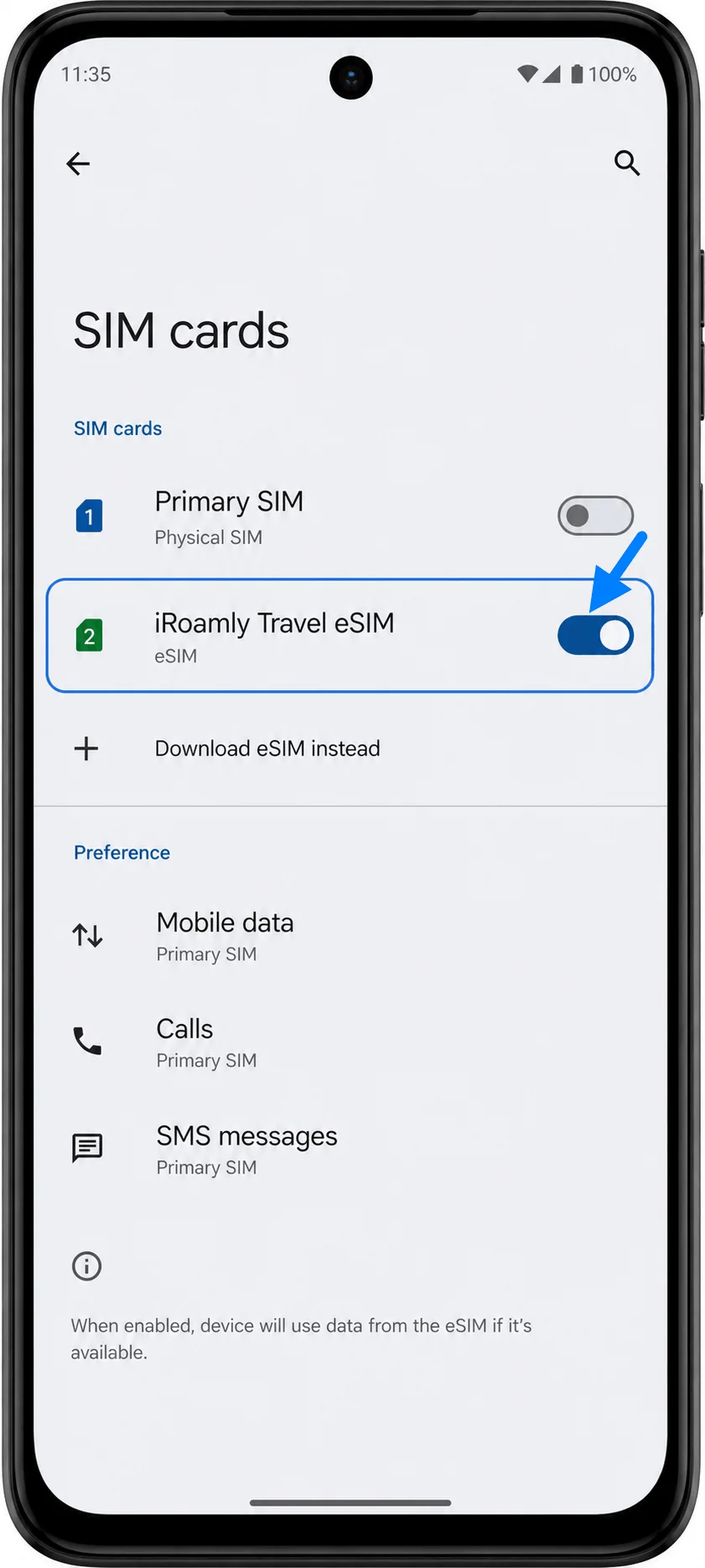
Tap the iRoamly eSIM profile and confirm that Use SIM is on. If the phone asks you to confirm the line name or finish setup, follow the onscreen prompt.
Set Up the eSIM for Mobile Data
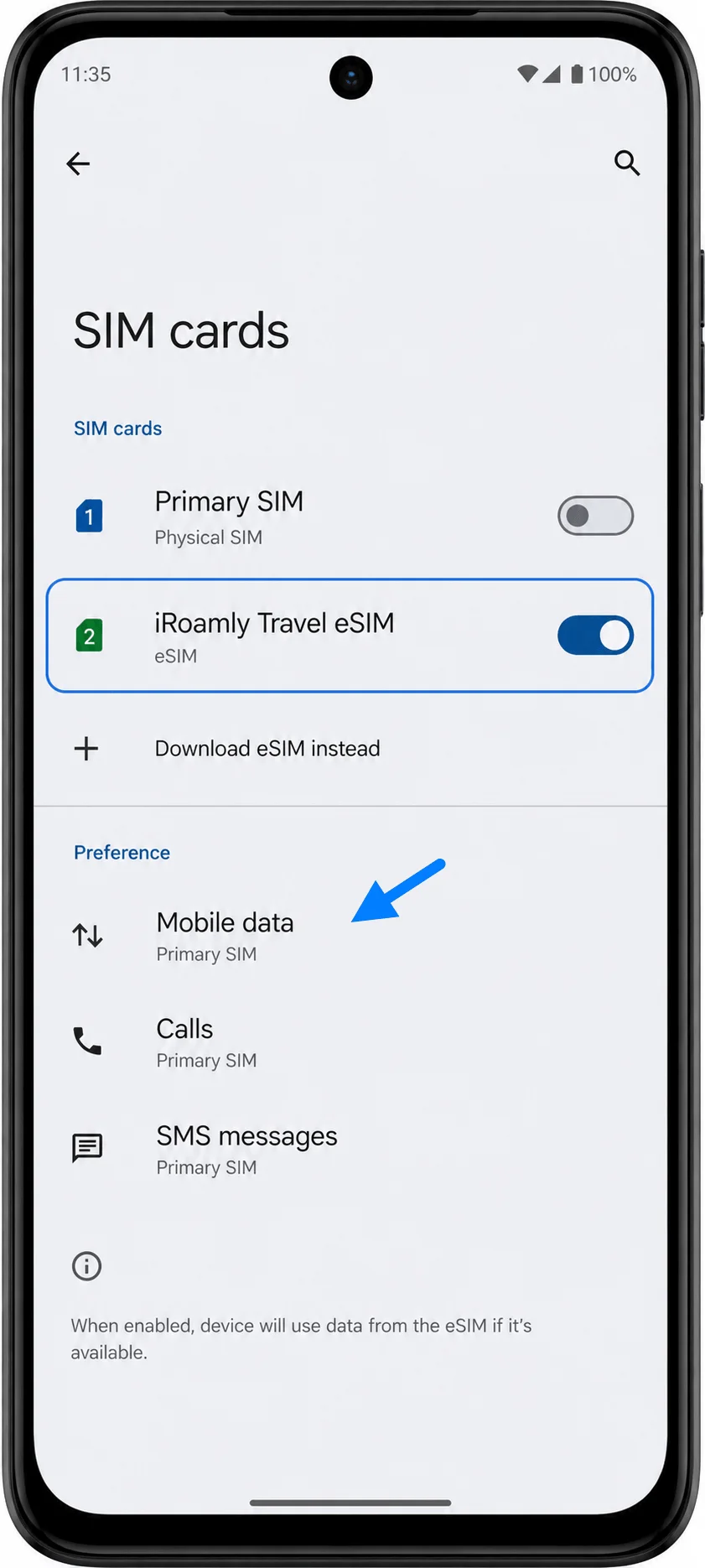
Open Settings > Network & internet > SIM cards, then select the iRoamly eSIM for Mobile data if the phone asks which SIM should handle data. This helps prevent the Moto G53J 5G from using your primary SIM for travel data.
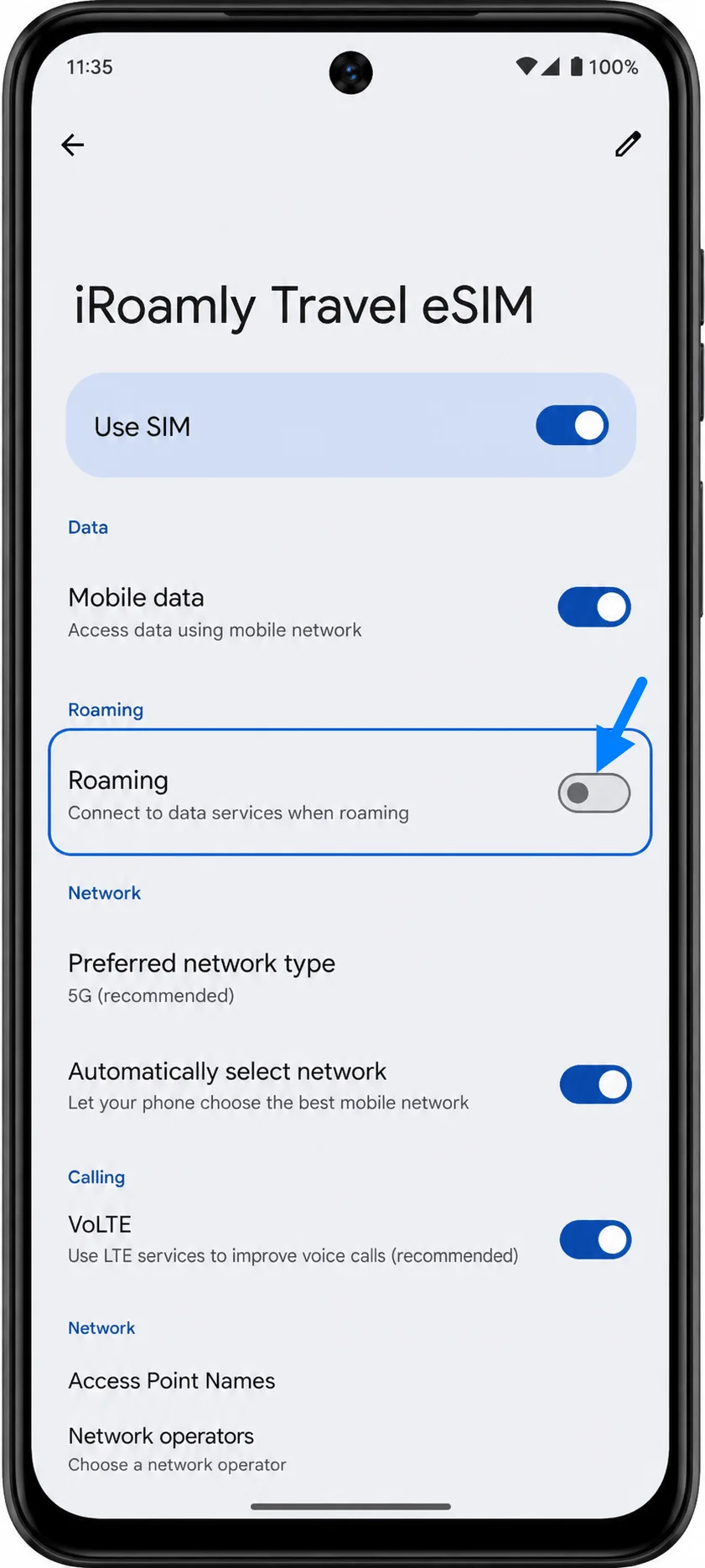
Open the iRoamly eSIM profile and turn on Mobile data. Turn on Roaming if your iRoamly plan or destination instructions require data roaming for service.
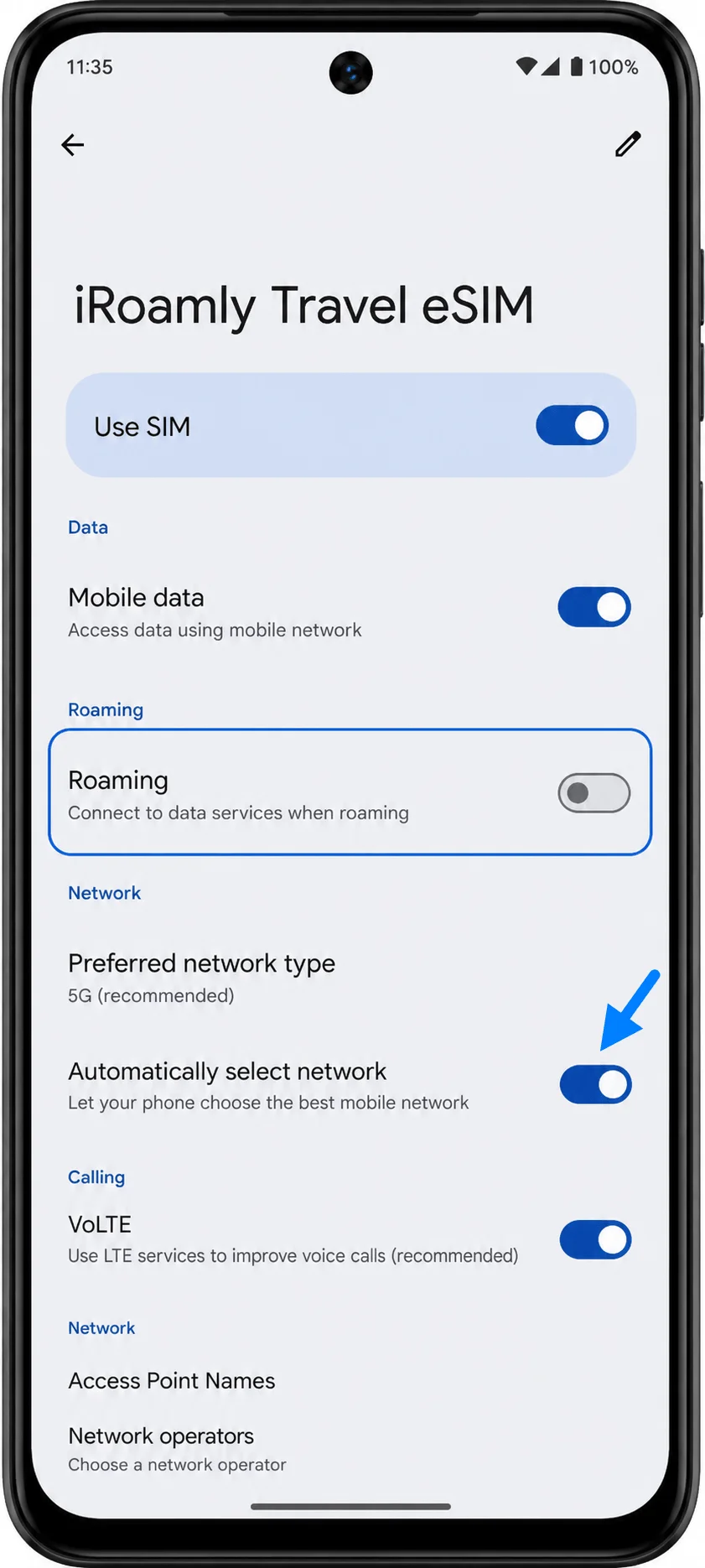
Keep Automatically select network on unless iRoamly support or your destination instructions tell you to choose a carrier manually. After arrival, wait a few minutes for the eSIM to register on a supported local network.
Troubleshooting
If Download a SIM instead?, Add eSIM, or any eSIM option is missing, confirm that your Moto G53J 5G variant supports eSIM, update Android if an update is available, and check whether your carrier firmware restricts eSIM setup.
If the QR code has already been used, do not delete the eSIM and try again repeatedly. Contact iRoamly support from your account or order page because many eSIM QR codes are single-use.
If manual entry fails, check that you entered the full Android activation-code string exactly as provided, including LPA:1, dollar signs, and any capitalization. Do not split it into separate fields unless your phone specifically shows separate fields.
If the eSIM installs but there is no data, confirm that the iRoamly eSIM is turned on, selected for Mobile data, and allowed to use Roaming when required. Restart the phone after changing these settings.
If the eSIM shows activation pending, stay connected to Wi-Fi and wait a few minutes. Some plans finish activation only after the phone reaches a supported destination network.
If your Moto G53J 5G was purchased through a carrier, the menu labels and eSIM availability may differ from the unlocked Android 13 flow shown here.
More Motorola eSIM Setup Guides
Setting up another Motorola phone? These eSIM activation guides may help.
Conclusion
On the Moto G53J 5G, iRoamly setup runs through Motorola's Android 13 path of Settings > Network & internet > SIM cards, then the eSIM download option. Use the QR method when your iRoamly QR code is available on another screen, and use manual entry when you need to type the full LPA:1$... activation string.
After installation, confirm that iRoamly Travel eSIM appears under SIM cards, turn on Use SIM, choose it for Mobile data, and enable Roaming when your destination plan requires it.