
The Samsung Galaxy Tab S9 FE is a travel-friendly tablet for maps, bookings, video calls, and work on the move, but only the cellular model can use an eSIM. On current Samsung One UI builds, eSIM setup lives under Settings > Connections > SIM manager, where the tablet offers Add eSIM, QR-code scanning, and manual activation-code entry.
This guide shows both ways to install an iRoamly travel eSIM on a Galaxy Tab S9 FE: scanning the iRoamly QR code and typing the manual activation code. The QR method is usually fastest when you have the code on another screen or printed copy. Manual entry is the backup path when the camera cannot scan the QR code, the QR code is on the same tablet, or you only have the activation details from your iRoamly account or email.
Preparations Before Setting Up iRomly eSIM
Connect the Galaxy Tab S9 FE to a stable Wi-Fi network before adding the eSIM.
Confirm you are using a Galaxy Tab S9 FE 5G/cellular model. If SIM manager or Add eSIM is missing, your tablet may be Wi-Fi-only, region-limited, carrier-locked, or running firmware without eSIM support.
Keep your iRoamly QR code or manual activation details ready on another device, in your iRoamly account, or in your purchase email.
Install the eSIM 1-2 days before travel when practical, but check your plan details first. iRoamly eSIM validity starts from activation; for current iRoamly travel plans, the validity period commonly starts when the eSIM connects to a supported network, but you should still confirm the activation policy shown for your exact plan.
Do not delete an installed travel eSIM casually. Many eSIM profiles cannot simply be reinstalled from the same QR code or activation code.
iRoamly travel eSIM plans may not include voice calls or SMS. Voice/SMS availability varies by plan, so check the exact plan details before relying on calls or texts.
Method 1: Install the iRoamly eSIM by Scanning a QR Code
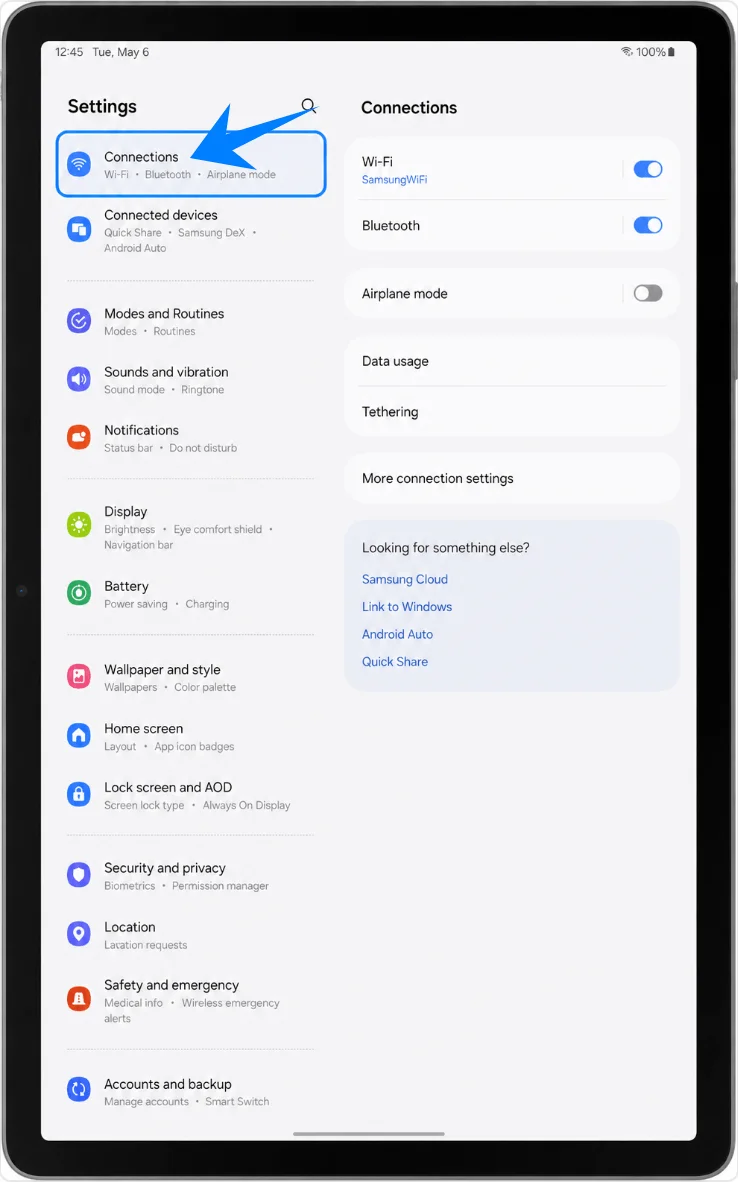
Open Settings, then tap Connections. You should see Samsung's connection settings, including Wi-Fi, Bluetooth, and SIM options.
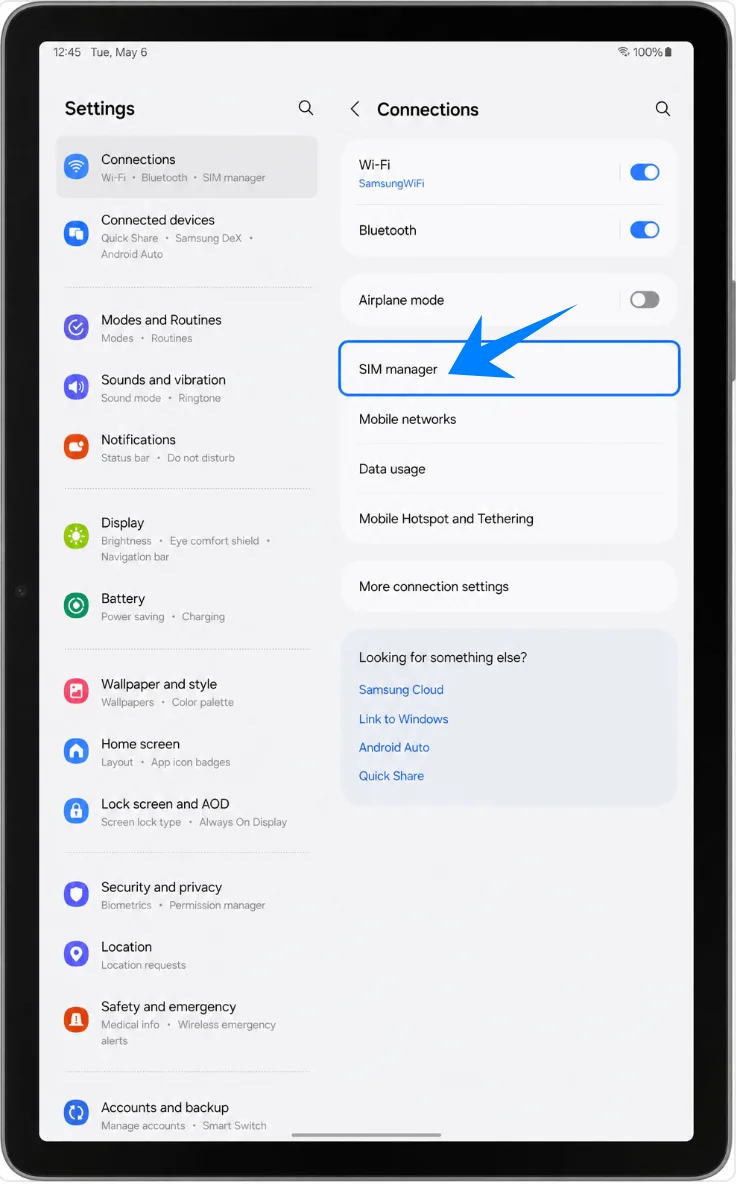
Tap SIM manager. The tablet should open the page where physical SIMs and eSIMs are managed.
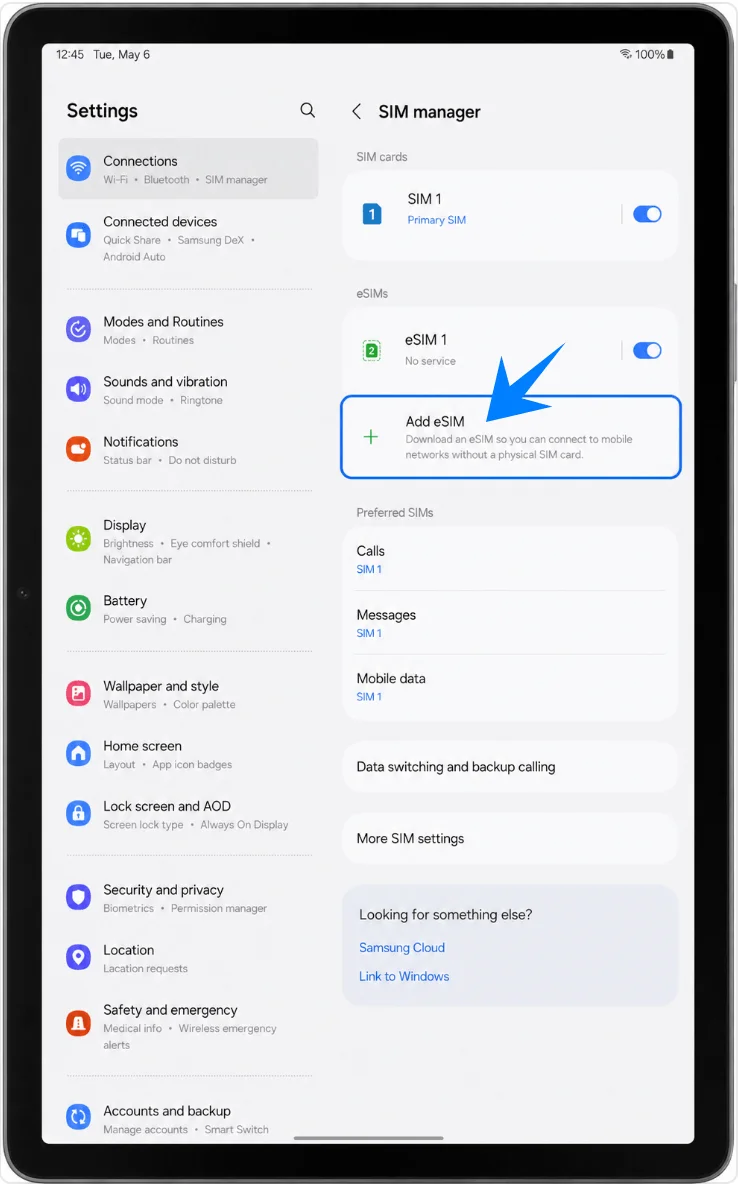
Tap Add eSIM. The tablet should show the available eSIM setup options.
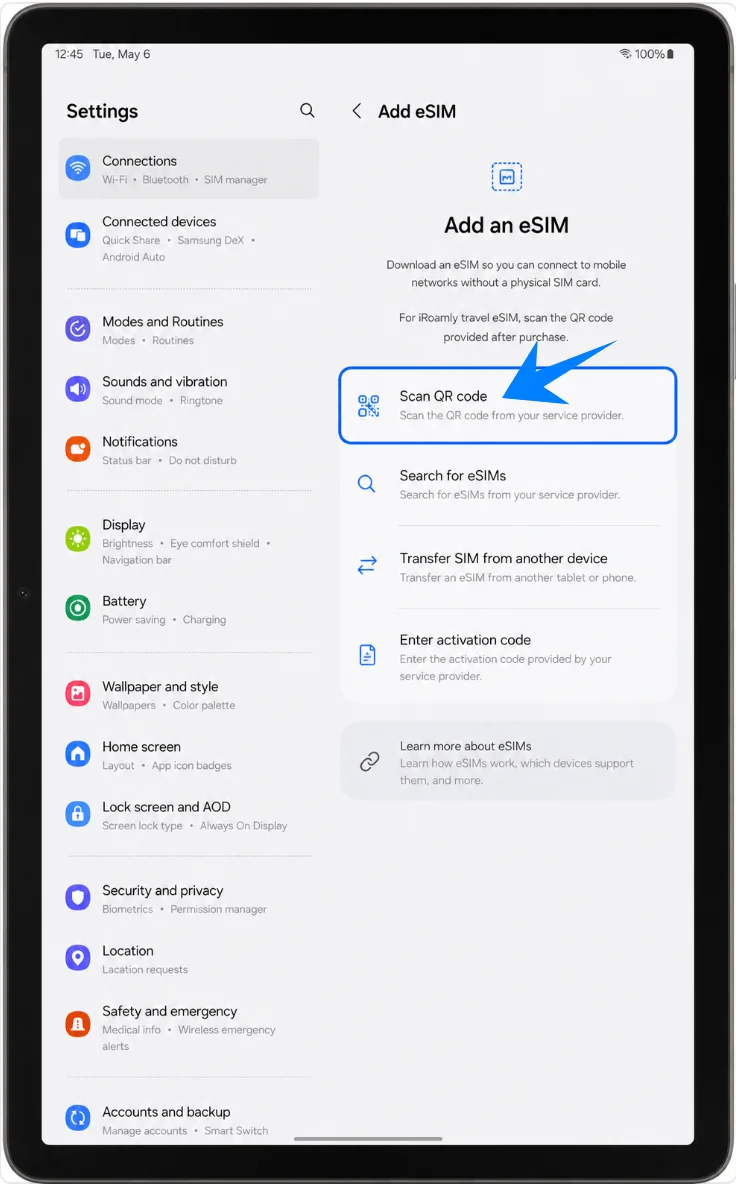
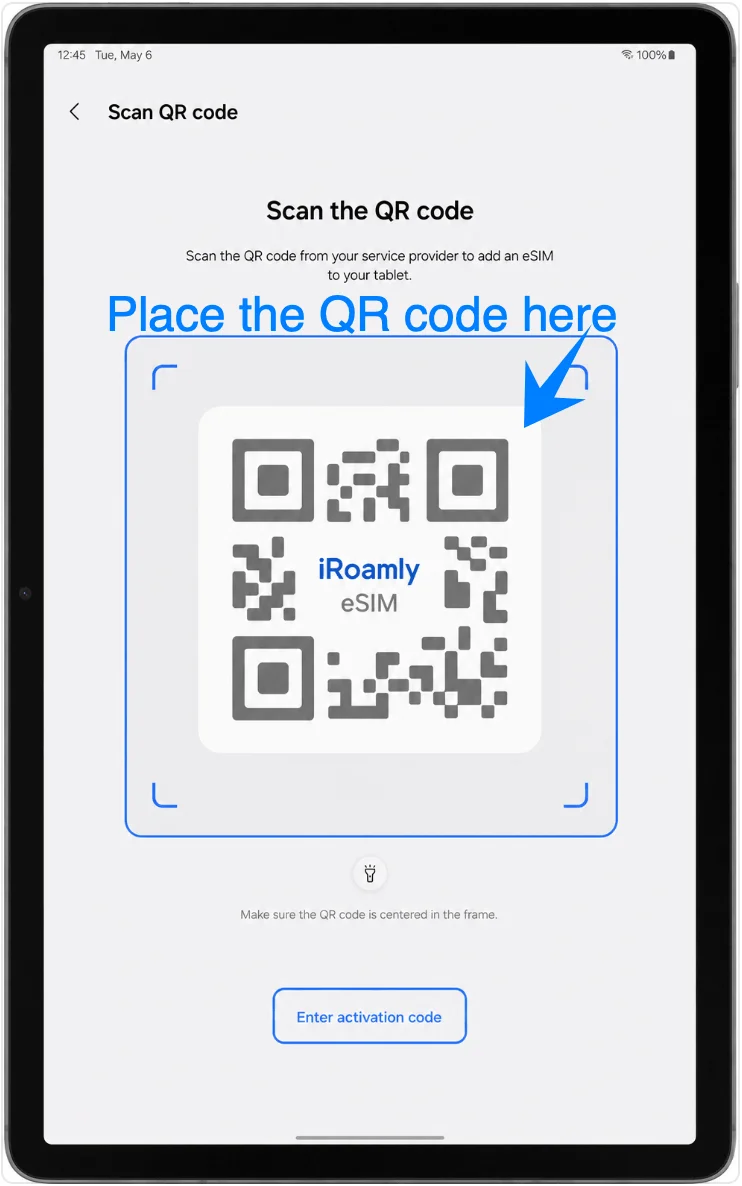
Tap Scan QR code. The tablet should open the eSIM QR-code scanner.
Point the Galaxy Tab S9 FE camera at the iRoamly QR code. Keep the whole code inside the scanner box until the tablet recognizes the eSIM profile.
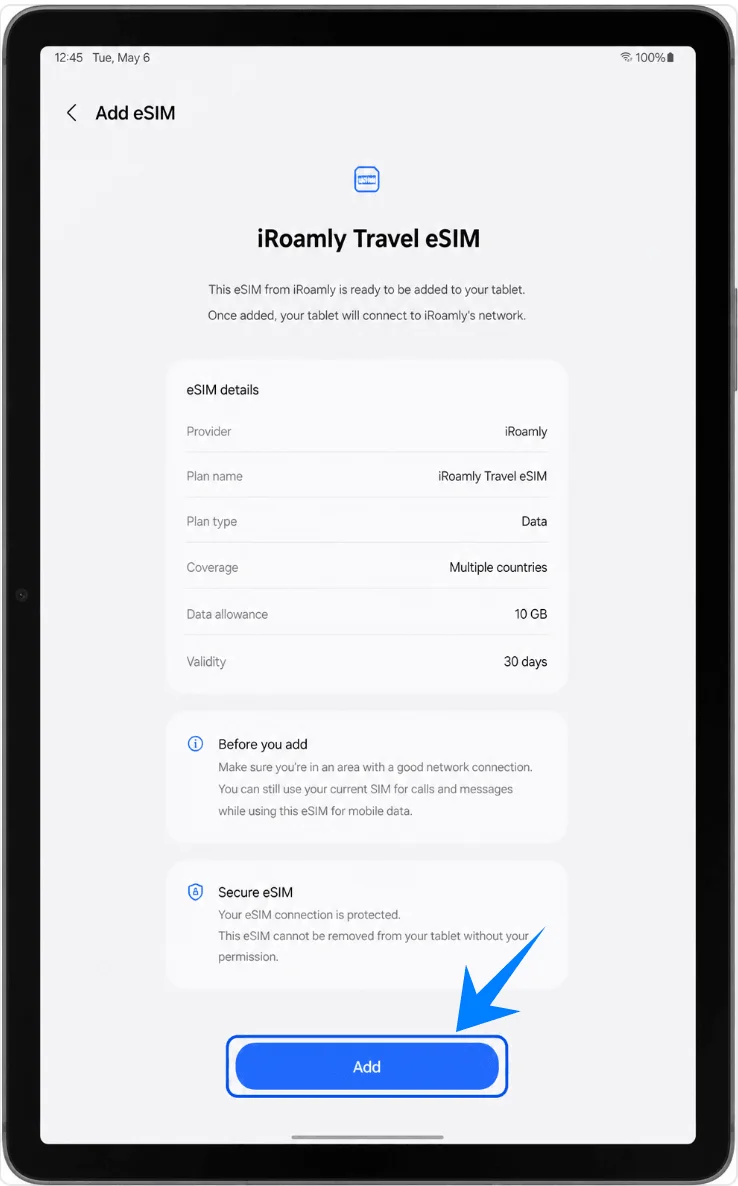
Review the iRoamly travel eSIM confirmation screen, then tap Add. Keep Wi-Fi connected while the tablet downloads the eSIM profile.
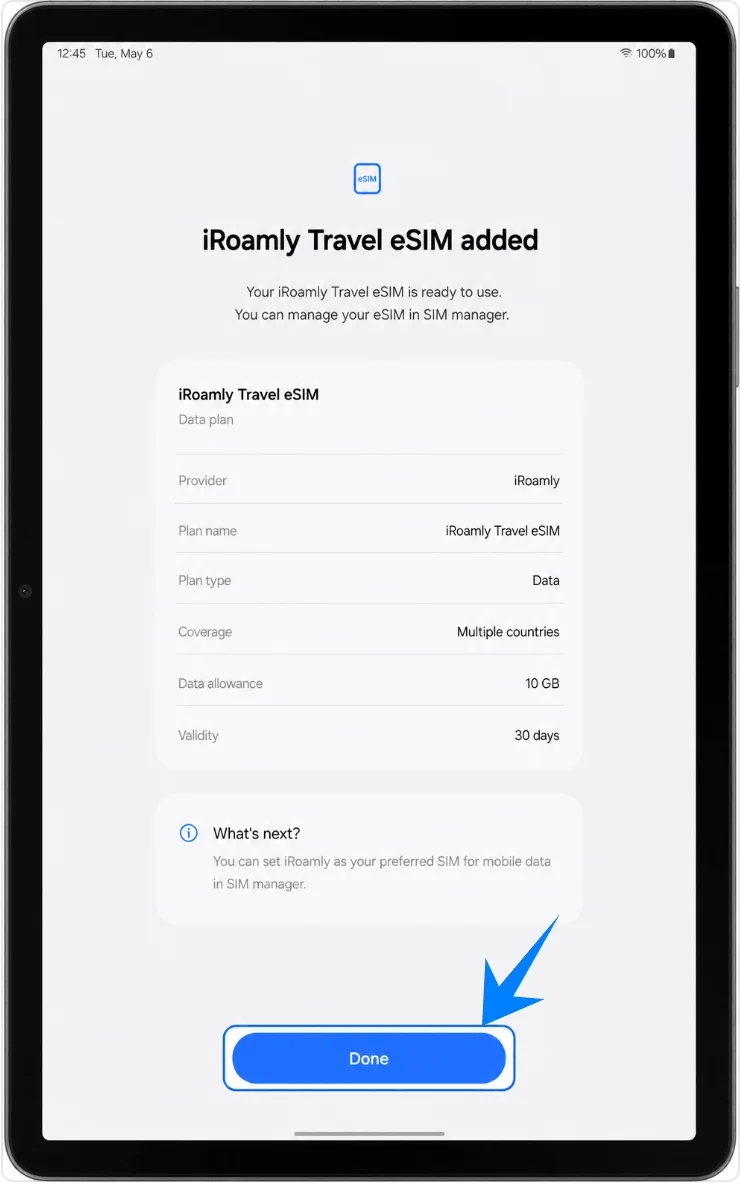
When the tablet says the eSIM has been added, tap Done. If the tablet recommends a restart after installation, restart before testing mobile data.
Method 2: Install the iRoamly eSIM by Manual Entry
Open Settings, then tap Connections. This is the same starting point used for QR setup.
Tap SIM manager. You should see the tablet's SIM and eSIM management page.
Tap Add eSIM. The tablet should open the eSIM setup choices.
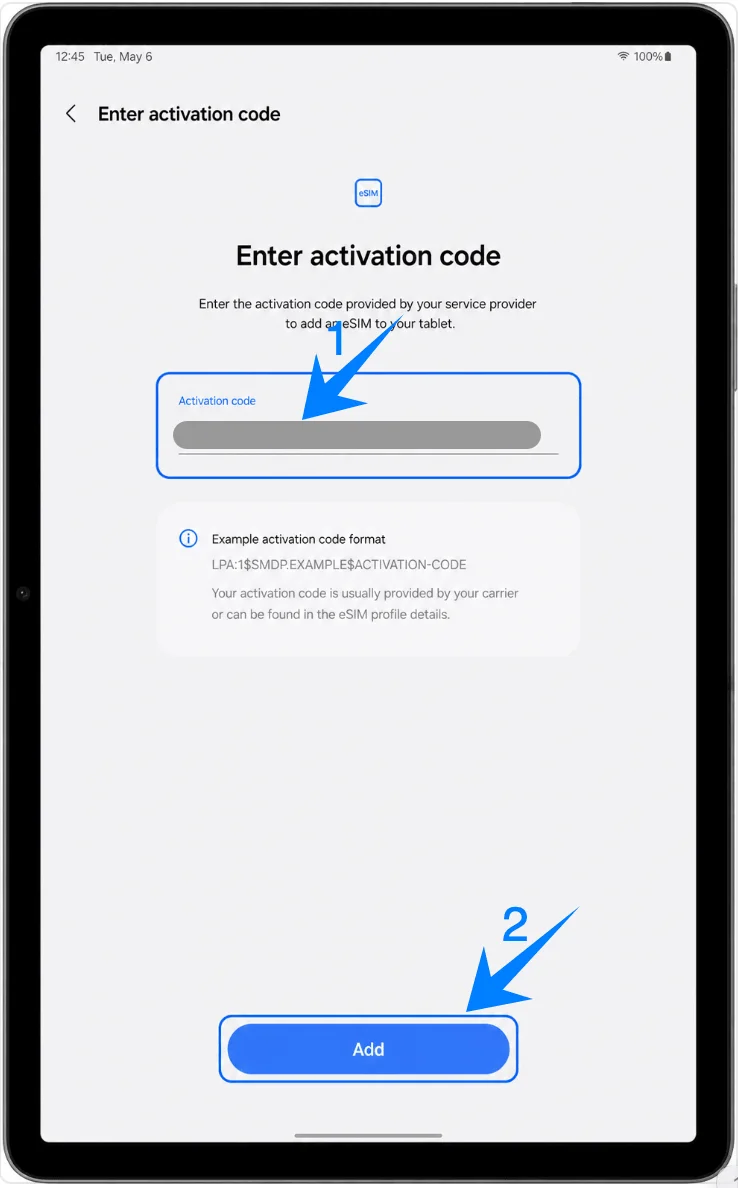
Tap Scan QR code, then tap Enter activation code on the QR scanner screen. On Samsung One UI, manual setup is reached from the QR-code screen rather than from a separate SM-DP+ form.
Tap the Activation code field, enter the full iRoamly activation code exactly as provided, then tap Add or Connect. Samsung's manual entry screen uses one complete activation-code string, commonly in an LPA:1$... format, instead of separate SM-DP+ Address, Activation Code, and Confirmation Code fields.
Review the iRoamly travel eSIM confirmation screen, then tap Add. Keep the tablet connected to Wi-Fi until the eSIM finishes downloading.
When the tablet says the eSIM has been added, tap Done. Restart if Samsung prompts you to do so.
How to Confirm the iRoamly eSIM Was Installed
Open Settings > Connections > SIM manager and check the eSIMs section. The iRoamly travel eSIM should appear there, and its switch should be on when you want to use it.
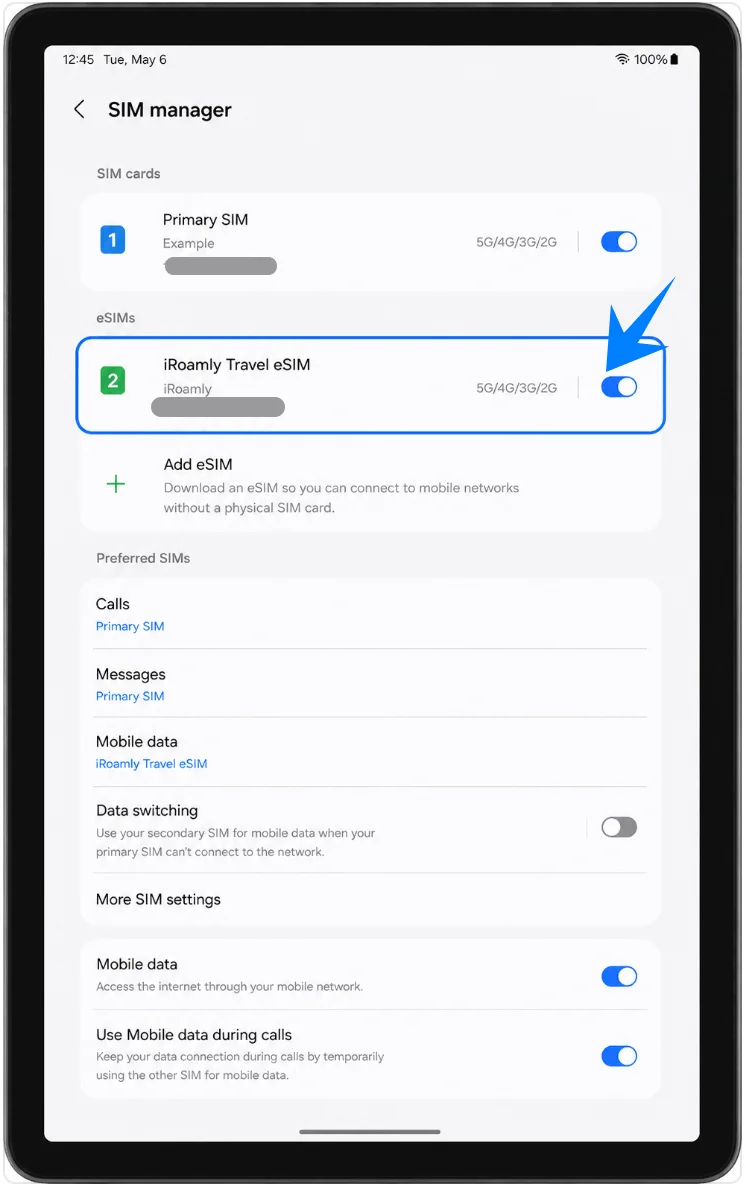
Set Up the iRoamly eSIM for Travel Data
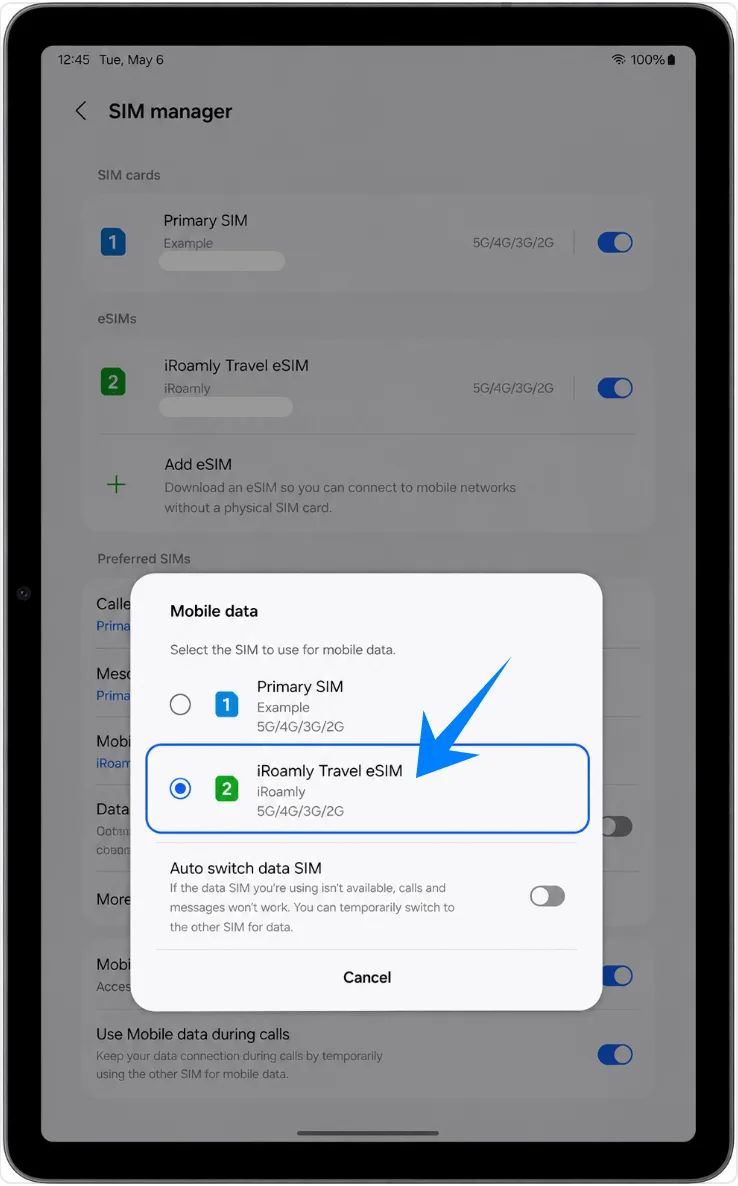
In Settings > Connections > SIM manager, tap Mobile data, then select iRoamly Travel eSIM. This tells the Galaxy Tab S9 FE to use the travel eSIM for cellular data instead of your primary SIM.
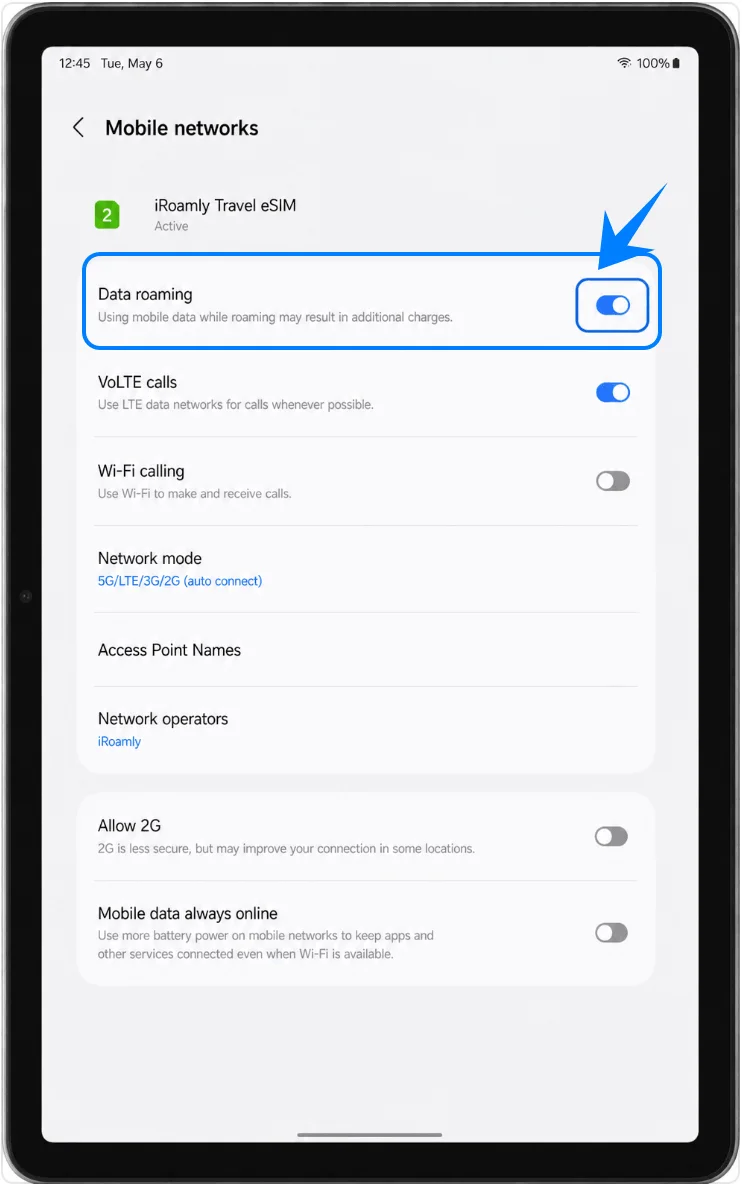
Open Settings > Connections > Mobile networks, then turn on Data roaming for the iRoamly eSIM if your destination or iRoamly plan requires roaming. Keep automatic data switching disabled if you want to avoid the tablet falling back to your primary SIM.
Troubleshooting
If Add eSIM is missing, confirm the tablet is the Galaxy Tab S9 FE 5G/cellular version, update One UI, check whether the device is carrier-locked, and look for an EID under the tablet's device information. Wi-Fi-only models cannot install eSIMs.
If the QR code fails, make sure the tablet is online, increase screen brightness on the device showing the QR code, and try the manual Enter activation code method. A QR code that has already been used or expired may not work again.
If the eSIM installs but data does not work, select iRoamly Travel eSIM for Mobile data, turn on Data roaming when required, restart the tablet, and confirm that your iRoamly plan covers the destination.
If activation stays pending, wait until you are in a supported destination network because current iRoamly travel-plan validity commonly begins when the eSIM connects to a supported network. Keep Wi-Fi available and avoid deleting the eSIM while it is pending.
If you are tempted to reinstall, disable the iRoamly eSIM instead of deleting it unless iRoamly support tells you to remove it. Many travel eSIM profiles cannot be installed again from the same setup code.
If calls or SMS do not work, check the exact iRoamly plan details. Many travel eSIM plans are data-only, and voice/SMS support is not guaranteed.
If the menu labels differ, your Tab S9 FE may be on a different One UI version, region firmware, or carrier build. Follow the same Samsung path as closely as possible: Settings > Connections > SIM manager > Add eSIM.
Conclusion
For the Samsung Galaxy Tab S9 FE 5G, the QR-code route is the cleanest way to add an iRoamly travel eSIM when the code is available on another screen. Manual setup is still straightforward because One UI uses a single Activation code field from the QR scanner page, so you do not need to split the iRoamly details into separate SM-DP+ fields.
After installation, confirm the iRoamly profile appears in SIM manager, select it for Mobile data, and enable Data roaming when your destination plan requires it before relying on the tablet for travel data.