
The Samsung Galaxy Tab S9 Ultra is often used as a travel tablet: maps, video calls, work dashboards, bookings, and hotspot backup all feel better on its large display.
If your Tab S9 Ultra model supports mobile network service and eSIM in your region, you can install an iRoamly travel eSIM before a trip and use it for mobile data without swapping a physical SIM card.
On recent Samsung One UI tablet layouts, the eSIM path is Settings > Connections > SIM manager > Add eSIM.
This guide covers both supported setup routes: scanning the iRoamly QR code and entering the activation code manually. QR setup is fastest when you have the code on another screen or printed page; manual setup is useful if the camera cannot scan the QR code or if iRoamly gives you activation details in text form.
Prepare Your Travel Data with iRoamly
iRoamly eSIM is a travel eSIM service that provides mobile data for destinations worldwide. Travelers can choose from available destination, regional, and global plan options, with data amounts, validity periods, and supported features varying by destination.
After installation on a compatible tablet, the travel data line can support navigation, messaging, video calls, bookings, and trip updates abroad.
On a cellular Galaxy Tab S9 Ultra that supports eSIM, an iRoamly plan can be installed digitally through Samsung One UI and then selected for mobile data when needed. Continue with the existing shared setup, QR-code, and manual-entry instructions below to add the profile and check the data settings.
Preparations Before Setting Up iRoamly eSIM
Connect the Galaxy Tab S9 Ultra to stable Wi-Fi. For a single-destination trip, a country-specific option such as an eSIM for France can be installed before you leave and selected for tablet data when you need it abroad.
Confirm your Tab S9 Ultra is a cellular/eSIM-capable model and is not restricted by carrier, region, or firmware.
Keep your iRoamly QR code or manual activation details ready.
Install the eSIM 1-2 days before travel when appropriate, but check the plan details first.
iRoamly eSIM validity starts from activation; for many travel eSIMs, activation is tied to installation or first connection to a supported destination network, so confirm the exact trigger in your iRoamly plan details.
Do not delete the iRoamly eSIM casually. Many eSIMs cannot be reinstalled after removal.
iRoamly travel eSIM plans may be data-only. Voice calls and SMS availability varies by plan, so check the specific plan before relying on them.
Shared Setup Steps
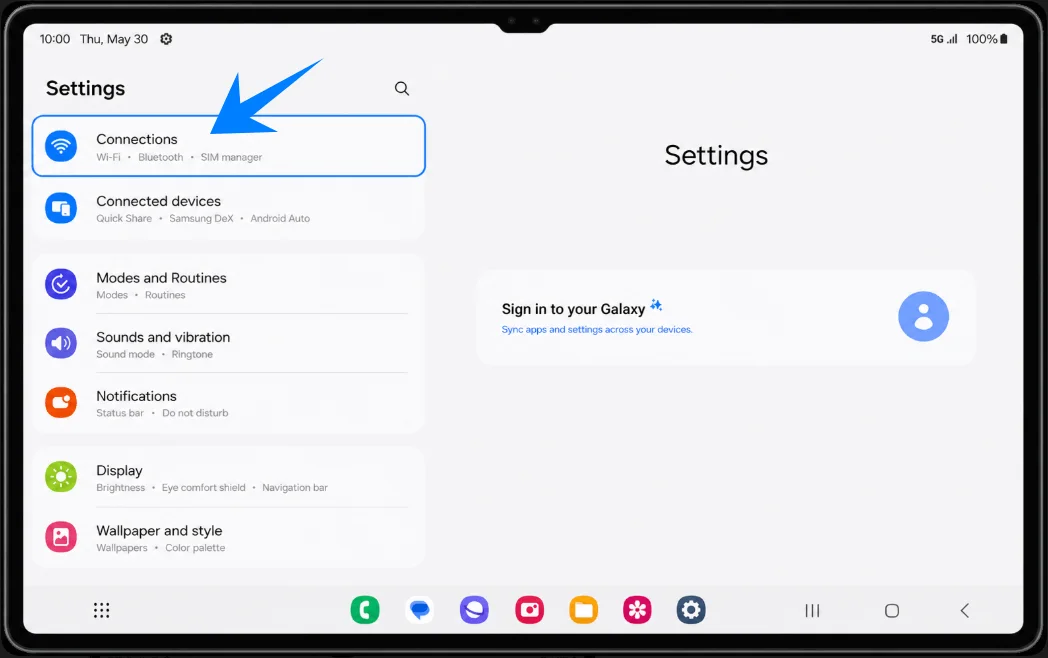
Open Settings, then tap Connections.
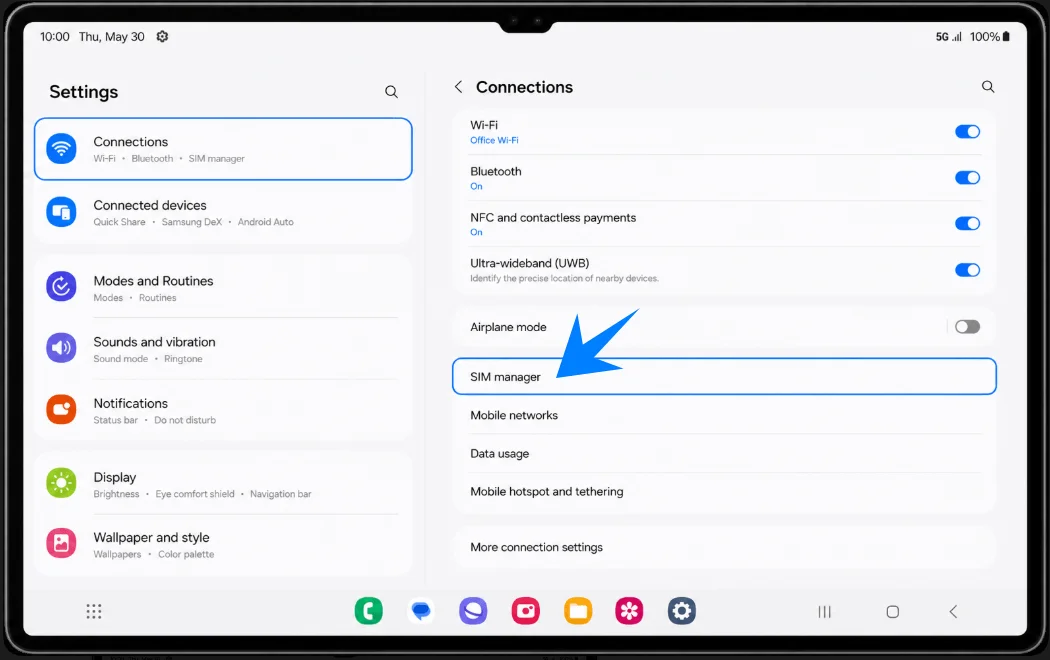
In Connections, tap SIM manager.
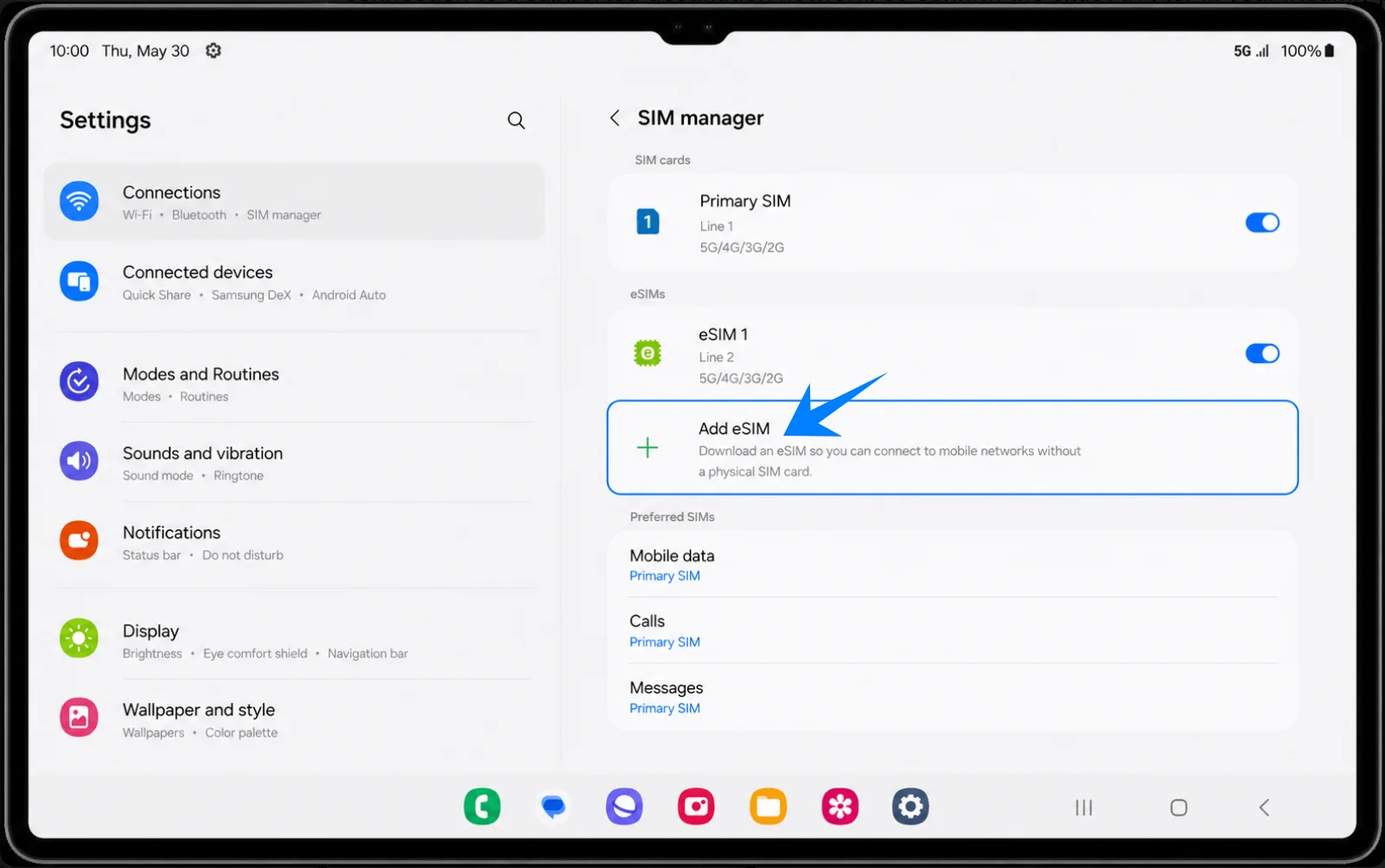
In SIM manager, tap Add eSIM.
Method 1: Install the iRoamly eSIM by Scanning a QR Code
On the Add eSIM screen, tap Scan QR code.
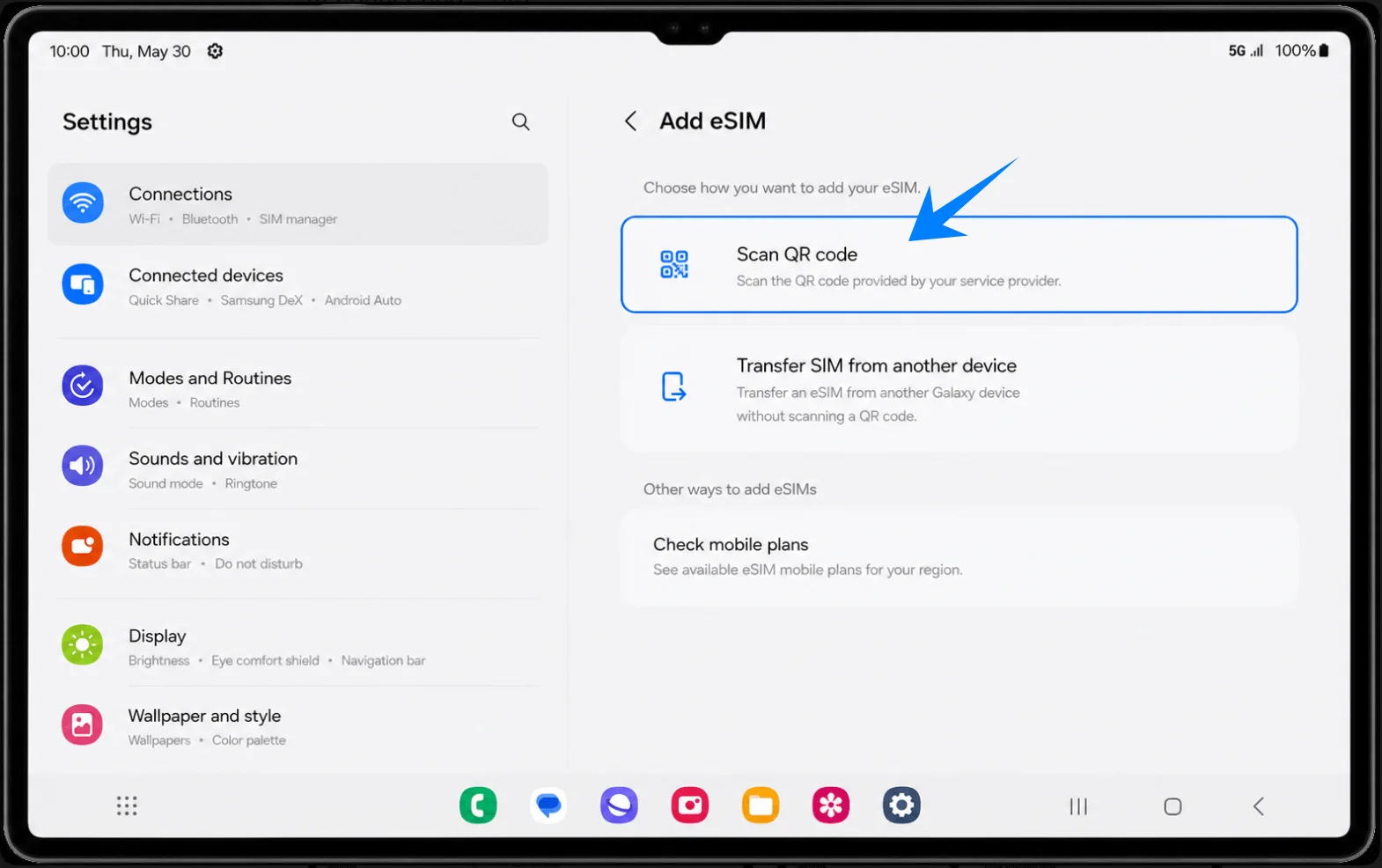
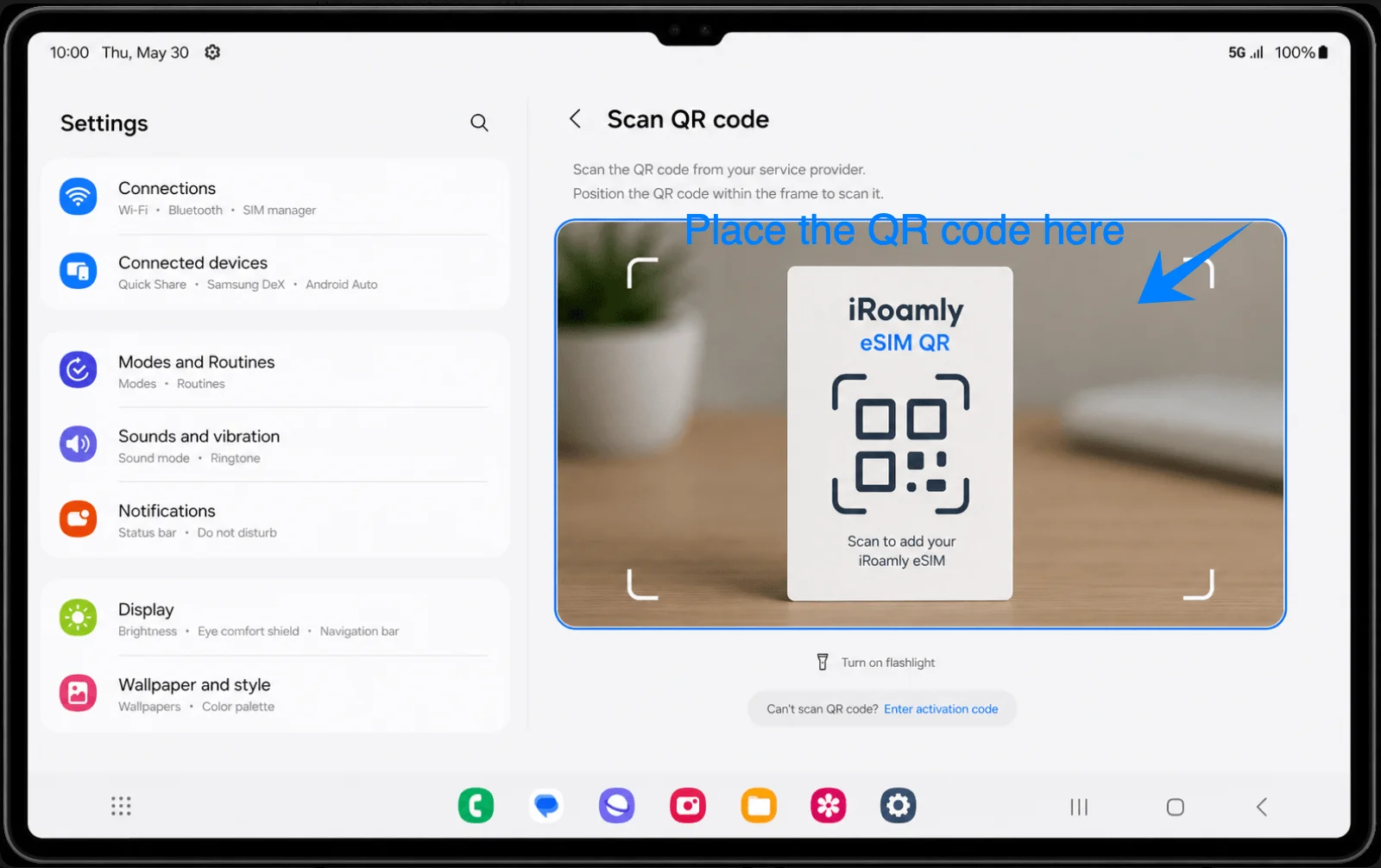
Point the tablet camera at the iRoamly eSIM QR code. Keep the QR code inside the scan frame until the tablet recognizes it.
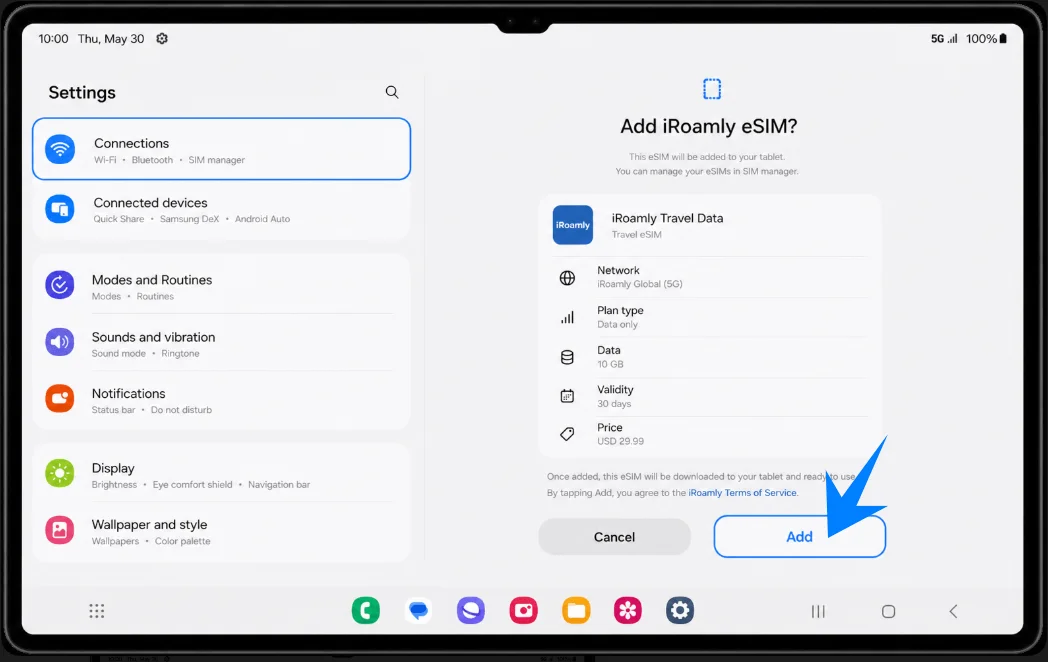
When the confirmation screen appears, review the iRoamly travel eSIM details, then tap Add.
Method 2: Install the iRoamly eSIM by Manual Entry
Open Settings, tap Connections, tap SIM manager, tap Add eSIM, then tap Scan QR code.
On the Scan QR code screen, tap Enter activation code.
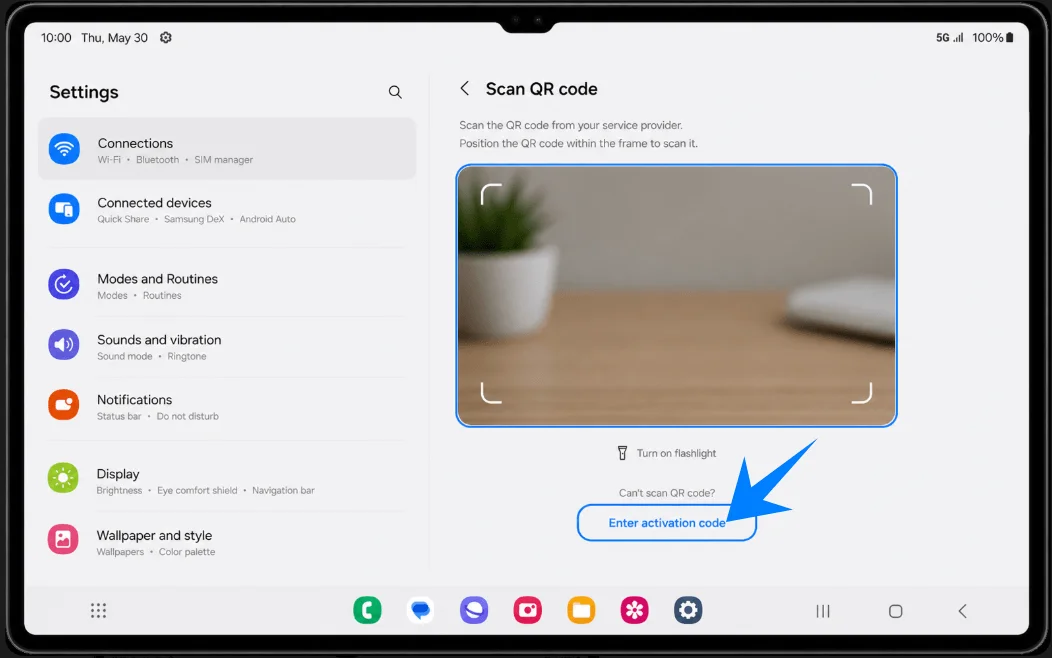
In the single Activation code field, enter the complete iRoamly activation code exactly as provided, usually in a format like 1$sm-dp.example$IROAMLY-XXXX. Then tap Done or Add.
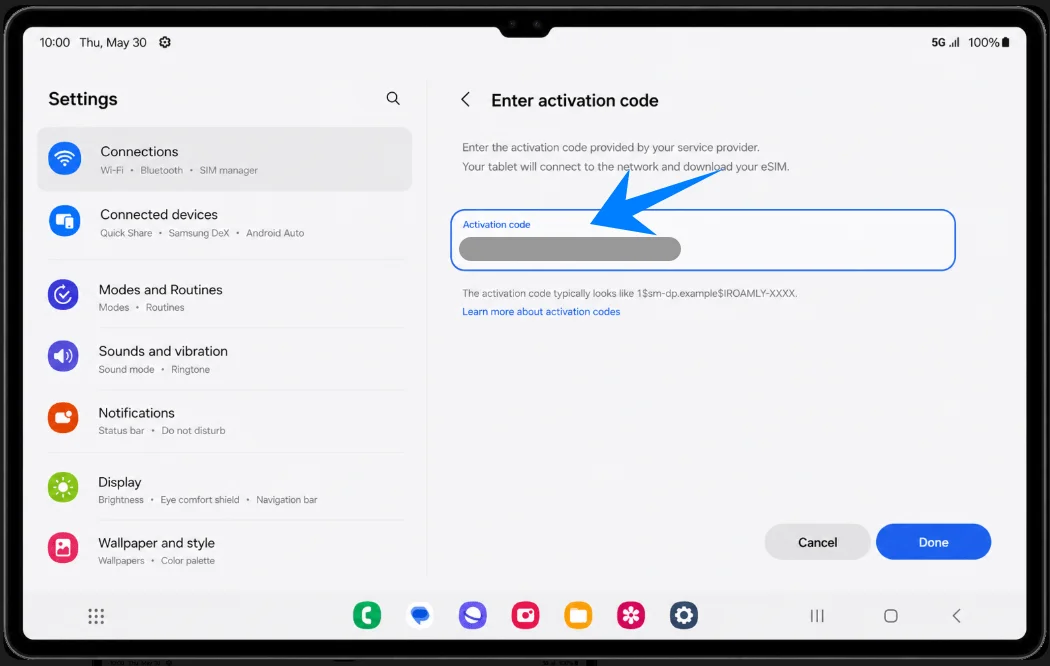
Review the iRoamly eSIM details on the confirmation screen, then tap Add to download and install it.
How to Confirm the iRoamly eSIM Was Installed
Go back to Settings > Connections > SIM manager. Confirm that iRoamly Travel appears under eSIMs and that its switch is turned on.
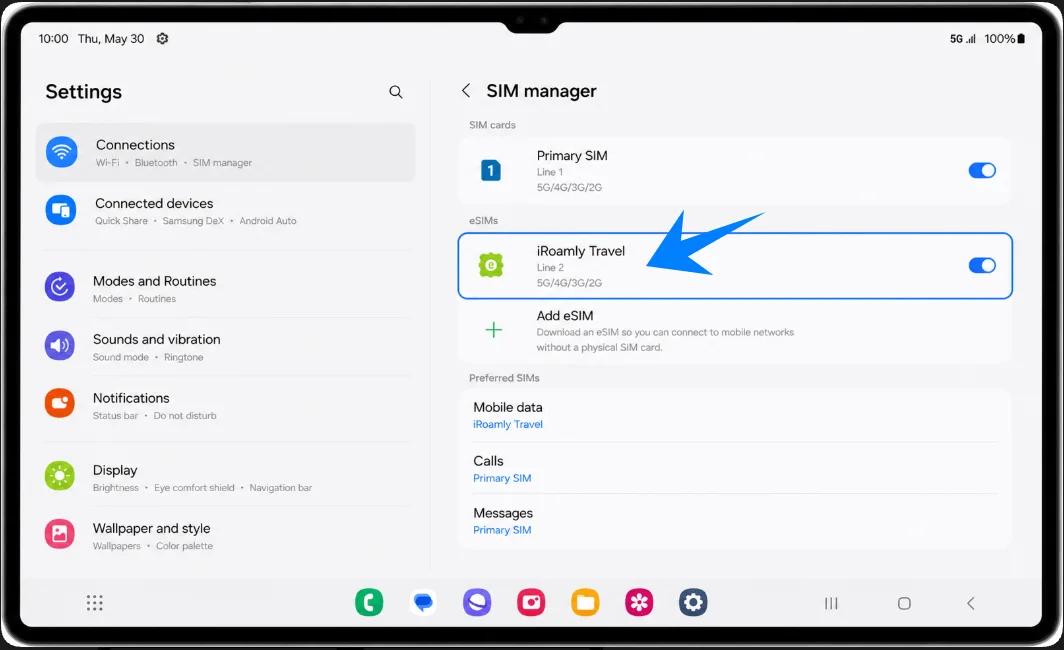
Set Up the iRoamly eSIM for Travel Data
In SIM manager, tap Mobile data, then select iRoamly Travel.
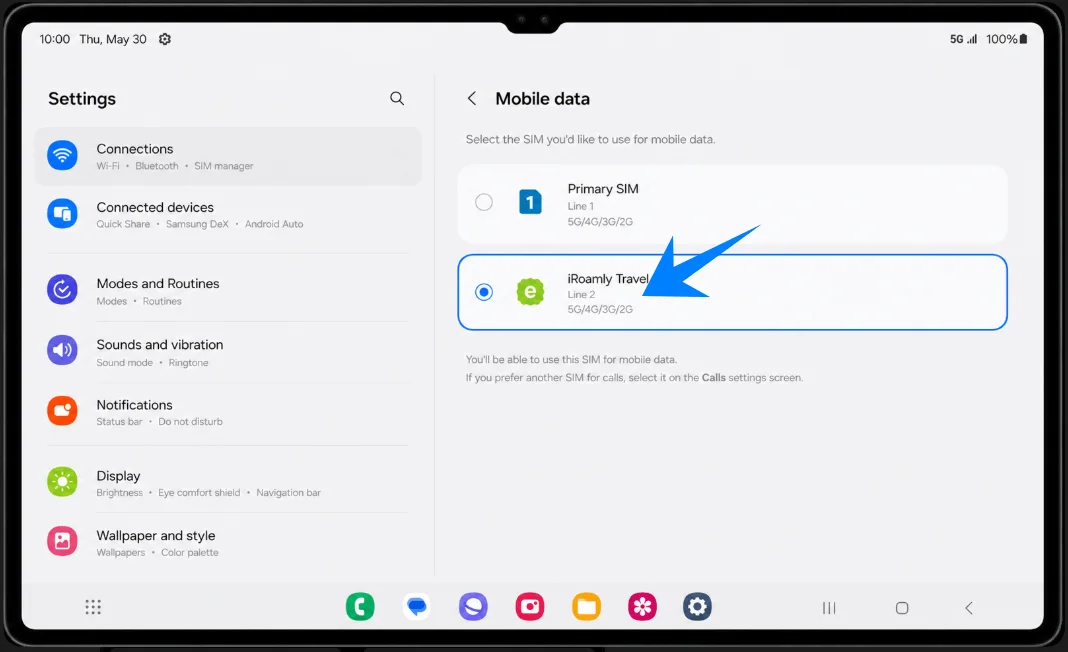
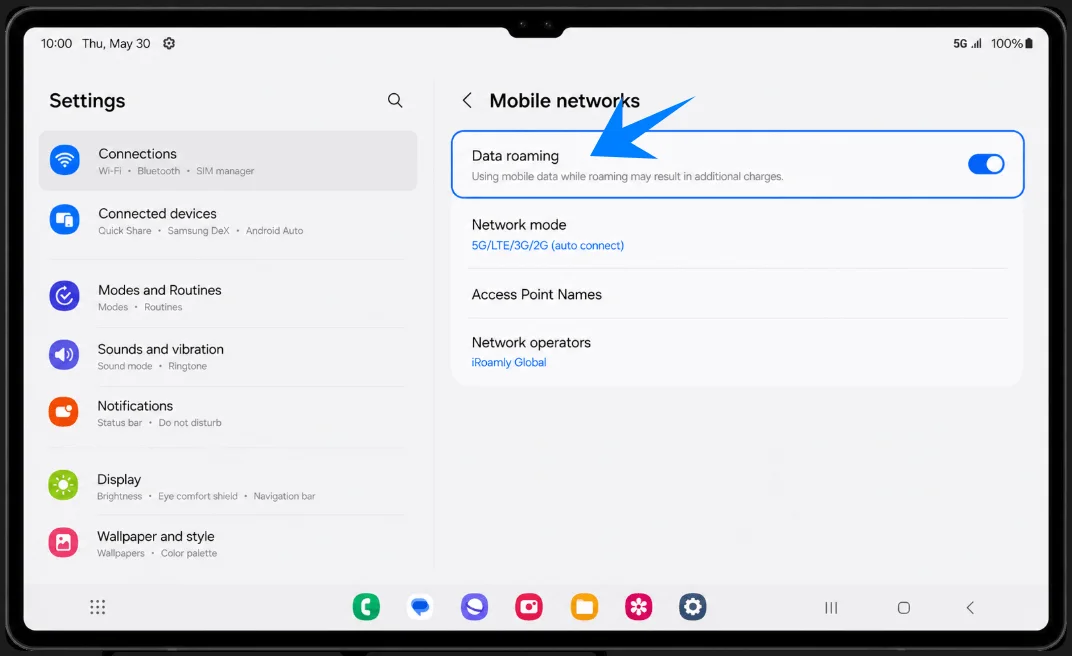
Open Settings > Connections > Mobile networks, then turn on Data roaming if your iRoamly plan or destination instructions require roaming.
Troubleshooting
If Add eSIM is missing, confirm that your Galaxy Tab S9 Ultra is a cellular/eSIM-capable model, update One UI, check for carrier or regional restrictions, and make sure the tablet shows an EID.
If the QR code fails, clean the camera area, increase screen brightness on the device showing the QR code, connect to Wi-Fi, and try manual entry with Enter activation code.
If the QR code says it was already used, do not delete the installed eSIM. Check whether it already appears in SIM manager, or contact iRoamly support.
If the eSIM installs but there is no data, select iRoamly Travel under Mobile data, turn on Data roaming if required, restart the tablet, and confirm the destination is covered by your plan.
If activation stays pending, keep Wi-Fi on and wait a few minutes. Some travel eSIMs only fully activate after connecting to a supported local network.
If calls or SMS do not work, check the plan details. Many travel eSIM plans are data-only.
If you are not ready to use the plan, disable the eSIM line instead of deleting it.
More Samsung Galaxy Tablet eSIM Setup Guides
Using another Samsung tablet? These eSIM setup and activation guides may help.
Conclusion
Now that your iRoamly eSIM is installed on the Samsung Galaxy Tab S9 Ultra, you're ready to use mobile data without the inconvenience of swapping physical SIM cards. Before you travel, it's a good idea to confirm that the eSIM is enabled, selected for mobile data, and configured according to your plan requirements.
Taking a few minutes to verify these settings can help you avoid unexpected connection issues after you arrive. With everything set up in advance, you can spend less time troubleshooting and more time enjoying your trip, staying productive, and accessing the online services you need.