
The Samsung Galaxy Tab S9+ is a strong travel tablet when you have the cellular 5G version. With an iRoamly travel eSIM installed, you can use mobile data abroad without replacing a physical SIM card or relying only on hotel and airport Wi-Fi.
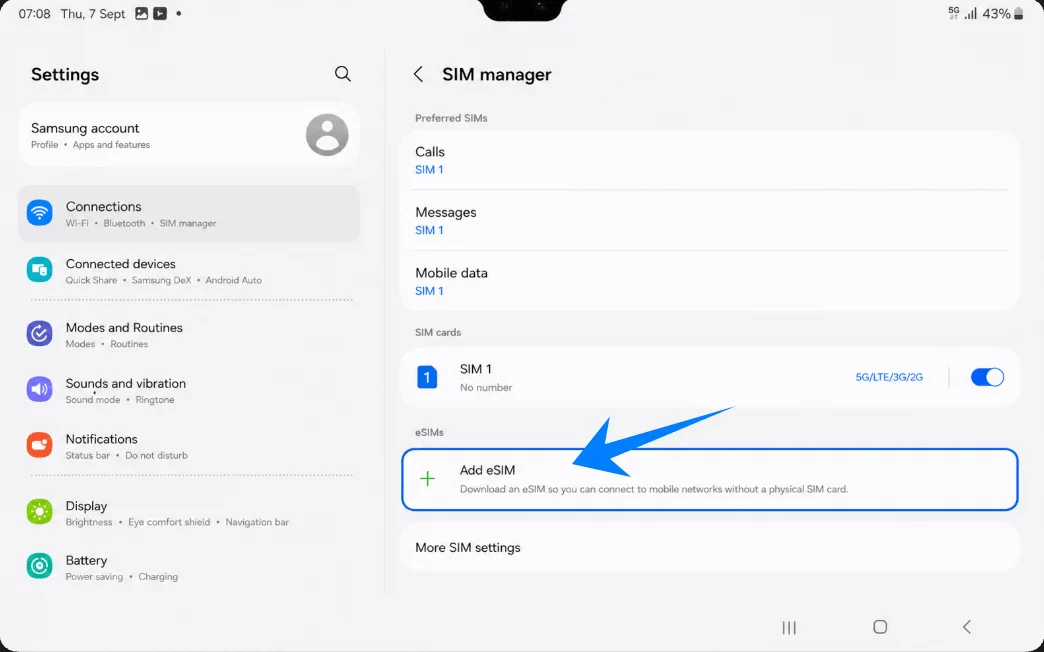
On Samsung One UI, eSIM setup is managed through Settings > Connections > SIM manager > Add eSIM.
This guide explains both installation methods: scanning the iRoamly QR code and entering the activation code manually. The QR method is usually faster, while manual entry is helpful if the QR code cannot be scanned or if you are setting up directly from the same tablet.
Stay Connected Abroad with iRoamly
iRoamly is a travel eSIM service that provides mobile data plans for destinations around the world. Available options may include local destination plans, regional coverage, and broader global plans, with allowances, validity periods, and plan features varying by destination.
Once installed on a compatible tablet, travel data can support maps, bookings, messaging, video calls, and other online tasks while you are away.
For the cellular Galaxy Tab S9+ 5G, an iRoamly eSIM can be added through Samsung One UI and selected for mobile data during a trip. The guide below keeps the QR-code and manual activation-code methods in order so you can install the profile and confirm the tablet is ready for travel data.
Preparations Before Setting Up iRoamly eSIM
Connect the Galaxy Tab S9+ to stable Wi-Fi. If you are taking the tablet to Japan or the United States, preparing the travel eSIM before departure can leave less to configure after arrival.
Confirm your tablet is the 5G/eSIM-capable version, not a Wi-Fi-only model.
Make sure the tablet is unlocked and supports eSIM.
Keep your iRoamly QR code or manual activation code ready.
Install the eSIM 1-2 days before travel when appropriate.
Do not delete the eSIM after installation unless iRoamly support tells you to.
iRoamly eSIM validity starts from activation; check your plan details for the exact activation trigger.
iRoamly plans may not include voice calls or SMS. Availability varies by plan.
Method 1: Install the iRoamly eSIM by Scanning a QR Code
Open Settings from the Galaxy Tab S9+ home screen.
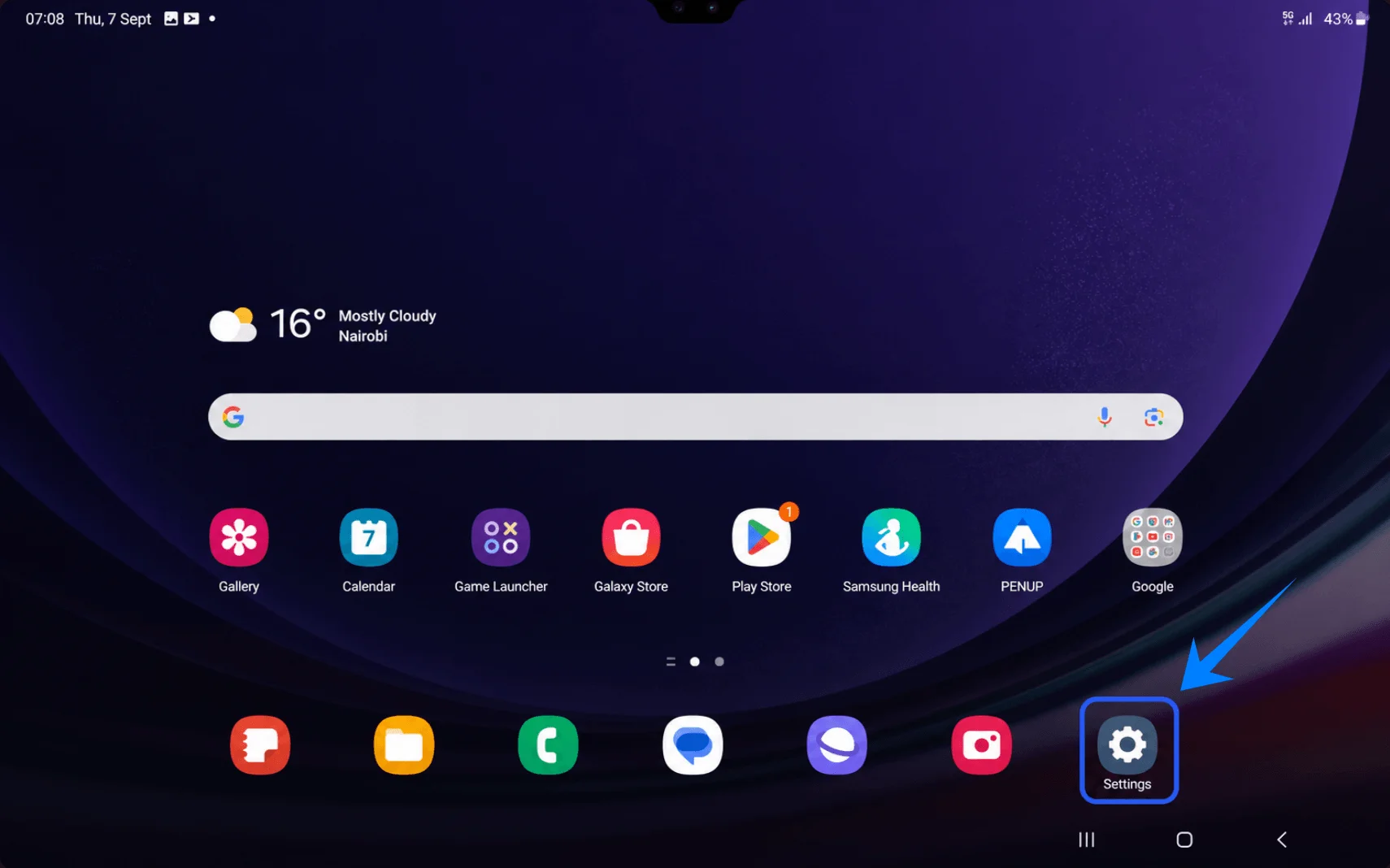
Tap Connections in the Settings menu.
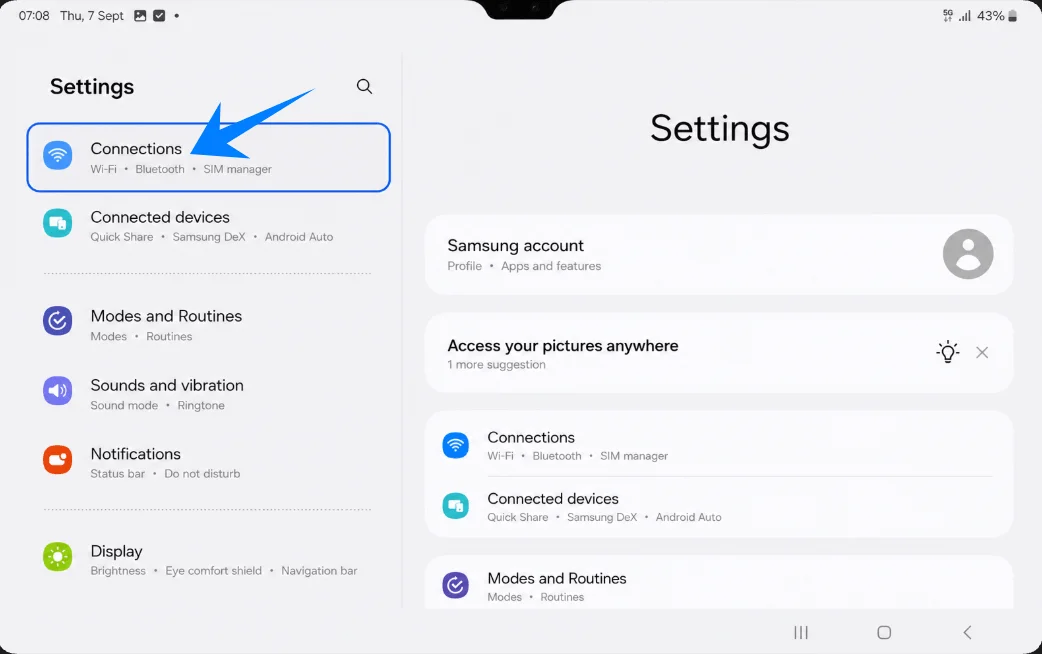
Tap SIM manager.
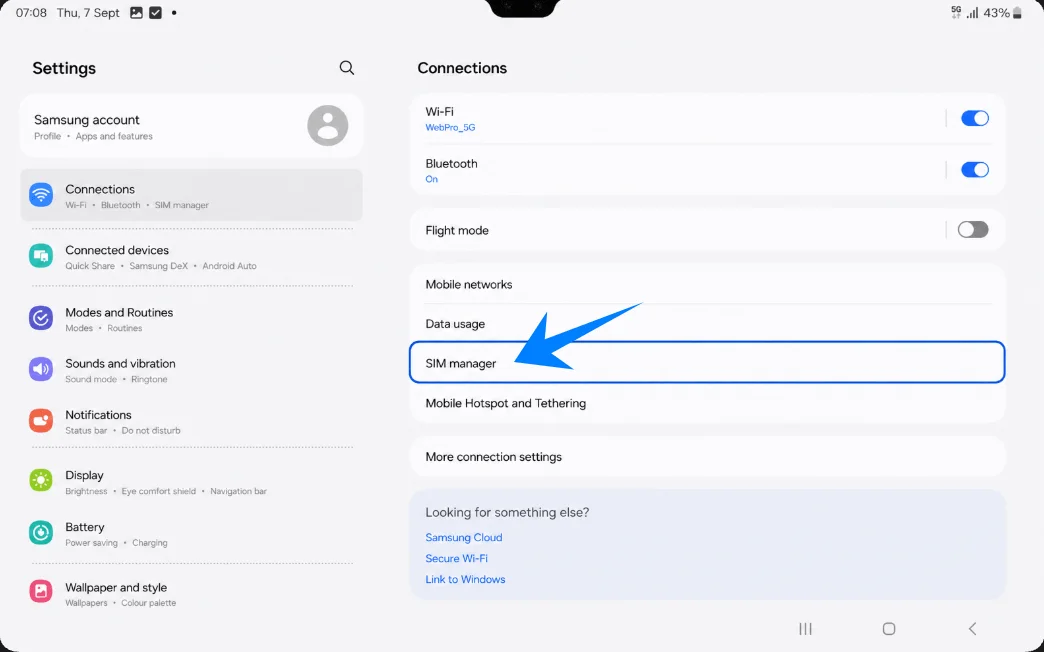
Tap Add eSIM.
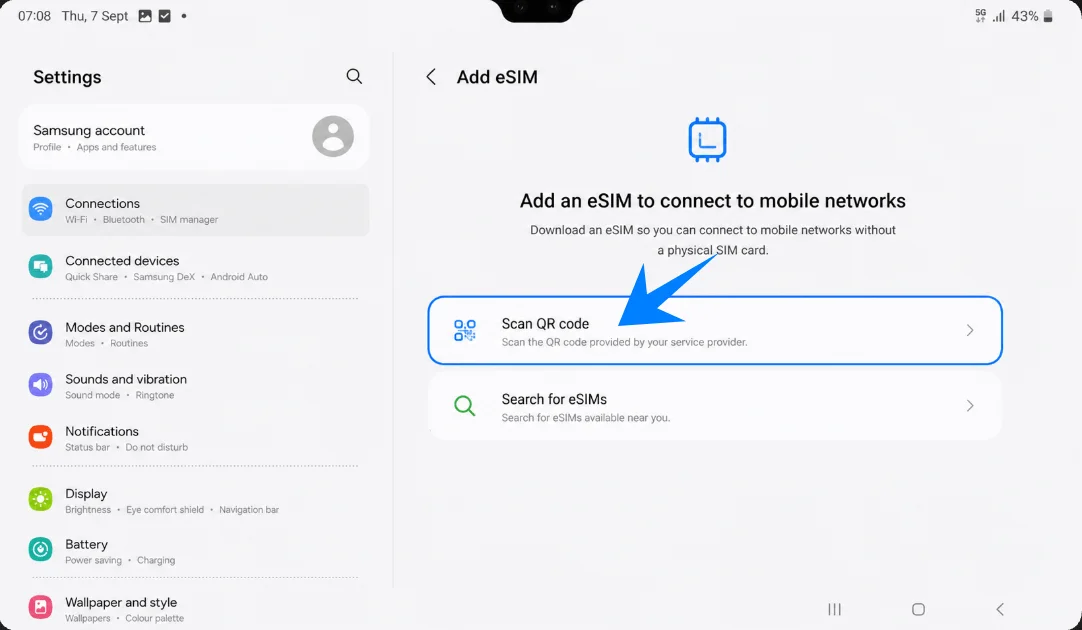
Tap Scan QR code.
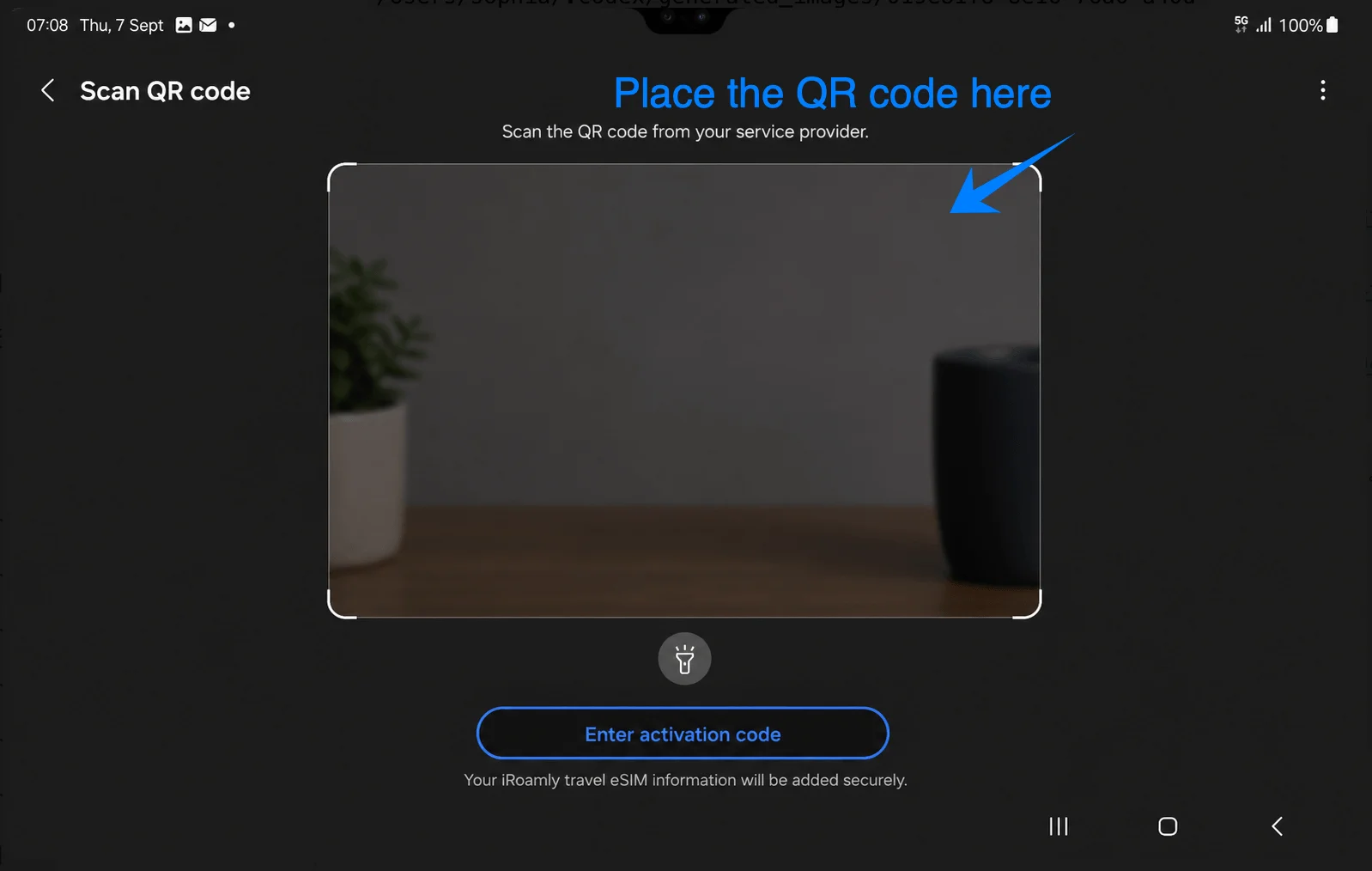
Point the tablet camera at the iRoamly QR code. Keep the full QR code inside the scanning area until the tablet detects the eSIM.
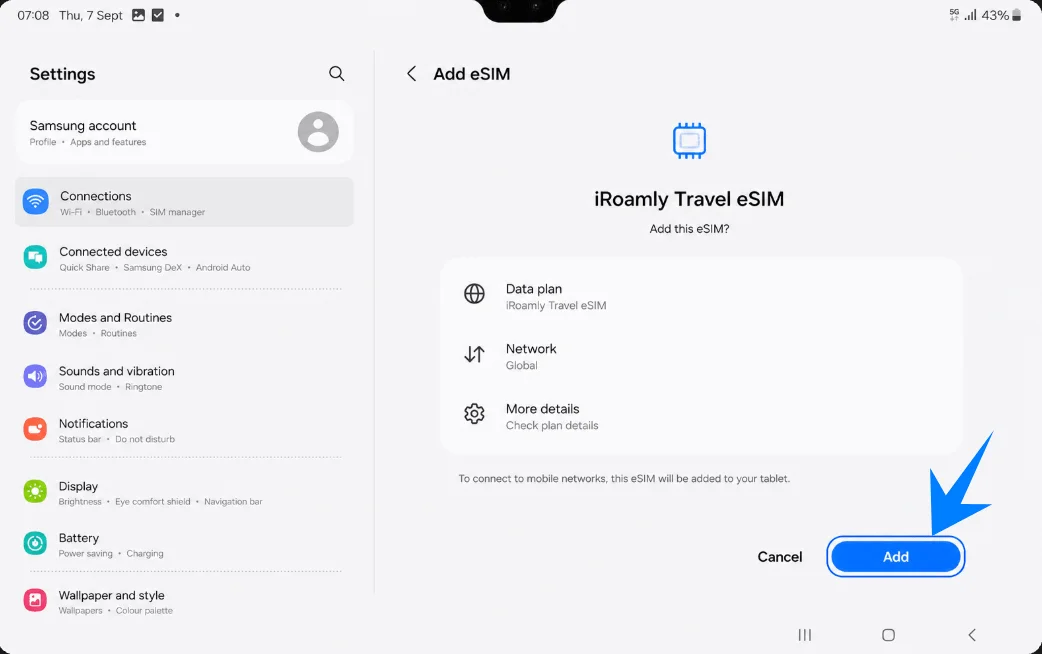
When the iRoamly travel eSIM appears, tap Add, Download, or the confirmation button shown on screen. Keep Wi-Fi connected until the download finishes.
Method 2: Install the iRoamly eSIM by Manual Entry
Open Settings from the home screen.
Tap Connections.
Tap SIM manager.
Tap Add eSIM.
Tap Scan QR code, then tap Enter activation code.
Enter the full iRoamly activation code exactly as provided. On Samsung One UI, manual eSIM setup commonly uses one complete activation-code string, often beginning with LPA:1$..., instead of separate SM-DP+ Address and Activation Code fields.
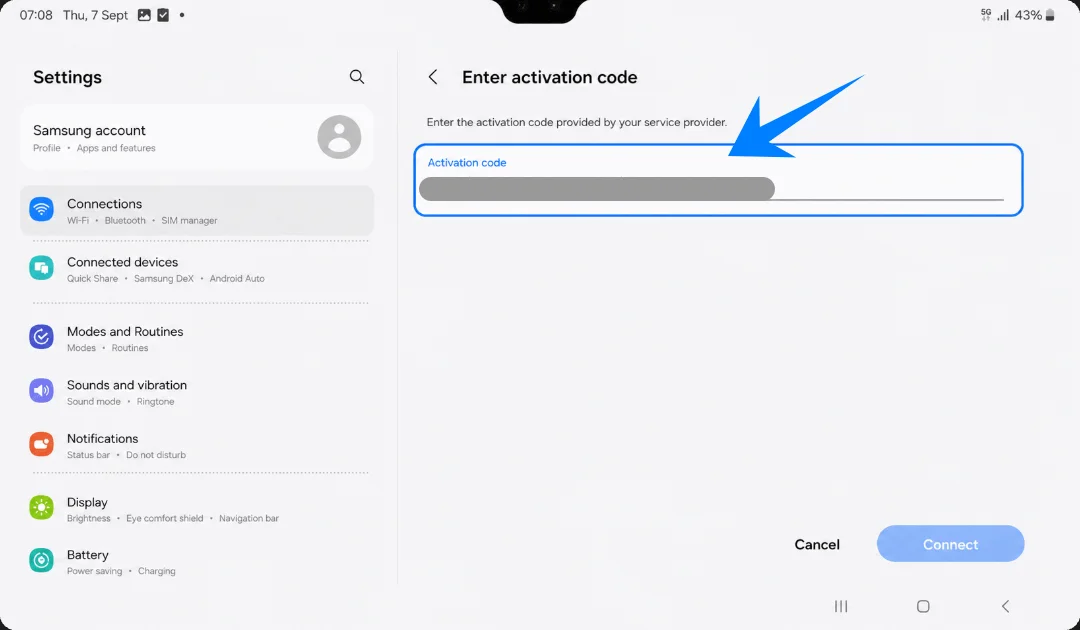
Tap Connect, Add, or Download to install the iRoamly eSIM. Wait until the tablet finishes downloading the eSIM profile.
How to Confirm the iRoamly eSIM Was Installed
Go to Settings > Connections > SIM manager.
Confirm that the iRoamly eSIM appears in the eSIM section and that its toggle is turned on.
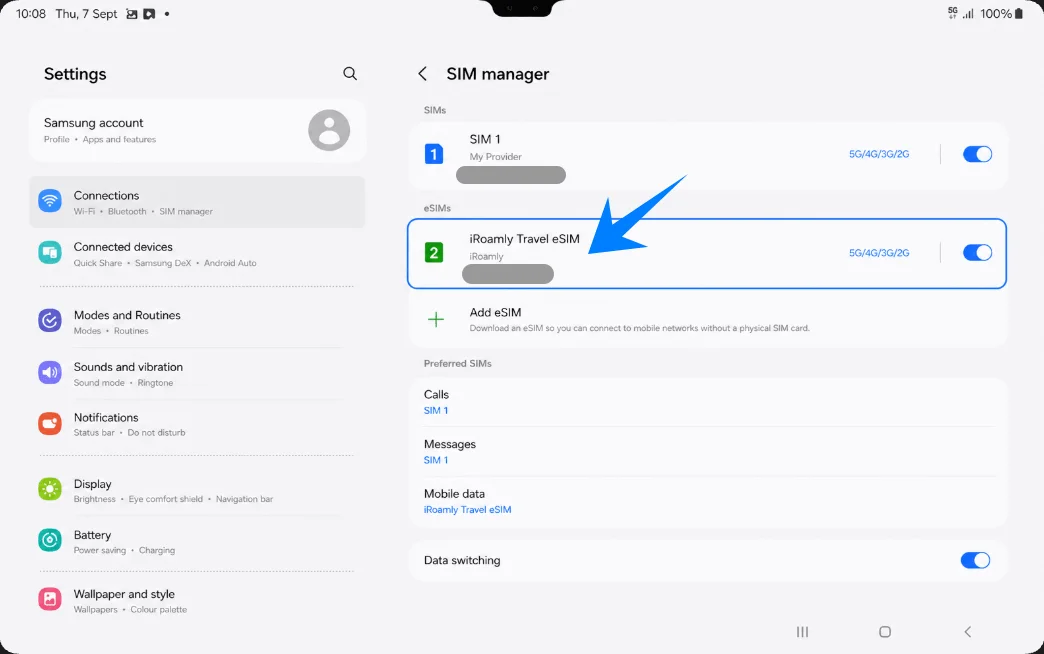
Set Up the iRoamly eSIM for Travel Data
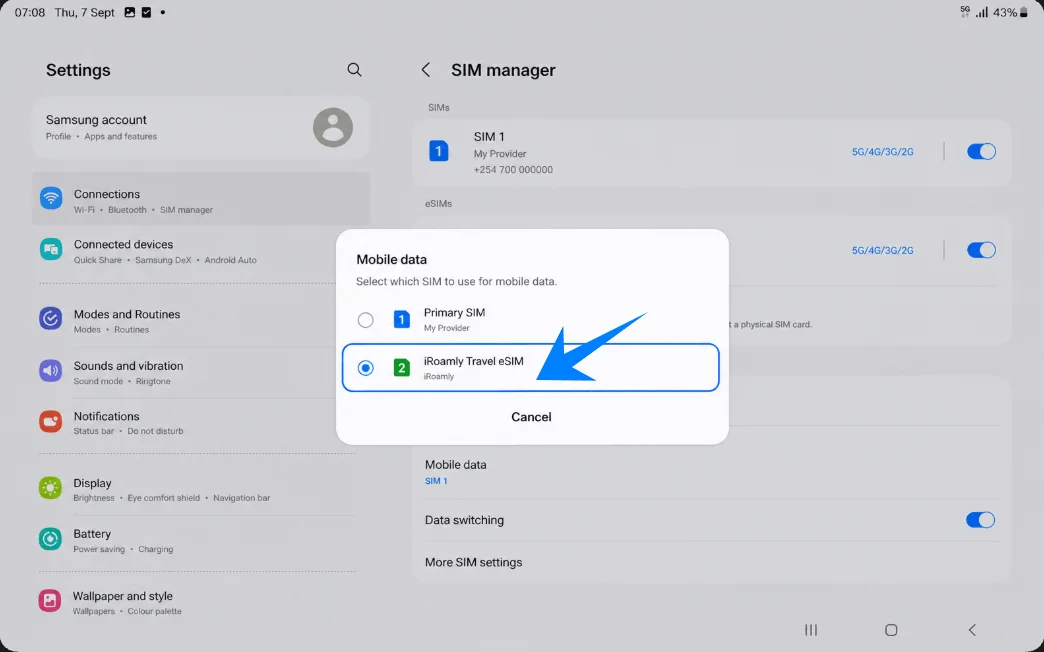
In SIM manager, tap Mobile data, select the iRoamly eSIM as the mobile data line.
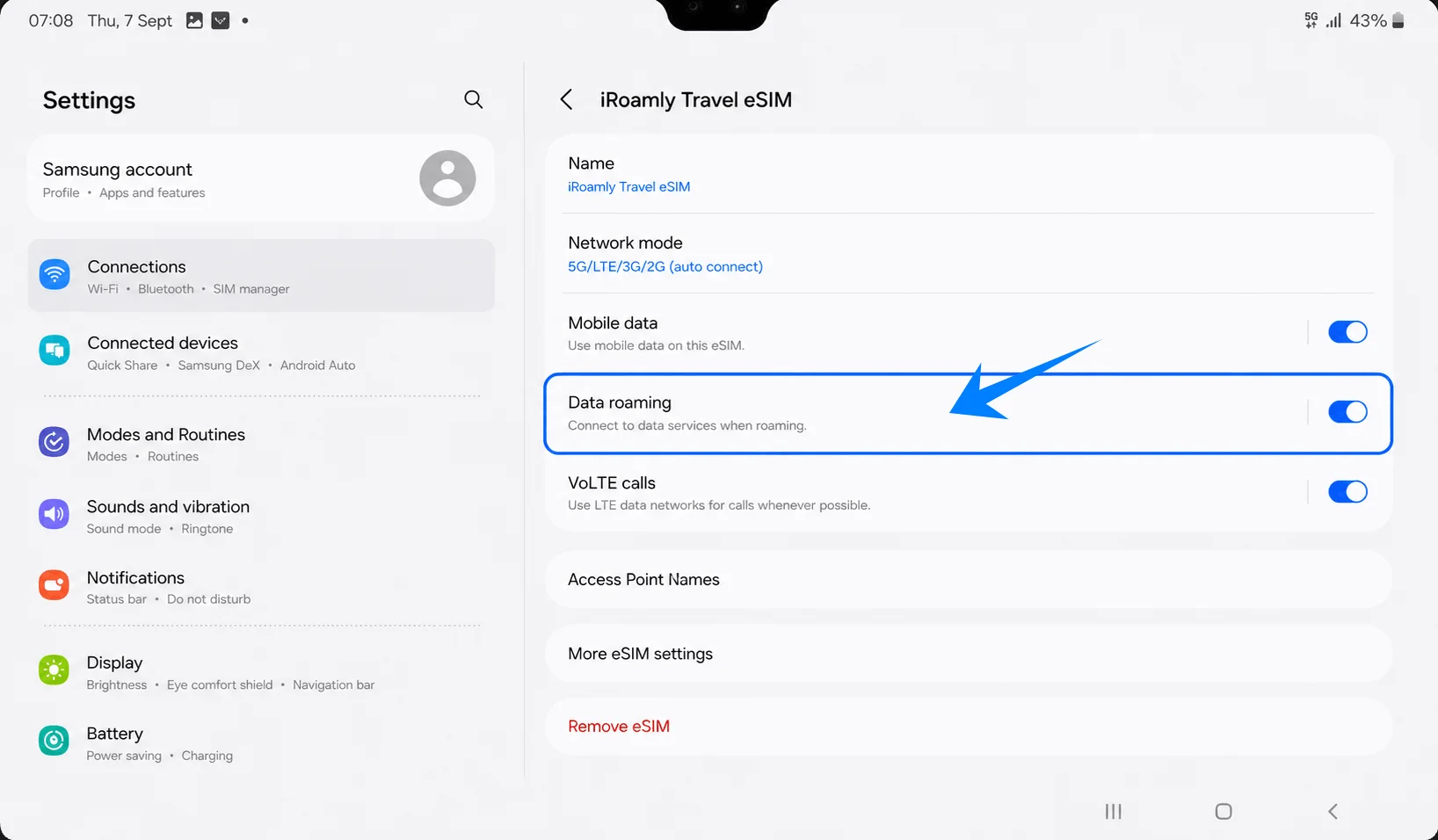
Open the iRoamly eSIM line settings and turn on Data roaming if your destination or plan requires it.
Troubleshooting
If Add eSIM is missing, confirm the tablet is the Galaxy Tab S9+ 5G/eSIM model, not the Wi-Fi-only version.
If the QR code does not scan, use the manual activation code method.
If the QR code says it has already been used, do not delete the eSIM. Contact iRoamly support.
If the eSIM installs but data does not work, select iRoamly for Mobile data, enable Data roaming, restart the tablet, and check destination coverage.
If activation stays pending, keep Wi-Fi connected and wait a few minutes. Some plans activate only after connecting to a supported destination network.
If calls or SMS do not work, check the iRoamly plan details. Many travel eSIM plans are data-only.
More Samsung Galaxy Tablet eSIM Setup Guides
Setting up another Samsung tablet? These eSIM activation guides may help.
Conclusion
Installing an iRoamly travel eSIM on the Samsung Galaxy Tab S9+ 5G is a simple way to stay connected while traveling internationally. Samsung’s built-in eSIM support allows you to activate your travel data plan without inserting or replacing a physical SIM card.
Once installed, verify that the iRoamly eSIM appears in SIM Manager, set it as your preferred mobile data line, and enable Data Roaming if required by your destination. Completing these steps before departure can help ensure seamless connectivity as soon as you arrive.