
The Samsung Galaxy A55 5G supports eSIM on compatible regional/carrier variants and uses Samsung’s One UI menu path for mobile plan setup: Settings > Connections > SIM manager > Add eSIM.
For travel, an iRoamly travel eSIM lets you prepare mobile data before departure without swapping your physical SIM.
This guide covers both ways to install it on a Galaxy A55 5G: scanning the iRoamly QR code and manually entering the activation code. The QR method is usually fastest, while manual entry is useful if you are setting up from the same phone that is displaying the QR code or if the camera cannot scan it clearly.
Preparations Before Setting Up iRomly eSIM
Use stable Wi-Fi. Make sure your Galaxy A55 5G is unlocked and supports eSIM. Keep your iRoamly QR code or manual activation code ready. Install the eSIM 1-2 days before travel when suitable, and do not delete it unless iRoamly support tells you to.
Plan validity starts from activation, not from reading this guide. Voice/SMS support varies by plan; many travel eSIMs are data-only.
Method 1: QR Code Setup
Open Settings, then tap Connections.
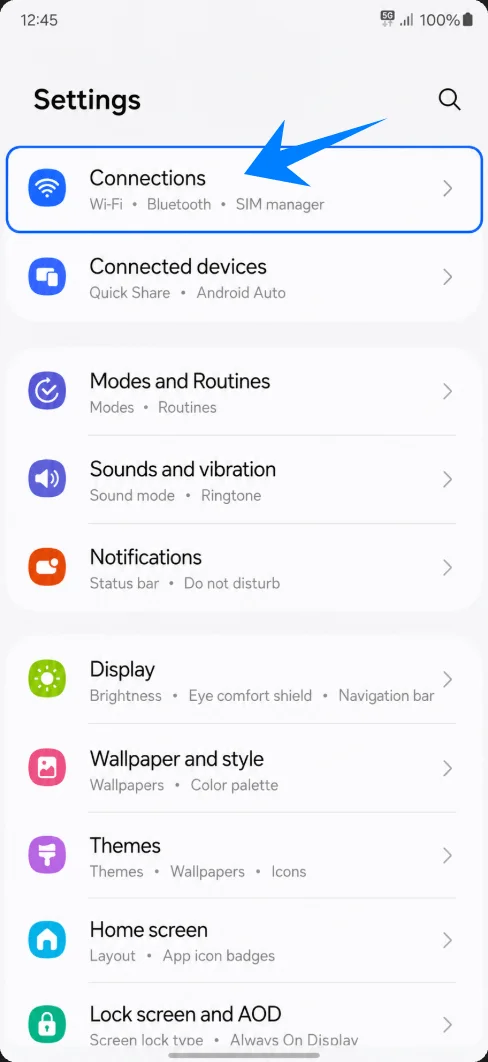
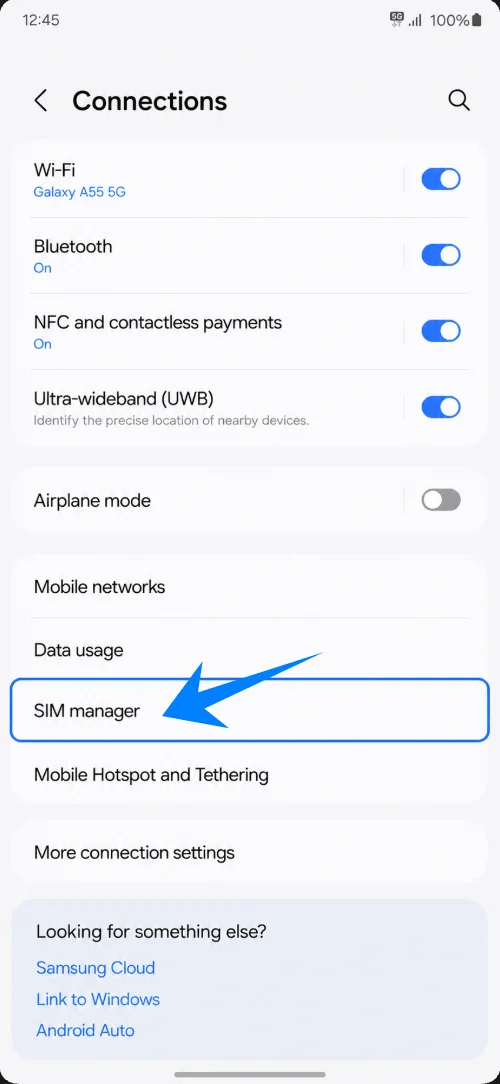
Tap SIM manager.
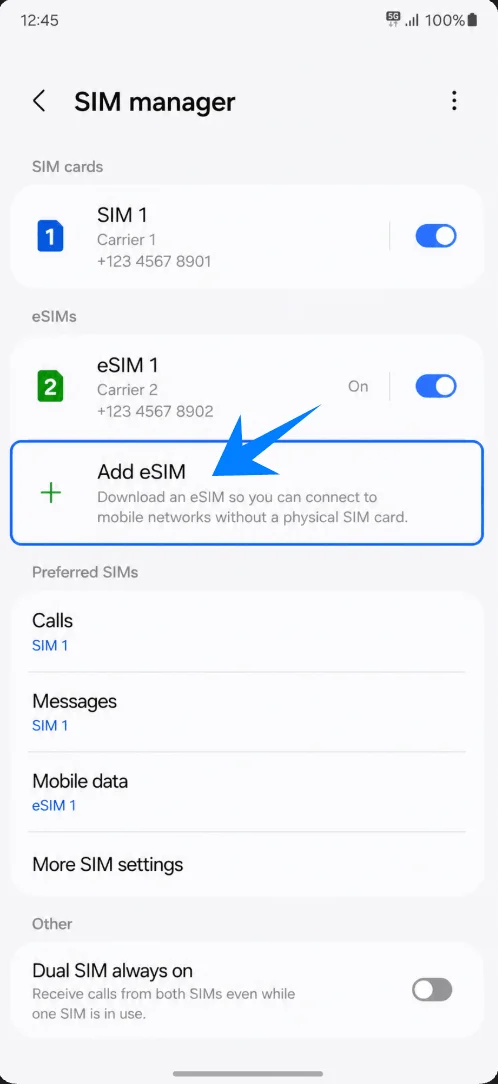
Tap Add eSIM.
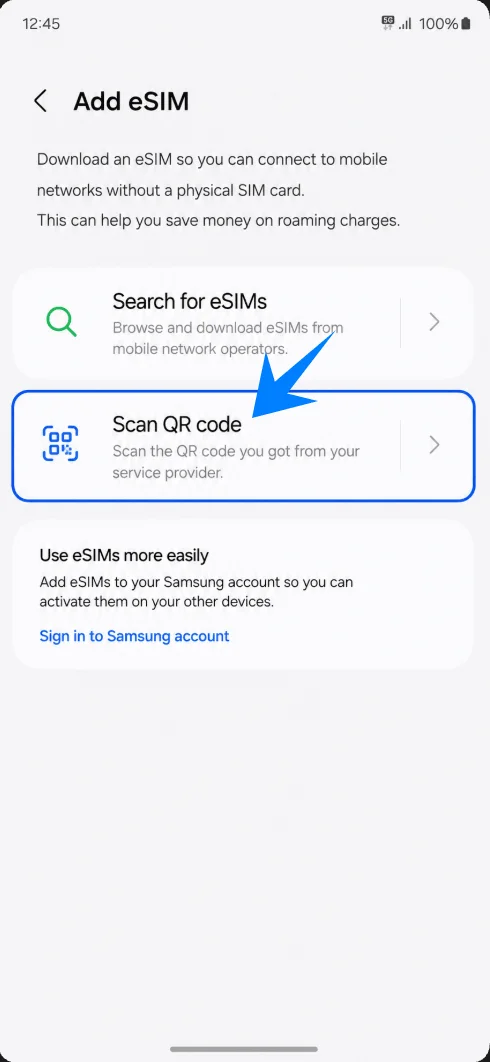
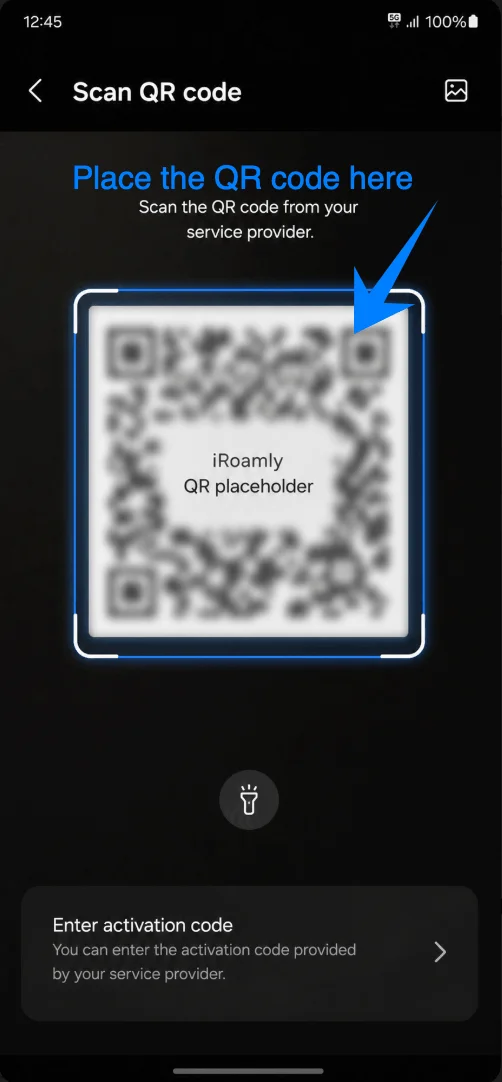
Tap Scan QR code.
Scan the iRoamly QR code.
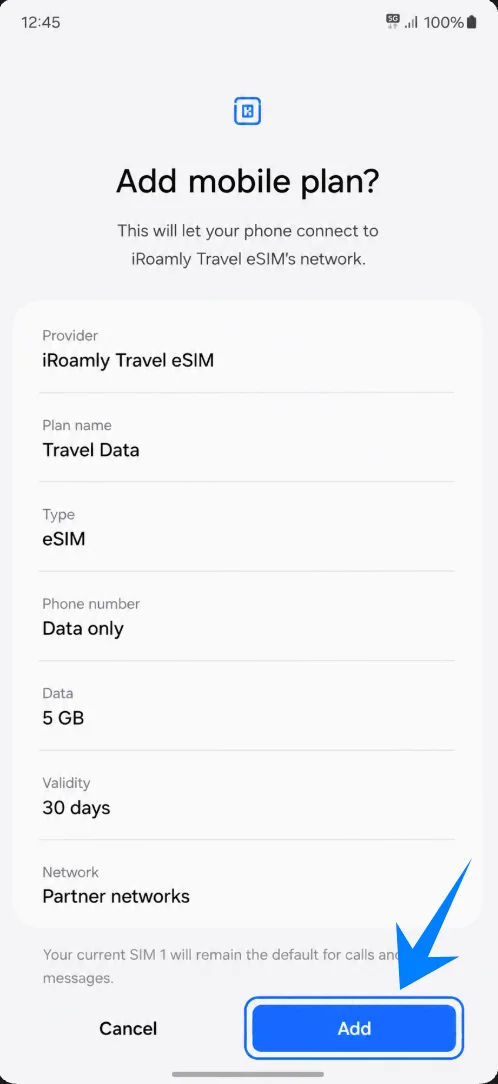
Review the detected iRoamly eSIM, then tap Add.
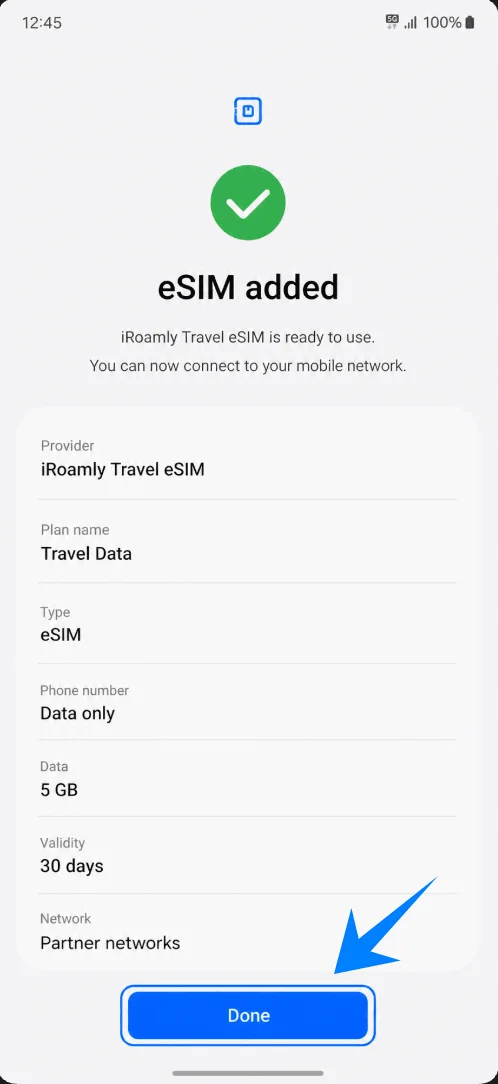
Wait for installation, then tap Done.
Method 2: Manual Setup
Open Settings, then tap Connections.
Tap SIM manager.
Tap Add eSIM.
Tap Scan QR code.
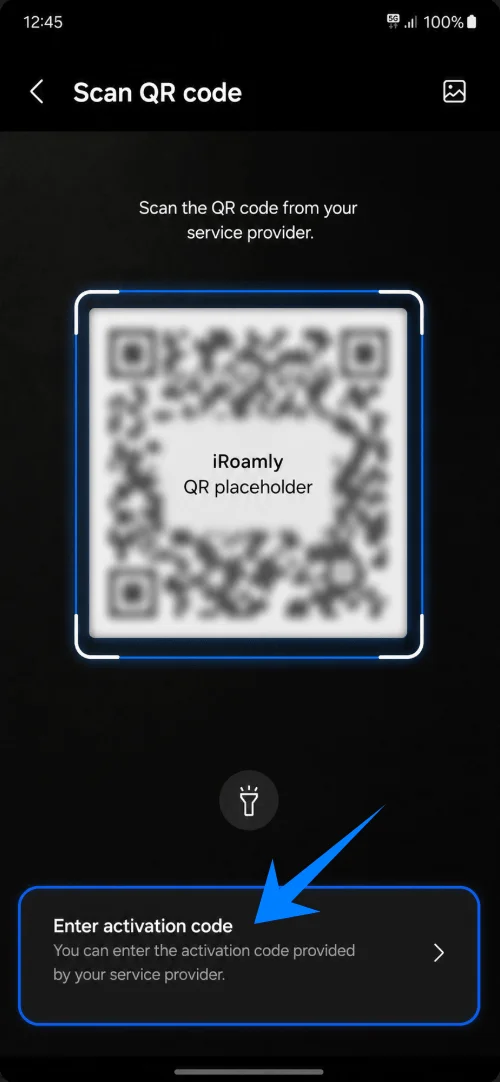
Tap Enter activation code.
Enter the full iRoamly activation code, then tap Next.
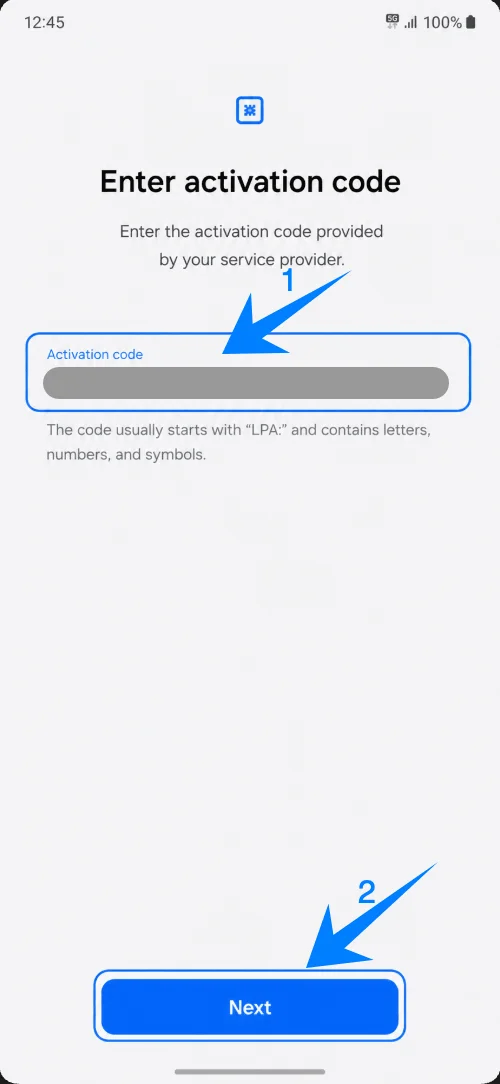
On Samsung One UI, the manual screen uses one activation-code field. If your iRoamly details are split into parts, use the full format shown in your order, usually like LPA:1$SM-DP+ Address$Activation Code.
Review the iRoamly eSIM, then tap Add.
Tap Done when installation finishes.
Confirm It Is Ready
Go to Settings > Connections > SIM manager.
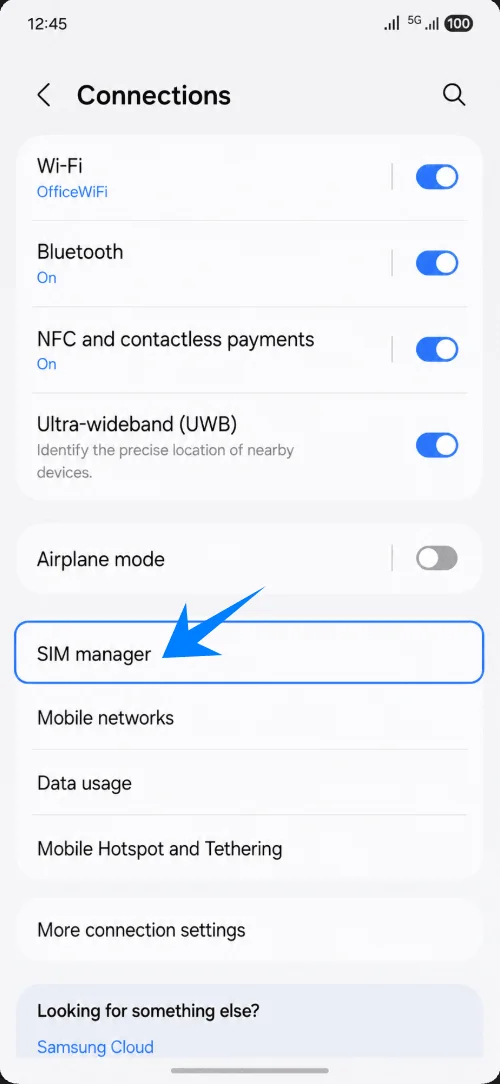
Check that iRoamly Travel eSIM appears and is turned on.
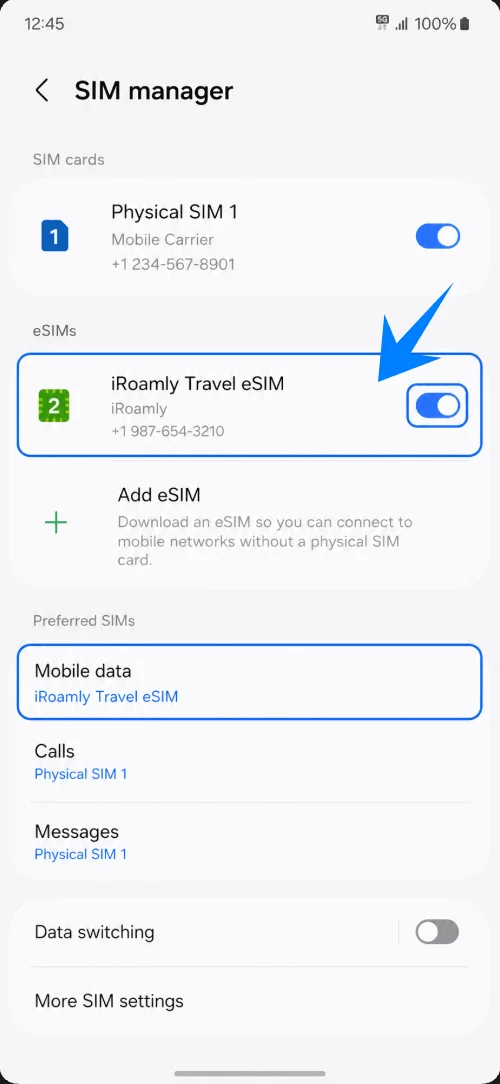
Set Mobile data to the iRoamly eSIM.
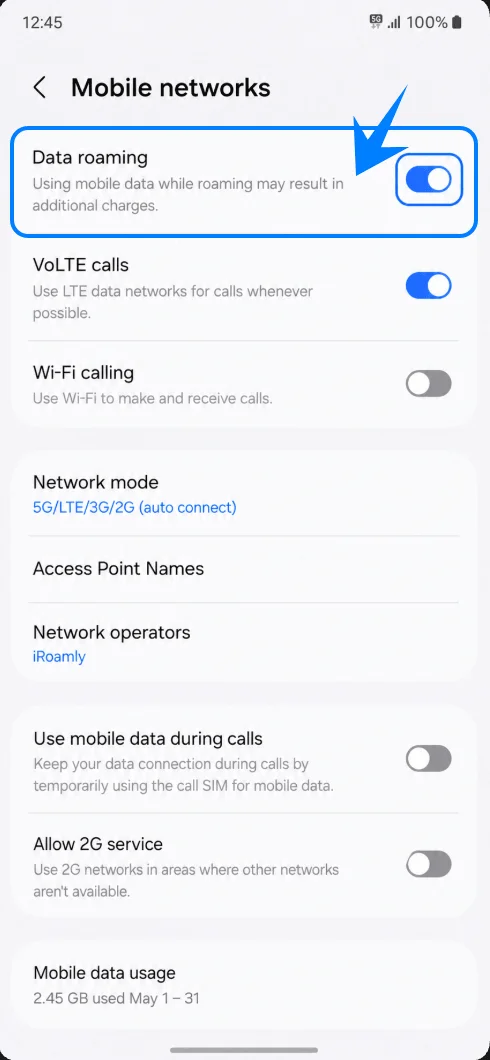
Go to Mobile networks and enable Data roaming if your plan requires it.
Troubleshooting
If Add eSIM is missing, update One UI, restart the phone, and confirm your Galaxy A55 5G variant supports eSIM.
If the QR code was already used, check whether the eSIM is already installed before deleting anything.
If mobile data does not work, select iRoamly for Mobile data, turn on Data roaming if required, and restart the phone.
If activation stays pending, keep Wi-Fi on and try again after reaching the supported destination.
Conclusion
For the Galaxy A55 5G, the QR code method is the simplest way to install an iRoamly travel eSIM through Samsung’s SIM manager. Manual activation is the best backup when the QR code is on the same phone or cannot be scanned.
After installation, always confirm that iRoamly Travel eSIM appears in SIM manager, select it for Mobile data, and enable Data roaming when your destination plan requires it. That final check is what turns a successful installation into a ready-to-use travel data setup.