
Using an eSIM on your Galaxy Fold gives you more control over how you stay connected during travel.
Since the eSIM works digitally, you can activate your mobile plan directly from Samsung settings without changing SIM cards or visiting a store after arrival.
You can also manage multiple mobile plans on one device more easily and switch data lines whenever needed.
If you’re ready to set up your iRoamly eSIM, this guide will show you exactly how to install it, confirm it was added successfully, and configure the correct settings for travel data on your Samsung Galaxy Fold.
Preparations Before Setting Up iRomly eSIM
Connect the Galaxy Fold to stable Wi-Fi before downloading the eSIM.
Make sure your Galaxy Fold is unlocked and eSIM-capable. eSIM support can vary by region, carrier firmware, and model variant.
Keep your iRoamly QR code or manual activation details ready before opening Samsung settings.
Install the travel eSIM 1-2 days before your trip when appropriate, but do not turn it on for travel data until you are ready to use it.
iRoamly eSIM validity starts from activation. Activation is triggered when the eSIM connects to a supported network.
Do not delete the iRoamly eSIM casually after installation. Many eSIM profiles cannot simply be reinstalled from the same QR code or activation code.
iRoamly eSIM plans may not include voice calls or SMS. Voice/SMS support varies by plan, so check the plan details before relying on it for calling or texting.
Method 1: Install the iRoamly eSIM by Scanning a QR Code
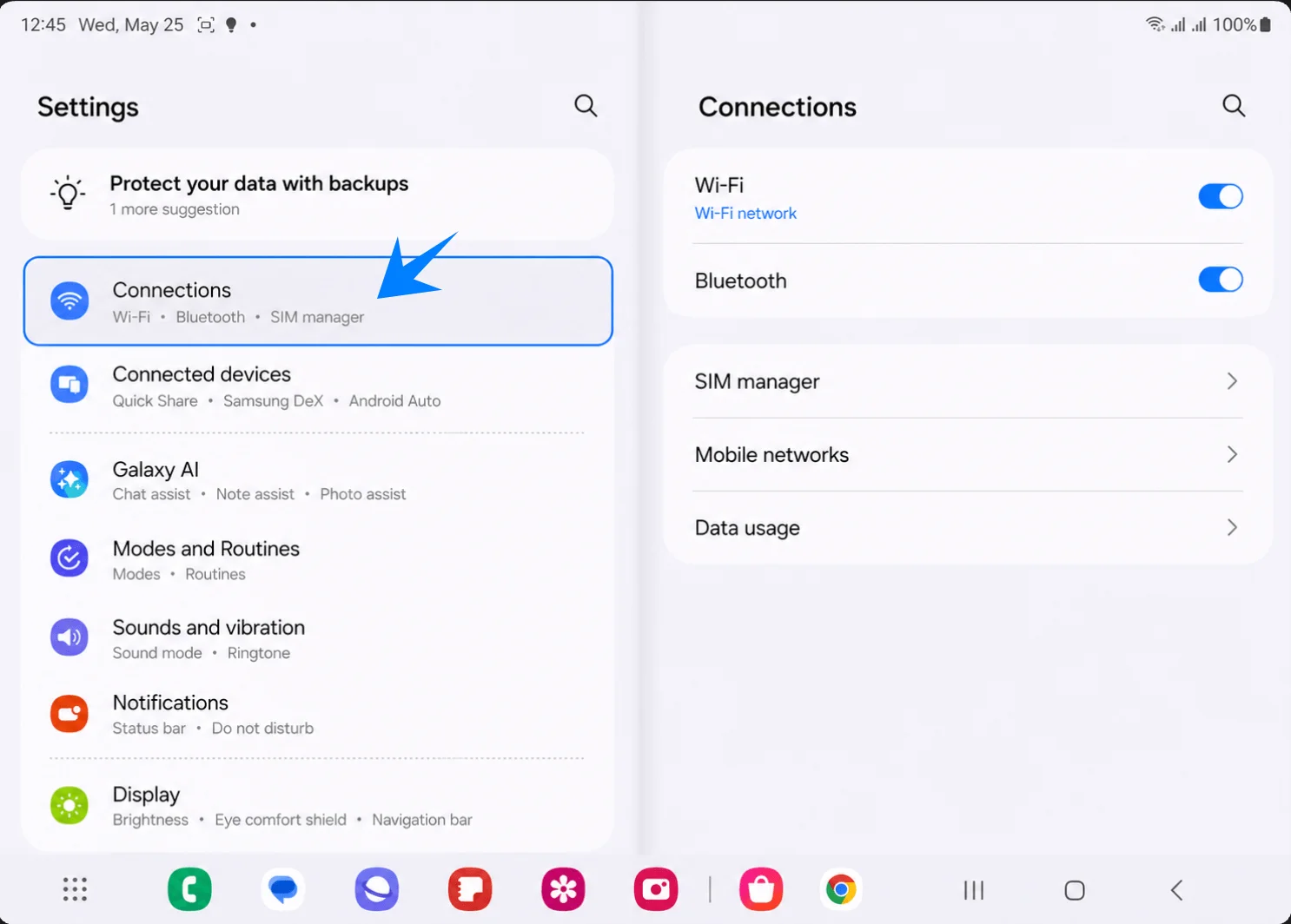
Unfold the Galaxy Fold, open Settings, then tap Connections in the left Settings list. You should see the Connections details open on the right side of the screen.
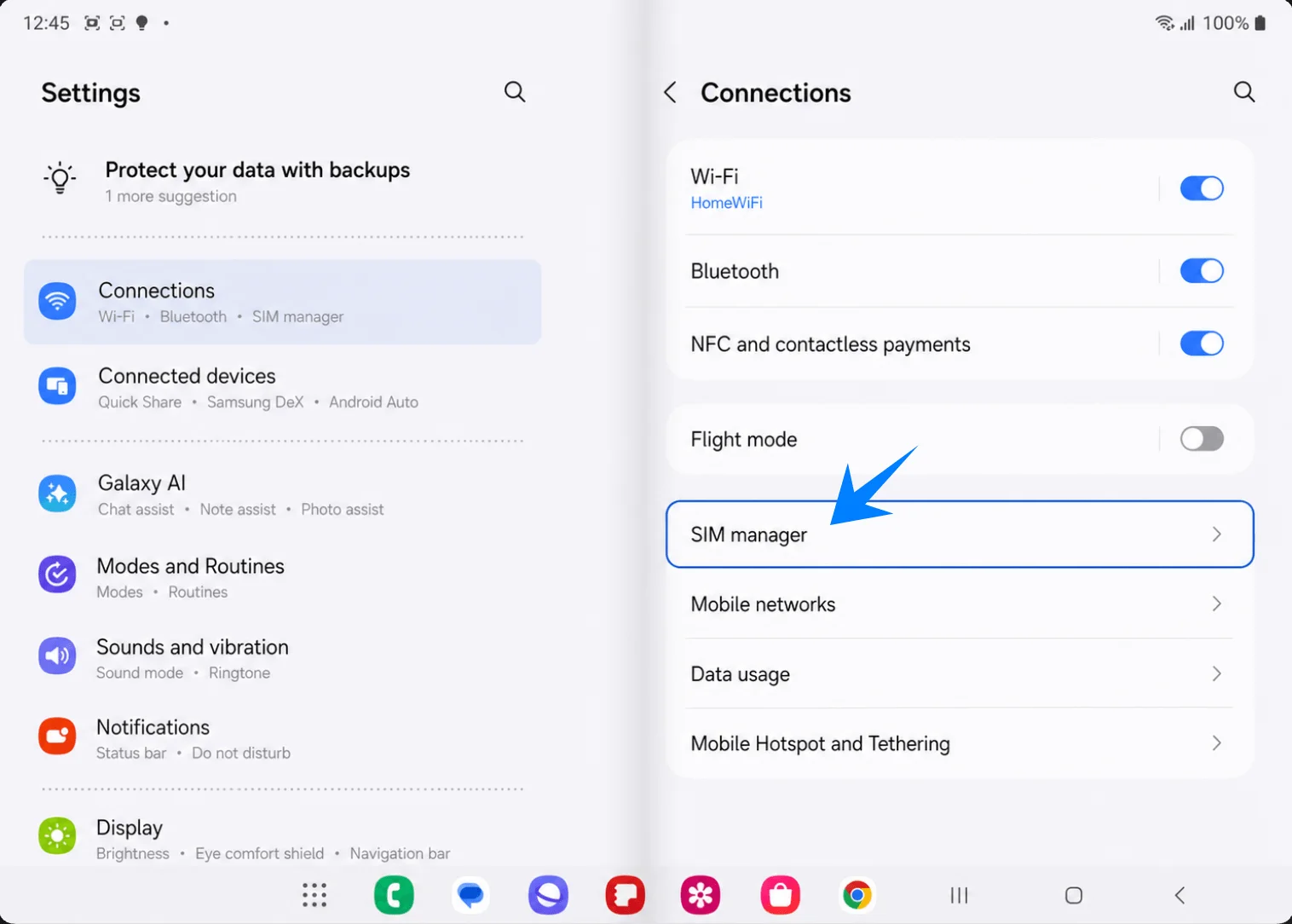
Tap SIM manager in the right pane. If your phone says SIM card manager, tap that equivalent label. You should see your physical SIM, eSIM area, and preferred SIM settings.
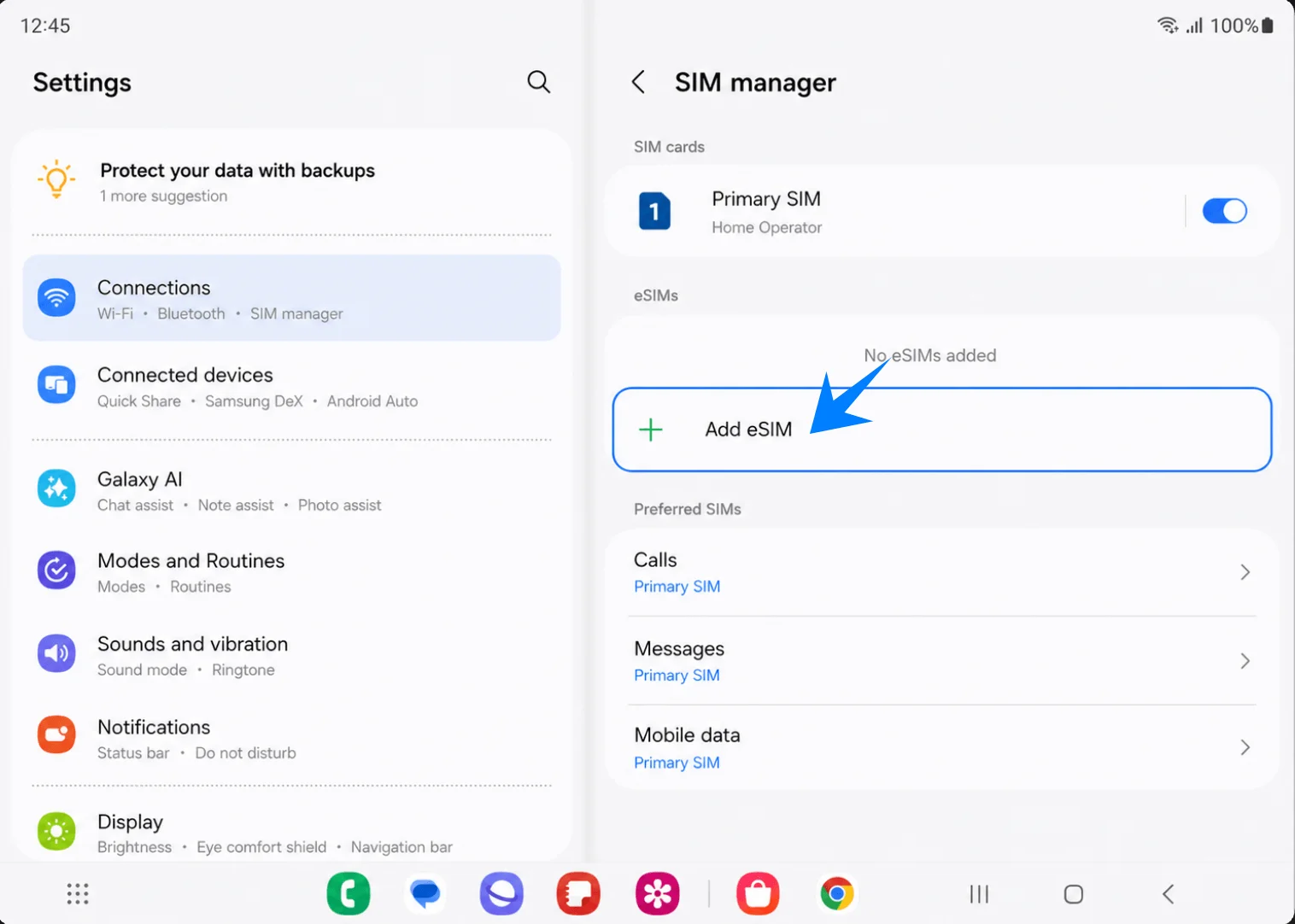
Tap Add eSIM under the eSIMs section. You should see the Choose how to add your eSIM page.
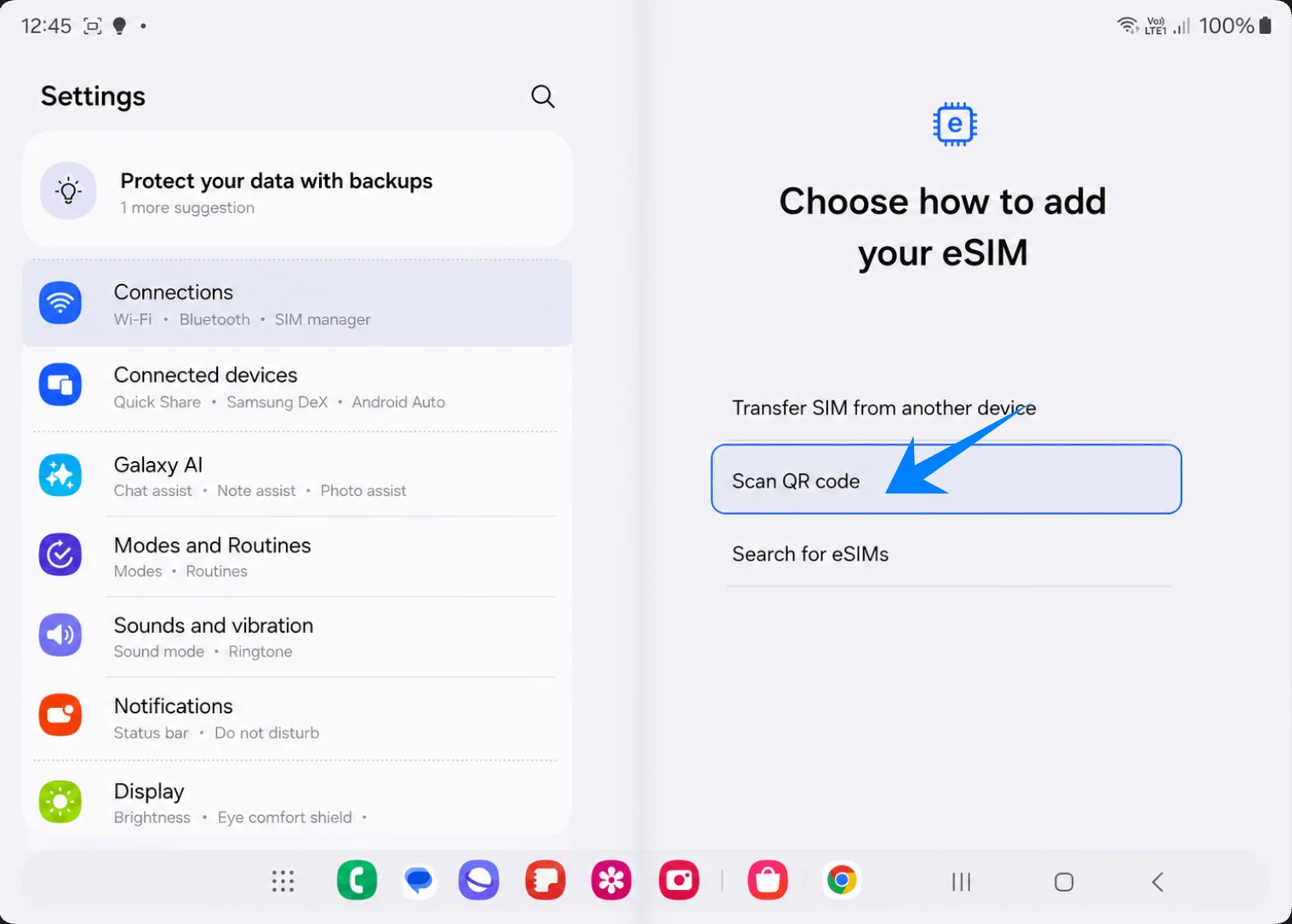
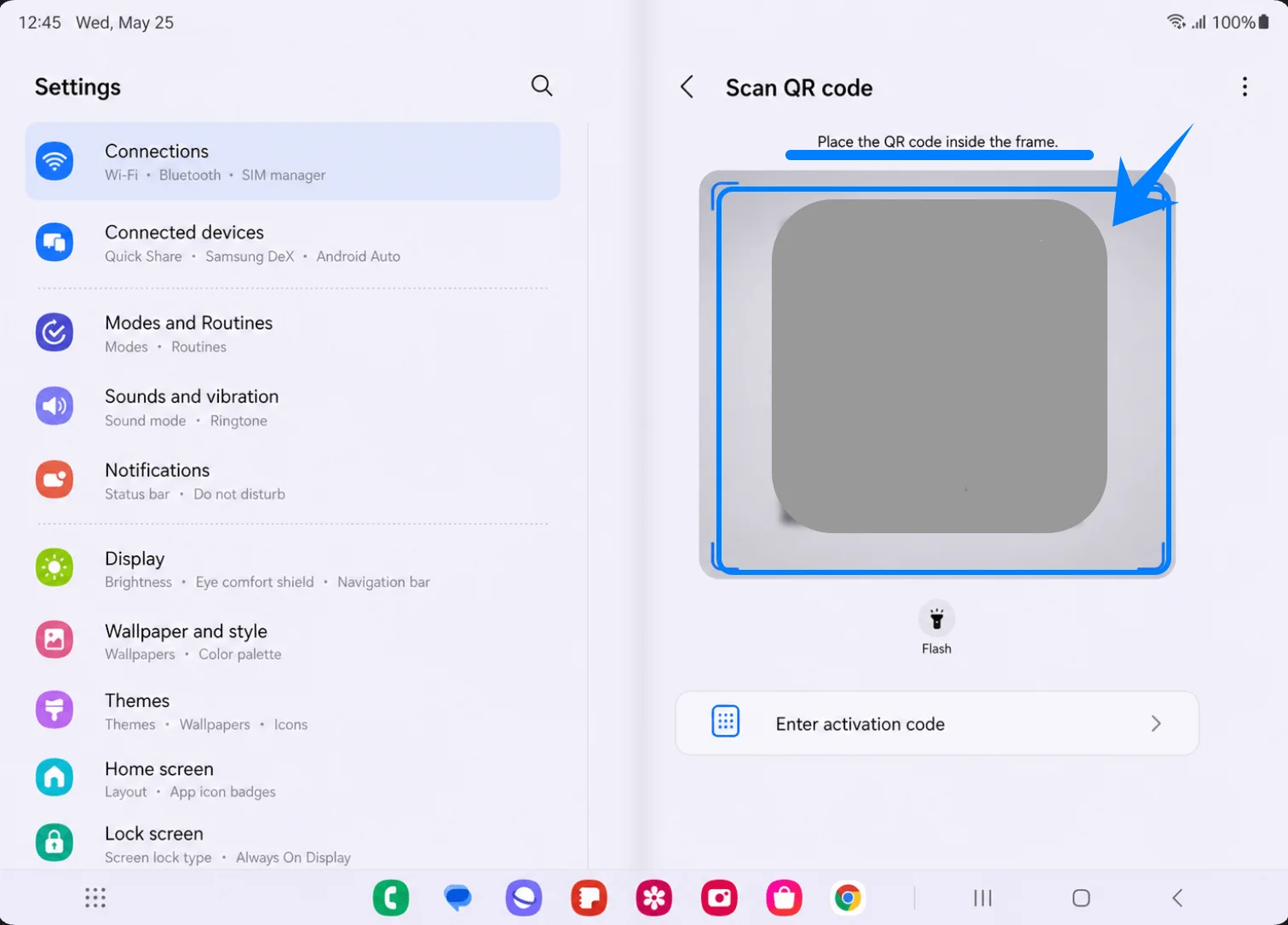
Tap Scan QR code on the Choose how to add your eSIM page. The Galaxy Fold should open the QR code scanner.
Point the scanner at the iRoamly QR code from your order email or iRoamly account. Keep the QR code flat and fully inside the frame until the phone detects the plan.
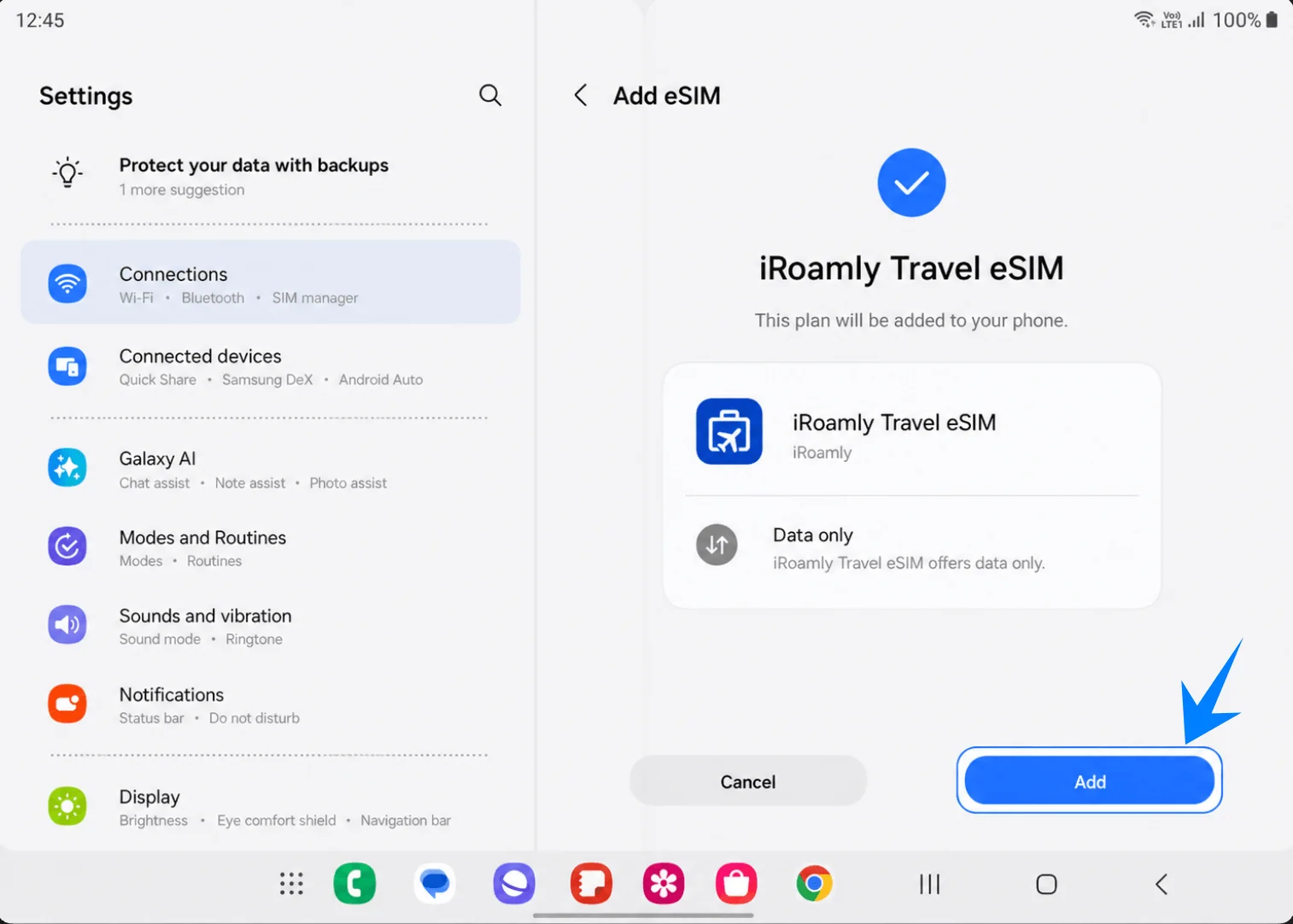
Review the iRoamly Travel eSIM confirmation screen, then tap Add. Keep Wi-Fi connected while the Galaxy Fold downloads the eSIM profile.
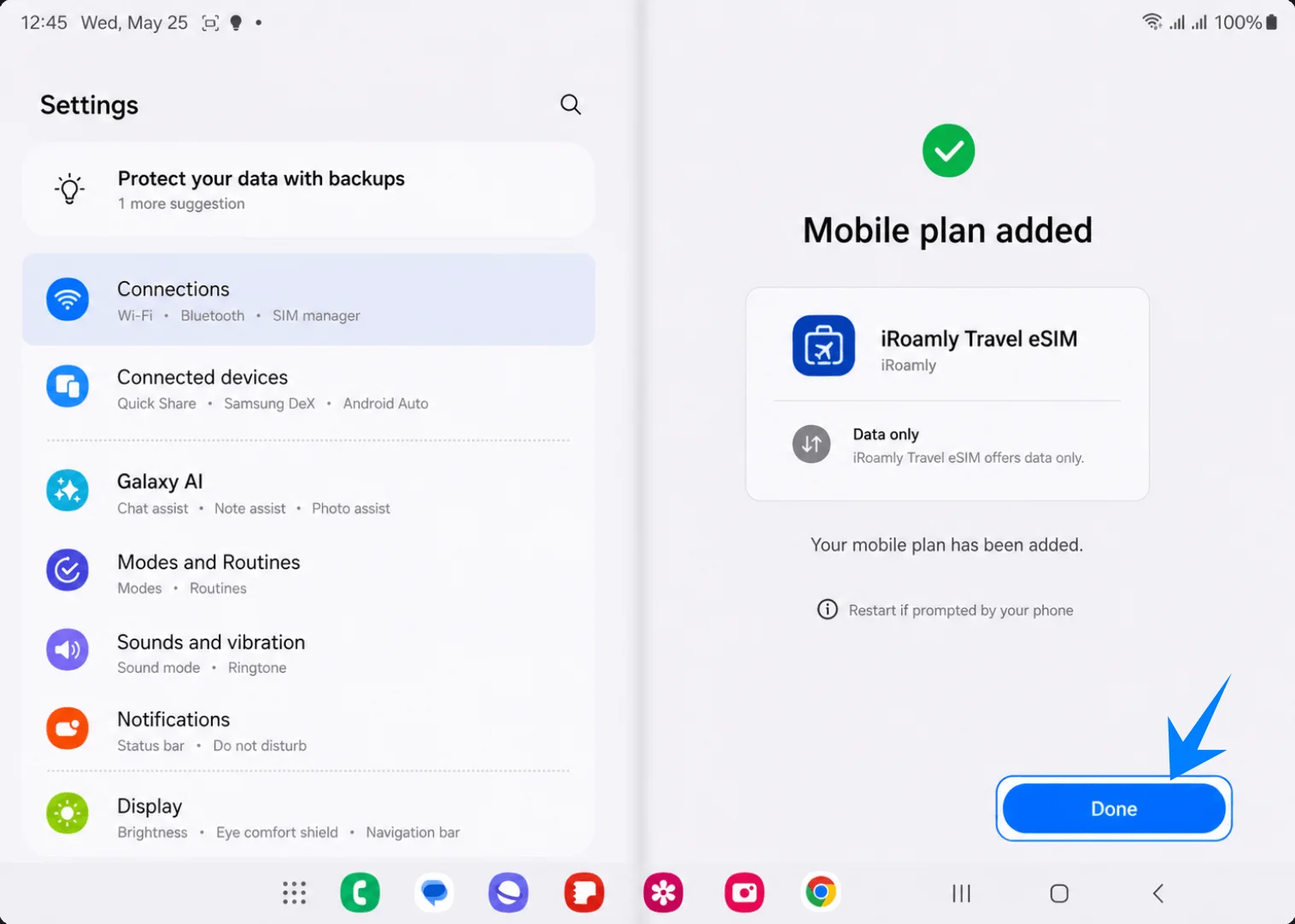
Tap Done when the Mobile plan added screen appears. If your Galaxy Fold asks you to restart, restart before checking the eSIM settings.
Method 2: Install the iRoamly eSIM by Manual Entry
Unfold the Galaxy Fold, open Settings, then tap Connections in the left Settings list. You should see the same two-pane Connections layout used for the QR code method.
Tap SIM manager in the right pane. If your phone says SIM card manager, tap that equivalent menu. You should see your SIM cards, eSIMs, and preferred SIM settings.
Tap Add eSIM under the eSIMs section. The Galaxy Fold should show the Choose how to add your eSIM page.
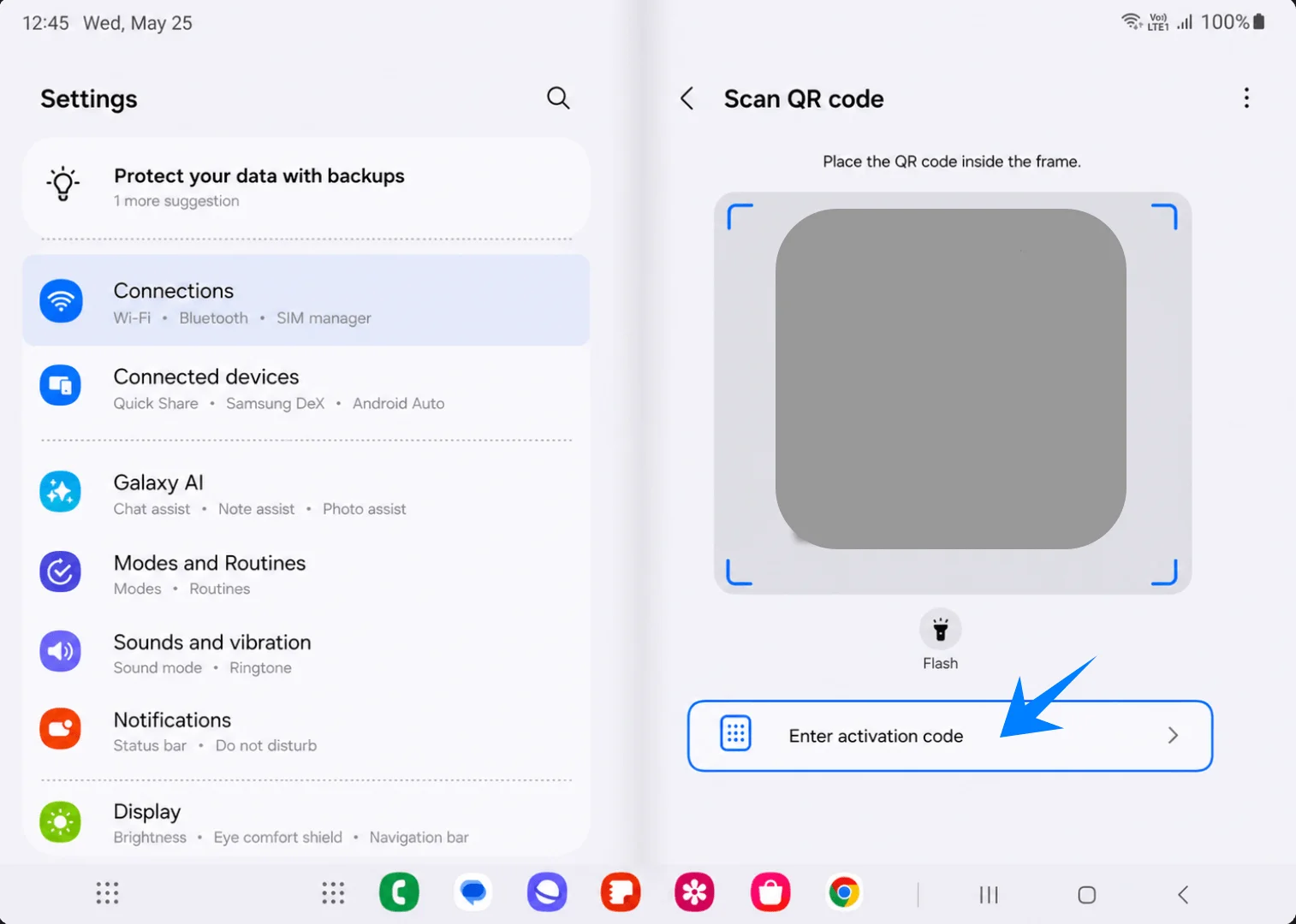
Tap Scan QR code on the Choose how to add your eSIM page. Samsung places the manual-entry option on the QR scanner screen.
Tap Enter activation code below the scanner frame. This opens Samsung's manual eSIM entry page.
Paste the complete iRoamly Activation code string into the Activation code field, then tap Connect. On this Samsung flow, use one full activation-code string, commonly in an LPA:1$... format, instead of typing separate SM-DP+ Address and Activation Code values into separate fields.
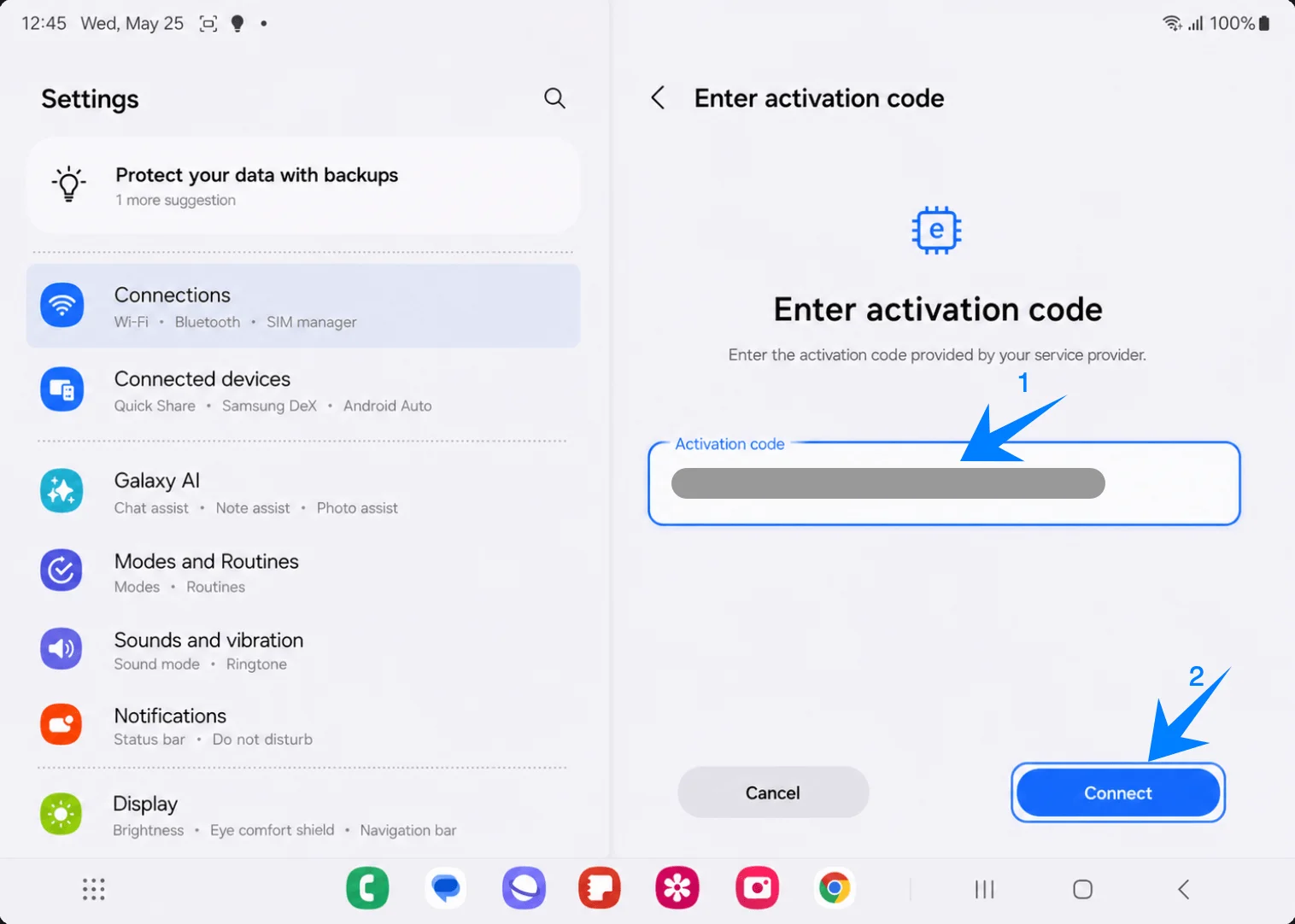
Review the iRoamly Travel eSIM confirmation screen, then tap Add. Keep Wi-Fi connected while the Galaxy Fold downloads the profile.
Tap Done when Mobile plan added appears. Restart the phone if Samsung prompts you to do so.
How to Confirm the iRoamly eSIM Was Installed
Open Settings > Connections > SIM manager, then confirm iRoamly Travel eSIM appears under eSIMs and its switch is turned on. This proves the profile is installed and available on the Galaxy Fold.
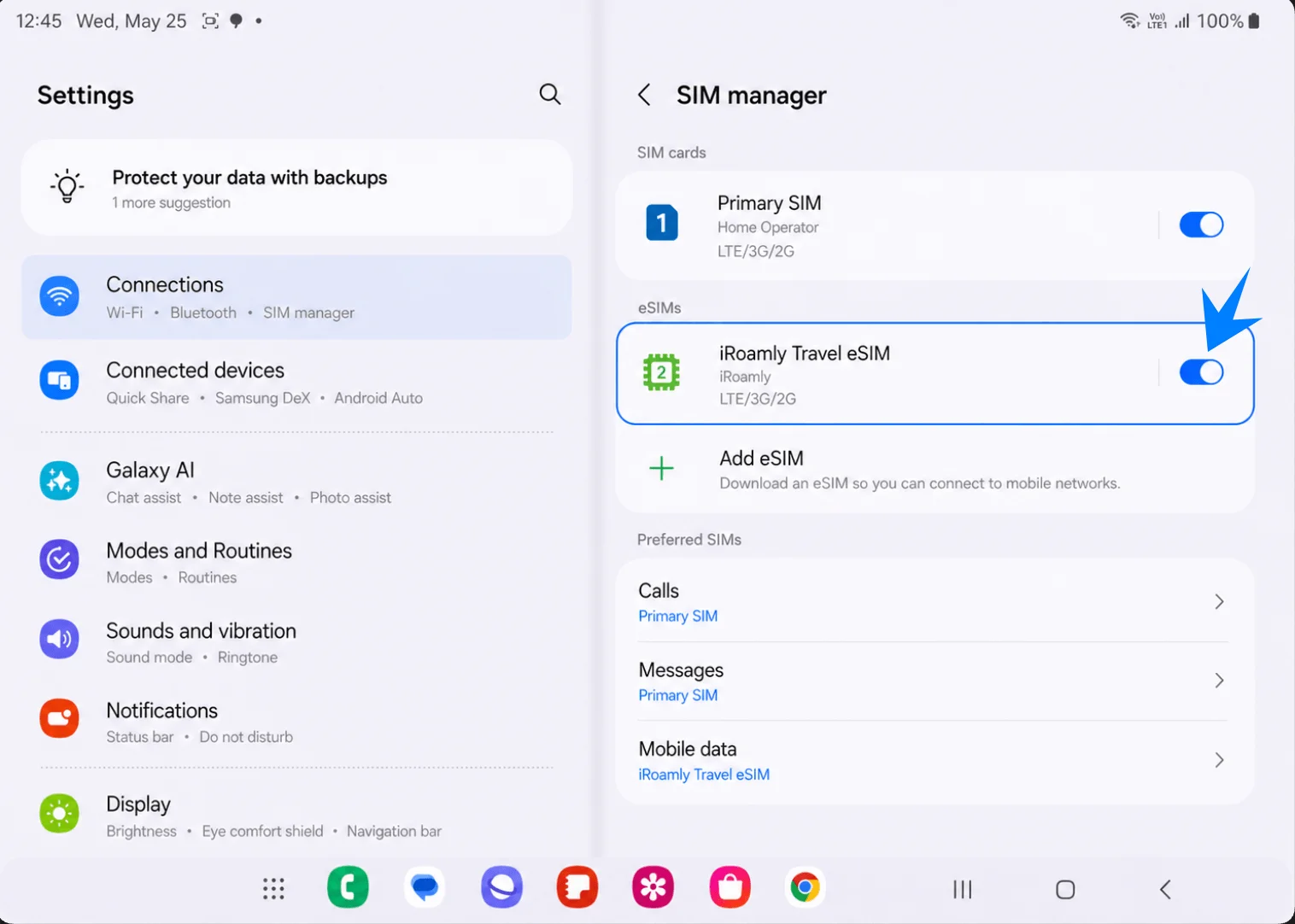
Set Up the iRoamly eSIM for Travel Data
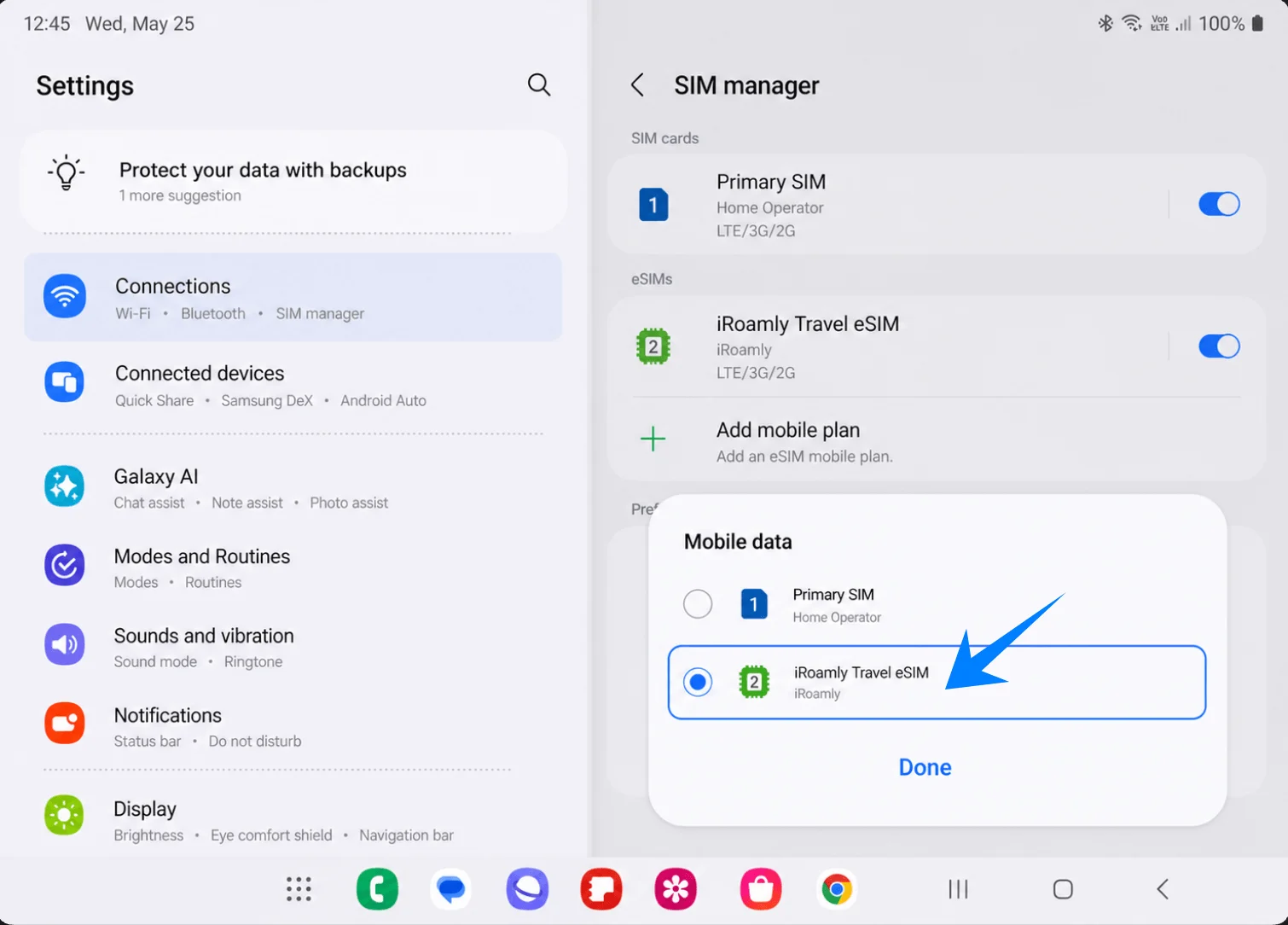
In SIM manager, tap Mobile data, choose iRoamly Travel eSIM, then tap Done. This makes the iRoamly eSIM the line used for mobile data.
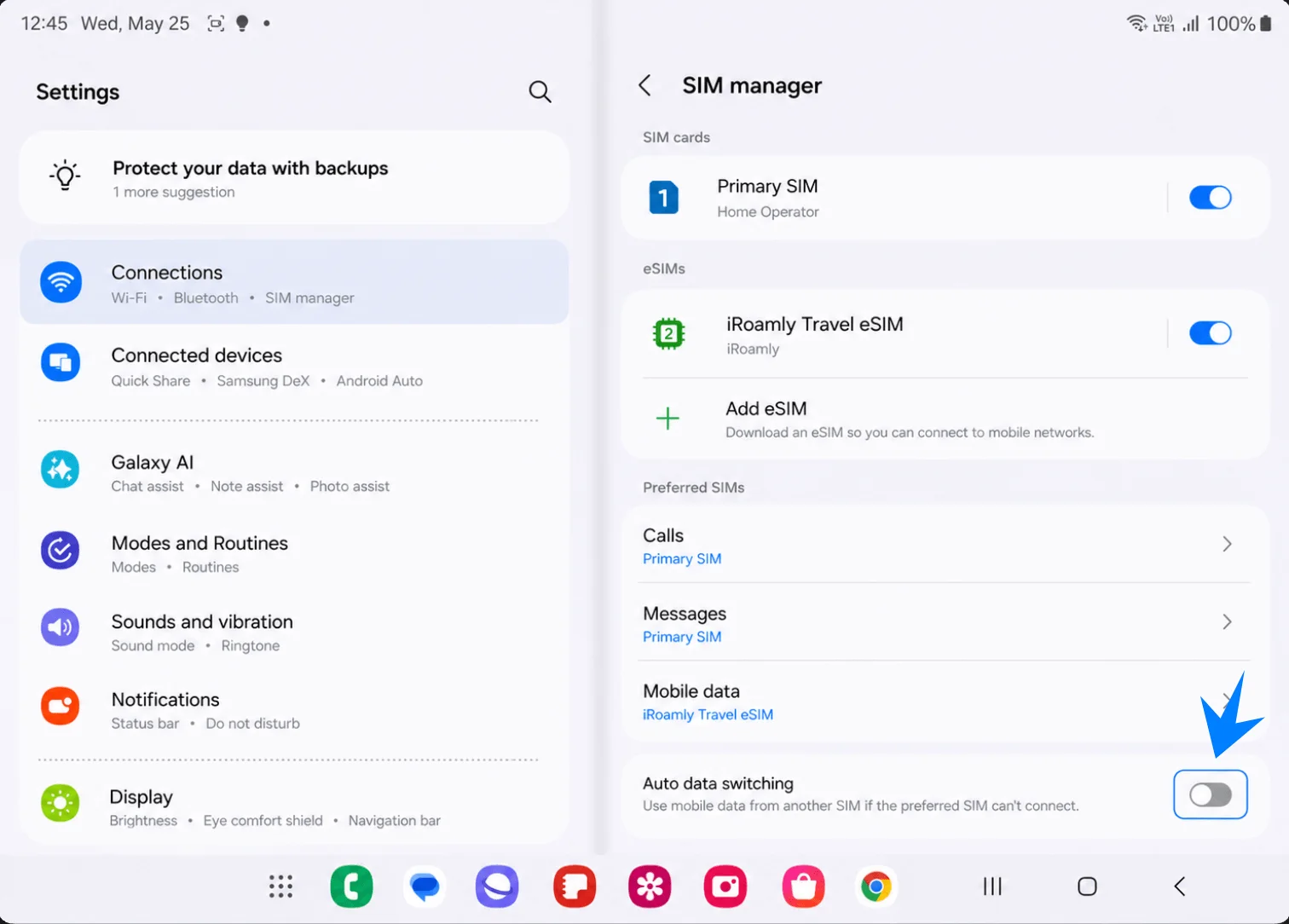
In SIM manager, leave Auto data switching turned off unless you intentionally want the phone to switch back to another SIM when iRoamly data is unavailable. Keeping it off helps avoid unwanted data use on your primary SIM while traveling.
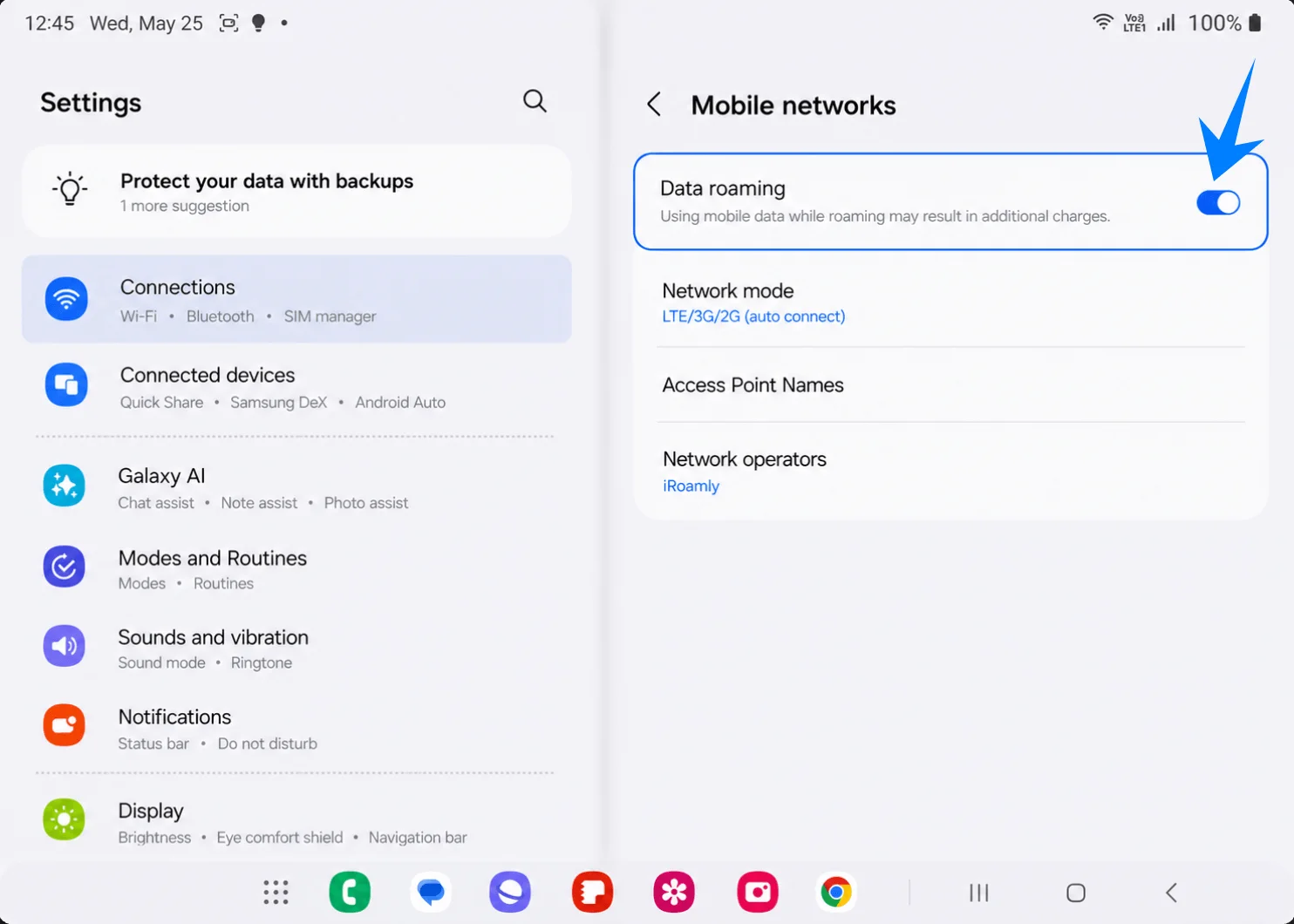
Open Settings > Connections > Mobile networks, then turn on Data roaming for the iRoamly line if your iRoamly plan or destination instructions require roaming. Keep network mode on automatic unless iRoamly support tells you otherwise.
Troubleshooting
No Add eSIM or SIM manager: update the Galaxy Fold software, confirm the phone is unlocked, and check whether your regional or carrier variant supports eSIM. If the phone has no EID in settings, that variant may not support eSIM activation.
QR code will not scan: brighten the screen showing the QR code, clean the camera lens, keep the QR code flat, and try the manual activation-code method. Do not keep retrying a QR code that has already been used successfully on another device.
QR code says it was already used: most eSIM QR codes are single-use. Check whether the iRoamly eSIM is already installed under SIM manager; if it was deleted, contact iRoamly support before trying to reinstall it.
eSIM installed but no data: choose iRoamly Travel eSIM under Mobile data, turn on Data roaming if the plan requires it, disable unwanted Auto data switching, restart the phone, and confirm you are in a covered destination.
Activation is pending: stay on Wi-Fi and wait a few minutes. Some travel eSIMs finish activation only after reaching a supported network in the destination country or region.
Calls or SMS do not work: check the exact iRoamly plan. Many travel eSIM plans are data-focused, and voice/SMS availability varies by plan.
Validity looks shorter than expected: iRoamly plan validity starts from activation. Check the plan's activation trigger and validity policy in your iRoamly order details.
Region or carrier limitations appear: Galaxy Fold eSIM behavior can vary by country, carrier firmware, and model variant. If the eSIM menu is missing after a software update, ask Samsung or the carrier whether that specific Galaxy Fold supports eSIM.
Conclusion
With your iRoamly eSIM successfully added to your Galaxy Fold, your device is now prepared for digital travel connectivity with a simpler and more flexible setup experience.
eSIM technology allows your Galaxy Fold to manage travel data directly through software settings, making it easier to switch between plans and organize mobile connectivity while abroad.