
With eSIM, you can keep your existing phone number while adding an extra mobile data plan for travel or business use.
You don’t need to open the SIM tray, carry extra SIM cards, or worry about damaging or misplacing them during your trip. Instead, the eSIM profile is downloaded directly onto your Galaxy Z Fold2 5G through Wi-Fi, making the setup process faster and more convenient.
eSIM technology is especially useful for international travel because it allows you to switch between carriers or plans more easily without physically changing cards.
Samsung supports both QR-code installation and manual activation, and this guide will show you exactly how to install and activate your iRoamly eSIM step by step.
Meet iRoamly for Easier Travel Connectivity
iRoamly is a travel eSIM service that provides mobile data plans for destinations around the world through digital profiles.
Travelers can choose available destination, regional, or global options, with data allowances, validity periods, and plan features varying by location. Once installed on a compatible phone, that travel data can support everyday needs such as maps, messaging, translations, ride-hailing, bookings, and travel updates.
On a compatible Galaxy Z Fold2 5G, an iRoamly eSIM can be installed through Samsung settings and selected as the mobile data line for a trip. The guide below keeps the QR-code and manual-entry methods in order so you can add the profile and configure travel data when needed.
Preparations Before Setting Up iRoamly eSIM
Connect the Galaxy Z Fold2 5G to stable Wi-Fi before installing the eSIM.
Make sure the phone is unlocked for travel use and that your regional or carrier firmware supports eSIM. The setup option should show Add eSIM, and the phone should have an EID.
Keep your iRoamly QR code or manual activation details ready. Use placeholder details only for practice, never a random activation code from another plan.
Install 1-2 days before travel when your plan instructions allow it, so you still have Wi-Fi available if setup needs a retry.
If you are preparing the Galaxy Z Fold2 5G for a trip to Japan or the United States, installing the travel eSIM while stable Wi-Fi is available can leave less to handle after arrival.
iRoamly validity and billing start from activation. For iRoamly travel eSIMs, activation is typically when the eSIM connects to a supported destination network, but always check the exact activation rule in your current iRoamly plan details.
Do not delete the iRoamly eSIM casually after installation. If you are not ready to use it, turn the line off instead of removing it.
iRoamly eSIM plans may not include voice calls or SMS. Many travel eSIM data packages provide data only, so check the specific plan details before relying on calls or texts.
Method 1: Install the iRoamly eSIM by Scanning a QR Code
Open Settings and tap Connections. The Connections page should open with Wi-Fi, Bluetooth, SIM manager, and mobile network options.
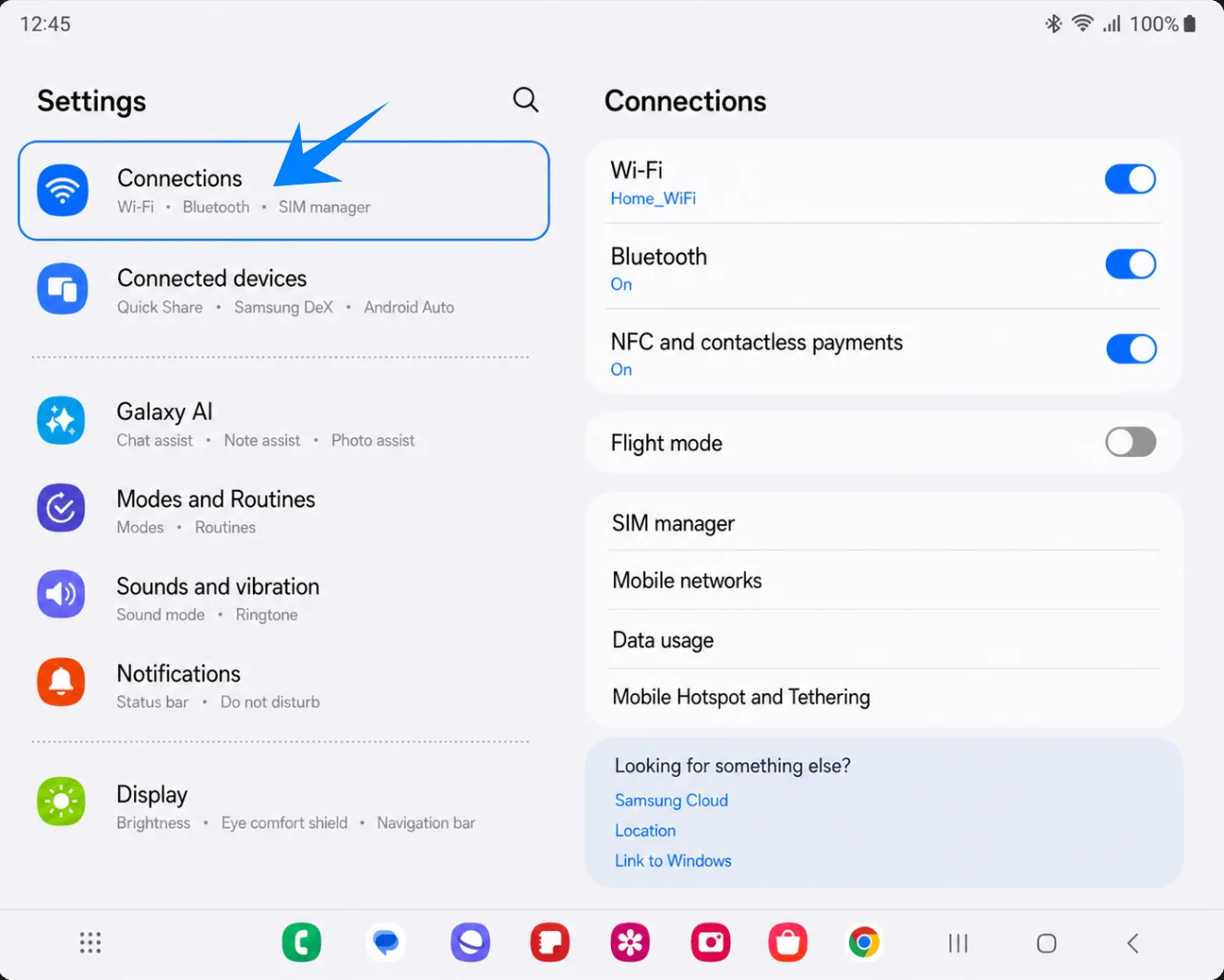
Tap SIM manager. The SIM and eSIM management page should open.
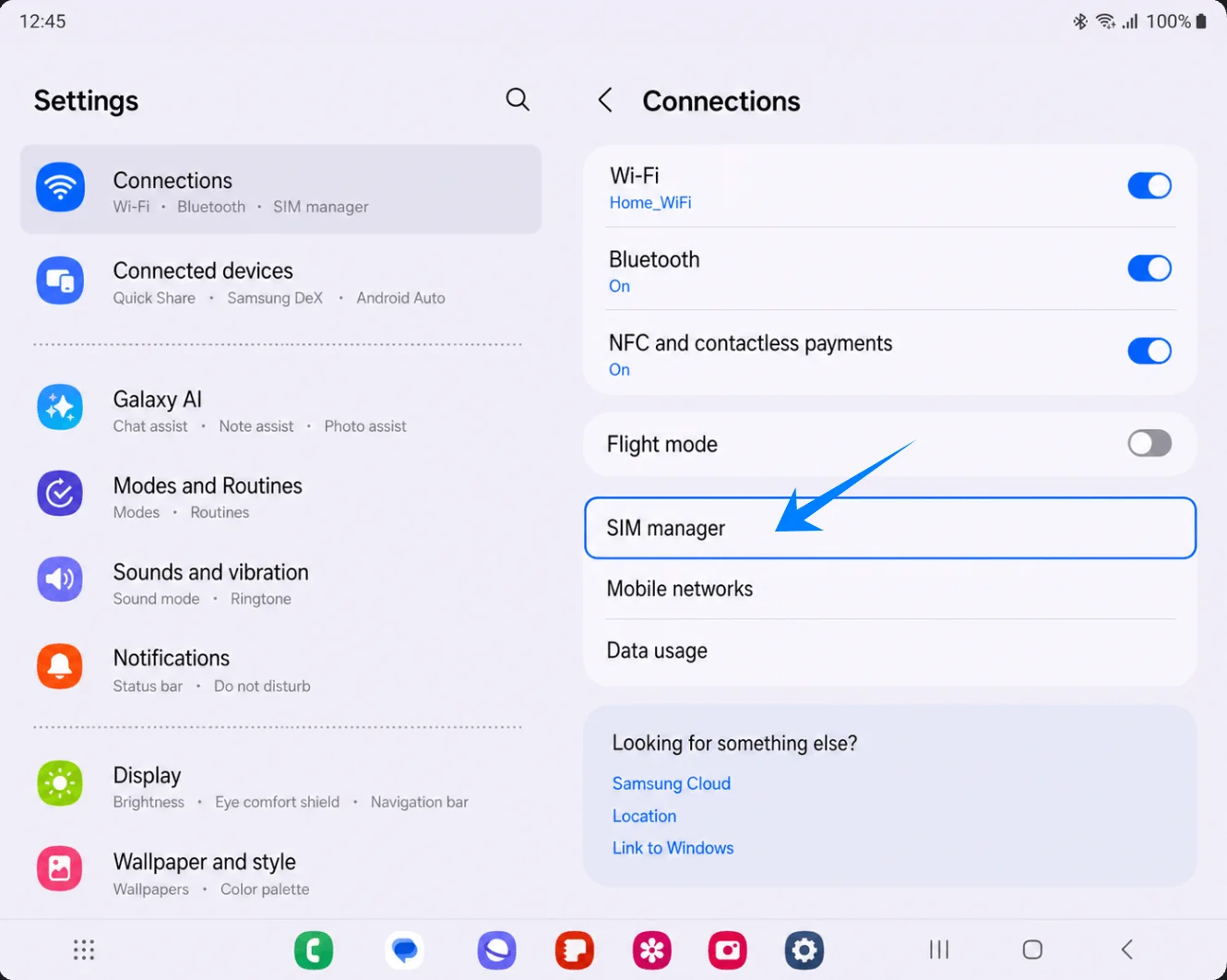
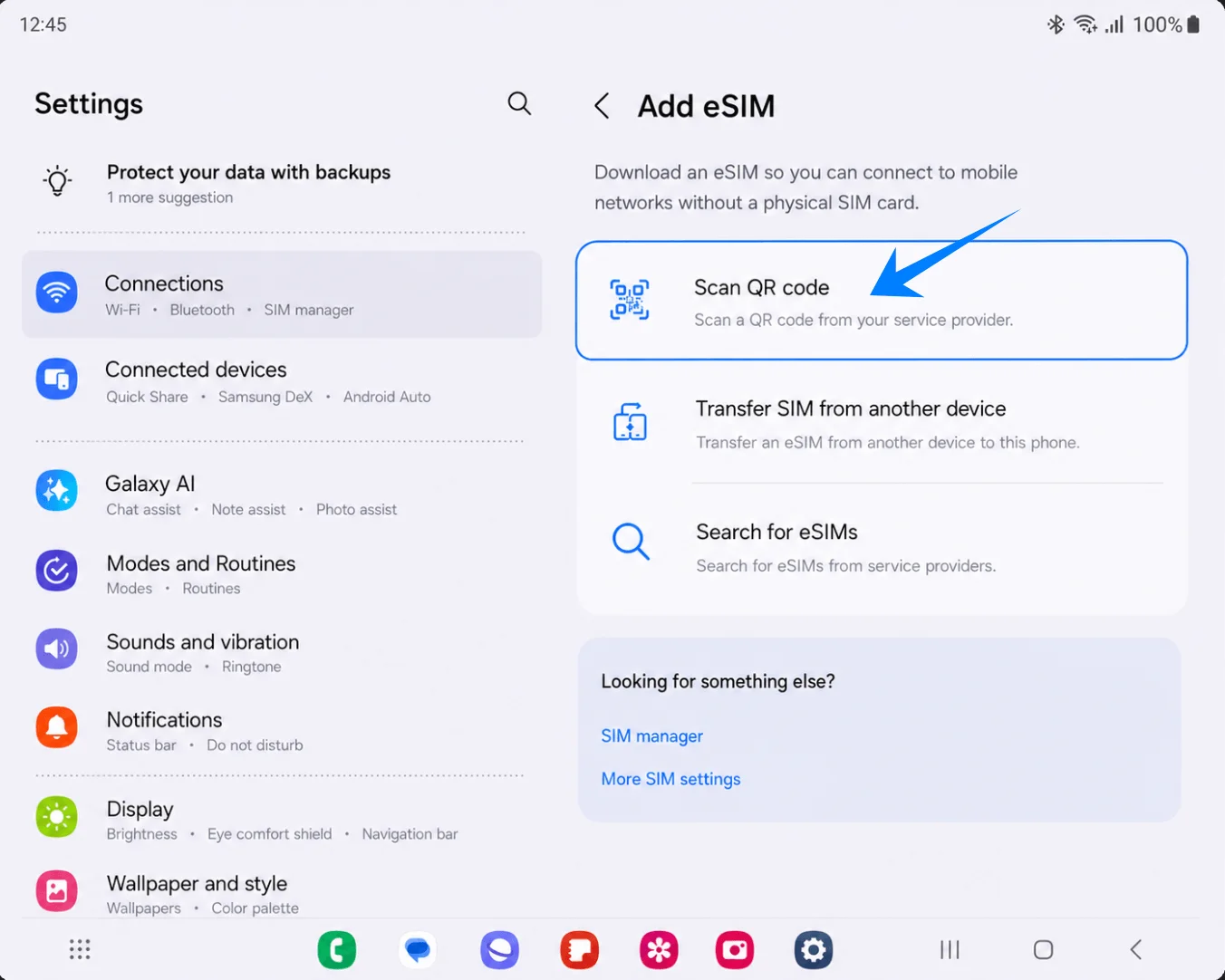
Tap Add eSIM. The Add eSIM setup page should appear.
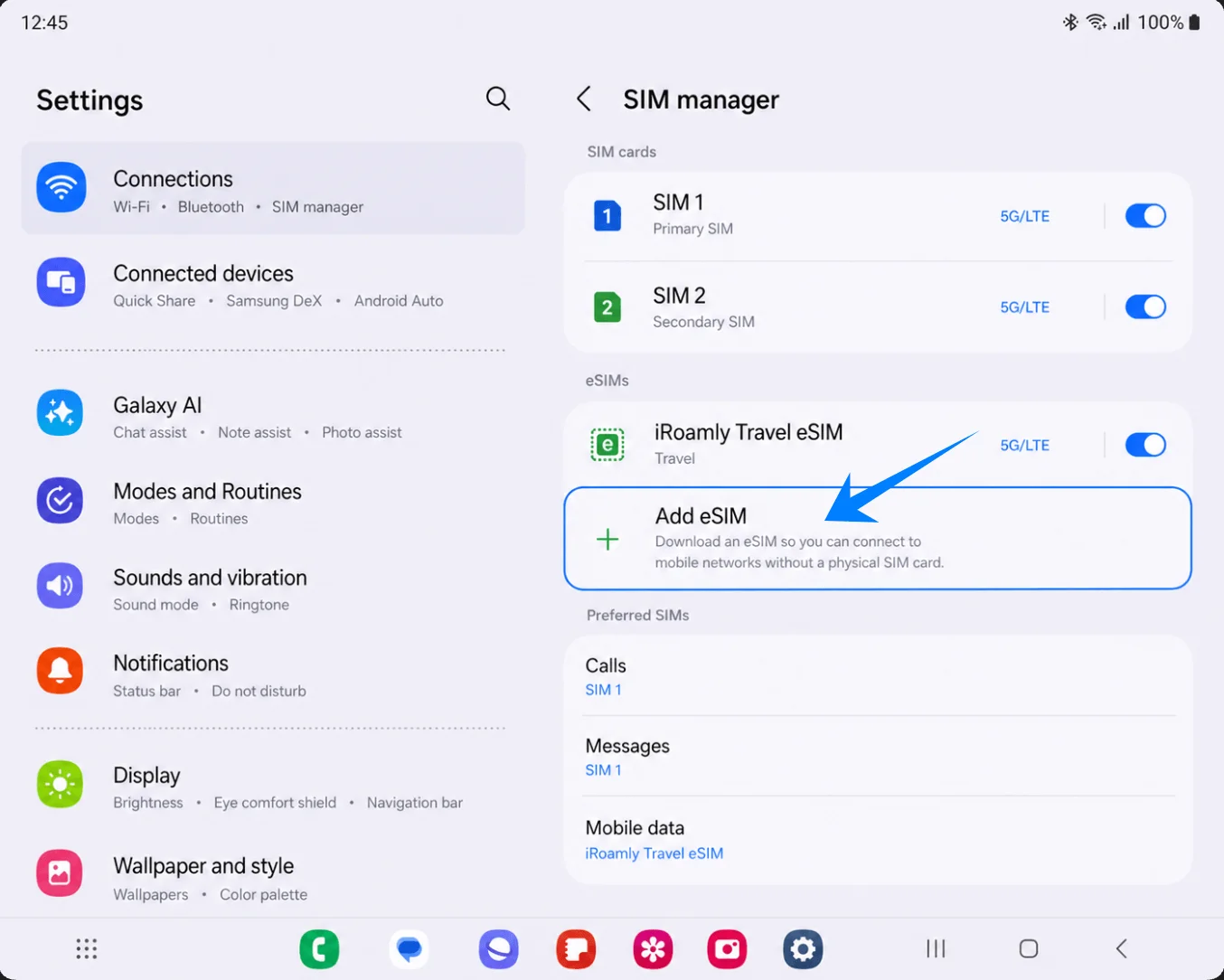
Tap Scan QR code. The Samsung QR scanner should open.
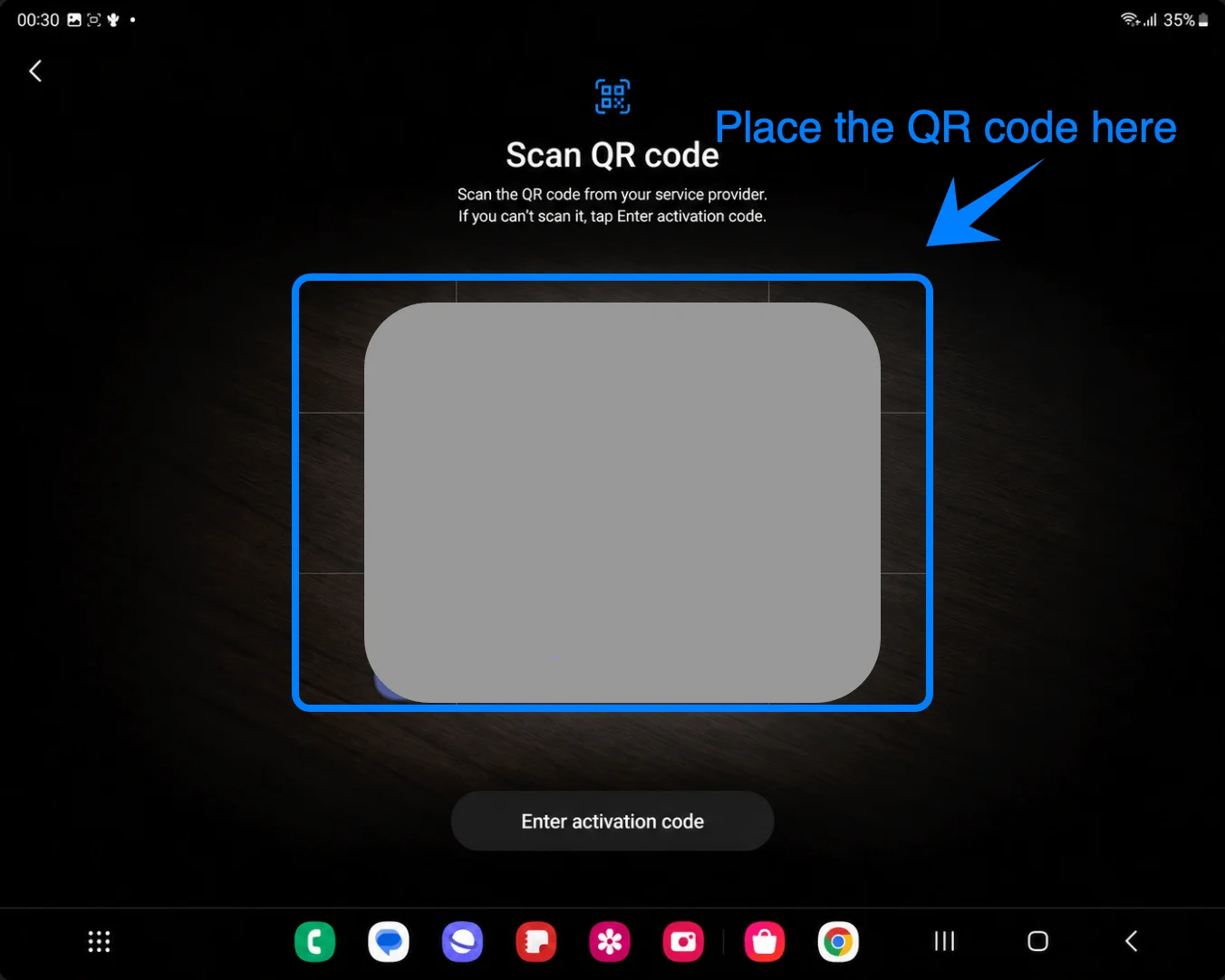
Point the camera at the iRoamly QR code and keep the entire QR code inside the scan frame. When the phone reads the code, it should show an eSIM confirmation screen.
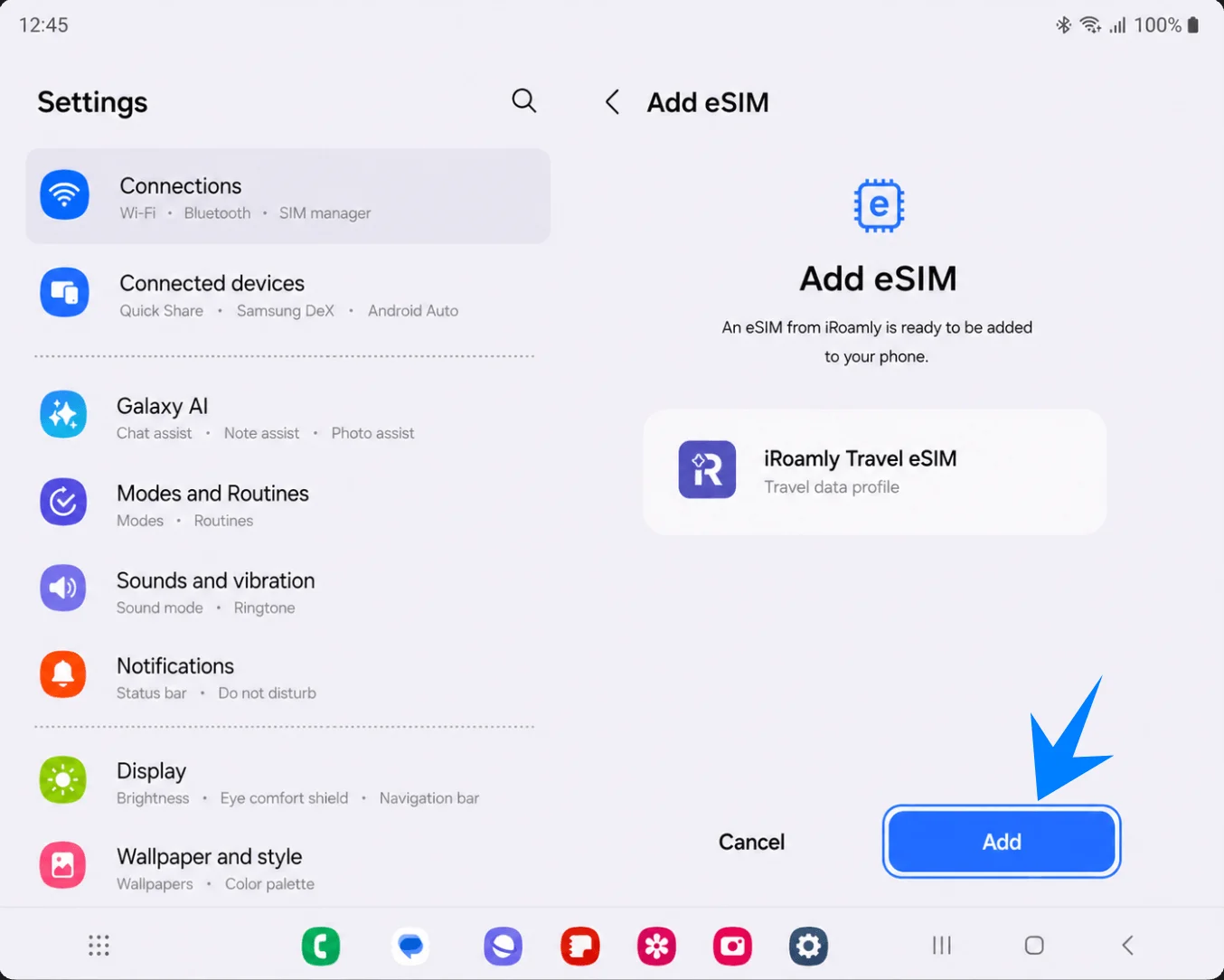
Tap Add on the Add eSIM confirmation screen. Keep Wi-Fi connected while the Galaxy Z Fold2 5G downloads the iRoamly eSIM profile.
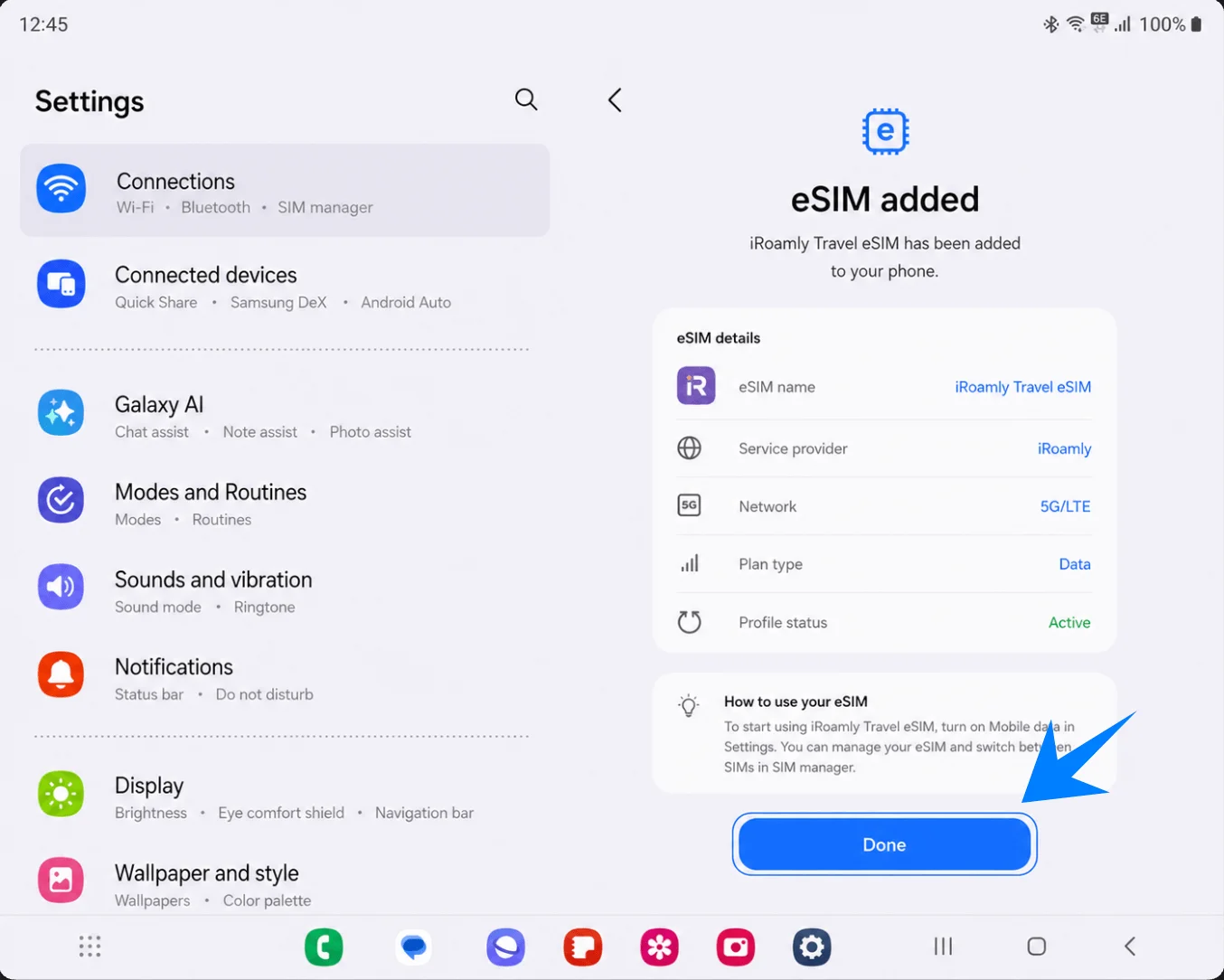
Tap Done when the screen says the eSIM has been added. If Samsung or iRoamly prompts you to restart, restart before testing mobile data.
Method 2: Install the iRoamly eSIM by Manual Entry
Open Settings and tap Connections. This takes you to the same Samsung connection settings used for QR setup.
Tap SIM manager. The phone should show the current SIMs and the eSIM area.
Tap Add eSIM. The Add eSIM page should open.
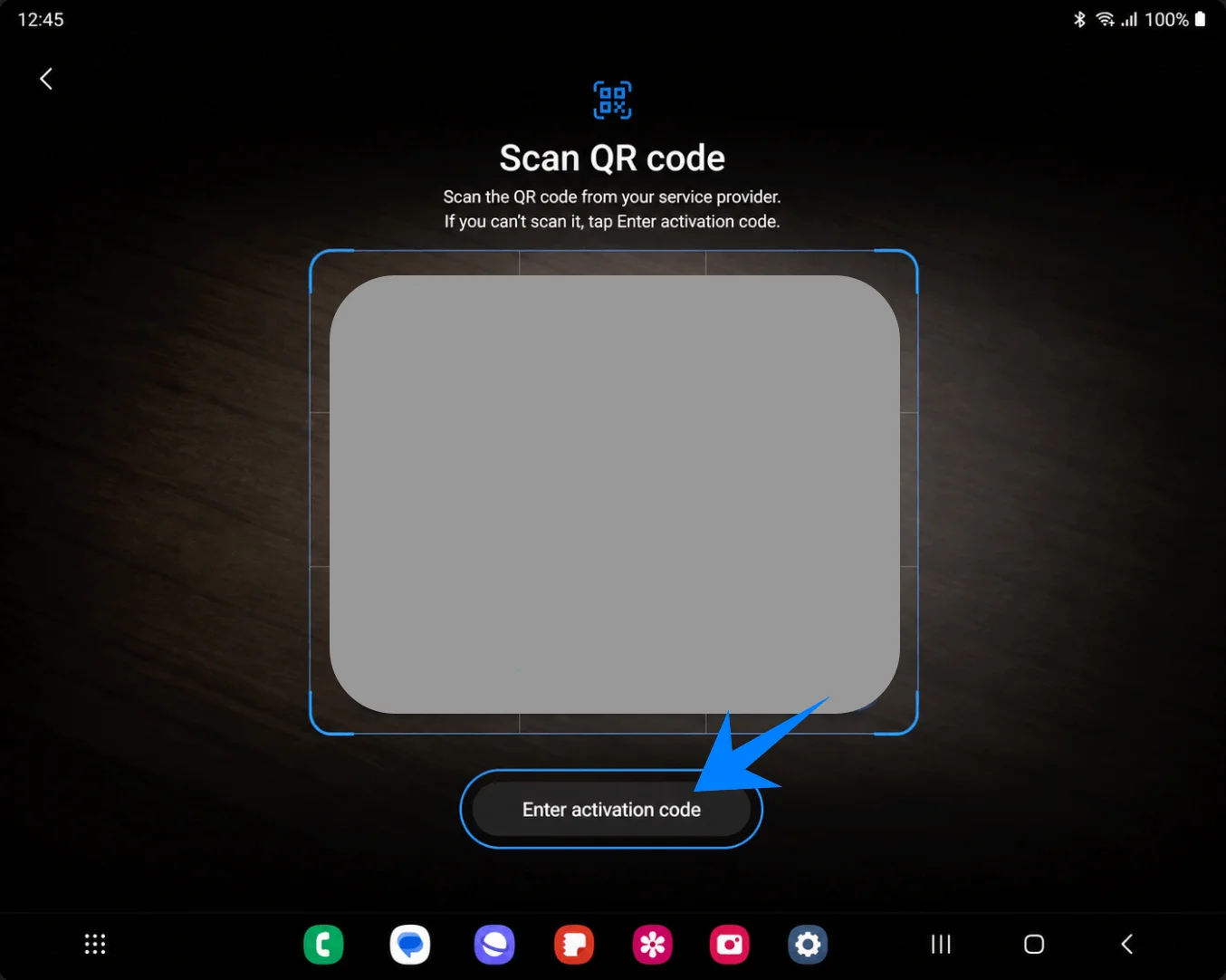
Tap Scan QR code. Samsung places the manual-entry option on the QR scanner screen.
Tap Enter activation code at the bottom of the QR scanner screen. The manual activation page should open.
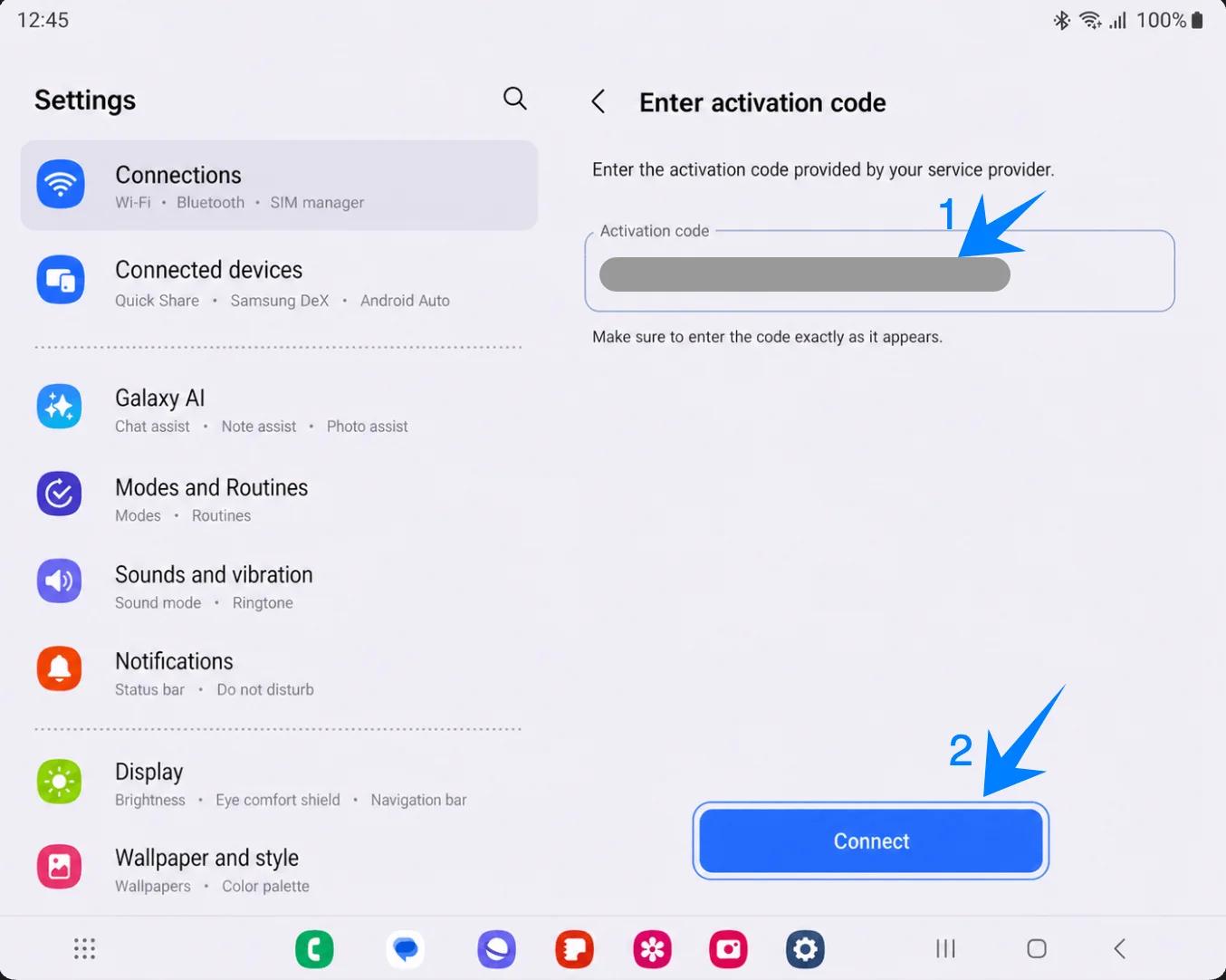
Paste the full iRoamly activation-code string into Activation code, then tap Connect. On Samsung One UI, this manual screen uses one Activation code field; enter the complete code exactly as shown in your iRoamly account or email, often in an LPA:1$... style format. If iRoamly gives only separate SM-DP+ Address and Activation Code values, use the Samsung-ready manual string from iRoamly or ask iRoamly support to confirm it before proceeding.
Tap Add when the iRoamly eSIM profile is found. Keep Wi-Fi connected until the download finishes.
Tap Done when eSIM added appears. If your phone recommends a restart, restart before trying to use travel data.
How to Confirm the iRoamly eSIM Was Installed
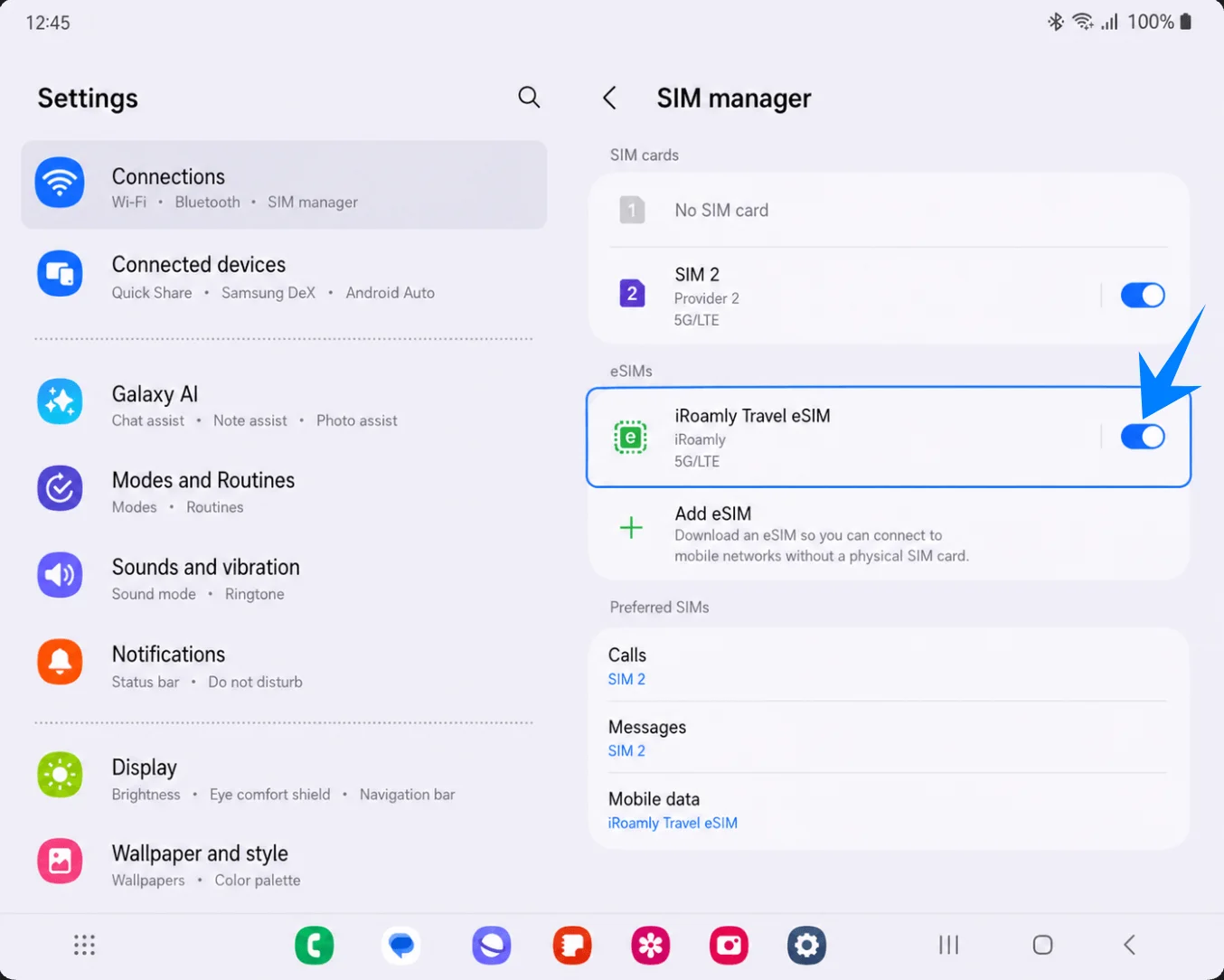
Open Settings, tap Connections, tap SIM manager, and confirm that iRoamly Travel eSIM appears under eSIMs with its switch turned on. This proves the eSIM profile is installed on the phone.
Set Up the iRoamly eSIM for Travel Data
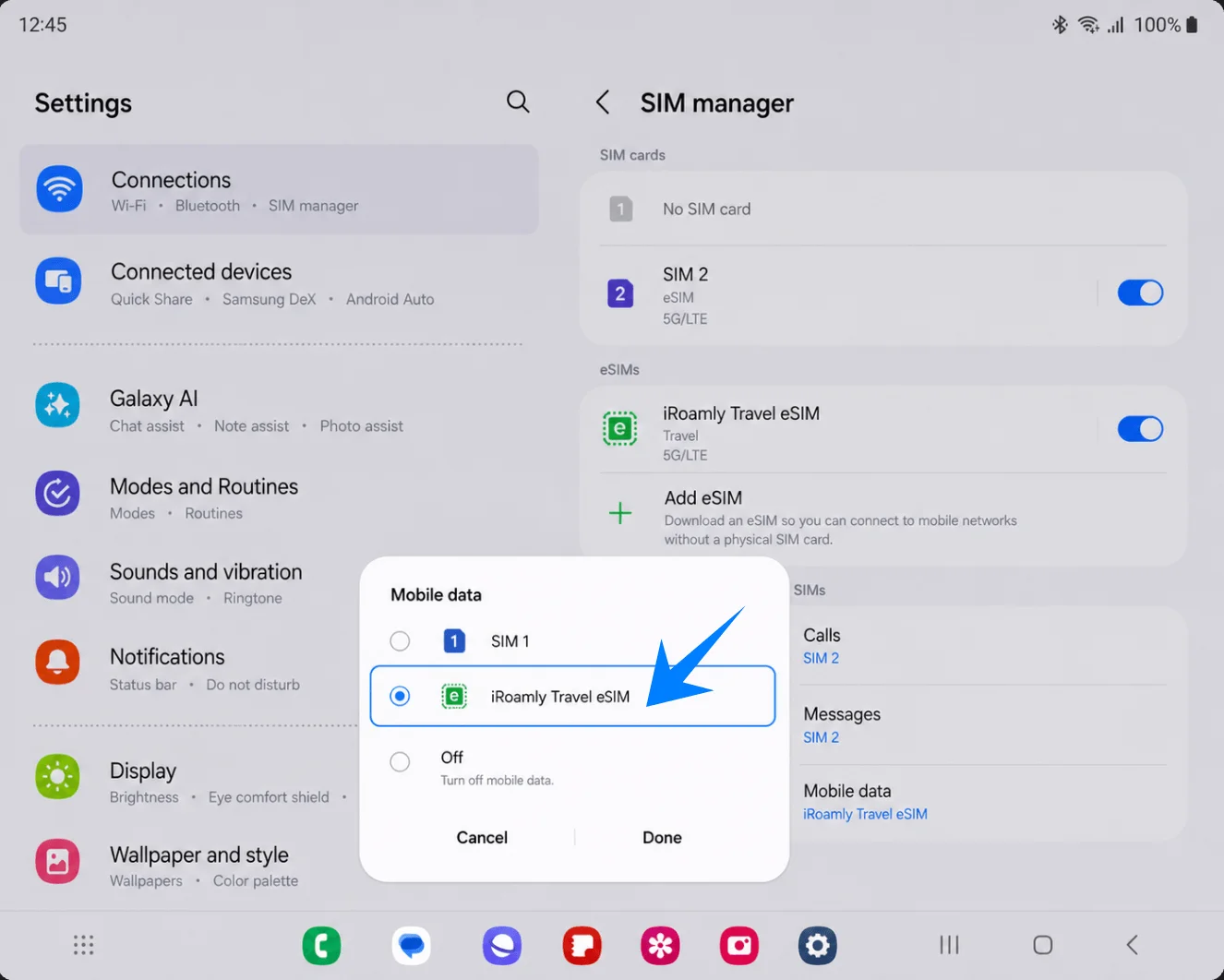
In Settings > Connections > SIM manager, tap Mobile data, choose iRoamly Travel eSIM, and tap Done. This tells the Galaxy Z Fold2 5G to use iRoamly for mobile data instead of your primary SIM.
Go to Settings > Connections > Mobile networks, then switch Data roaming on if your iRoamly plan or destination instructions require it. Travel eSIMs usually need roaming enabled to connect to partner networks abroad.
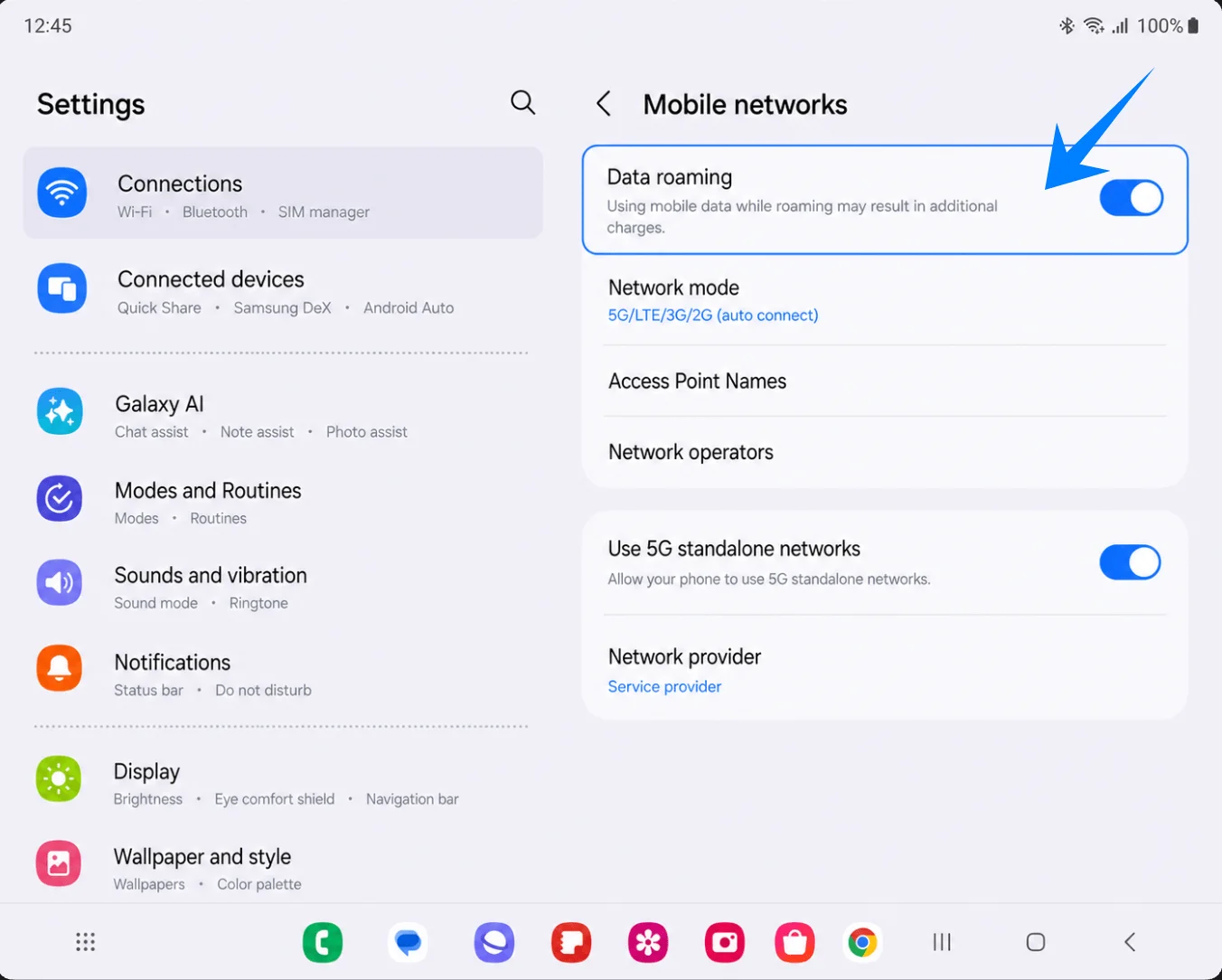
Keep your primary SIM selected for calls and messages if you still need your regular number, but leave Mobile data set to iRoamly Travel eSIM while traveling. If your firmware shows Data switching, Auto data switching, or a similar backup-data option, keep it off unless you intentionally want the phone to fall back to your primary SIM's data plan.
Troubleshooting
No Add eSIM: update the phone software, check that your Galaxy Z Fold2 5G variant supports eSIM, confirm the phone is unlocked, and look for an EID in the phone information. Some regional or carrier firmware builds may hide eSIM options.
QR scan fails: increase brightness on the screen showing the QR code, clean the camera lens, keep the full QR code inside the frame, or use the manual Enter activation code method.
QR code says it was already used: do not delete the eSIM and try repeatedly. Most eSIM QR codes are single-use after a successful download, so contact iRoamly support if the profile was removed or installation failed halfway.
Manual code does not work: confirm you are pasting the complete Samsung activation-code string into the single Activation code field. Do not split or rearrange SM-DP+ and activation values unless iRoamly explicitly provides that format for Samsung.
eSIM is installed but has no data: set Mobile data to iRoamly Travel eSIM, enable Data roaming if required, restart the phone, and make sure you are in a country or region covered by the plan.
Activation stays pending: installation and network activation are different. The eSIM may remain inactive until it connects to a supported destination network.
Unexpected primary-SIM charges: keep Mobile data assigned to iRoamly, turn off data switching or backup data features, and consider disabling mobile data on the primary SIM while abroad.
Voice or SMS does not work: check the iRoamly plan details. Many iRoamly travel eSIM data packages do not include a phone number, voice calls, or SMS.
More Samsung Galaxy eSIM Setup Guides
Setting up another Samsung device? These eSIM activation guides may help.
Conclusion
By following the steps in this guide, you should now have your iRoamly eSIM successfully installed on your Galaxy Z Fold2 5G. eSIM technology makes it easier to manage multiple mobile plans while reducing the hassle of carrying, storing, or replacing physical SIM cards during travel.
Before your trip, make sure your iRoamly eSIM is selected for mobile data and that roaming settings are configured correctly so your phone can connect smoothly once you arrive at your destination.