
eSIM technology makes international connectivity more convenient on the Galaxy Z Fold3 5G. Because the mobile plan is downloaded digitally, you can activate travel data without needing to handle physical SIM cards or visit carrier stores after arrival.
This can save time during your trip and make switching between mobile plans much easier directly from your Samsung device.Another benefit of eSIM is that your phone can store multiple SIM profiles, allowing you to manage travel data more efficiently while keeping your regular number active.
Whether you’re using navigation apps, messaging platforms, or online booking services abroad, having a travel eSIM ready before departure can help you stay connected more smoothly.
In this guide, you’ll learn how to add and activate your iRoamly eSIM on the Galaxy Z Fold3 5G using both QR-code and manual installation methods.
Preparations Before Setting Up iRomly eSIM
Connect the Galaxy Z Fold3 5G to stable Wi-Fi before downloading the eSIM profile.
Make sure the phone is unlocked and eSIM-capable. eSIM availability can vary by region, carrier firmware, and model variant.
Keep your iRoamly QR code or manual activation details ready before opening Samsung Settings.
Install the travel eSIM 1-2 days before travel when your plan instructions allow it, so you still have Wi-Fi available if setup needs a retry.
iRoamly eSIM validity starts from activation. For many iRoamly travel eSIM plans, activation happens when the eSIM connects to a supported destination network, but always check the activation policy in your current plan details.
Do not delete the iRoamly eSIM casually after installation. If you are not ready to use it, turn the line off instead of removing it.
iRoamly eSIM plans may not include voice calls or SMS. Voice/SMS availability varies by plan, so check the specific plan details before relying on calls or texts.
Method 1: Install the iRoamly eSIM by Scanning a QR Code
Unfold the Galaxy Z Fold3 5G, open Settings, then tap Connections in the left Settings pane. The Connections page should open on the right side of the unfolded screen.
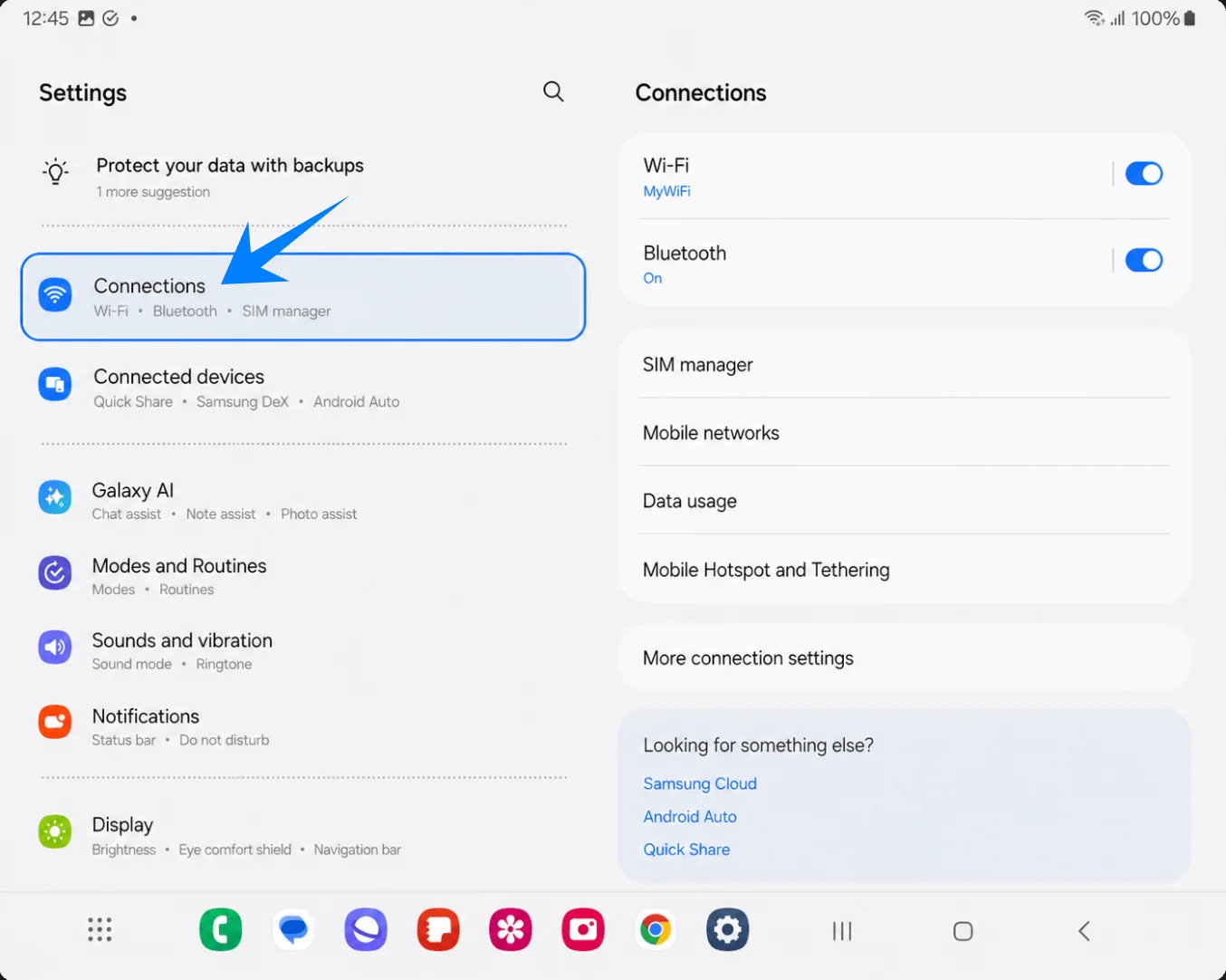
Tap SIM manager on the Connections page. The SIM and eSIM management screen should open.
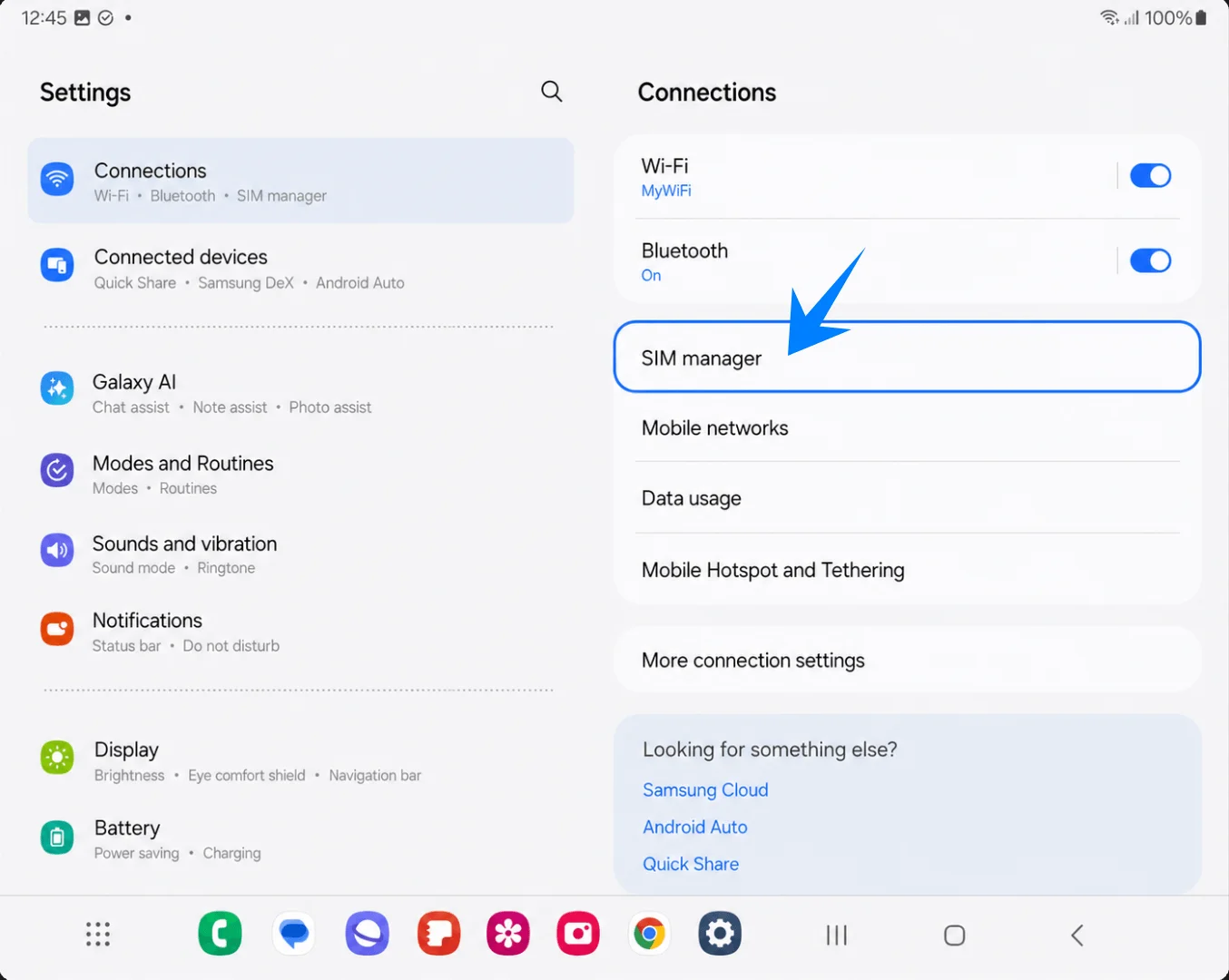
Tap Add eSIM under the eSIMs section. The Add eSIM setup page should appear.
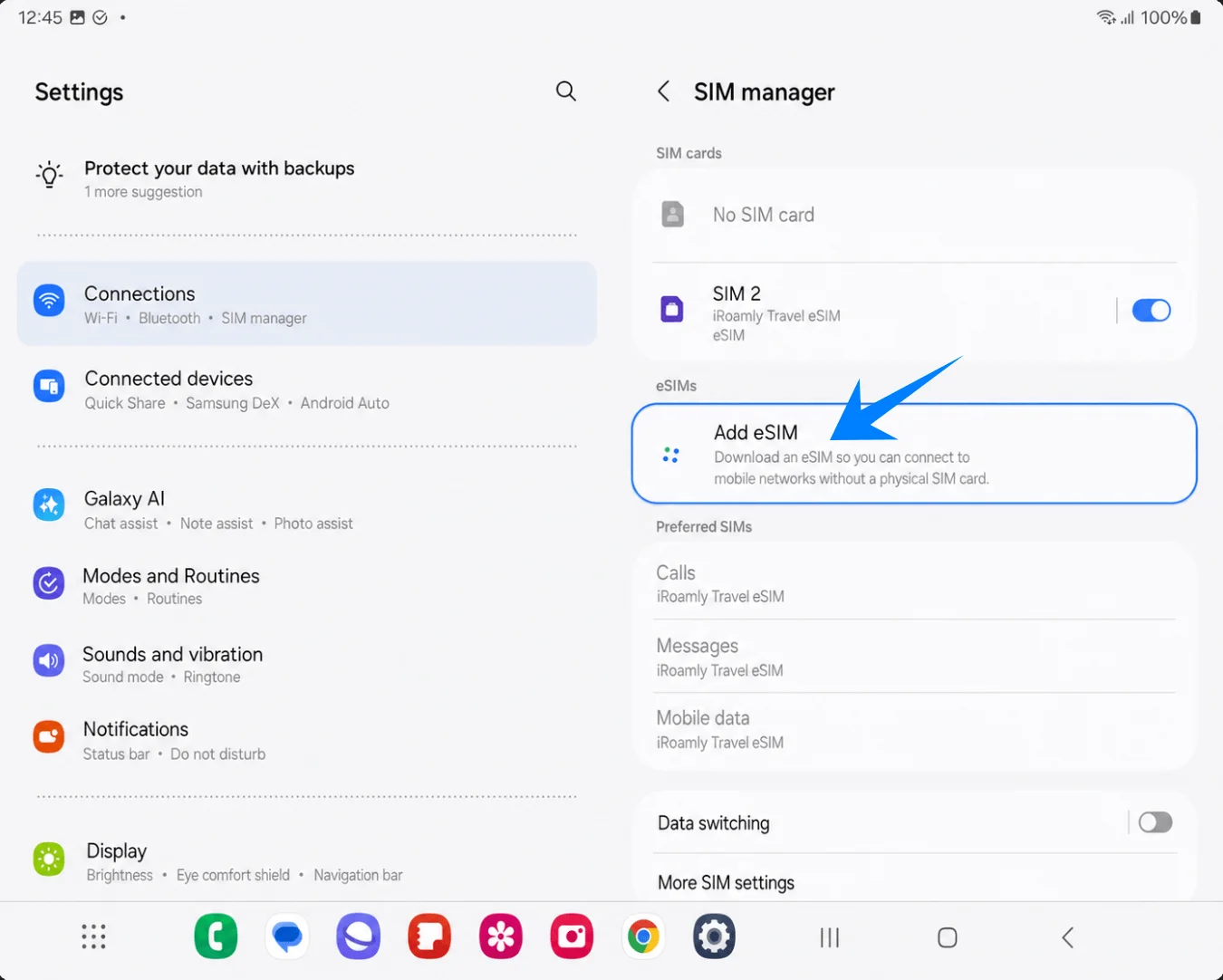
Tap Scan QR code. Samsung should open the eSIM QR scanner.
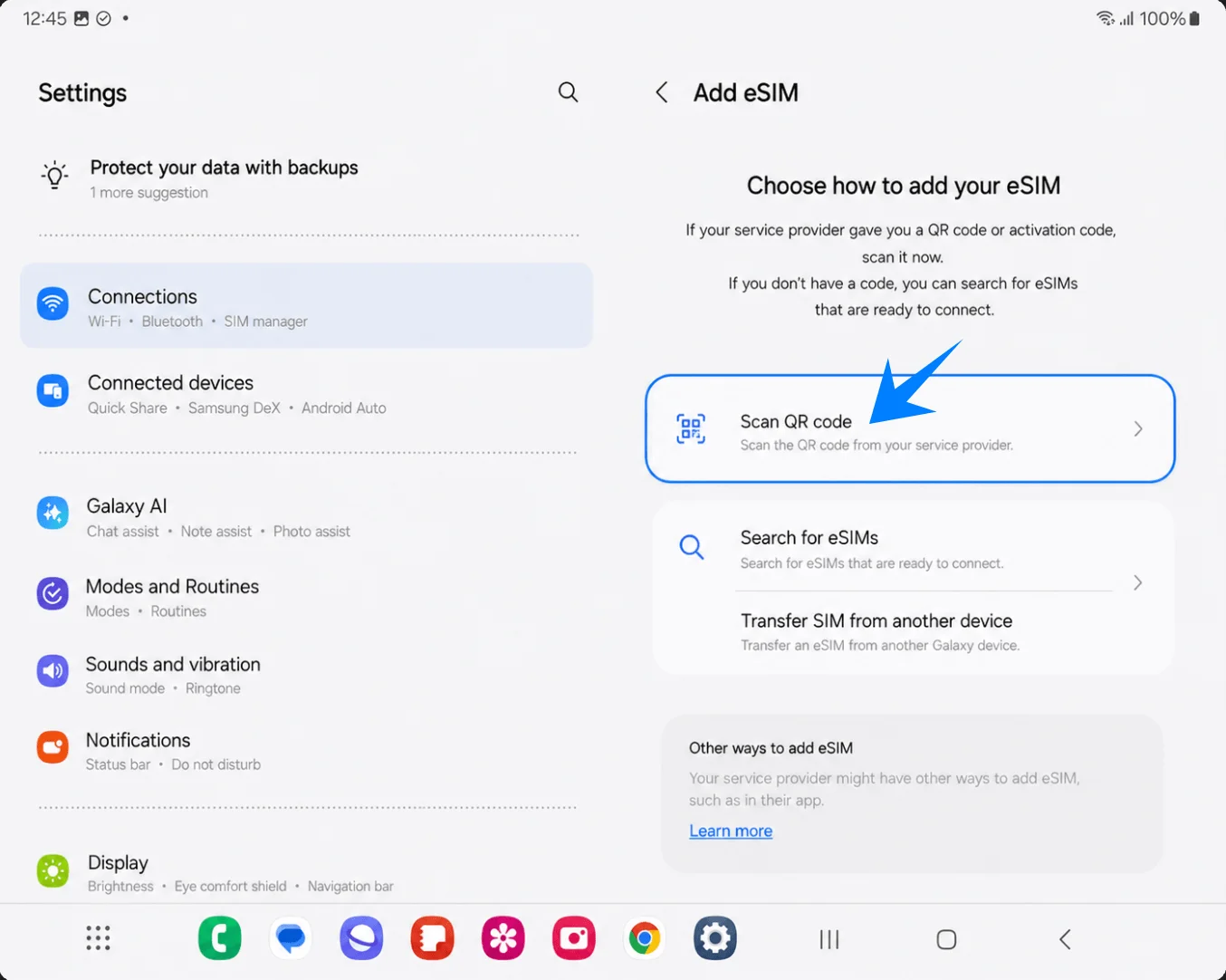
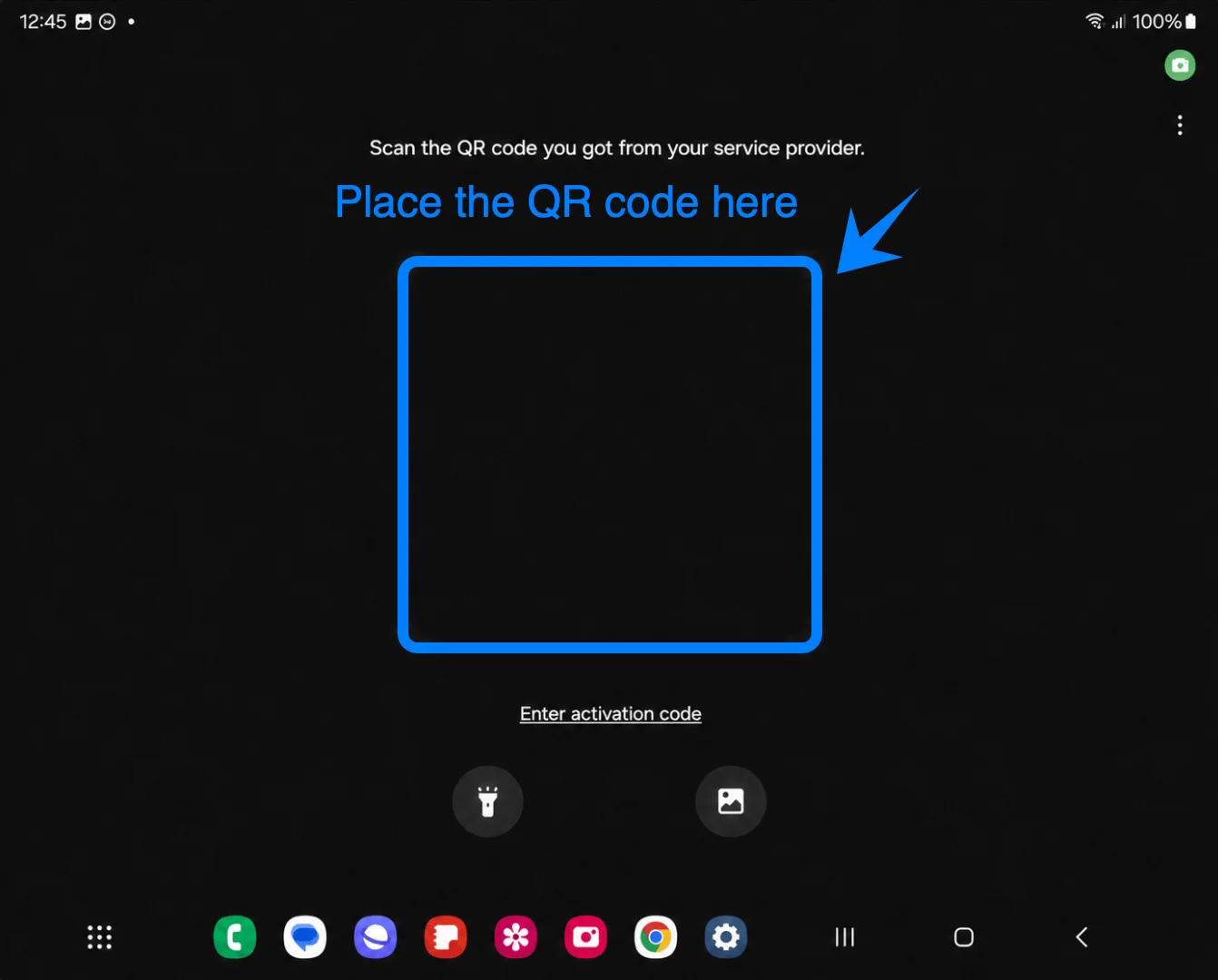
Point the full-screen scanner at the iRoamly QR code and keep the code inside the corner brackets. When the Galaxy Z Fold3 5G reads the code, it should show an eSIM confirmation screen.
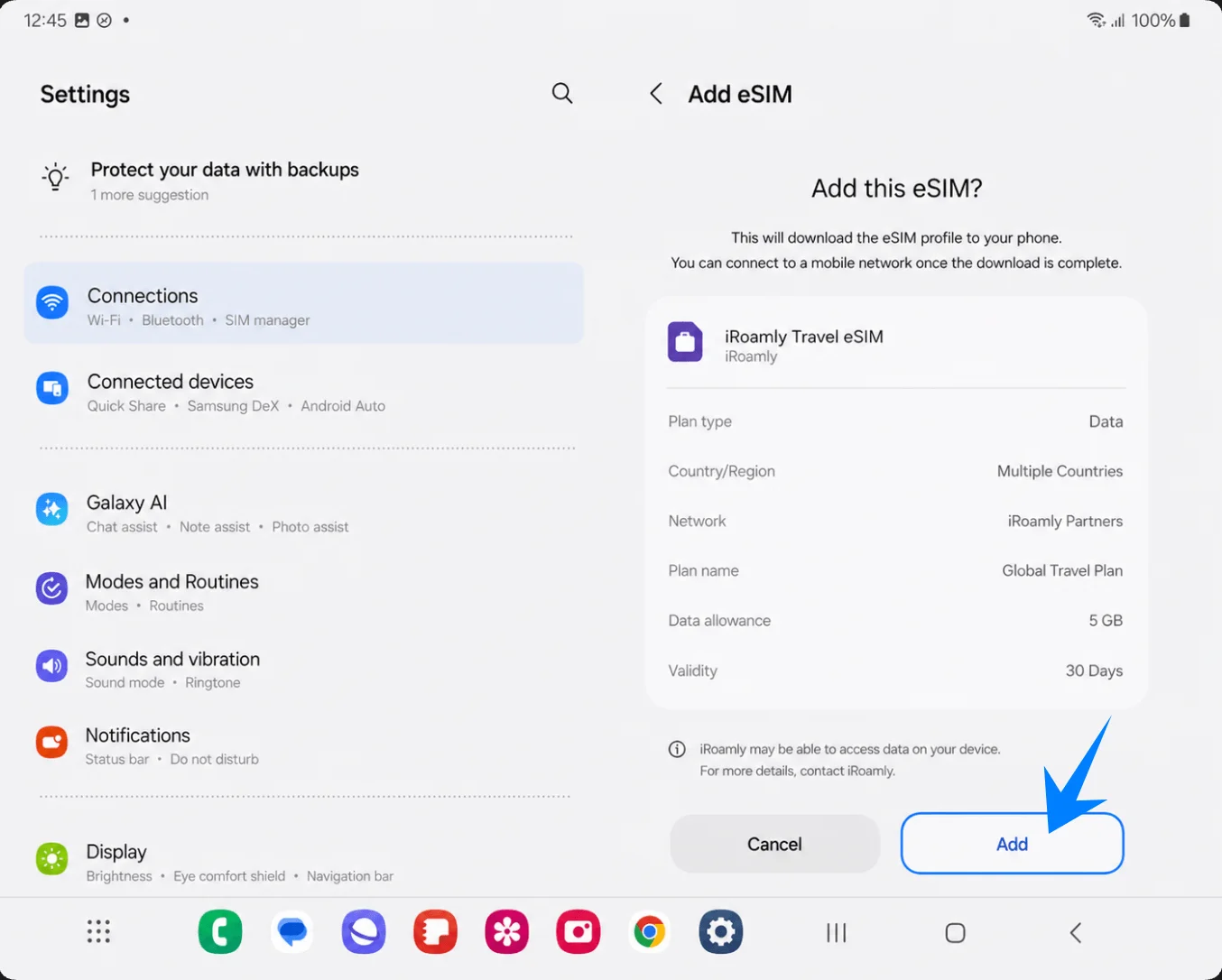
Tap Add on the confirmation screen for iRoamly Travel eSIM. Keep Wi-Fi connected while the phone downloads the eSIM profile.
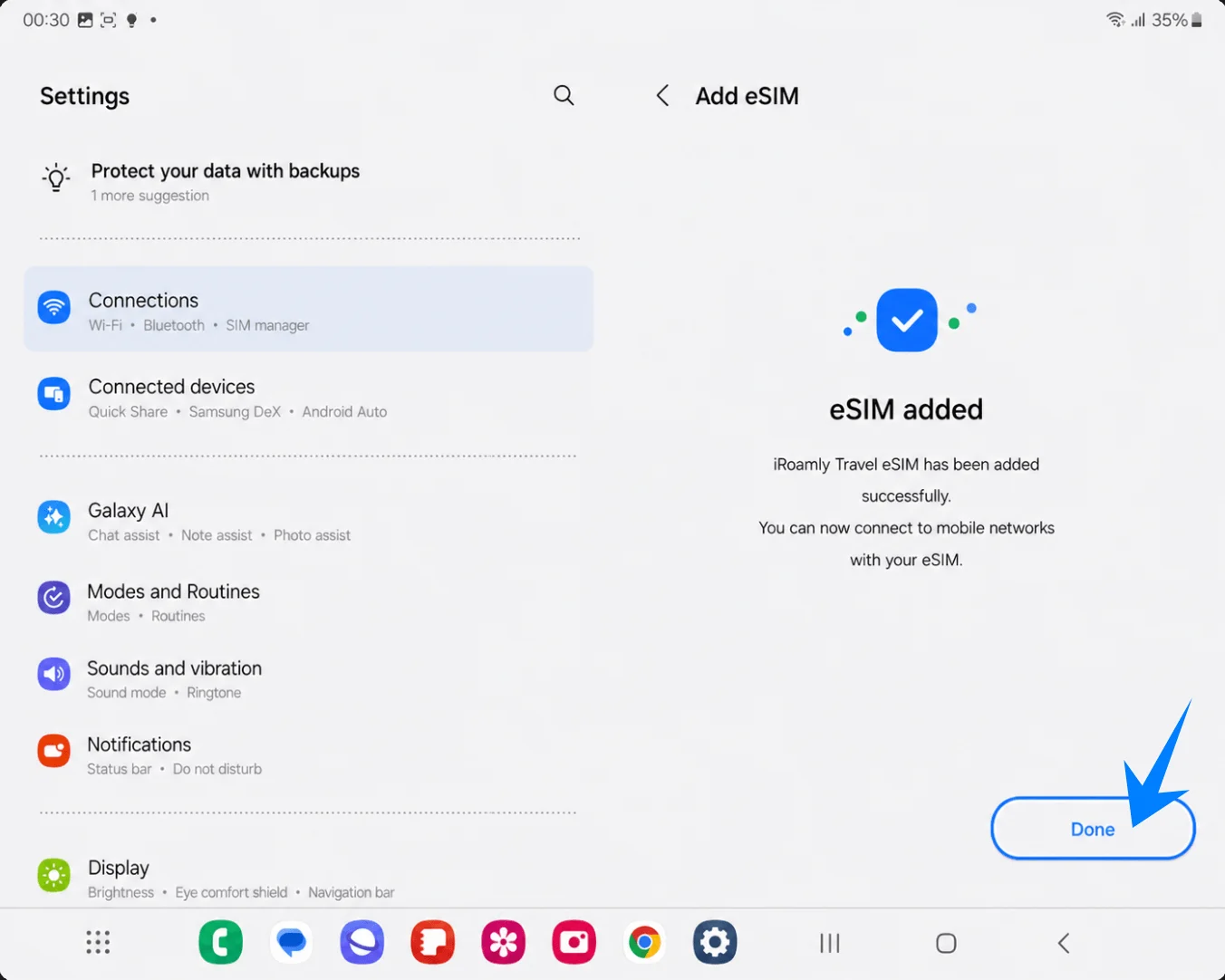
Tap Done when Samsung says the eSIM has been added. If the phone recommends a restart, restart before testing mobile data.
Method 2: Install the iRoamly eSIM by Manual Entry
Unfold the Galaxy Z Fold3 5G, open Settings, then tap Connections in the left Settings pane. The Connections page should open on the right.
Tap SIM manager on the Connections page. The SIM and eSIM management screen should appear.
Tap Add eSIM under eSIMs. The Add eSIM setup page should open.
Tap Scan QR code. Samsung places the manual-entry link on the QR scanner screen.
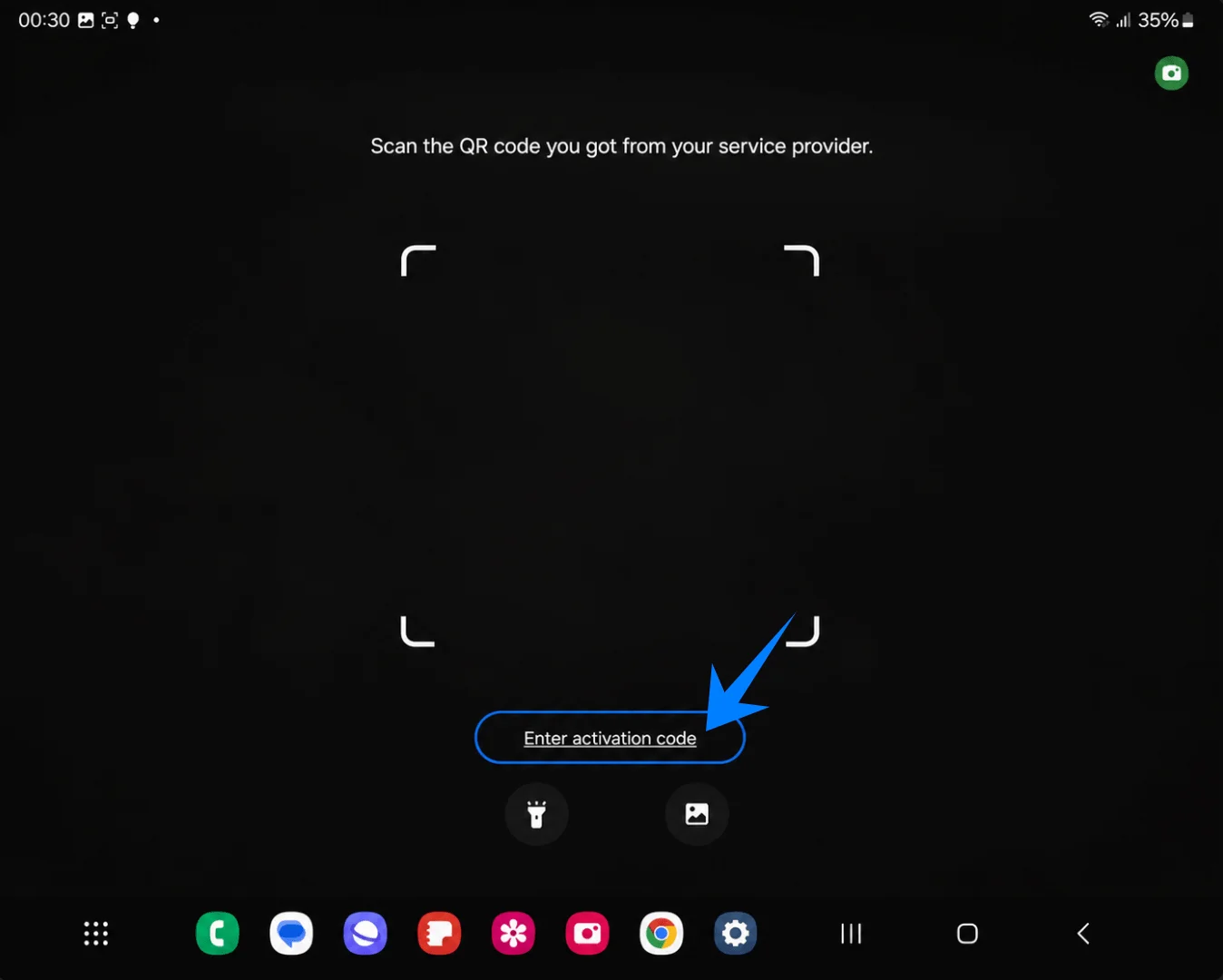
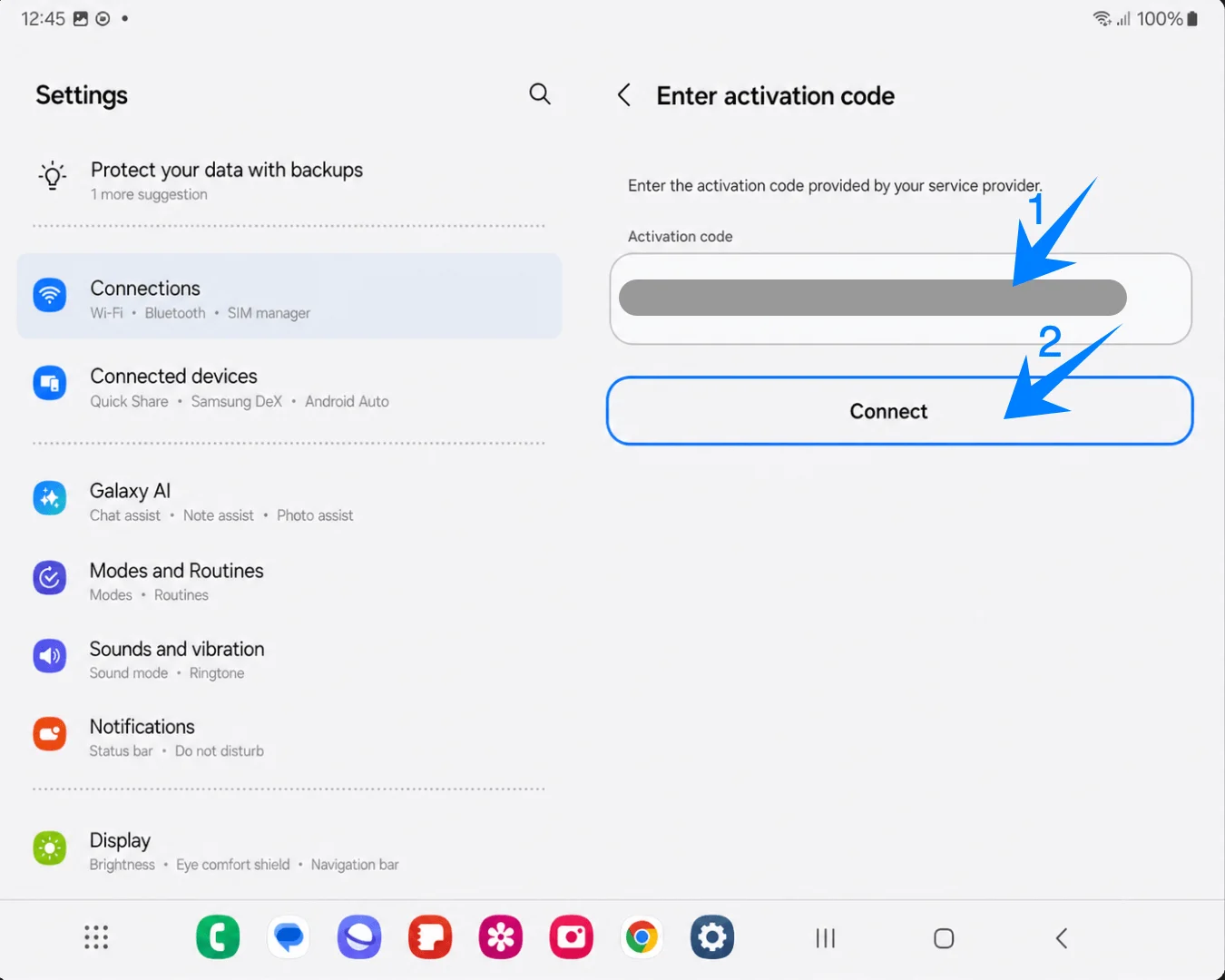
Tap Enter activation code near the bottom of the full-screen QR scanner. Samsung should open the manual eSIM entry page.
Paste the complete iRoamly activation-code string into Activation code, then tap Connect. On this Samsung flow, the manual page uses one Activation code field, commonly for a complete LPA:1$... style string, instead of separate SM-DP+ Address, Activation Code, and Confirmation Code fields.
Tap Add when the phone finds iRoamly Travel eSIM. Keep Wi-Fi connected while the profile downloads.
Tap Done when the eSIM added screen appears. Restart the phone if Samsung prompts you to do so.
How to Confirm the iRoamly eSIM Was Installed
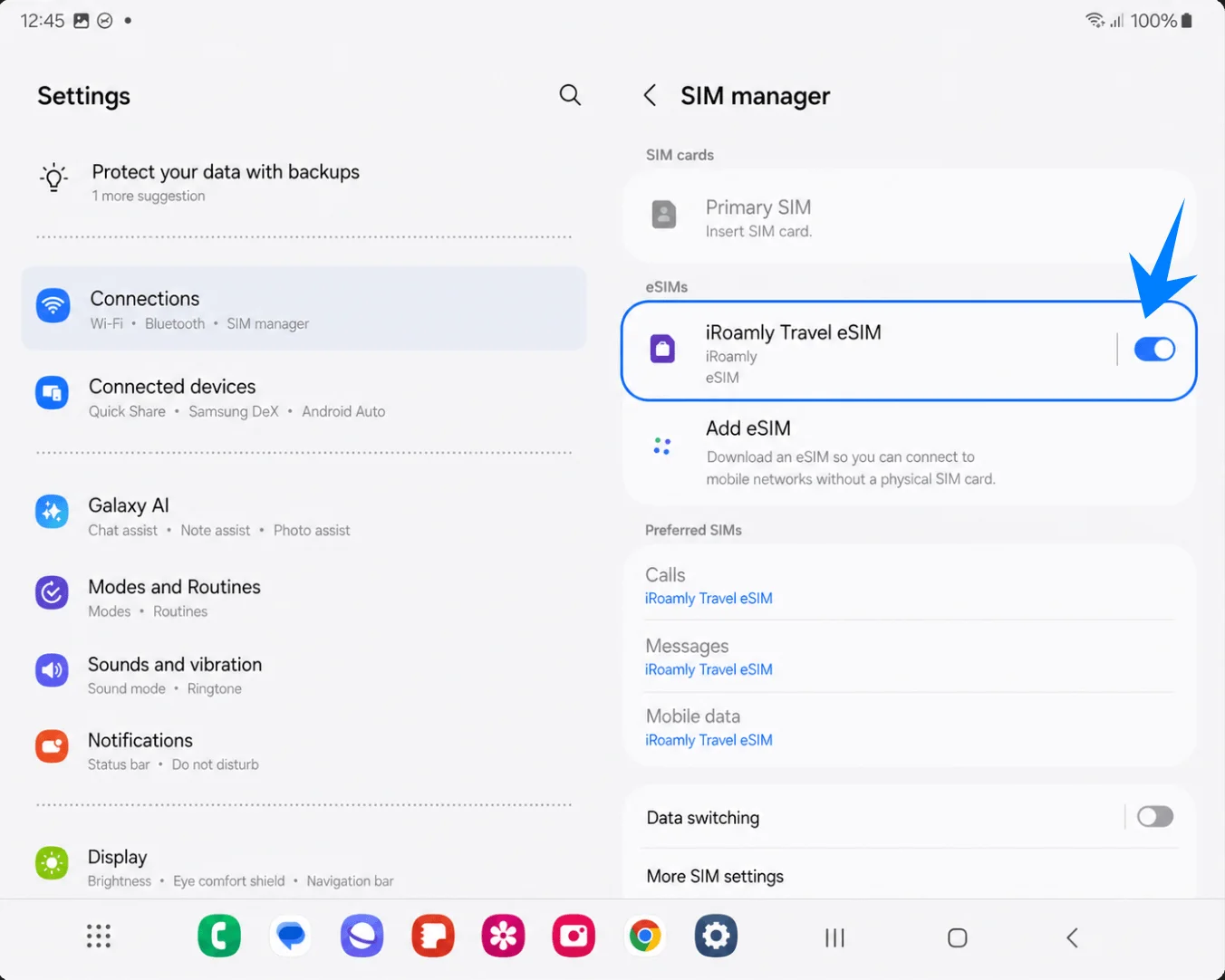
Open Settings > Connections > SIM manager, then confirm iRoamly Travel eSIM appears under eSIMs and its switch is turned on. This confirms that the eSIM profile is installed on the Galaxy Z Fold3 5G.
Set Up the iRoamly eSIM for Travel Data
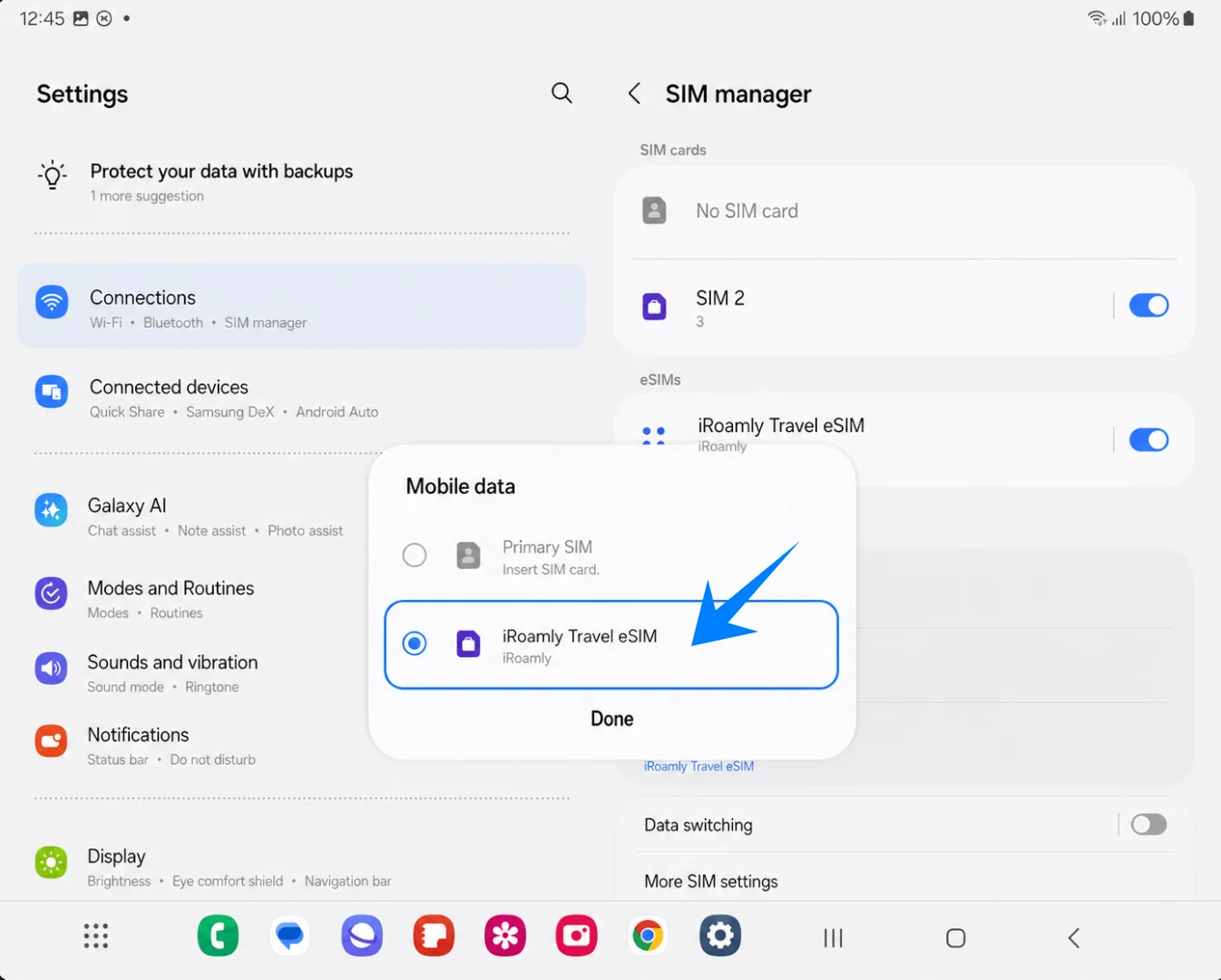
In Settings > Connections > SIM manager, tap Mobile data, choose iRoamly Travel eSIM, then tap Done. This makes iRoamly the line used for mobile data.
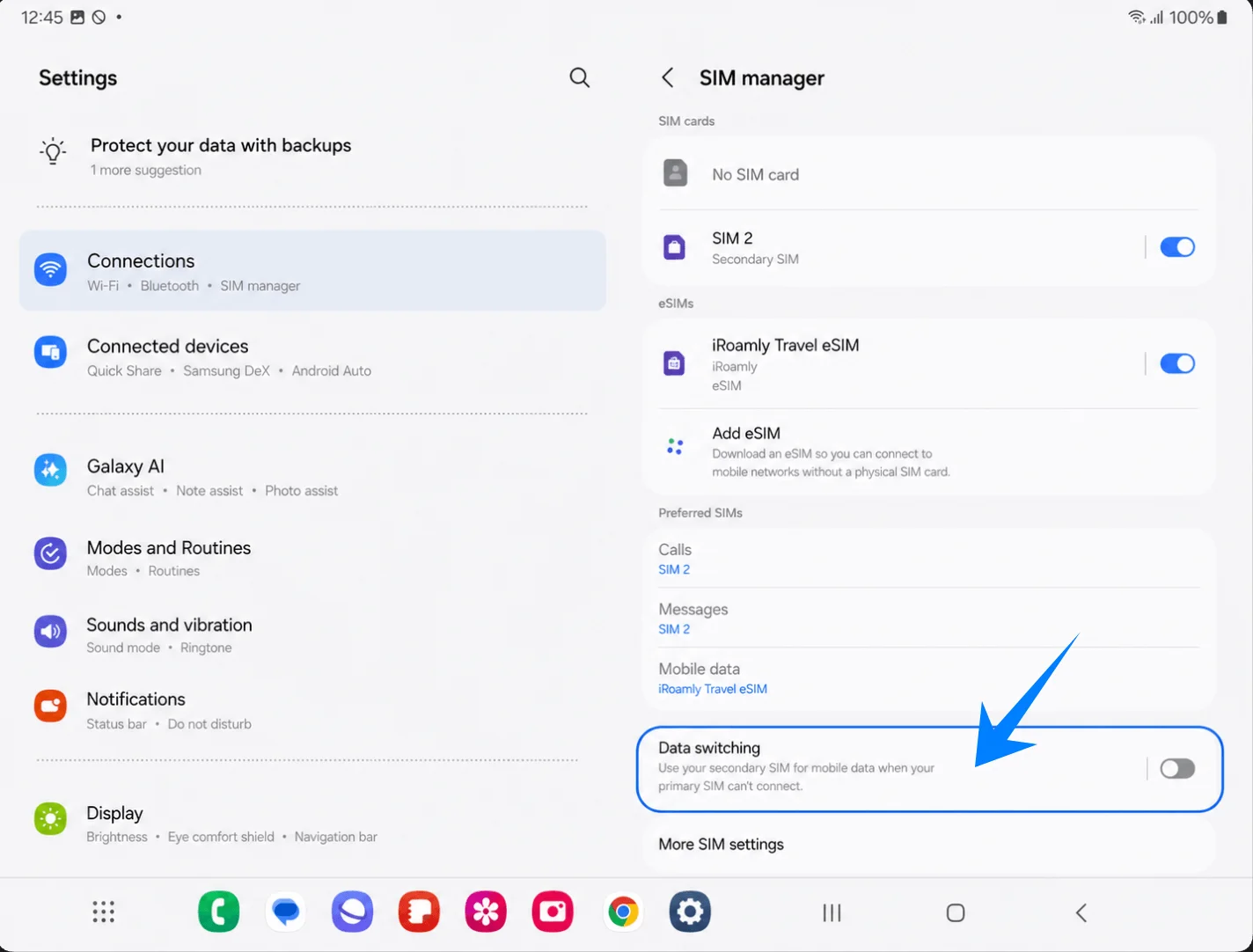
In SIM manager, keep Data switching turned off unless you intentionally want the phone to fall back to another SIM for data. Leaving it off helps avoid unwanted primary-SIM data use while traveling.
Open Settings > Connections > Mobile networks, then turn on Data roaming if your iRoamly plan or destination instructions require it. Travel eSIMs commonly need roaming enabled to connect through partner networks abroad.
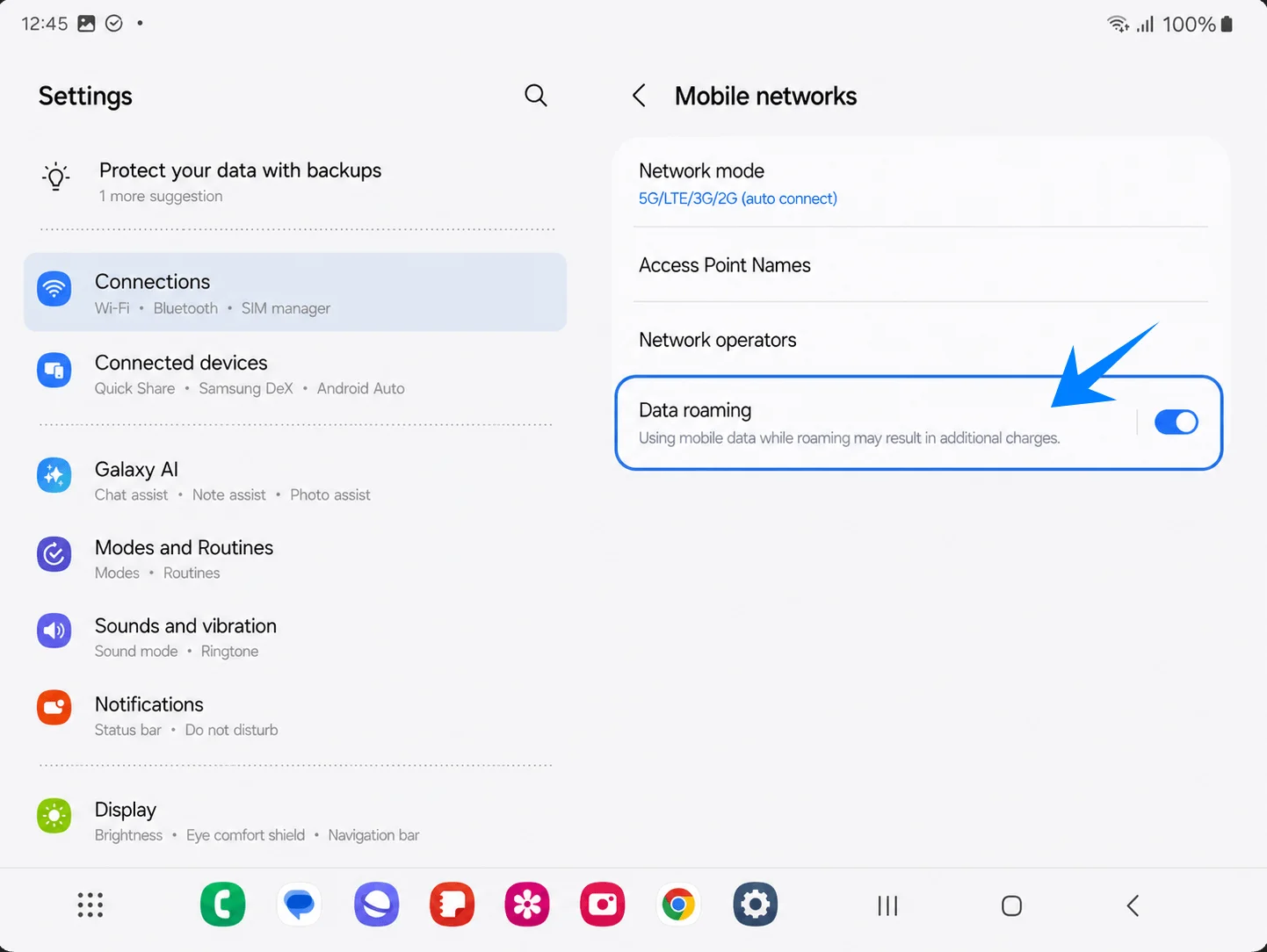
Keep your primary SIM selected for calls and messages if you still need your regular number, but leave Mobile data set to iRoamly Travel eSIM while using the travel plan.
Troubleshooting
No Add eSIM: update the Galaxy Z Fold3 5G software, confirm the phone is unlocked, check for an EID, and verify that your regional or carrier firmware supports eSIM.
QR code will not scan: brighten the screen showing the QR code, clean the camera lens, keep the full code inside the scanner brackets, or use Enter activation code.
QR code says it was already used: check whether the eSIM is already installed in SIM manager. Most eSIM QR codes are single-use after a successful download, so contact iRoamly support if the profile was deleted or installation failed halfway.
Manual code does not work: confirm you are pasting the complete Samsung activation-code string into the single Activation code field. Do not split the code into separate SM-DP+ and activation fields unless iRoamly explicitly provides Samsung instructions for that format.
eSIM is installed but has no data: set Mobile data to iRoamly Travel eSIM, turn on Data roaming if required, restart the phone, and confirm you are in a destination covered by the plan.
Activation stays pending: installation and network activation are different. The eSIM may remain inactive until it connects to a supported destination network.
Unexpected primary-SIM charges: keep Mobile data assigned to iRoamly, turn off unwanted Data switching, and consider disabling mobile data on the primary SIM while abroad.
Voice or SMS does not work: check the exact iRoamly plan. Many travel eSIM plans are data-focused, and voice/SMS availability varies by plan.
Conclusion
The iRoamly eSIM should now be fully added to your Galaxy Z Fold3 5G and available for mobile-data use during travel. Because the eSIM is managed digitally through Samsung Settings, you can easily control your data line, monitor which SIM is active, and adjust connection preferences whenever needed directly from the SIM manager menu.
Before your trip begins, make sure the correct data line is selected and verify that the eSIM remains enabled on the device. Completing these checks in advance can help reduce connection issues after arrival and make the travel-data setup process smoother overall.