
As smartphones continue to evolve, eSIM is changing the way we connect to mobile networks.
By removing the need for a physical SIM card, eSIM allows users to set up their network directly on the device in just a few steps. This not only saves time but also makes managing connectivity more flexible.
If you're using a Galaxy S20 or S20 5G, installing an iRoamly eSIM is a straightforward process.
In this guide, we’ll walk you through everything you need to get set up.
Preparations Before Setting Up iRomly eSIM
Before starting the installation process, make sure you have the following ready:
A stable internet connection (Wi-Fi is recommended)
A valid eSIM QR code or activation code provided by your carrier
Your Galaxy S20 or Galaxy S20 5G powered on and unlocked
The device updated to the latest available One UI version for better eSIM compatibility
The carrier account activated and eligible for eSIM service
Method 1: Install eSIM on Galaxy S20 Using a QR Code
Step 1: Open the SIM Card Manager
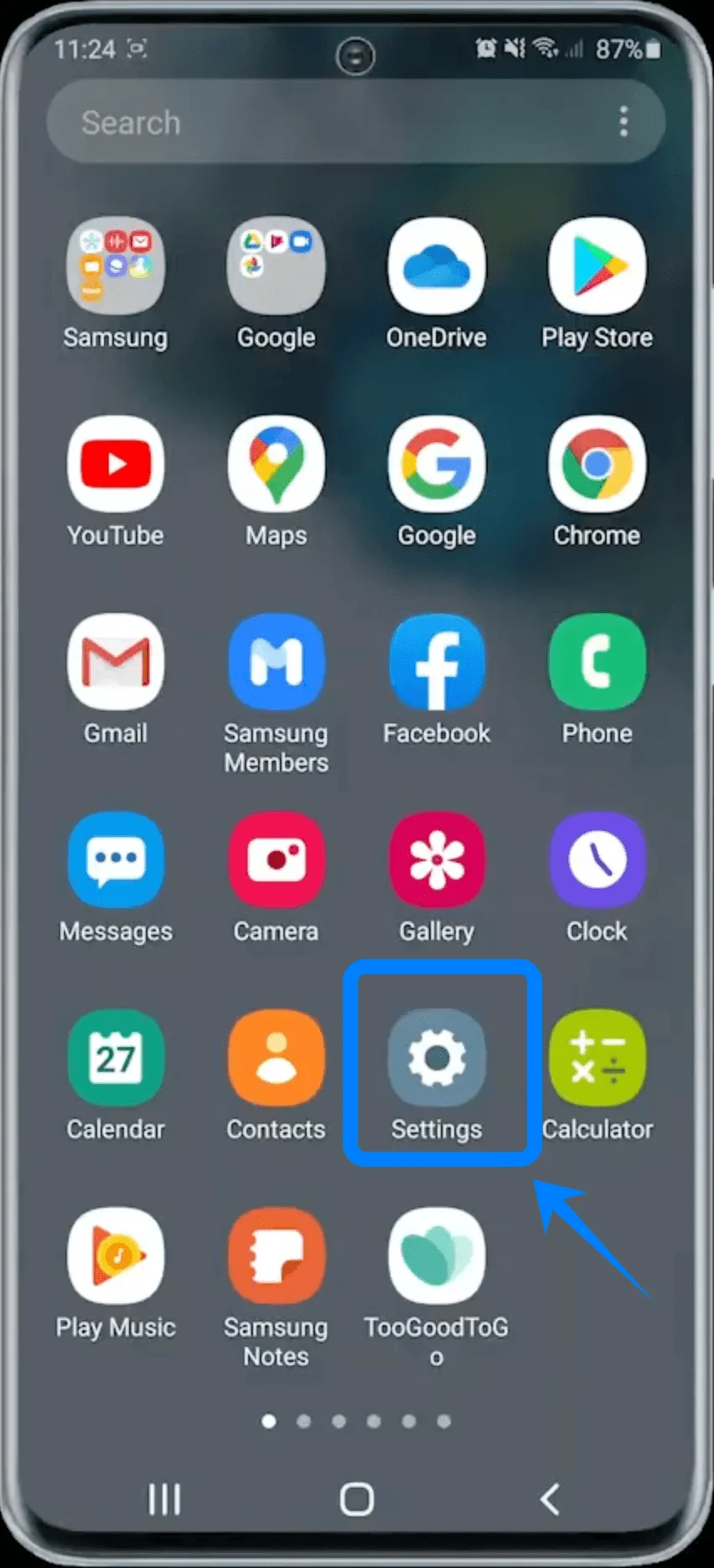
Open the Settings app.
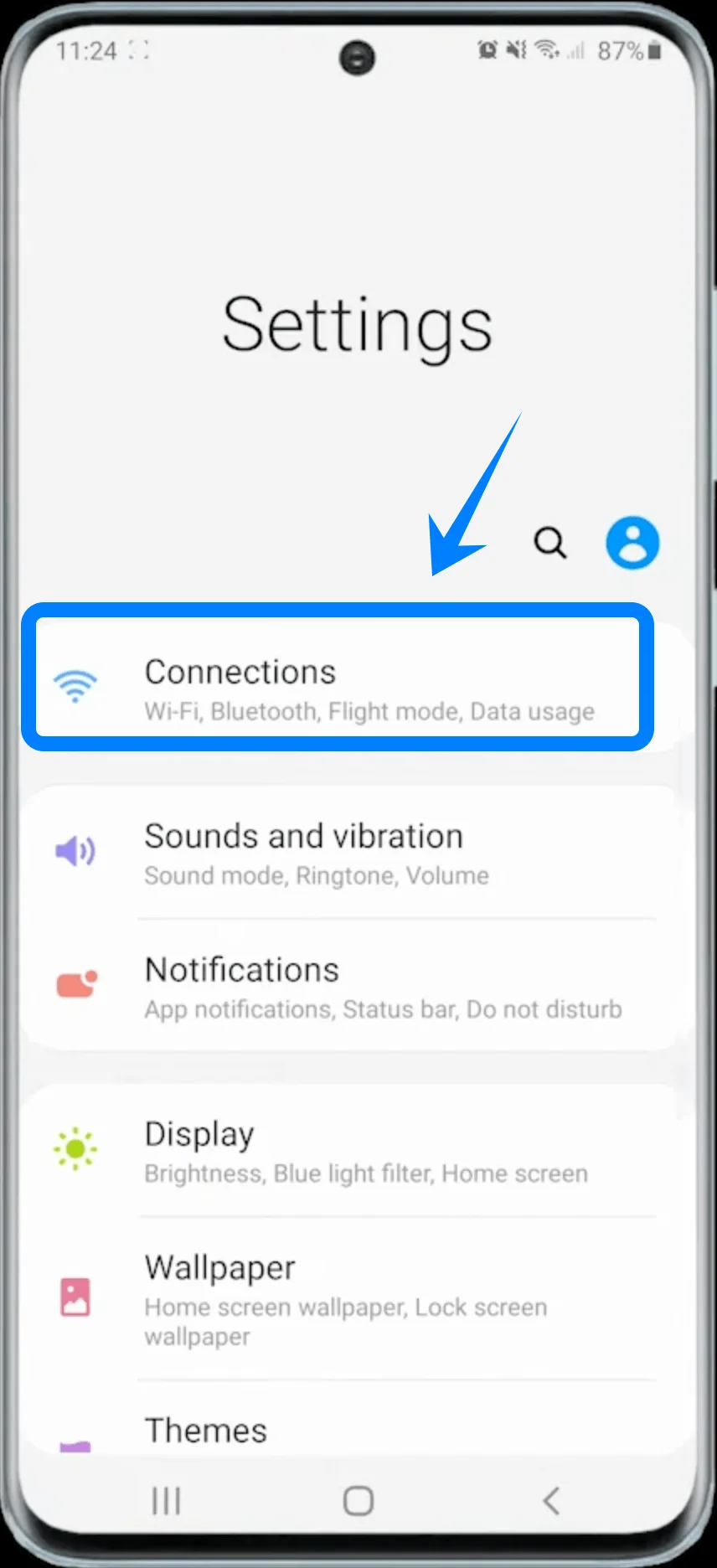
Tap Connections.
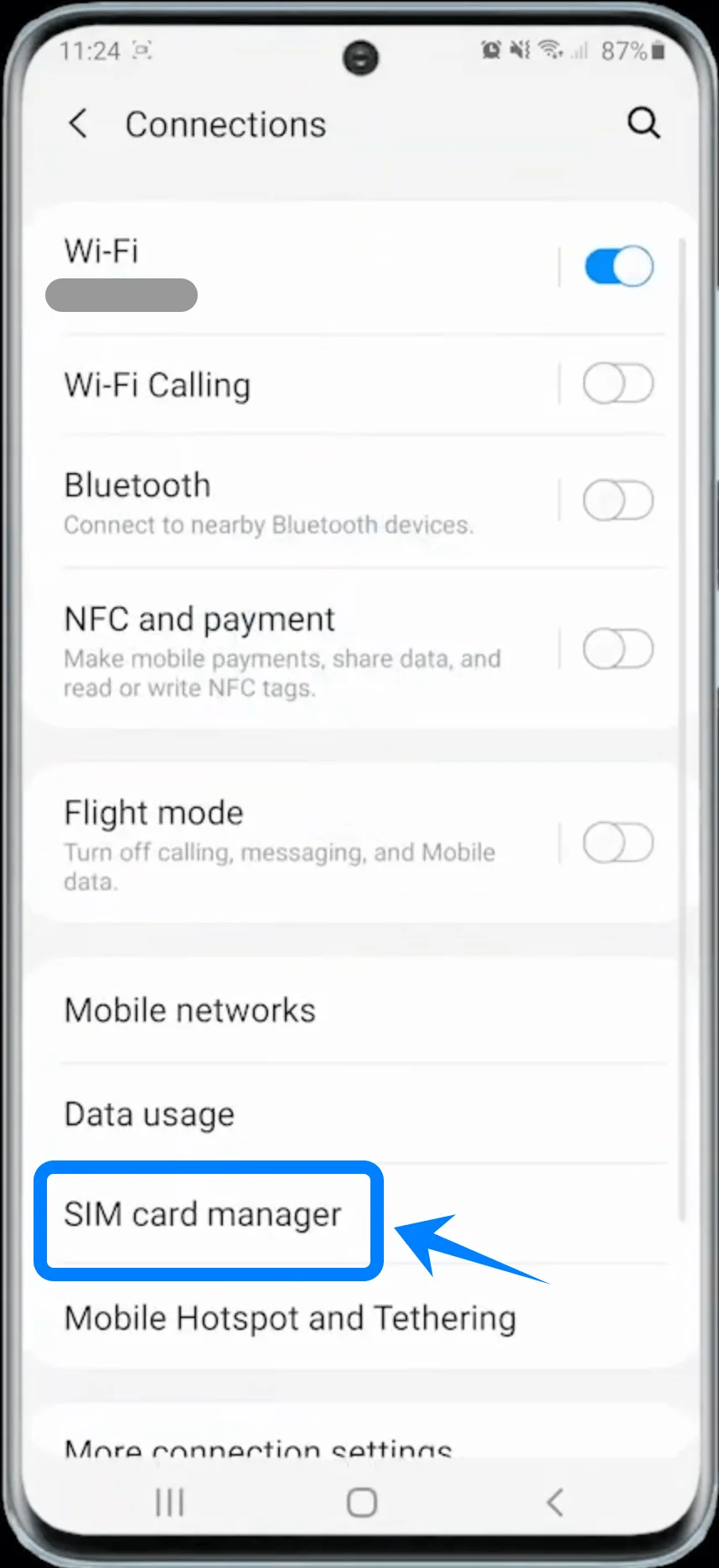
Tap SIM card manager.
Step 2: Start Adding an eSIM
Tap Add mobile plan.
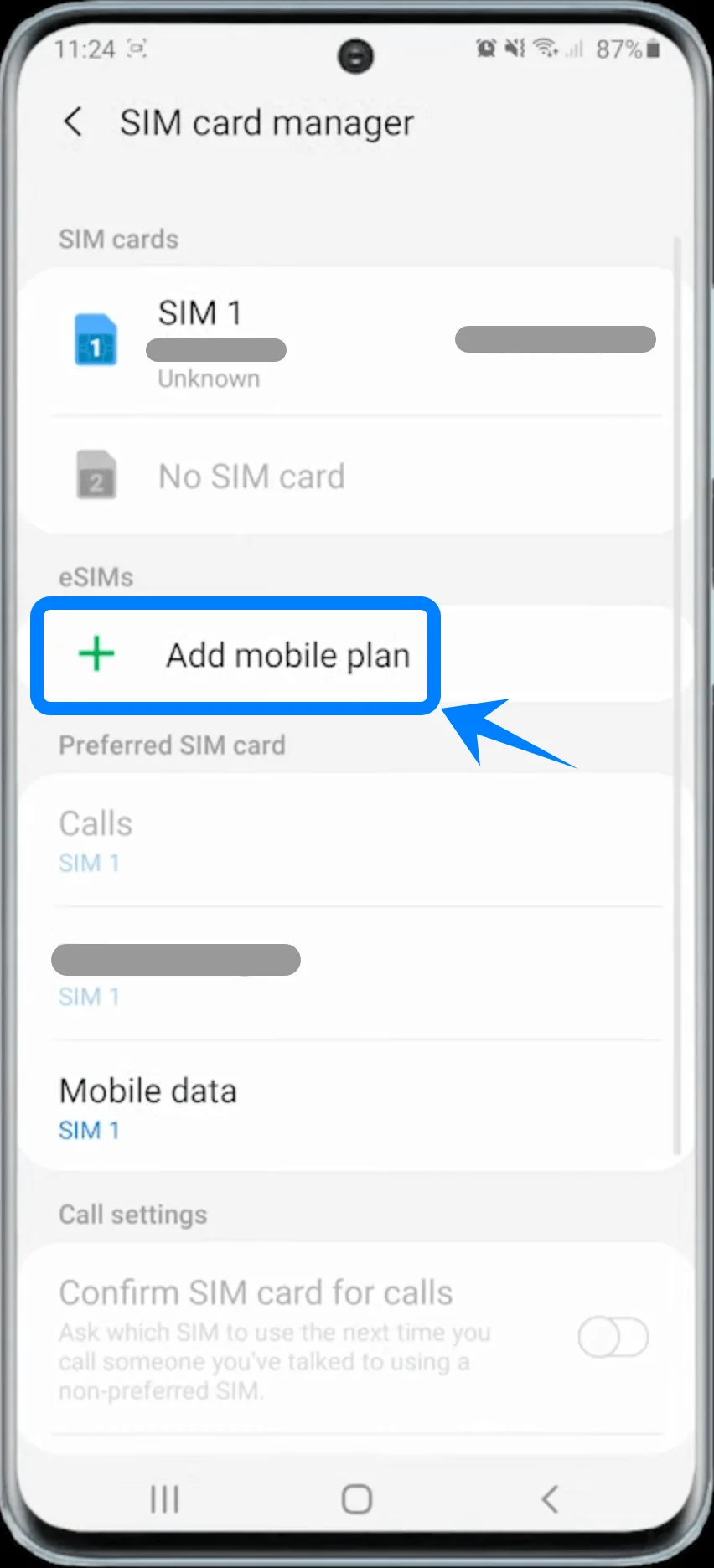
The phone may briefly display Searching for plan... before showing the available setup options.
Step 3: Choose QR Code Activation
Tap Add using QR code.
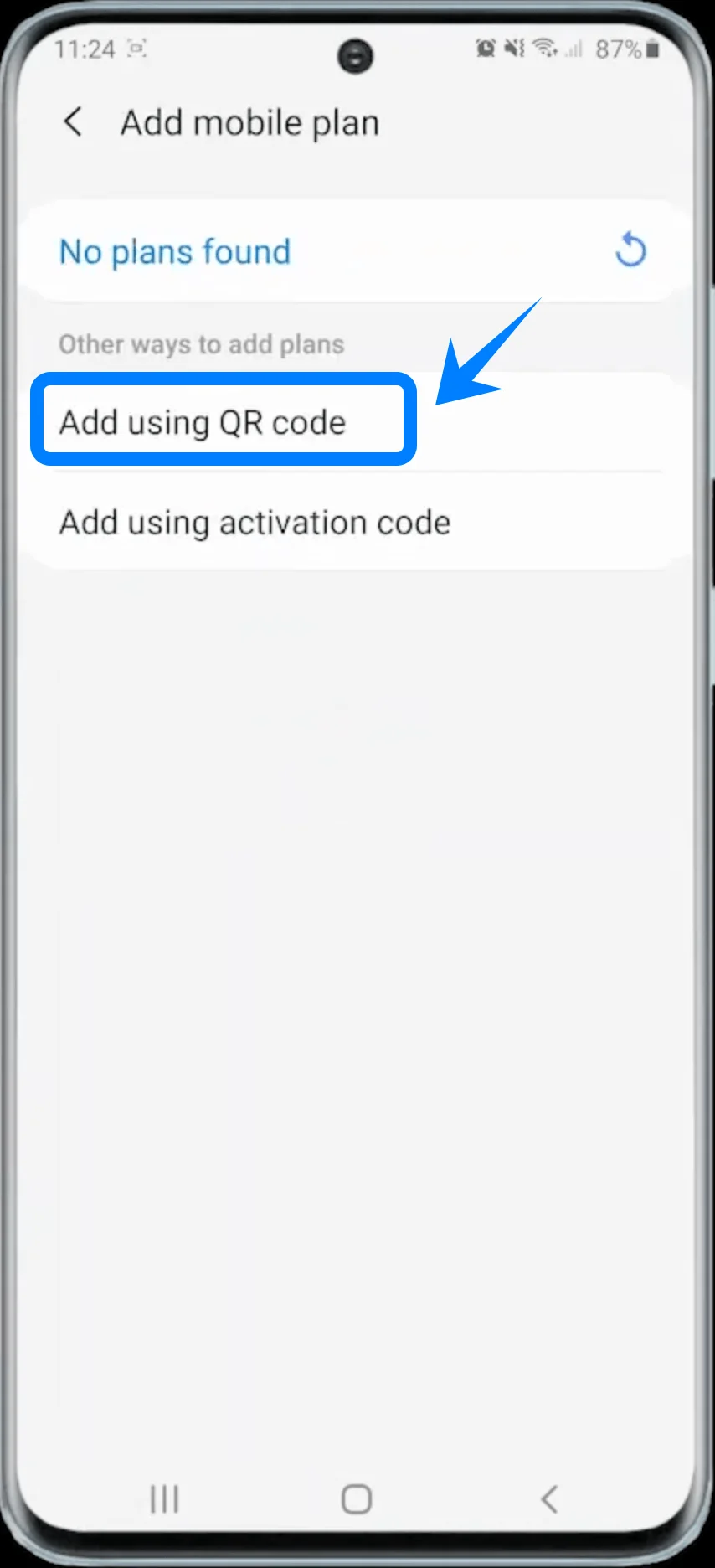
The camera scanner will open automatically.
Step 4: Scan the Carrier QR Code
Hold the Galaxy S20 over the QR code provided by your carrier.
Make sure the QR code stays inside the camera frame.
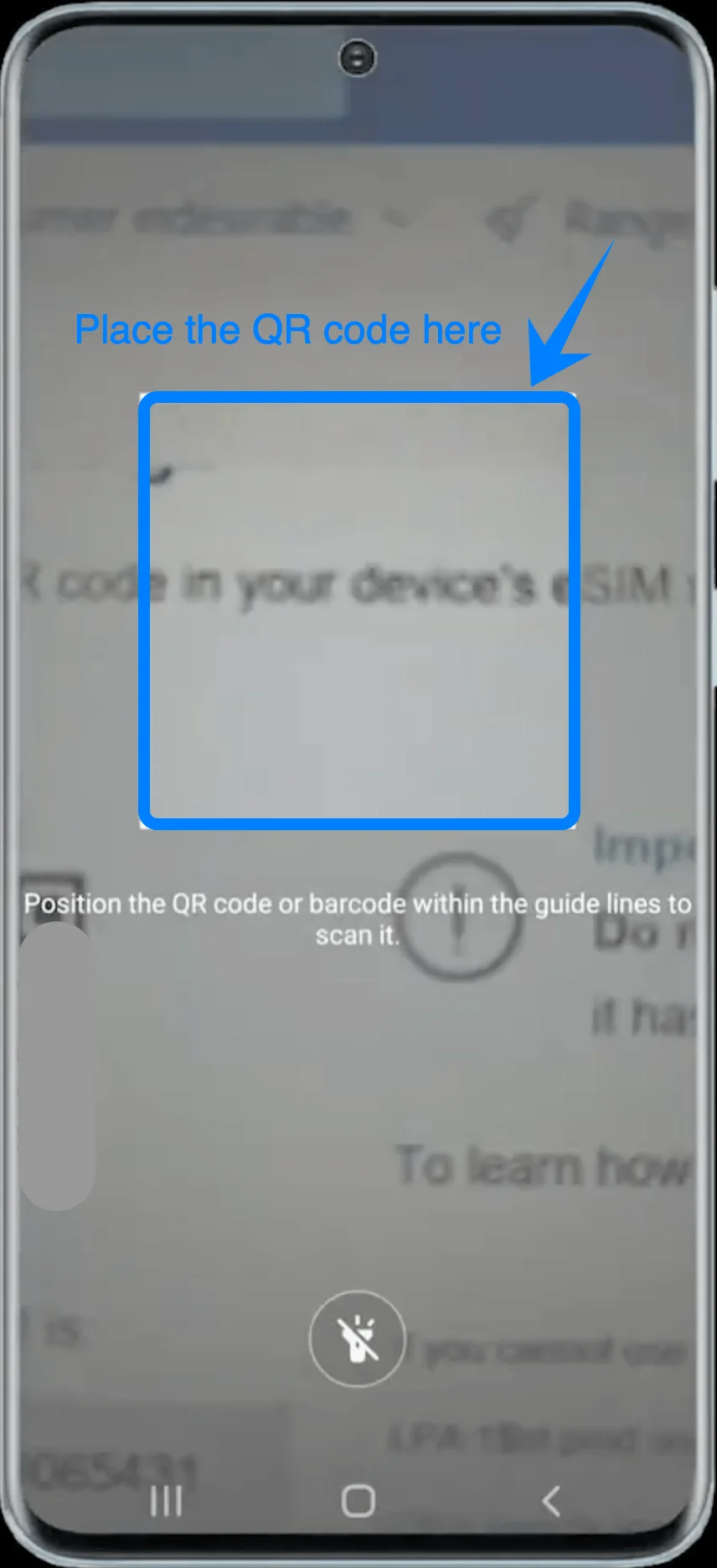
Wait for the phone to recognize the QR code.
Step 5: Download and Activate the eSIM
When the carrier profile appears, tap Add.
Wait while the Galaxy S20 downloads and installs the eSIM profile.
After the installation is complete, tap Done.
The eSIM should now appear in the SIM card manager.
Method 2: Install eSIM on Galaxy S20 Using an Activation Code
Step 1: Open the SIM Card Manager
Open Settings.
Tap Connections.
Tap SIM card manager.
Step 2: Start Adding an eSIM
Tap Add mobile plan.
Step 3: Select Activation Code Setup
Tap Add using activation code.
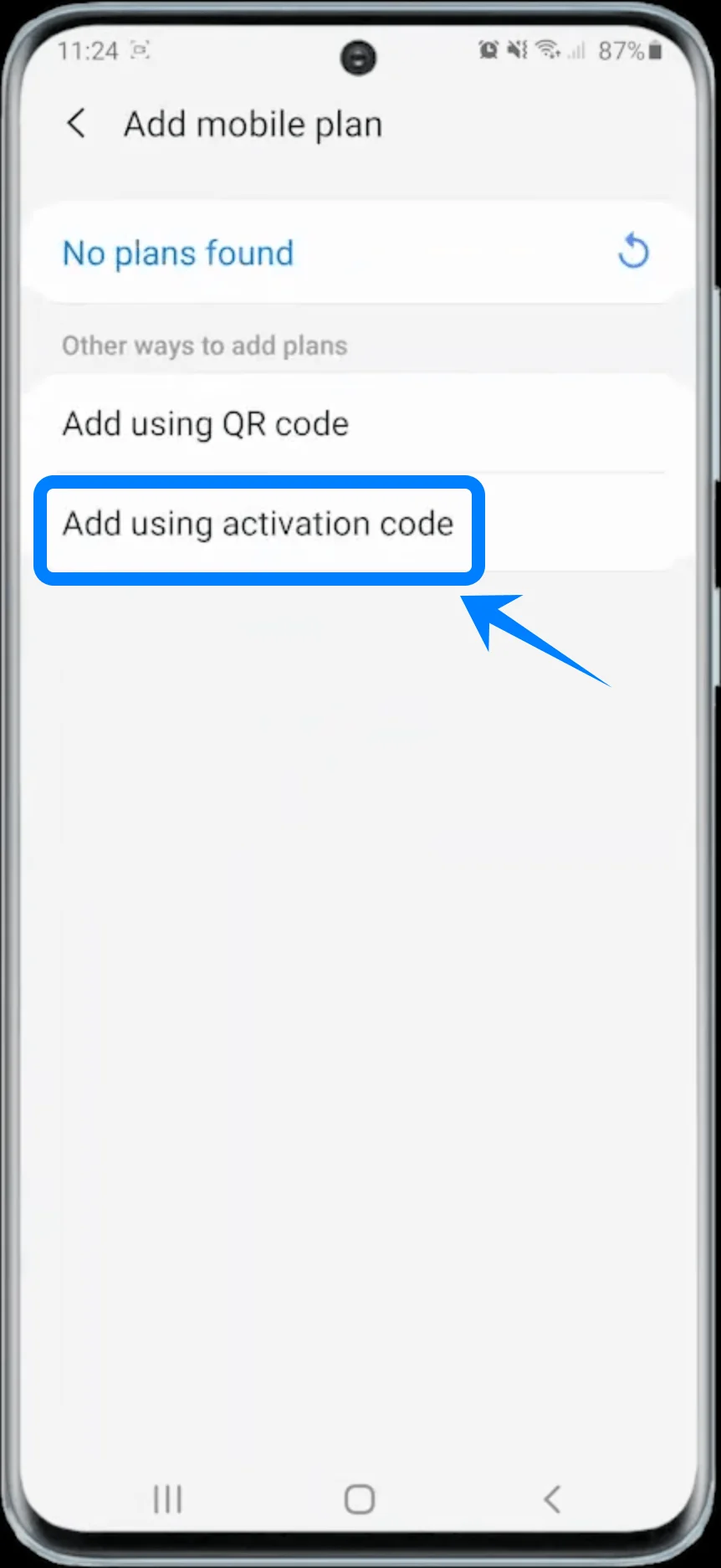
Step 4: Enter the Activation Code
Tap the Enter activation code field.
Type the activation code provided by your carrier.
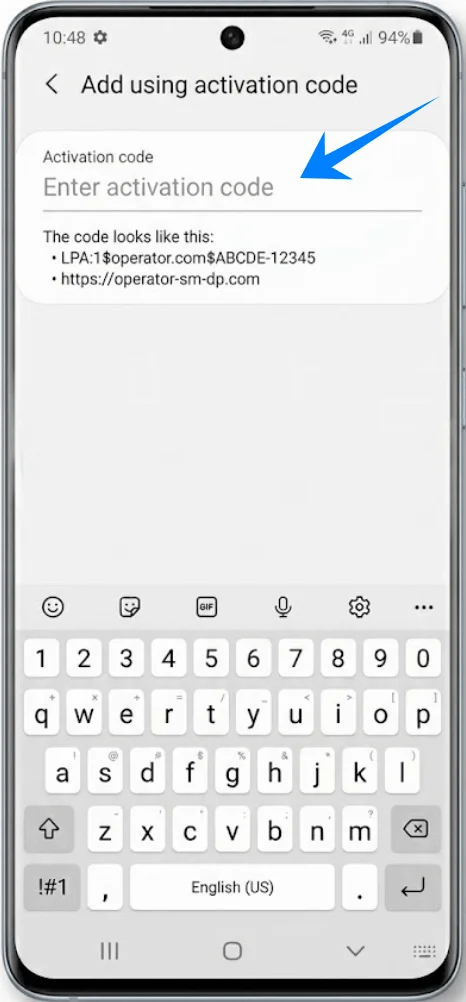
Tap Connect.
Step 5: Download the eSIM Profile
Wait while the Galaxy S20 downloads the eSIM profile.
Do not close the setup screen during installation.
After activation finishes, tap Done.
The eSIM profile should now be active on the device.
How to Confirm the eSIM Was Installed Successfully
Check the SIM Card Manager
Open Settings.
Tap Connections.
Tap SIM card manager.
The newly installed eSIM should appear under the eSIMs section.
Check the Mobile Network Signal
Look at the status bar in the top-right corner of the screen.
You should see:
Signal bars
4G, LTE, or 5G network indicator
Conclusion
Once your eSIM has been installed and activated, your device will be ready to connect to the mobile network and start using data services. This digital setup makes it easier to manage your network without any physical handling.
If you ever need to add another plan or switch configurations in the future, you can follow similar steps, making eSIM a flexible option for ongoing use.