
eSIM technology is changing how users connect to mobile networks. Unlike traditional SIM cards, which require physical handling, eSIM works entirely through software and is built into the device.
This allows for faster setup and eliminates the need for swapping or storing SIM cards.
On iPad Air (3rd generation and later), installing an iRoamly eSIM is a straightforward process that can be completed using either a QR code or manual input.
This guide will walk you through both methods in detail, helping you choose the option that works best for your situation and ensuring a smooth setup experience.

Stay Connected Abroad with iRoamly
iRoamly eSIM is a travel eSIM service that provides mobile data plans for destinations around the world. Travelers can choose available local, regional, and global options, with data allowances, validity periods, and plan features varying by destination.
Once installed on a compatible iPad, the travel data line can support maps, messaging, bookings, translations, and other everyday needs abroad.
On iPad Air models that support eSIM, iRoamly can be installed digitally through iPadOS with either a QR code or manual activation details. The instructions below keep those setup paths in order so you can add the plan and confirm mobile data from the iPad settings.
Preparations Before Setting Up iRoamly eSIM
Before starting, ensure you have the following. Heading to Japan or France? Installing your travel eSIM while reliable Wi-Fi is available can leave less to configure after arrival.
A stable internet connection (Wi-Fi recommended)
A valid eSIM QR code or manual activation details (SM-DP+ address and activation code) provided by your carrier
Your iPad Air powered on and unlocked
The device updated to the latest iPadOS version (recommended for compatibility)
Demo device used in this guide: iPad Air 13-inch (6th generation, 2024)
Method 1: Install eSIM Using QR Code
Step 1: Open Mobile Data Settings
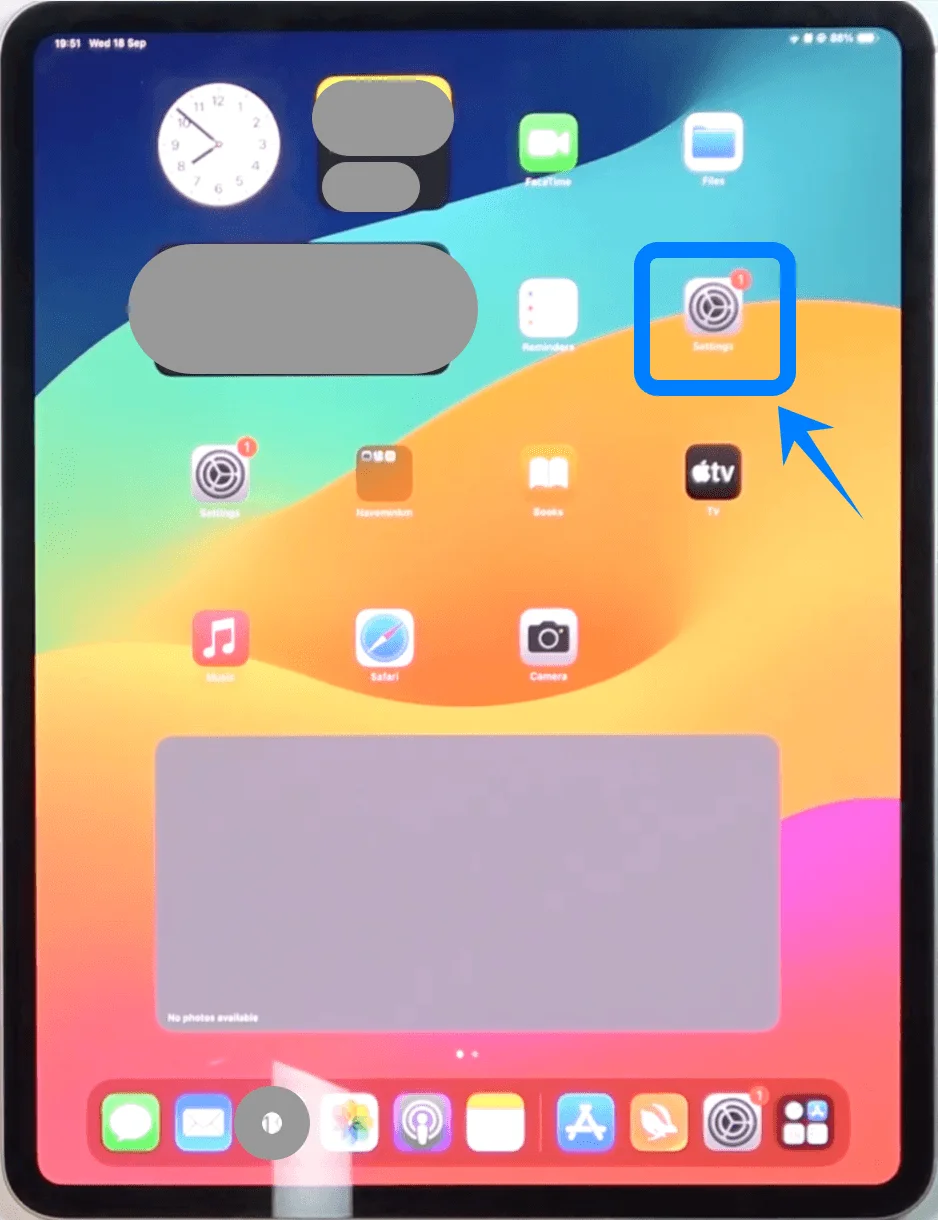
Tap Settings
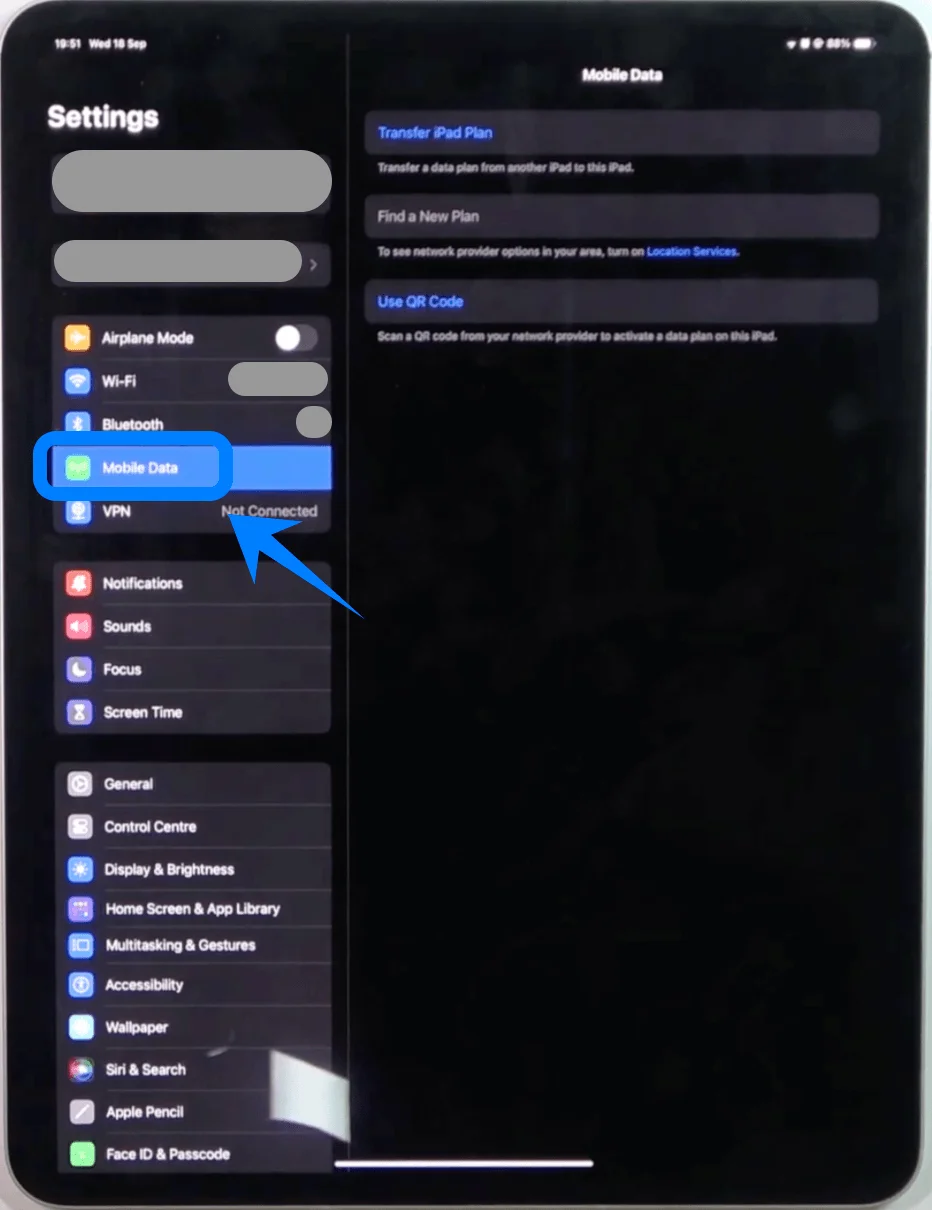
In the left sidebar, tap Mobile Data (On some devices or iPadOS versions, this may appear as “Cellular Data.”)
Step 2: Enter eSIM Setup Menu
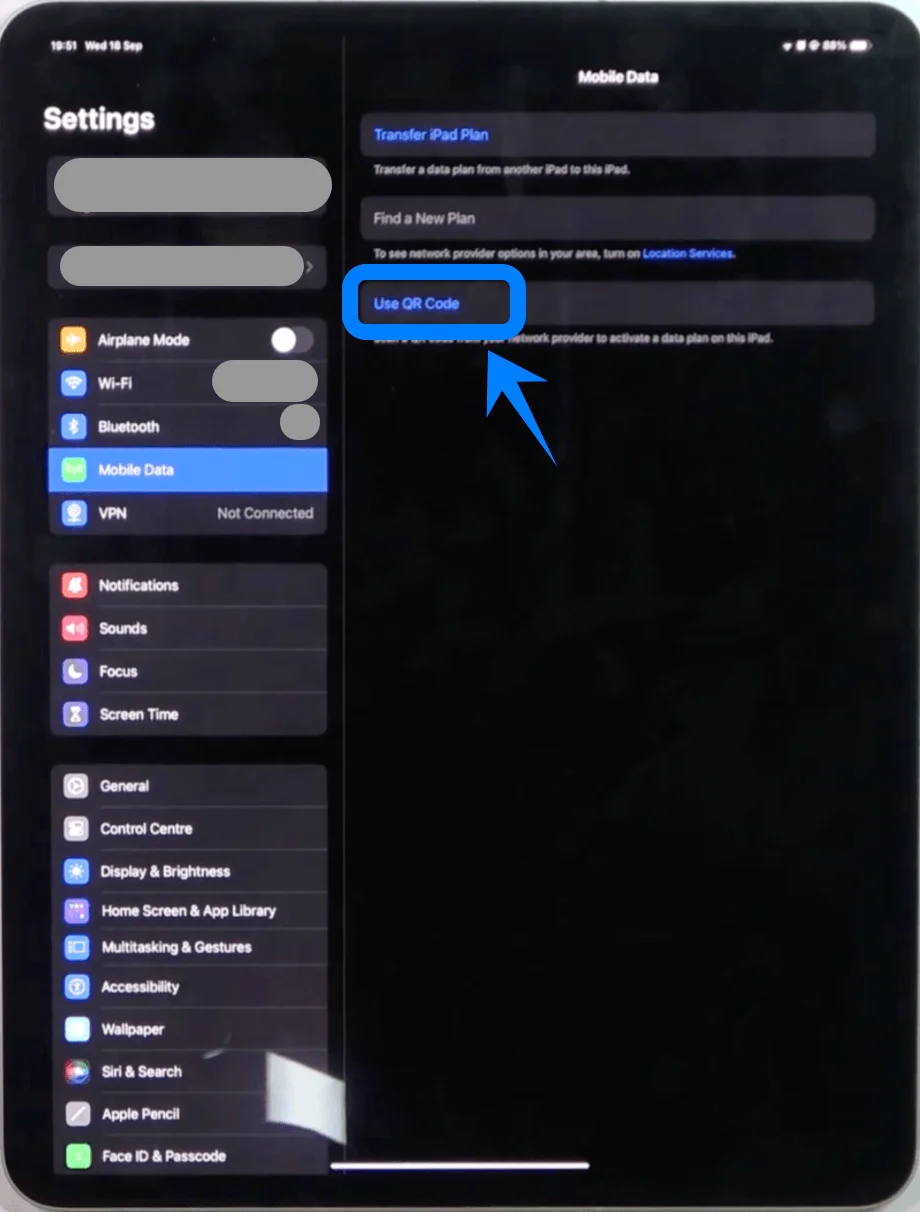
On the right panel, tap:
Use QR Code
Step 3: Open Camera Scanner
After tapping Use QR Code, the iPad will open the camera scanning interface
Step 4: Scan the QR Code
Hold the iPad so the QR code is fully visible inside the camera frame
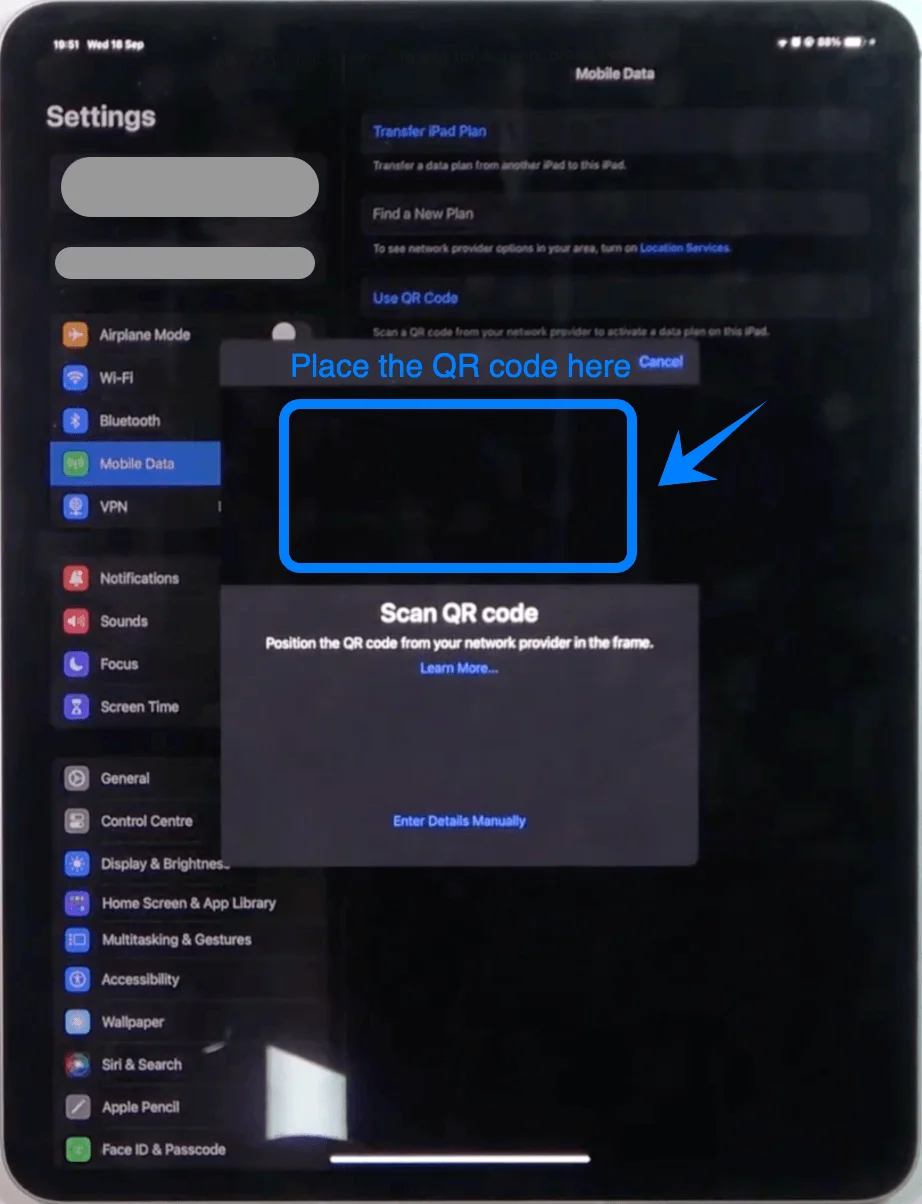
Wait for the system to detect the code automatically
Step 5: Confirm Plan Detection
When the QR code is recognized:
A prompt labeled Cellular Plan Detected appears
Tap Continue
Step 6: Add the eSIM Plan
On the next screen, tap Add Cellular Plan
Step 7: Wait for Activation
The iPad will connect to the carrier network
Do not exit the screen during this process
Method 2: Install eSIM Using Manual Input
Step 1: Open Mobile Data Settings
Tap Settings
Tap Mobile Data (On some devices or iPadOS versions, this may appear as “Cellular Data.”)
Step 2: Access QR Code Screen
Tap Use QR Code
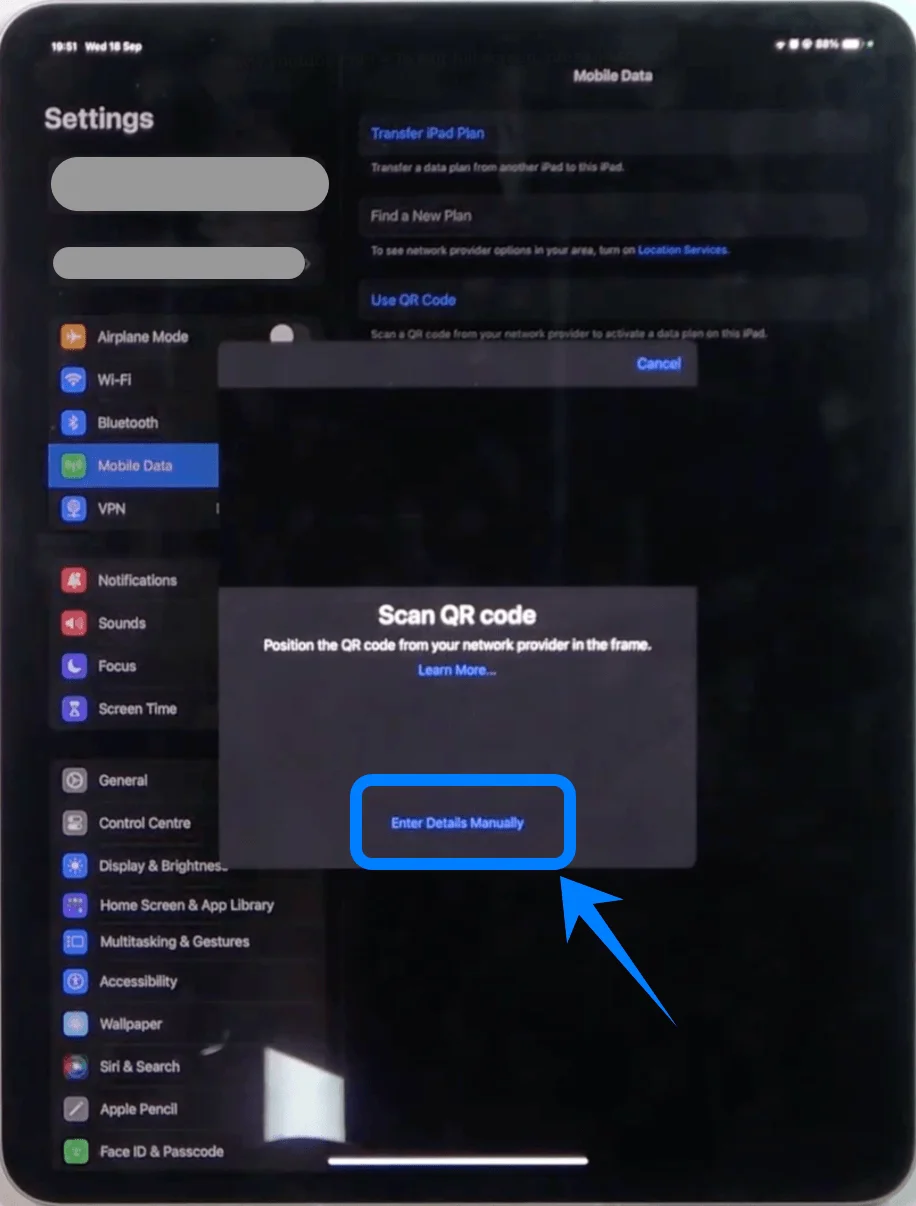
Step 3: Switch to Manual Entry
On the QR scanning screen:
Tap Enter Details Manually (located at the bottom of the screen)
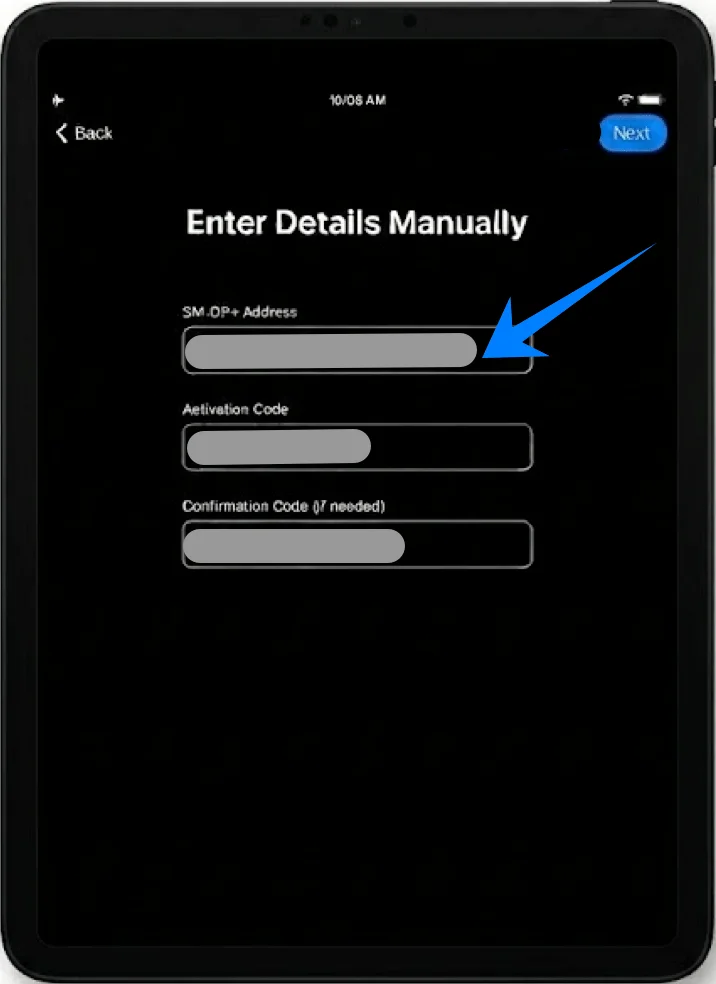
Step 4: Enter Activation Information
Fill in each field exactly as provided by your carrier:
Tap SM-DP+ Address → enter the address
Tap Activation Code → enter the code
(If present) tap Confirmation Code → enter the code
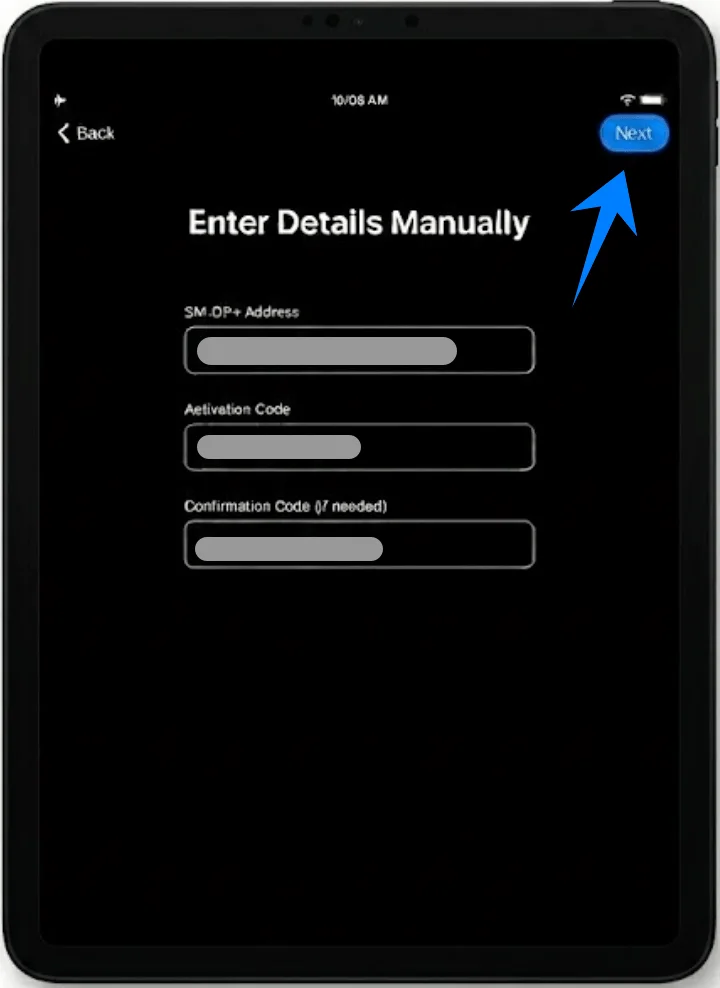
Step 5: Proceed to Next Step
Tap Next (top-right corner)
Step 6: Add the Cellular Plan
When plan details appear, tap Add Cellular Plan
Step 7: Complete Activation
Wait for the iPad to finish activating the plan
How to Confirm eSIM Installation
Step 1: Check Plan in Settings
Go to Settings → Mobile Data (On some devices or iPadOS versions, this may appear as “Cellular Data.”)
Confirm your plan appears under Mobile Data Plans
Step 2: Verify Network Signal
Look at the top-right corner of the screen
Confirm that:
Signal bars appear, or
A carrier name is displayed
Step 3: Enable Cellular Data
Go to Settings → Mobile Data (On some devices or iPadOS versions, this may appear as “Cellular Data.”)
Ensure Mobile Data toggle is switched ON
Step 4: Test Connectivity
Turn off Wi-Fi temporarily
Open Safari
Load a webpage to confirm cellular data is working
More iPad eSIM Setup Guides
Using another iPad? These eSIM setup and activation guides may help.
Conclusion
Once installation is complete, your device will be able to access cellular data as configured. eSIM provides a flexible and efficient way to manage connectivity, reducing the need for physical components and simplifying the setup process.
Future changes, such as adding or switching plans, can also be handled directly within the device settings, making ongoing management straightforward and efficient.