
An iRoamly travel eSIM lets you add a temporary data plan to your Galaxy S24 FE before or during a trip without changing your physical SIM. It is useful when you want mobile data abroad while keeping your home SIM active for verification, backup connectivity, or other essential services.
This guide covers both supported installation methods on the Galaxy S24 FE: scanning the iRoamly QR code and entering the eSIM activation details manually. The QR method is usually faster, while manual entry helps when the QR code is on the same phone, the camera cannot scan it, or the code image is difficult to display clearly.
After installation, you will also confirm that the iRoamly eSIM appears in SIM manager, choose it for mobile data, enable data roaming when required by the destination plan, and avoid unwanted data switching back to your primary SIM.
Preparations Before Setting Up iRomly eSIM
Connect the Galaxy S24 FE to stable Wi-Fi before adding the eSIM.
Confirm the phone is unlocked and eSIM-capable in your region. If Add eSIM is missing, check for an EID under phone status, update One UI, and confirm carrier or region support.
Keep the iRoamly QR code or manual details ready: SM-DP+ address, Activation code, and Confirmation code if iRoamly provides one.
Do not delete an installed eSIM casually. Many travel eSIMs cannot simply be reinstalled after deletion; disable the line instead unless support tells you to remove it.
Install the eSIM 1–2 days before travel only if your plan allows early installation. Most iRoamly plans begin counting validity from activation, so check your specific plan details before installing in advance.
Method 1: Install the iRoamly eSIM by Scanning the QR Code
Open Settings, then tap Connections. You should see the main network settings page.
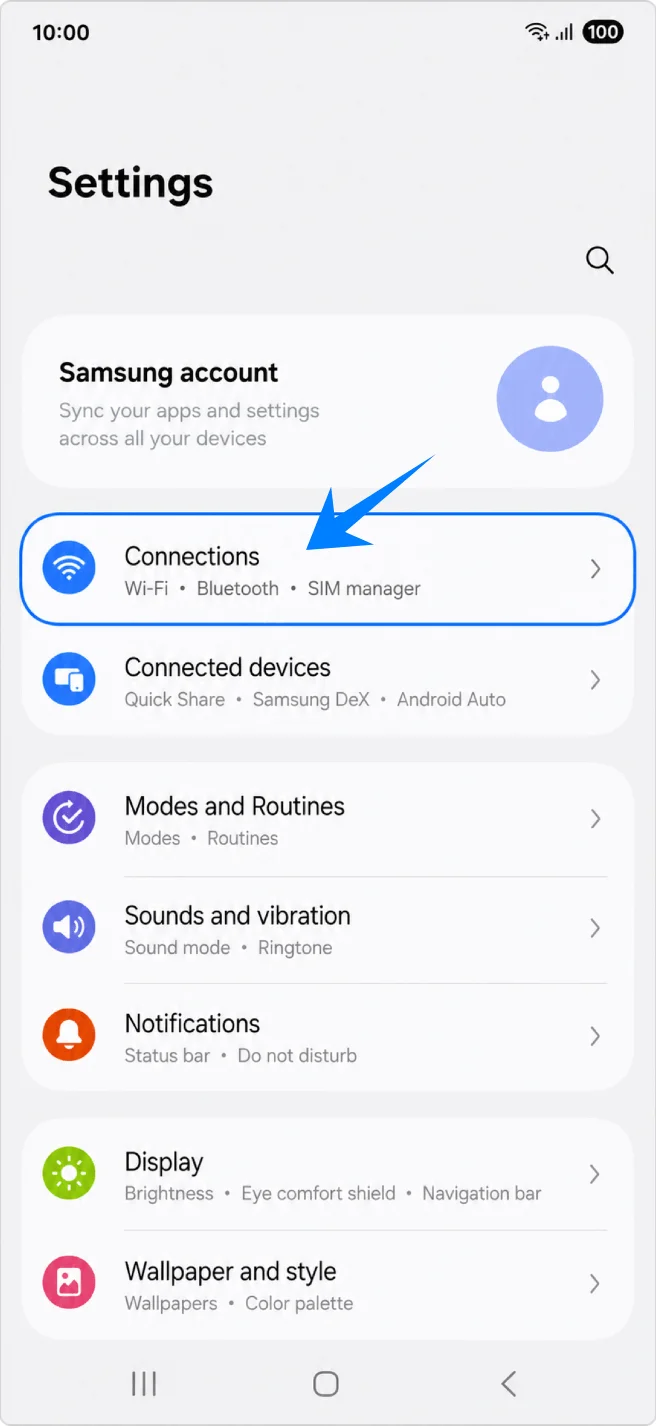
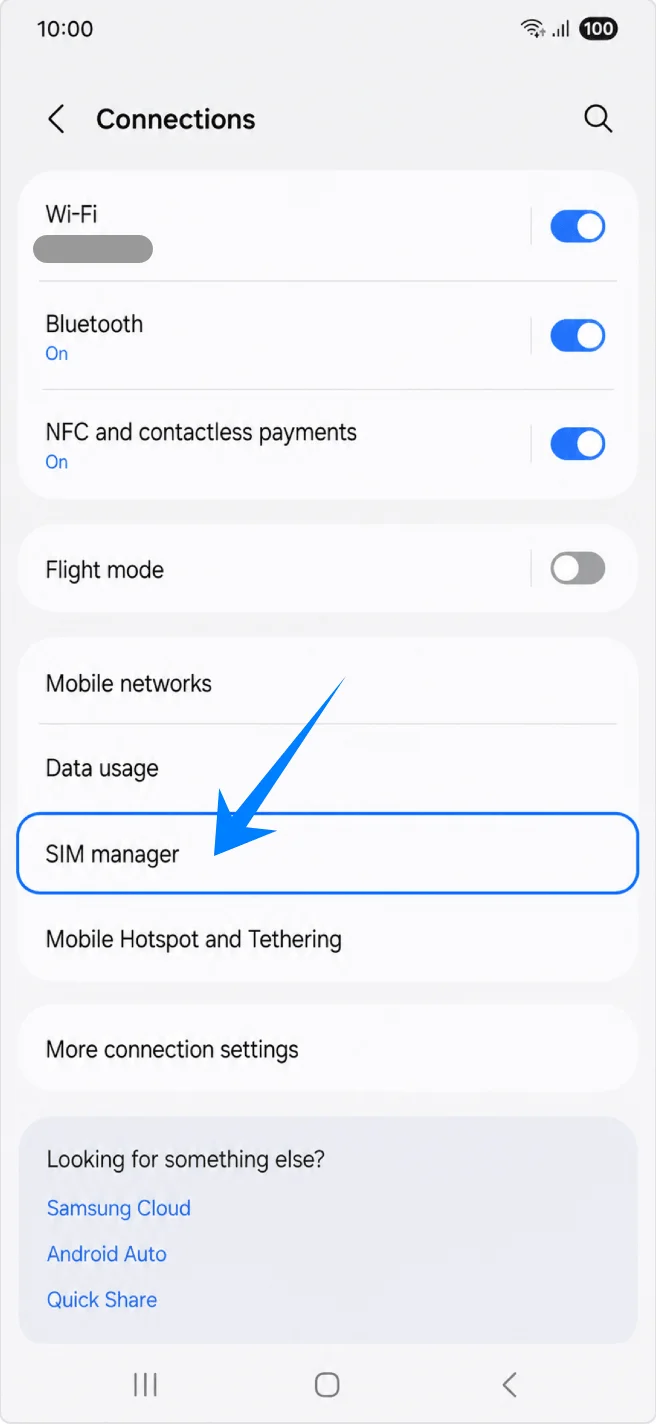
Tap SIM manager. You should see your physical SIM, eSIM area, and preferred SIM settings.
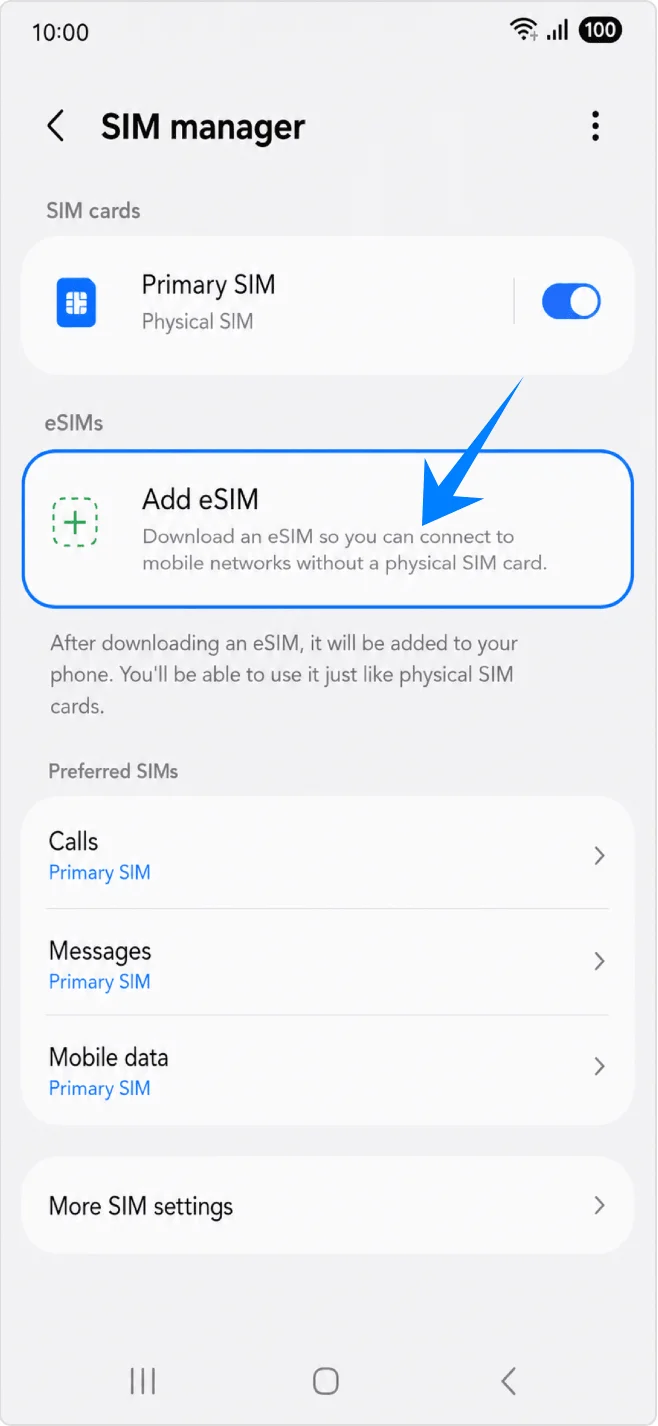
Tap Add eSIM in the eSIMs section. The phone should open Samsung's eSIM setup options.
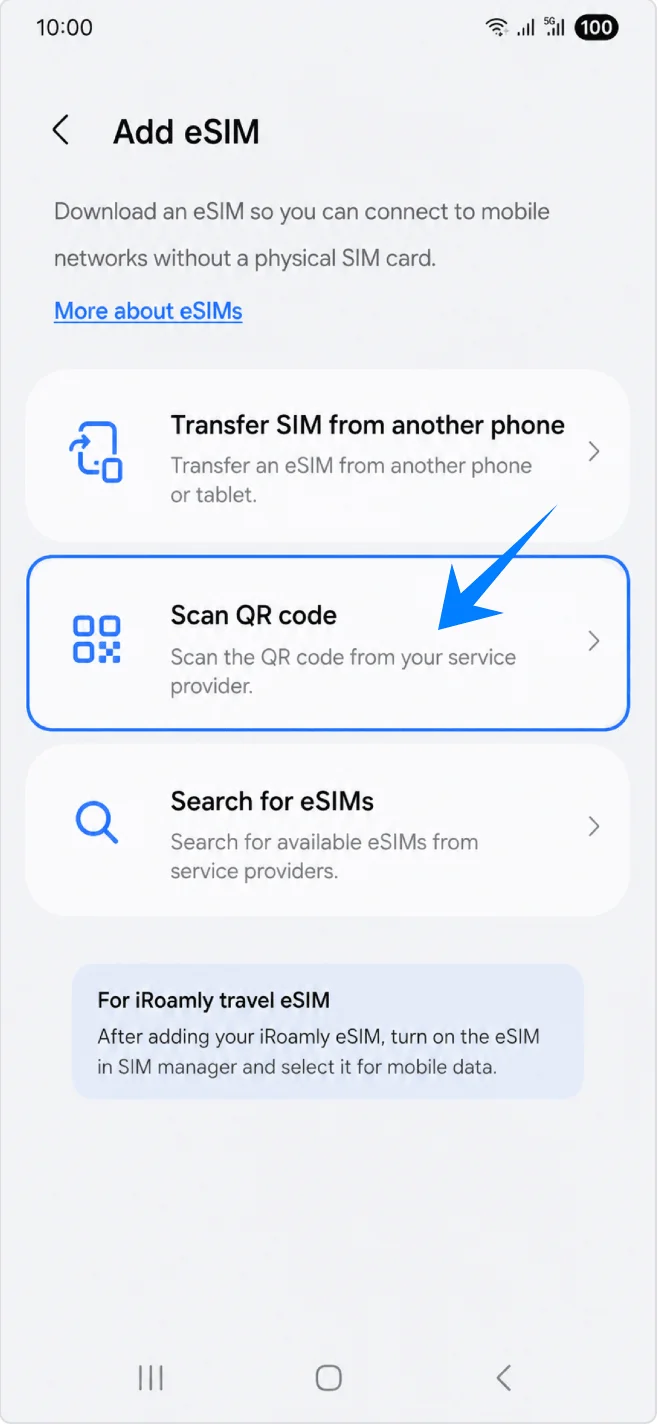
Tap Scan QR code. The QR scanner for adding an eSIM should open.
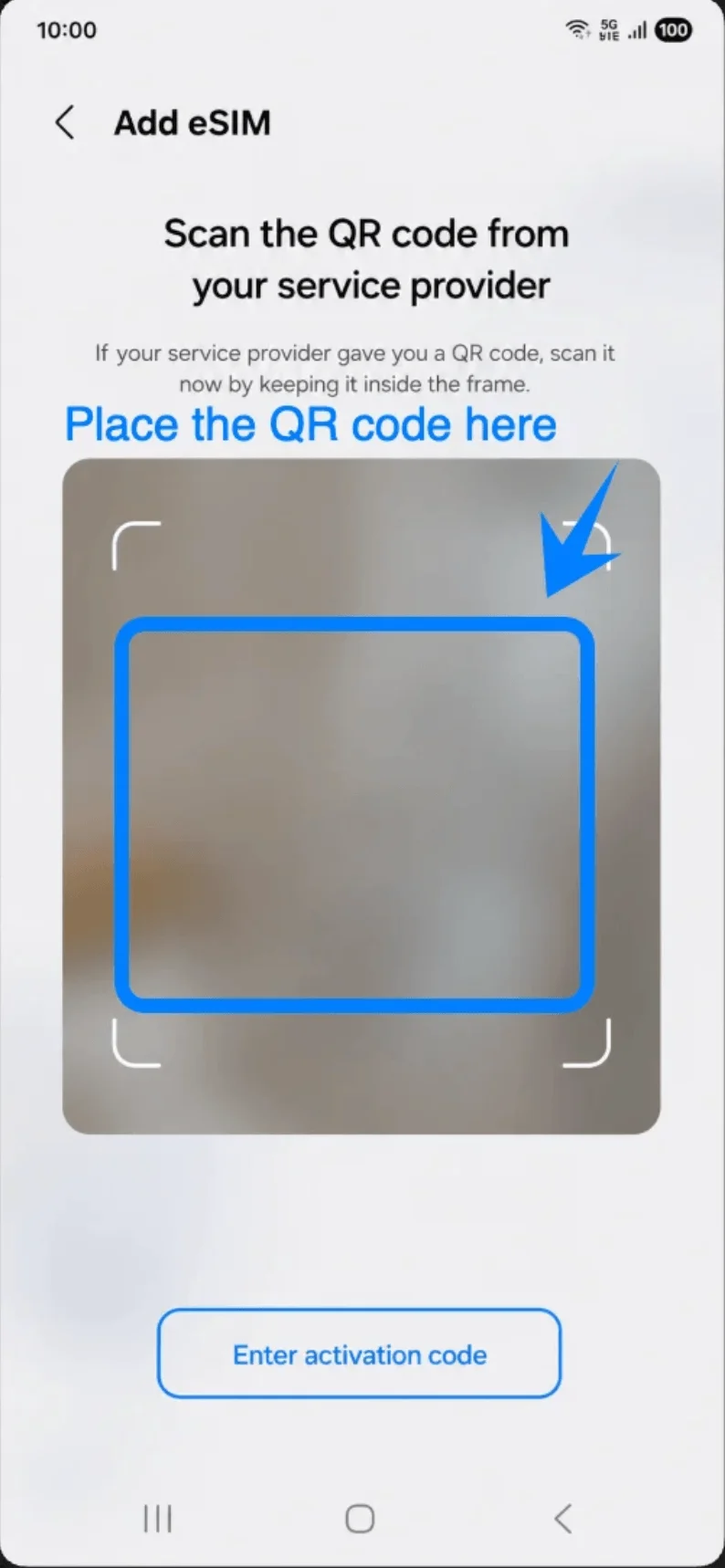
Point the scanner at the iRoamly QR code from your order email or iRoamly account page. Keep the QR code inside the frame until the phone recognizes it.
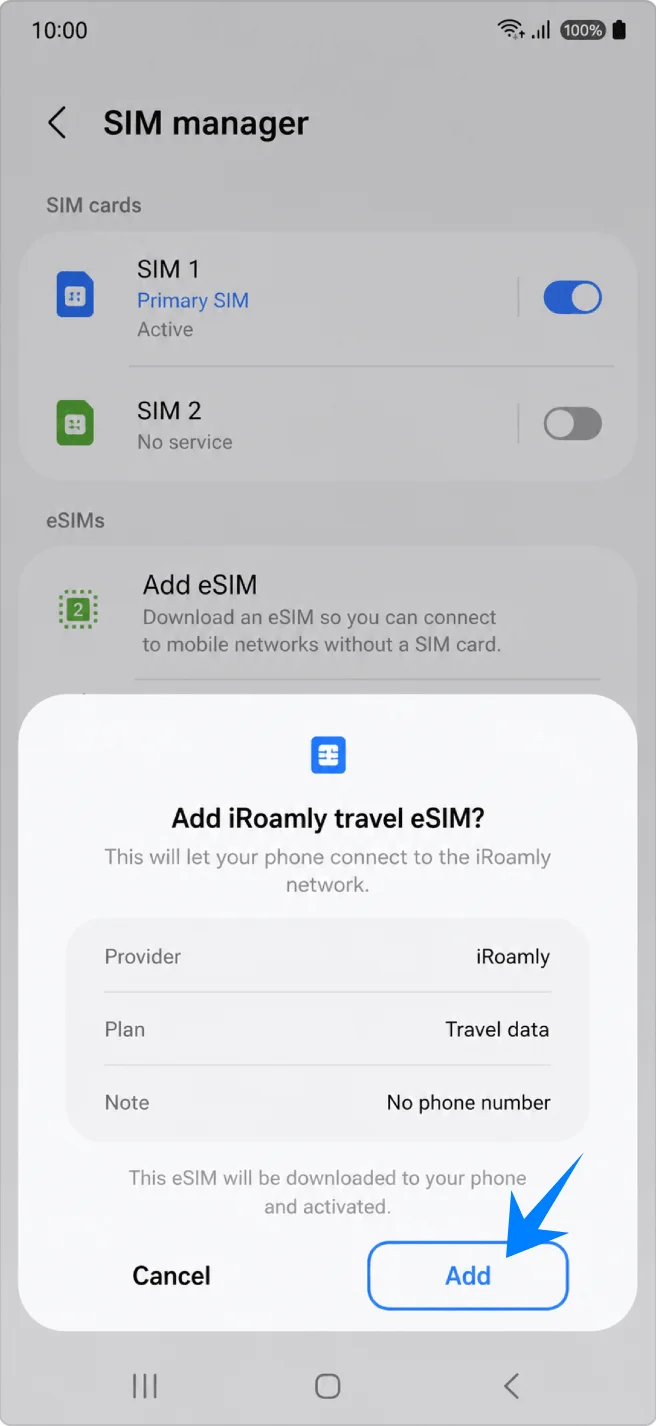
Tap Add when the phone shows Add iRoamly travel eSIM?. Keep Wi-Fi connected while the eSIM profile downloads.
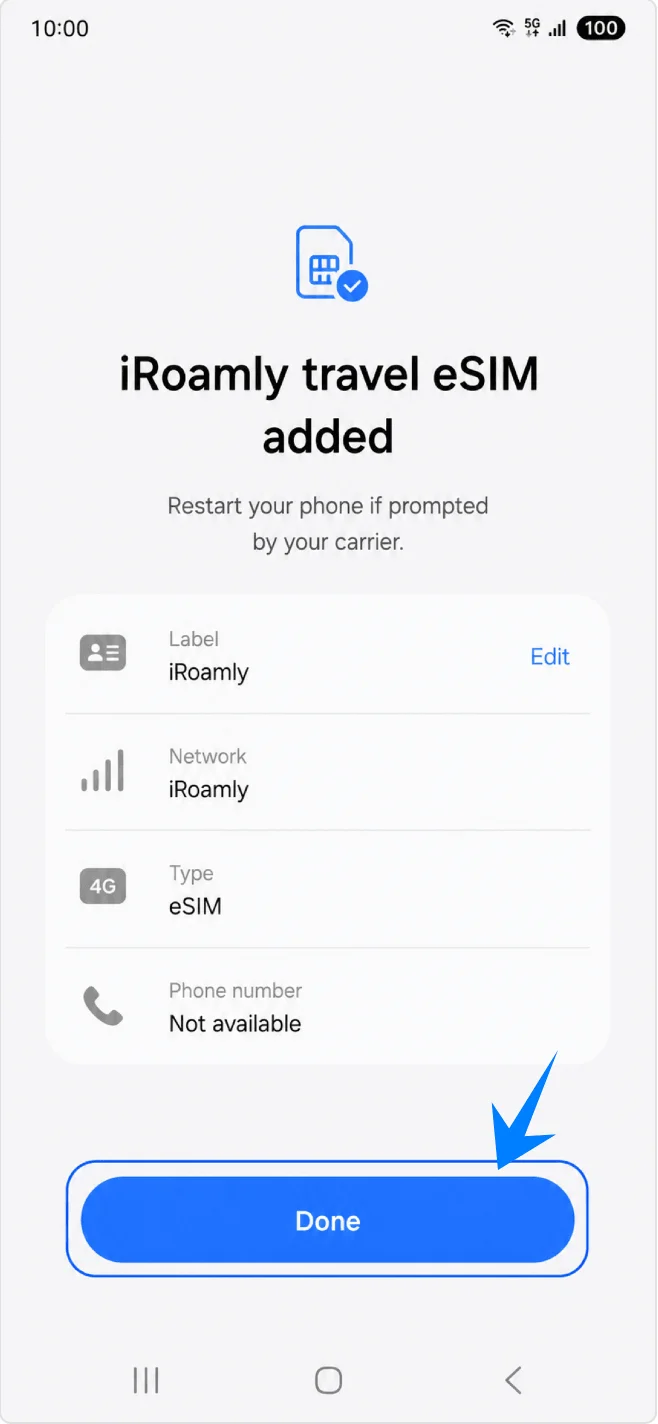
Tap Done when the screen shows iRoamly travel eSIM added. Restart only if the phone or carrier prompt asks you to restart.
Method 2: Install the iRoamly eSIM by Manual Entry
Open Settings, then tap Connections. This starts the manual flow from the phone's network settings.
Tap SIM manager. The Galaxy S24 FE should show the SIM cards, eSIM section, and preferred SIM choices.
Tap Add eSIM under eSIMs. The eSIM setup page should appear.
Tap Scan QR code. Samsung places the manual entry option on or near the QR scanner screen.
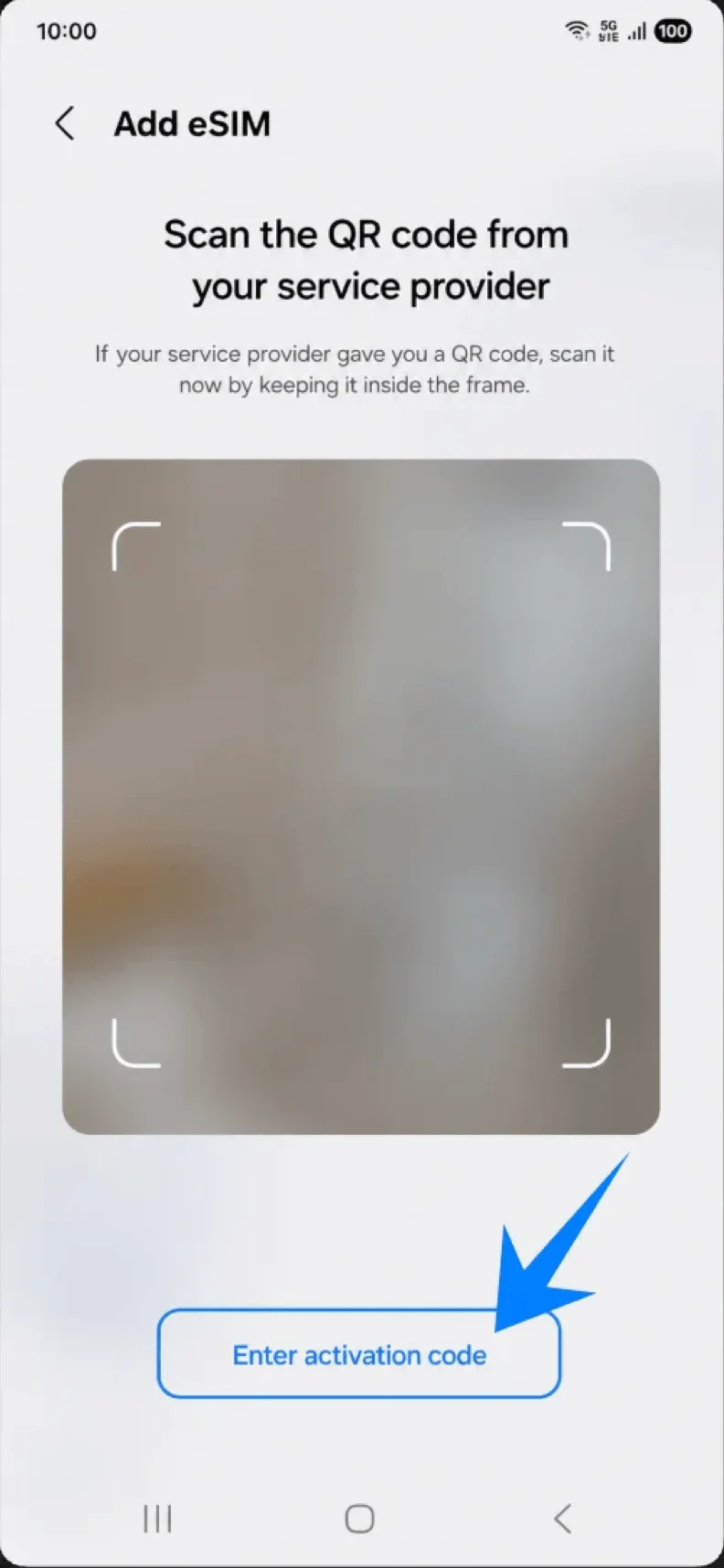
Tap Enter activation code at the bottom of the QR scanner page. The phone should open the activation details screen.
Enter the Activation code exactly as iRoamly provides it. Enter the Confirmation code only if iRoamly gives you one, then tap Connect.
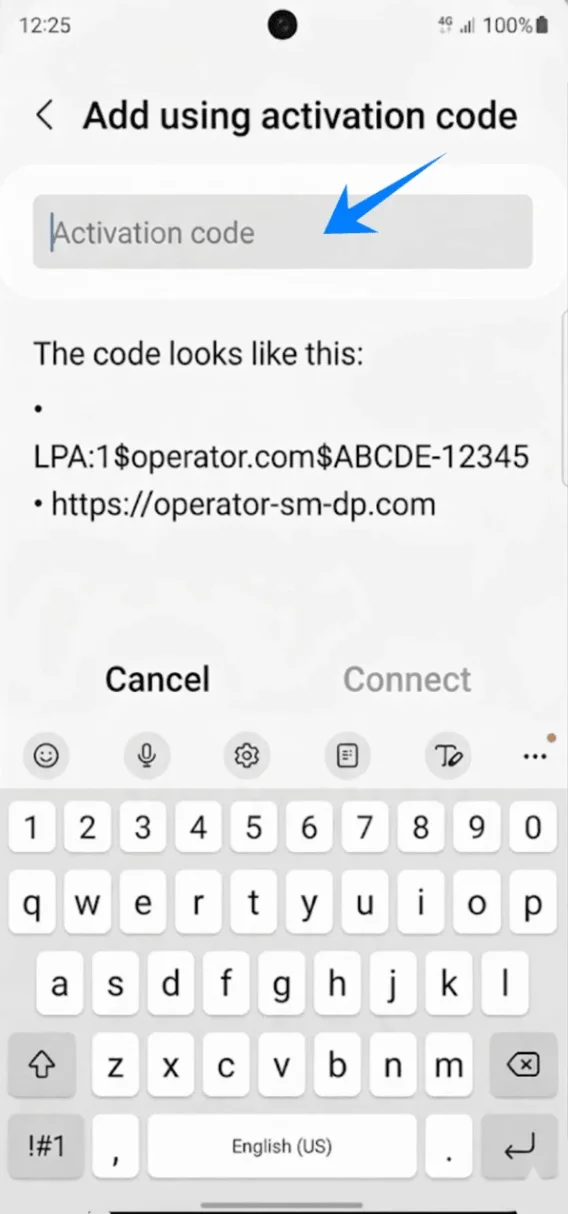
Tap Add when the phone shows Add iRoamly travel eSIM?. Stay on Wi-Fi until the download completes.
Tap Done after the phone confirms that iRoamly travel eSIM was added. Restart only if prompted.
How to Confirm the iRoamly eSIM Installed Successfully
Open Settings > Connections > SIM manager and confirm that the iRoamly travel eSIM appears under eSIMs and is turned on. If the switch is off, tap it to enable the eSIM.
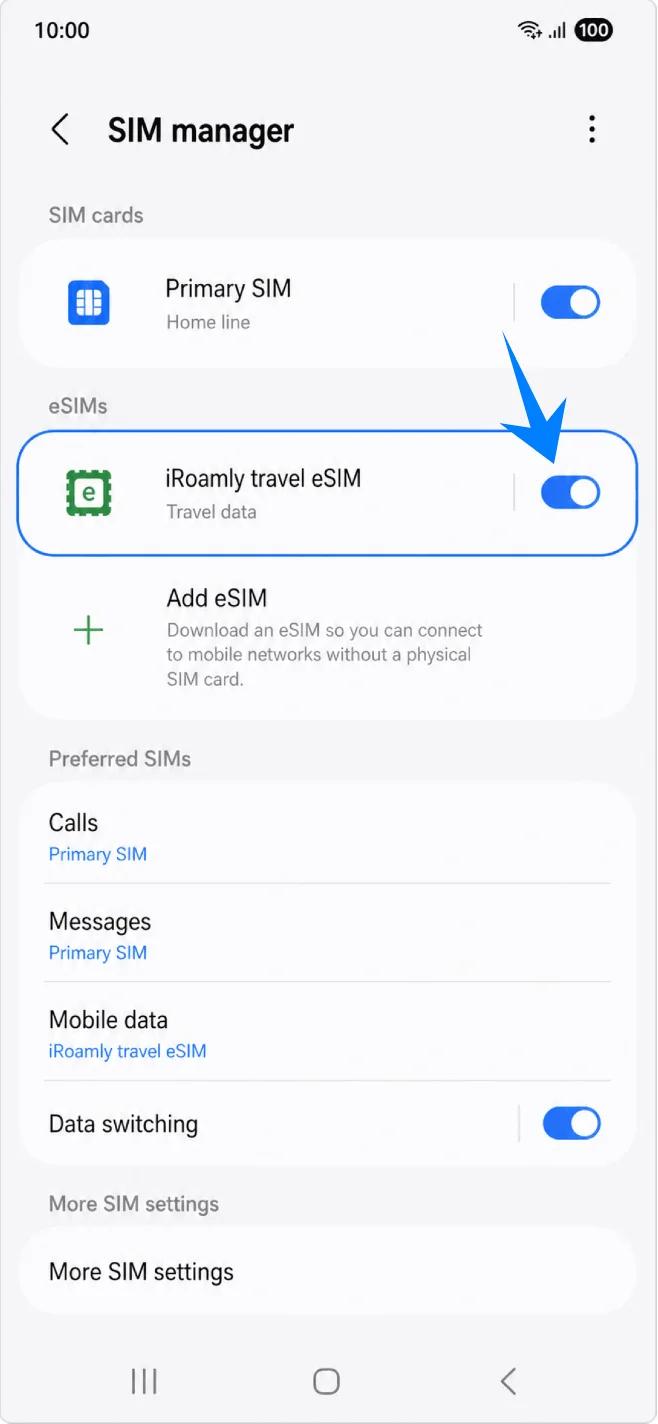
Travel Data Settings After Installation
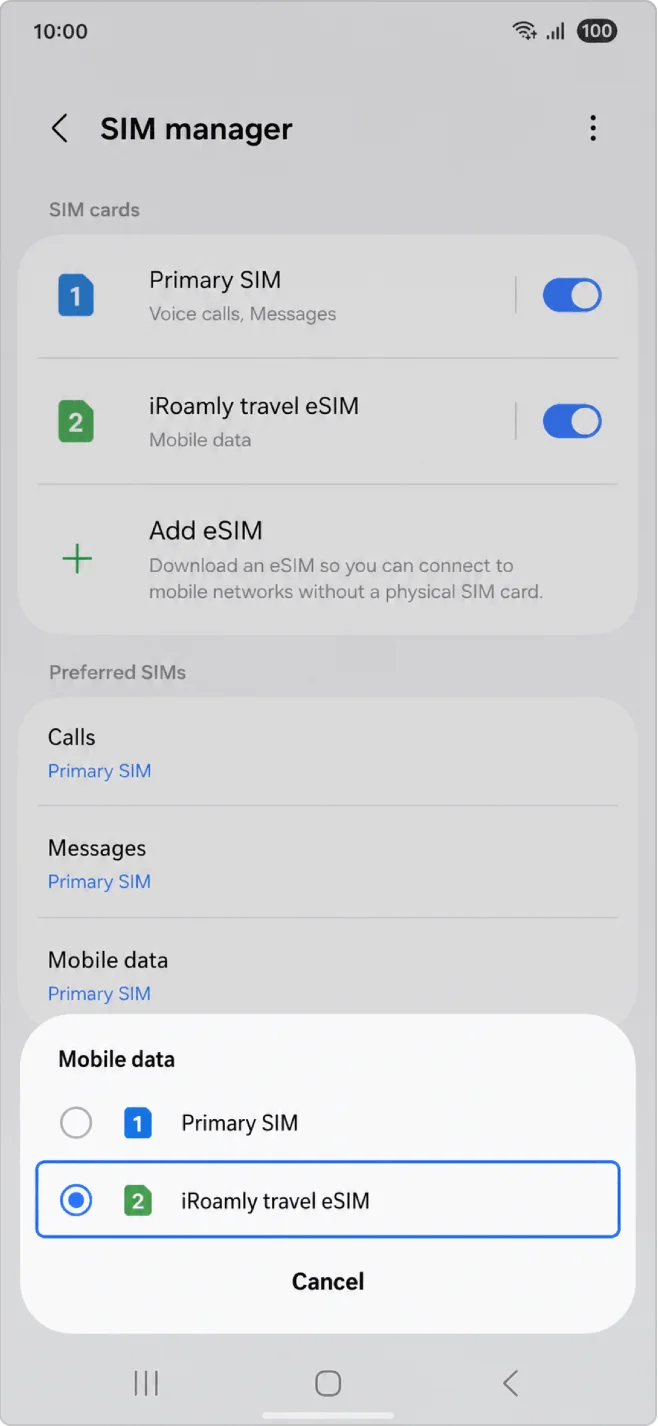
In Settings > Connections > SIM manager, tap Mobile data, then select iRoamly travel eSIM as the preferred line for mobile data.
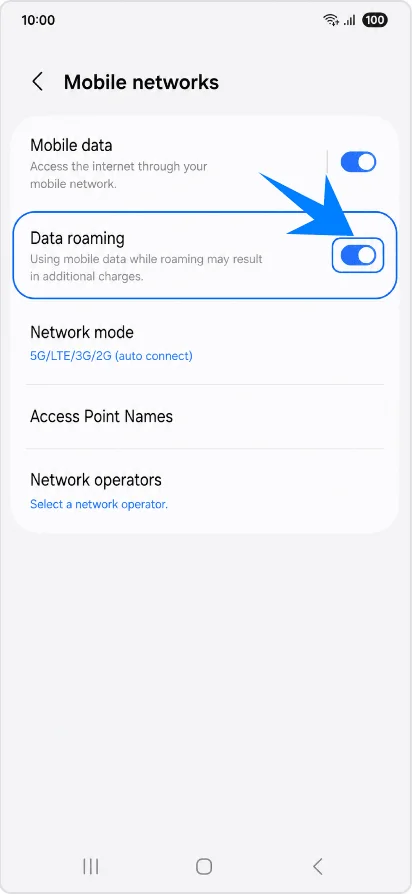
Open Settings > Connections > Mobile networks, keep Mobile data on, and turn on Data roaming if the iRoamly plan or destination instructions require roaming.
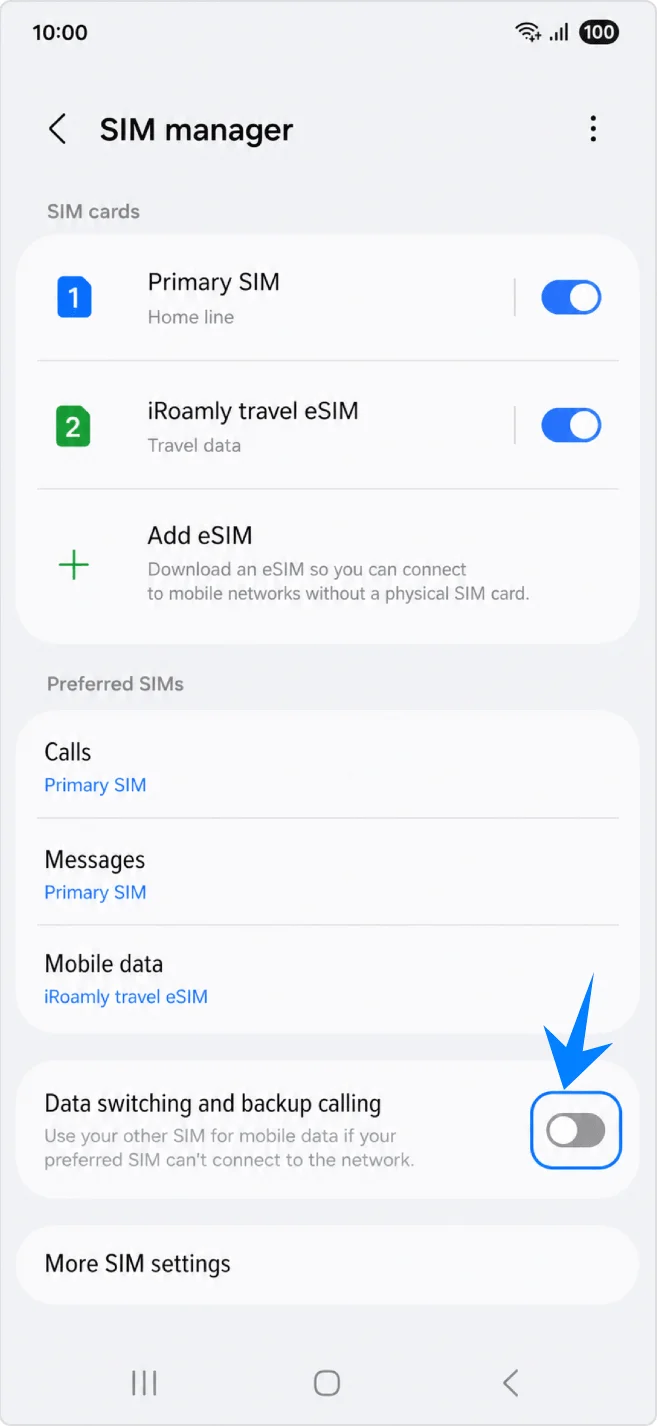
Return to Settings > Connections > SIM manager and turn off Data switching and backup calling if available. This helps avoid unexpected roaming charges on your primary SIM.
Troubleshooting
No Add eSIM: update One UI, confirm the phone is unlocked, check whether your regional Galaxy S24 FE variant and carrier firmware allow eSIM, and look for an EID under phone status. If there is no EID or eSIM menu, eSIM may not be enabled for that device variant.
QR code already used or scan fails: use the manual entry method, make sure Wi-Fi is working, check that the QR code is not expired or already consumed, and contact iRoamly support before deleting anything.
Installed but no data: select iRoamly travel eSIM under Mobile data, turn on Data roaming if required, restart the phone, and confirm your plan covers the current destination.
Activation is pending: some travel eSIMs finish activation only after connecting to a supported destination network. Keep the profile installed and check again after arrival.
Region or carrier limitations: Samsung menu labels and eSIM availability can vary by country, carrier firmware, and network lock status, even on the same model name.
Reinstall risk: if the iRoamly eSIM is installed but you are not ready to use it, turn the line off in SIM manager instead of removing it unless support instructs you to delete it.
Conclusion
For most Galaxy S24 FE users, scanning the iRoamly QR code is the fastest way to install the travel eSIM. Manual entry is the best fallback when the QR code is on the same phone, cannot be scanned, or needs to be typed from the iRoamly activation details.
After either method, confirm that iRoamly travel eSIM appears in SIM manager, choose it for Mobile data, enable Data roaming when required, and keep automatic data switching off unless you want another SIM to take over.