
eSIM technology has made mobile connectivity faster, more flexible, and much more convenient.
Instead of inserting a physical SIM card, you can activate a mobile plan digitally in just a few minutes directly from your phone settings.
This not only simplifies the setup process, but also makes it easier to manage multiple plans, switch networks while traveling, and stay connected without carrying extra SIM cards.
If you’re using a Samsung Galaxy S24 Ultra, this guide will show you exactly how to install and activate your iRoamly eSIM step by step using either a QR code or a manual activation code.
Stay Connected Abroad with iRoamly
iRoamly eSIM is a travel eSIM service for mobile data abroad, with destination, regional, and global plan options available for different trips.
Plan allowances, validity, and available features can vary by destination, so travelers can choose an option that fits their data needs. After installation, the travel data can help with navigation, messaging, ride-hailing, reservations, and other online tasks away from home.
For a compatible Galaxy S24 Ultra, this means you can add iRoamly as a separate eSIM profile and manage it from Samsung's SIM manager. The steps below continue with the existing QR-code and manual activation methods without changing the original setup flow.
Preparations Before Setting Up iRoamly eSIM
Choosing your travel plan before you begin setup can make the installation easier. If you're planning to visit Turkey or Italy, select the appropriate destination eSIM first and keep its QR code or activation details handy for the Galaxy S24 Ultra setup.
Before starting the installation process, make sure you have the following ready:
A stable internet connection (Wi-Fi is recommended)
A valid eSIM QR code or activation code provided by your carrier
Your Galaxy S24 Ultra powered on and unlocked
The device updated to the latest available One UI version for better eSIM compatibility
The carrier account activated and eligible for eSIM service
Method 1: Install eSIM Using a QR Code
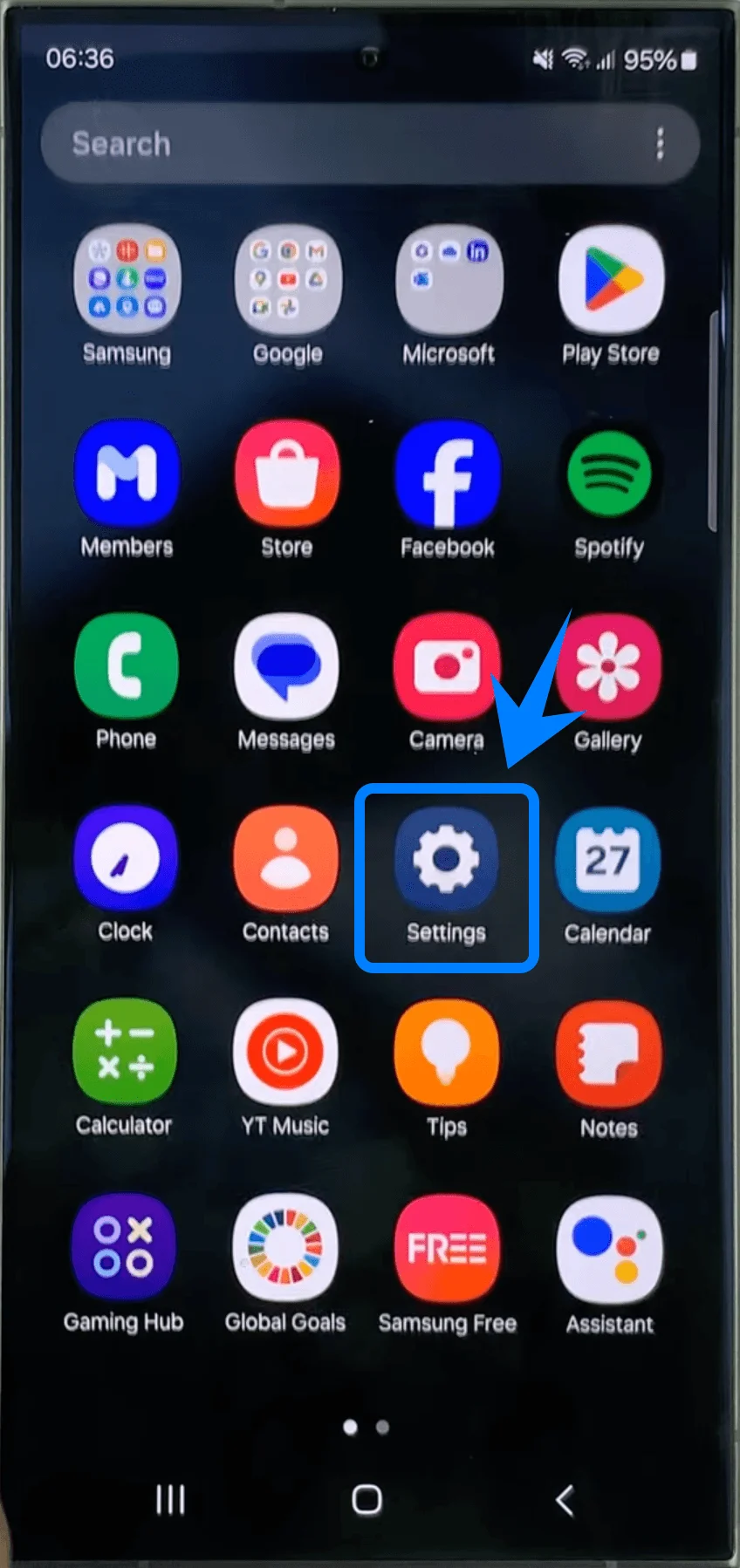
Step 1: Open the Settings App
Tap the Settings app on the Home screen or App Drawer.
Step 2: Open SIM Manager
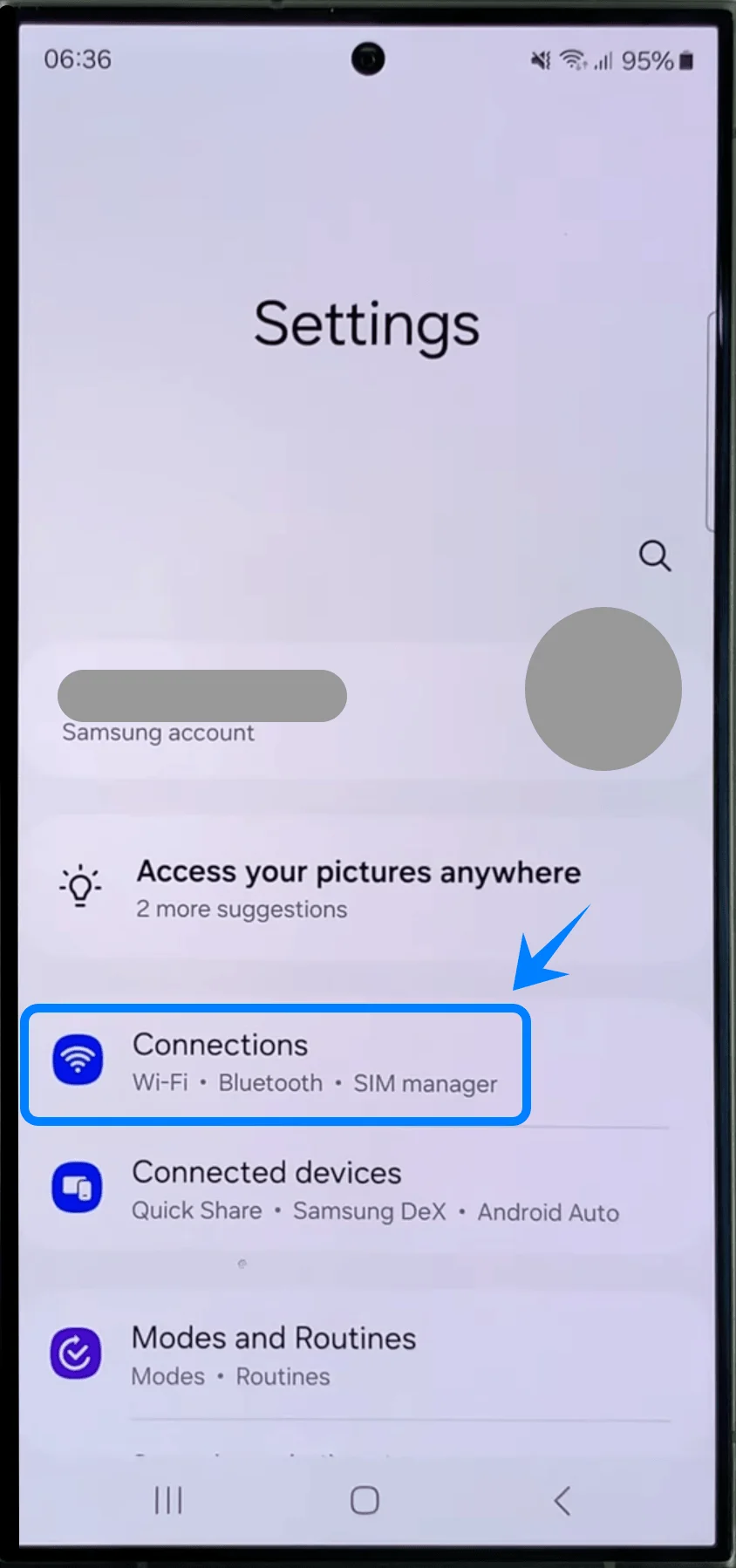
In the Settings menu, scroll down.
Tap Connections.
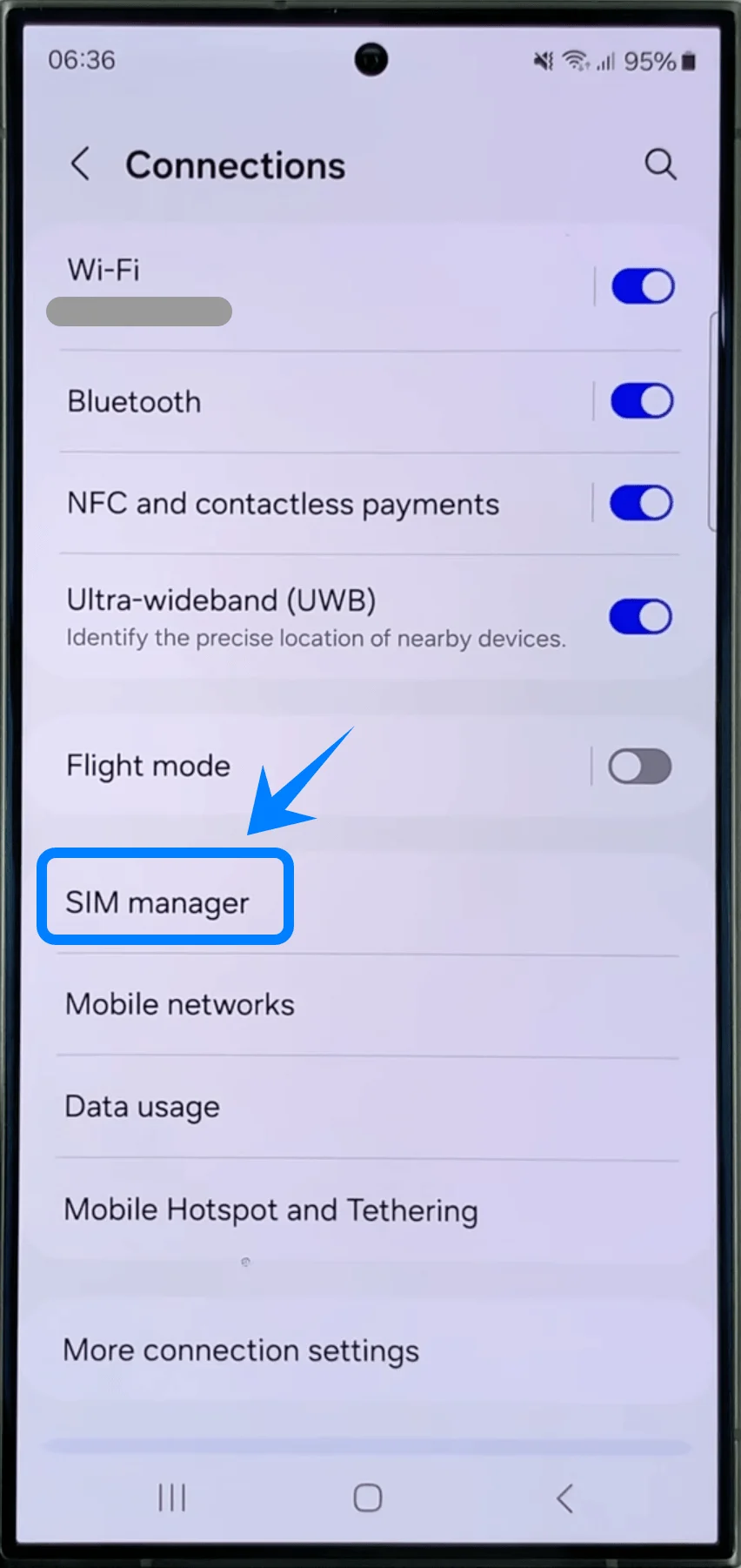
Tap SIM manager.
Step 3: Start the eSIM Setup Process
Inside SIM manager, tap Add eSIM.
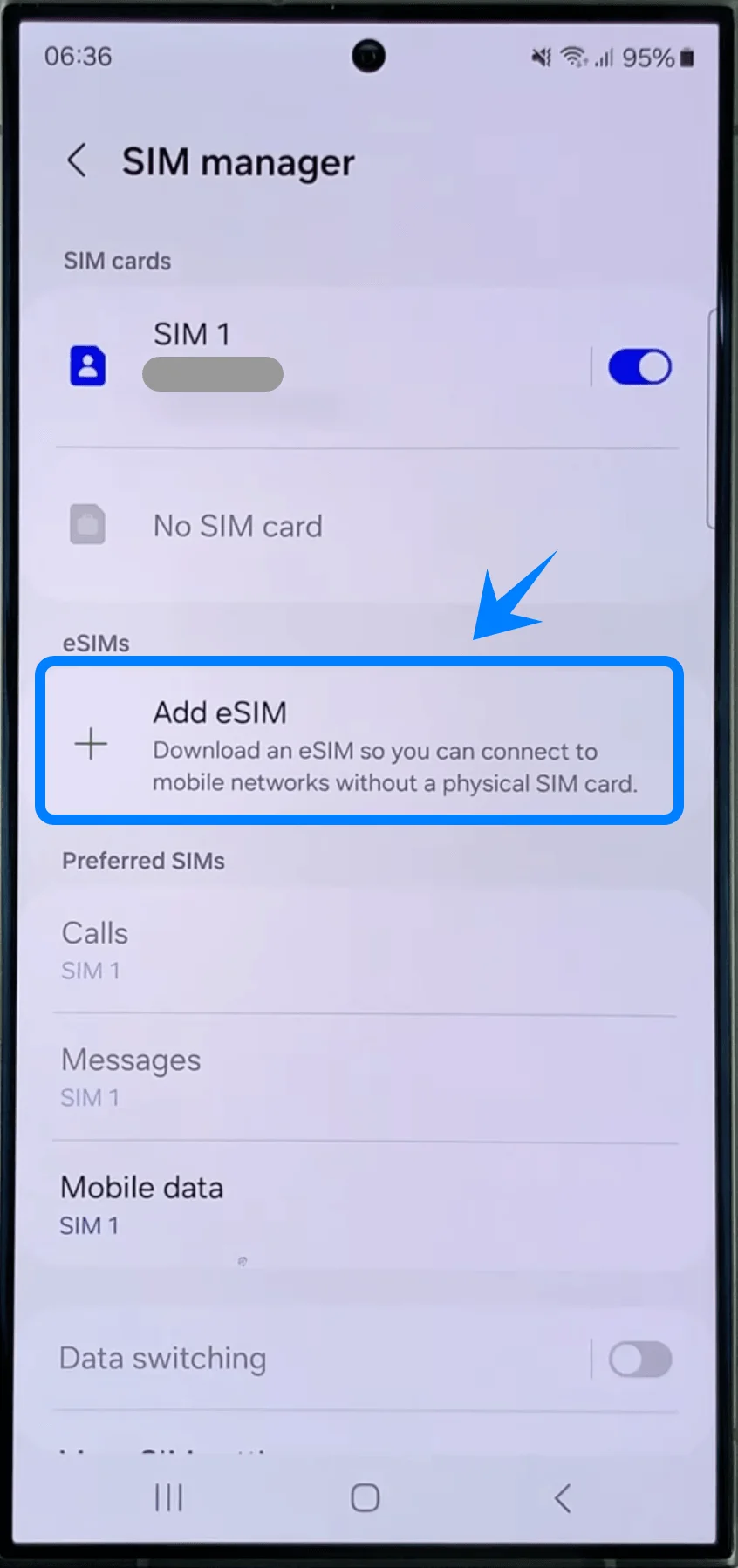
Wait for the phone to search for available eSIM plans.
Step 4: Select QR Code Activation
On the “Add mobile plan” screen, tap Scan QR code.
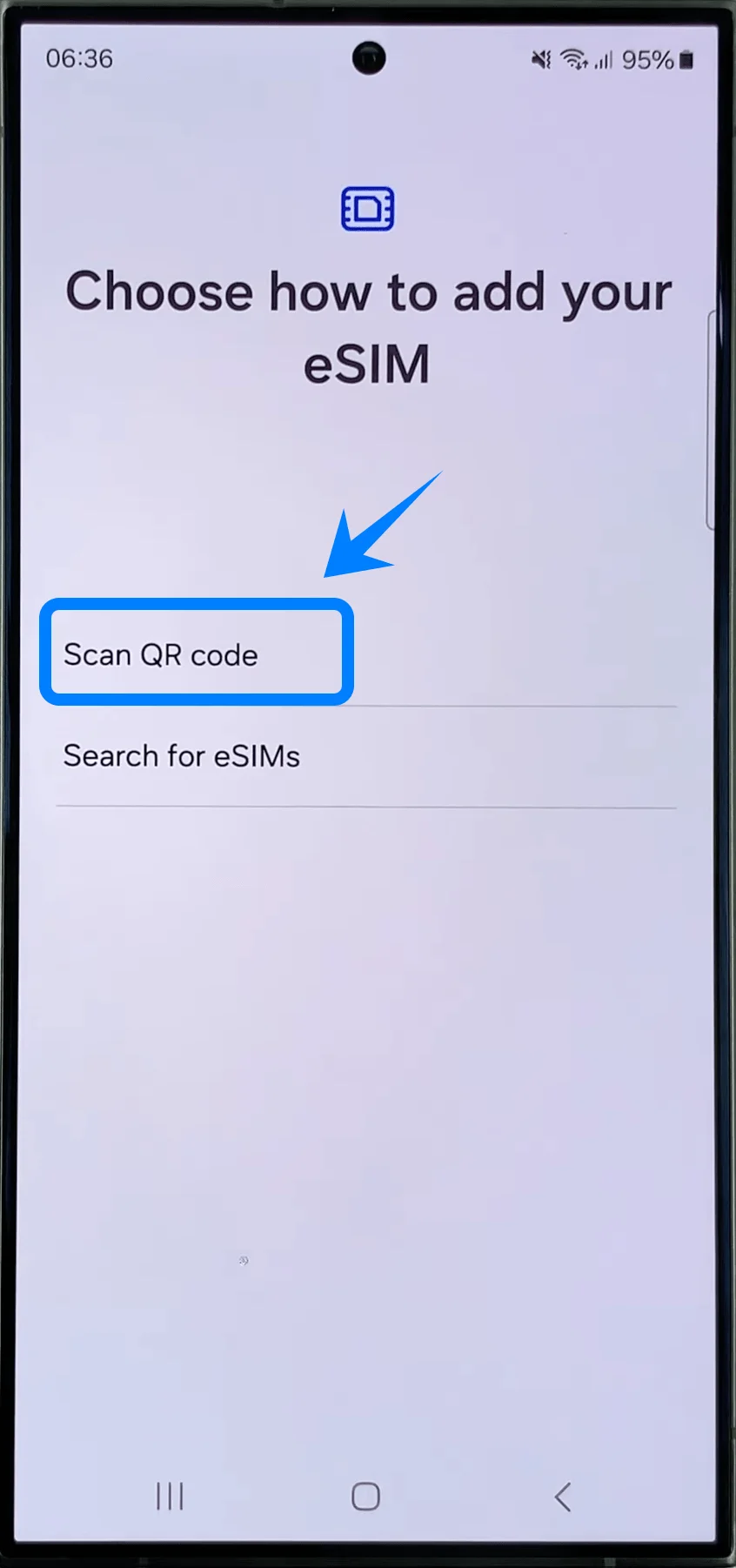
The phone’s camera scanner will open automatically.
Step 5: Scan the Carrier QR Code
Hold the Galaxy S24 Ultra over the QR code provided by your carrier.
Align the QR code inside the camera frame.
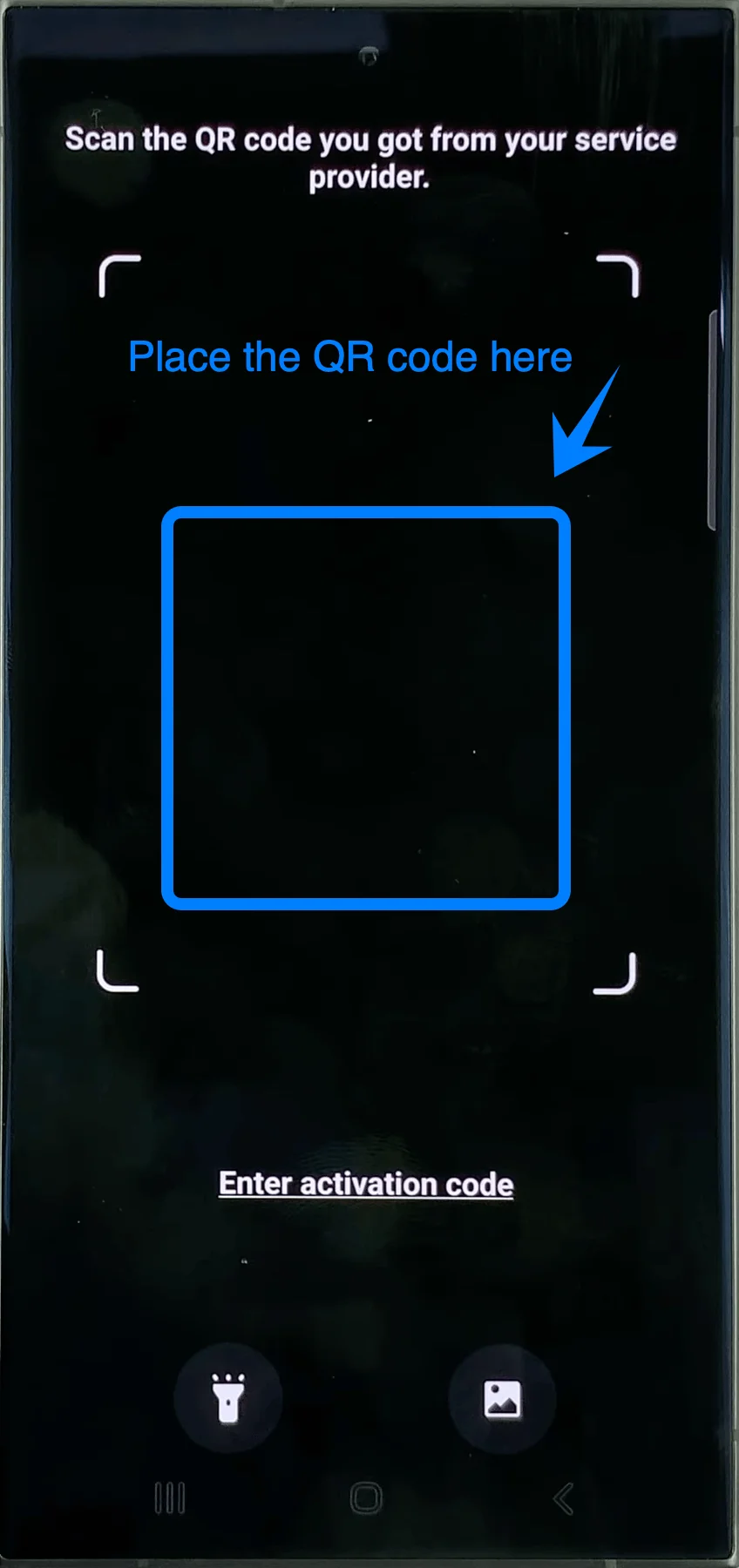
Wait for the device to recognize the activation profile.
Do not move the phone away until the QR code is successfully detected.
Step 6: Download the eSIM Profile
After the QR code is recognized, a carrier profile screen will appear.
Tap Add or Download (the exact button may vary slightly depending on the carrier).
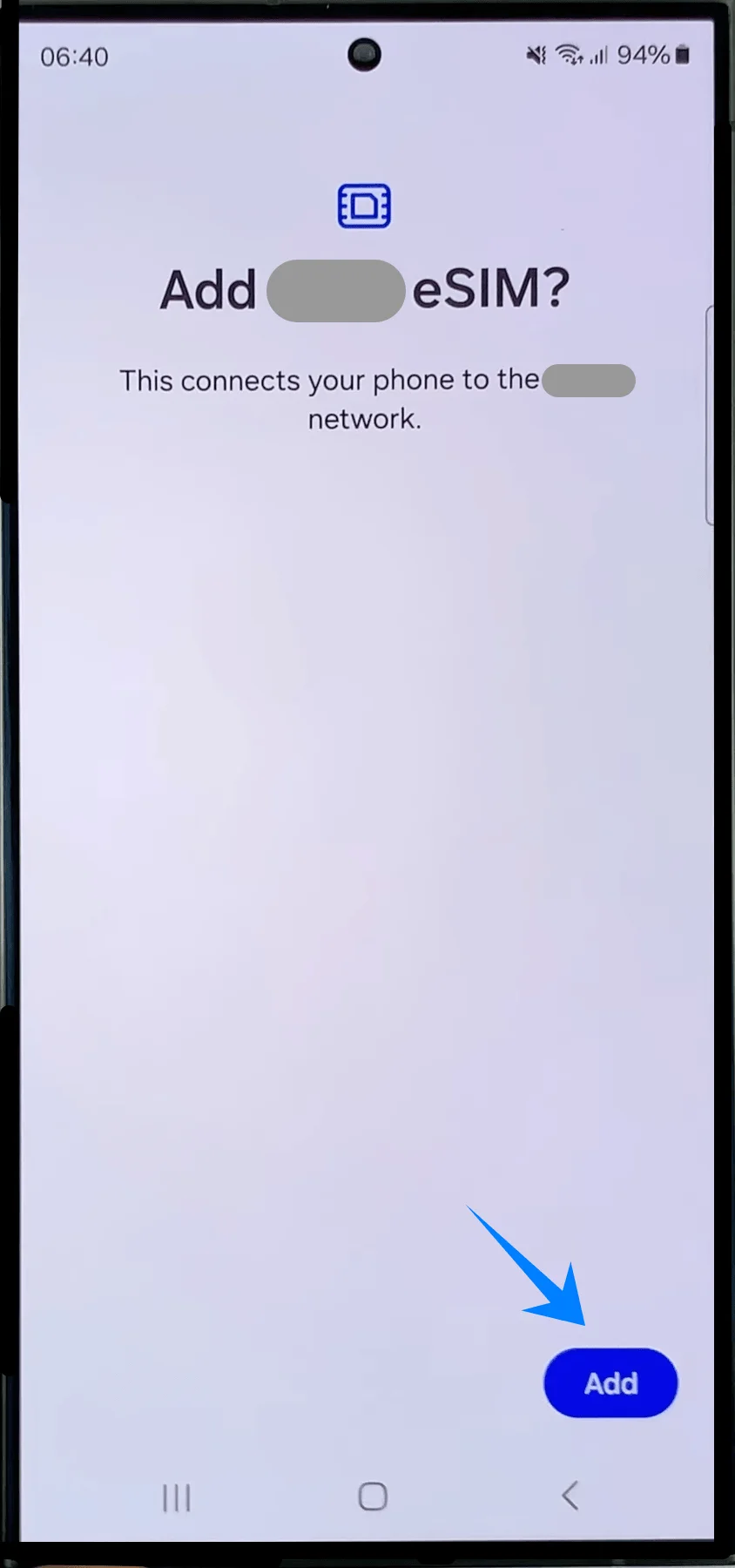
The phone will now download and install the eSIM profile.
Step 7: Enable the eSIM
Once installation completes, tap Settings if prompted.
In the SIM manager screen, locate the newly added eSIM.
Tap the switch next to the eSIM to turn it on.
A colored toggle indicates the eSIM is active.
Step 8: Configure SIM Preferences
If the phone asks how to use the new plan:
Select the preferred line for:
Mobile data
Calls
SMS messages
Tap Done or Confirm.
Method 2: Install eSIM Using Manual Input
Step 1: Open the Settings App
Open the Settings app.
Step 2: Open SIM Manager
Inside Settings:
Tap Connections
Tap SIM manager
Step 3: Start the eSIM Setup
Inside SIM manager, tap Add eSIM
The phone will open the eSIM setup screen.
Step 4: Open the Carrier Setup Page
Tap Scan QR code
Samsung opens the QR scanner page first, even when using manual activation.
Step 5: Open Manual Activation
At the bottom of the QR scanner screen:
Tap Enter activation code
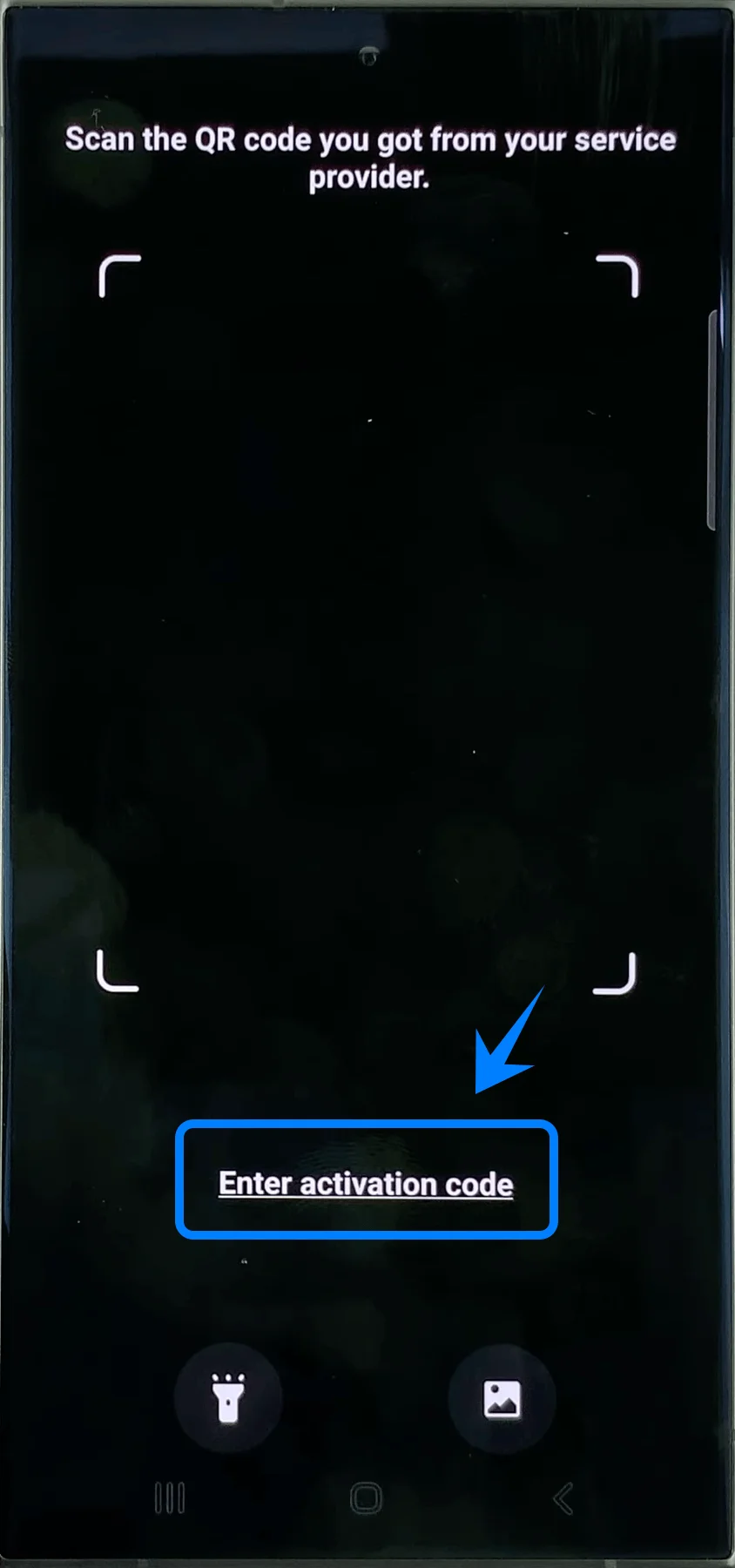
The Galaxy S24 Ultra will open the manual activation page.
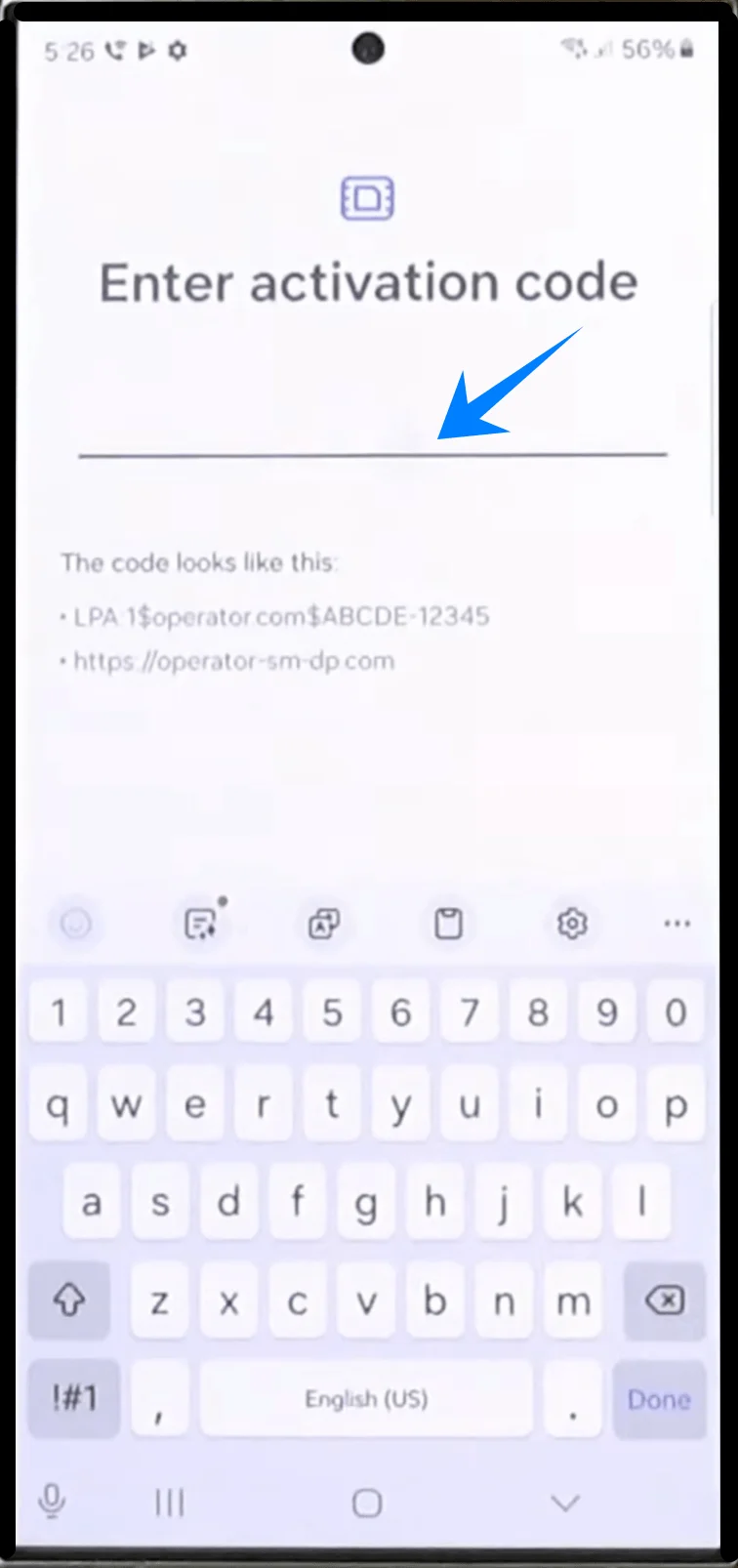
Step 6: Enter the Activation Code
Tap the empty activation field.
Type the full activation code exactly as provided by your carrier.
Be careful not to:
add spaces
remove symbols
change uppercase or lowercase letters
Step 7: Confirm the Code
After entering the activation code:
Tap Done on the keyboard.
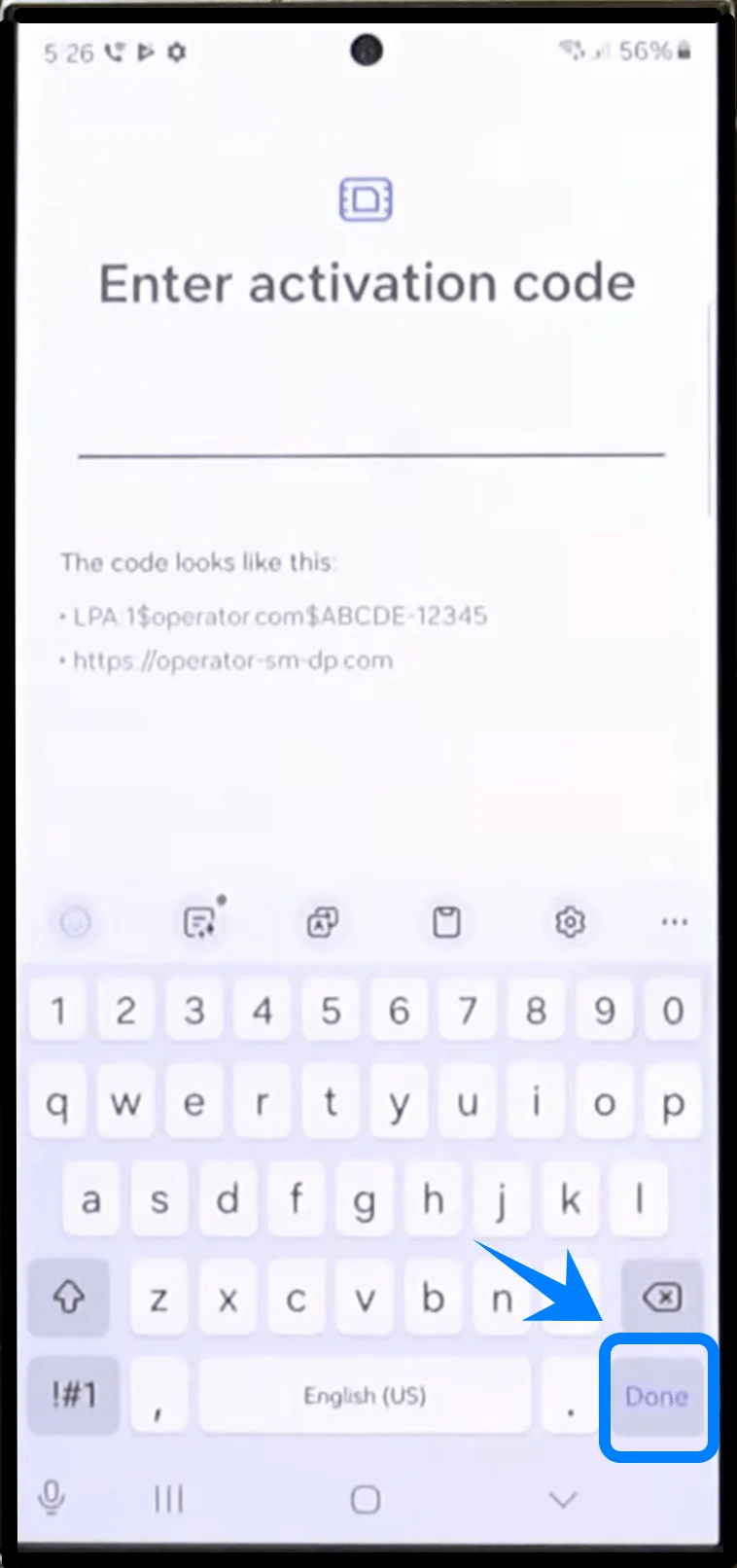
The device will verify the activation information.
Step 8: Download the eSIM Profile
After verification:
Tap Add or Download
The Galaxy S24 Ultra will now:
connect to the carrier server
download the eSIM profile
install the mobile plan
This process may take several minutes.
Step 9: Enable the eSIM
After installation finishes:
Return to: Settings → Connections → SIM manager
Locate the newly installed eSIM.
Turn on the switch next to the eSIM profile.
When activated:
the carrier name appears
signal bars appear
mobile network becomes available
How to Confirm the eSIM Was Installed Successfully
Check SIM Manager
Open: Settings → Connections → SIM manager
Confirm that:
the eSIM profile is listed
the toggle switch is enabled
the carrier name is visible
Check Mobile Signal
Look at the top-right corner of the screen.
A successful installation usually displays:
signal bars
LTE / 4G / 5G indicator
Test Mobile Service
Perform at least one of the following:
Open a webpage using mobile data
Make a phone call
Send a text message
Note: Some eSIM plans may not include voice calling support, so this feature might not be available depending on your plan.
If all services work normally, the eSIM installation was successful.
More Samsung Galaxy eSIM Guides
Using another Galaxy phone? These related eSIM setup guides may help.
Conclusion
Now that the installation is complete, your iRoamly eSIM should be active and ready to use on your Galaxy S24 Ultra. With eSIM technology, mobile plans can be managed digitally without needing to insert or replace a physical SIM card.
Whether you need mobile data for daily use or travel, you can easily control your plan, network settings, and SIM preferences directly from your device settings whenever needed.