
eSIM is becoming a more popular way to stay connected because it makes mobile setup much simpler and more flexible.
Instead of inserting and swapping physical SIM cards, an eSIM can be downloaded directly to your phone in just a few steps. There’s no SIM tray to open, no tiny card to keep track of, and no extra tools required.
For travelers and users who frequently switch networks, eSIM also makes it easier to prepare mobile data before departure.
Since the Galaxy S25 FE supports eSIM, you can install your iRoamly eSIM directly from the phone’s settings menu. This guide will walk you through the full setup process step by step.
Preparations Before Setting Up iRomly eSIM
Connect the Galaxy S25 FE to stable Wi-Fi.
Confirm the phone is unlocked and eSIM-capable. Samsung and iRoamly list the Galaxy S25 FE as eSIM-supported, but regional and carrier variants can still differ.
Keep your iRoamly QR code or manual activation details ready on another device, in your email, or in your iRoamly account.
Install before travel when practical. iRoamly recommends installing close to departure, commonly 1-2 days before travel.
Do not casually delete the eSIM after installation. Many eSIMs cannot simply be reused after removal unless support issues new details.
iRoamly plan validity starts upon activation. In most cases, activation begins when the eSIM connects to a supported network. For exact activation details, check your destination plan page.
iRoamly plans may be data-only. Voice calls and SMS vary by plan, so check the specific plan details before relying on them.
Shared Setup Steps for Both Methods
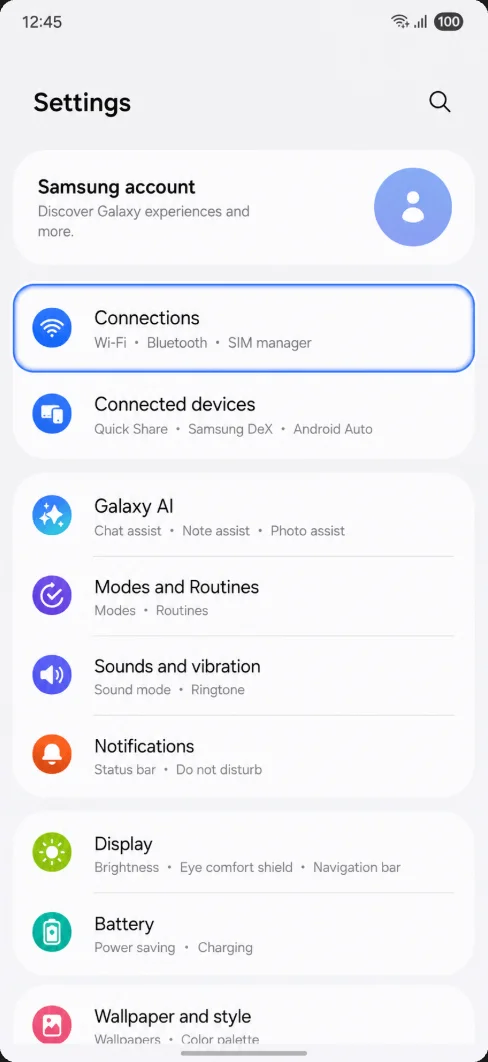
Open Settings, then tap Connections. You should see the main connection settings for Wi-Fi, Bluetooth, SIMs, and mobile networks.
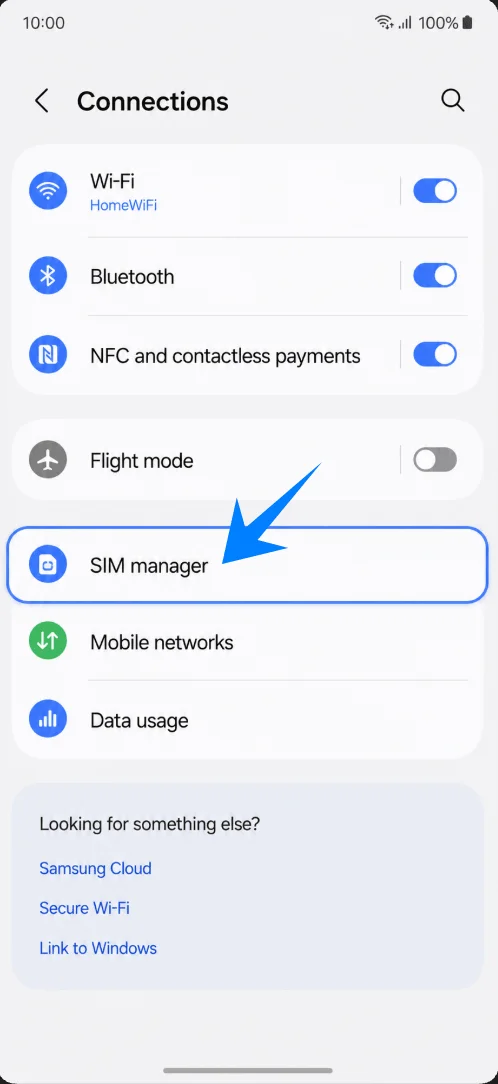
Tap SIM manager. You should see the page where Samsung manages physical SIMs, eSIMs, preferred SIMs, and data options.
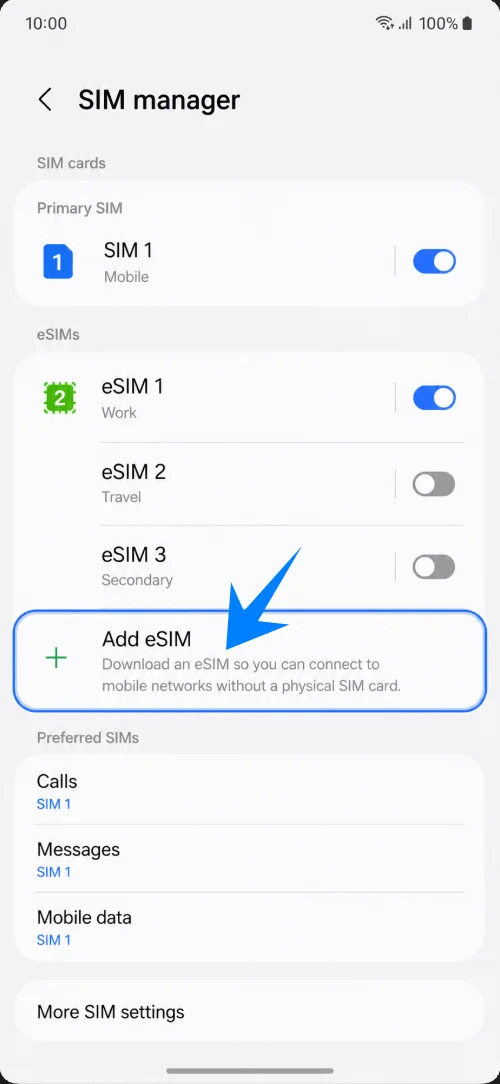
Tap Add eSIM. The phone should open the eSIM setup options.
Method 1: Install the iRoamly eSIM by Scanning a QR Code
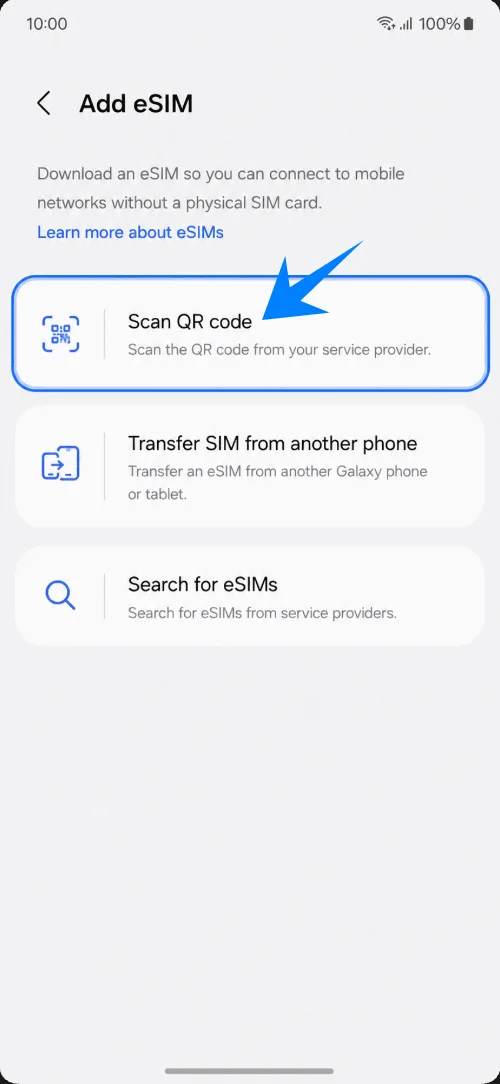
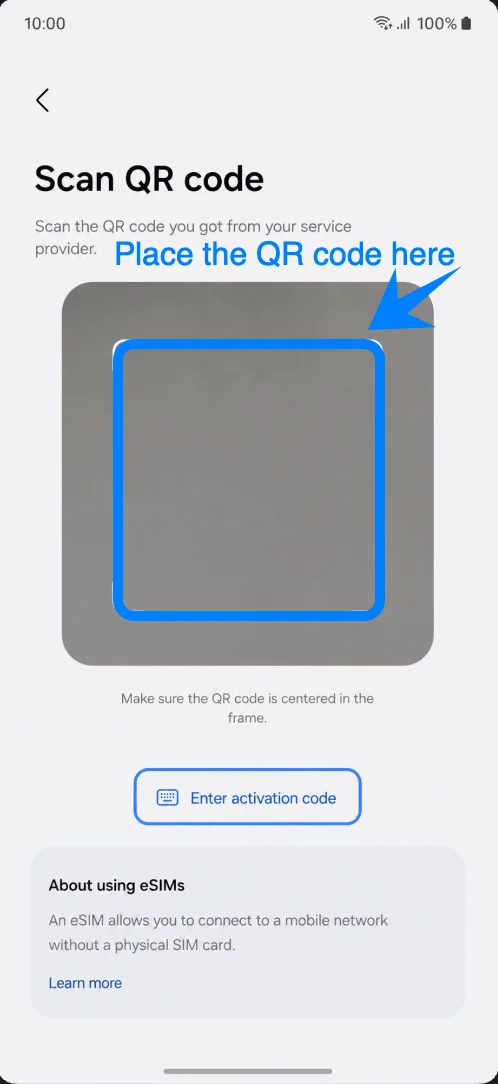
On the Add eSIM screen, tap Scan QR code. The camera scanner should open.
Point the scanner at the iRoamly travel eSIM QR code. Keep the QR code flat, bright, and fully inside the scan box until the phone recognizes it.
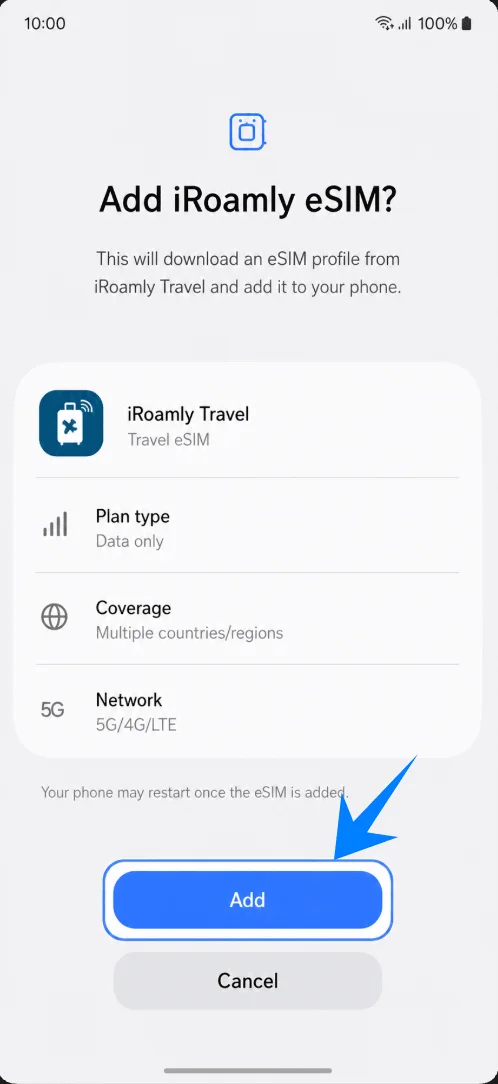
When Samsung shows the detected eSIM, tap Add to download the iRoamly eSIM profile. Stay on Wi-Fi while the download finishes.
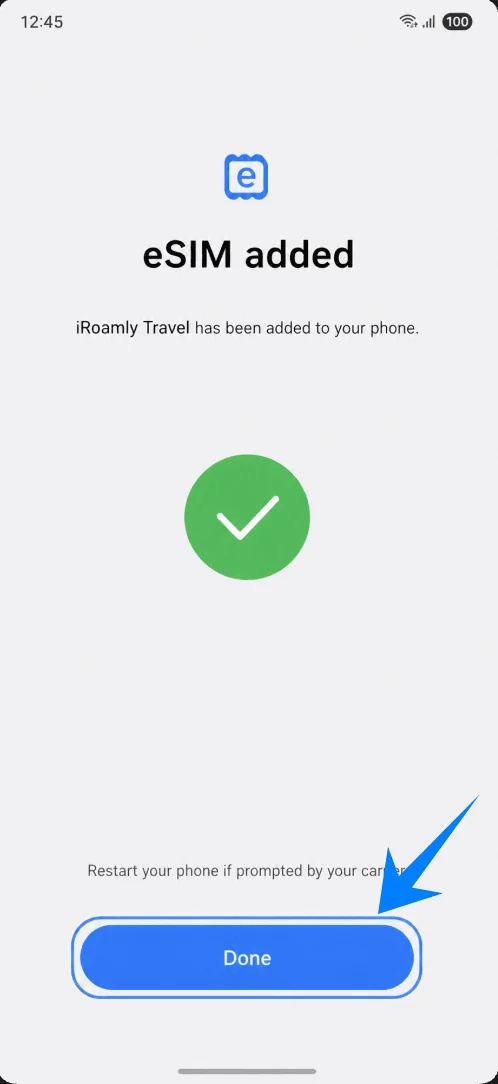
Tap Done when the eSIM added screen appears. If the phone asks you to restart, restart before trying to use mobile data.
Method 2: Install the iRoamly eSIM by Manual Entry
On the Add eSIM screen, tap Scan QR code. Samsung opens the same QR scanner page used for QR setup.
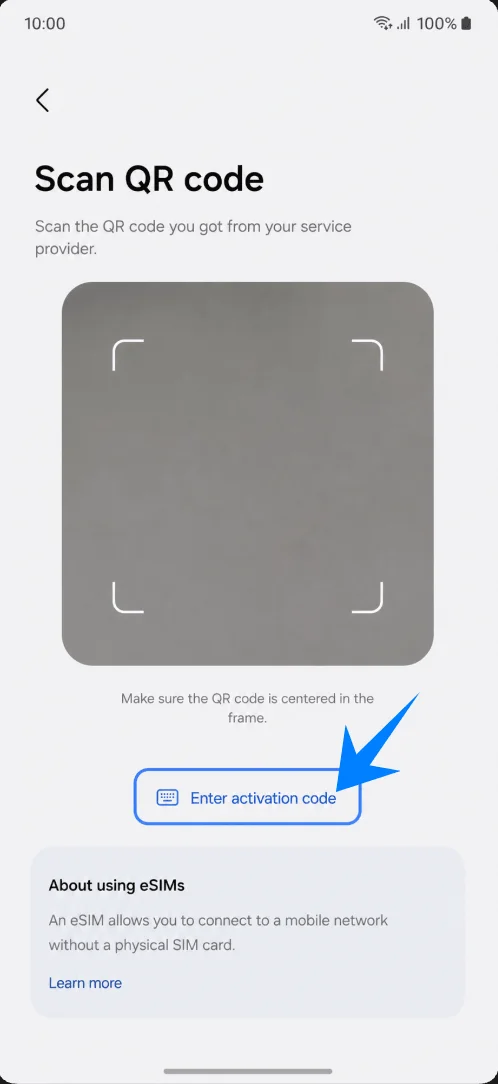
On the QR scanner page, tap Enter activation code. This switches from camera scanning to manual activation.
Tap the Activation code field, then enter the complete iRoamly activation string exactly as provided. Remove extra spaces or line breaks, then tap Continue.
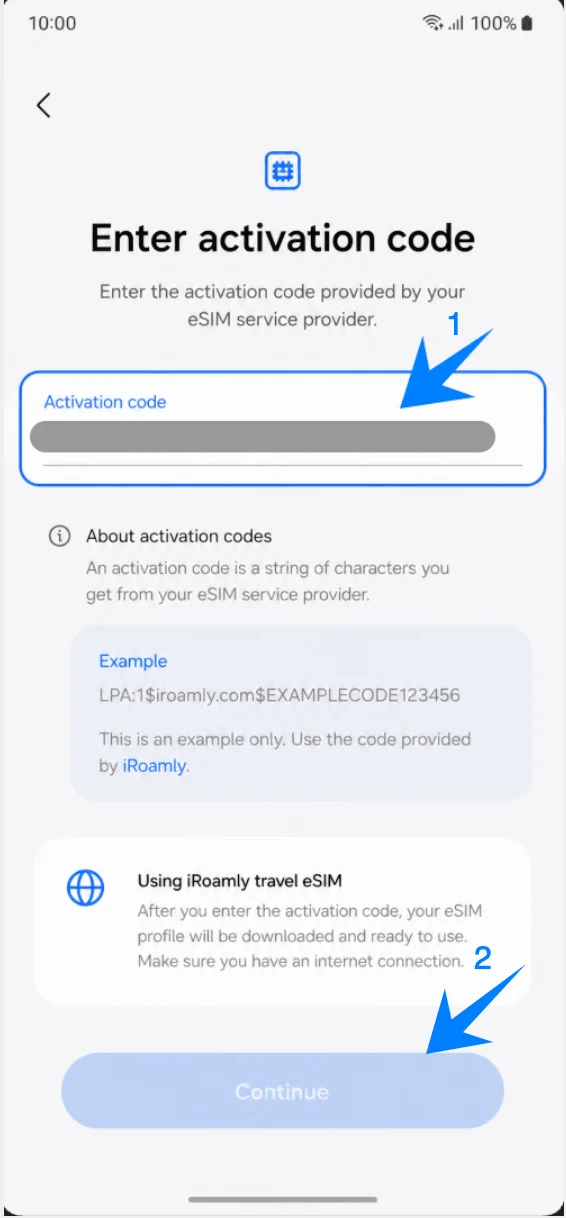
When Samsung finds the iRoamly eSIM, tap Add to download it. Keep Wi-Fi connected during the download.
Tap Done when the eSIM added screen appears. Restart if the phone prompts you to do so.
How to Confirm the iRoamly eSIM Was Installed
Open Settings > Connections > SIM manager, then check the eSIMs section. iRoamly Travel should appear and the line switch should be On.
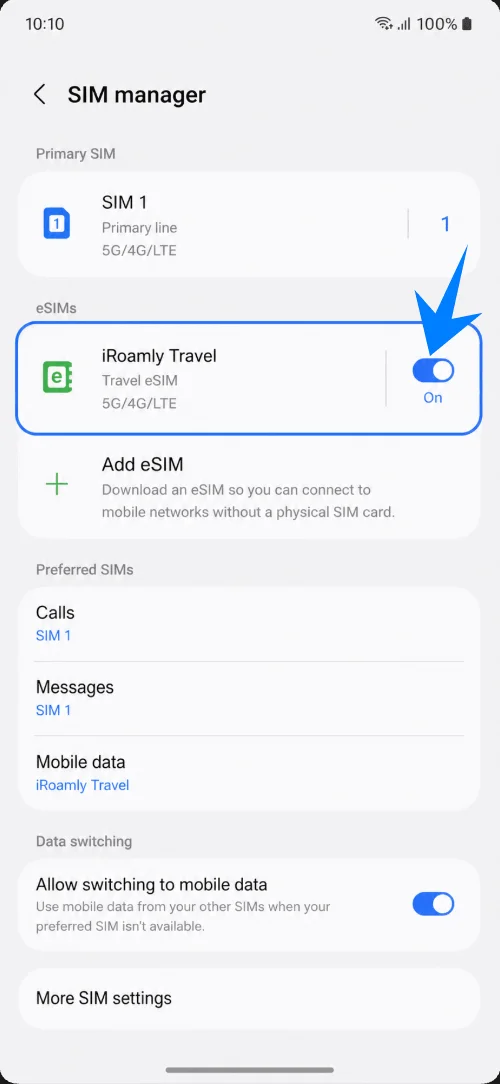
Stay on the SIM manager page and confirm Mobile data can be set to iRoamly Travel. That proves the phone can use the installed profile as a data line.
Set Up the iRoamly eSIM for Travel Data
In SIM manager, tap Mobile data, then choose iRoamly Travel. On some carrier builds this may appear under Preferred SIMs or Primary SIM.
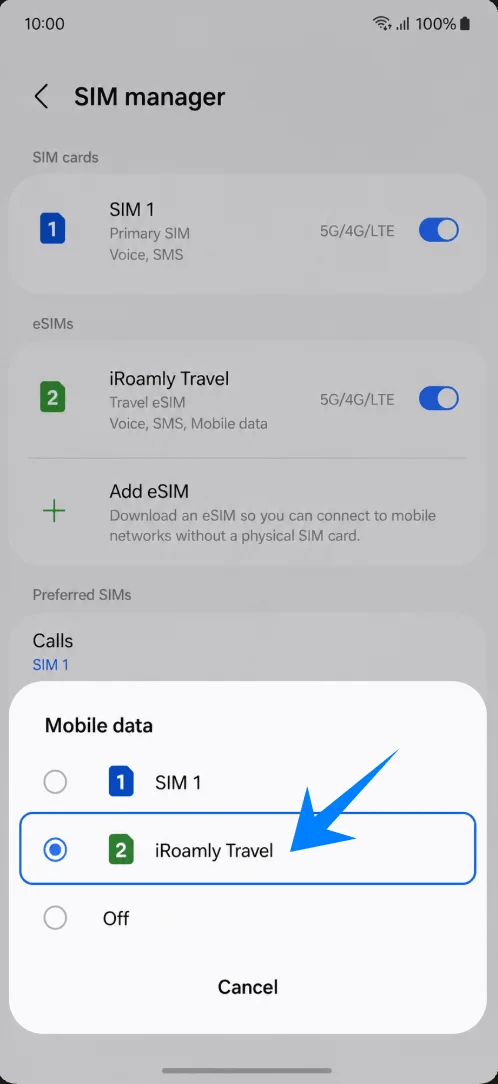
Review Allow switching to mobile data or similar data-switching options. Keep switching off if you want to prevent the phone from falling back to your primary SIM for paid roaming data.

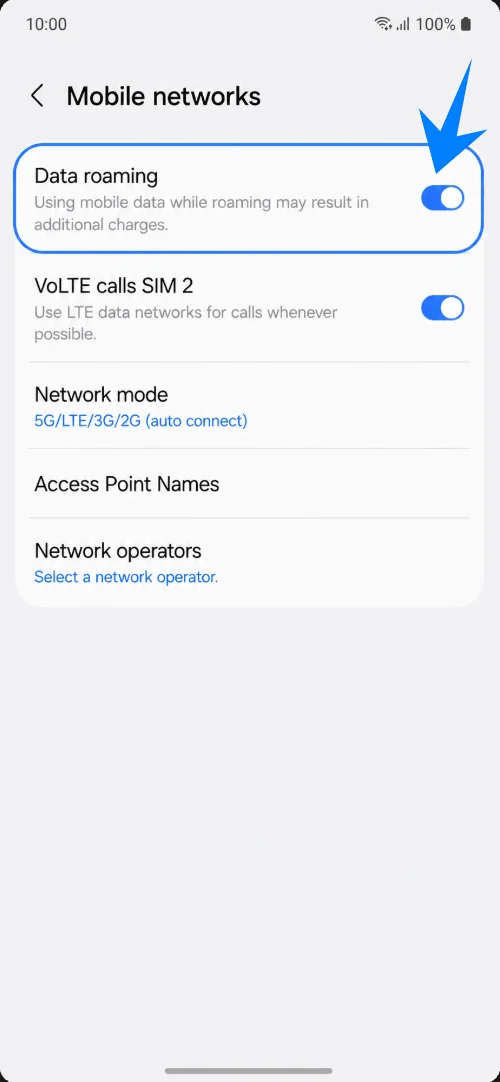
Open Settings > Connections > Mobile networks, then turn Data roaming on for travel use if your iRoamly destination plan requires roaming.
Troubleshooting
No Add eSIM: update the phone, check that the model has an EID, confirm the phone is unlocked, and remember that regional or carrier firmware can hide eSIM features.
QR code already used or fails to scan: use the manual method, check Wi-Fi, increase screen brightness on the QR display, and contact iRoamly if the code was already consumed.
Manual code fails: enter the full LPA:1$... activation string with no spaces. If iRoamly only shows separate details and Samsung only shows one field, use iRoamly's Samsung instructions or ask support for the complete activation code string.
Installed but no data: choose iRoamly Travel for Mobile data, turn on Data roaming if required, disable unwanted data switching, restart the phone, and confirm the plan covers your destination.
Activation pending: wait on Wi-Fi, then toggle airplane mode or restart. Some plans do not fully activate until the phone reaches a supported destination network.
Reinstall risk: disable the iRoamly line instead of deleting it unless iRoamly support tells you to remove it.
No voice or SMS: many travel eSIM plans are data-only. Check your exact iRoamly plan before expecting calls or texts.
Conclusion
Once the iRoamly eSIM has been added successfully, your Galaxy S25 FE can use a travel data line without requiring any physical SIM card changes.
The digital installation process not only reduces setup hassle, but also makes it easier to manage multiple lines on one device, which is one of the key advantages of eSIM technology for international travel and flexible mobile connectivity.