
eSIM makes staying connected much easier, especially for travelers who want a faster and more flexible setup experience.
Instead of handling a physical SIM card, waiting for delivery, or swapping cards during a trip, you can simply download a mobile plan directly to your Galaxy S25 Ultra.
Another advantage of eSIM is that it allows you to keep your primary SIM active while adding a separate travel data line on the same device.
If you’ve purchased an iRoamly eSIM and are ready to set it up, this guide will walk you through the installation and activation process step by step on the Galaxy S25 Ultra.
Meet iRoamly for Easier Travel Connectivity
iRoamly eSIM is a travel eSIM service for mobile data in many destinations worldwide. Available options may include destination, local, regional, or global plans, with allowances, validity periods, plan types, and features depending on the destination.
After installation on a compatible phone, the travel data can help with navigation, messaging, bookings, ride-hailing, translations, and trip updates.
For a compatible Samsung Galaxy S25 Ultra, iRoamly can be installed as a separate eSIM profile and managed alongside your existing SIM settings. Continue with the QR-code or manual-entry steps below, then confirm the profile and choose it for mobile data when needed.
Preparations Before Setting Up iRoamly eSIM
Connect the Galaxy S25 Ultra to stable Wi-Fi before adding the eSIM.
Confirm the phone is unlocked and eSIM-capable in your region. Samsung lists the Galaxy S25 Ultra as eSIM-supported, but country, carrier firmware, and network-lock status can still affect whether Add eSIM appears.
Keep the iRoamly QR code or manual activation details ready from your iRoamly order email, success page, or account page.
For a single-destination trip, a country-specific option such as an eSIM for Italy can be prepared before you use the Samsung installation steps.
Traveling to Turkey? Installing the travel eSIM before departure can make the data line easier to switch on after you land.
Do not delete an installed iRoamly eSIM casually. Most eSIMs cannot simply be reinstalled after removal; turn the line off in SIM manager instead unless support tells you to remove it.
Install 1-2 days before travel only when your selected iRoamly plan timing allows it. iRoamly eSIM validity starts from activation; the current iRoamly United States travel eSIM page defines that activation trigger as the eSIM connecting to any supported network. Other destinations or packages may define the trigger differently, so check the exact plan details.
Check whether your specific iRoamly plan includes voice calls or SMS. The current iRoamly United States travel eSIM page lists Plan Type: Data Only; voice/SMS availability varies by plan and should not be assumed.
Shared Setup Steps for Both Methods
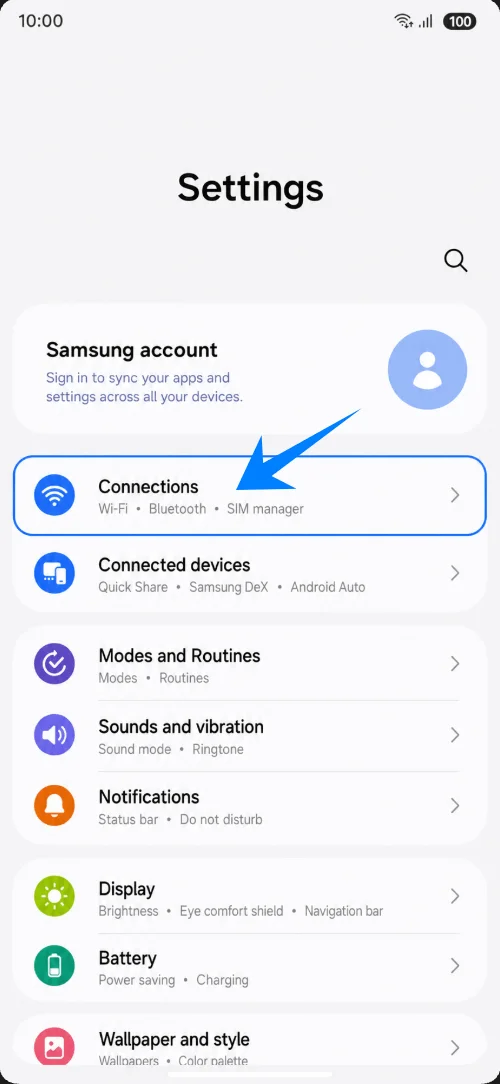
Open Settings, then tap Connections. You should see the Galaxy S25 Ultra network settings page.
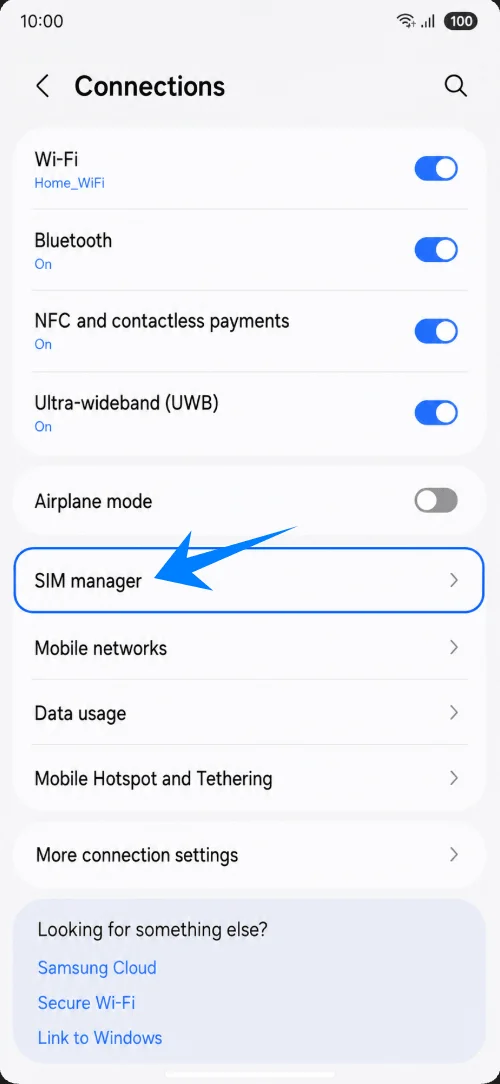
Tap SIM manager. You should see SIM cards, eSIM options, and preferred SIM controls.
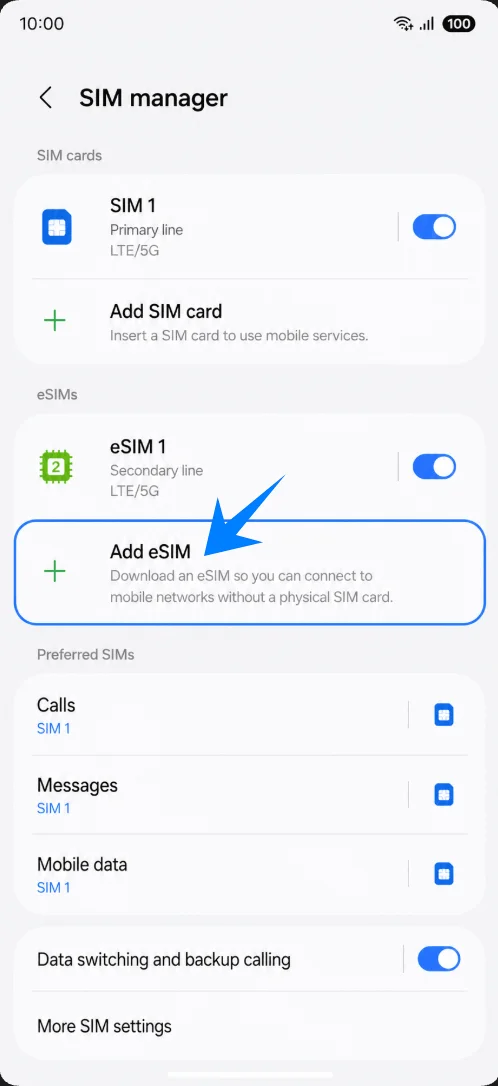
Tap Add eSIM under eSIMs. The Galaxy S25 Ultra should open Samsung's eSIM setup choices.
Method 1: Install the iRoamly eSIM by Scanning the QR Code
Tap Scan QR code on the Add eSIM screen. The QR scanner for adding an eSIM should open.
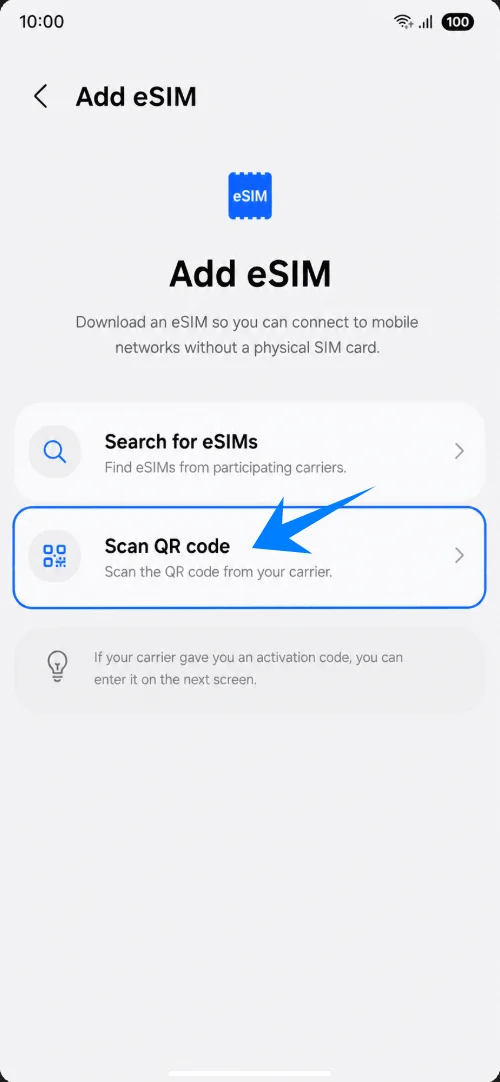
Point the scanner at the iRoamly QR code from your order email, success page, or iRoamly account page. Keep the code inside the frame until the phone recognizes it.
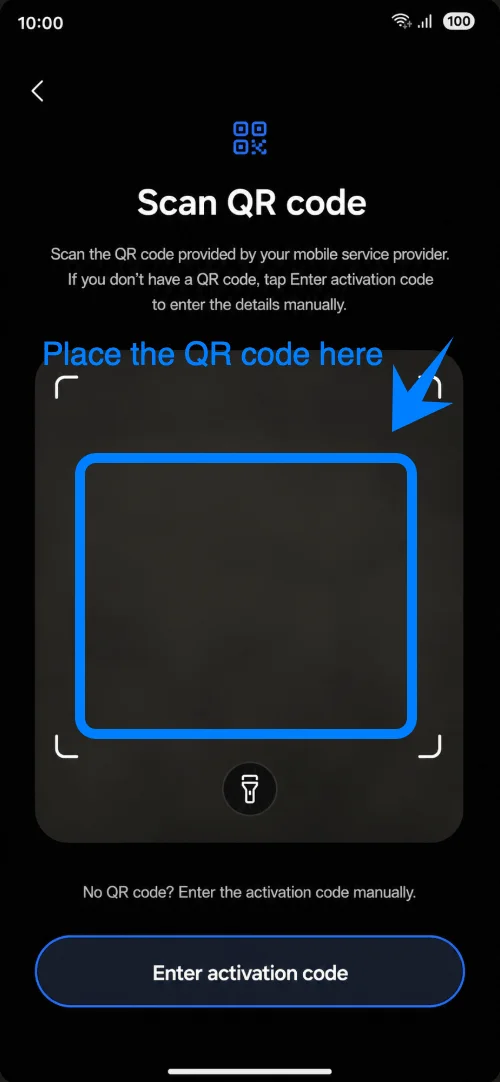
Tap Add when the phone shows Add iRoamly travel eSIM?. Keep Wi-Fi connected while the eSIM profile downloads.
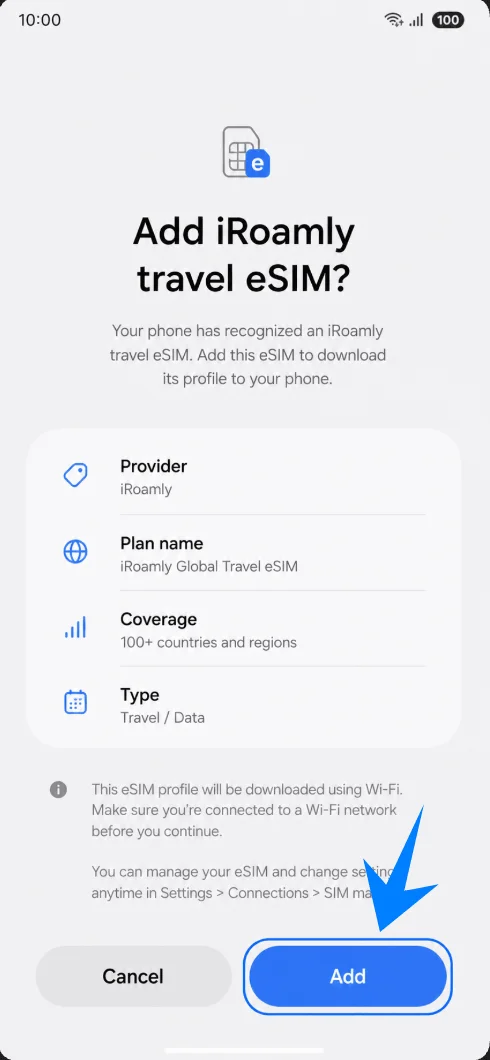
Tap Done when the screen shows iRoamly travel eSIM added. Restart only if the phone or carrier prompt asks you to restart.
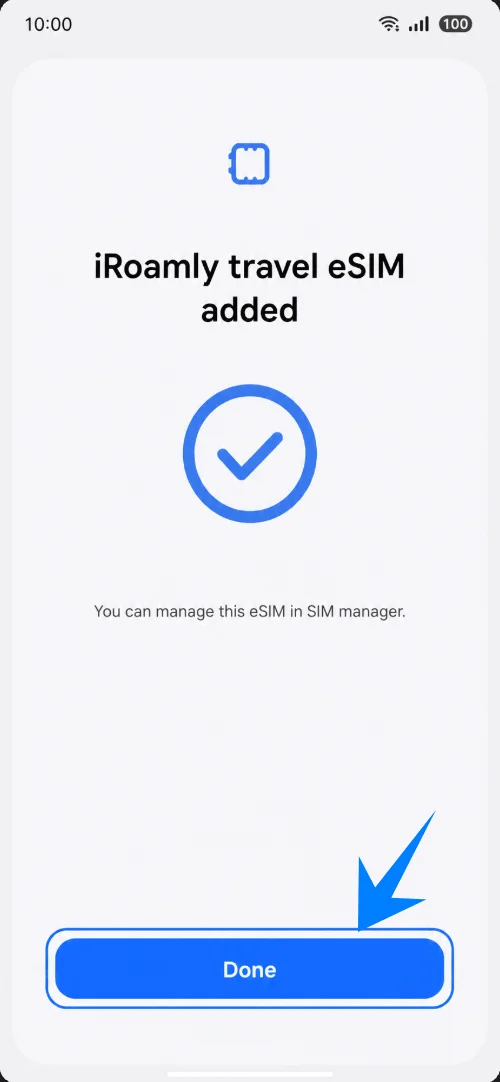
Method 2: Install the iRoamly eSIM by Manual Entry
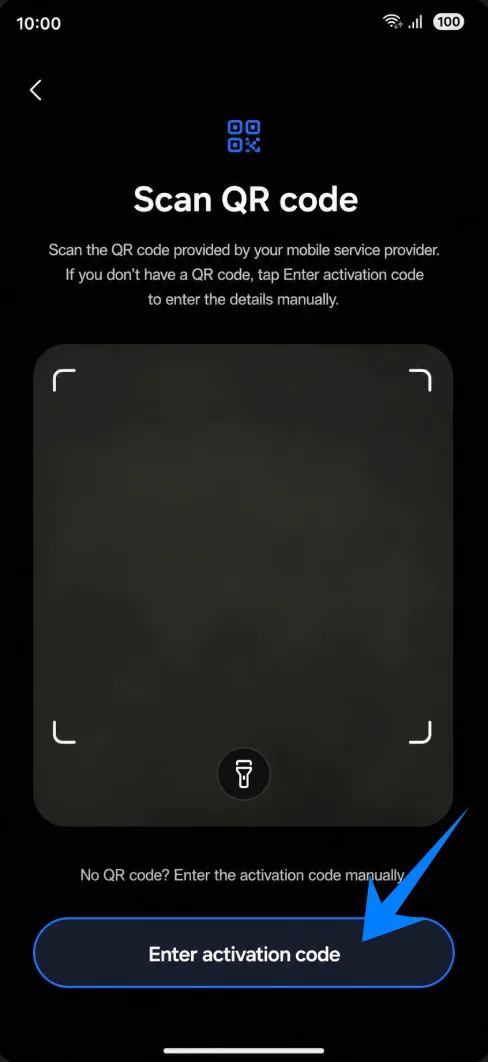
Tap Scan QR code on the Add eSIM screen. Samsung places the manual-entry option on the QR scanner page, so this first tap is still required.
Tap Enter activation code at the bottom of the QR scanner page. The phone should open Samsung's manual activation screen.
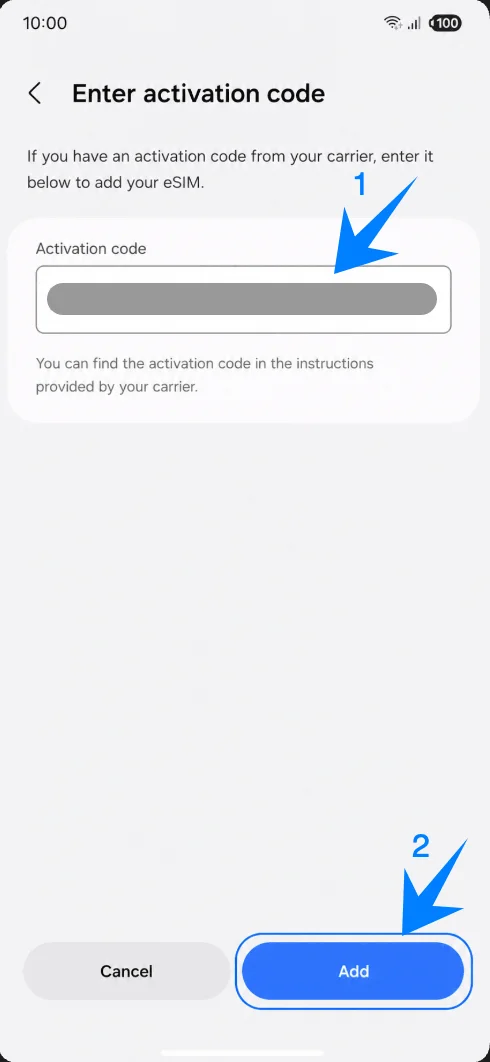
Paste the complete iRoamly activation string into Activation code, then tap Add. Samsung's current manual screen uses one Activation code field, not separate SM-DP+ Address and Activation Code fields. For Samsung, the complete code commonly follows the Android format LPA:1$SM-DP+ Address$Activation Code; include any confirmation code only if iRoamly explicitly provides one for the Samsung activation string.
Tap Add when the phone shows Add iRoamly travel eSIM?. Keep the Galaxy S25 Ultra connected to Wi-Fi while it downloads the eSIM profile.
Tap Done after the phone confirms that iRoamly travel eSIM was added. Restart only if prompted.
How to Confirm the iRoamly eSIM Was Installed
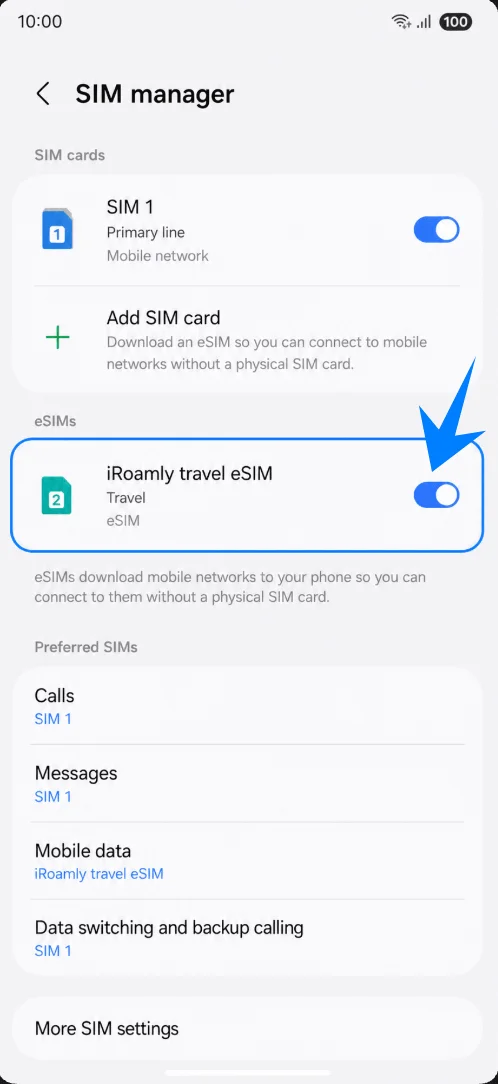
Open Settings > Connections > SIM manager and confirm that iRoamly travel eSIM appears under eSIMs with its switch turned on. If it is off, tap the switch to enable it.
Set Up the iRoamly eSIM for Travel Data
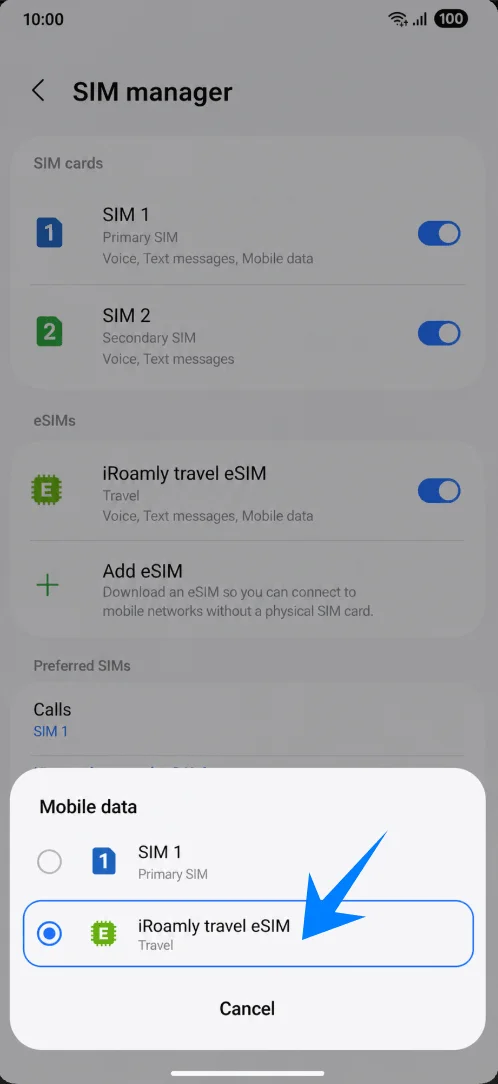
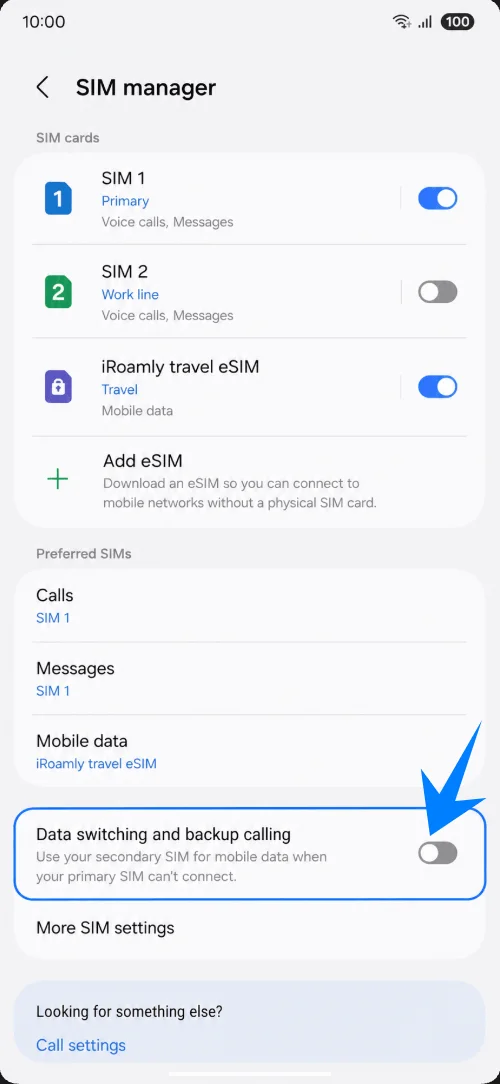
In Settings > Connections > SIM manager, tap Mobile data, then select iRoamly travel eSIM. Leave calls and messages on your primary SIM unless your iRoamly plan specifically includes those services.
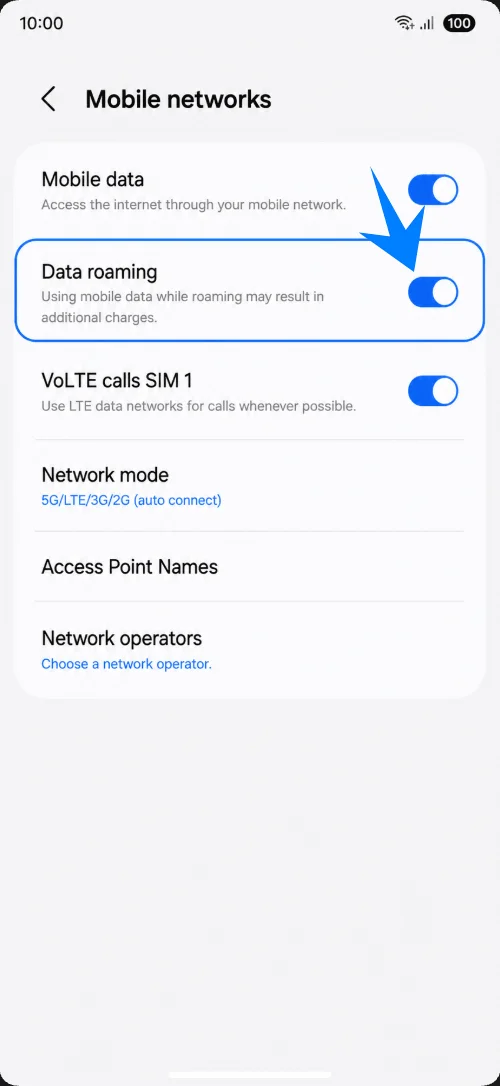
Open Settings > Connections > Mobile networks, keep Mobile data on, and turn on Data roaming if the iRoamly plan or destination instructions require roaming.
Return to Settings > Connections > SIM manager and keep Data switching and backup calling off unless you intentionally want another SIM to take over mobile data. This helps prevent accidental roaming charges on your primary SIM.
Troubleshooting
No Add eSIM: update One UI, confirm the Galaxy S25 Ultra is unlocked, check that the phone shows an EID in device status, and confirm that your regional model and carrier firmware support eSIM.
QR code already used or will not scan: use the manual method, confirm Wi-Fi is working, and contact iRoamly support before deleting an installed eSIM. Many eSIM QR codes are single-use.
Installed but no data: select iRoamly travel eSIM for Mobile data, enable Data roaming when required, restart the phone, and confirm that your iRoamly plan covers the destination you are in.
Activation is pending: keep the eSIM installed and wait until the Galaxy S25 Ultra connects to a supported destination network. Some travel eSIMs complete activation or start validity only after the first supported-network connection.
Region or carrier limitations: Samsung menu labels and eSIM availability can vary by country, carrier firmware, and network-lock status even on the same Galaxy S25 Ultra model name.
Voice or SMS does not work: check the exact iRoamly plan details. A plan listed as Data Only is for mobile data and does not include normal cellular voice calls or SMS.
Reinstall risk: if you are not ready to use the iRoamly eSIM, disable the line in SIM manager instead of removing it unless iRoamly support confirms deletion is safe.
More Samsung Galaxy eSIM Setup Guides
Setting up another Samsung phone? These eSIM activation guides may help.
Conclusion
By the time the iRoamly eSIM appears in the Galaxy S25 Ultra SIM manager and finishes downloading, the main installation process is already complete. From there, you can adjust mobile data preferences, roaming settings, and SIM switching options directly through Samsung’s settings menu.
Since eSIMs are digitally installed, managing your travel connectivity becomes more flexible even after setup is finished. Before departure, it’s worth checking that the correct eSIM profile is active so the phone can connect properly once you reach your destination.