
The Galaxy Z Flip5 5G makes travel connectivity more flexible with built-in eSIM functionality that allows you to activate a mobile data plan digitally from your phone settings.
Instead of relying on physical installation methods, you can add an eSIM profile directly to your Samsung device using a QR code or manual activation details.
Samsung's eSIM support also makes it easier to manage your preferred SIM settings directly from the device whenever you need to switch between lines or control data usage.
If you're setting up an iRoamly eSIM for the first time, this guide will walk you through each step on the Galaxy Z Flip5 5G. You'll learn how to install the eSIM using both available methods, verify that the profile was added correctly, and configure the settings needed for travel connectivity.
Preparations Before Setting Up iRomly eSIM
Connect the Galaxy Z Flip5 5G to stable Wi-Fi before starting.
Confirm that your Galaxy Z Flip5 5G model supports eSIM in your region and is not carrier-locked.
Keep your iRoamly QR code or manual activation details available from your iRoamly account or purchase email.
Install the eSIM 1-2 days before travel when the plan instructions allow it, but check the specific plan first.
iRoamly eSIM validity starts from activation. Check your current iRoamly plan details for the exact activation trigger before installing.
iRoamly travel eSIM plans may not include voice calls or SMS. Voice/SMS availability varies by plan, so verify the specific plan details.
Do not delete the iRoamly eSIM casually after installation. Many eSIM profiles cannot simply be reinstalled after removal.
Shared Setup Steps
Open Settings, then tap Connections. You should see Samsung's connection settings, including Wi-Fi, Bluetooth, mobile network, and SIM options.
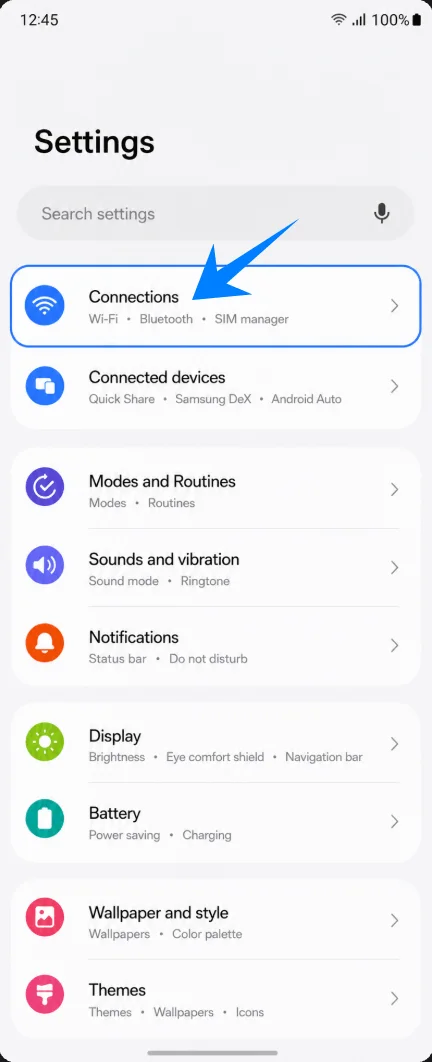
Tap SIM manager. This opens the screen where Samsung lists physical SIMs, eSIMs, and preferred SIM choices.
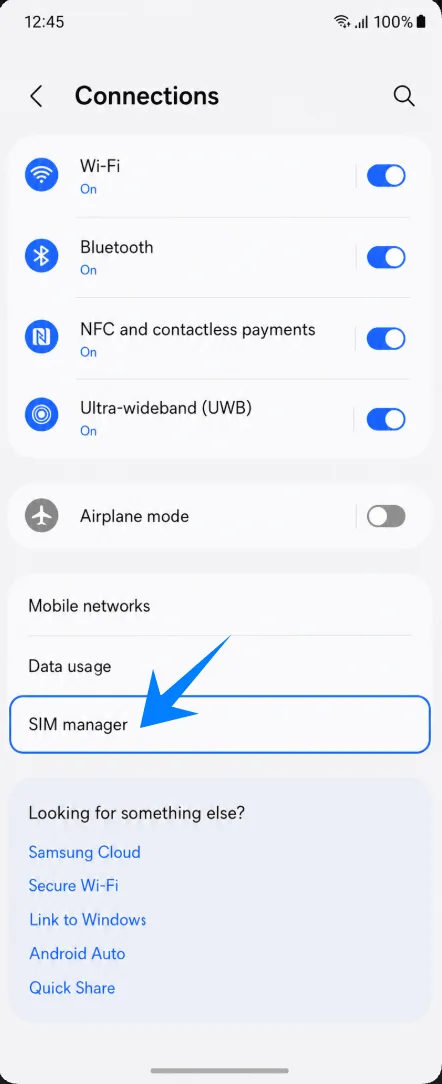
Tap Add eSIM. The phone will open the Samsung eSIM setup options.
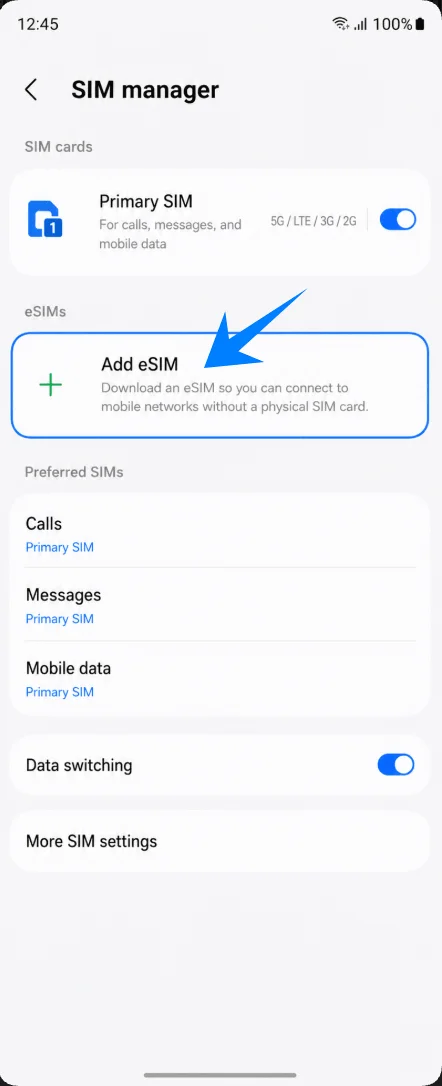
Method 1: Install the iRoamly eSIM by Scanning a QR Code
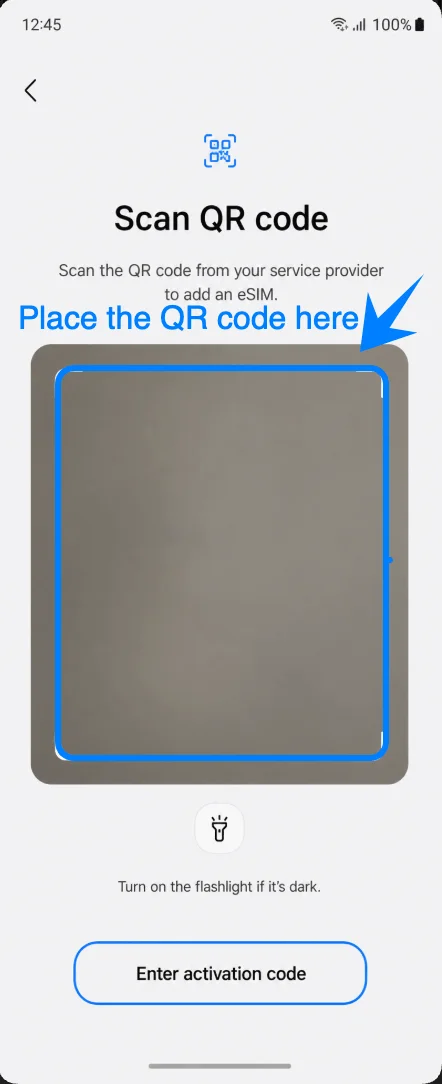
On the Add eSIM screen, tap Scan QR code. The phone will open the QR scanner for adding an eSIM profile.
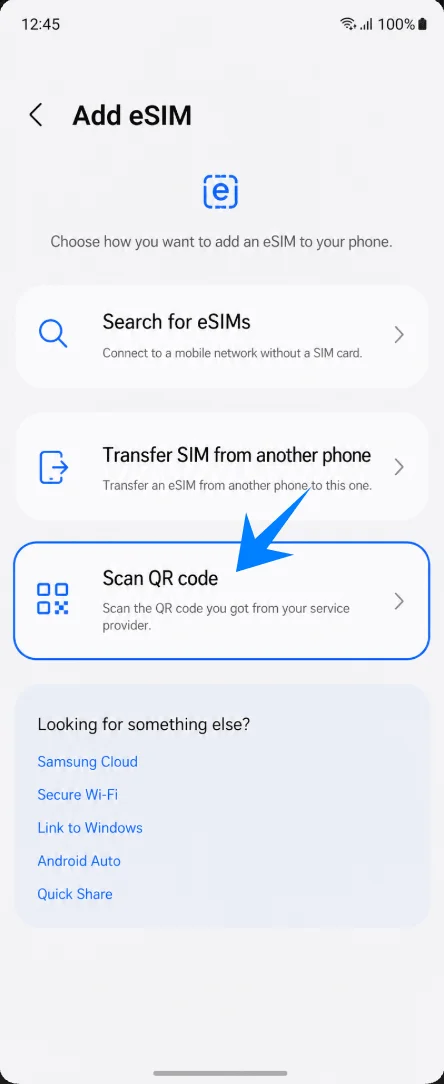
Point the Galaxy Z Flip5 5G camera at the iRoamly eSIM QR code. Keep the QR code inside the scan frame until the phone detects the eSIM profile.
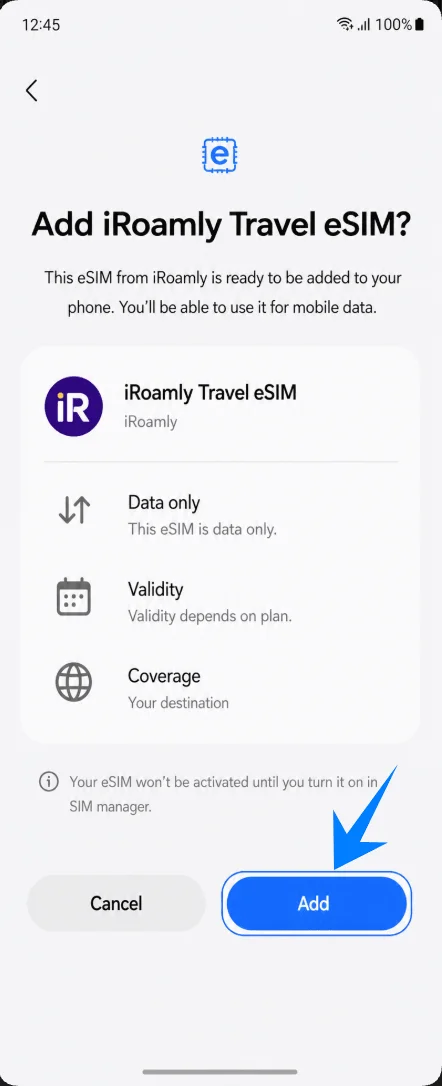
When the Add iRoamly Travel eSIM? confirmation appears, review the plan label, then tap Add. The phone will begin downloading the iRoamly eSIM profile over Wi-Fi.
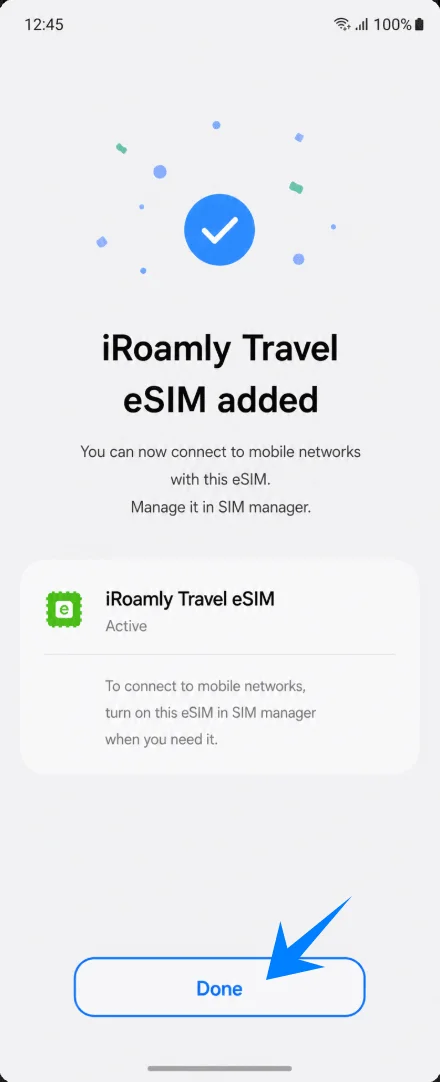
When the success screen says iRoamly Travel eSIM added, tap Done. The eSIM is now installed and can be managed in SIM manager.
Method 2: Install the iRoamly eSIM by Manual Entry
Open Settings, tap Connections, tap SIM manager, then tap Add eSIM. The phone will show the Samsung eSIM setup choices.
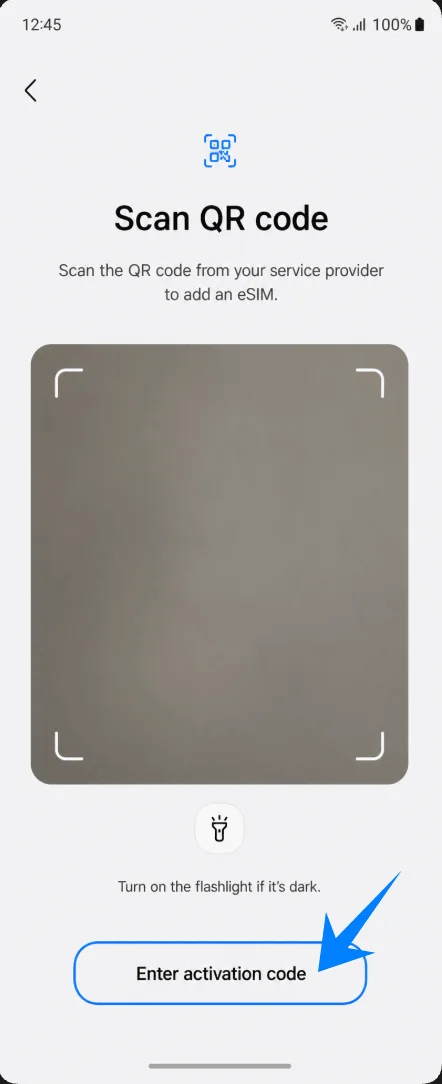
Tap Scan QR code. On Samsung One UI, the manual-entry option is reached from the QR scanning screen.
On the Scan QR code screen, tap Enter activation code. This opens Samsung's manual eSIM activation page.
Tap the Activation code field and enter the complete iRoamly activation string. If iRoamly gives you separate details, use LPA:1$SM-DP+ Address$Activation Code, then tap Connect.
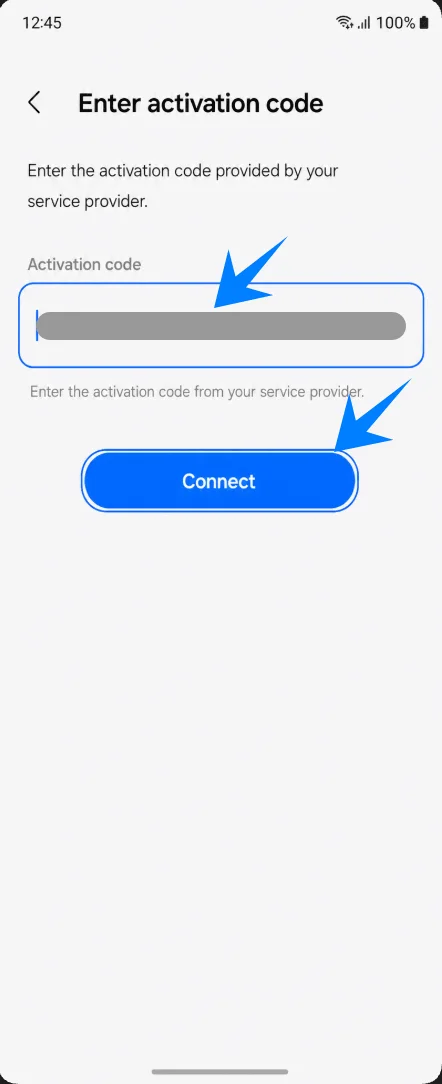
When the Add iRoamly Travel eSIM? confirmation appears, tap Add. The phone will download the iRoamly eSIM profile over Wi-Fi.
When iRoamly Travel eSIM added appears, tap Done. The manual setup is complete.
How to Confirm the iRoamly eSIM Was Installed
Open Settings > Connections > SIM manager. Confirm that iRoamly Travel eSIM appears under eSIMs and that its toggle is on.
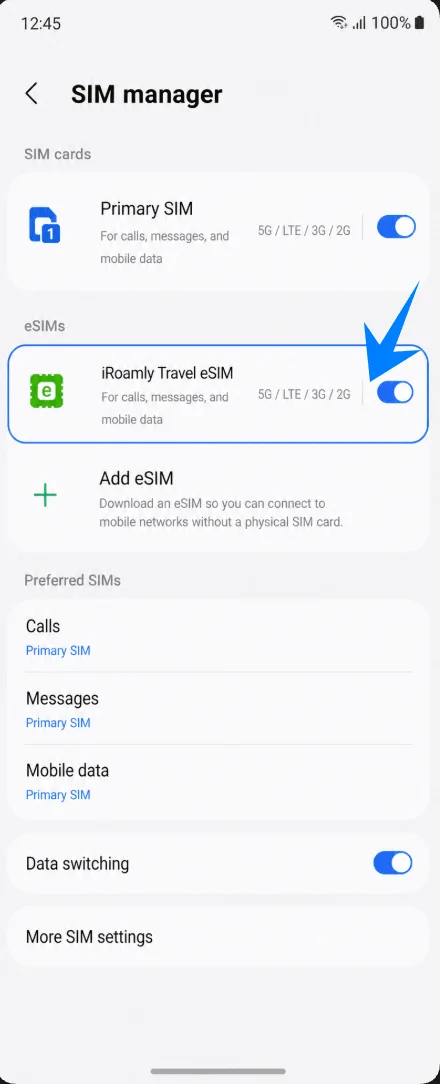
Set Up the iRoamly eSIM for Travel Data
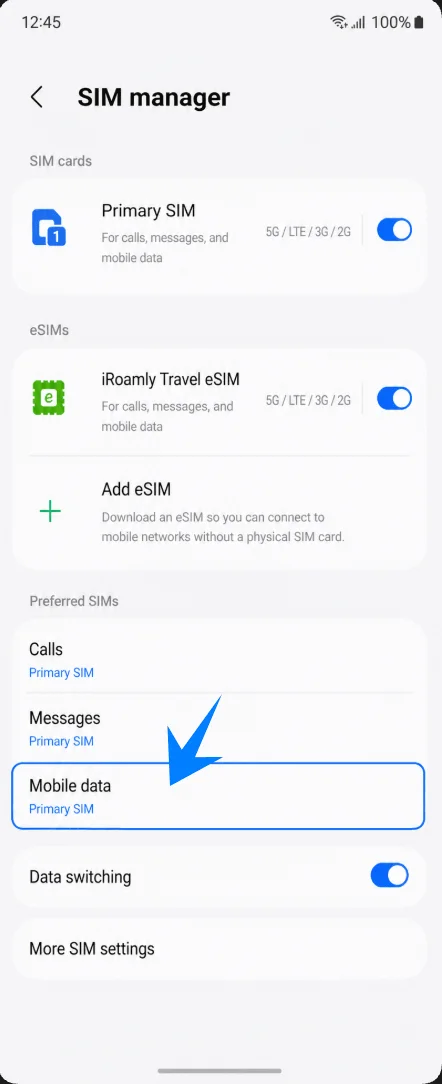
In SIM manager, tap Mobile data under Preferred SIMs. This controls which SIM the Galaxy Z Flip5 5G uses for cellular data.
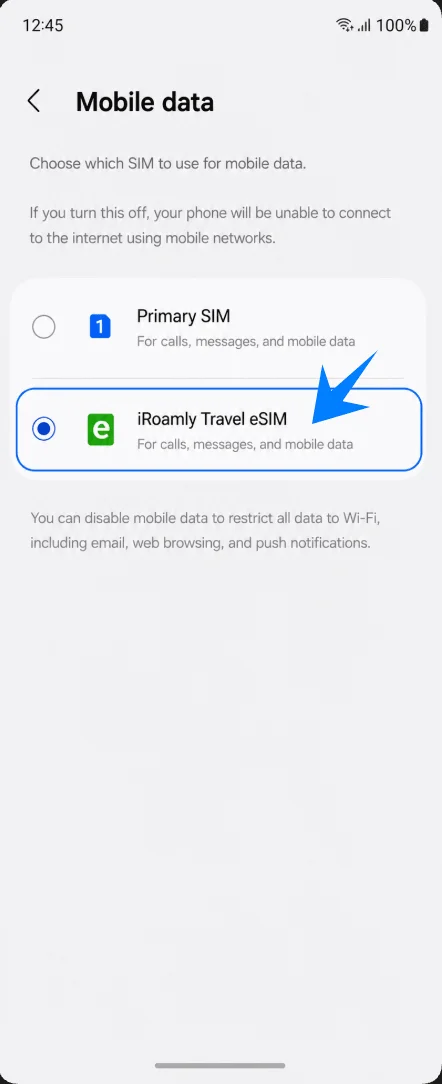
Select iRoamly Travel eSIM for Mobile data. If your primary SIM should not use data abroad, keep data assigned to iRoamly and avoid switching back to the primary SIM.
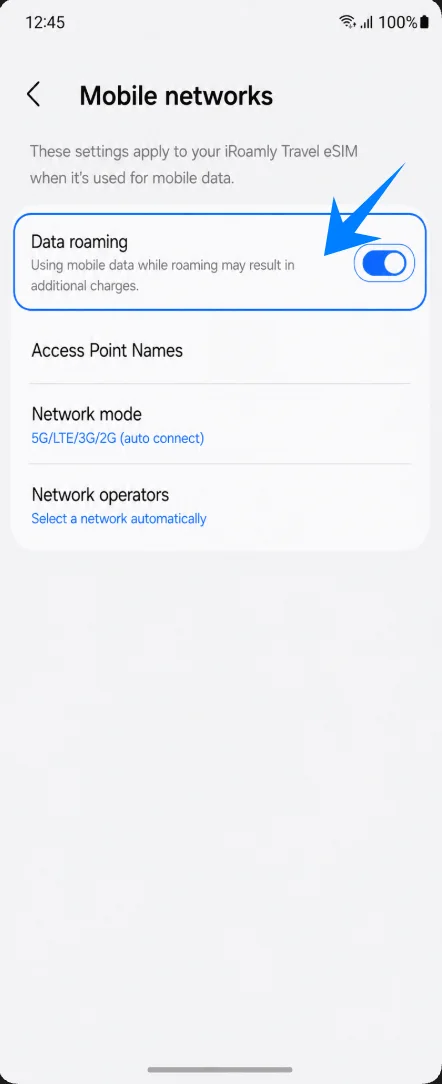
Go to Settings > Connections > Mobile networks, then turn on Data roaming if your iRoamly plan or destination requires roaming for service.
Troubleshooting
If Add eSIM is missing, update One UI, confirm the phone has an EID, check whether the regional/carrier variant supports eSIM, and make sure the device is unlocked.
If the QR code does not scan, brighten the other screen, avoid reflections, connect to Wi-Fi, or use the manual method with Enter activation code.
If the QR code says it was already used, do not delete the eSIM profile. Contact iRoamly support or check your order page for the correct recovery path.
If the eSIM installs but data does not work, select iRoamly Travel eSIM for Mobile data, enable Data roaming if required, restart the phone, and confirm the destination is covered by your plan.
If activation stays pending, keep Wi-Fi connected, wait a few minutes, restart the phone, and check whether the plan activates only after connecting to a supported destination network.
If calls or SMS do not work, check the plan details. Many travel eSIM plans are data-only, and voice/SMS support is not guaranteed.
If you need to stop using the eSIM temporarily, turn off the iRoamly line in SIM manager instead of deleting it.
Conclusion
After completing the installation, your iRoamly eSIM should appear in the Galaxy Z Flip5 5G SIM manager and be ready for mobile data use during travel. You can manage your eSIM settings directly from your Samsung device at any time, including switching mobile data lines or temporarily disabling the eSIM when needed.
Before your trip, make sure the correct eSIM is selected for mobile data and confirm whether data roaming needs to be enabled for your destination. Once everything is configured, your Galaxy Z Flip5 5G will be ready for a smoother and more flexible travel connectivity experience.