
When you're preparing for a trip, having mobile data ready before arrival can make traveling much smoother.
With eSIM support on the Galaxy Z Flip4, you can install a travel data plan digitally without needing to handle another physical SIM card.
Everything can be managed directly from Samsung’s SIM manager, allowing you to keep your regular number active while setting up a separate line for travel data.
Installing your iRoamly eSIM only takes a few steps once your QR code or activation details are ready. Whether you choose to scan a QR code or enter the activation code manually, this guide will show you exactly how to complete the setup on your Galaxy Z Flip4.
Prepare Your Travel Data with iRoamly
iRoamly is a travel eSIM service that lets compatible phones use mobile data through digital plans instead of a removable travel SIM.
Travelers may find destination, regional, and global options depending on availability, while plan types, data amounts, and validity can differ by destination. With the profile installed, travel data can support navigation, messaging, translations, bookings, and timely trip updates.
On a Complete Guide to Install eSIM on Samsung Galaxy Z Flip4 that supports eSIM, iRoamly can be added as a separate travel data profile while the regular SIM remains available.
The existing Samsung setup flow below shows how to install the iRoamly eSIM by QR code or manual entry, then select it for mobile data.
Preparations Before Setting Up iRoamly eSIM
Connect the Galaxy Z Flip4 to a stable Wi-Fi network.
Confirm your Galaxy Z Flip4 variant supports eSIM and is not carrier-locked. Some regional or carrier firmware builds may hide eSIM options.
Keep your iRoamly QR code or manual activation code ready before opening SIM manager.
Install the iRoamly travel eSIM 1-2 days before travel when appropriate, but do not activate or use data earlier than your plan allows.
iRoamly eSIM validity starts from activation. The activation trigger can vary by plan, so check the current plan details before installing or using the eSIM.
Many travel eSIM plans are data-only. Voice calls and SMS availability varies by plan, so do not assume they are included.
Do not delete the iRoamly eSIM after installation unless iRoamly support tells you to. Many eSIMs cannot simply be reinstalled after removal.
Shared Setup Steps
Open Settings, then tap Connections. You should see Wi-Fi, Bluetooth, SIM, and mobile network settings.
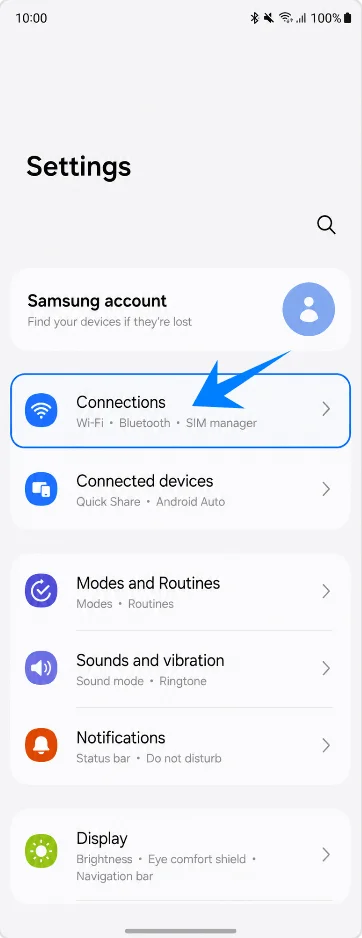
Tap SIM manager. This opens the page where the Galaxy Z Flip4 manages physical SIMs, eSIMs, and preferred SIM choices.
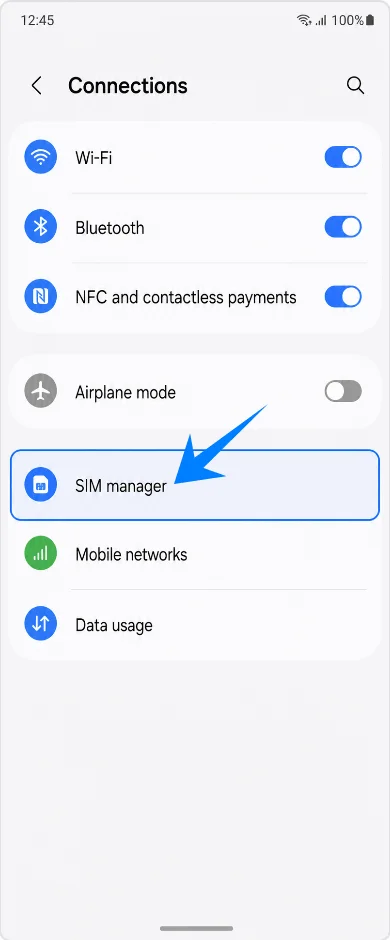
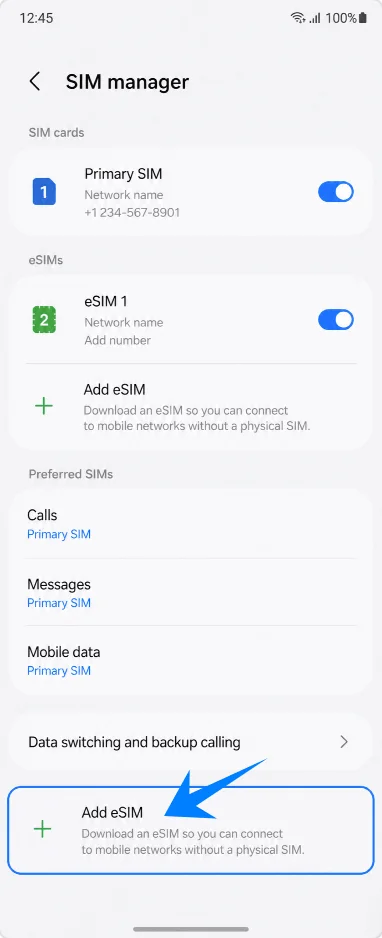
Tap Add eSIM. The phone will open the Samsung eSIM setup options.
Method 1: Install the iRoamly eSIM by Scanning a QR Code
On the Add eSIM screen, tap Scan QR code. The Galaxy Z Flip4 will open the eSIM QR scanner.
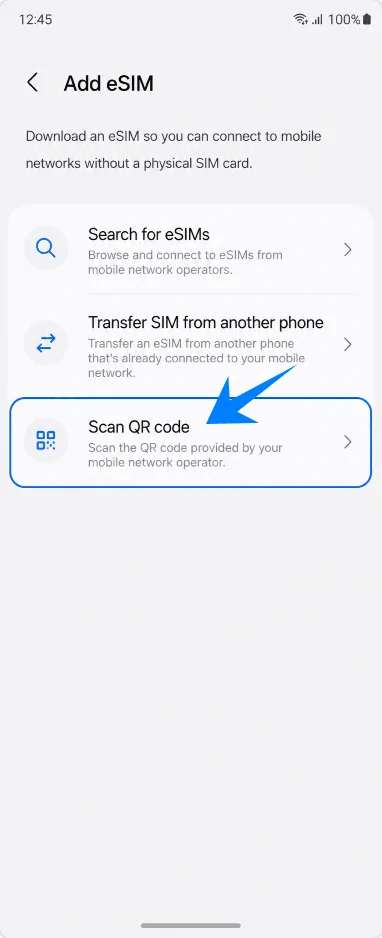
Point the scanner at the iRoamly QR code. Keep the QR code flat and well lit until the phone recognizes the eSIM profile.
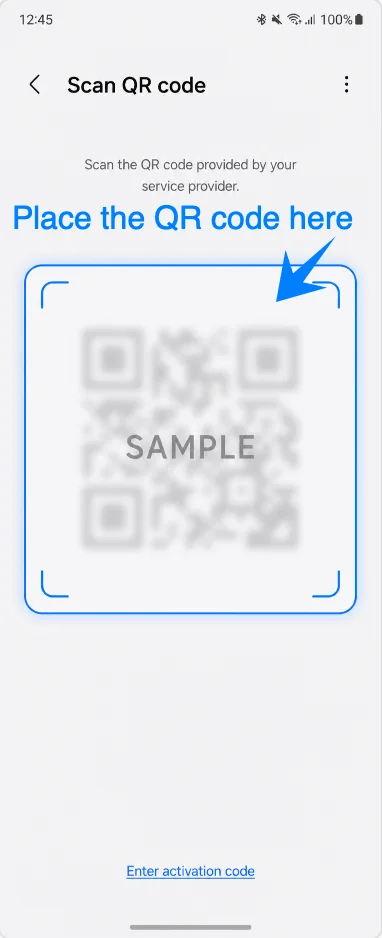
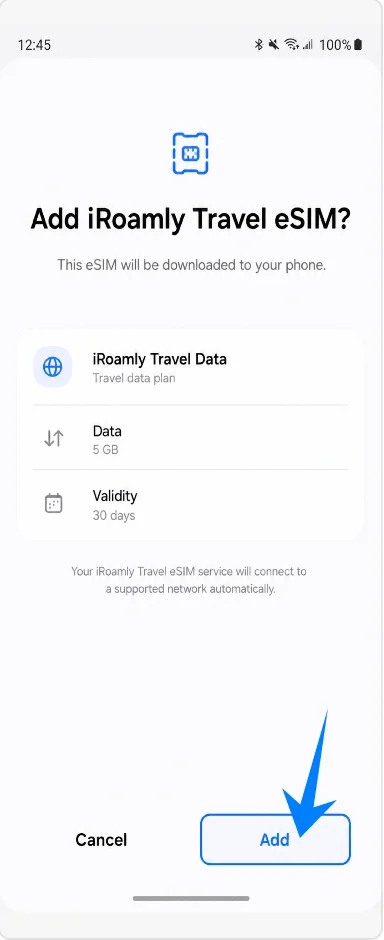
Tap Add when the phone asks whether to add the iRoamly travel eSIM. This starts the eSIM download.
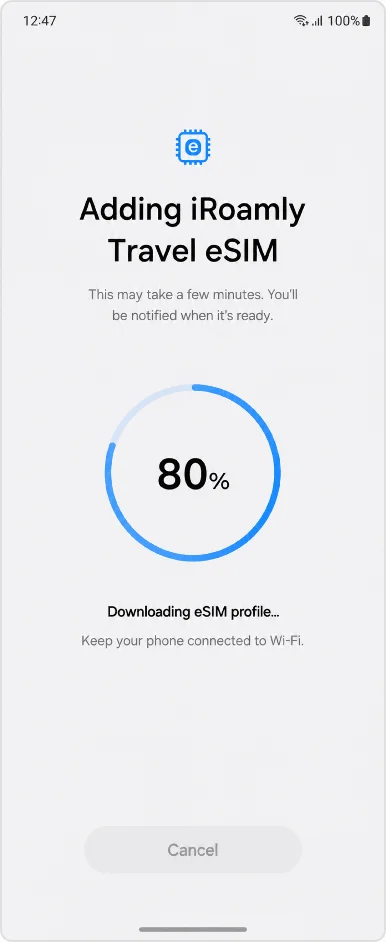
Keep the phone connected to Wi-Fi while the Galaxy Z Flip4 downloads and adds the iRoamly eSIM. Wait for the setup to finish before leaving the screen. If Japan or France is your next destination, you can install the travel eSIM first and switch mobile data to that profile when you are ready to use it abroad.
Method 2: Install the iRoamly eSIM by Manual Entry
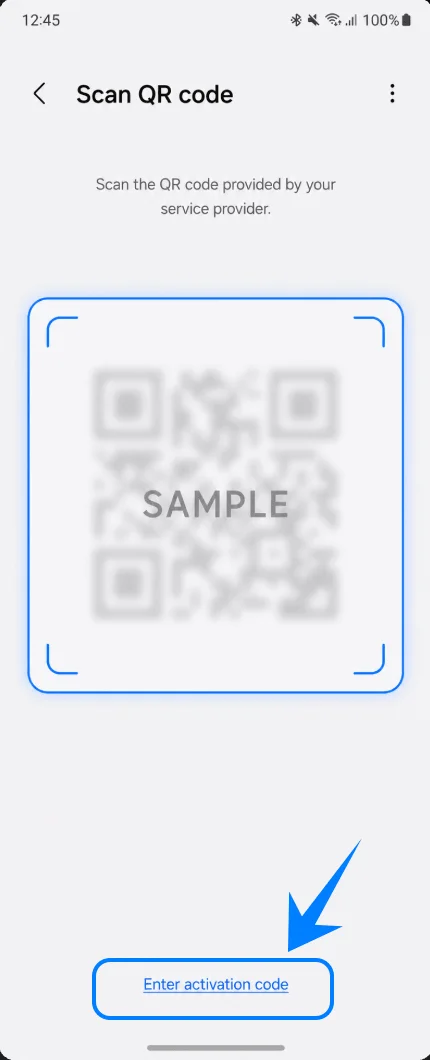
Open Settings, tap Connections, tap SIM manager, tap Add eSIM, then tap Scan QR code. On the scanner screen, tap Enter activation code.
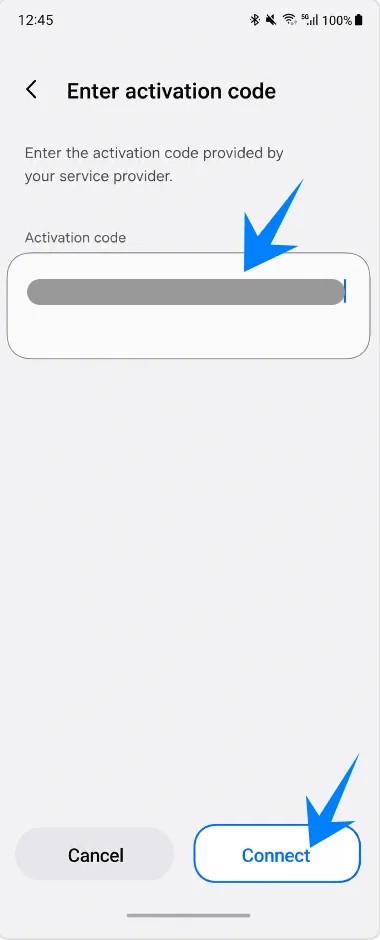
Enter the complete activation code provided by iRoamly into the Activation code field, then tap Connect. On Samsung One UI, this is typically entered as one full activation-code string, such as an LPA:1$... format, rather than separate SM-DP+ and activation-code fields.
Tap Add if the phone asks you to confirm adding the iRoamly travel eSIM. This authorizes the download to the Galaxy Z Flip4.
Keep Wi-Fi connected while the phone downloads and adds the iRoamly eSIM. Wait until One UI reports that setup is complete.
How to Confirm the iRoamly eSIM Was Installed
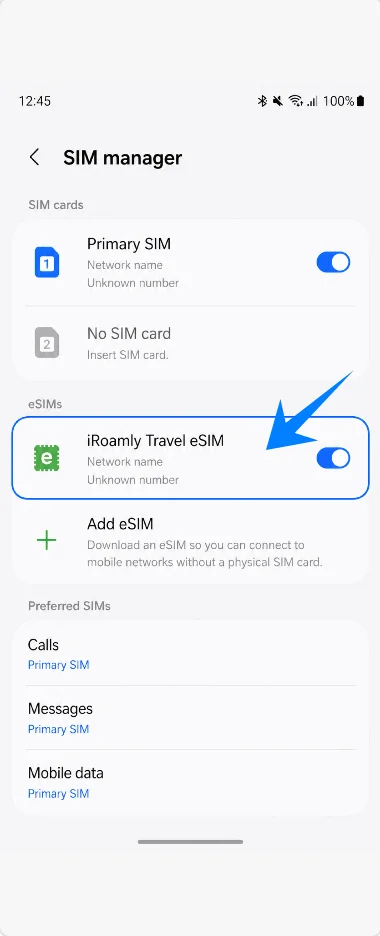
Open Settings > Connections > SIM manager and look under eSIMs for iRoamly Travel eSIM. Make sure its switch is turned on.
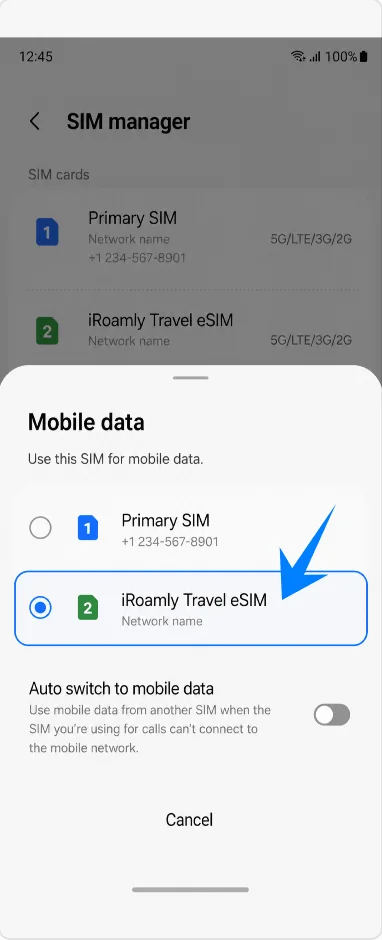
Check that iRoamly Travel eSIM is available as a choice under Mobile data. If it appears there, the eSIM profile is installed and ready to be selected for travel data.
Set Up the iRoamly eSIM for Travel Data
In Settings > Connections > SIM manager, tap Mobile data, then select iRoamly Travel eSIM. This makes the iRoamly line the phone's data line.
Open Settings > Connections > Mobile networks, choose or confirm iRoamly Travel eSIM, then turn on Data roaming if your iRoamly plan or destination instructions require roaming.
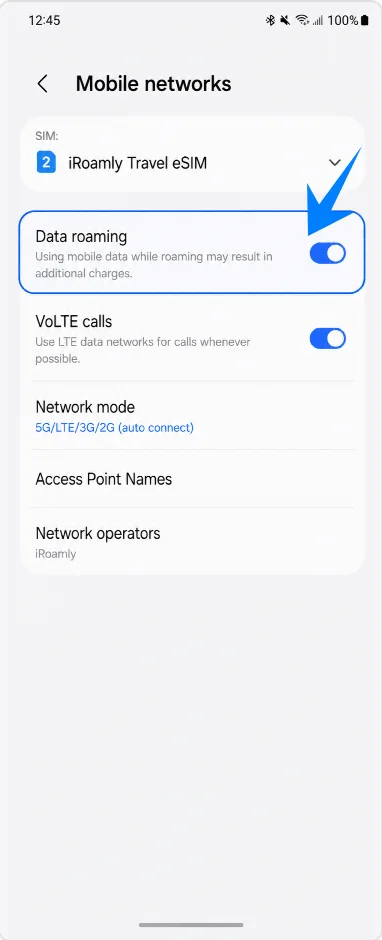
Keep your primary SIM selected for calls and messages if you still want to receive them on your regular number. Leave mobile data assigned to iRoamly Travel eSIM to avoid using roaming data from your primary carrier.
Troubleshooting
If Add eSIM is missing, update the phone software, check that the model variant supports eSIM, confirm the phone is unlocked, and look for an EID in the phone information. Some carrier or regional firmware builds may not expose eSIM setup.
If the QR code will not scan, increase brightness on the device showing the QR code, clean the camera lens, keep Wi-Fi connected, or use Enter activation code instead.
If the QR code says it was already used, do not delete the eSIM and try again repeatedly. Contact iRoamly support because many eSIM QR codes are single-use.
If the eSIM installs but there is no data, select iRoamly Travel eSIM for Mobile data, enable Data roaming if required, restart the phone, and confirm your destination is covered by the plan.
If activation stays pending, keep Wi-Fi connected and wait until you are in a supported destination network. Some plans do not fully activate until the eSIM connects to a supported local network.
If voice calls or SMS do not work, check the exact iRoamly plan details. Many travel eSIMs are intended for mobile data and may not include voice or SMS.
If you no longer need the eSIM, turn it off in SIM manager instead of deleting it unless iRoamly support instructs you to remove it.
More Samsung eSIM Setup Guides
Setting up another Samsung phone? These eSIM activation guides may help.
Conclusion
Now that your iRoamly eSIM is installed, your Galaxy Z Flip4 is ready for travel connectivity whenever your plan becomes active. Since eSIM profiles remain stored digitally on the phone, managing multiple lines and switching mobile data settings can be much simpler during international travel.
You can keep your regular SIM active for calls and messages while using the iRoamly eSIM for travel data, depending on your setup preferences. If you run into any issues during installation or activation, the troubleshooting steps above can help you fix the most common setup problems.