
The Galaxy Z Flip6 5G includes built-in eSIM support, giving you a fast and flexible way to activate mobile data without using a physical SIM card.
Instead of inserting new hardware into your phone, you can download an iRoamly eSIM profile directly through Samsung's settings and manage everything digitally.
This setup method can be especially convenient when preparing for travel, since you can install the eSIM before departure and switch mobile data lines whenever needed. Samsung's One UI also provides multiple activation methods, including QR code scanning and manual entry, depending on the information provided with your eSIM plan.
In this tutorial, you'll learn how to install the iRoamly eSIM step by step on the Galaxy Z Flip6 5G, verify that it was added correctly, and configure the settings required for mobile data usage abroad.
Preparations Before Setting Up iRomly eSIM
Connect the Galaxy Z Flip6 5G to stable Wi-Fi before adding the eSIM.
Make sure the phone is unlocked, updated, and supports eSIM in your region/carrier variant.
Have your iRoamly QR code or manual activation details ready on another device or printed page.
Install the eSIM 1-2 days before travel when appropriate, but check your plan first. iRoamly eSIM validity starts from activation, and the exact activation trigger can vary by plan.
Do not delete the iRoamly eSIM after installing unless iRoamly support tells you to. Many travel eSIM profiles cannot simply be reinstalled after removal.
iRoamly travel eSIM plans may not include voice calls or SMS. Voice/SMS support varies by plan, so check the specific plan details before relying on it.
Shared Setup Steps
Use these steps for both the QR code method and the manual entry method.
Open Settings, then tap Connections. You should see Samsung's connection settings page with Wi-Fi, Bluetooth, SIM, and mobile network options.
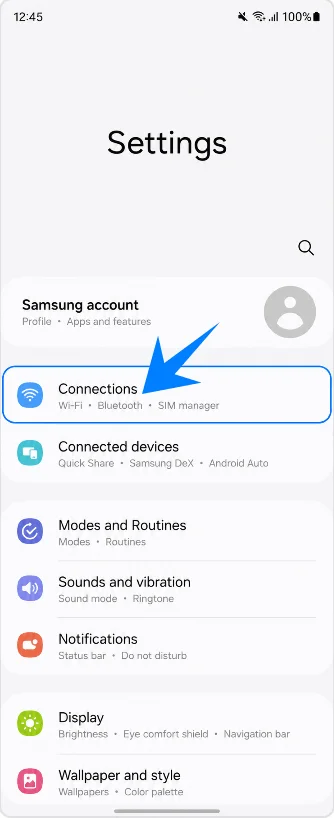
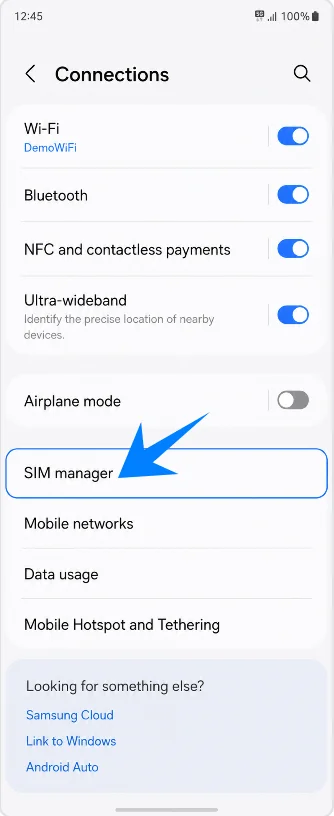
Tap SIM manager. This opens the page where Samsung lists physical SIMs, eSIMs, and preferred SIM choices.
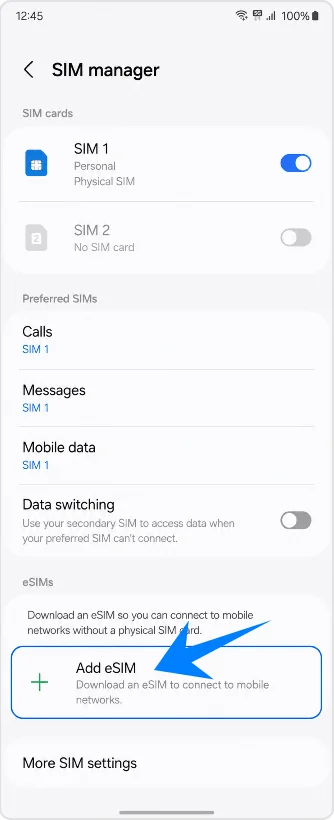
Tap Add eSIM. The phone will show the available ways to add a new eSIM profile.
Method 1: Install the iRoamly eSIM by Scanning a QR Code
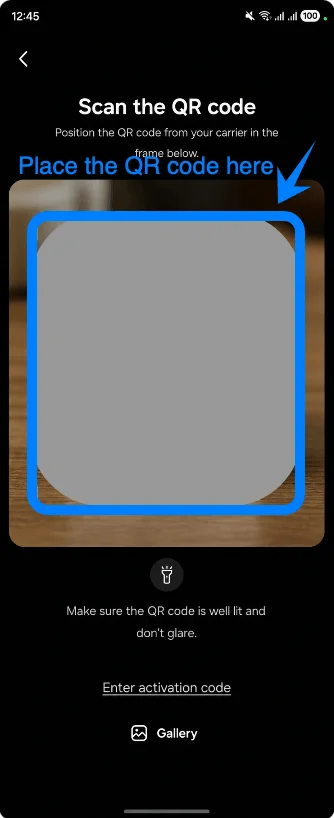
Tap Scan QR code on the Add eSIM screen. The Galaxy Z Flip6 5G opens the QR scanner for eSIM setup.
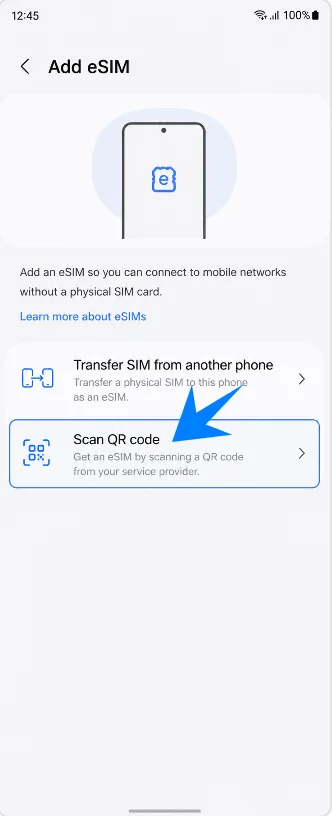
Point the scanner at the iRoamly eSIM QR code. Keep the QR code flat and fully inside the scan area until the phone recognizes it.
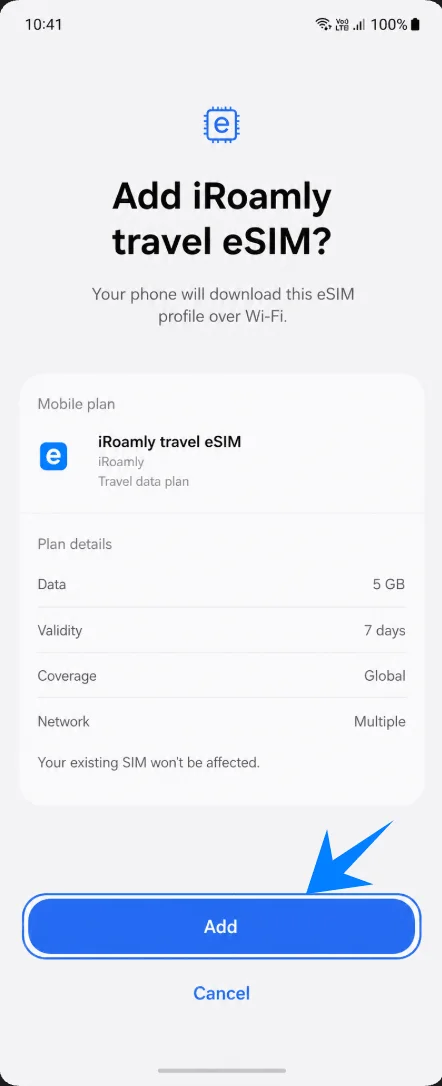
Review the detected iRoamly travel eSIM, then tap Add. The phone should begin downloading the eSIM profile over Wi-Fi.
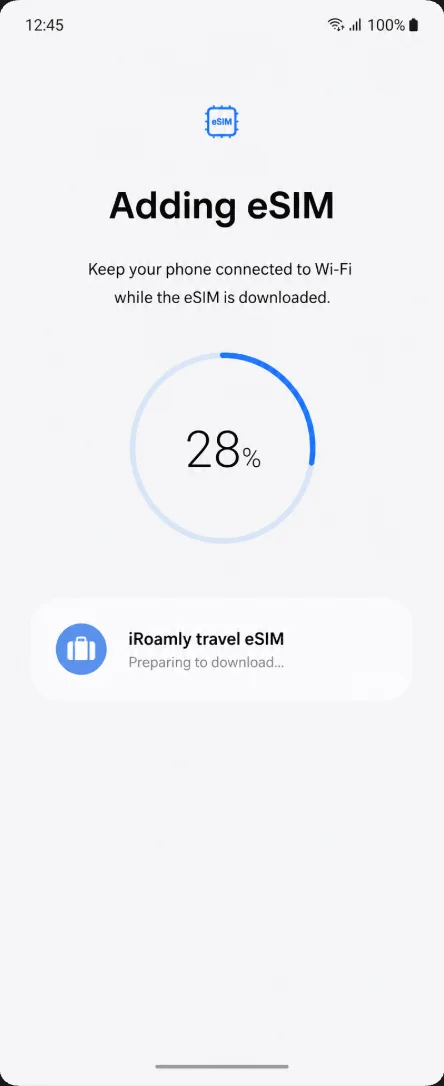
Wait on the Adding eSIM screen until the download finishes. Do not leave Wi-Fi or restart the phone while the profile is being added.
Method 2: Install the iRoamly eSIM by Manual Entry
Open Settings, then tap Connections. You should see the same Samsung connection settings page used for the QR method.
Tap SIM manager. This opens the Samsung SIM page where eSIM profiles are managed.
Tap Add eSIM. The phone will show Samsung's eSIM setup options.
Tap Scan QR code. Samsung places the manual entry option on the QR scanner screen, so you still enter this screen before typing the code.
Tap Enter activation code. This opens Samsung's manual eSIM entry page.
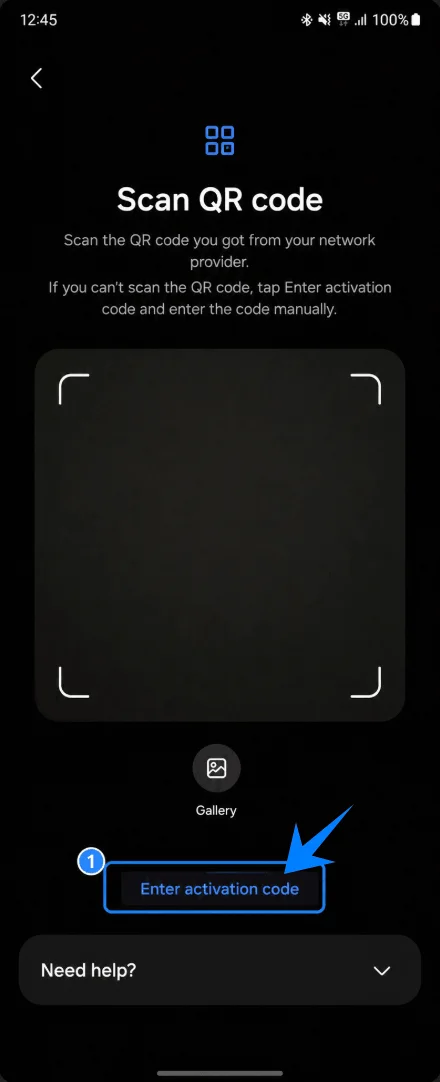
Paste the iRoamly manual activation string into Activation code, then tap Next or Connect. On this Samsung flow, use the full activation code string supplied by iRoamly, such as a safe placeholder format like LPA:1$example.smdp.io$IROAMLY-PLACEHOLDER.
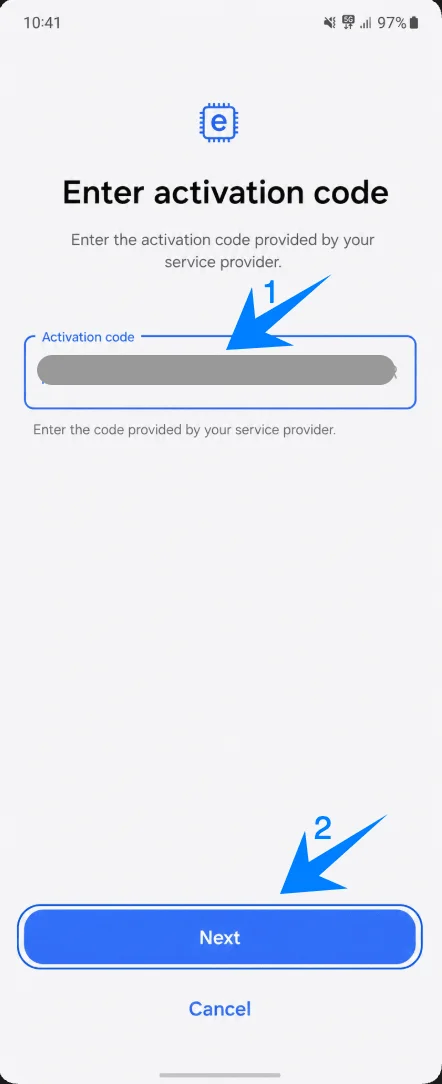
Review the iRoamly travel eSIM details, then tap Add. The phone should start downloading the eSIM profile over Wi-Fi.
Wait on the Adding eSIM screen until setup finishes. Keep Wi-Fi connected until the phone confirms that the eSIM has been added.
How to Confirm the iRoamly eSIM Was Installed
Open Settings > Connections > SIM manager, then look for iRoamly travel eSIM or the label you assigned to the new eSIM. Make sure its switch is on.
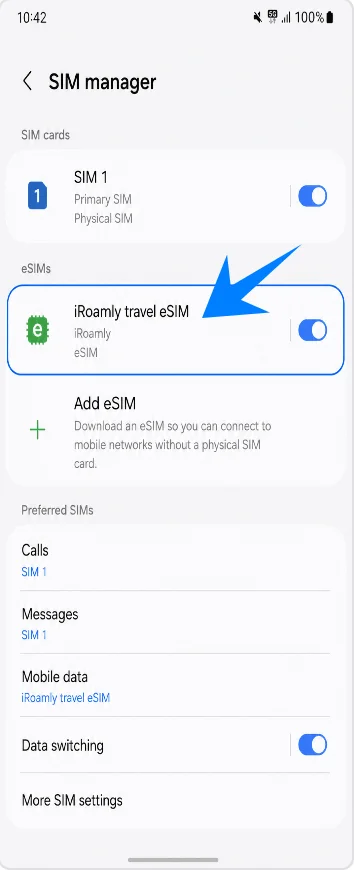
Set Up the iRoamly eSIM for Travel Data
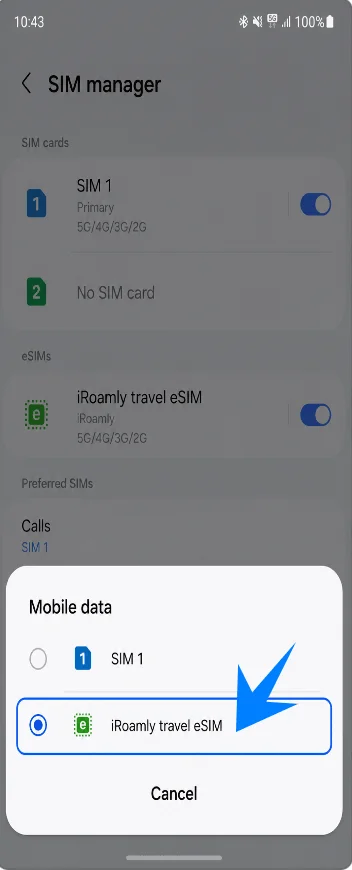
In SIM manager, tap Mobile data under Preferred SIMs, then select iRoamly travel eSIM. This makes the travel eSIM the line used for mobile data.
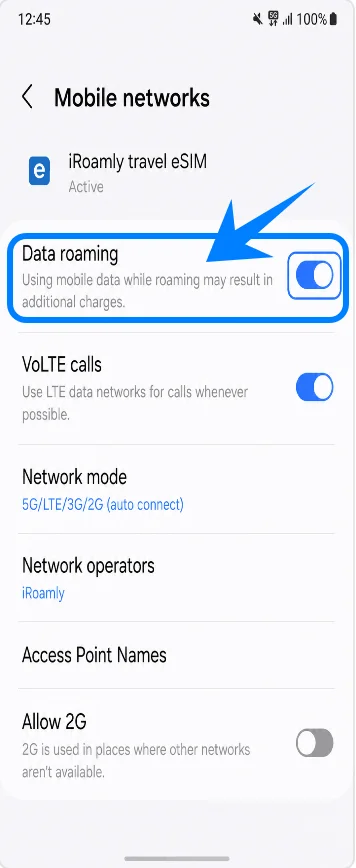
Open Mobile networks, then turn on Data roaming for the iRoamly eSIM if your iRoamly plan or destination instructions require it. Leave your primary SIM's roaming settings off unless you intentionally want to use that carrier abroad.
Troubleshooting
If Add eSIM is missing, update One UI, confirm the Galaxy Z Flip6 5G variant supports eSIM in your region, check that the phone is unlocked, and look for an EID in the phone's status/about screens.
If the QR scan fails, brighten the other screen, avoid glare, keep the full code inside the scanner, or use Enter activation code instead.
If the QR code says it has already been used, do not delete and retry repeatedly. Contact iRoamly support because many eSIM QR codes can only be installed once.
If the eSIM installs but mobile data does not work, select iRoamly under Mobile data, enable Data roaming if required, restart the phone, and confirm you are in a covered destination.
If activation is pending, keep Wi-Fi connected and wait a few minutes. Some travel eSIMs complete activation only after reaching a supported network.
If calls or SMS do not work on the iRoamly line, check the plan details. Many travel eSIM plans are data-only, and voice/SMS availability is plan-specific.
If your carrier firmware hides manual entry or blocks third-party eSIM setup, try updating the phone and confirm whether the device is carrier-locked or region-limited.
Conclusion
Once your iRoamly eSIM is installed on the Galaxy Z Flip6 5G, your phone is ready for travel data use without needing to swap SIM cards during your trip.
With eSIM support built directly into the device, you can manage your mobile connection more conveniently and prepare everything before departure. After completing the setup, you can focus more on your journey and less on mobile network setup after arrival.