
Staying connected while traveling is much easier when your mobile plan can be activated digitally.
With eSIM technology, you can set up mobile data directly on your Galaxy Z Flip3 5G without handling a physical SIM card or visiting a local store after arrival. Everything can be managed from your phone settings in just a few minutes.
If this is your first time using an eSIM, the setup process may seem unfamiliar at first, but Samsung’s built-in eSIM tools make installation relatively simple.
In this guide, you’ll learn how to install and activate your iRoamly eSIM on the Galaxy Z Flip3 5G step by step, including QR code setup, manual activation, and the settings required to start using travel data successfully.

Get Your Samsung Phone Ready with iRoamly
iRoamly eSIM is a travel eSIM service that provides mobile data plans you can install digitally on compatible phones. Available options may include destination, regional, and global plans, while duration, data allowance, and supported features can vary by destination.
Once the profile is installed, your travel data can support maps, messaging, transport apps, bookings, and travel updates.
On a Samsung Galaxy Z Flip3 5G that supports eSIM, iRoamly can be added as a separate travel data profile while the regular SIM remains available. The existing Samsung setup flow below shows how to install the iRoamly eSIM by QR code or manual entry, then select it for mobile data.
Before leaving, confirm that the exact regional model supports eSIM and keep the installation details available until Android finishes downloading the profile.
Preparations Before Setting Up iRoamly eSIM
Connect the Galaxy Z Flip3 5G to stable Wi-Fi before installing the eSIM. Heading to the United States or Indonesia? You can install the destination eSIM first, then choose it as the Samsung travel data line when the plan should be used.
Confirm the phone is unlocked and eSIM-capable. Some regions, carriers, and firmware variants may hide eSIM options.
Keep your iRoamly QR code or manual details ready from your email, order page, or iRoamly account.
Do not delete the eSIM casually after installation. Many eSIMs cannot simply be reinstalled after removal.
Install before travel when you have good Wi-Fi, but check your plan timing. For the iRoamly plan source checked, validity starts when the eSIM connects to a supported network.
iRoamly travel eSIM plans may not include voice calls or SMS. Voice/SMS availability varies by plan, so check the specific plan details.
Shared Setup Steps
Open Settings, then tap Connections. You should see the network and SIM settings list.
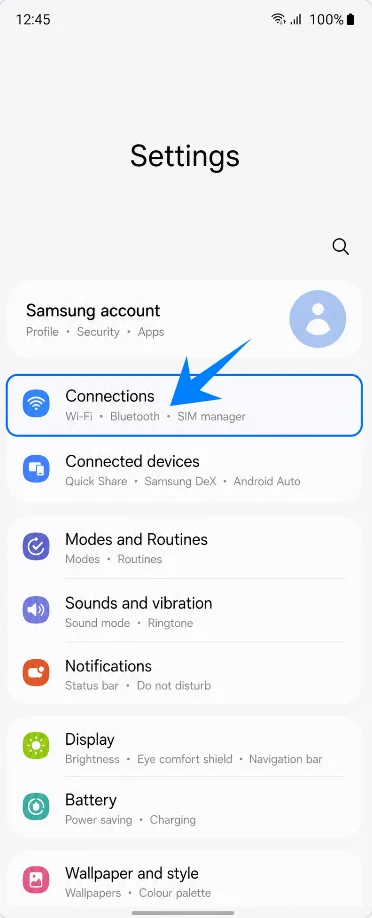
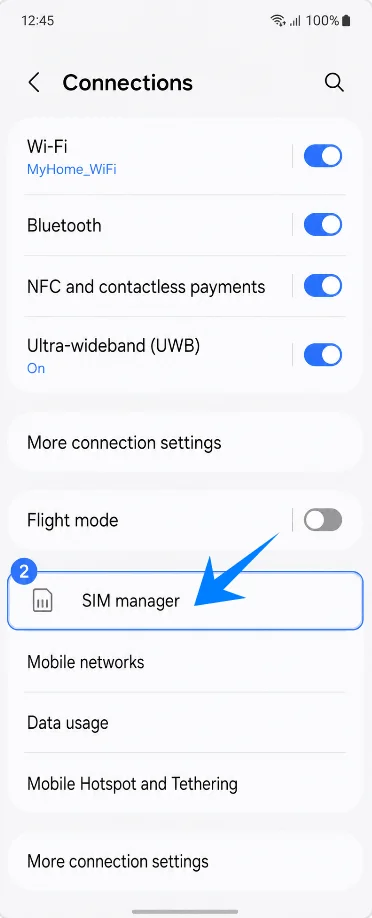
Tap SIM manager. This opens the page where Samsung manages physical SIMs, eSIMs, and preferred SIM choices.
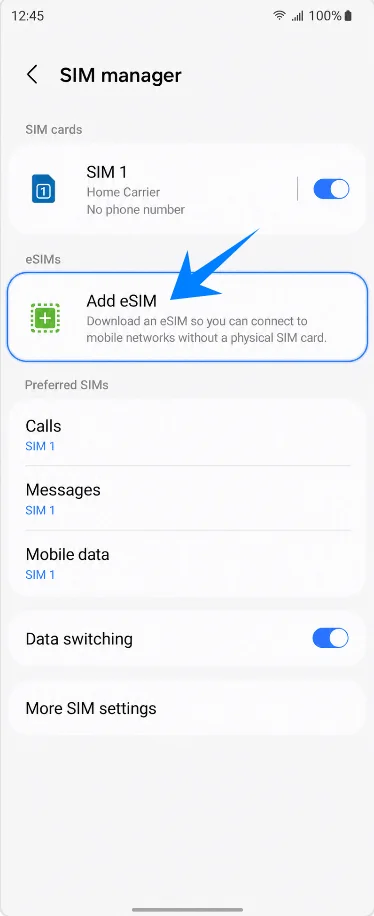
Tap Add eSIM. The phone will open Samsung’s eSIM setup options.
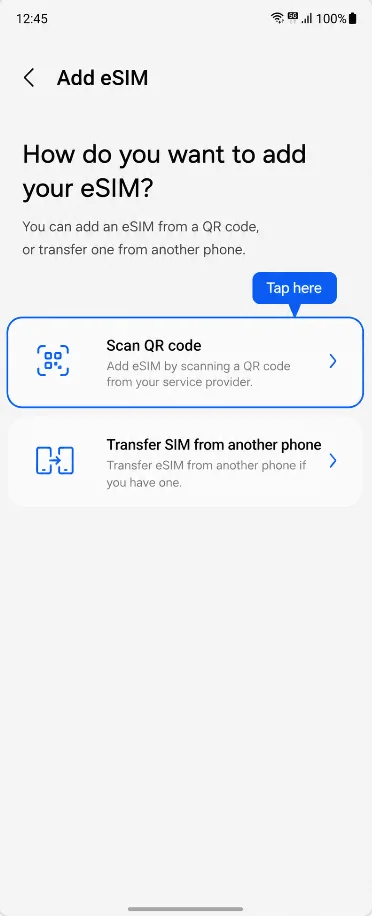
Method 1: Install the iRoamly eSIM by Scanning a QR Code
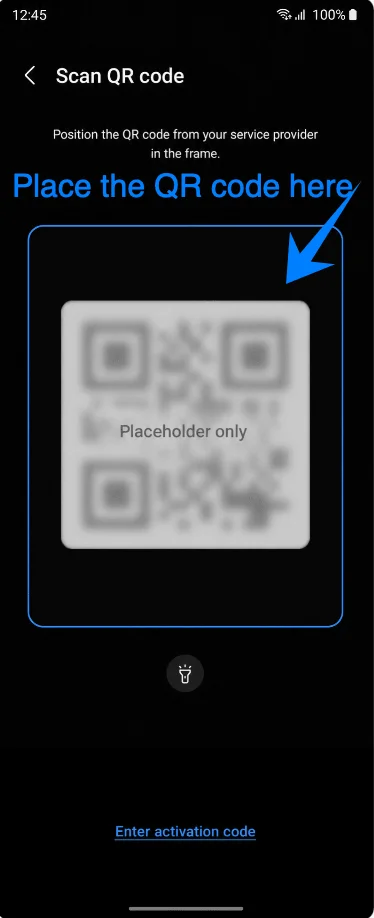
On the Add eSIM screen, tap Scan QR code. The camera scanner will open.
Point the scanner at the iRoamly QR code. Keep the full code inside the scan box until the phone recognizes the eSIM profile.
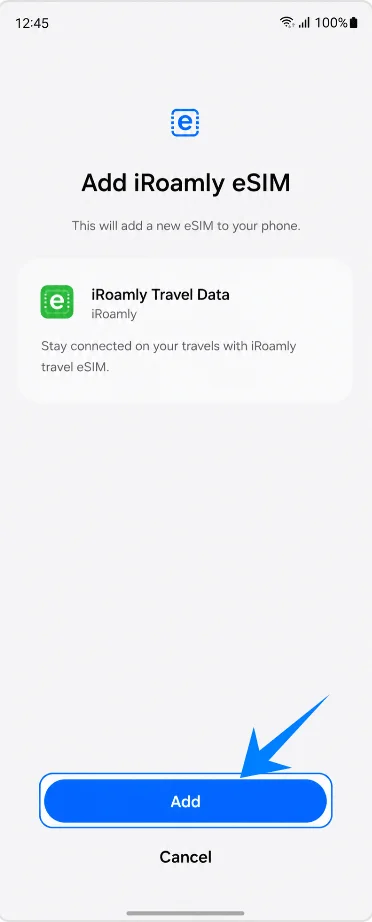
When Samsung shows the detected iRoamly eSIM, tap Add. This starts the profile download.
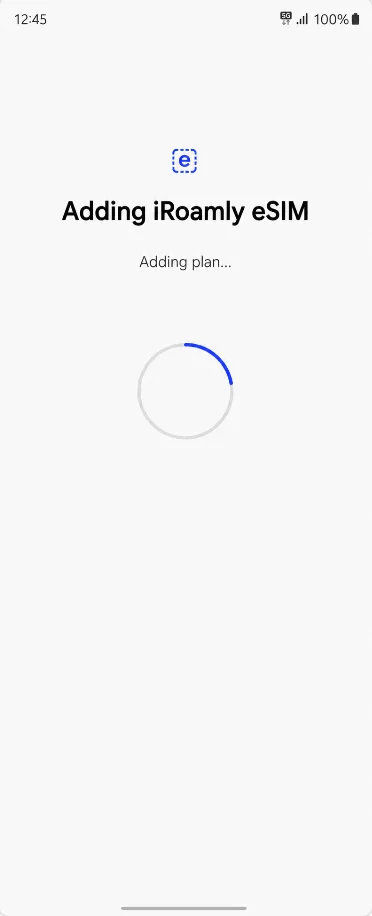
Wait while the Galaxy Z Flip3 5G adds the eSIM. Keep Wi-Fi connected and do not close Settings until the setup finishes.
Method 2: Install the iRoamly eSIM by Manual Entry
Open Settings, tap Connections, tap SIM manager, tap Add eSIM, then choose Scan QR code. On the scanner page, tap Enter activation code.
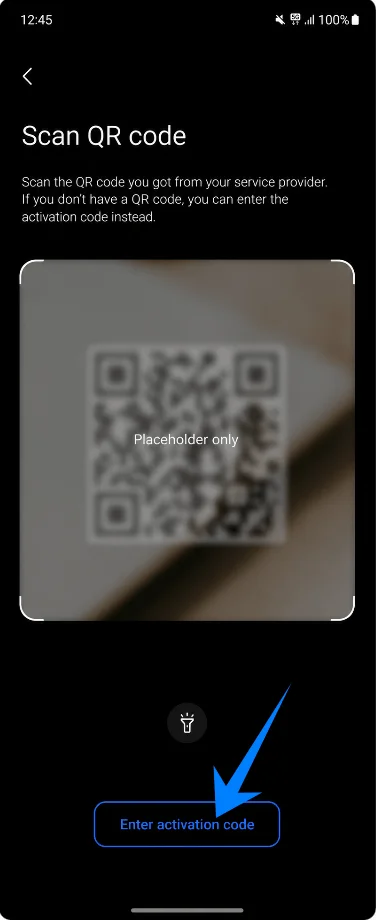
Enter the iRoamly manual details: SM-DP+ Address, Activation code, and Confirmation code only if iRoamly provides one. Then tap Add.
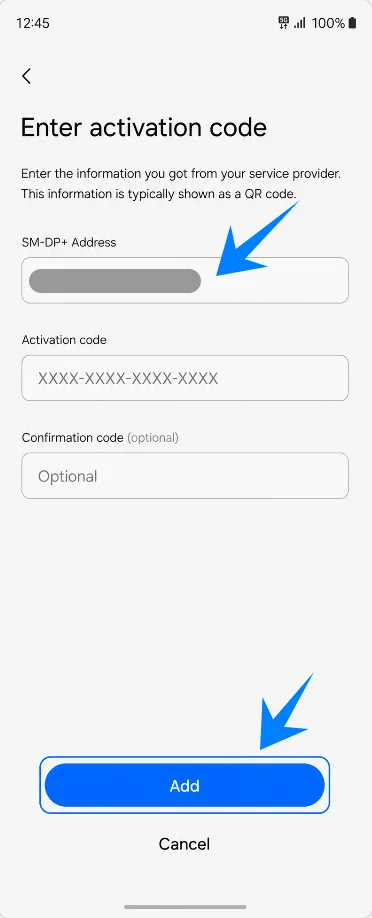
Wait while the phone downloads the iRoamly eSIM profile. Stay on Wi-Fi until Samsung confirms the eSIM has been added.
How to Confirm the iRoamly eSIM Was Installed
Go to Settings > Connections > SIM manager and confirm that iRoamly Travel Data appears under eSIMs. Leave its switch turned on when you are ready to use it.
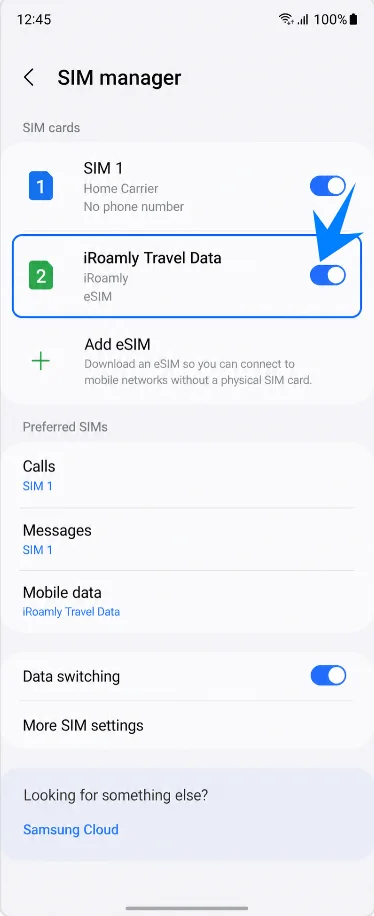
Set Up the iRoamly eSIM for Travel Data
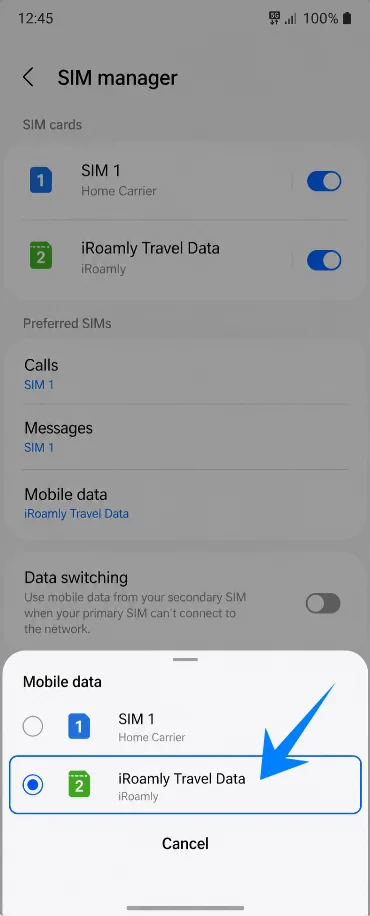
In SIM manager, tap Mobile data, then select iRoamly Travel Data. This makes the iRoamly eSIM the data line for your trip.
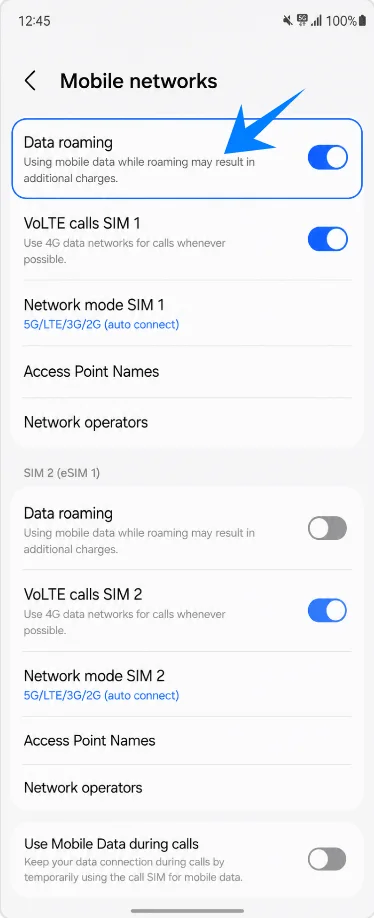
Go to Settings > Connections > Mobile networks, then turn on Data roaming if your iRoamly plan or destination instructions require it.
Troubleshooting
No Add eSIM: update the phone software, confirm the Galaxy Z Flip3 5G variant supports eSIM, check that the phone is unlocked, and look for an EID in device information. Some regional or carrier firmware may not expose eSIM.
QR code already used or fails to scan: use Enter activation code and type the iRoamly manual details. Do not delete an installed eSIM unless iRoamly support tells you to.
Installed but no data: select iRoamly Travel Data under Mobile data, enable Data roaming if required, restart the phone, and confirm the destination is covered by your plan.
Activation pending: keep Wi-Fi on during installation, then wait until you are in a supported destination network if the plan activates on network connection.
Voice or SMS not working: check the plan details. Many travel eSIMs are data-only, and voice/SMS availability varies by plan.
Primary SIM taking over data: return to SIM manager and make sure Mobile data is set to iRoamly Travel Data.
More Samsung eSIM Setup Guides
Setting up another Samsung phone? These eSIM activation guides may help.
Conclusion
Once your iRoamly eSIM is installed on the Galaxy Z Flip3 5G, you can manage your travel data connection directly from the SIM manager whenever needed. Whether you use the QR code method or manual entry, the installation process only takes a short time when your Wi-Fi connection and activation details are ready beforehand.
Before your trip, it’s a good idea to confirm that mobile data is assigned to the iRoamly eSIM and that roaming settings match your plan requirements. Completing these checks in advance can help your phone connect more smoothly once you arrive at your destination.