
If you want a more convenient way to stay connected while traveling, using an eSIM on your Galaxy Z Flip or Galaxy Z Flip 5G can make the setup process much easier.
Since the eSIM is built directly into the phone, you can activate a travel data plan digitally without removing or replacing your primary SIM card.
eSIM technology also gives you more flexibility when managing mobile plans. You can install your travel plan before departure, store multiple SIM profiles on one device, and switch between lines directly from Samsung’s SIM settings.
Because the activation process is digital, installation can usually be completed within minutes while connected to Wi-Fi.
In this guide, you’ll learn how to install and activate an iRoamly eSIM on your Galaxy Z Flip or Galaxy Z Flip 5G step by step, including QR-code installation, manual activation, and travel data setup.
Meet iRoamly for Easier Travel Connectivity
iRoamly eSIM is a travel eSIM service that provides mobile data plans through digital profiles for trips abroad. Travelers can choose destination, regional, or global options where available, with data amounts, validity periods, and plan features varying by location.
Once installed on a compatible phone, the travel data line can support everyday needs such as maps, messaging, translations, ride-hailing, bookings, and travel updates.
On an eSIM-capable Samsung Galaxy Z Flip or Galaxy Z Flip 5G, iRoamly can be added through Samsung SIM Manager and used as a separate data line for travel.
The instructions below keep the QR-code and manual-entry setup paths in order so you can install the eSIM, confirm it was added, and configure mobile data when needed.
Preparations Before Setting Up iRoamly eSIM
Connect the Galaxy Z Flip or Galaxy Z Flip 5G to stable Wi-Fi.
If you are preparing your Galaxy Z Flip for a trip to Japan or the United States, installing the travel eSIM while reliable Wi-Fi is available can leave less to handle after arrival.
Make sure the phone is unlocked, eSIM-capable, and updated to a recent One UI version.
Keep your iRoamly QR code or manual activation details open on another device, printed page, or your iRoamly account.
Install the eSIM 1-2 days before travel when possible, but do not turn on travel data until you need it.
Do not delete the iRoamly eSIM casually. Many travel eSIMs cannot simply be reinstalled after removal.
iRoamly eSIM validity starts from activation, not from reading this guide. Check your purchased plan for the exact activation trigger, such as installation or first connection to a supported destination network.
iRoamly travel eSIM plans may not include voice calls or SMS. Voice/SMS availability varies by plan, so check the specific plan details.
Shared Setup Steps
Open Settings, then tap Connections. You should see the network and SIM settings area.
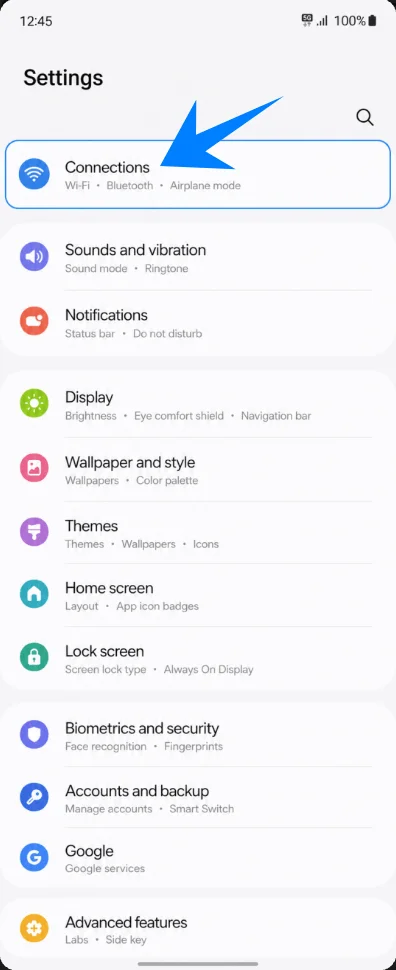
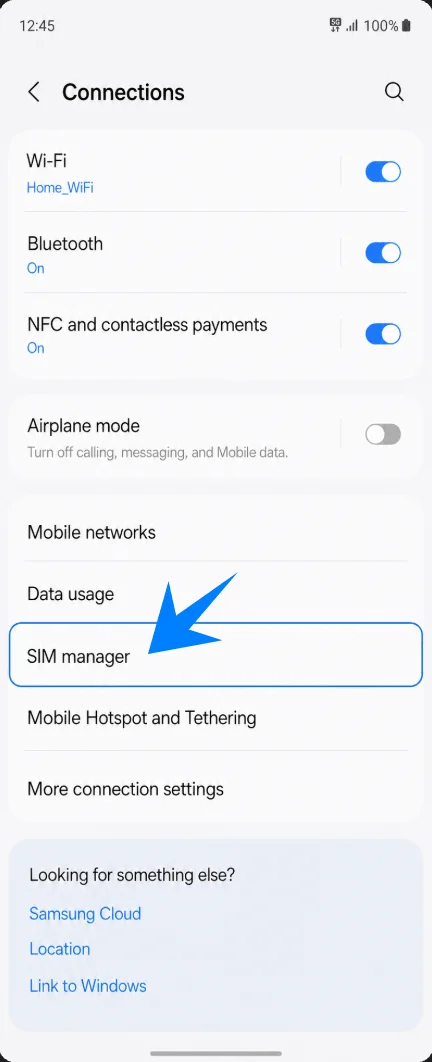
Tap SIM manager. This opens the page where Samsung lists physical SIMs, eSIMs, and preferred SIM choices.
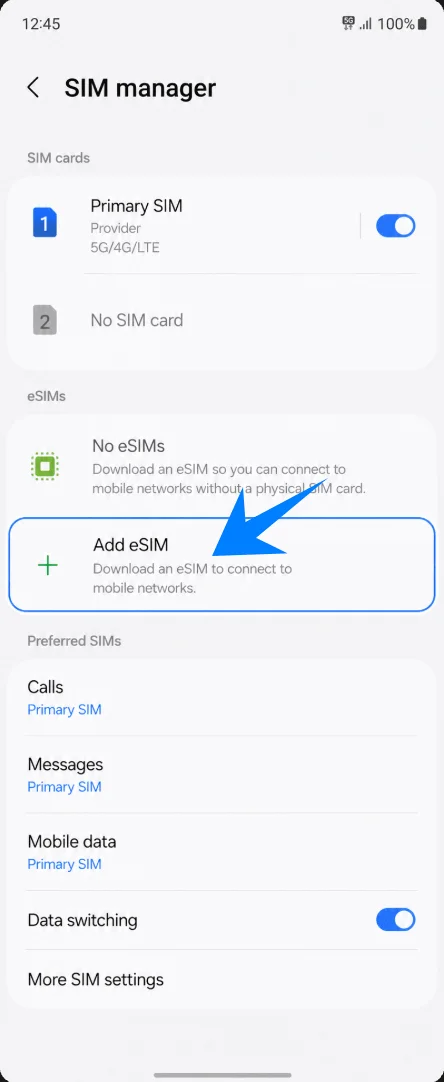
Tap Add eSIM. The phone will open Samsung’s eSIM setup options.
Tap Scan QR code. This takes you to the camera-based eSIM activation screen.
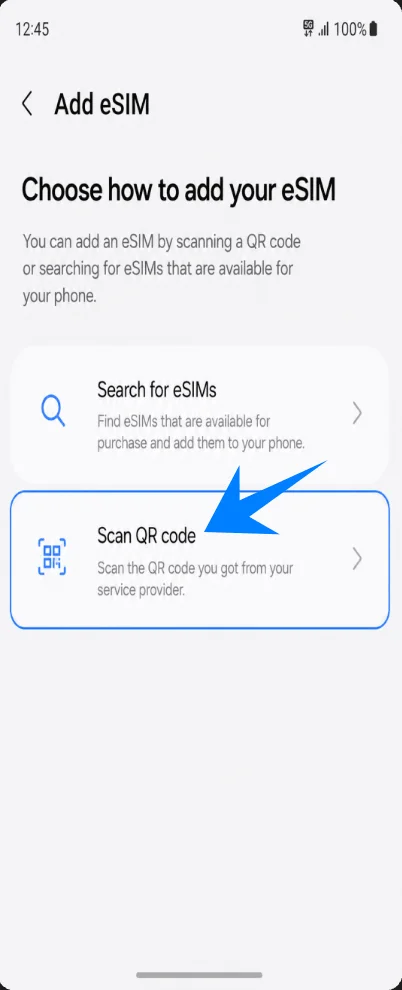
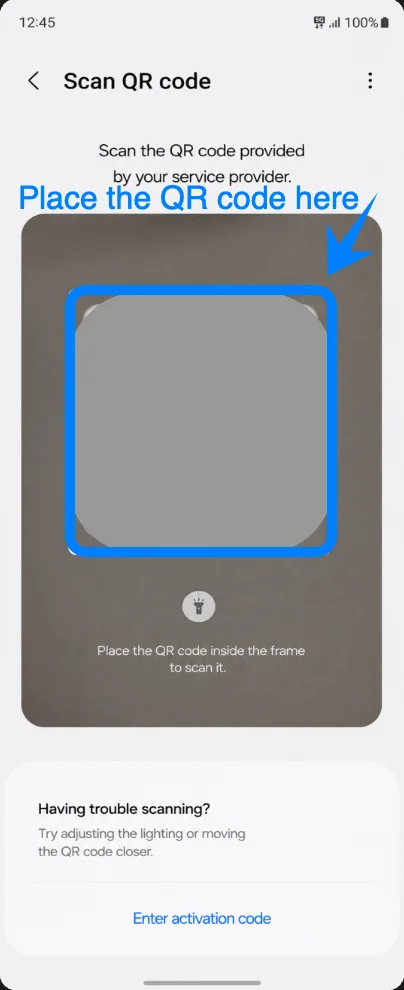
Method 1: Install the iRoamly eSIM by Scanning a QR Code
Point the Galaxy Z Flip or Galaxy Z Flip 5G camera at the iRoamly QR code. Keep the code inside the scan frame until the phone detects the eSIM.
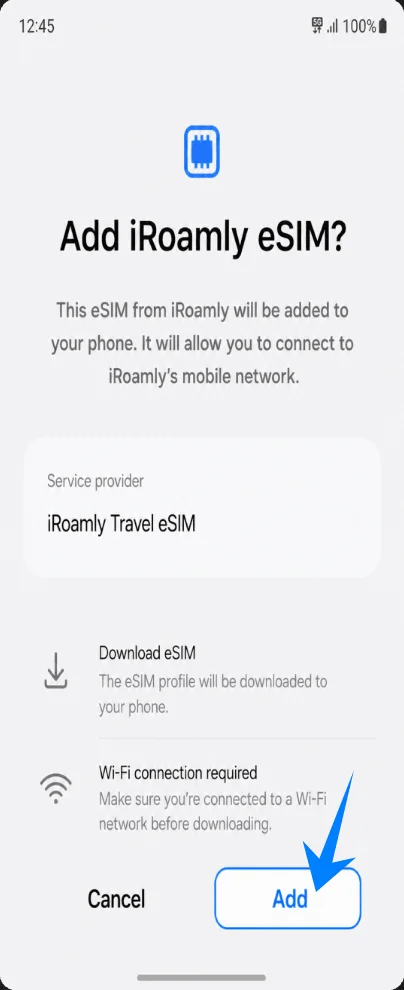
Tap Add when the phone shows the iRoamly eSIM confirmation screen. Stay on Wi-Fi while the eSIM downloads.
Method 2: Install the iRoamly eSIM by Manual Entry
Open Settings, tap Connections, tap SIM manager, tap Add eSIM, then tap Scan QR code. On the QR scan page, tap Enter activation code.
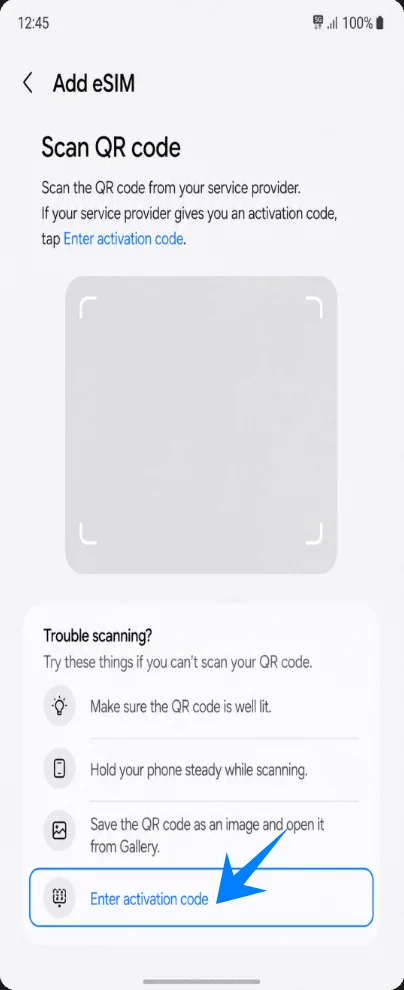
Enter the complete iRoamly activation code in the single Activation code field, then tap Done or Next. On Samsung One UI, this manual screen uses one full activation-code field, not separate SM-DP+ Address and Activation Code boxes.
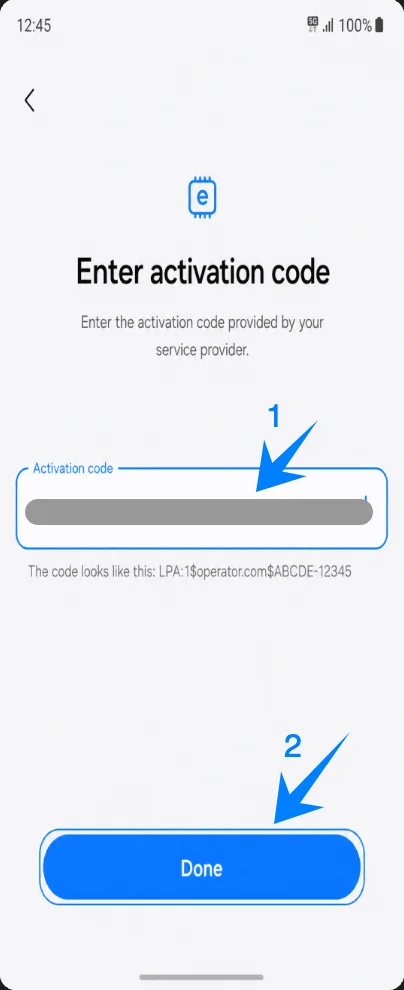
Tap Add when the iRoamly eSIM confirmation page appears. Keep Wi-Fi connected until the download finishes.
How to Confirm the iRoamly eSIM Was Installed
Go to Settings > Connections > SIM manager and check that iRoamly appears under the eSIM section. Make sure the iRoamly eSIM toggle is on when you are ready to use it.
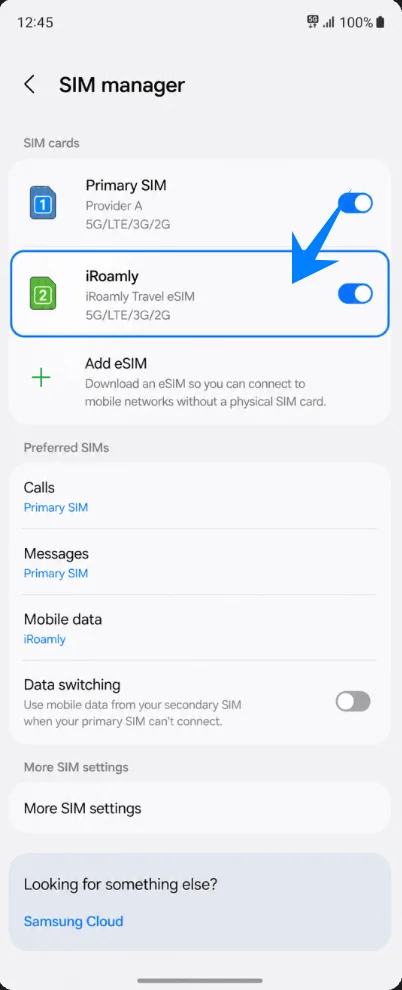
Set Up the iRoamly eSIM for Travel Data
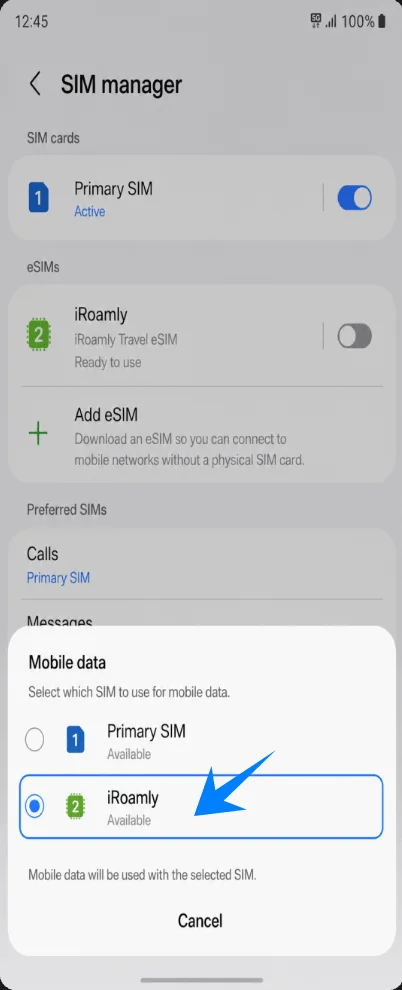
In SIM manager, tap Mobile data, then select iRoamly. This makes the iRoamly eSIM the line used for internet access.
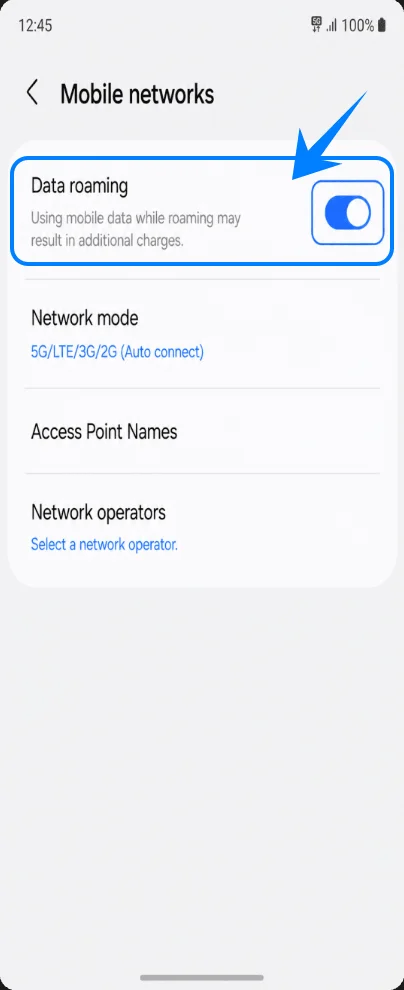
Go to Settings > Connections > Mobile networks, then turn on Data roaming if your iRoamly plan or destination requires it.
Troubleshooting
If Add eSIM is missing, check whether your Galaxy Z Flip or Galaxy Z Flip 5G regional variant supports eSIM, update One UI, confirm the phone is unlocked, and look for an EID in the phone information.
If the QR code does not scan, use the manual method and enter the complete activation code exactly as iRoamly provides it.
If the QR code says it has already been used, do not delete the eSIM and try again repeatedly. Contact iRoamly support.
If the eSIM installs but has no data, select iRoamly for Mobile data, enable Data roaming, restart the phone, and confirm your plan covers the current destination.
If activation stays pending, keep Wi-Fi on and wait until you are in a supported destination network if the plan activates on first network connection.
If calls or SMS do not work, check the plan details. Many travel eSIM plans are data-only.
More Galaxy Z eSIM Setup Guides
Using another Galaxy Z foldable? These eSIM activation guides may help.
Conclusion
The Galaxy Z Flip or Galaxy Z Flip 5G’s built-in eSIM support allows you to manage your travel connectivity more efficiently while abroad. Once your iRoamly eSIM is activated, you can control your mobile data settings and SIM preferences directly from the device whenever needed.
By using eSIM technology, you get a more flexible and convenient way to stay connected during international travel while simplifying the entire mobile setup process.