
Using an eSIM on the Galaxy Z Fold5 5G gives you a more modern and convenient way to stay connected while traveling.
Unlike traditional SIM cards that need to be inserted and removed manually, an eSIM can be downloaded and activated digitally right from your device settings. This allows you to prepare your travel data before departure and avoid dealing with physical SIM cards during your trip.
eSIM also makes it easier to manage multiple mobile plans on one phone, which is especially useful if you want to keep your primary SIM active while using a separate travel data plan.
Whether this is your first time setting up an eSIM or you simply need help activating your iRoamly plan, this guide will walk you through the entire installation and setup process on the Galaxy Z Fold5 5G.
Preparations Before Setting Up iRomly eSIM
Connect the Galaxy Z Fold5 5G to Wi-Fi before adding the eSIM.
Make sure the phone is unlocked and the Add eSIM option appears in SIM manager; some regional or carrier variants may limit eSIM features.
Keep your iRoamly QR code or manual activation code available on another device, in your email, or in your iRoamly account.
Install the eSIM 1-2 days before travel when appropriate, then keep it off until you need it.
iRoamly plan validity starts from activation. For many iRoamly travel plans, activation and the validity period start automatically when the installed eSIM connects to a supported network at the destination; always check the exact validity policy for your purchased plan.
iRoamly plans may be data-only, or may include calls/SMS depending on the destination and package. Check the specific plan details before assuming voice calls or SMS are included.
Do not delete the eSIM casually after installation. Many eSIMs cannot simply be reinstalled from the same QR code.
Method 1: Install the iRoamly eSIM by Scanning a QR Code
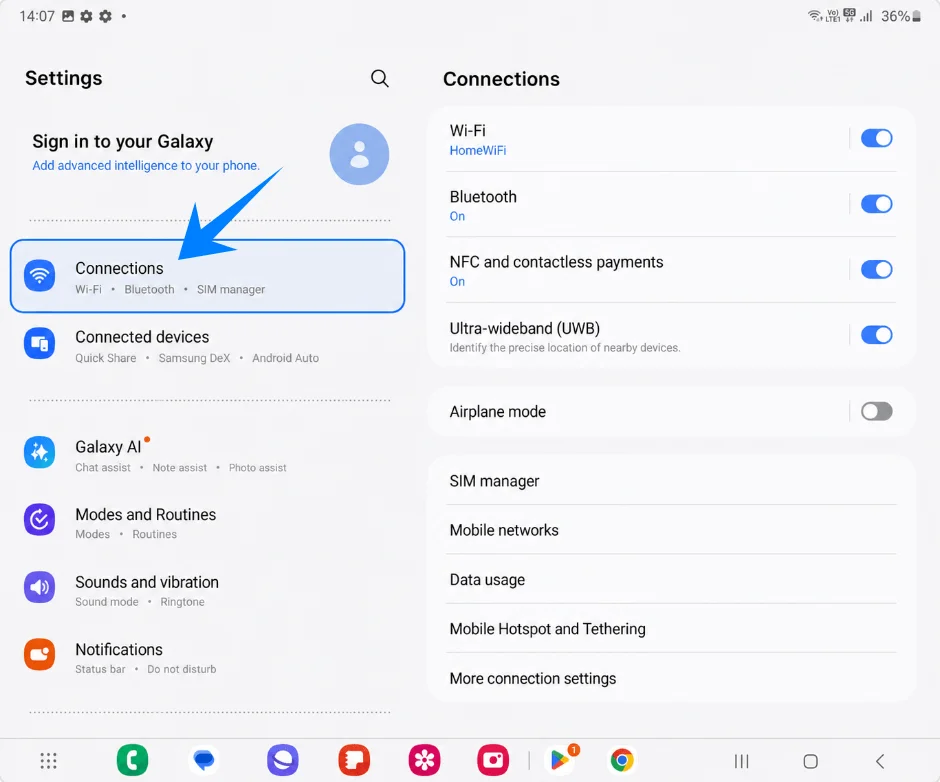
Open Settings with the Galaxy Z Fold5 unfolded, then tap Connections in the left Settings list. You should see the Connections page on the right side of the screen.
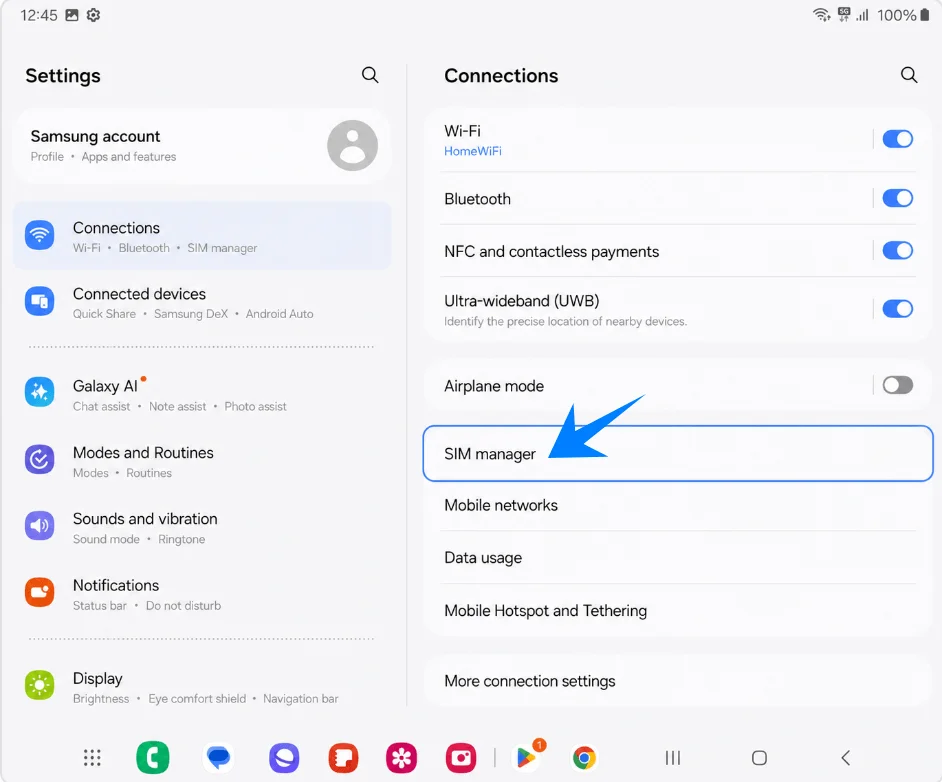
Tap SIM manager on the Connections page. The SIM manager page should open on the right side.
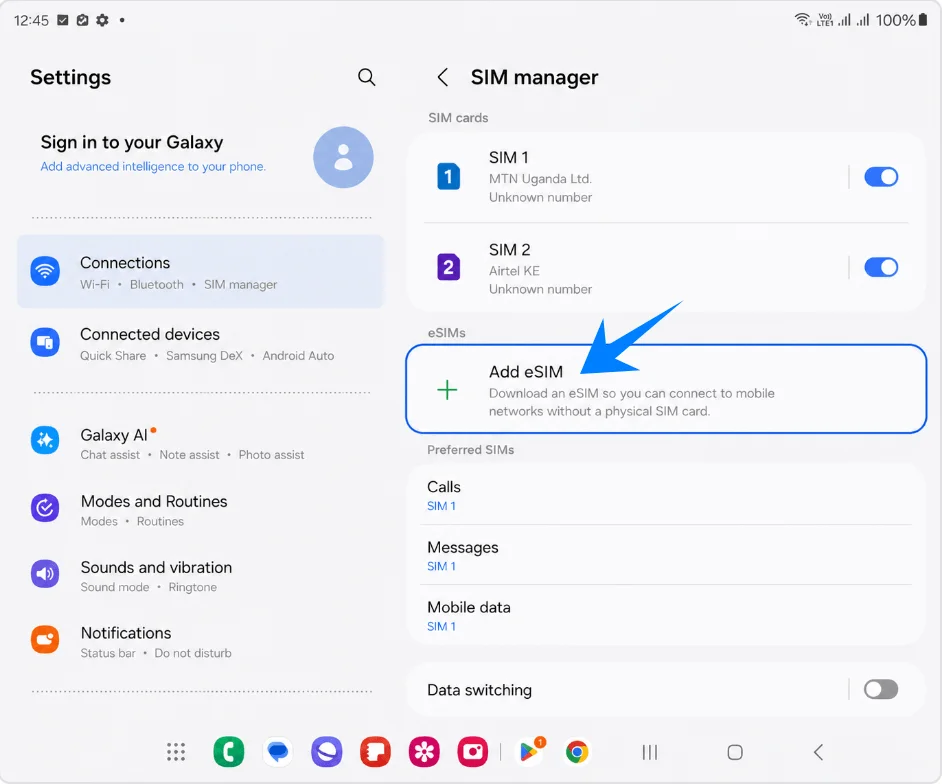
In SIM manager, tap Add eSIM under the eSIMs section. Samsung will open the eSIM setup options.
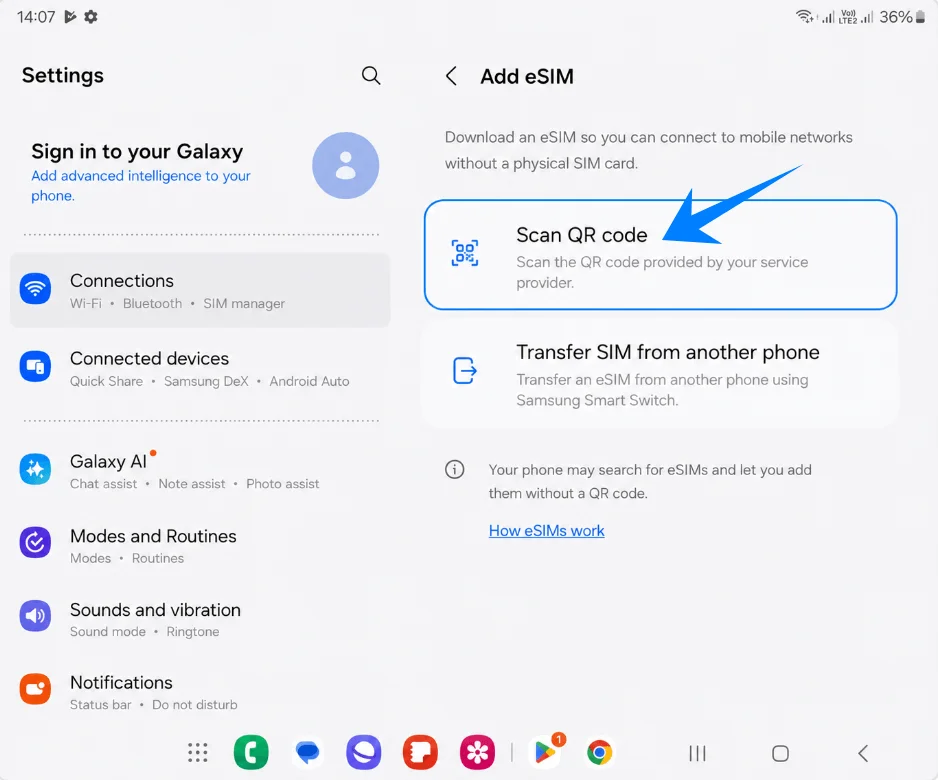
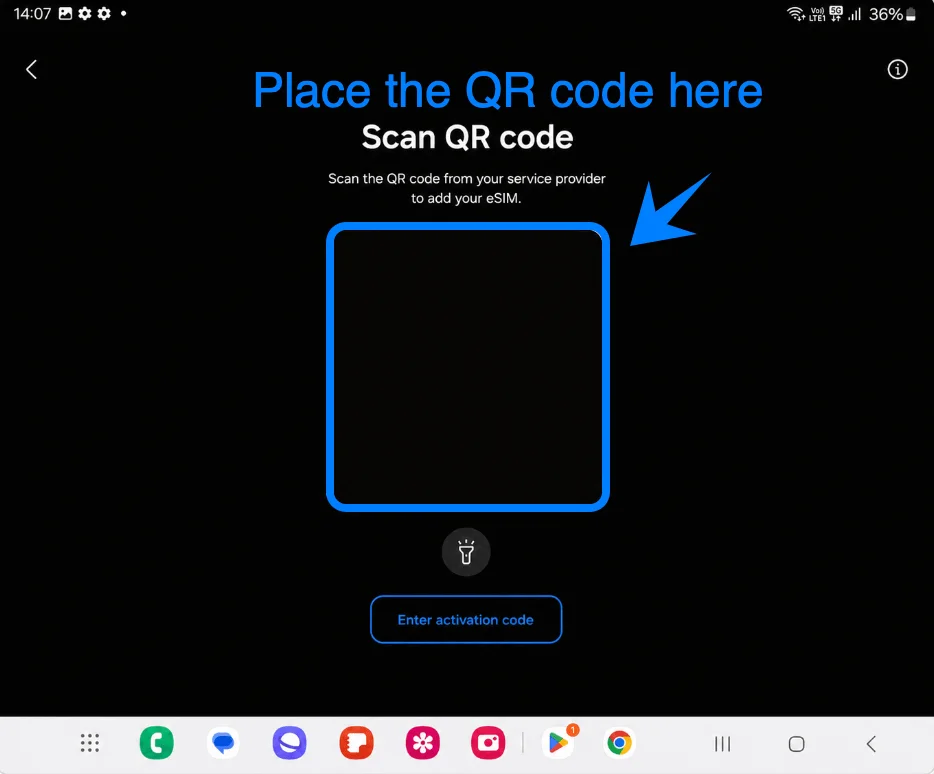
Tap Scan QR code. The Galaxy Z Fold5 will open the QR scanner for eSIM setup.
Point the scanner at the iRoamly QR code from your order page or email. Keep the QR code inside the frame until the phone detects it.
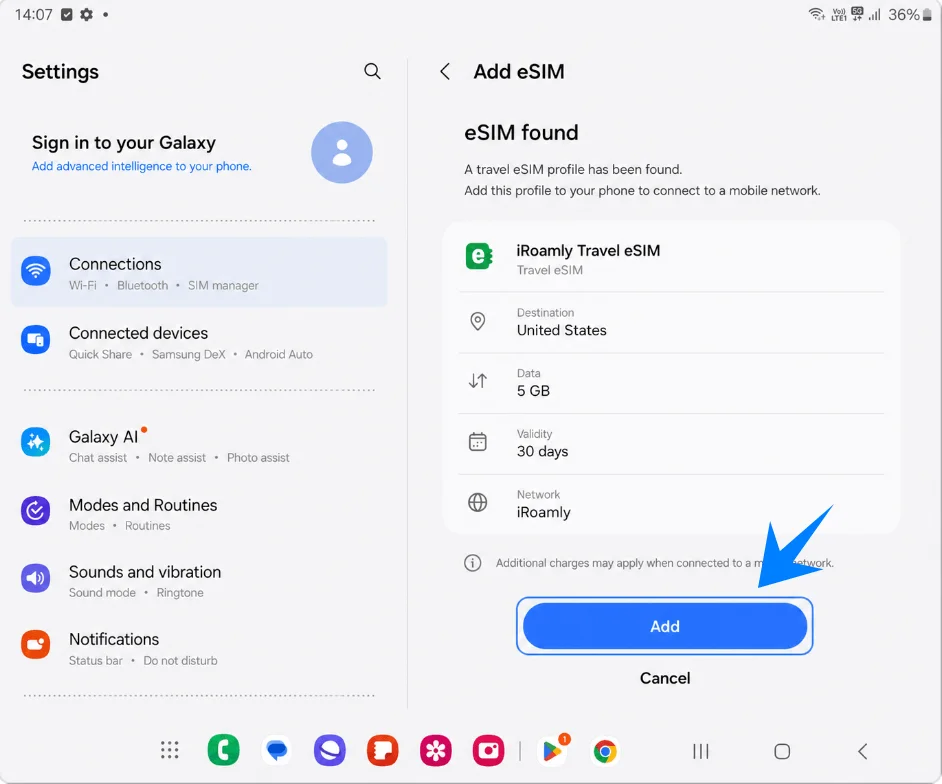
When the iRoamly profile is found, review the profile name, then tap Add. Keep Wi-Fi connected while the eSIM downloads.
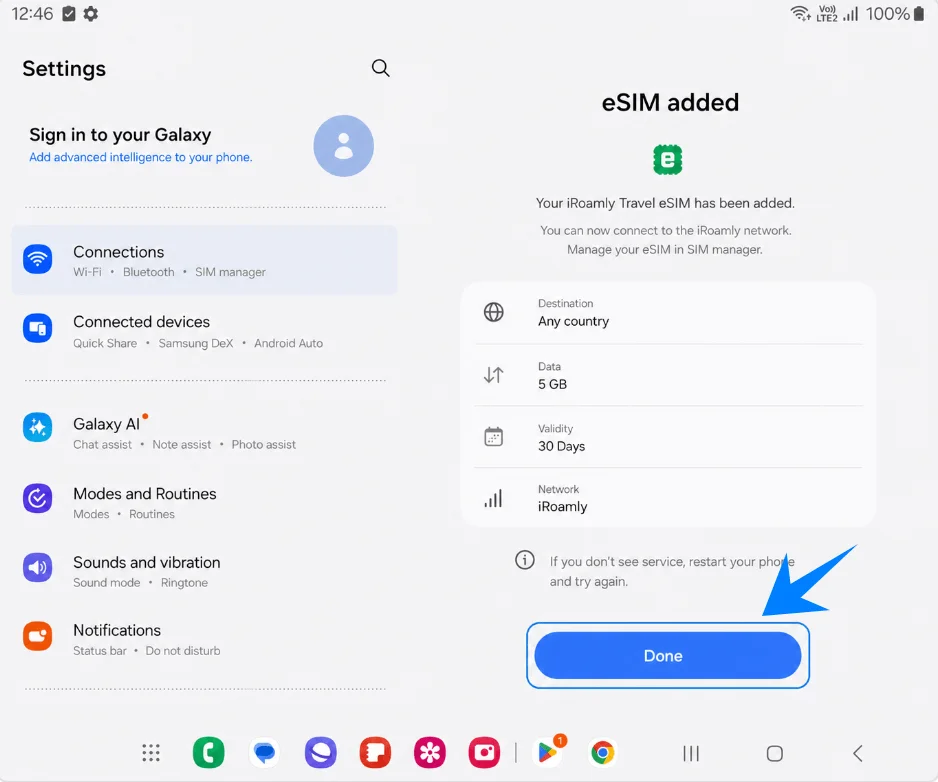
When Samsung shows that the eSIM has been added, tap Done. If service does not appear later at your destination, restart the phone after confirming the settings below.
Method 2: Install the iRoamly eSIM by Manual Entry
Open Settings with the Galaxy Z Fold5 unfolded, then tap Connections in the left Settings list. The Connections page should appear on the right.
Tap SIM manager on the Connections page. This opens the SIM manager where physical SIMs and eSIMs are listed.
Tap Add eSIM under eSIMs. Samsung will open the eSIM setup options.
Tap Scan QR code. This is also the route to Samsung's manual activation-code option.
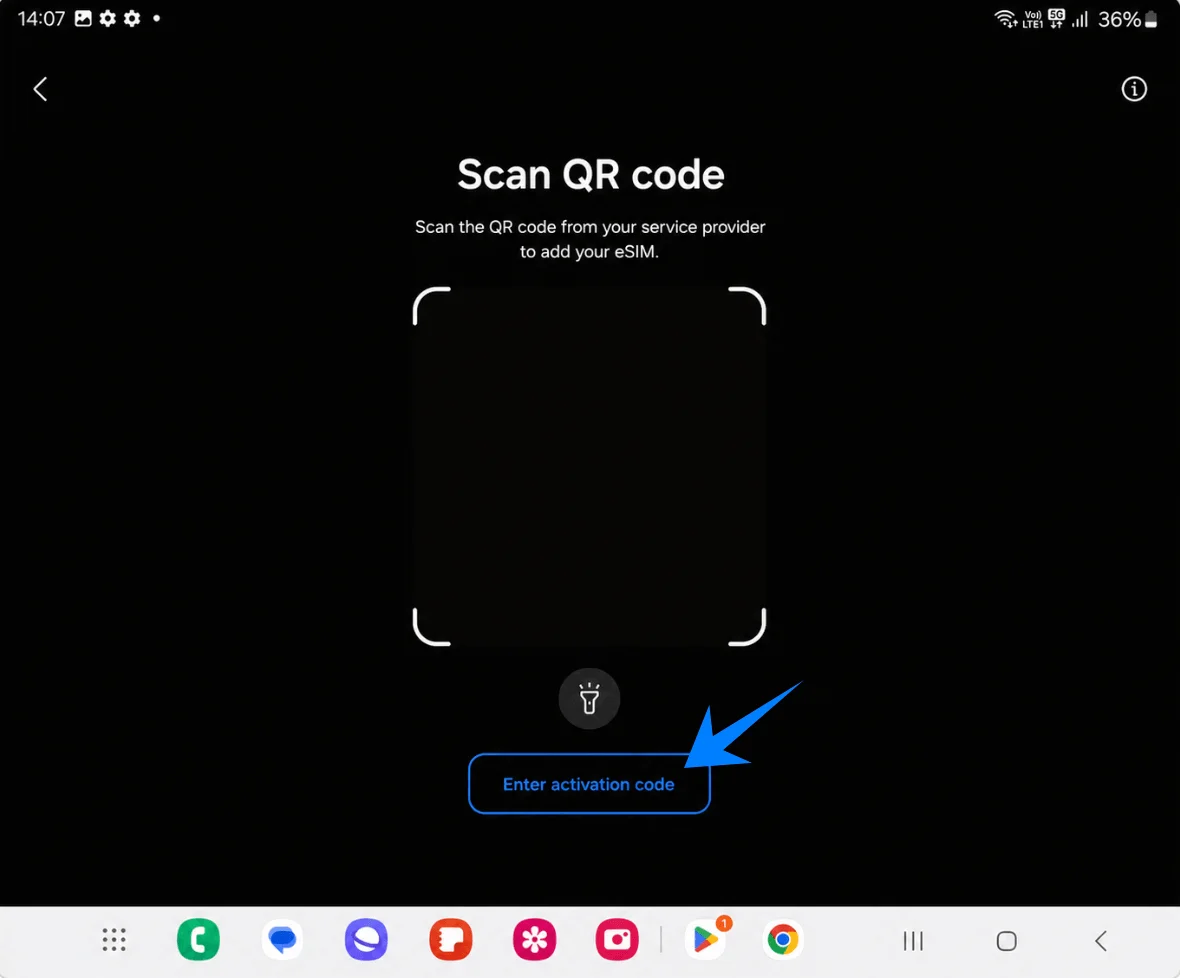
On the QR scanner screen, tap Enter activation code. This opens Samsung's manual eSIM entry page.
Paste the complete iRoamly activation-code string into the single Activation code field, then tap Add. Use the exact code from iRoamly; do not split it into separate SM-DP+ and activation-code fields on this Samsung screen.
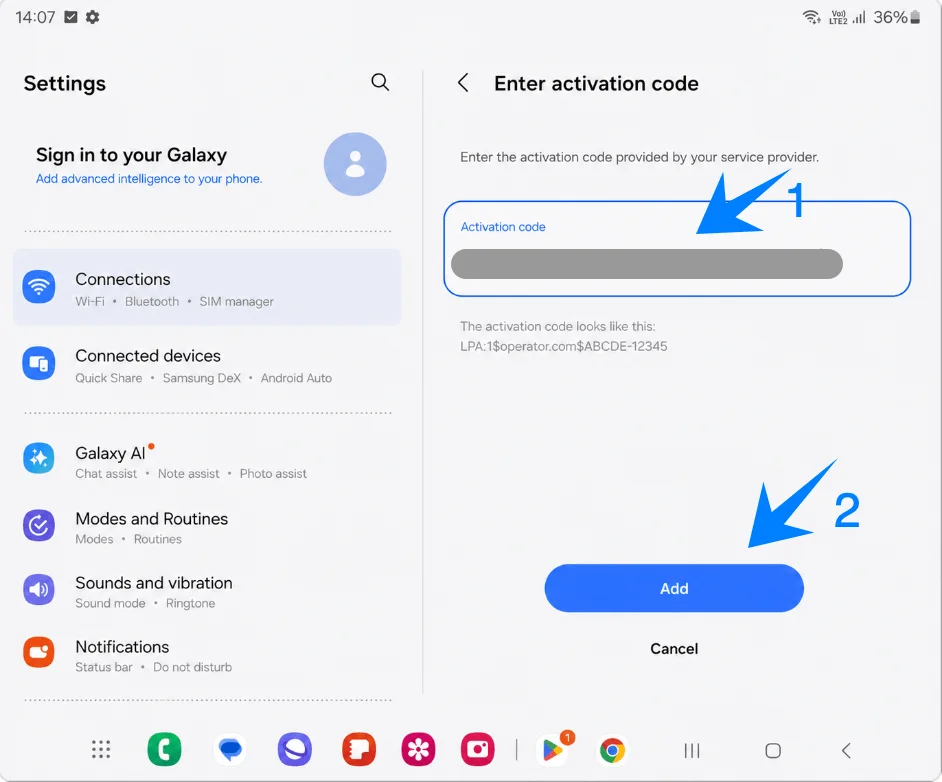
When the iRoamly profile is found, review the profile name, then tap Add. Keep the phone on Wi-Fi while Samsung downloads the eSIM.
When the eSIM has been added, tap Done. Leave the eSIM installed even if you do not plan to use it until arrival.
How to Confirm the iRoamly eSIM Was Installed
Go to Settings > Connections > SIM manager, then check the eSIMs section. iRoamly Travel eSIM should appear, and its switch should be turned on when you are ready to use it.
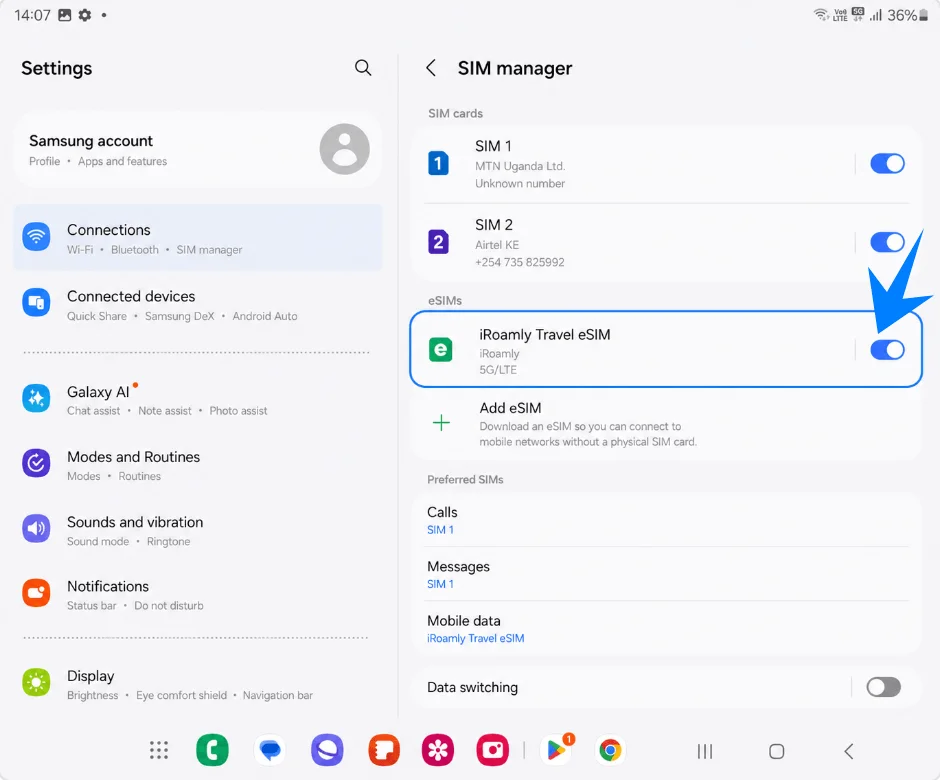
Set Up the iRoamly eSIM for Travel Data
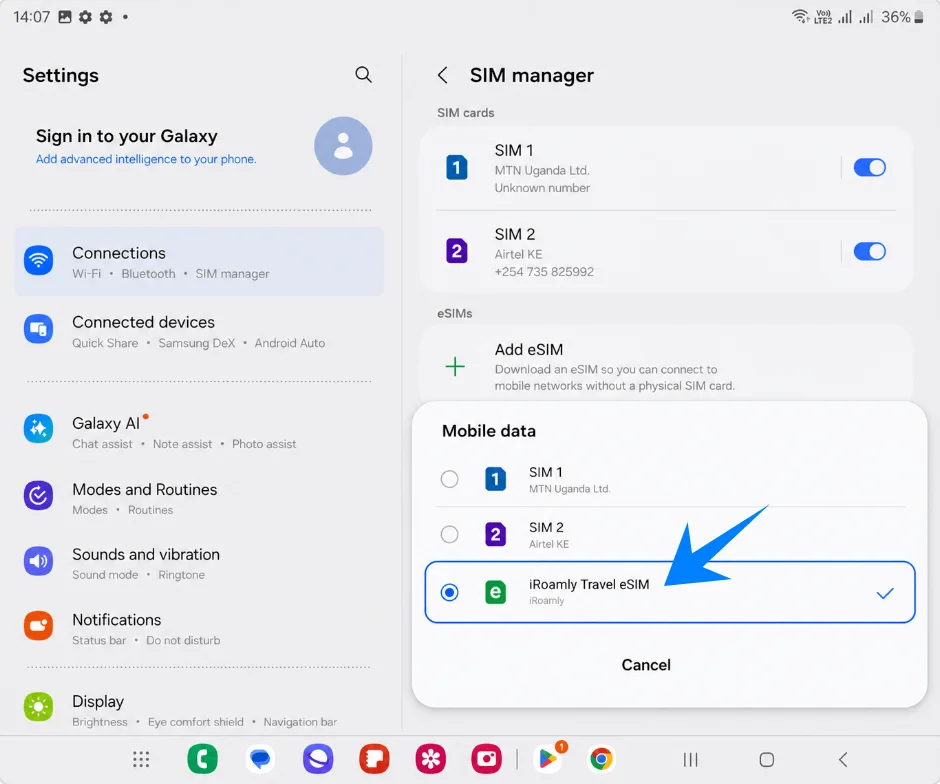
In SIM manager, tap Mobile data, then choose iRoamly Travel eSIM. Keep Calls and Messages on your primary SIM unless your iRoamly plan specifically includes voice calls or SMS.
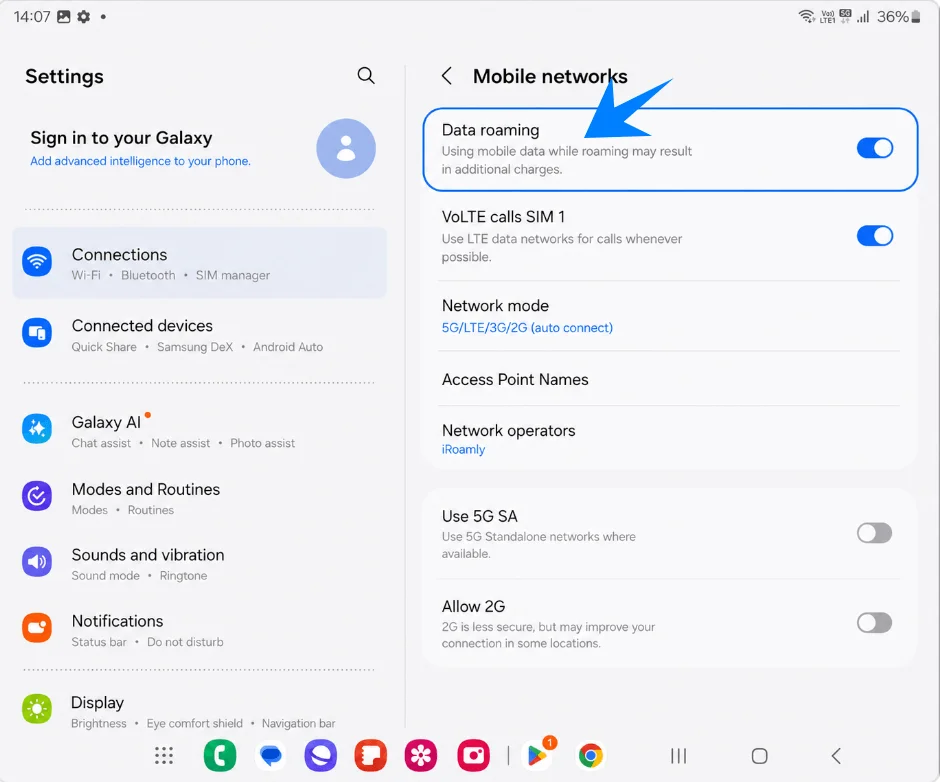
Go to Settings > Connections > Mobile networks, then turn on Data roaming if your iRoamly destination plan requires roaming. Keep Data switching off if you want to avoid the phone moving mobile data back to your primary SIM.
Troubleshooting
No Add eSIM: Update One UI, check that the phone is unlocked, confirm the Galaxy Z Fold5 5G variant supports eSIM in your country, and look for an EID in device information. Some carrier or regional firmware builds can hide eSIM setup.
QR code will not scan: Increase screen brightness on the device showing the QR code, clean the camera lens, use Wi-Fi, or switch to the manual-entry method. A QR code that has already been used may not work again.
Manual code fails: Use the complete activation string in the single Samsung Activation code field. Check for missing characters, extra spaces, and the LPA:1$... prefix if you had to combine separate iRoamly details.
eSIM is installed but there is no data: Select iRoamly Travel eSIM for Mobile data, turn on Data roaming when required, confirm the destination is covered by your plan, restart the phone, and wait a few minutes for network registration.
Activation is pending: Stay on Wi-Fi, keep the eSIM switched on, and test again after reaching a covered destination network. Some travel eSIMs do not fully activate until they connect in the supported region.
You are worried about validity: iRoamly plan validity starts from activation, so check your order details before turning the eSIM on for data too early.
You need calls or SMS: Do not assume they are included. Many travel eSIM plans are data-only; check the specific iRoamly plan before routing calls or messages away from your primary SIM.
You deleted the eSIM: Do not keep trying the same QR code. Contact iRoamly support because many eSIM profiles cannot be reinstalled after removal.
Conclusion
With the installation finished, your Galaxy Z Fold5 5G can now handle travel connectivity in a more seamless way. The iRoamly eSIM can remain stored on the device for easier access later, and managing mobile data settings becomes much quicker directly from SIM manager.
Whether you need to switch networks, enable data, or adjust SIM preferences, everything can be done digitally without interrupting your regular phone setup.