
One of the biggest benefits of eSIM is that it simplifies the way you stay connected while traveling. Instead of buying and replacing physical SIM cards in different countries, you can install a mobile plan digitally and manage everything directly from your phone settings.
eSIM also helps reduce setup hassle. You can complete the installation before your trip, keep your main number active, and switch mobile data lines without removing any physical SIM cards.
For users who travel frequently or want a smoother mobile setup experience, eSIM provides a much more flexible solution.
This guide explains how to install and activate an iRoamly eSIM on the Galaxy Z Fold6 5G, including QR code setup, manual entry, and recommended data settings.

Prepare Your Travel Data with iRoamly
iRoamly Travel eSIM provides mobile data service through digital travel plans for destinations around the world.
Travelers can select destination-specific, regional, or global options when available, and plan allowance, validity, activation behavior, and included features can vary by destination. That gives a compatible phone a separate travel data line without needing to replace a physical SIM.
On an eSIM-capable Samsung Galaxy Z Fold6 5G, iRoamly can be added through the One UI eSIM setup flow before or during your trip. The guide below shows how to use QR-code setup or manual entry, then confirm the profile and select it for mobile data.
Preparations Before Setting Up iRoamly eSIM
Connect the Galaxy Z Fold6 5G to stable Wi-Fi before downloading the eSIM. Once you have chosen an eSIM for your destination, such as an eSIM for Japan or an eSIM for Italy, you can move on to adding the plan in Samsung SIM Manager.
Confirm the phone is unlocked, eSIM-capable, and allowed to add eSIM profiles in your region and carrier firmware.
Keep your iRoamly QR code and manual activation details nearby. iRoamly may show them on the purchase success page, in your account, or in your email.
Do not delete the iRoamly eSIM after installation unless iRoamly support tells you to. Many eSIMs cannot simply be reinstalled after removal.
Install the eSIM before travel when you have reliable Wi-Fi, but do not start using travel data until you are ready. iRoamly plan validity starts from activation; for many destination plans, validity begins when the eSIM connects to a supported network, so check the exact plan details.
iRoamly eSIM plans may be data-only. Voice calls and SMS vary by plan, so verify the plan details before relying on them.
Method 1: Install the iRoamly eSIM by Scanning a QR Code
Open Settings, then tap Connections. You should see the Galaxy connection settings page next.
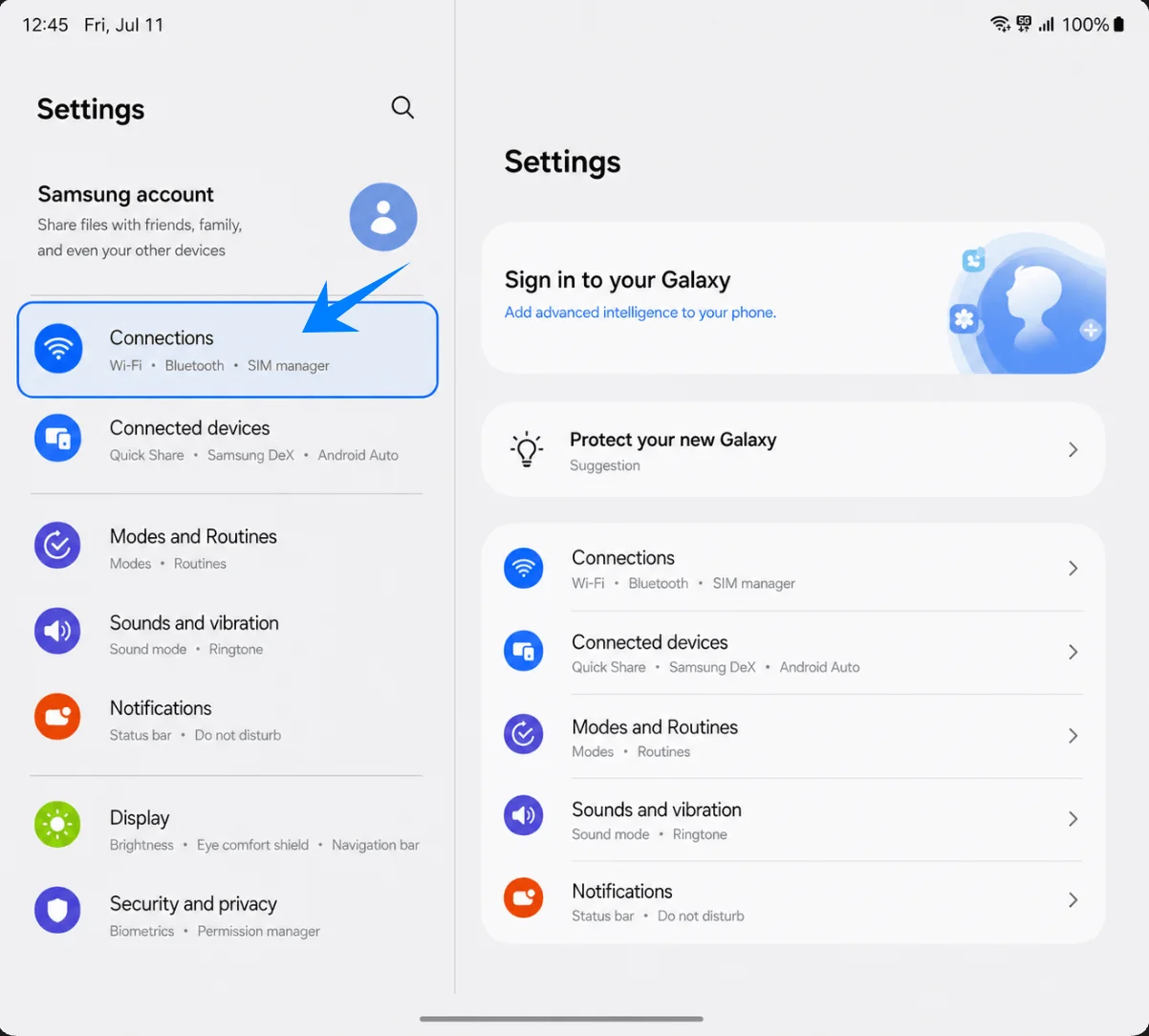
Tap SIM manager. This opens the page where Samsung manages physical SIMs and eSIMs.
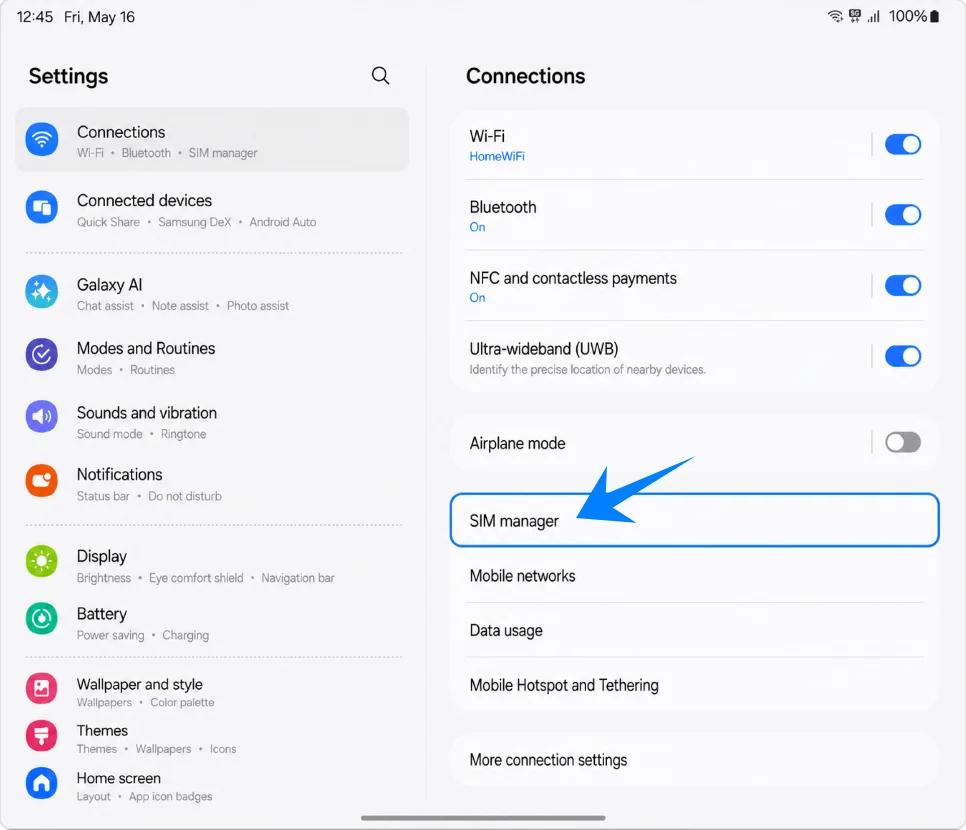
Tap Add eSIM in SIM manager. The phone should open the eSIM setup choices.
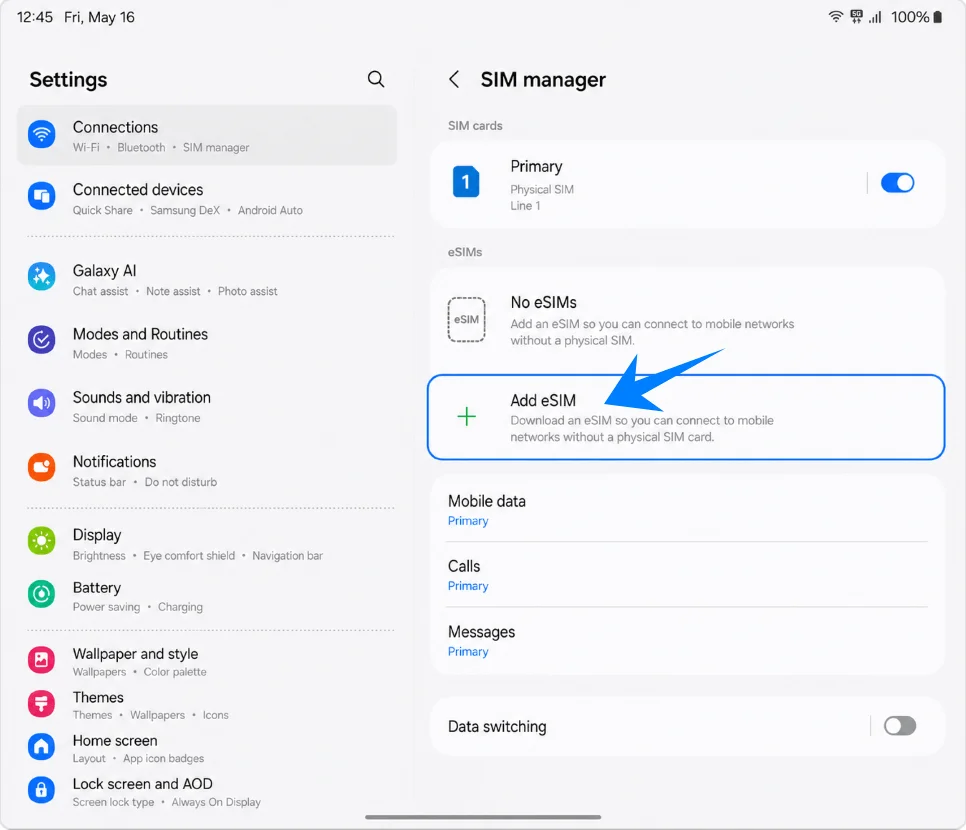
Tap Scan QR code. This opens the Samsung QR scanner for adding an eSIM profile.
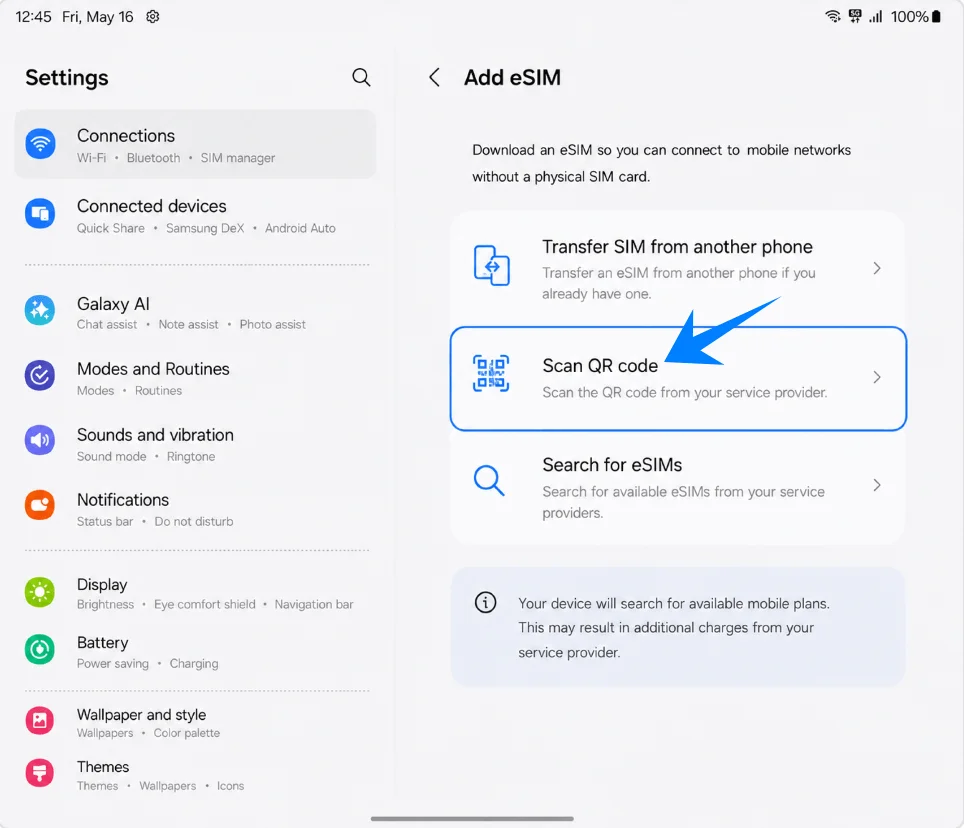
Point the scanner at the iRoamly QR code from another screen or printed page. Keep the full QR code inside the scan area until the phone recognizes it.
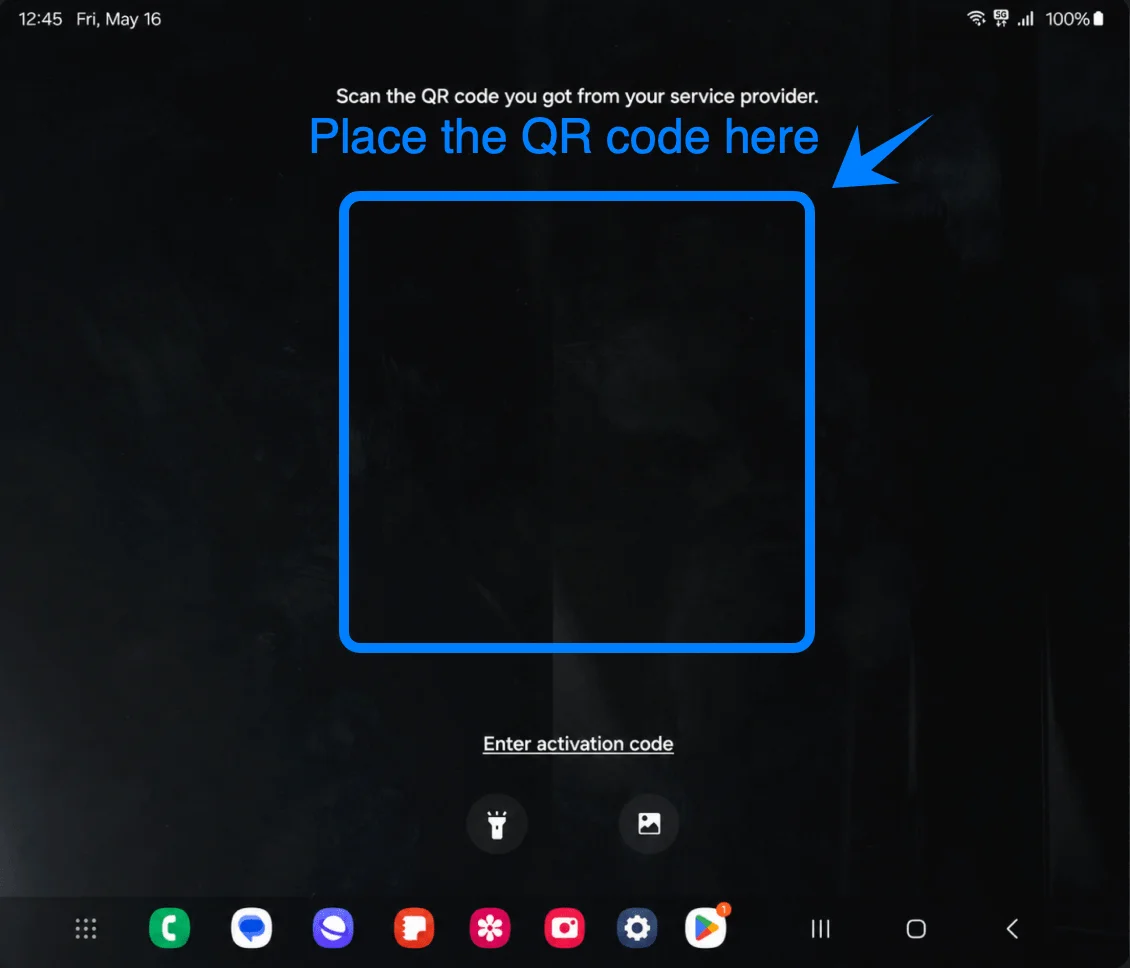
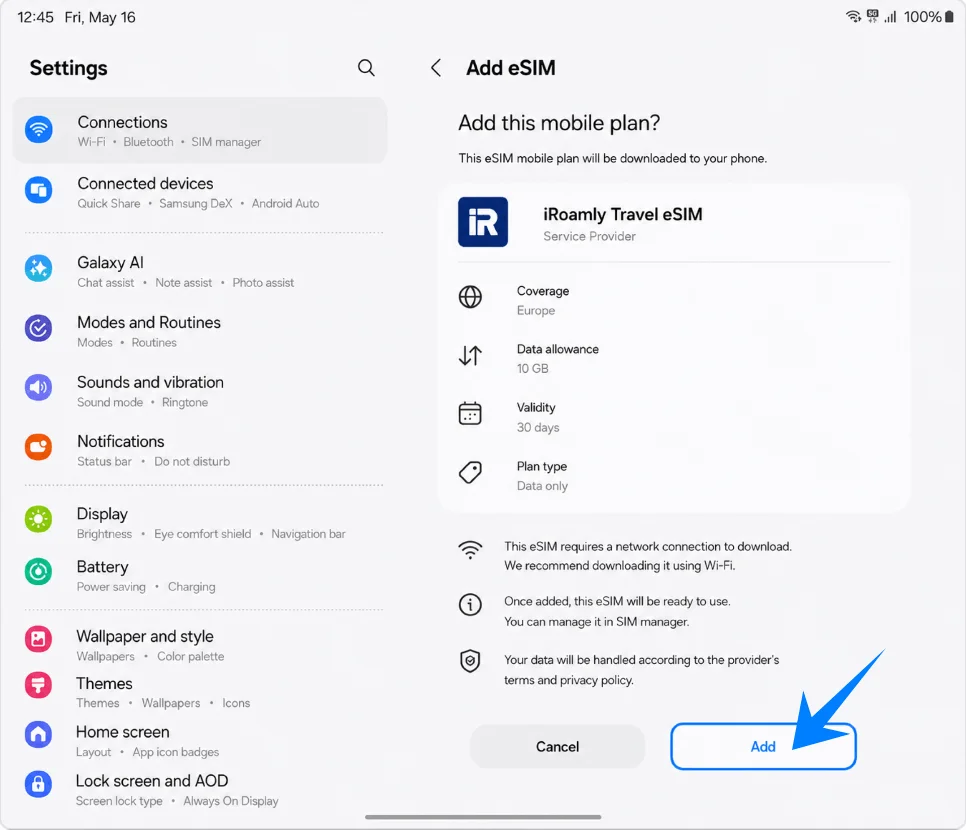
Review the detected plan, then tap Add. The iRoamly eSIM download should begin over Wi-Fi.
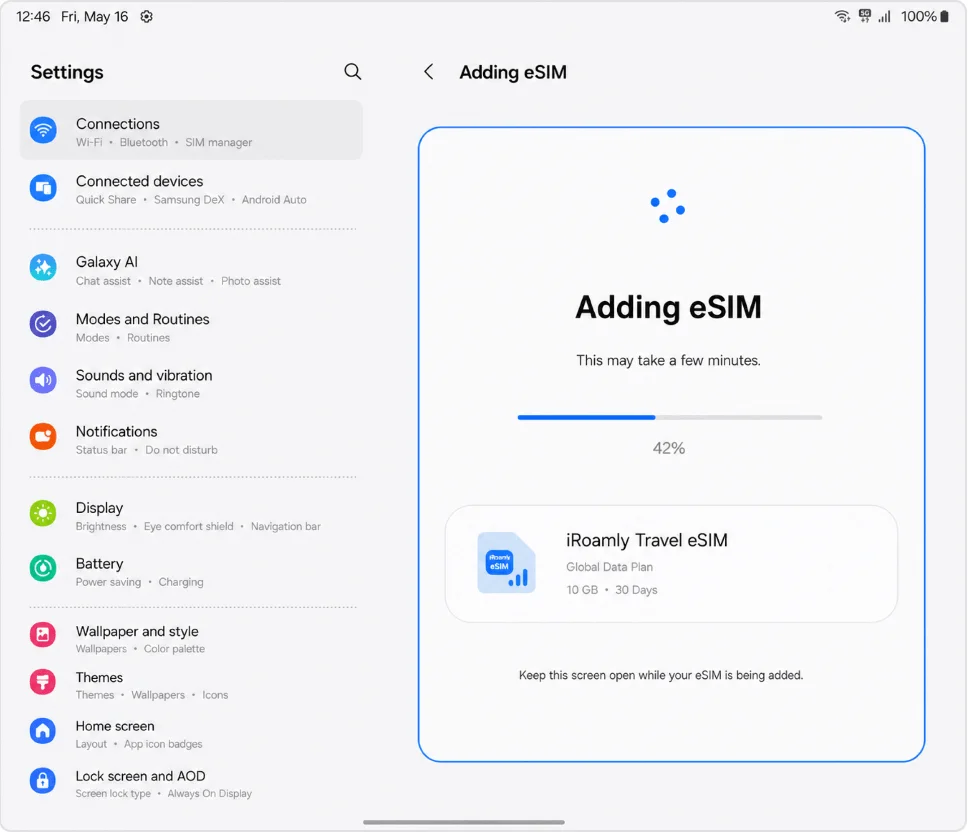
Keep the phone on Wi-Fi and wait while the screen shows Adding eSIM or a similar progress message. Do not leave setup until the profile finishes downloading.
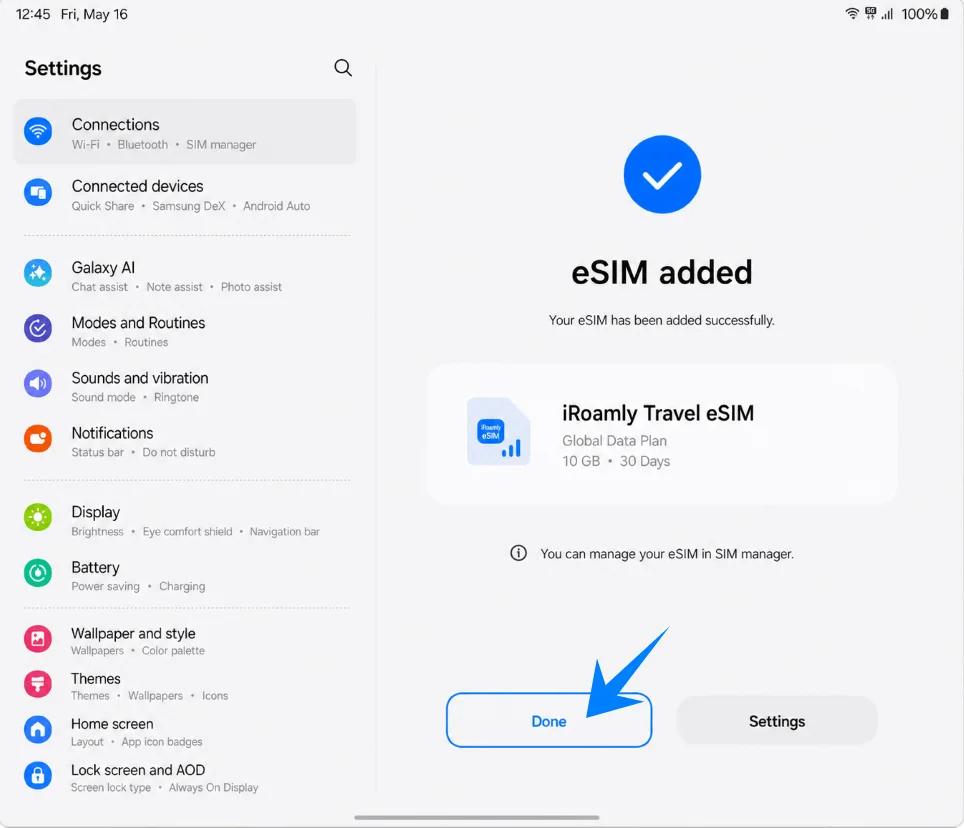
Tap Done when Samsung shows the eSIM added confirmation. If your device asks for a restart, restart before testing mobile data.
Method 2: Install the iRoamly eSIM by Manual Entry
Samsung's manual path on this flow uses Enter activation code from the QR scanner screen. Use the full activation-code string if iRoamly provides one. If iRoamly gives separate SM-DP+ Address and Activation Code values, enter them in Samsung's single activation field using this placeholder format: LPA:1$SM-DP-ADDRESS$ACTIVATION-CODE. Do not include real details in screenshots or public documents.
Open Settings, then tap Connections. You should see the same connection settings page used in the QR method.
Tap SIM manager. This opens the Samsung SIM and eSIM management page.
Tap Add eSIM. The phone should open the eSIM setup choices.
Tap Scan QR code. Manual entry is opened from the QR scanner page on this Samsung flow.
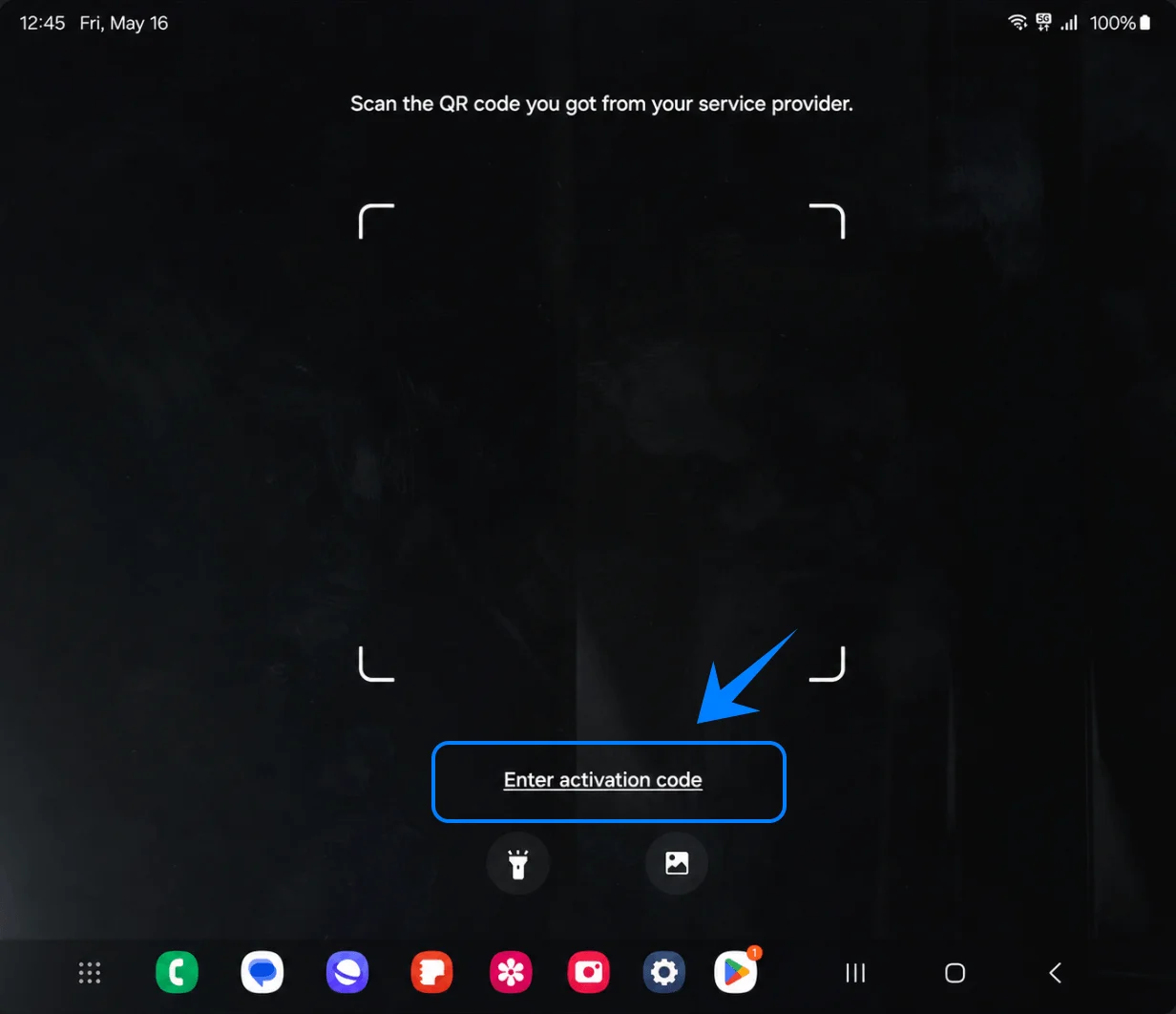
Tap Enter activation code at the bottom of the QR scanner screen. The phone should show a manual activation-code field.
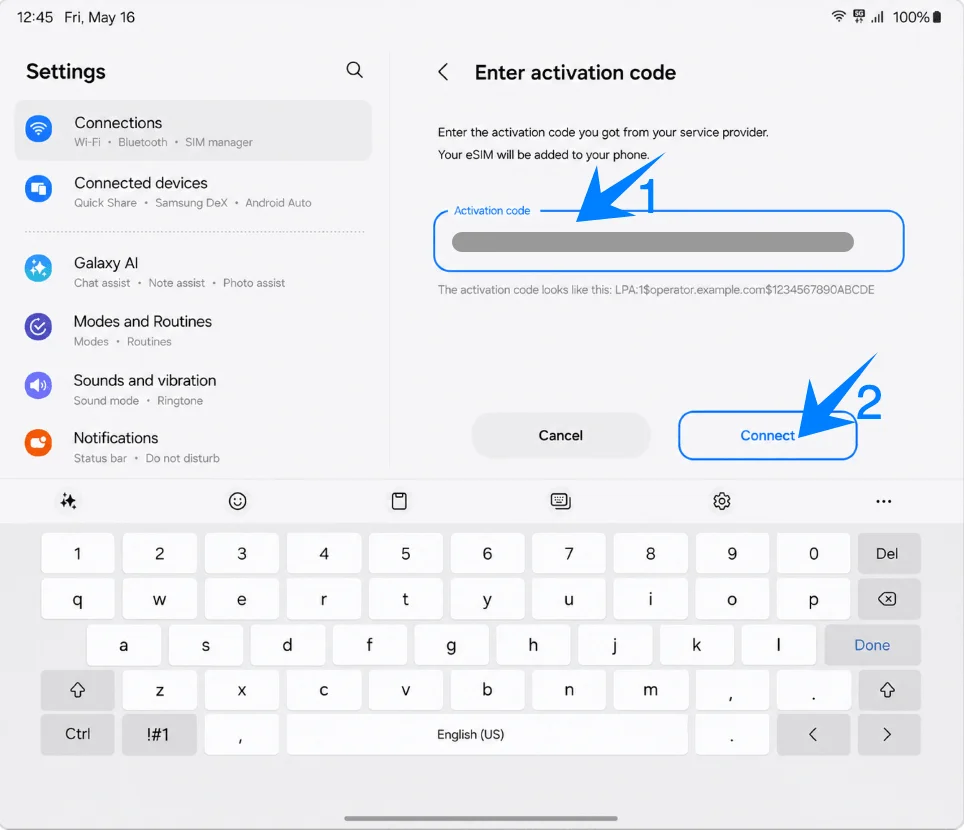
Type or paste the iRoamly activation-code string in Activation code, then tap Connect. Keep Wi-Fi connected while the phone checks the eSIM details.
Review the detected iRoamly plan, then tap Add. This starts the eSIM profile download.
Wait on the Adding eSIM screen until Samsung finishes downloading and installing the profile.
Tap Done on the confirmation screen. If prompted, restart the Galaxy Z Fold6 5G before using the new travel eSIM.
How to Confirm the iRoamly eSIM Was Installed
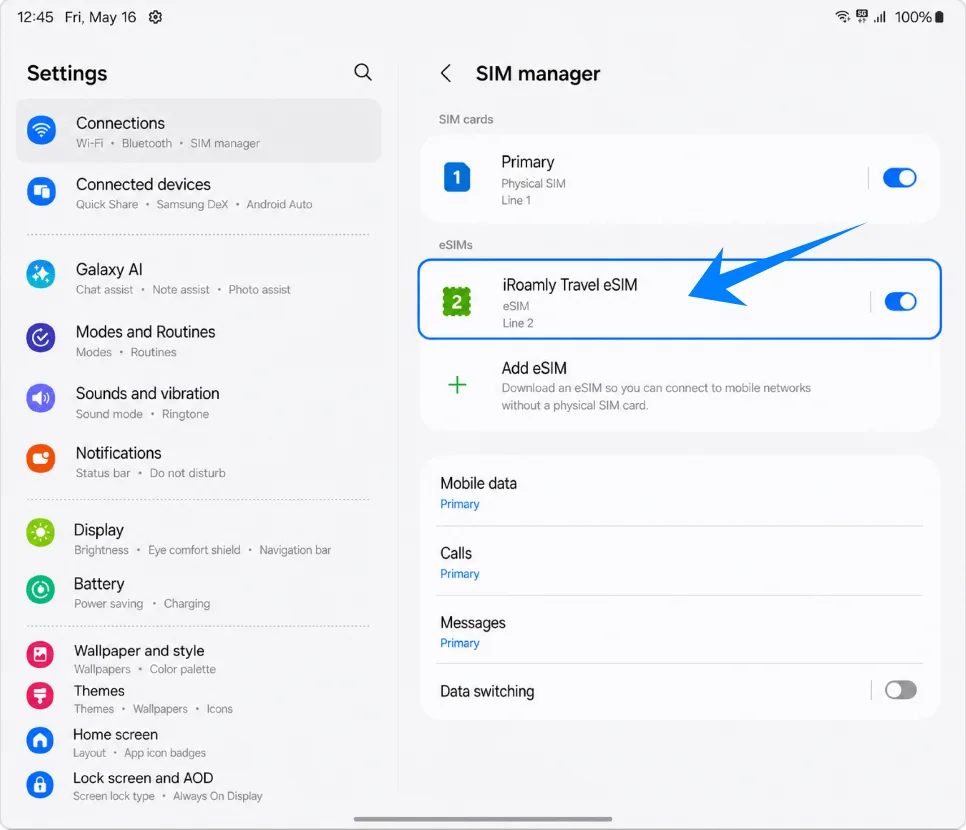
Open Settings > Connections > SIM manager and confirm iRoamly Travel eSIM appears under eSIMs. Make sure its switch is on.
Set Up the iRoamly eSIM for Travel Data
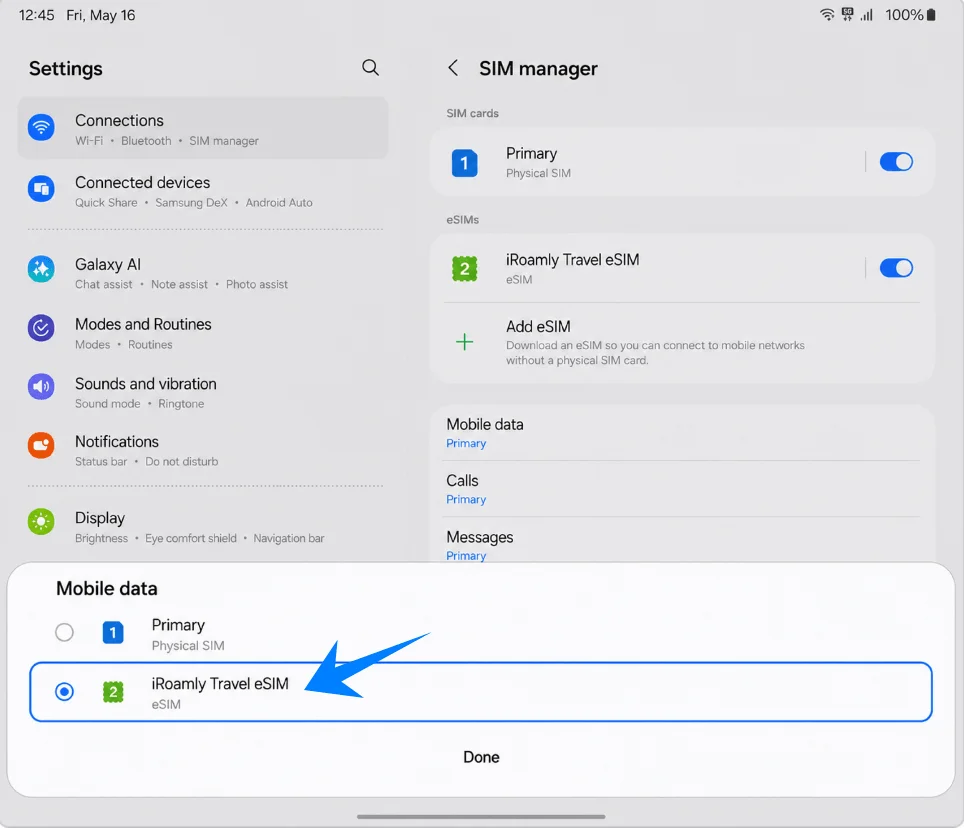
In SIM manager, tap Mobile data, then select iRoamly Travel eSIM. This makes iRoamly the line used for mobile data while you travel.
Open the iRoamly Travel eSIM line settings, then turn on Data roaming if your destination plan or iRoamly instructions require roaming. Travel eSIMs commonly need roaming enabled to connect to partner networks.
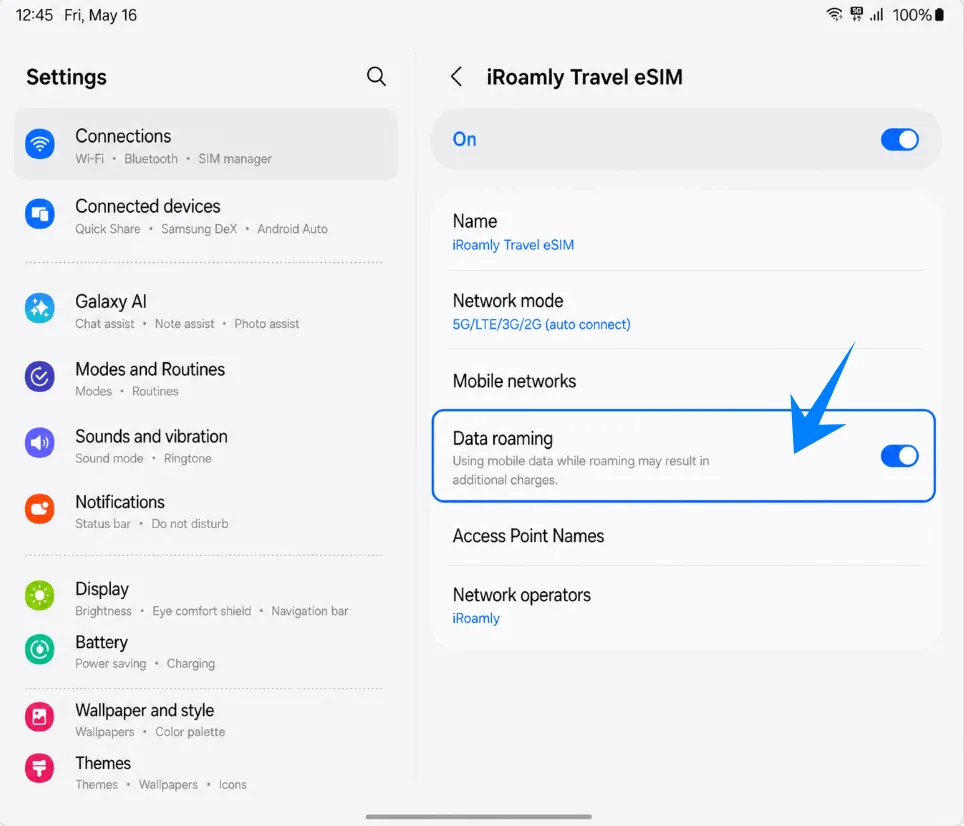
Return to SIM manager and review Data switching. If you want to avoid surprise use of your primary SIM, keep automatic switching off and leave Mobile data set to iRoamly Travel eSIM.
Troubleshooting
No Add eSIM: Update One UI, confirm the phone is unlocked, check that the regional model supports eSIM, and look for an EID in device settings. Some carrier firmware can hide or restrict eSIM setup.
QR code already used or will not scan: Use the manual method with Enter activation code. Make sure the QR code is not expired, already installed, cropped, too dim, or shown on the same phone you are trying to scan with.
Manual activation fails: Recheck the activation-code string. For Samsung's single Activation code field, use the full code exactly as provided, or combine separate iRoamly details as LPA:1$SM-DP-ADDRESS$ACTIVATION-CODE if that is the format your iRoamly order provides.
Installed but no data: Select iRoamly Travel eSIM for Mobile data, turn on Data roaming if required, restart the phone, and confirm the plan covers your current destination.
Activation pending: Stay on Wi-Fi, restart the device if Samsung recommends it, and wait until the phone reaches a supported destination network. Some travel plans do not start network service until you arrive.
Reinstall risk: Do not remove the eSIM to troubleshoot casually. Disable the line instead, because many eSIMs cannot be downloaded again after deletion.
Voice or SMS unavailable: Check the exact iRoamly plan. Many travel eSIM plans are data-only, and voice/SMS support is not guaranteed.
Validity period concerns: iRoamly plan validity starts from activation. Check your selected destination plan for the exact trigger, such as first connection to a supported network.
More Galaxy Z eSIM Setup Guides
Setting up another Galaxy Z device? These eSIM activation guides may help.
Conclusion
You now know how to install and set up your iRoamly eSIM successfully. From scanning the QR code to manually entering activation details, the entire process can be completed directly through your phone settings without using a physical SIM card.
After installation, make sure the eSIM is selected for mobile data and confirm that data roaming is enabled if required by your plan. Setting everything up before your trip can help you connect to mobile data more quickly once you arrive at your destination.